

Read time: 5 min
Outlook uses the MSG format to save individual emails, which makes it easy for users to access and share messages with colleagues, clients, and other members. This is a very useful format when you want to archive or transfer emails to another system. But doing it with the correct methods and proper guidance is necessary.
Through this blog, you will know how to save Outlook email as MSG file without losing data hierarchy. First, let’s know the reasons to save Outlook email to .msg extension.
Reasons to Convert Outlook Emails to MSG
The following are some prominent reasons listed to convert Outlook emails to MSG:
- Email structure preservation: MSG files preserve emails in their original structure.
- Oversized file management: Saving Outlook emails in MSG helps in managing oversized PSTs.
- Compliance and regulations: Saving emails with headers, metadata, and timestamps meets regulatory needs.
- Migration to another platform: MSG format allows you to move important Outlook emails to another platform.
- Archiving old email items: When creating a secure archive of old emails, MSG files stand as the best format.
- Easy sharing of selective data: Saving specific emails in MSG and sharing with others.
Best Methods to save Outlook email as MSG file
There are only two manual methods available to save Outlook email as MSG file using Outlook, which are described below in detail. Follow the steps for 100% guaranteed results:
Method 1. Using Save As option
Outlook provides an inbuilt option to save Outlook email to .msg extension. Here’s how to execute it:
Step 1. In Outlook, double-click on the required email message and open it in a new window.
Step 2. Click on the File button located at the top left corner.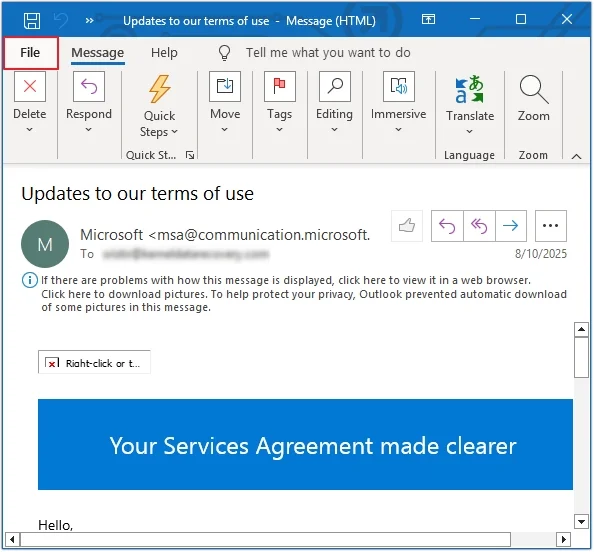
Step 3. Click on the Save As option to proceed.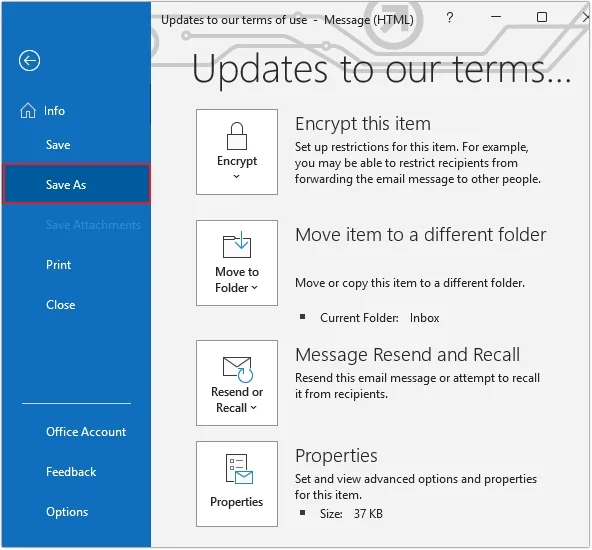
Step 4. Provide a saving location and select Outlook Message Format– Unicode, then click Save.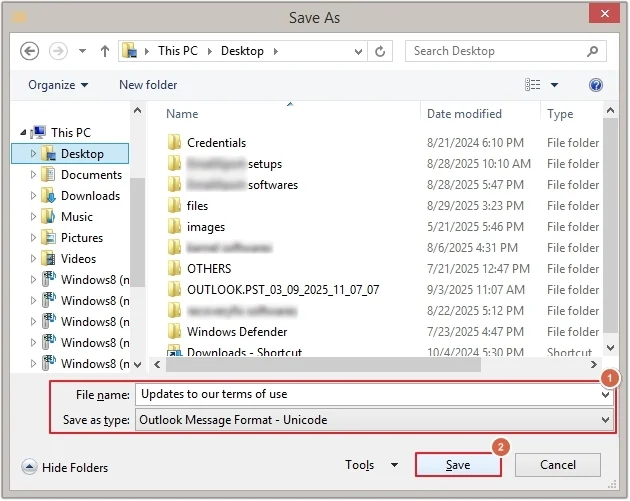
Method 2. Using drag and drop option
Another method is to drag and drop all the email from Outlook to the local system. Here are the steps to do so:
Step 1. Open Outlook and select required email or select all emails by clicking CTRL+A.
Step 2. Drag all the emails and drop them in any preferred folder or location.
Important Point: With the manual method, you can save a single email at a time, which is time-consuming. Thus, we recommend using an advanced tool to save email as MSG from Outlook.
Professional Way to Save Multiple Outlook Emails as MSG files – Recommended Solution
To save multiple Outlook emails as MSG file, we recommend using the best Email to PDF Converter tool. The Kernel Email to PDF Converter is a powerful software developed to save bulk Outlook emails in a single operation. The software allows you to perform customized process for error-free and 100% accurate results.
It comes with various inbuilt features, which are as follows:
- Allows to add single or multiple Outlook PSTs at a time.
- Offers smart filters for selective email conversion in the MSG file.
- Provides a preview of the source file before saving data.
- Supports oversized PST conversion without imposing any restrictions.
- Saves all emails, attachments, contacts, calendars, tasks, and others.
- Comes with a free trial version to save 10 items per folder for free.
Quick Steps to Save Outlook Email as MSG using Kernel Tool
Step 1. Open the software and click on + icon to add the Outlook PST file.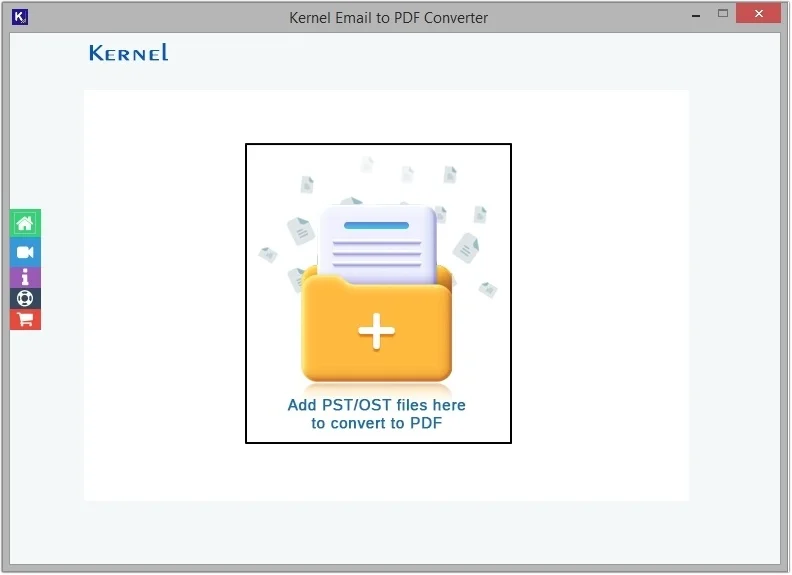
Step 2. Select the required PST and click Open.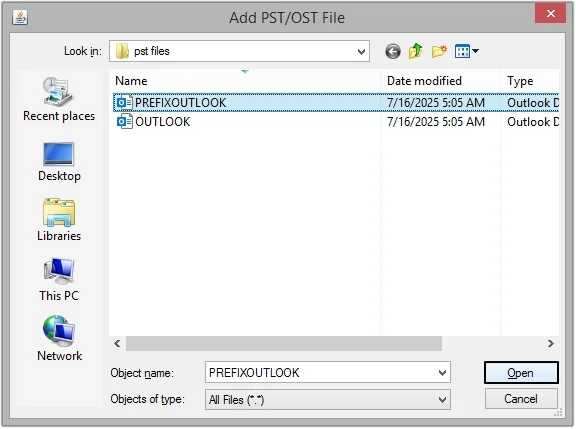
Step 3. Click on the Set Filter and Convert button.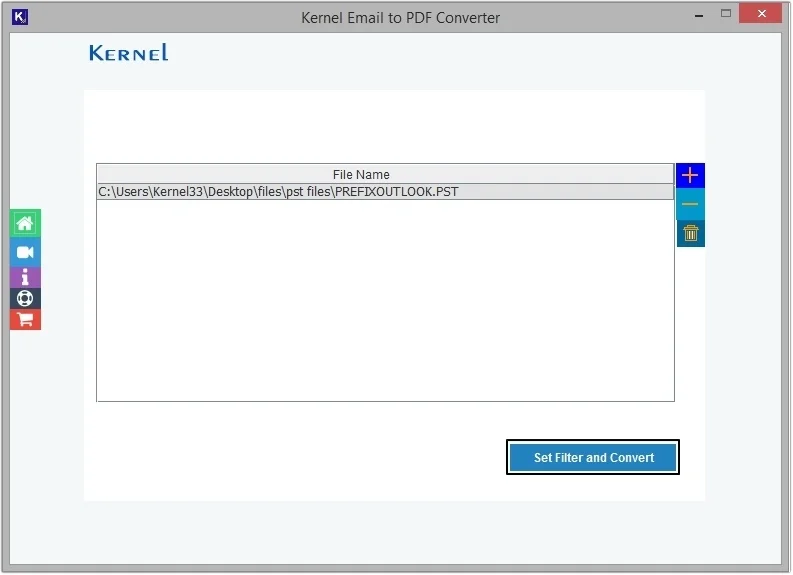
Step 4. Apply necessary filters and click Start Conversion.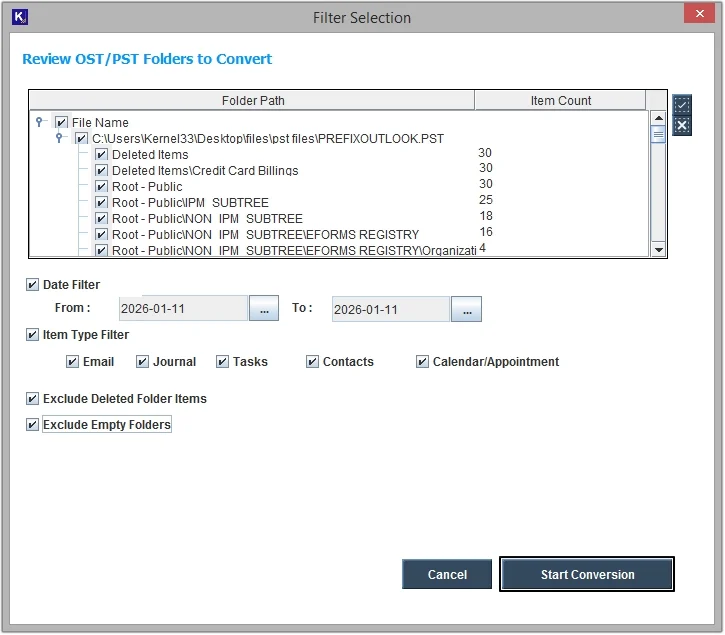
Step 5. Select MSG as the saving type, then click Browse to provide destination and click OK to execute the conversion.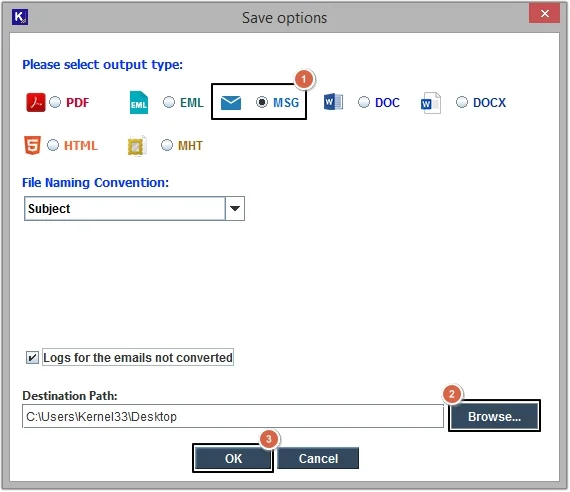
Step 6. The software will save Outlook email to .msg extension, click OK to exit process.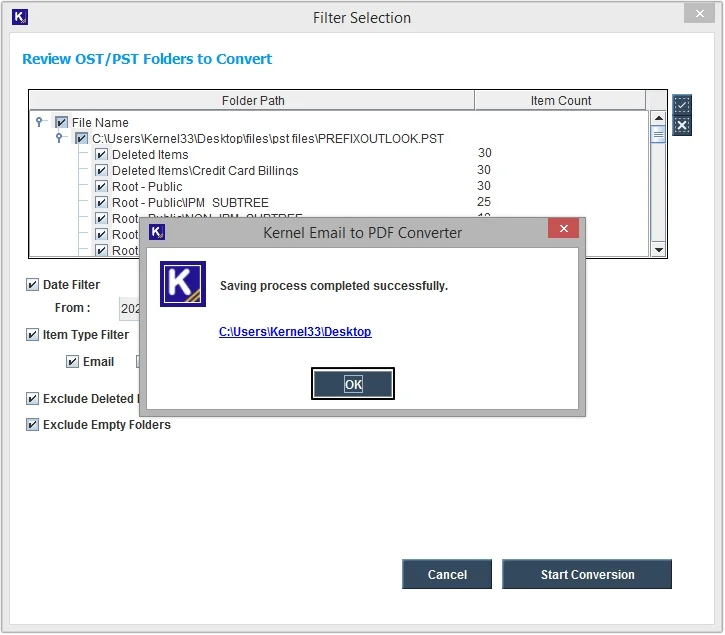
Conclusion
The process to save Outlook emails as MSG files is straightforward, but time-consuming and needs to be performed repeatedly. And in case you have thousands of emails, the manual methods won’t work correctly.
To save multiple Outlook emails as MSG, use our recommended tool to convert Outlook emails to MSG in a few simple steps with complete integrity. The software offers various advanced filtering options to ease the conversion process.
Frequently Asked Questions
A. Use Kernel Email to PDF Converter tool to save Outlook email to .msg extension without losing emails formatting.
A. To save multiple or bulk Outlook emails as MSG without any hassle, you must opt for the recommended Outlook to MSG Converter.
A. To convert Outlook emails to MSG manually, you can use Outlook’s Save As or a simple drag & drop option.
