Read time: 7 min
While it’s well known how popular Outlook is with organizations and business professionals, there are still certain situations where users plan to import PST files to Postbox Mail. Whether it’s because of shifting to a new email client or for better cross-platform accessibility, users look for ways to perform this process. Certain methods facilitate the transfer of Outlook PST files to Postbox, and we’re going to talk in detail about them. First, let’s know the common reasons for this shift.
Reasons to import PST to Postbox Mail
There are several reasons why users move Outlook PST files to Postbox format, such as:
- Shifting email clients: Importing PST files to Postbox is a smart decision when shifting from Outlook to Postbox. It helps move all your data to the new mailbox without losing anything.
- Cross-platform access: Postbox email client functions well on Windows OS and macOS, whereas PST files can only be accessed via Windows Outlook.
- Manage multiple mailboxes: Postbox email client manages multiple profiles together without any downtime. While Outlook users report facing frequent crashes and downtime, Postbox offers a faster and clean interface.
How to import PST to Postbox Mail with Thunderbird? Manual Solution
Users can’t import Outlook PST to Postbox Mail directly; there’s no way. However, there’s a workaround in which users can first import PST in Thunderbird and then move PST files to the Postbox email client. Follow the steps below to use Thunderbird:
Part 1: Import PST to Thunderbird
Step 1: Launch Thunderbird and click on Menu > Add-ons & Themes.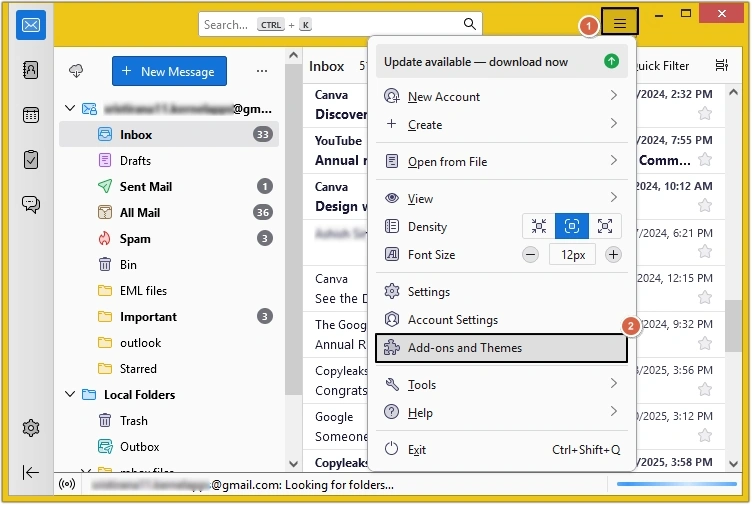
Step 2: Search for ImportExportTools NG add-on and install it in your Thunderbird application.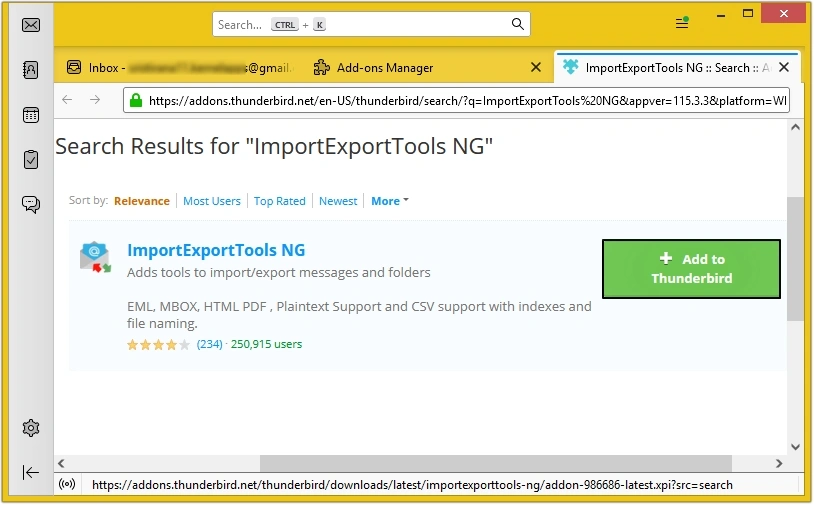
Step 3: Then open Menu again and click on Tools > Import.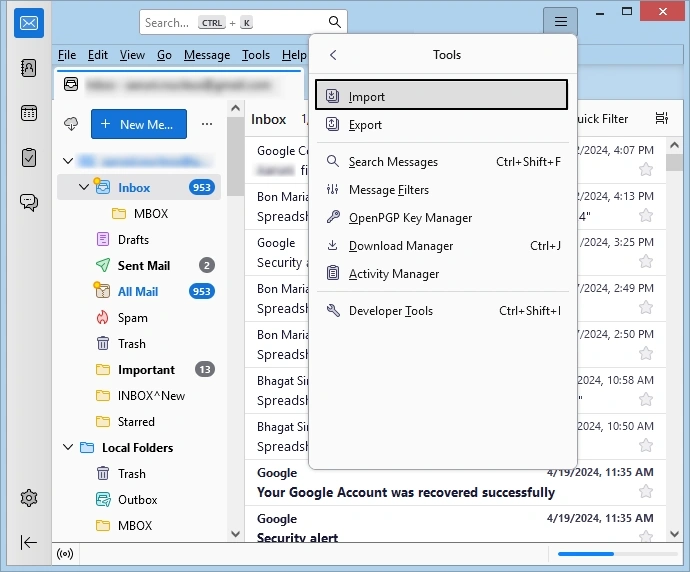
Step 4: Select the Import from Outlook option and click on Continue.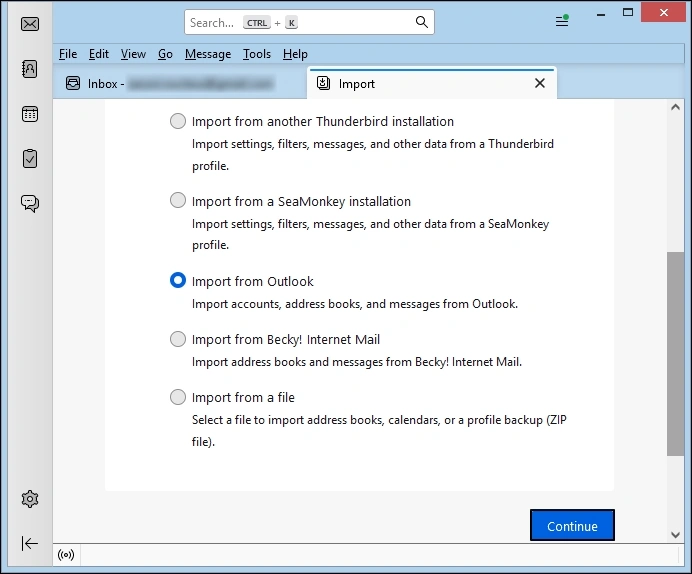
Step 5: Choose all the data you want to export, like Mail messages, Address Books, Calendars, Account settings, etc. Click Continue to move forward.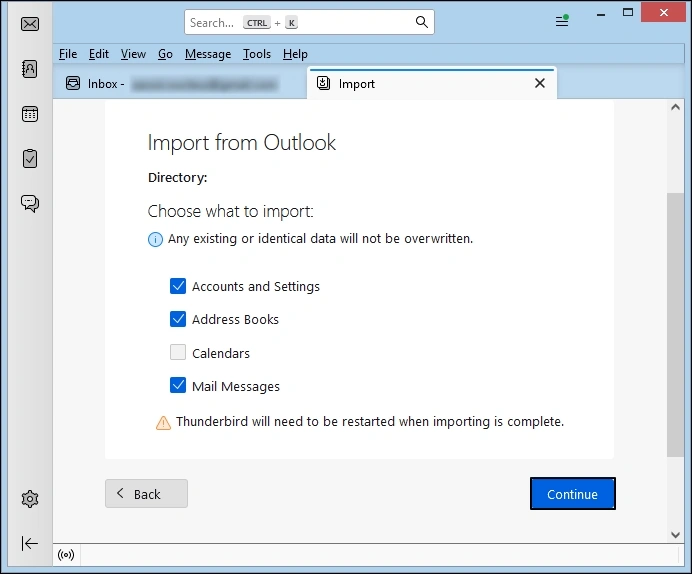
Step 6: Review the selected data and click on Start Import.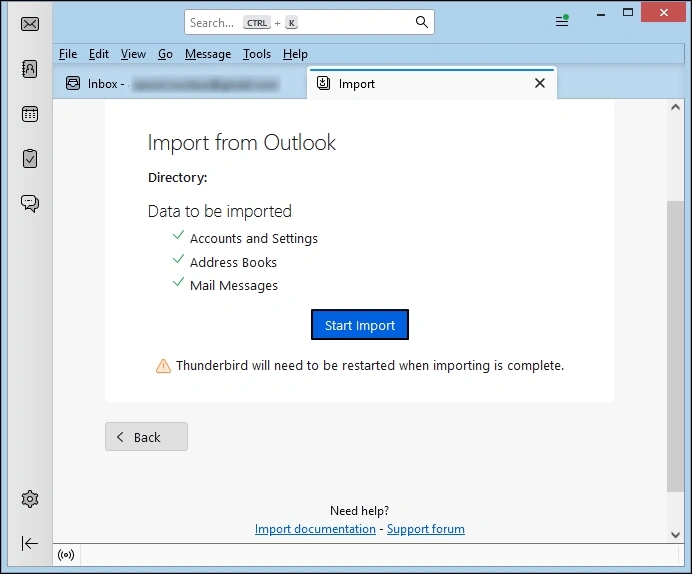
Step 7: The selected data will be imported into Thunderbird shortly.
Step 8: Click Finish to complete the process.
Part 2: Export Data to Postbox email client
Step 1: On the top-right of the screen, click on ImportExportTools NG add-on and select Options from the list.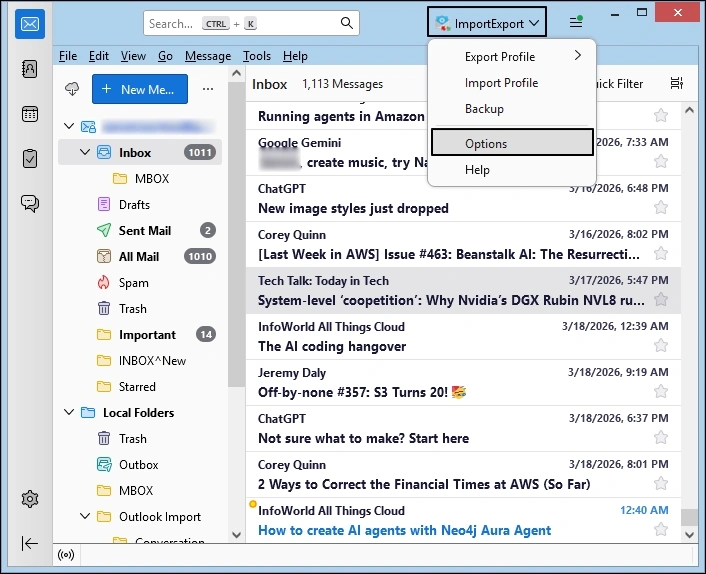
Step 2: Go to the Export directories tab in the new window and tick the Export folders as MBOX file option.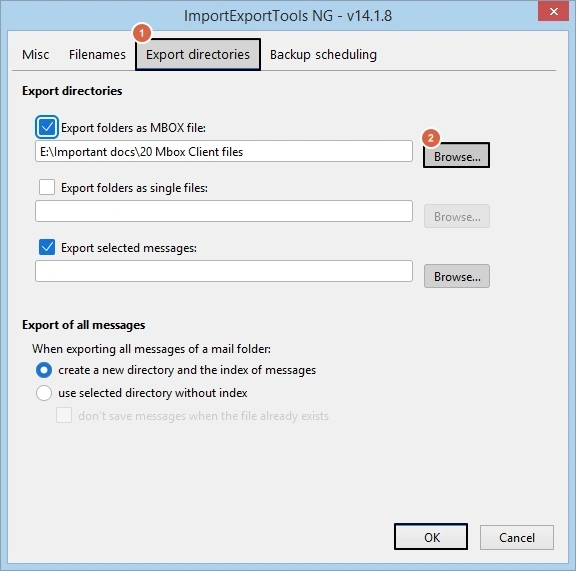
Step 3: Browse a location to save the exported MBOX files on your system.
Step 4: Now, sign into Postbox and go to File > Import.
Step 5: Click on the Mail Messages option and select all the exported MBOX files.
Common issues when importing PST to Postbox Mail
Users encounter some common issues when they try to save Outlook PST as MBOX file with the help of manual methods like the one given above. These issues include:
- Oversized Outlook PST files can create problems while trying to import in Thunderbird.
- It’s not possible to import encrypted and corrupt PST files using the manual method.
- Attachments might not move properly, increasing the chances of data loss.
- File integrity and folder structure can get disrupted while performing this method.
These challenges are also faced in similar migrations such as Import PST to Opera Mail, especially when handling large or corrupted PST files.
How to import Outlook PST to Postbox Mail automatically? Professional Solution
Amongst the risk of corruption and the inability to import oversized and encrypted PST files, manual methods aren’t very suitable to move your Outlook PST files to a Postbox mailbox safely. Moreover, these methods don’t support bulk transfer of PST files, making them unsuitable for organizations with a large volume of PST files. The smartest way to avoid all risks and import PST to Postbox Mail is by using a professional Kernel PST to MBOX Converter tool. It is the perfect option for people wanting to import PST to Postbox without Outlook and other MBOX supporting email clients.
Follow the steps given below to use this tool:
Step 1: Install and open Kernel PST to MBOX Converter tool on your system.
Step 2: Click on Add Source to add PST files to the tool.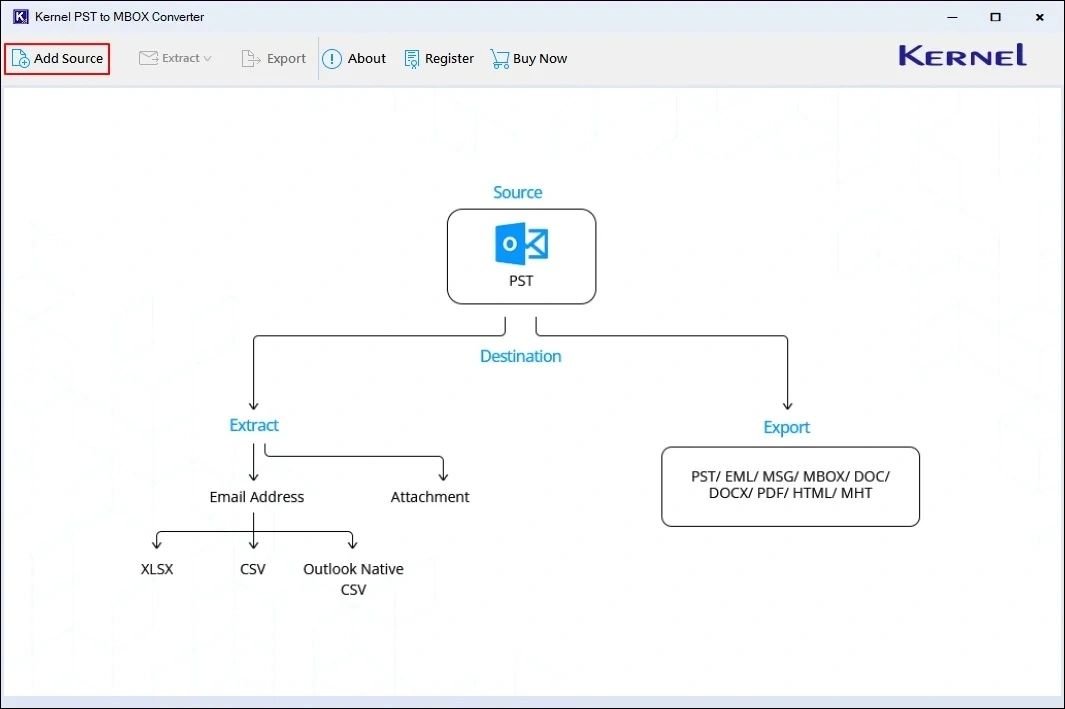
Step 3: Then, click on Browse to select PST files to be exported.
Step 4: Use the Search Files feature to locate all the PST files from the folder or drive of your choice.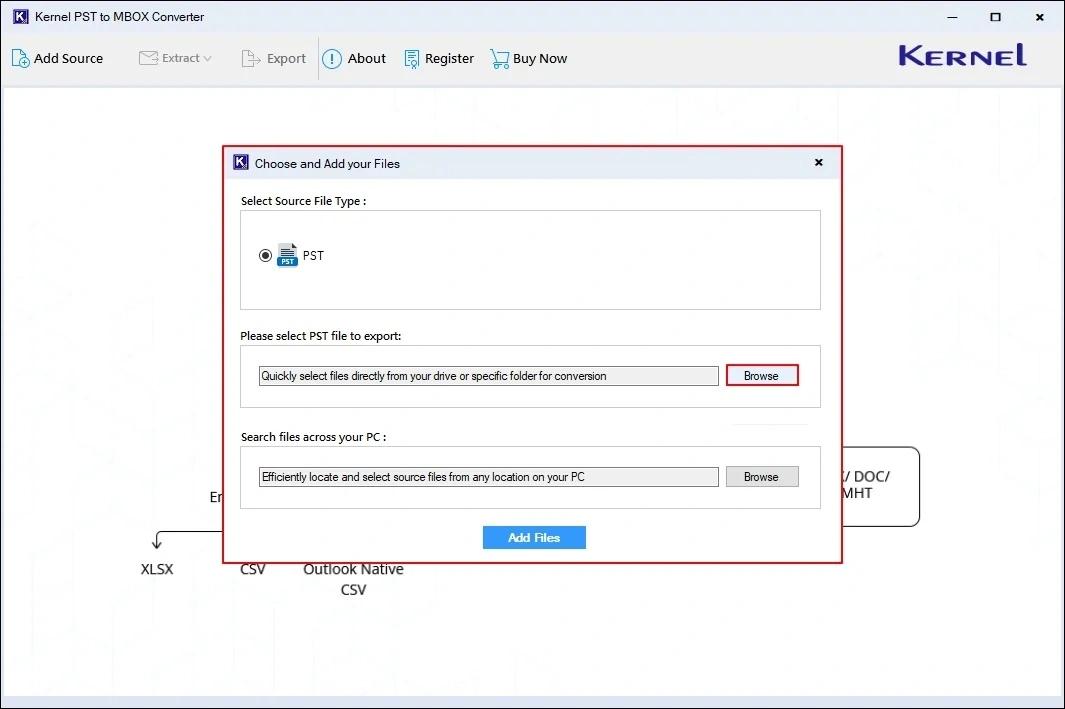
Step 5: Once all files are uploaded to the tool, click on Add files to proceed.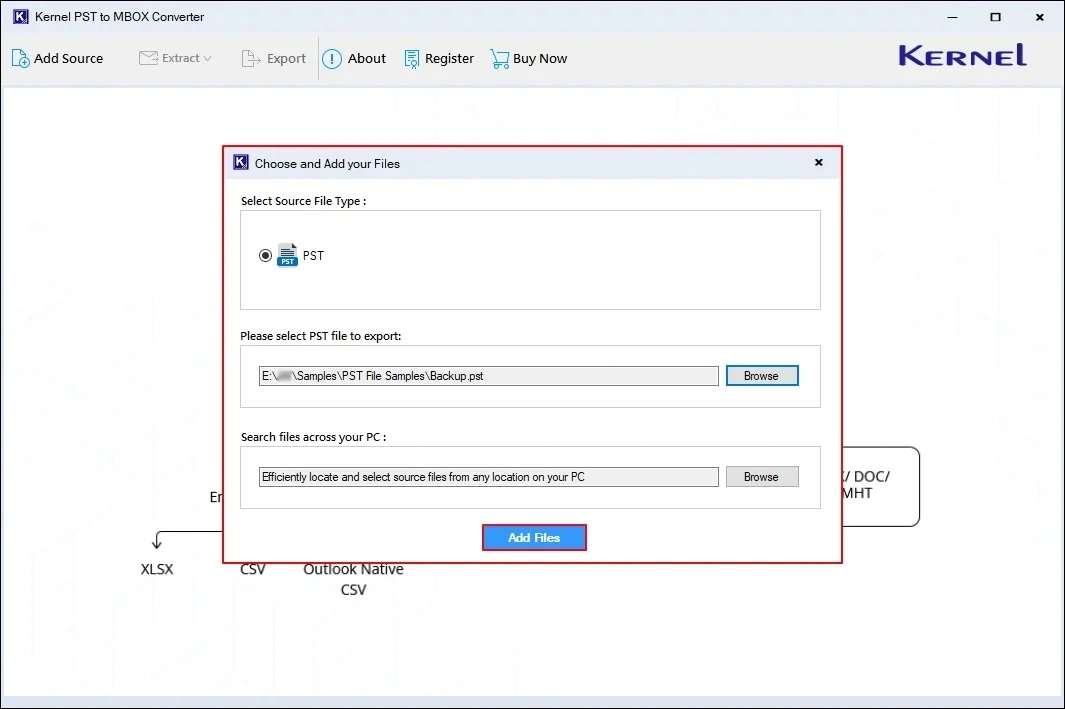
Step 6: The complete PST file data will get displayed in the tool in a tree-like hierarchical structure. Click on any folder or file to preview its content.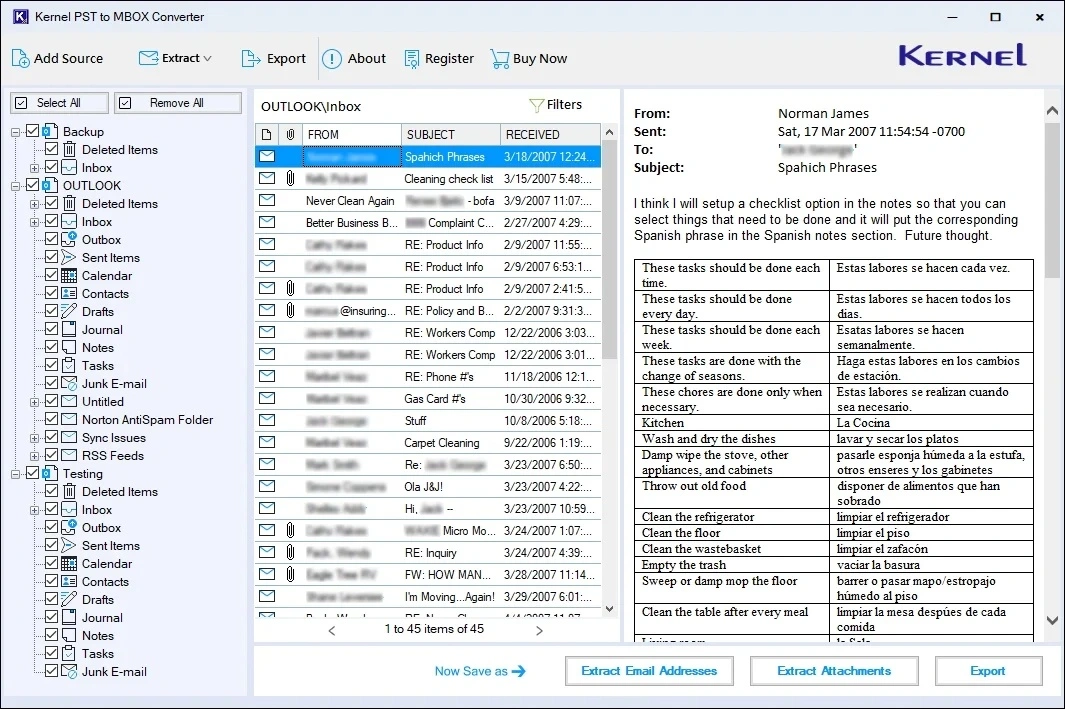
Step 7: Tick all the desired folders and click on Export to start the process.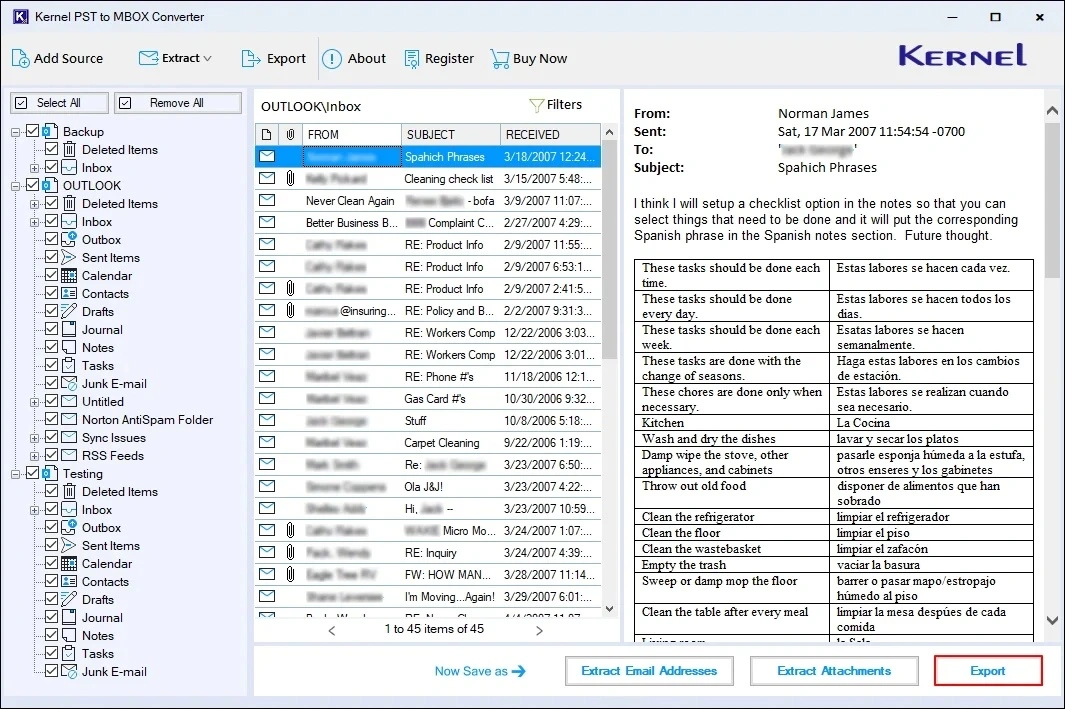
Step 8: Choose MBOX as the output format to save Outlook PST as MBOX.
Step 9: Apply filters like Date Range filter and export options like Open folder after export is done, Skip empty folders, and Get log report of conversion.
Step 10: Click on Browse to select a destination path to save the exported PST files.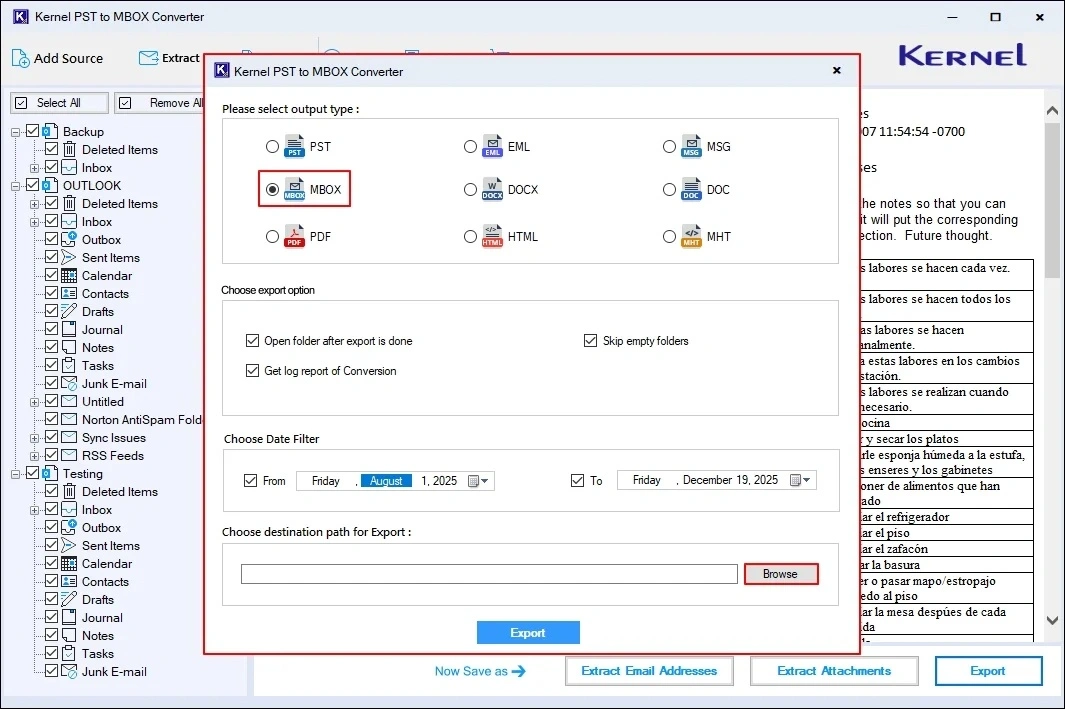
Step 11: Choose the folder of your choice to save converted files on your system and click OK.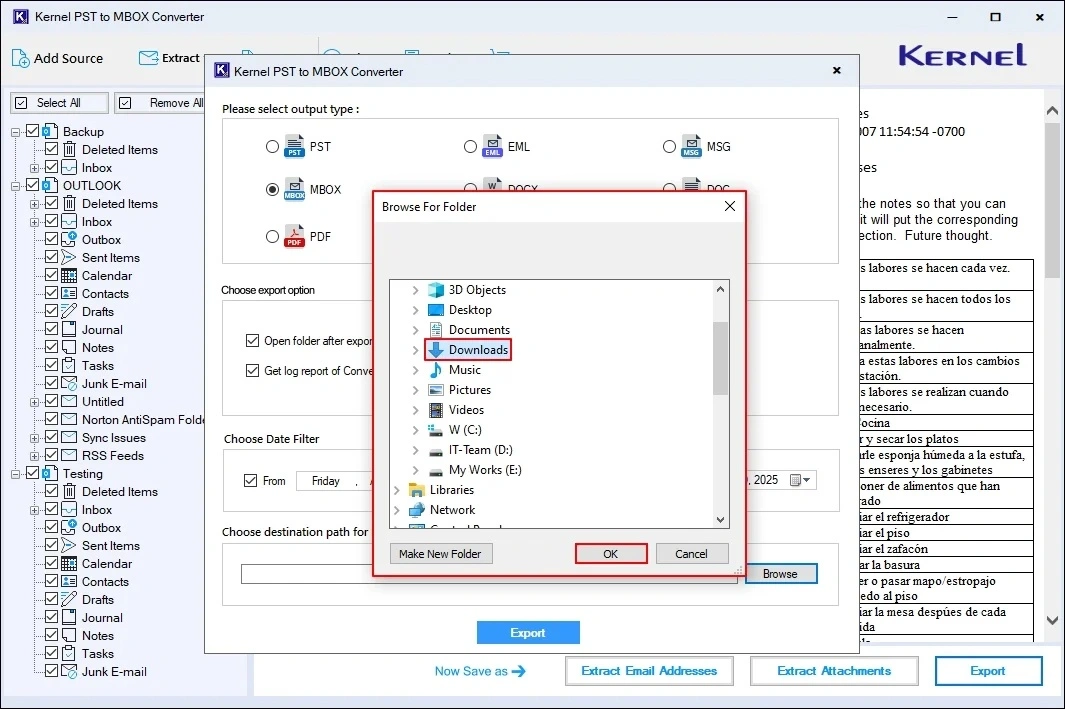
Step 12: Finally, click on Export to start the conversion process.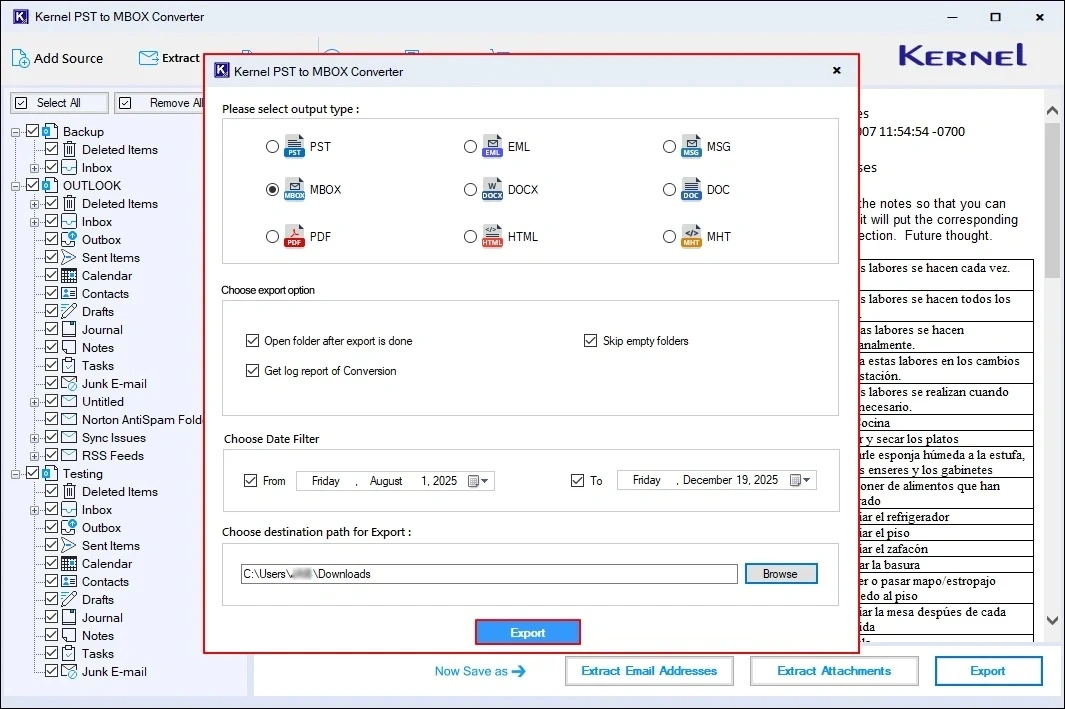
Step 13: The software will start processing the PST files and start the conversion process.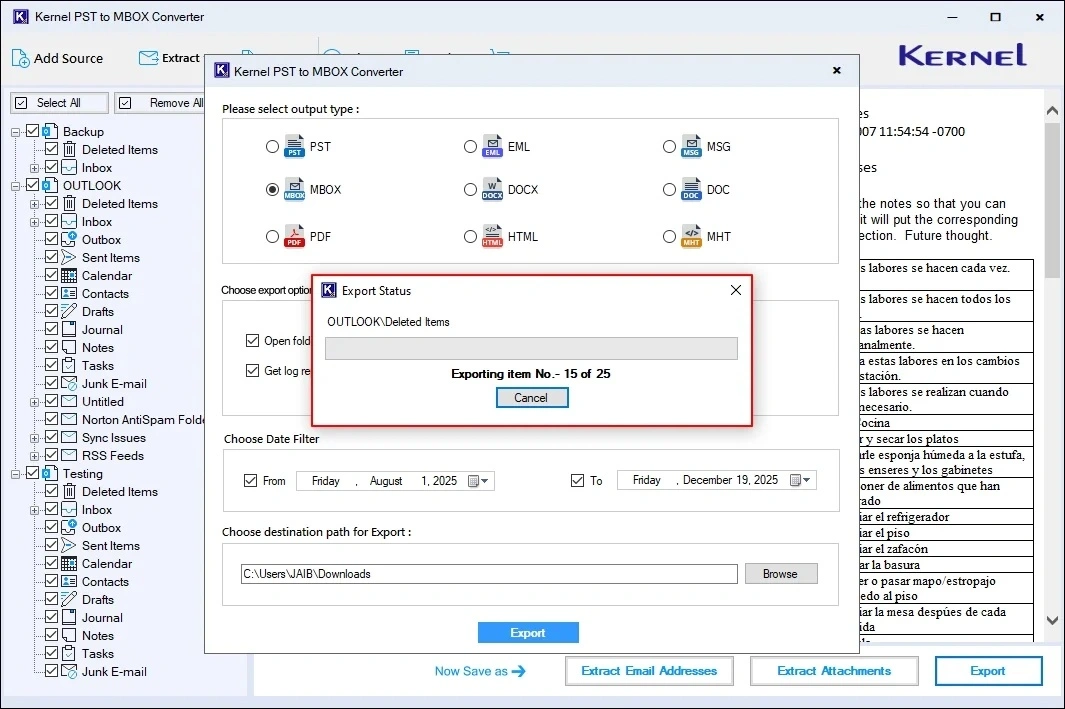
Step 14: Once completed, the tool will display an Export Completed message on the screen.
Step 15: Click on Done to navigate to the saving location of resultant MBOX files.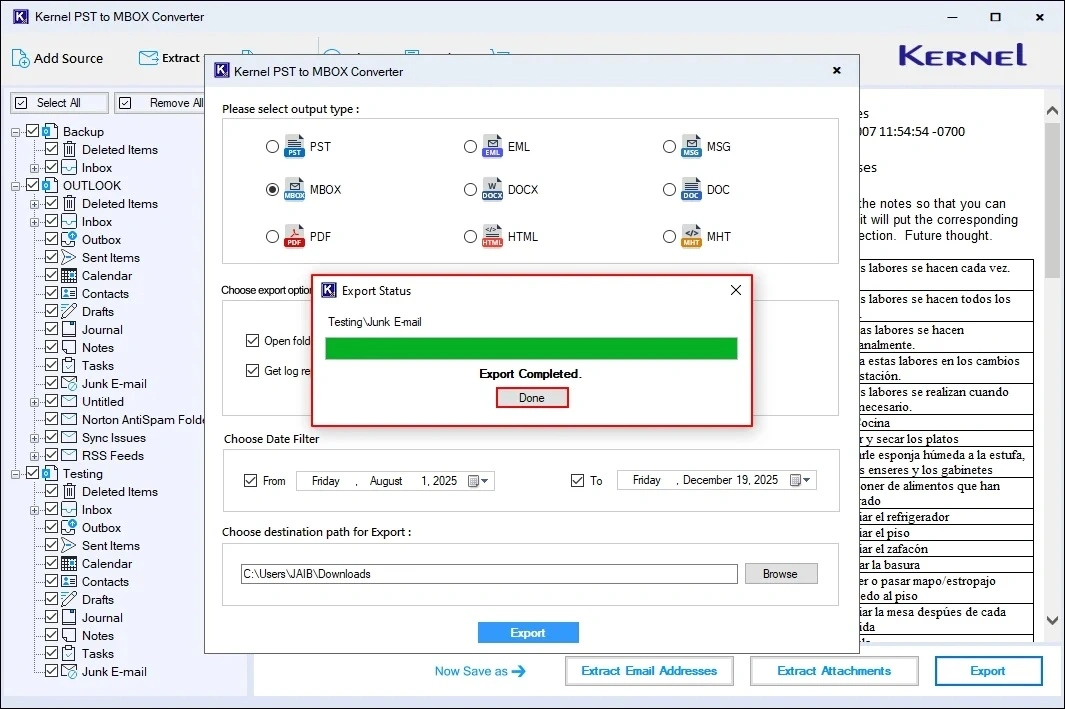
Step 16: Now, simply login to your Postbox account and import all the saved MBOX files into your mailbox safely.
Conclusion
Hope this blog helped you understand the best methods to import Outlook PST files to Postbox Mail and why users plan to do so. Along with the manual method of importing PST files with attachments, we’ve given the common challenges associated with it. So, we recommend that you opt for the advanced PST to MBOX Converter tool to easily import Outlook PST to Postbox Mail with complete data accuracy.
FAQs
A: There’s no direct way available to open PST files in Postbox Mail. Some workarounds are available using different email clients.
A: Users can try importing them via Thunderbird or by configuring an IMAP account in Outlook and Postbox Mail.
A: No, if you’re opting to import PST files to Postbox via the manual method, then accessing Outlook is necessary.
A: No, Postbox Mail can’t open a corrupt or encrypted PST file. Try using a reliable PST Converter tool to accomplish this task with 100% accuracy.