Step-by-Step Guide to Use Kernel PST to MBOX Converter tool
Step 1: Download, install, and launch the Kernel PST to MBOX tool.
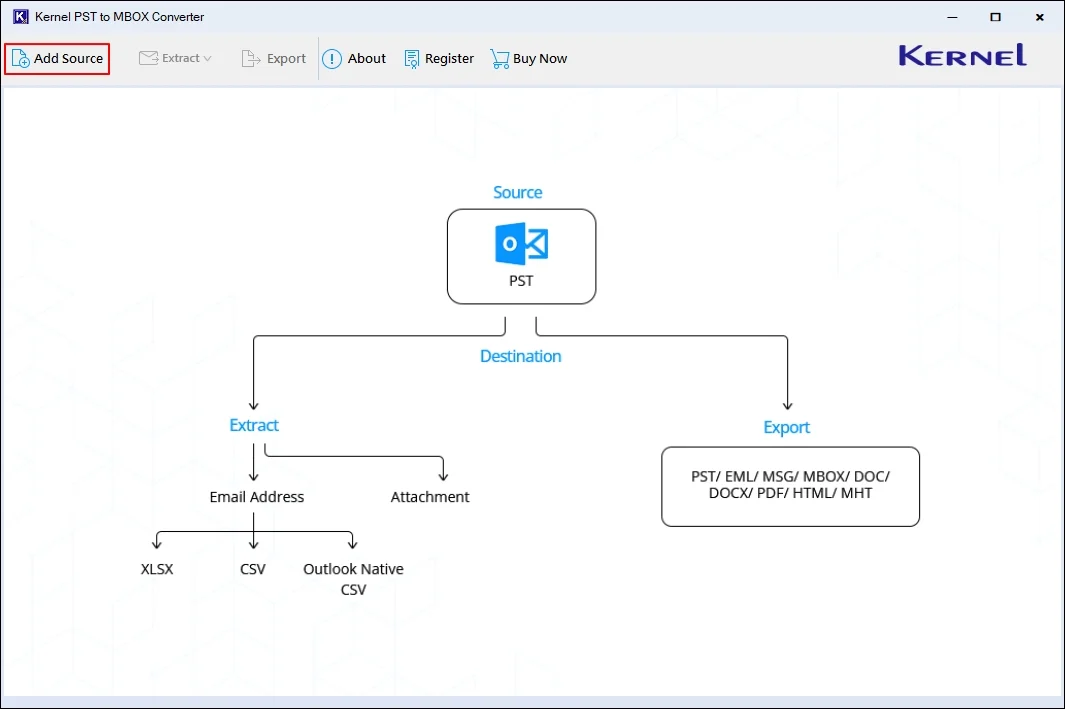
Step 2: On the software’s home screen, click on Add Source.
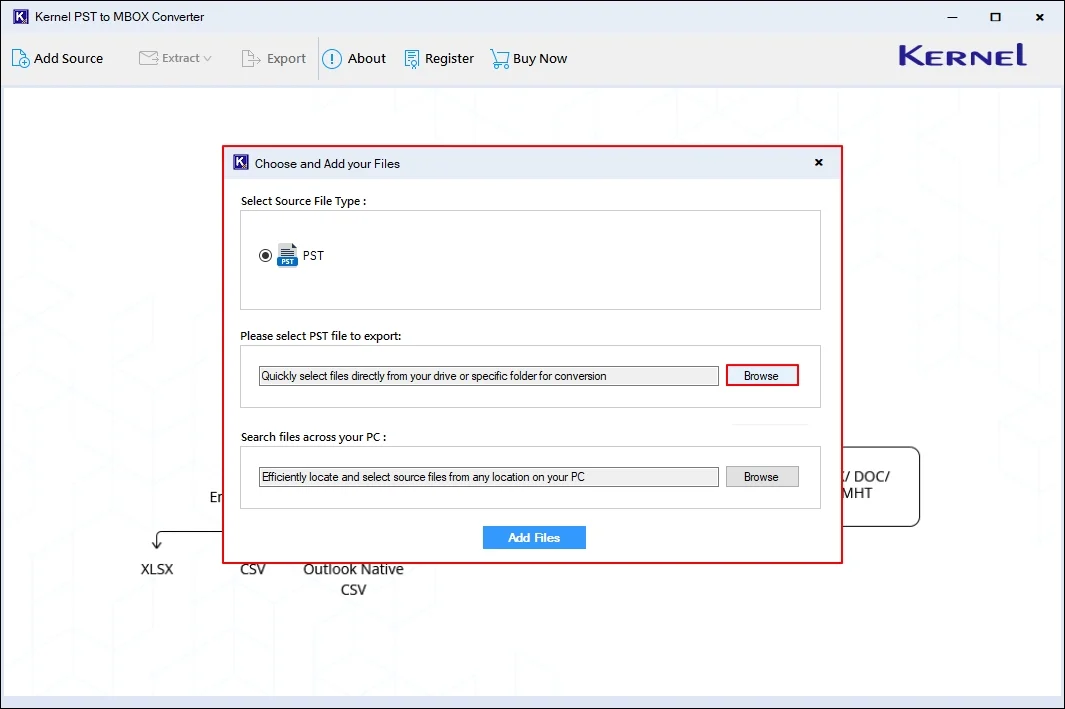
Step 3: In the following window, click on Browse to choose PST files.
Note: Use the Search file across your PC to find all PST files from your selected folder or drive.
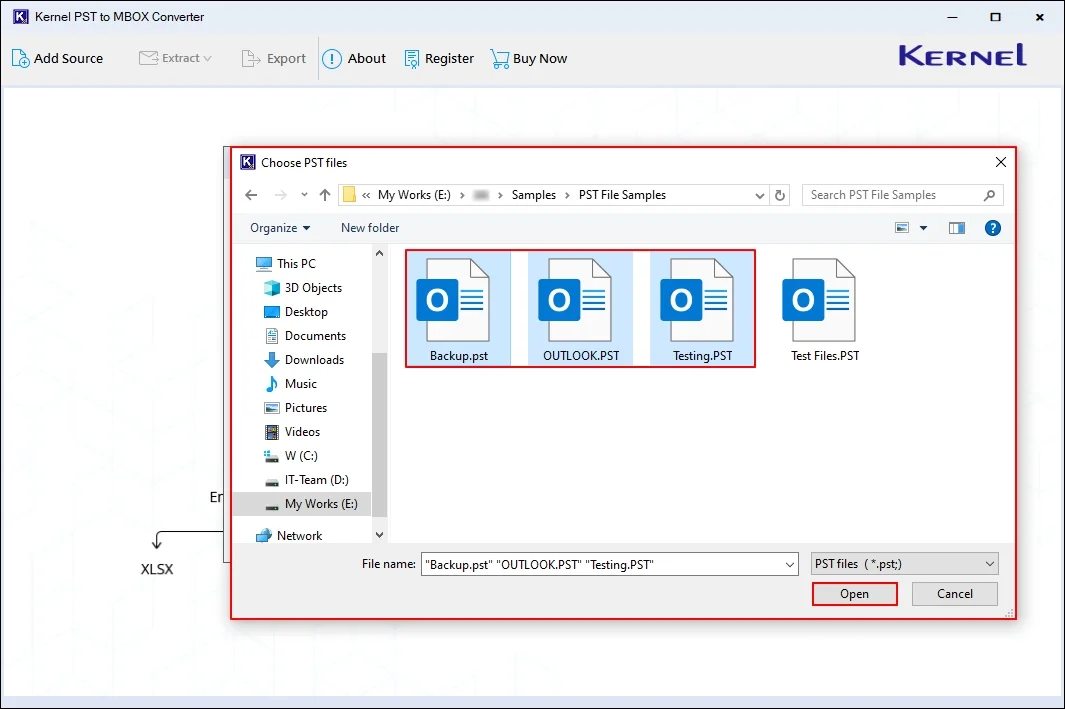
Step 4: Select required PST files from your system and click Open.
Step 5: In the following window, click Add Files.
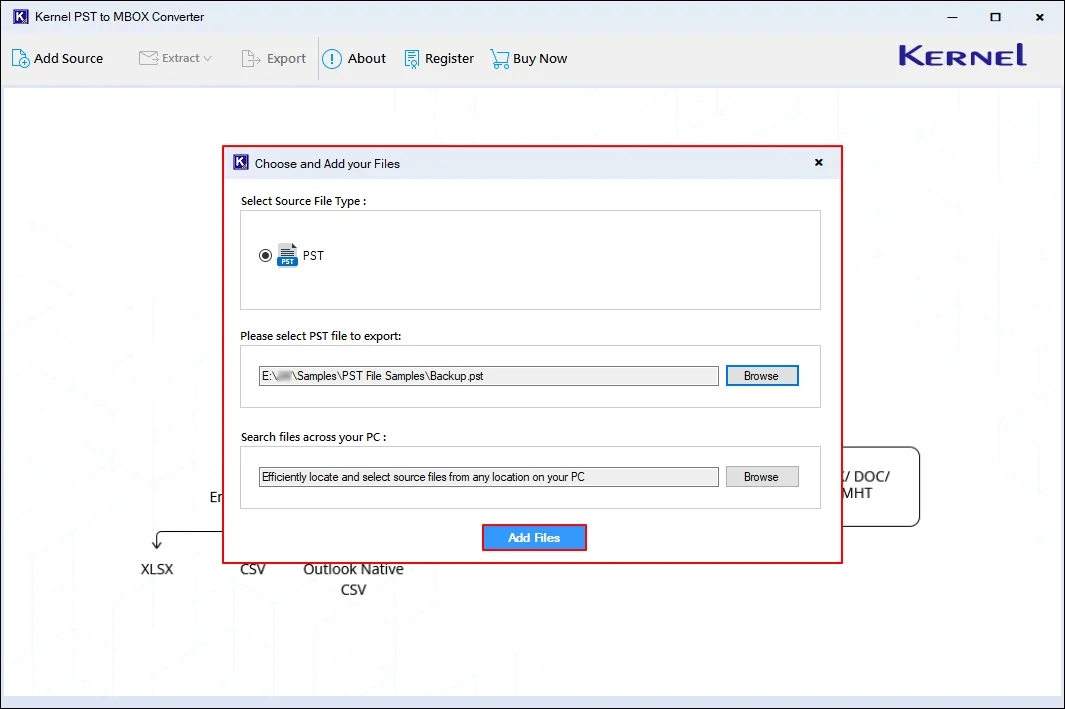
Step 6: The software will retrieve all your PST data in a hierarchical structure. Select any specific folder or email and view its content in the preview pane.
Note: Use Filters option to sort out PST data based on various parameters for quick accessibility.
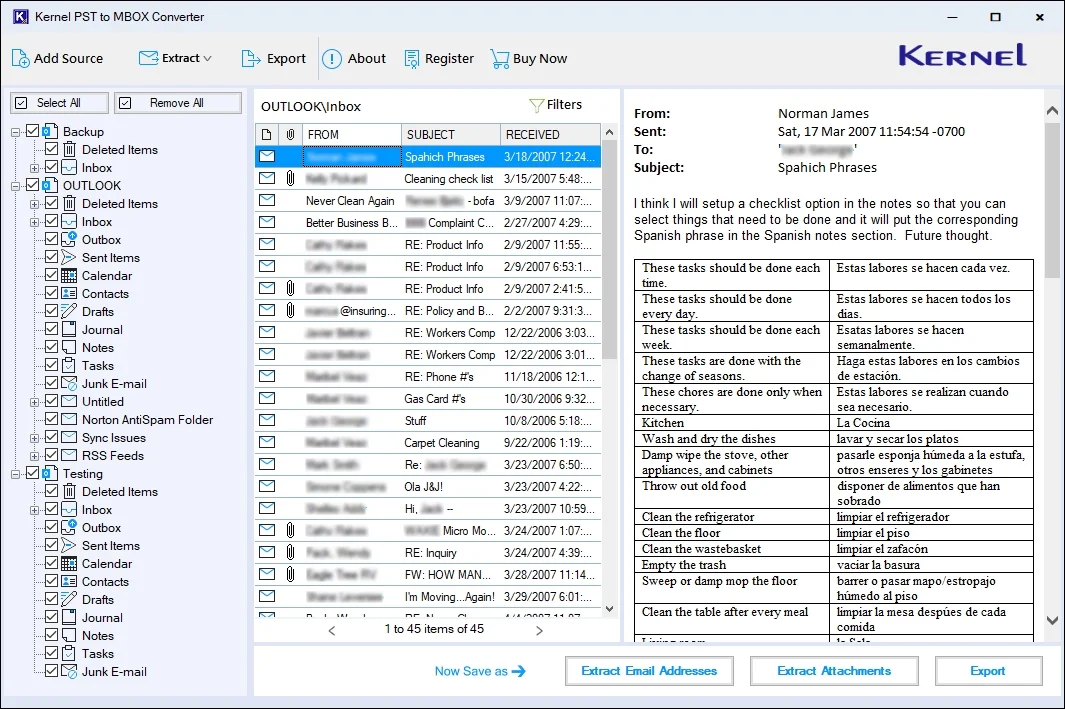
Step 7: Now, select any specific email of your PST file or the entire folder and click Export.
Note: You can also export email addresses, and attachments (with or without extension) from the source file separately to your system.
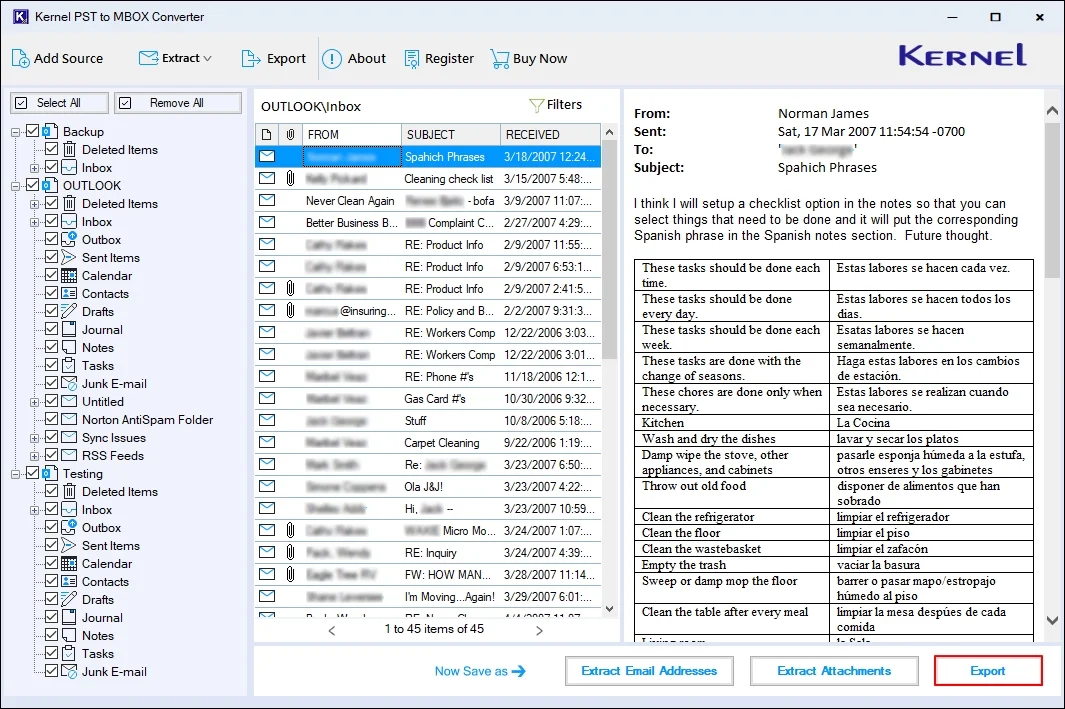
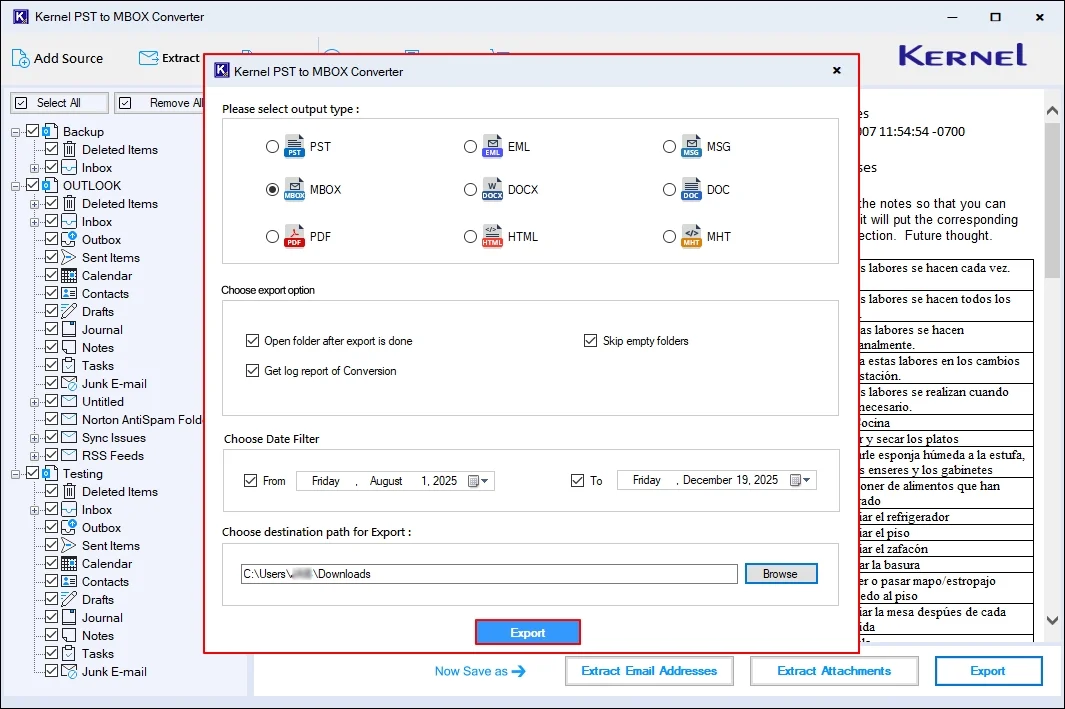
Step 8: In the following window, select the output type as MBOX. Now, select export options and filters from:
- Open folder after export is done: The software will open the output file folder after a successful export process.
- Skip empty folders: Exclude converting empty folders in the output folder.
- Get log report of conversion: The software will generate a log report of every failed item with the proper reason.
- Date Filter: Select From and To dates to convert specific data as per the selected dates.
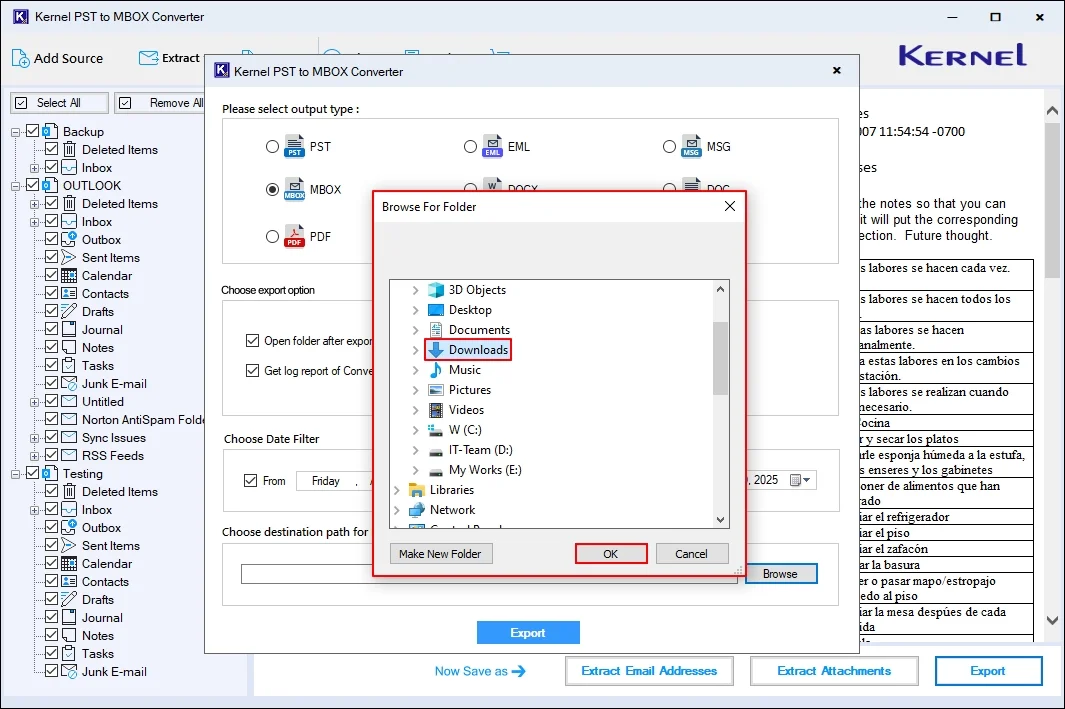
Now, click on Browse to choose a destination path for export.
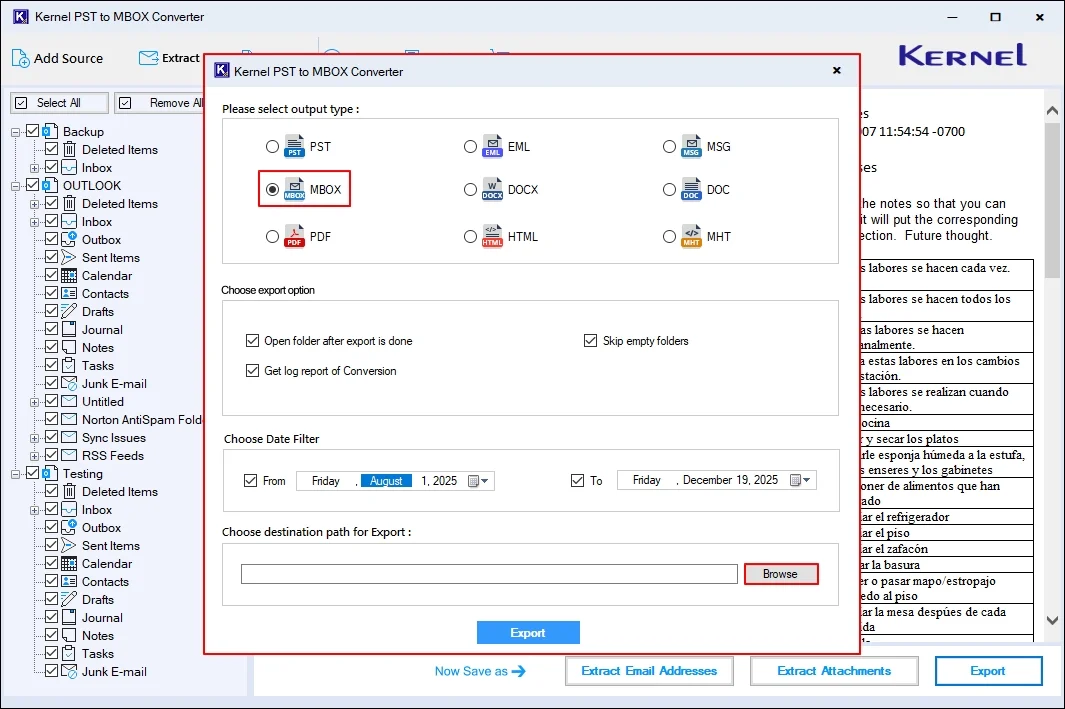
Step 9: Select a preferred saving location and click OK.
Step 10: Again, in the following window, click Export to proceed.
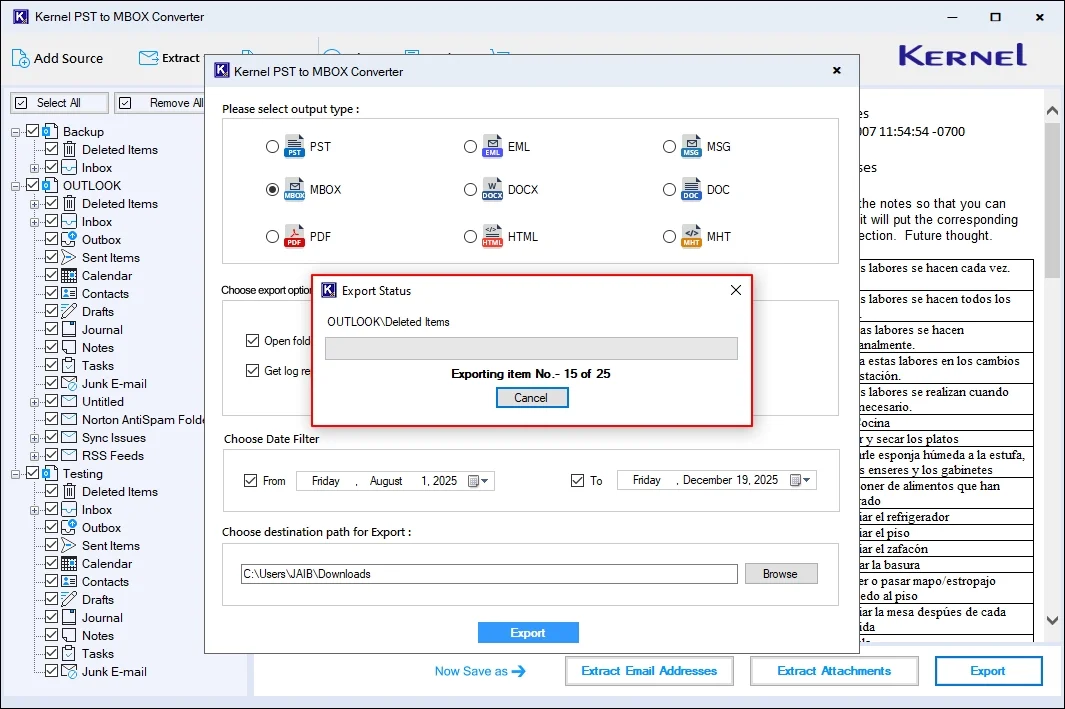
Step 11: The software will start converting PST to MBOX and show a live conversion process.
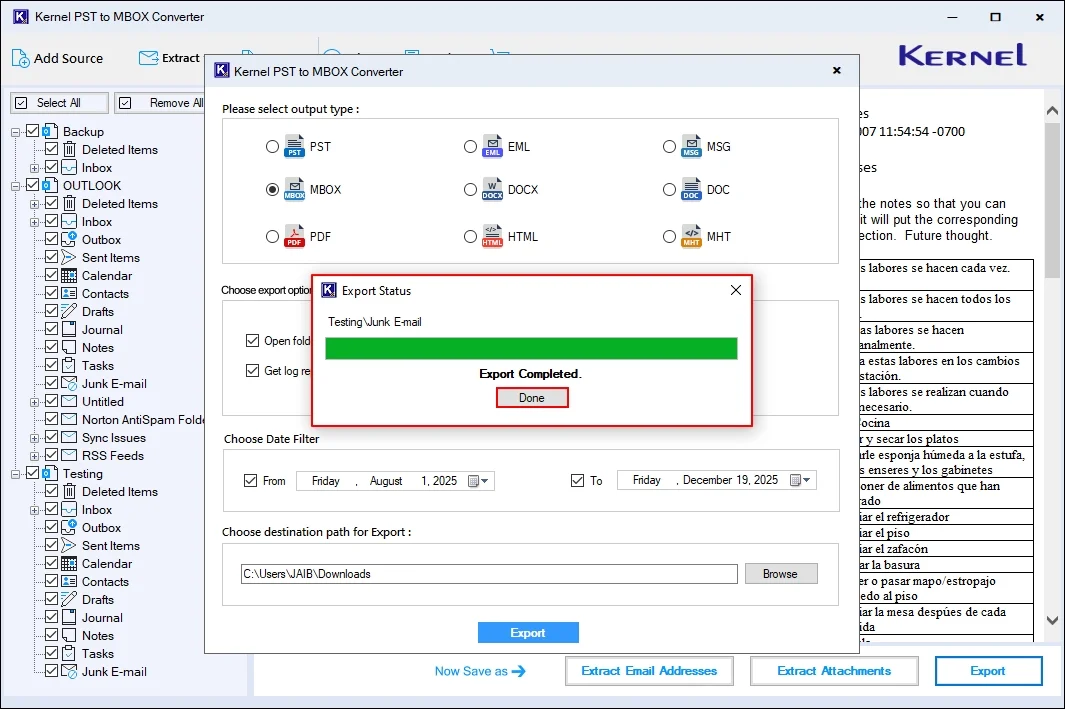
Step 12: The software will pop up a “Export Completed” message after a successful export process. Click OK.
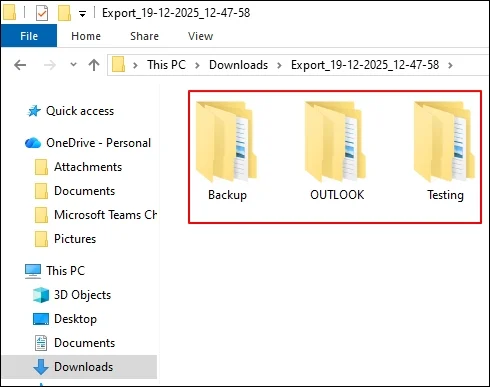
Step 13: The software will navigate you to the exported file on your system.