Step 1. Download and launch the Kernel MSG Viewer Pro software.
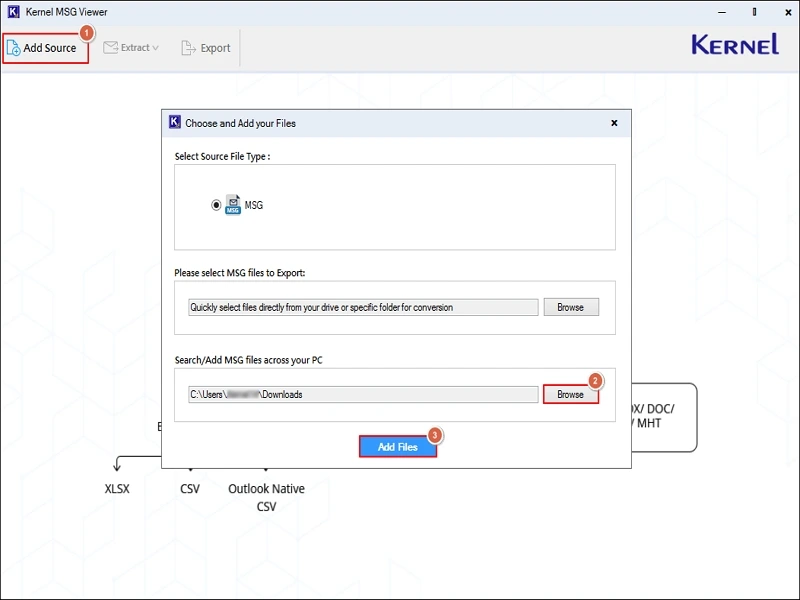
Step 2. Add Source MSG files & click on the Add Files option.
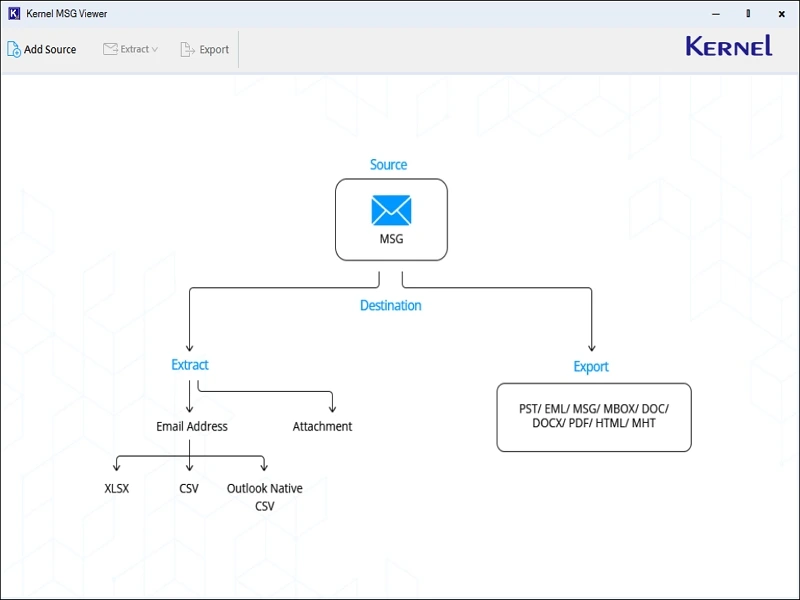
Note: Here, you can add a file either by browsing them manually or selecting the folder to load the MSG files automatically.
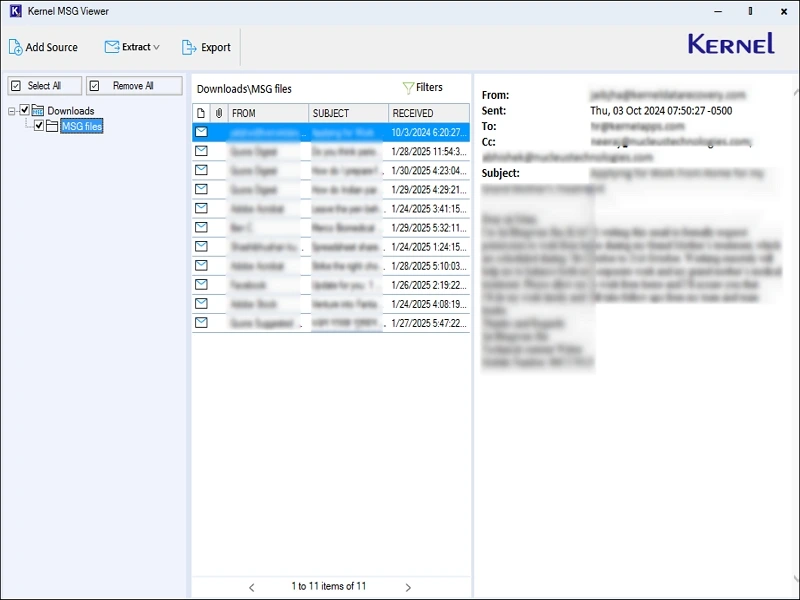
Step 3. Preview the complete attributes of the MSG file, including sender, recipient, subject, & date, along with attachments.
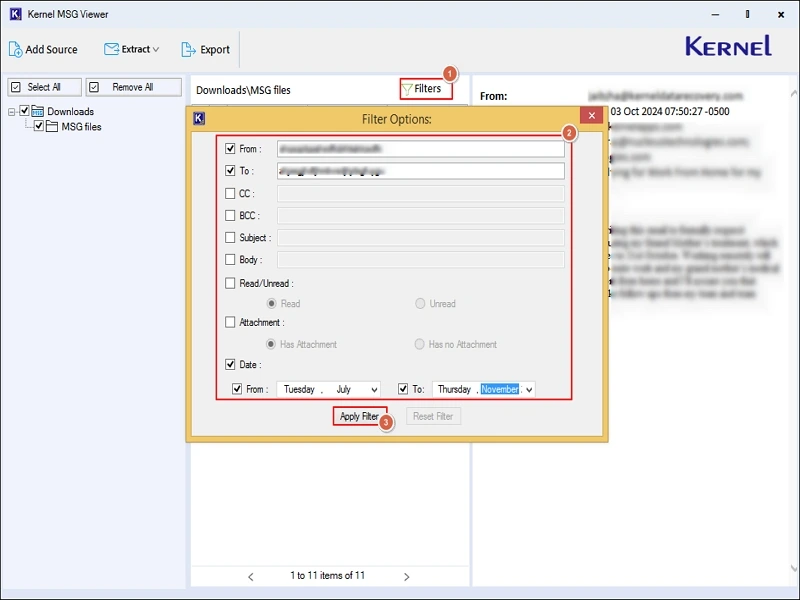
Step 4. View desired MSG files with the filters like From, To, CC, BCC, Subject, Body, Read / Unread, Attachment, & Date.
Steps to Extract Attachments:
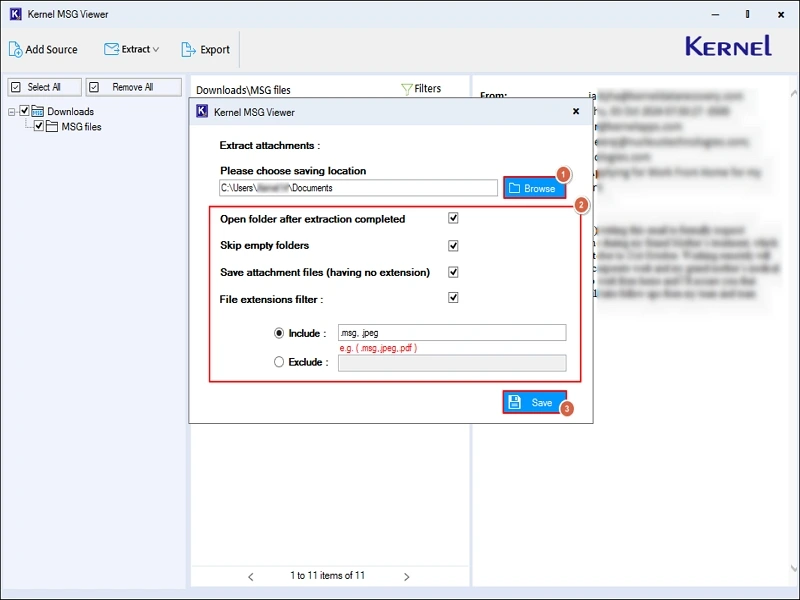
Step 5. Go to Extract & choose the Attachment option.
Step 6. Browse the saving location & choose the filters for organized output. Hit the Save tab to start the extraction process.
- Open folder after extraction: Helps to access the output directly.
- Skip empty folders: Skip the empty folders in the output.
- Save attachment files (having no extension): Support attachments with no extension.
- File extensions: Filter the attachment by extensions.

Step 7. Access the attachments directly once the process is completed.
Steps to Extract Email Addresses Only:
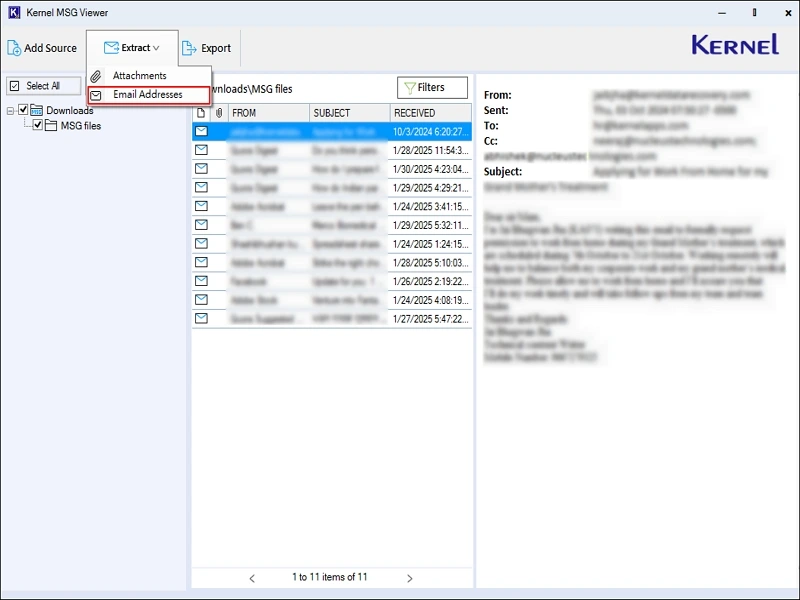
Step 8. Go to Extract & choose the Email Addresses option.
Step 9. Browse the saving location & check the After Extraction open folder option. Apply filters like Contacts, Calendar, Tasks, Journal, To, CC, From, BCC under the ‘Extract email addresses from’ section. Get the list. Hit the Save tab & choose formats like CSV, XLSX, & Outlook Native CSV.
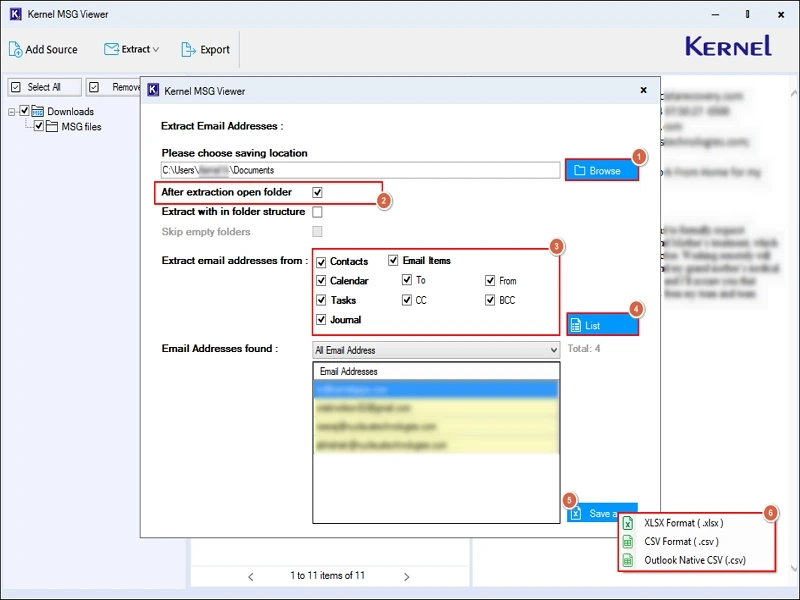
Note: Check Extract within folder structure & skip empty folders filter to extract directly in XLSX, CSV, & Outlook Native CSV format.
Step 10. It will save the list of email addresses in the chosen format.
Export MSG Files to Different Formats
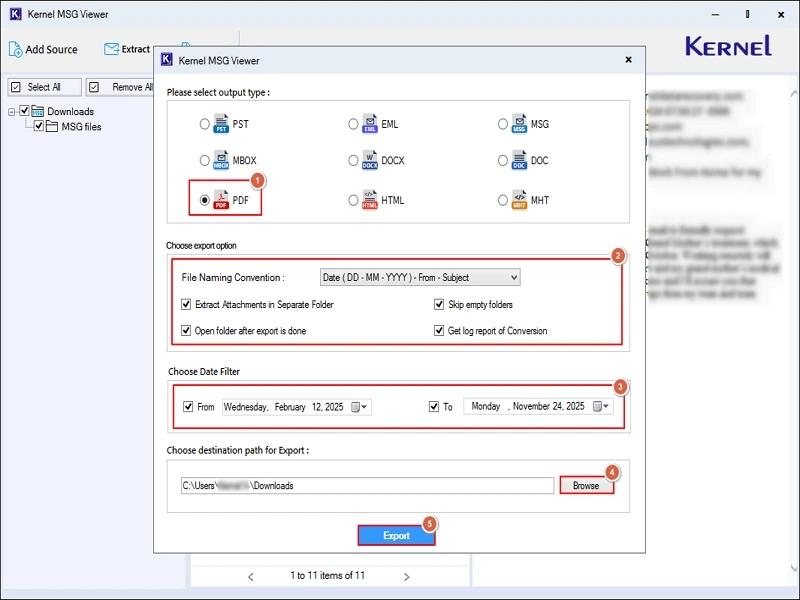
Step 11. Go to the Export option. The tool prompts a new interface.
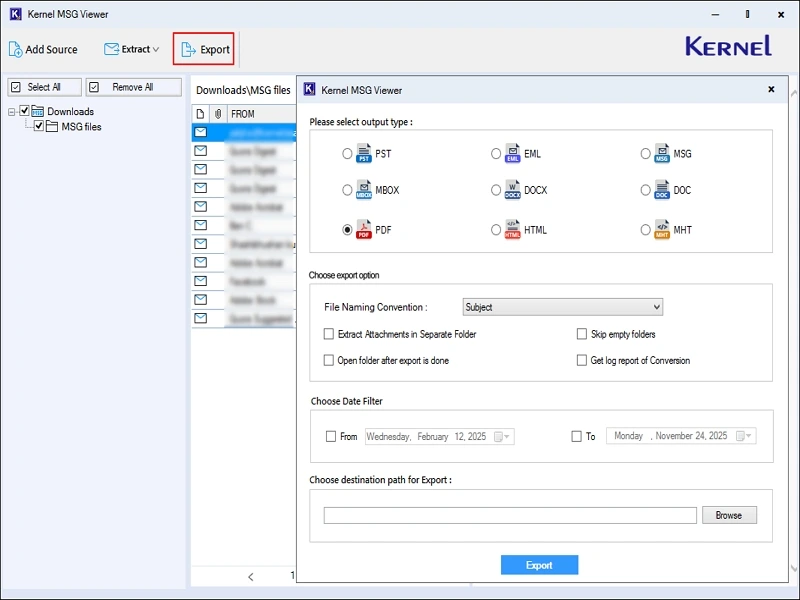
Step 12. Select the PDF file format with its associated filters. Browse the saving location & click on the Export option to start the conversion process.
- File Naming Convention: Assign a name to the file with different patterns.
- Skip Empty folders: Remove the empty folders in the output.
- Open Folder after export is done: Direct access to the saving location.
- Extract Attachments in a separate folder: Save attachments in a separate folder.
- Date filters: Get the output within the provided date range.
- Get log report of Conversion: To verify the MSG file conversion process.
Note:
- Save the MSG files in different formats like PST, EML, MSG, MBOX, DOCX, DOC, HTML, MHT with their custom filters.
- The tool also allows you to manage the saved PST file size with the “Split PST” feature.
Step 13. Access the saved PDF file directly once the process is completed.