 (4.9/5) 582 Reviews
PST Merge Tool to Combine Multiple PST files
Merge multiple PST files into a new PST file or existing PST file. Kernel PST merge tool supports both ANSI and UNICODE PST files with no size limitations. Easily combine PST folders, such as Inbox, Calendar, Sent Items, Contacts, Drafts, and other items with complete data integrity.
Download the free Trial and test full features before buy- Filters to merge selective PST folders & items.
- Real-time update of the entire PST merging operation.
- Merge multiple Outlook PST files quickly and accurately.
- Combine different PST files, such as archives and backups.
- Simple PST merger tool with a user-friendly interface.
- Fully compatible with merging PST files from all versions of Outlook.
- Access merged PST files in Outlook 365, 2021, and earlier versions.
- Perform unlimited PST merger operations with 100% precision.
What's new in Kernel Merge PST Tool
Powerful Features of the Kernel PST Merge Tool
Manage your Outlook PST files with the advanced features of the Outlook PST merge software.

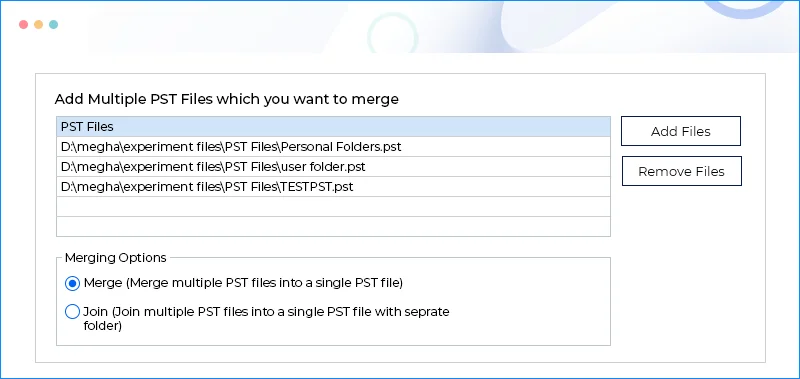
Merge Multiple PST Files into One
Securely merge Outlook PST file data items, including emails, calendars, contacts, tasks, etc. Add multiple PST files and merge them all together into a single PST file.
Join PST Files
The PST merger tool allows users to join data from multiple Outlook PST files. The resulting output PST file will contain all items in a well-organized structure.
Combine PST Files without Duplicates
Create a clean PST file with no redundant data using the PST file merger. Merge PST files to eliminate duplicates and avoid any data conflicts.
Combine Encrypted PST Files
PST file merge tool supports password-protected PST files. Add and merge several protected Outlook data files (PST) securely.
Selective Data Merge
View and select specific folders present in the PST files to combine Outlook PST files. Merge individual folders such as Inbox, Outbox, Sent Items, Calendar, etc.
Save PST File to Any Location
Save the merged PST file at user specified location. Store the combined PST data on your local system, or network drive.
Merge PST Contacts
Join PST files contacts from all your old PST files. Streamline communication by gathering all your contacts from different PST files into a single file.
Merge According to Date Range
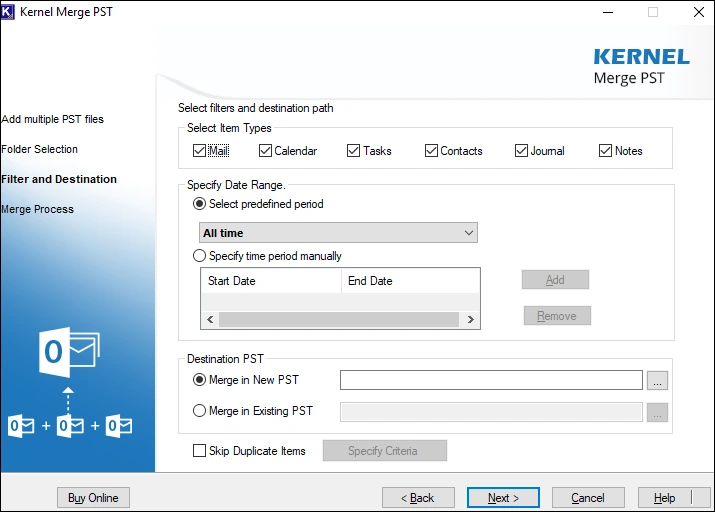
Specify a date range manually to merge Outlook PST files. Alternatively, choose predefined periods, such as the Latest 1 Week, the Latest 1 Month, and more.
Free PST Merge Tool
Download and try the free trial version of our Merge PST Software. Combine 20 items per folder from multiple PST files for free. Activate the tool to join PST files without limitation.How to Merge PST Files?
Merge PST files with a simple 3-step process:
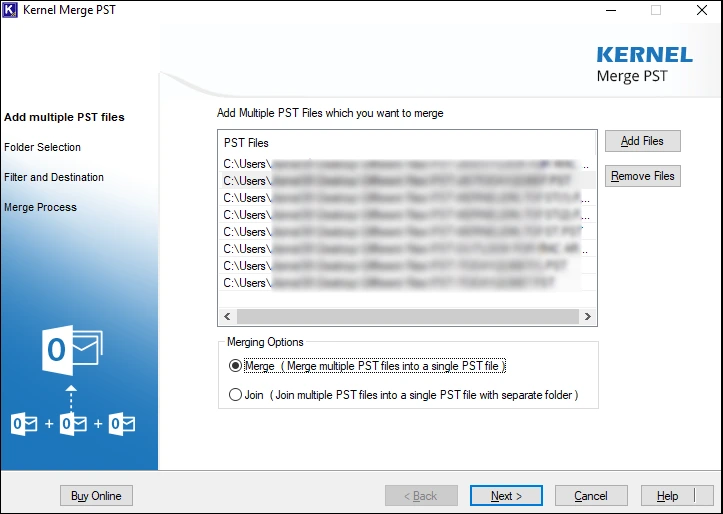
Step 1: Add multiple PST files to merge.
Step 2: Apply the filters for user-specified data output.
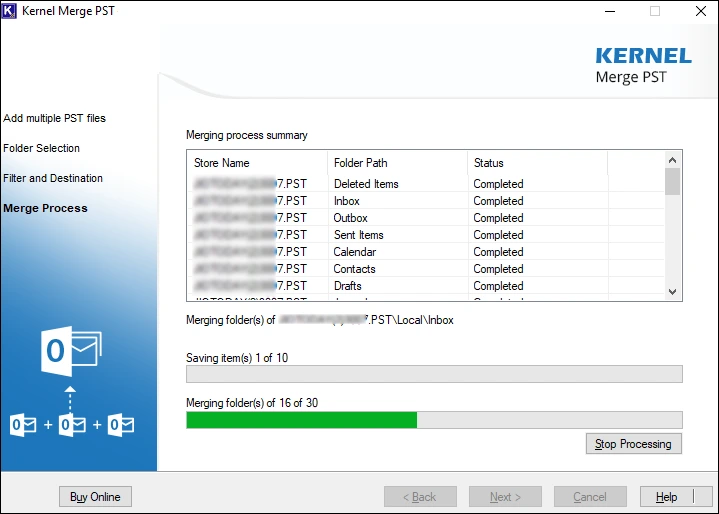
Step 3: Start merging PST files.
Key Benefits of PST Merger Tool
Reasons that make the Kernel PST merge tool stand-out in the market.
Which PST files can you merge?
The merge PST tool supports all Outlook PST files created by any Outlook version on any machine.
- Archive PST Files: Merge Archive PST files to manage storage.
- Backup PST Files: Merge Backup PST files to restore the complete mailbox.
- Old PST Files: Use the PST file merger to combine PST files from old computers.
- Other Outlook Profile PST: Join PST files from different Outlook profiles.
- PST from Different Accounts: Combine PST files from different email accounts.
- PST from last job/organization: Merge Outlook data files from your previous job/client.
What Data Items from PST will be Merged?
The merge PST software deeply analyses entire mailboxes and merges every component.
- Email Body: All text content, formatting (bold, italics, colors, etc.), and embedded images.
- Headers: To, From, CC, BCC, Subject, Date, and Time sent/received.
- Attachments: All types of attached files (documents, images, PDFs, etc.).
- Read/Unread Status: The status of each email is preserved.
- Flags and Categories: Any assigned flags or categories are retained.
- Signature: Your personalized email signature.
- Appointments and Meetings: Including subject, location, start and end times, attendees, etc.
- Reminders: Any set reminders for calendar items.
- Notes and Descriptions: Additional information added to calendar entries.
- Attachments: Files attached to calendar events.
- Meeting Status: Status of all your meetings and appointments.
- Task Subject and Description: The main task and any detailed notes.
- Start and Due Dates: The scheduled start and completion dates.
- Status: Status of the task.
- Priority: The assigned priority level (High, Normal, Low).
- Name Fields: First Name, Last Name, Full Name, Title, Suffix, Company.
- Email Addresses: Multiple email addresses for each contact.
- Phone Numbers: Business, Home, Mobile, Fax, and other phone number fields.
- Addresses: Business Address, Home Address, and other address fields.
- Notes: Any additional information or notes about the contact.
- Job Information: Job Title, Department, Office.
- Personal Information: Birthdate, Anniversary, Spouse/Partner.
- Entry Type: The type of journal entry (Email Message, Meeting Cancellation, Task Request, etc.).
- Subject and Entry Text: The main topic and detailed content of the entry.
- Date and Time: The timestamp of the journal entry.
- Duration: The length of the activity recorded.
- Associated Contacts: Links to relevant contacts.
- Attachments: Files linked to the journal entry.
- Note Body: All text content and formatting.
- Color and Category: Any assigned color or category to the note.
- Creation and Modification Dates: Timestamps of when the note was created and last edited.
Kernel PST Merge: Free vs Full Version Comparison
Have a glance at the features you can unlock with the full version of the PST merger tool.
| Software Features | Trial Version |
Full Version |
|---|---|---|
| Merge/Join based on date range | ||
| Create a new PST file | ||
| Support all Outlook versions | ||
| Merge specific PST folder | ||
| Merge PST files without duplicates | ||
| Merge Outlook archive PST files | ||
| Merge backup PST files | ||
| Support ANSI & UNICODE PST | ||
| Merge PST files | Only 20 Items per folder | |
| Join PST files | Only 20 Items per folder | |
| Free Download | Upgrade Now |
Outlook PST Merge Tool FAQs
It offers a simple procedure to merge multiple PST files into one. Follow the steps below:
- Step 1: Launch the tool on your system.
- Step 2: Add the PST files that you want to merge.
- Step 3: Select the folders to merge.
- Step 4: Apply the required filters on the PST files.
- Step 5: Select a location on your system where you want to save the merged file.
- Step 6: Click “Next” to start the merging process.
Yes. Use the option Merge in Existing PST to save the merged mailboxes to an existing PST file. To create a new PST file to save data, use the option Merge in New PST.
Yes, using the “Join” option of the tool, you can easily merge PST files data and keep the folders separate. The resultant PST file will contain a separate folder for each PST file.
Merge PST files option combines multiple PST files with all the folders inside and saves them in a single PST file. At the same time, the Join PST files option merges Outlook data files in a single PST file but does not combine the folder’s data. The Join option creates a separate folder for each PST file.
Yes. You can add and combine PST files with all the folders, including the Deleted Items, Inbox, Outbox, and other folders.
All your attachments in the old PST files will be preserved. You can access them after you have merged Outlook PST files.
Yes, it can. The PST file merge software supports every PST file created on any Outlook version and on any operating system. However, to merge Mac PST files, you must transfer the PST files to a Windows system.
Yes. The merge PST files tool allows to include or exclude any folder from the added PST files. Select and merge specific folders from the different PST files.
After you merge multiple Outlook PST files, the original source PST files remain as it is with no change. Old PST files will retain their original data.
The Outlook PST merge software allows users to save the merged PST file at their specified location in the system. You can even save the merged files in the existing or a new PST file.
Yes, you can merge two PST files. The PST file merge tool supports all versions of Windows, including Windows 7. Download and install the tool on your system. Add the PST files and merge multiple Outlook PST files.
First, you'll have to purchase the technician version of the tool. You'll receive the activation key on your registered email ID. Download the technician version from the link and install the tool. After installing the tool, enter the provided key to activate the technician version. Now, you are ready to access the technician version of the tool.
Yes, you can easily combine large PST files. Merge multiple PST files into one with the Outlook PST merge software. The tool has no PST file size limitations.
Yes, you can do it easily with our PST merge tool. In the filter section, specify a date range (Start Date and End Date) or choose from pre-defined periods.
No, the trial version only allows you to merge 20 items per folder. If you want to merge PST files completely, purchase the full version.
Yes, the software allows you to merge password-protected PST files without the need for password removal.
Download, install, and open the tool. Add archive PST files, set filters, specify the saving location, and merge Outlook archive PST files.
Yes, the Kernel PST merge tool allows users to merge PST files without duplicates. Use the Skip Duplicated option to consolidate PST files without any repetitive data.
Solution: Merge Outlook data files and create a single PST file with the Outlook merge PST files tool. Searching for old emails, attachments, and contacts is easier in a single file.
Solution: Individually restoring mailboxes from numerous PST files is a time-consuming process. Use the Outlook PST merge tool and merge multiple Outlook PST files. Restoration from a single PST file is faster.
Solution: Use the tool’s remove duplicate function to merge PST files and remove any duplicate data. Get a clean and compact PST file.
How PST Merge tool Work - Video tutorial
Get a detailed video guide on the working process of Kernel Merge PST Software

PST Merge Software Prerequisites & recommendations
 About Software
Version: 19.7
Release Date: Sep 2019
License Type: Home, Corporate & Technician
 Version Support
MS Outlook: Outlook Office 365, 2021, 2019, 2016, 2013, 2010, 2007, and earlier versions
 System Requirements
Hard Disk: 50 MB of disk space
Memory: 64 MB Minimum
Processor: Intel® Pentium Processor compatible (x86, x64) or equivalent
Operating System: Windows 365, 11, 10, 8.1, 8, 7, Vista, XP, 2000, 98, NT and 95 and Windows Server 2022, 2019, 2016, 2012, 2008 R2, 2008, 2003 R2, 2003
 EULA
EULAWhat customers say about Kernel PST Merge Tool
 (4.9/5) 582 Reviews
The flexibility to choose the destination folder for the merged PST file allows me to organize it according to my preferences, ensuring efficient accessibility whenever I need it. Thank You!