How to Restore BKF Files Easily? Step-by-Step Guide
 Written By: Sahil Verma
  Updated On Aug 02, 2026
 Restore data from a BKF file using
- NTBackup Restore Utility: Users who are using Windows 7, Windows Vista, Windows Server 2008, or Windows Server 2008 R2 can download and use the Microsoft native NTBackup tool.
- BKF recovery tool: If you are currently using Microsoft Windows 11, 10, 8.1, or 8, you must use a dedicated BKF recovery tool to access .bkf file data.
What is a BKF file?
A BKF file was used in old Windows, especially in Windows XP and earlier versions. These files are created when the user takes a complete backup of the OS using the Windows NTBackup software or tools like VERITAS Backup Exec.
Data inside a .bkf file
A BKF file usually contains the following data types:
- User data: All the user data that was present on the system at the time of backup, like personal documents, media files, etc.
- System core data: Your OS core files, registry details, Windows settings, etc.
- Application data: Data of different software that the user installed, other than the native Windows installed apps.
- Information about backed-up data: The BKF file also contains metadata of the backed-up files or folders, like permissions, folder structure, file size, creation date, etc.
Why restore BKF files in Windows 11 or 10?
The following are the reasons why someone looks for BKF file recovery methods:
- Recover lost data: The BKF files were created to safeguard from data loss scenarios. The primary reason to access them is to get back lost data.
- Move data from BKF to cloud: In modern Windows OS, accessing a BKF file is tricky. To increase data accessibility, users can export BKF files to a cloud like Google Drive or OneDrive
- Consolidate data from multiple old backup files: When you have multiple old small .bkf files, you can extract them and merge them into a single compressed file.
Methods to restore BKF files
There are two ways to extract data from a BKF file. Let’s discuss them one by one.
Method 1: NTBackup Restore Utility
It’s a free tool from Microsoft that allows you to access data from any BKF file created on Windows XP and Windows Server 2003. However, this tool only works for Windows 7, Windows Vista, Windows Server 2000, and Windows Server 2008 R2 OS.
If you still wish to continue with this method, follow these steps:
- Search and download the Microsoft NTBackup Restore Utility.
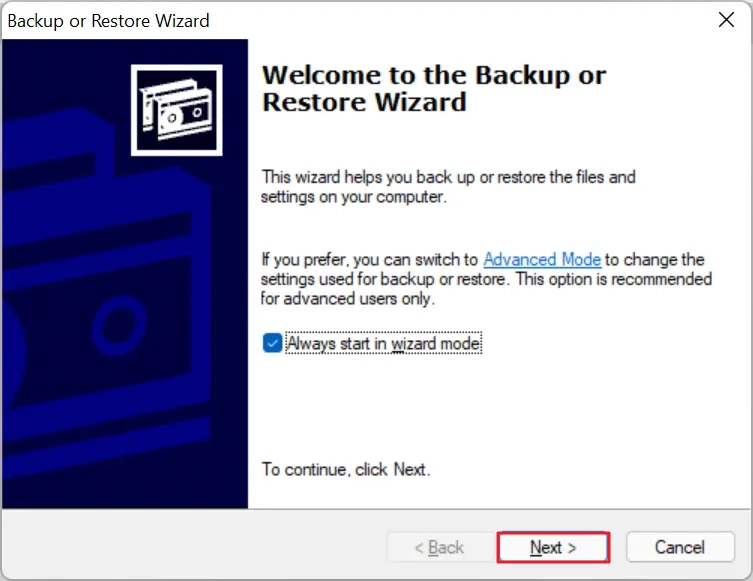
- Open the tool. On the welcome screen, click Next to proceed.
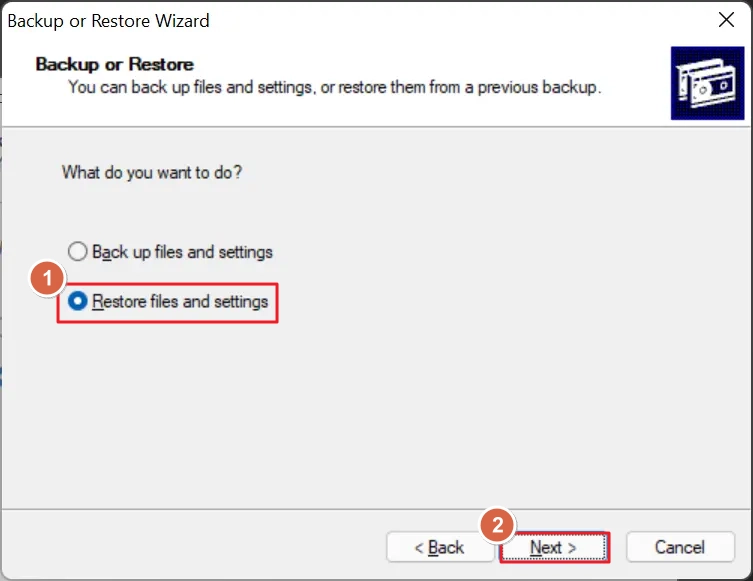
- Select the Restore files and settings option and click Next.
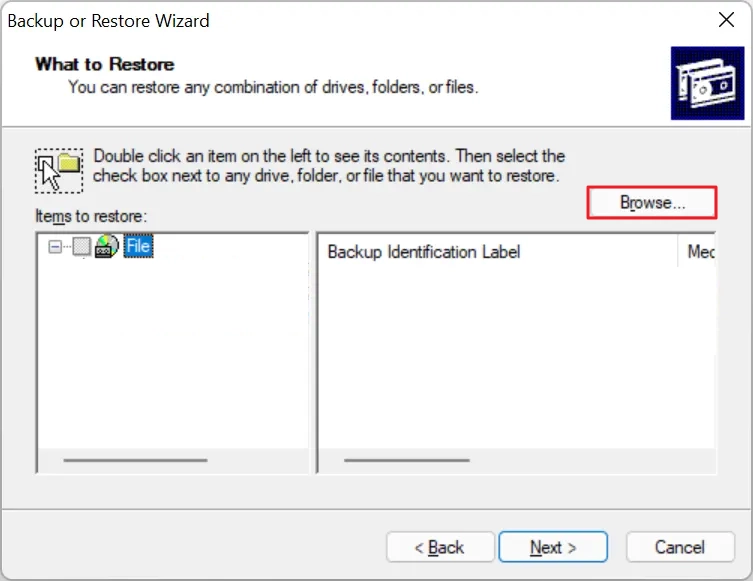
- Click Browse and select the BKF files that you want to recover.
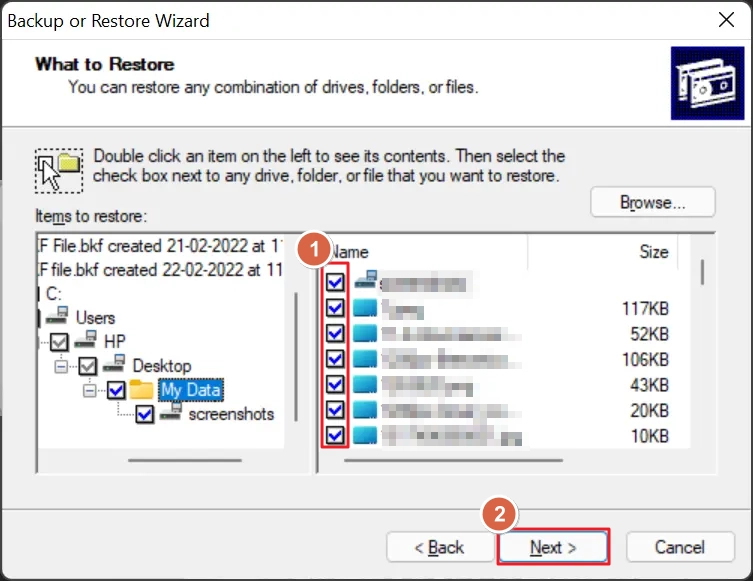
- The added BKF files will be listed in the left pane. Expand them to view the data inside. Then, select the data items you want to recover and click Next.
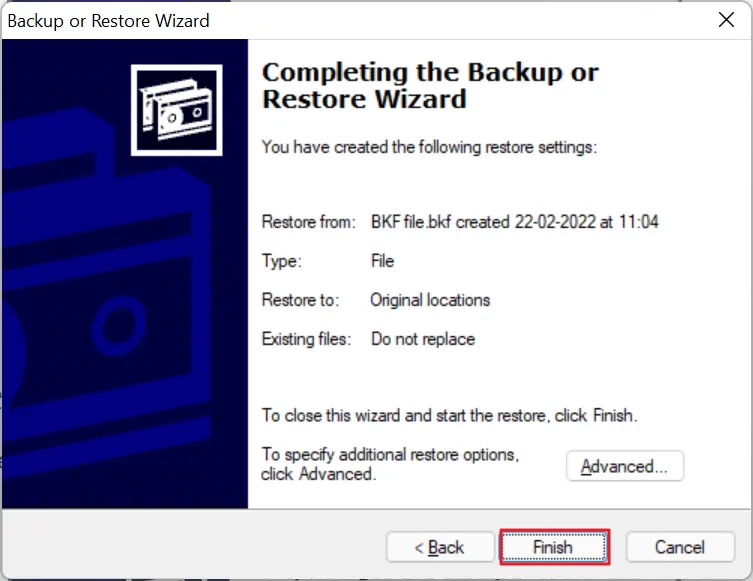
- Finally, click Finish to start BKF file recovery.
Method 2: Professional tool to restore BKF files
If you do not want to take a risk with an unverified tool, or you tried the above method, but it failed to read your BKF file due to corruption, then use Kernel for BKF Repair software. This tool supports decade-old, corrupt, inaccessible .bkf files. It deeply scans and correctly parses all the data items stored in it. After recovery, you can save the complete data to any location on your system.
Steps to use the BKF file recovery tool:
- Download, install, and open the tool.
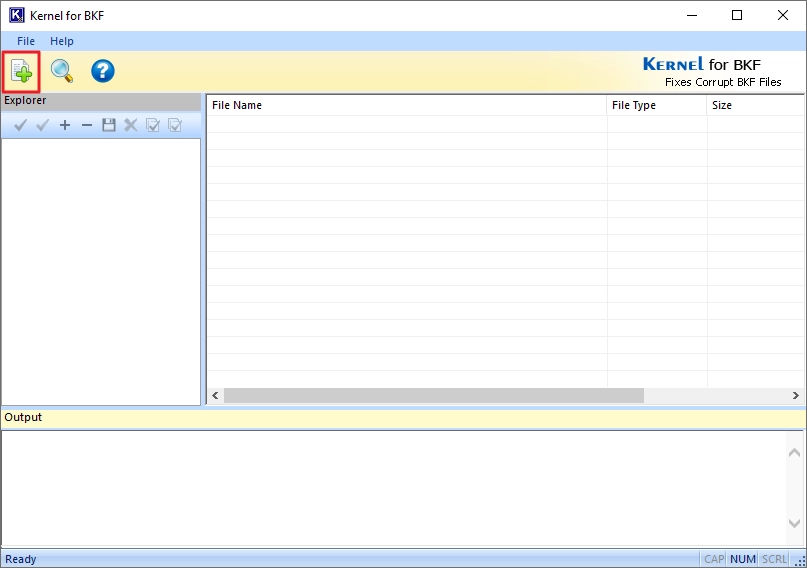
- Click on the Add file button on the top left.
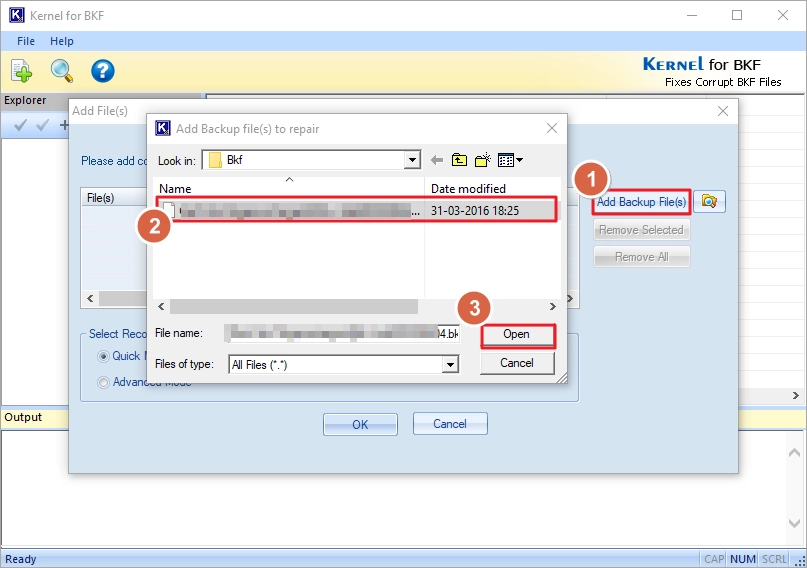
- Click the Add BKF File(s) button, select the BKF file you want to restore, and click Open.
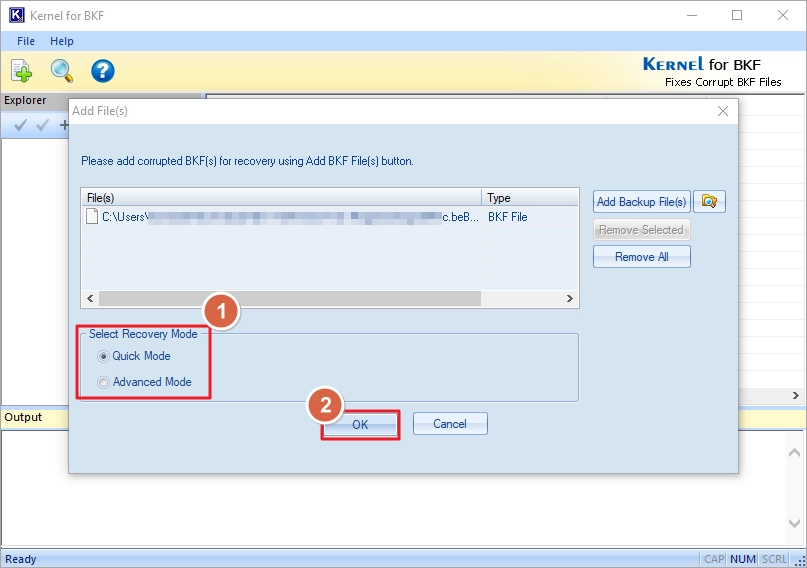
- Select a recovery mode and click OK.
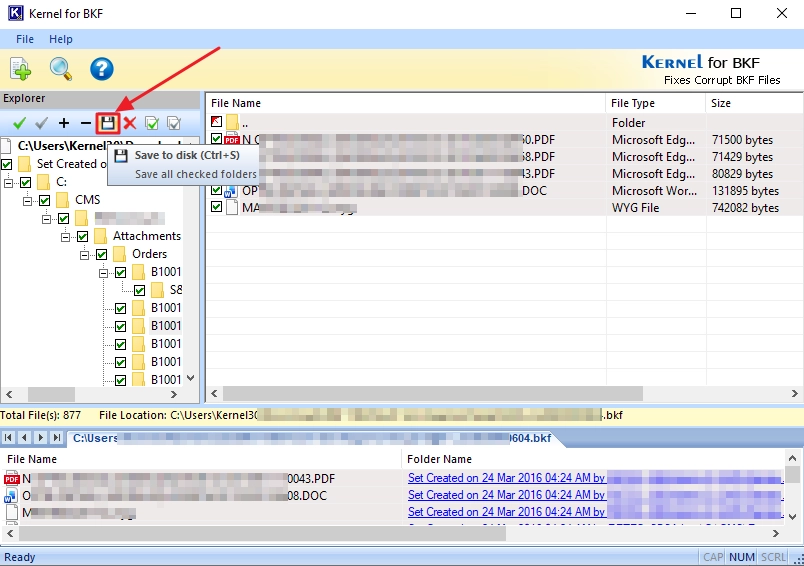
- Expand the folders to view the subfolders and data items. Then, select the data you want to restore and click the Save icon.
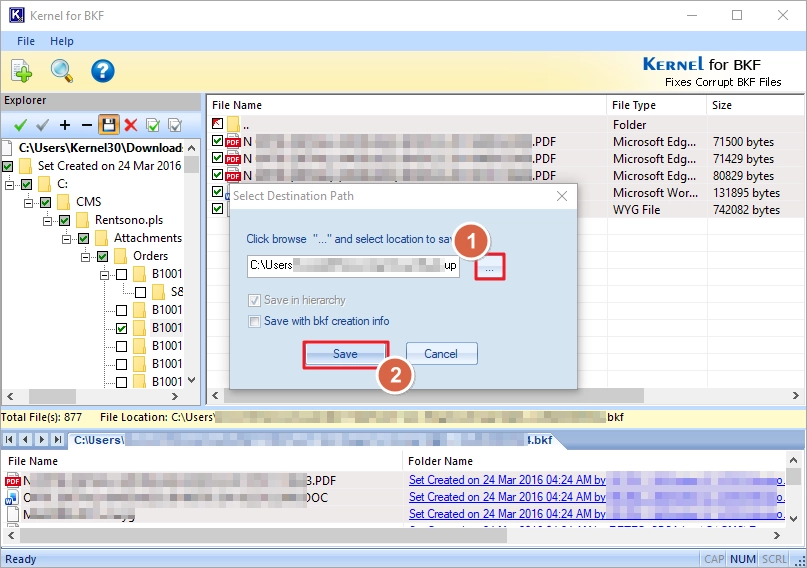
- Provide the location where you want to save the recovered data and click Save.
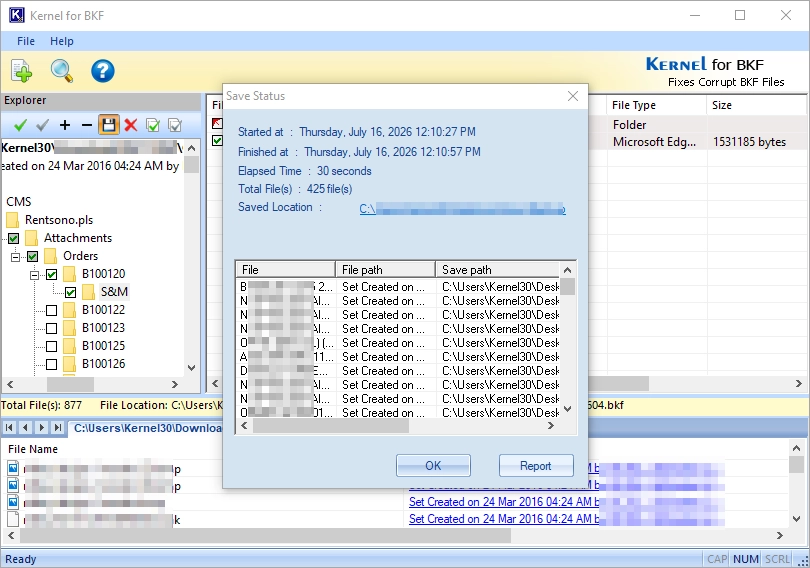
- BKF data is restored successfully to your specified location.
Restore BKF Files: Native Tool vs Professional Tool
Check out this comparison table to find out which method is best for BKF file recovery.
|
Kernel for BKF Repair |
NTBackup Restore Utility |
|
Support corrupt BKF files. |
Only support healthy BKF files. |
|
Parse complete BKF file data correctly. |
Struggles to access old .bkf files. |
|
Works in all Windows OS versions. |
Only supports legacy Windows OS, like 7. |
|
Easy one-click download from trusted source. |
No trusted download link available. Have to download from unverified links. |
|
Allows to auto-search BKF files on system. |
No search option. |
Author’s Verdict
The manual method to restore BKF files in 2026 is unreliable. It’s risky and does not guarantee complete data recovery. A better and recommended option is Kernel for BKF Repair. This professional tool is designed to repair and restore data even from severely corrupt BKF files created on legacy versions of Windows. The tool also allows you to search and restore specific files from multiple BKF files.
Frequently Asked Questions
Read the most common queries of users regarding Windows BKF file data restoration.
Q. How to use the NTBackup Restore Utility in Windows 11 or 10?
Ans. The free native tool does not support modern Windows versions. To use the NTBackup Restore Utility in the latest Windows OS, you must use a Virtual Machine (VM). In the VM, install Windows 7 or Vista and then use the NTBackup tool.
Q. How to restore deleted Windows files?
Ans. To recover deleted data from Windows, you can:
- Restore from Recycle Bin.
- Retrieve files using the Windows Backup and Restore tool.
- Restore Windows to a previous version.
- Use a dedicated Windows data recovery tool.