Here is a complete step-by-step process to Extract Email Addresses, Extract Attachment, and Convert EML files to other formats using EML converter:
Step 1. Download and install Kernel EML Converter in your system.
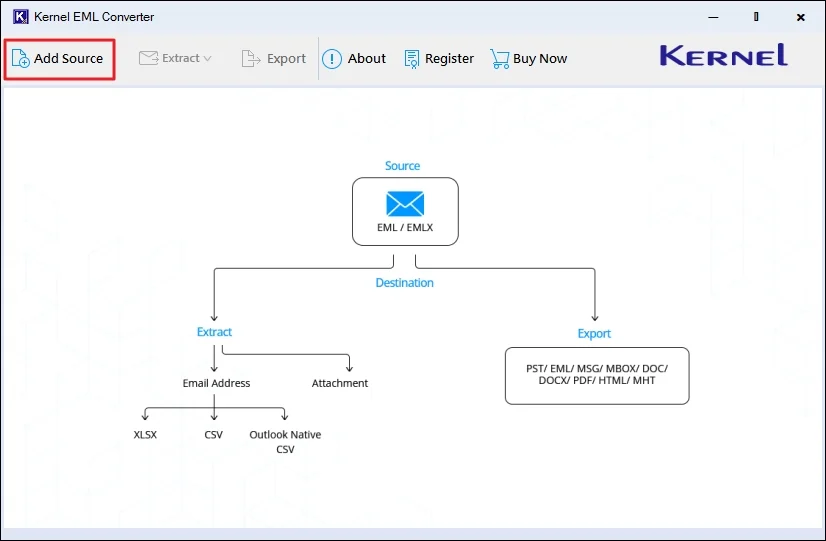
Step 2. Launch it and click on Add Source.
Step 3. Choose EML/EMLX accordingly in the Select Source File Type section and then click Browse.
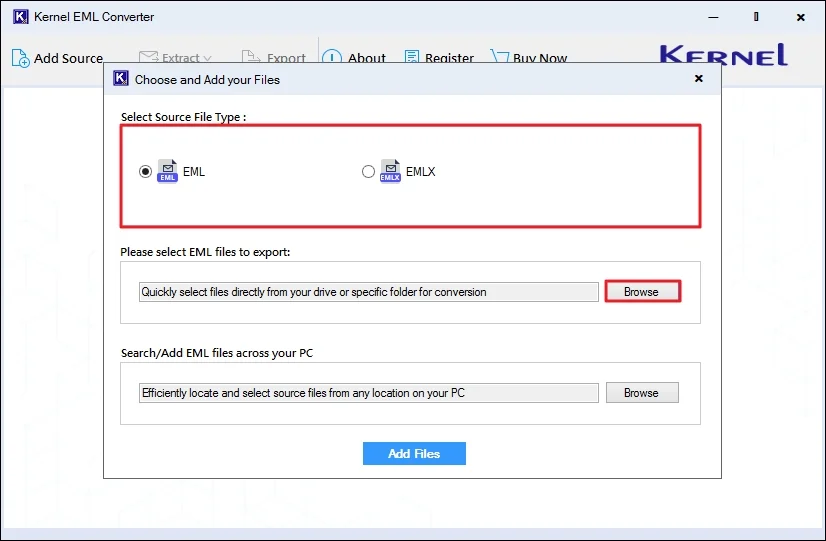
Note: If you want to fetch EML files automatically, click Browse in the Search/Add EML files across your PC section and select the folder.
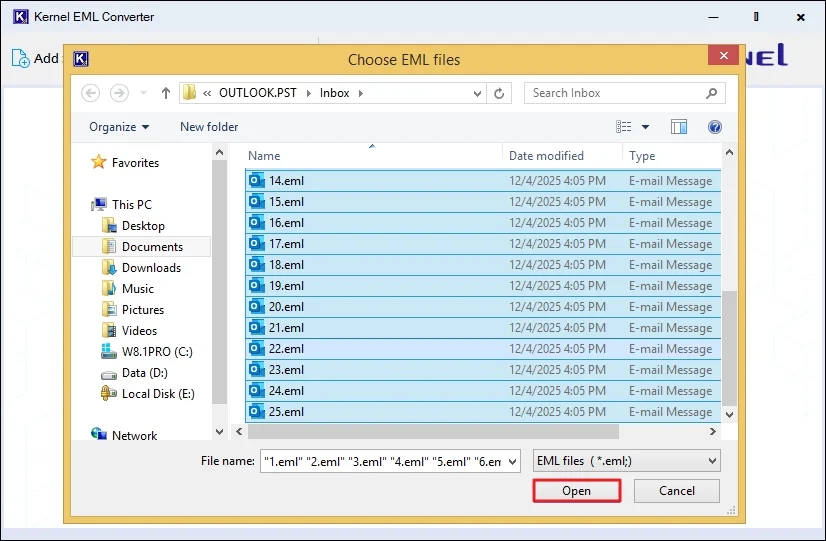
Step 4. Navigate to the folders in File Explorer and select the required EML files. Click Open.
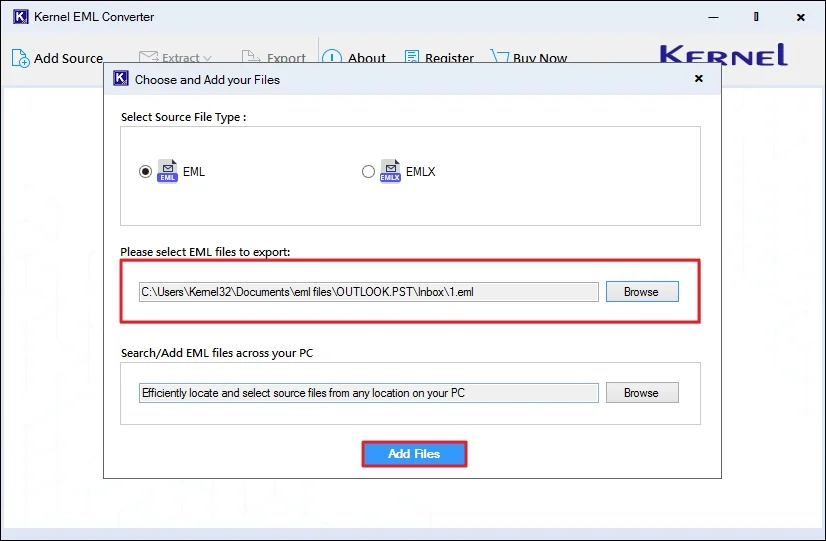
Step 5. Your selected files will be listed in the Browse section. Now, click Add Files.
Step 6. The tool will quickly generate previews of EML files in the same folder structure as the source.
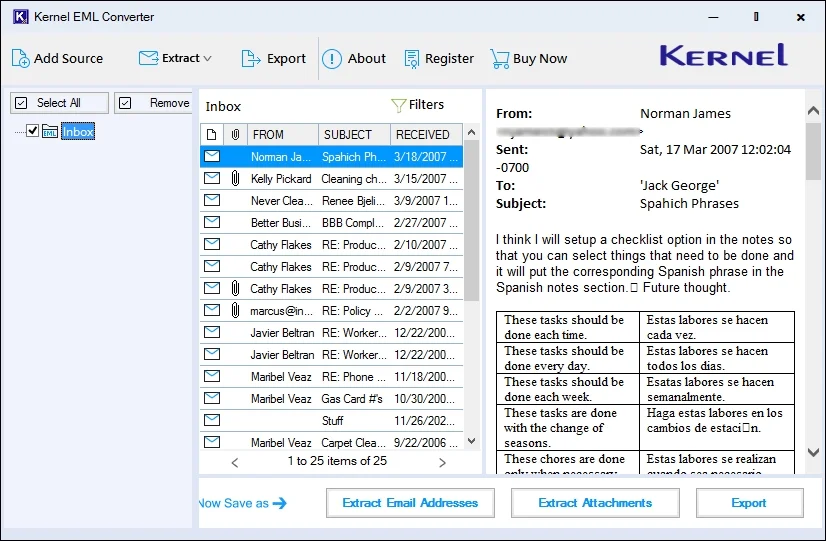
Choose Export Option
After previewing mail, there are three options: Extract Email Addresses, Extract Attachments, and Export. Let’s go through each separately:
Steps to Extract Email Address:
Step 7. Once previewed, select the required folders, and click on the Extract Email Addresses button.
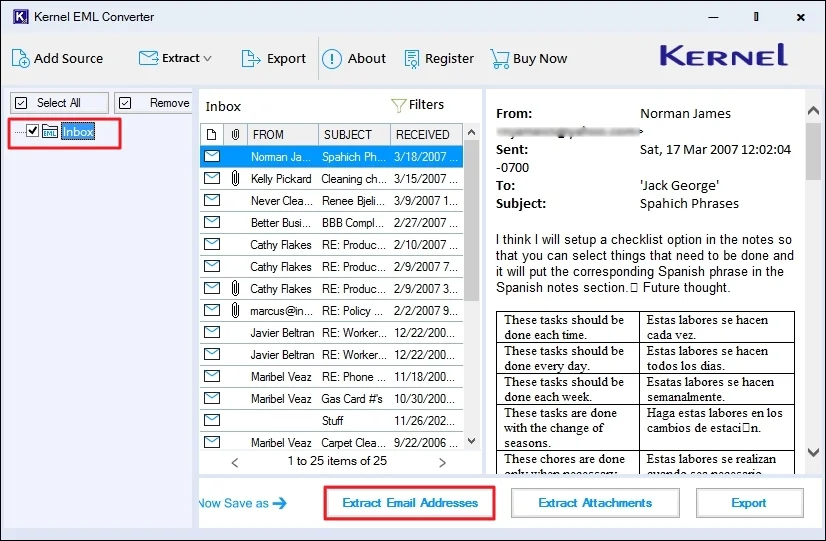
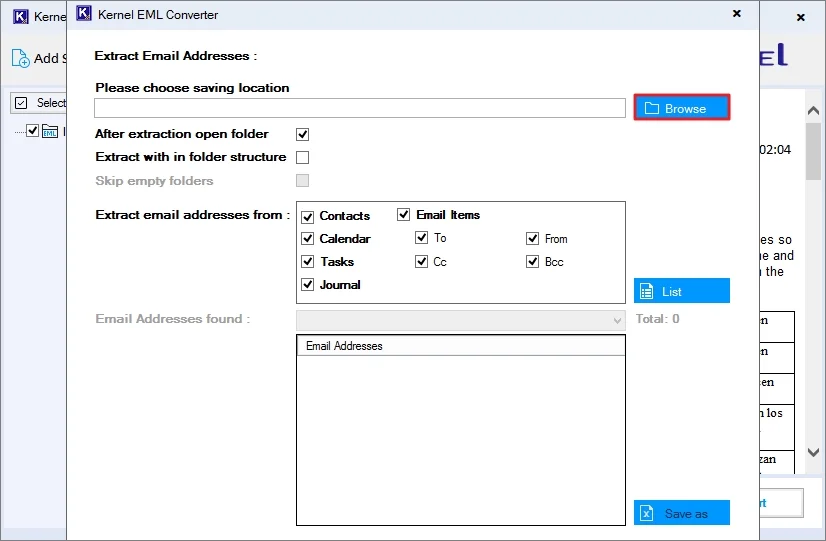
Step 8. Click on Browse to provide a saving location for email addresses.
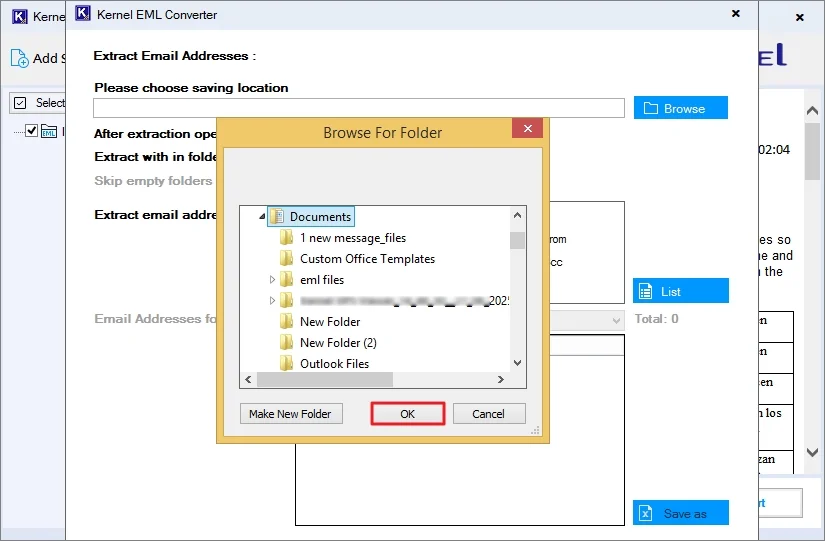
Step 9. Navigate to the location where you want to save the extracted email addresses. Click OK.
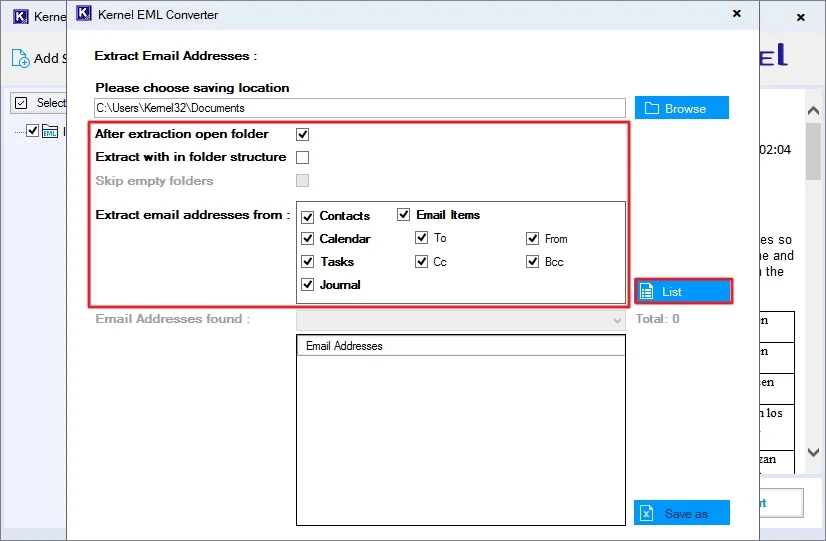
Step 10. Now, apply the Filters to get the required email address from the EML files and click List.
Note: Check out filters and choose them accordingly:
- After extraction open folder: The folder containing the email address will open automatically, once extracted.
- Extract within folder structure: Extract email addresses in the same folder structure as source.
- Skip empty folder: Exclude extracting email address from empty source folders.
- Extract email addresses from: Extract email address from contact, calendars, tasks, email items (To, From, CC, and BCC), etc.
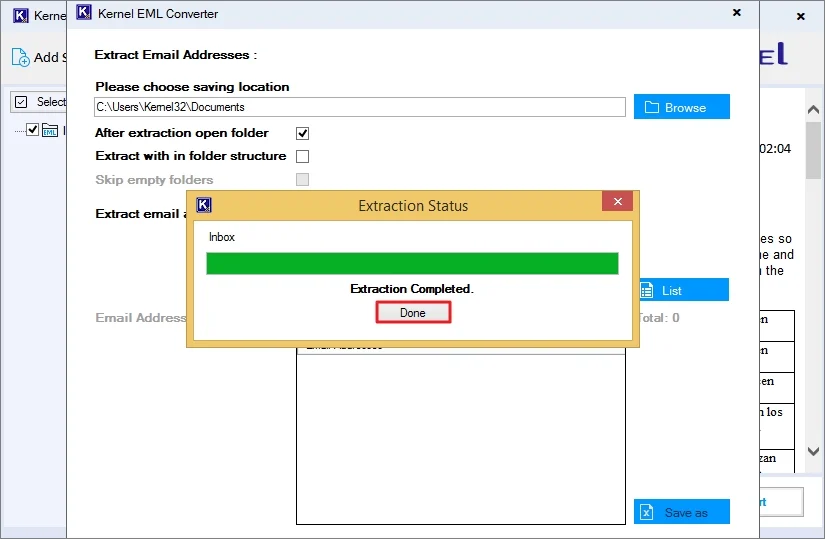
Step 11. The tool will start extracting email addresses on behalf of selected filters. Wait until extraction completes and click Done.
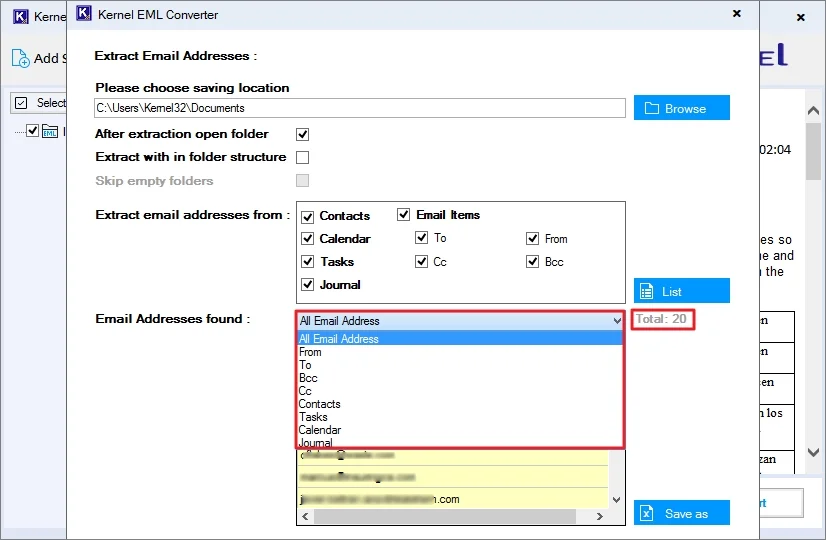
Step 12. Once extracted, all emails will be listed in the Email Addresses Found section with Total Count. You can verify and choose a specific email address from the given dropdown.
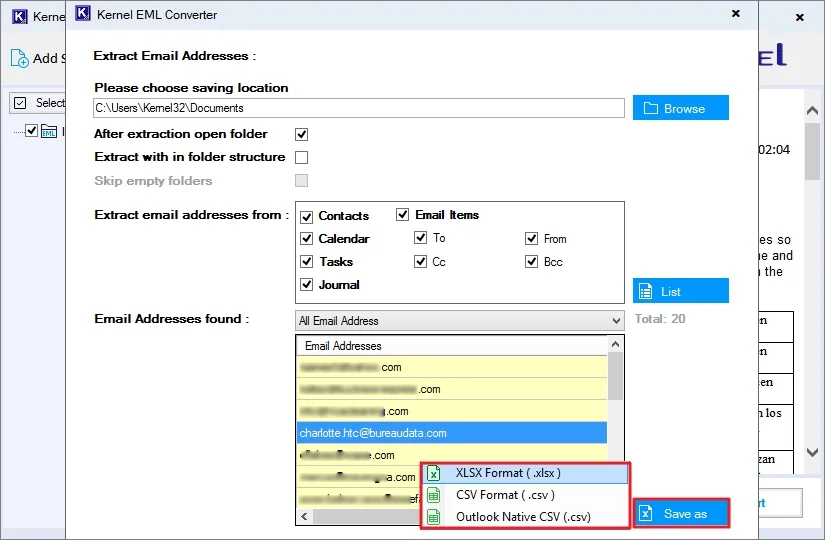
Step 13. To save them, click Save and choose your desired saving format from XLSX, CSV, or Outlook CSV.
Step 14. Once you select the saving format, the tool will save all email addresses at the preferred location. Click OK.
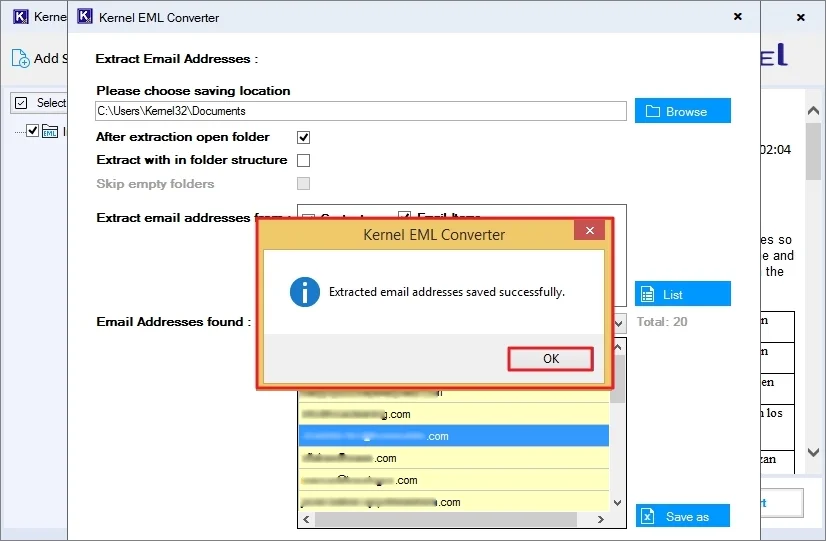
If you've selected the option After Extraction Open Folder, the tool will redirect at the location where the email addresses are saved. Also, you can navigate there manually to check the email addresses.
Steps to Extract Attachments Only:
Step 7. Once the EML files are previewed, select folders from the folder pane, and click Extract Attachment.
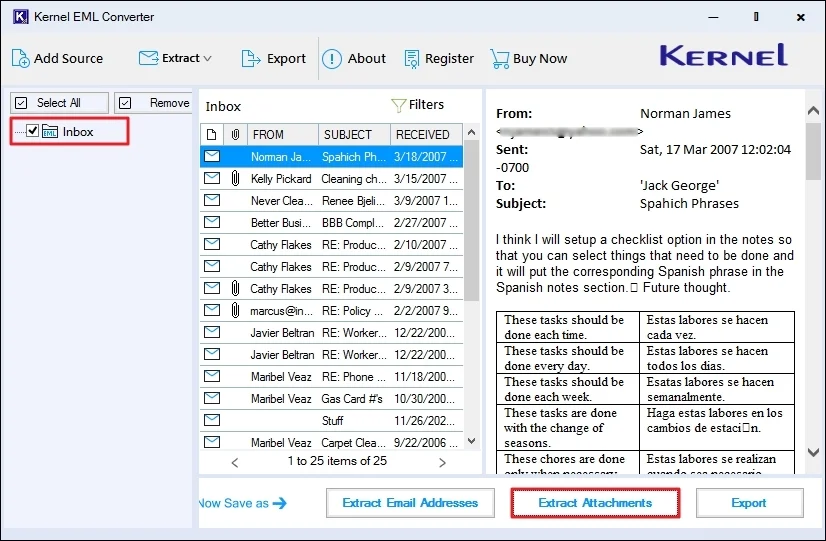
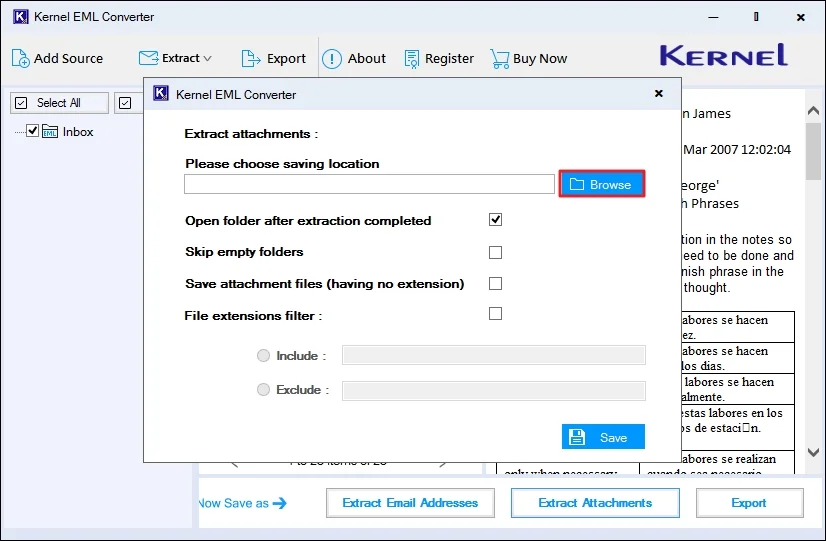
Step 8. Click on Browse to provide a saving location for the attachments.
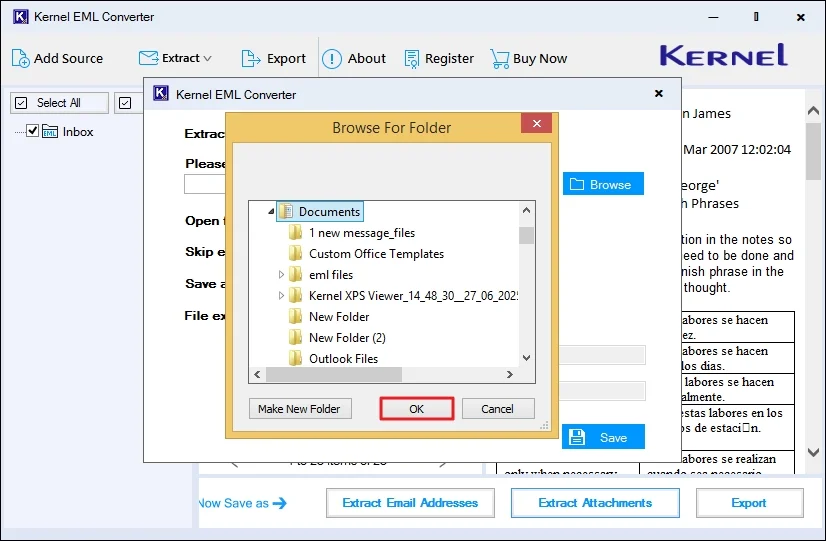
Step 9. Choose the folder where you want to save attachments and click OK.
Step 10. Now, apply Filters to extract the specific attachments and click Save.
Note: Check the filters and choose accordingly.
- Open Folder After Extraction Completed: The tool will automatically redirect where attachments are saved.
- Skip Empty folders: Exclude empty folders from the source.
- Save Attachments Files (having no extension): The tool even saves the attachment having no extension.
- File Extension Filter: Mention attachment extension to exclude/include in output.
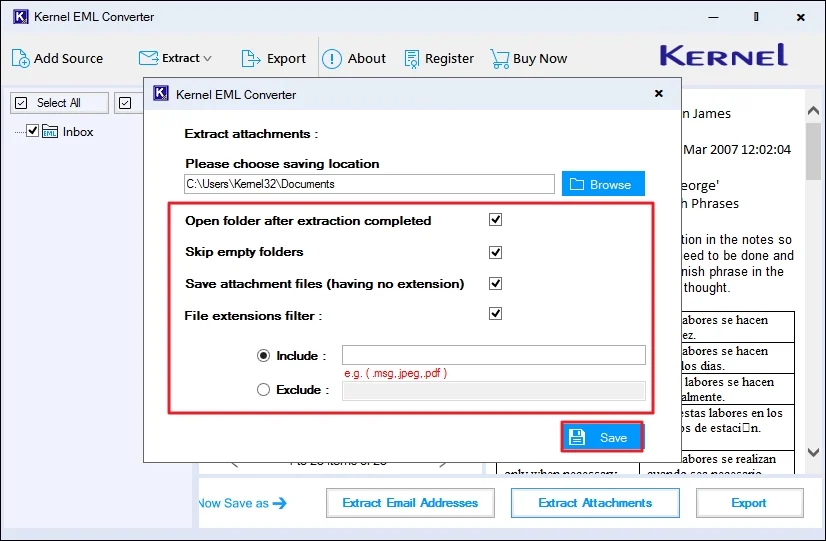
Step 11. Wait for a few minutes. The tool will save attachments according to the filters provided at the preferred location. Click OK.
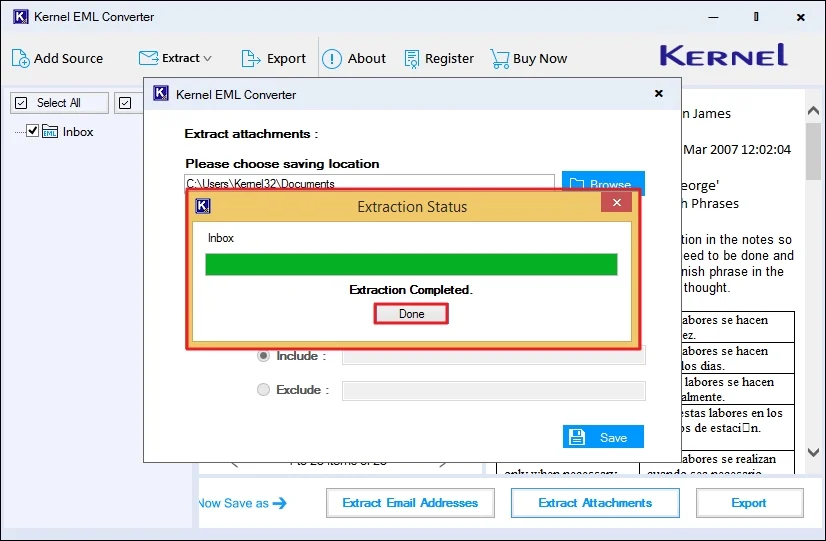
If you've selected the Open Folder After the Extraction Completed option, the tool will redirect to the location where the attachments are saved. Also, you can navigate there manually to check the email attachments.
Steps to Convert EML files into other formats:
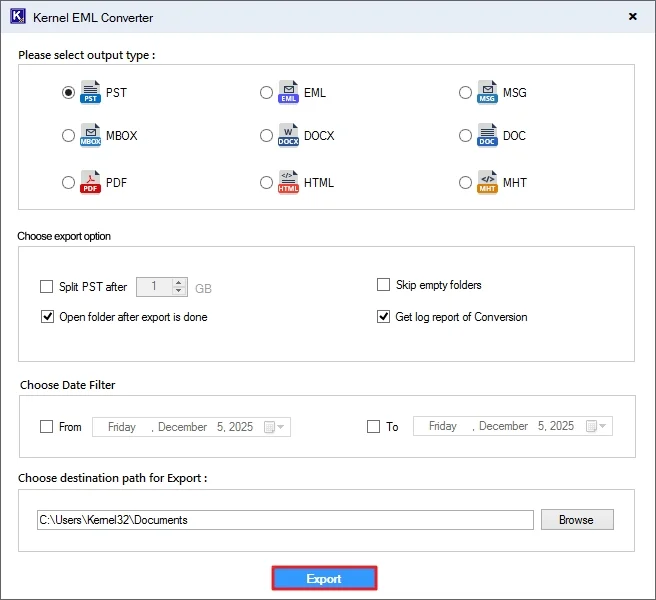
Step 7. Once previewed EML data successfully, choose the required folders from the folder pane, and click Export.
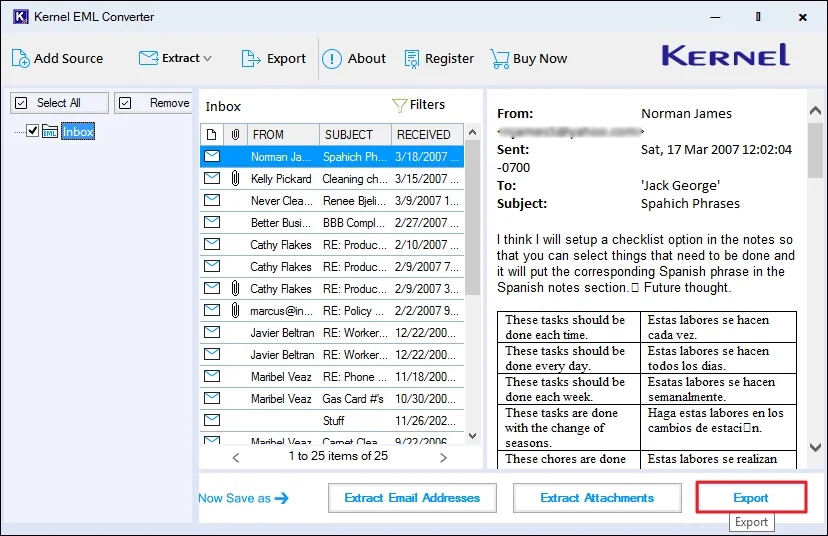
Step 8. Select the saving format from Output type (PST, EML, MSG, MBOX, DOCX, etc.) and choose Export options. Choose the required Date Filter and click on Browse to provide a saving location for output.
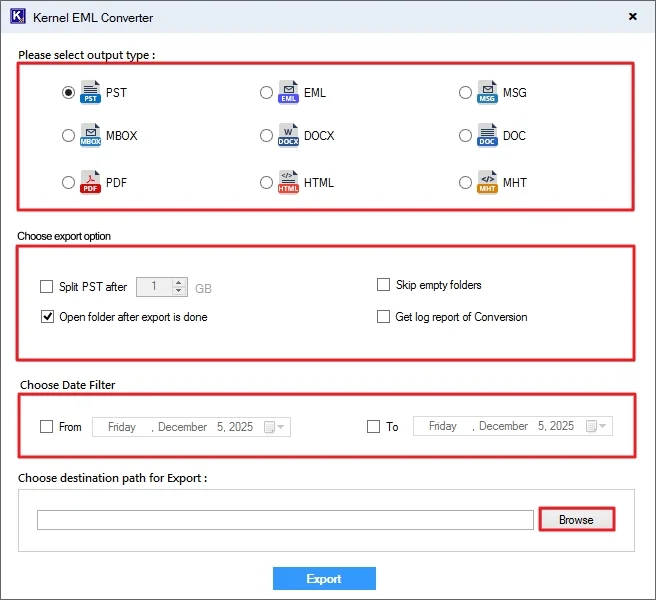
Step 9. Specify the saving location for the output file and click OK.

Step 10. After that, tap on Export to start converting EML files.
Step 11. Wait for a while. The EML conversion will be completed. Click Done.
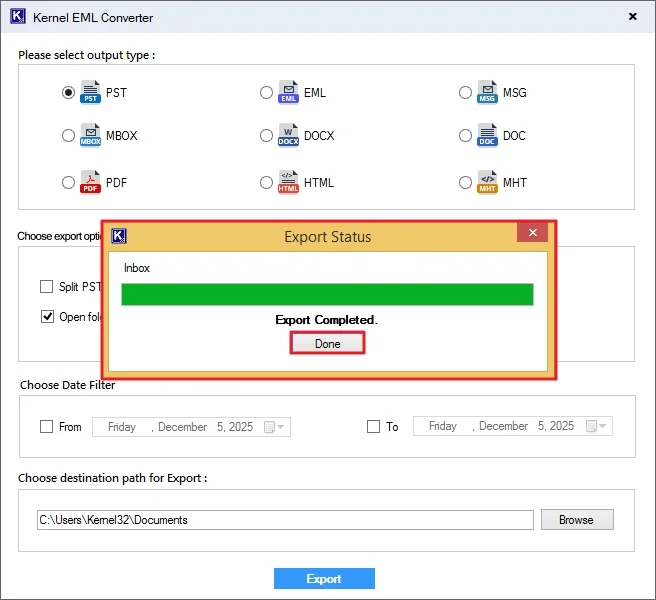
If you've selected the Open Folder After Export is Done option, the tool will redirect to the location where the output file is saved. Also, you can navigate there manually to check the output file.