Read time: 8 minutes
MOV and MP4 are the two leading multimedia containers. Both the formats are widely used to play videos on different platforms. MOV was developed by Apple Corporation as a part of QuickTime media player and made the standard format to play videos on Mac machines. Users switching from Mac to Windows might face compatibility issues while playing MOV files. Moreover, MOV videos are not playable on Android devices unless you have a specific application installed for it.
A direct approach to solve this compatibility issue is to convert MOV files to formats supported by major devices and operating systems. You can carry out the migration easily with the help of online or offline converter tools.
In this write up, we will discuss some free methods to convert MOV to MP4 format. But, before we get to the actual process, let’s compare some primary features and limitations of MOV and MP4 media containers.
MOV and MP4 video formats
MP4 format is used widely for online streaming of multimedia files like videos, audios, etc. It supports all major devices and operating systems. MP4 is a compressed file format which means that the format occupies less memory space and provides stunning video experience to the users. You don’t need a specific media player to play MP4 files since it is compatible with all major media players across every platform. MOV on the other hand is QuickTime multimedia file format, or in simple terms, it is the default format for QuickTime media player. This video container is used to play videos on Mac-based systems. Many multimedia players don’t support MOV files; also, you have to install a compatible player to play it on Android devices.
In order to make MOV files more compatible with other platforms, many users are converting MOV to MP4 format.
Free methods to convert MOV to MP4
Below are some free methods that you can use to convert MOV to MP4 format.
- Use VLC Media Player for conversion of MOV to MP4
- Use Online Converters
- Use trusted video converter tool
Method 1: Use VLC media player to convert MOV to MP4
VLC media player offers a variety of features to manage videos. You can fix codecs, repair damaged index, covert videos, and perform various other operations on video files via VLC. Given are the instructions one should follow to convert MOV to MP4 format.
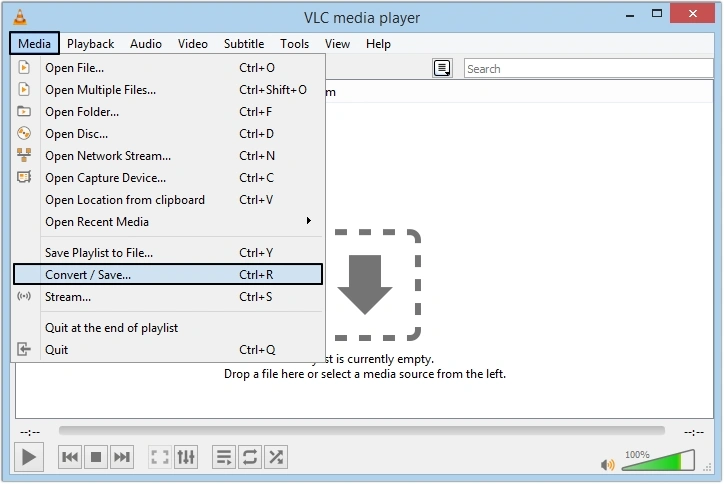
- Launch VLC and navigate through Media >> Convert/Save.
- Click + Add button to navigate to the folder containing the respective MOV files.
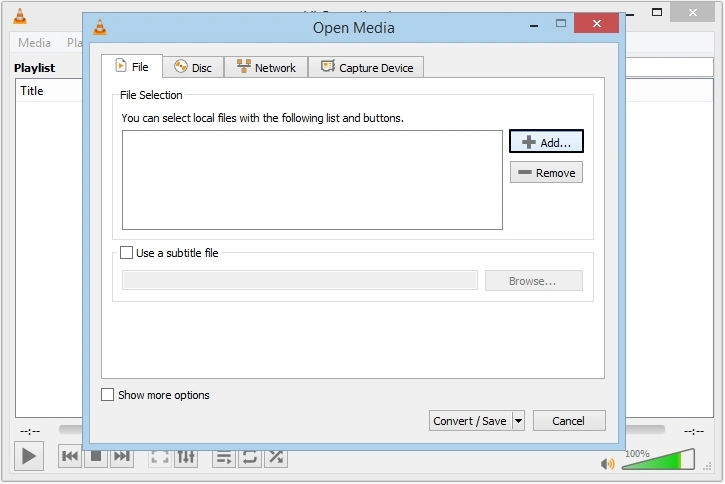
- Select the videos and click Open.
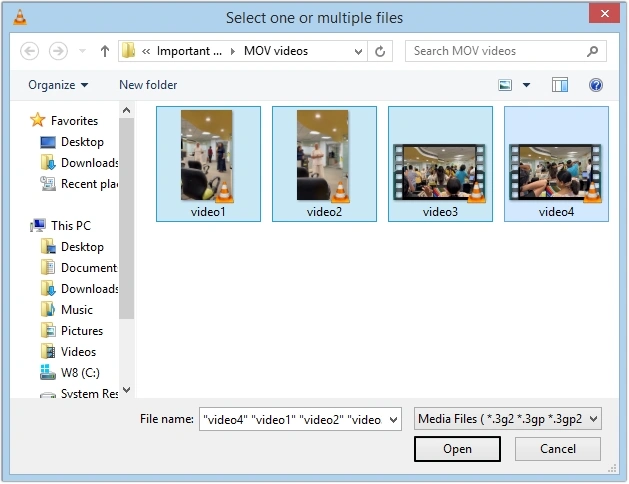
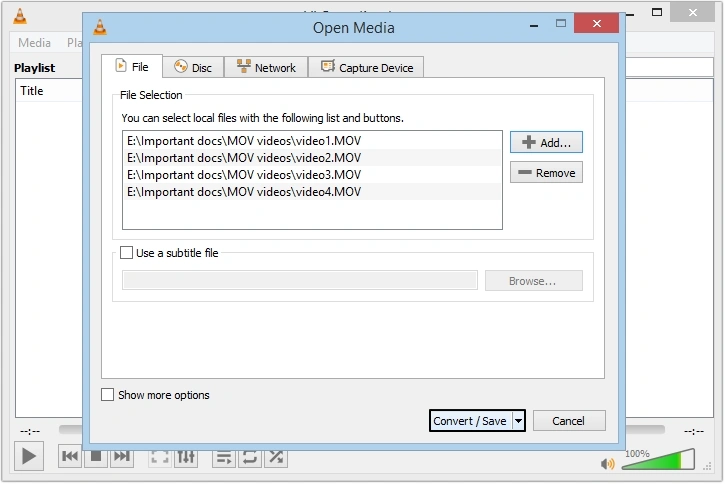
- Once the required files are added to the interface, click Convert/ Save >> Convert.
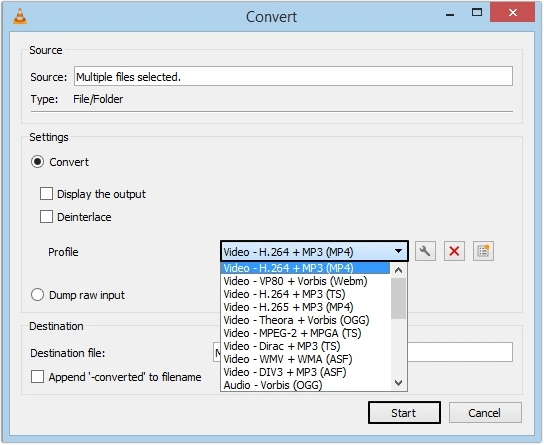
- In the Convert dialog box, select the Output profile for videos that are to be converted and click Start to initiate the conversion.
- Conversion of multiple videos may take a while. Wait until the process is completed.
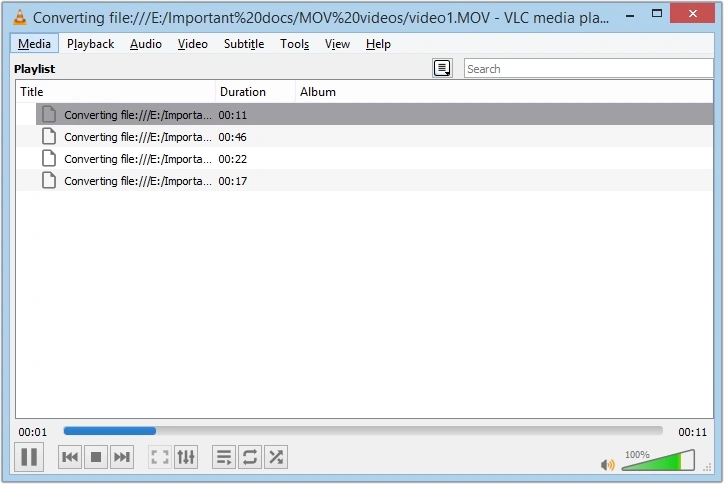
All converted MP4 files are saved to the desktop location on your local system.
Method 2: Use online converters
You can also try different converters available online. However, before using any free or paid online converter, you should verify the source website. Use of any random online converter might lead to file corruption. However, this method doesn’t guarantee an effective solution. Therefore, it is always recommended to avoid using any free-online converters and use only trusted third-party software to do the task.
Method 3: Use a professional video converter tool
The most recommended alternative to all the methods described above is to use a reliable software to perform the conversion. One such tool that can help you convert MOV to MP4 video formats is Kernel Video Converter.
The tool allows users to convert their videos to all other formats supported extensively by major devices and operating systems. The tool supports conversion of videos to formats like MOV, MPEG, AVI, FLV, 3GP, and many other multimedia containers. With the software, there comes no restriction based on number of files and file size. Moreover, the trial version can free convert MOV to MP4 videos up to 15 seconds without any cost. If you liked the tool, purchase the licensed version, and convert your videos without any restriction.
Steps to convert video MOV to MP4 using the professional software
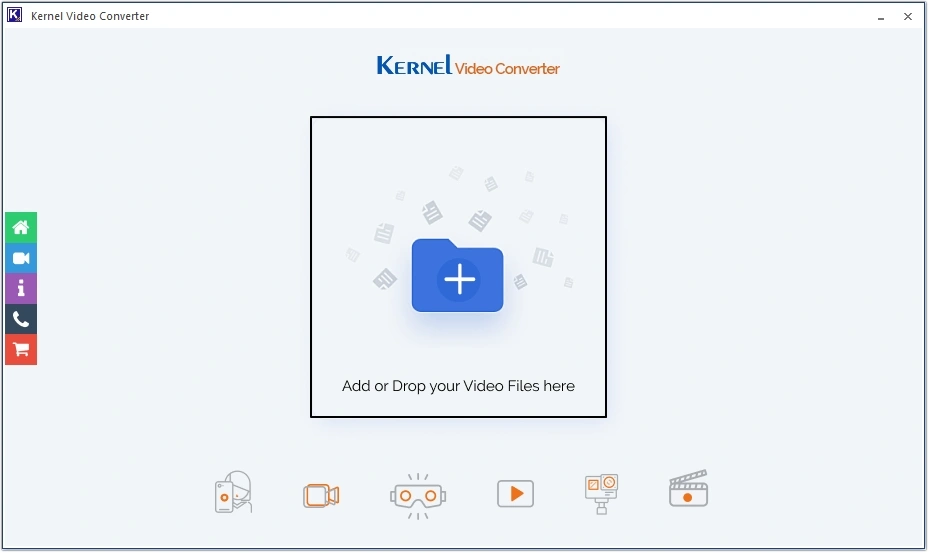
- Launch the tool on your local machine and click the “+” button to navigate to the folder containing the required MOV files.
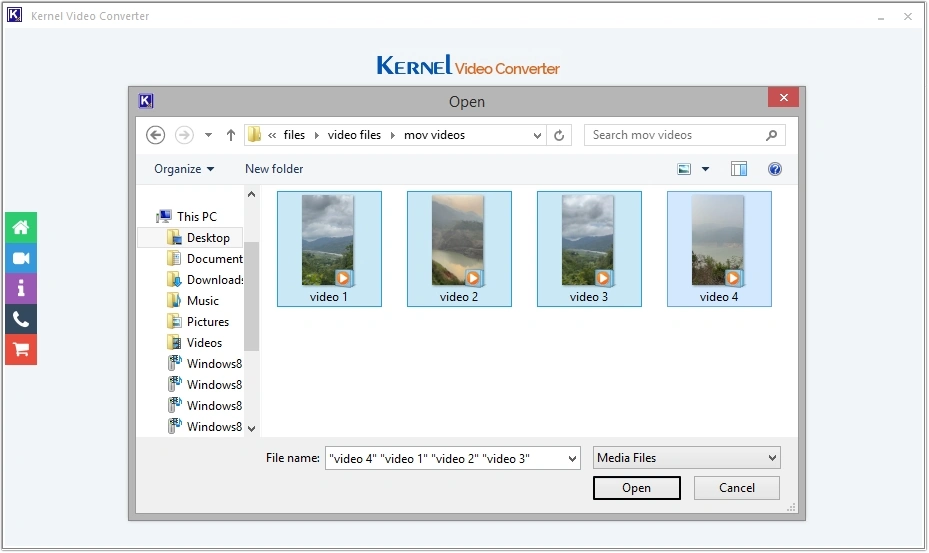
- Select the MOV files that are to be converted and click Open.
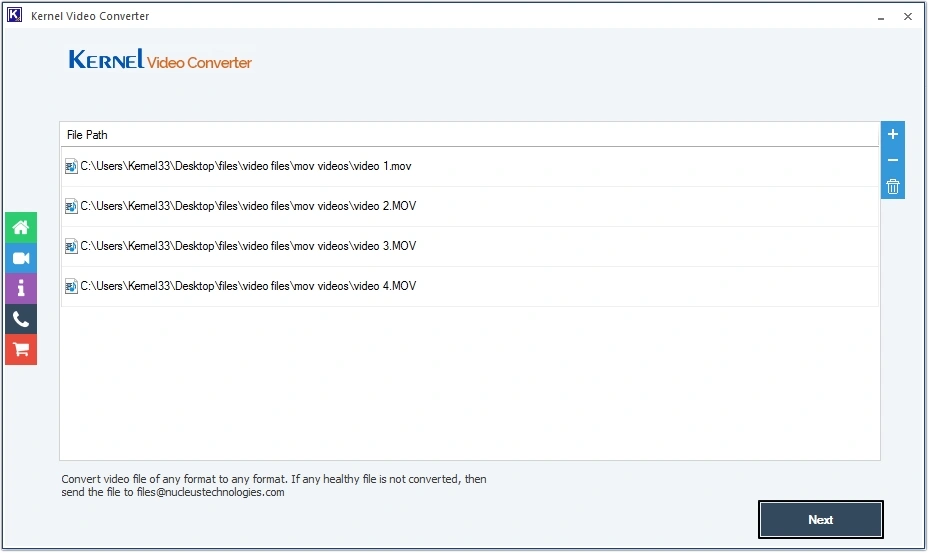
- Once the required files are added to the conversion list, click Next to proceed further in the process.
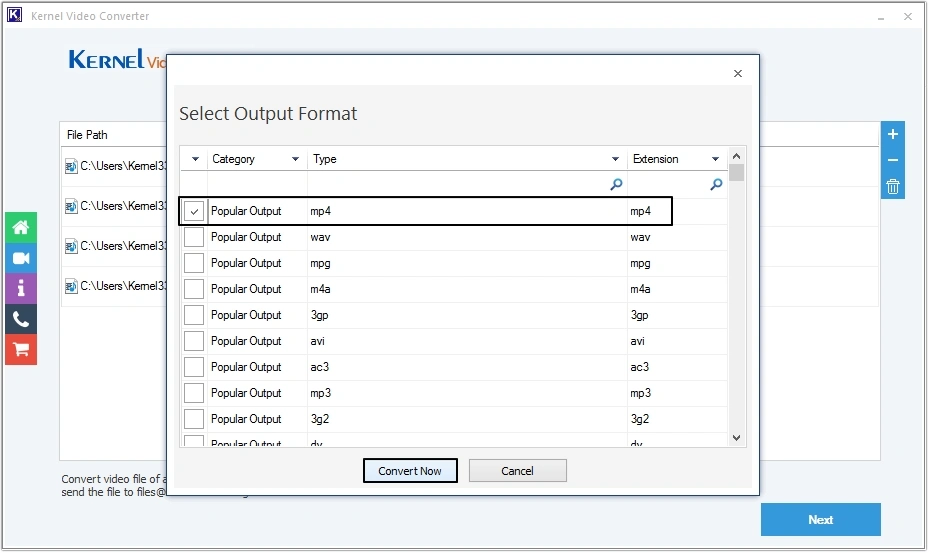
- In the next window, select MP4 as the output format and click Convert Now.
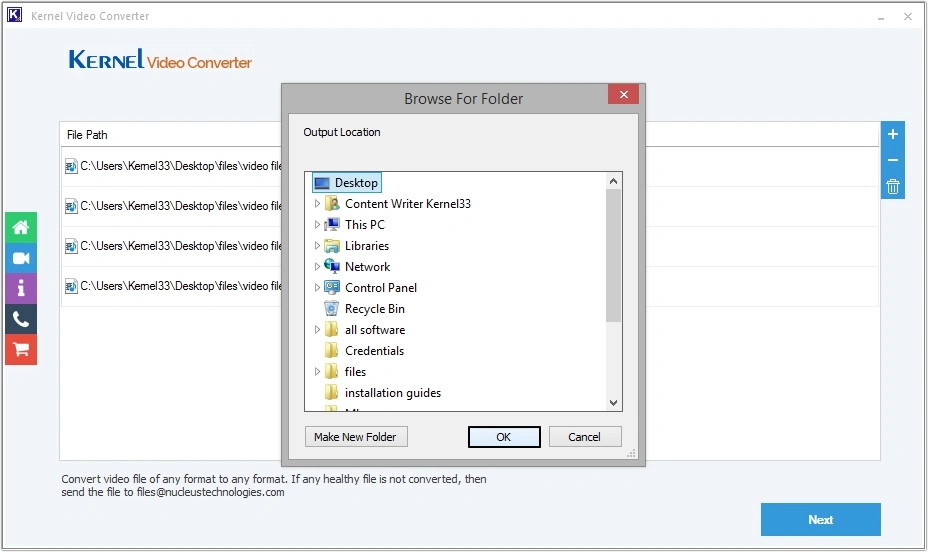
- Provide a destination to save the converted files and click OK.
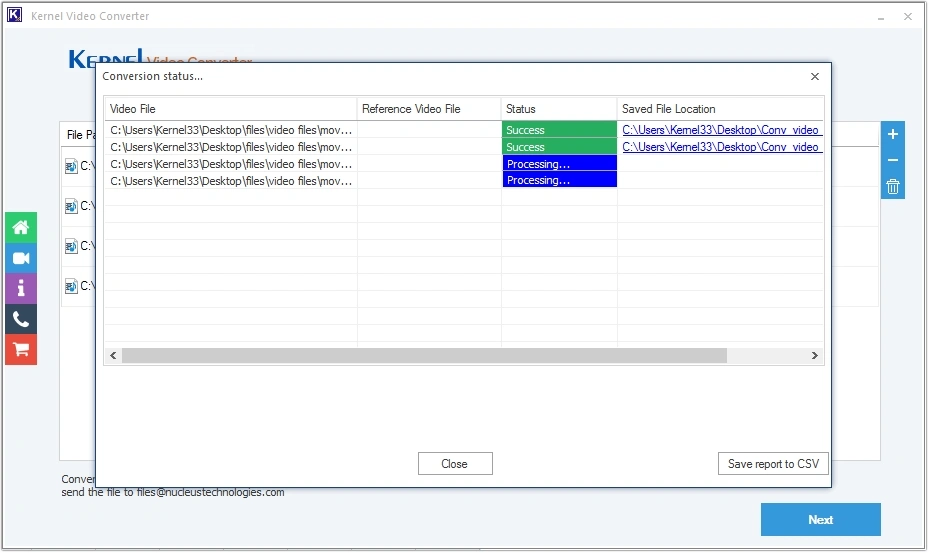
- The software will begin to convert MOV to MP4 format with live progress status.
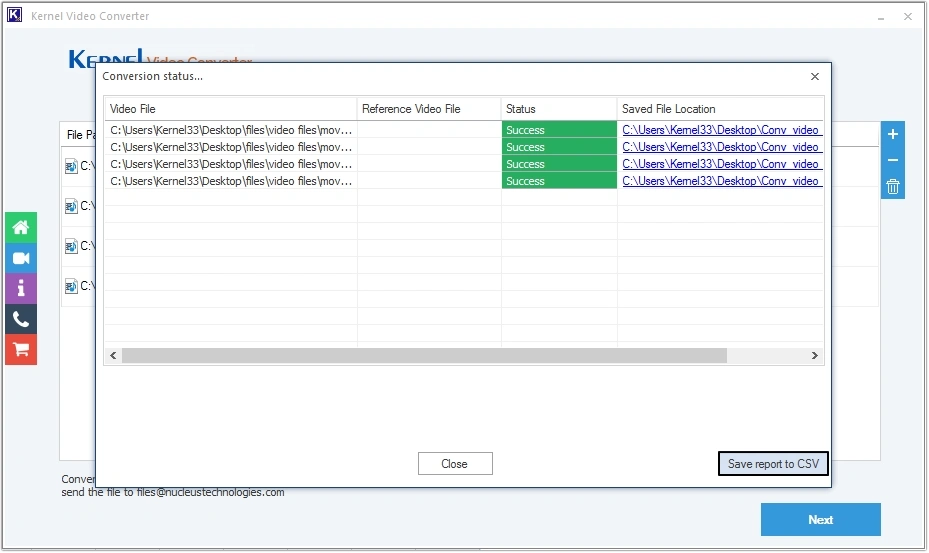
- Once the process is completed, download the report of your conversion task by clicking on the Save report to CSV button.
Conclusion
This article is solely intended to help users convert MOV to MP4 format without hassle. As conversion of video files requires a reliable free video file converter tool, you can choose between using VLC or you can look for free video file converters online. But with free tools, there is no guarantee that your video will be saved in original quality and that too without data loss. This is why we recommend using a reliable Kernel Video Converter tool to get error-free MOV to MP4 conversion in a few clicks. Download the trial now!
Frequently Asked Questions
A. To convert MOV to MP4 in bulk, use the professional-recommended software, such as Kernel Video Converter tool. It helps you add bulk video files and get quick conversion without quality downgrade.
A. Yes, Kernel Video Converter tool supports conversion of large MOV video files without any file size issues.