Read time 5 minutes
OST files are Offline Storage Table files which are a local replica of Exchange Server data stored at the system location. It helps users to access Outlook data/work offline (without internet connectivity) which gets updated automatically when the internet connection is made further. So, any issue related to OST files directly affects the user’s privilege to access emails, contacts, etc.
Honestly, no user would like any unnecessary space to be acquired by junk files or duplicate documents on the system or in their mailbox. A common issue in Outlook is where two OST files regenerate even after deletion, everytime a user logs into their Outlook account. Having duplicate OST files isn’t necessary an issue, but in the long run it can slow down the performance of Outlook and negatively impact productivity. We’ll be going over some simple yet thorough methods to help users manage duplicate OST files in an effective way. Read ahead to know the most common reasons why OST files get regenerated even after deletion.
Reasons for multiple Outlook OST files
The potential reasons that can lead to multiple OST files getting regenerated are:
- Multiple Outlook IMAP profiles- Outlook creates two OST files when you have configured multiple Outlook IMAP profiles, including one default & one you created.
- Old or different Exchange account – Another possible reason for the creation of two OST files in Outlook is when the second file is an old one or related with a different Exchange account.
- Locked session – Outlook sometimes creates new OST data files when another session has one locked, which can also lead to the creation of duplicate files.
- Networked environment – The OST file can easily get corrupted in networked environments & cause multiple OST files to be created.
- Shared Outlook account – A user having access to a shared Outlook account could also be behind the creation of multiple Outlook OST files.
Any user can face this issue due to a corrupt Outlook profile, local AD account; multiple IMAP account profiles, corruption, and incompatibility of network OST, etc. Now that we know the reasons behind the ‘Two OST files in my Outlook’ issue, it’s time to see the potential fixes of this problem.
Basic tips to resolve the two OST files issue
Try these tips before performing the manual methods and see if the issue resolved.
- Close all running instances of Outlook and restart it again.
- Check if antivirus or firewall is interfering with Outlook’s functions.
- Update Outlook and Windows to the latest version.
- Regularly backup and archive OST files using an advanced OST Converter.
Manual methods to manage two OST files in Outlook
If you want to tackle this extra OST file generation issue, you can go for some manual actions or procedures which we are going to explain one-by-one.
- Managing Outlook Profiles
- Disable cached Exchange mode
- Repairing Corrupt OST Manually
- Backup OST and Remove Extra
Managing Outlook profiles
Try removing extra-added Outlook profiles in the application which aren’t used that frequently to resolve the regeneration issue of OST files. Close your Outlook application (if opened) and perform these steps:
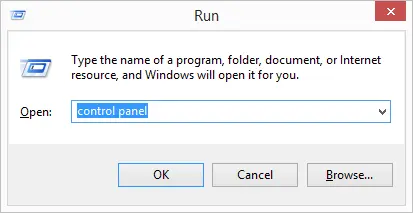
- Open Control Panel application in your system with Windows + Run command.
 .
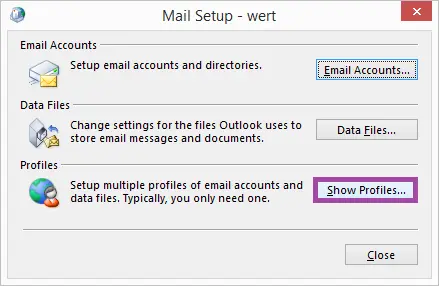
. - Select Mail option and then in the opened Mail Setup dialogue box, click Show Profiles option.
 .
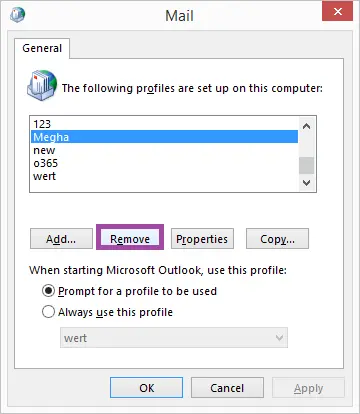
. - All the Outlook profiles will get listed. Select the extra or unrequired profiles one-by-one and click the Remove option to remove them.
 .
. - Now, delete the extra OST files, logon to the Outlook application and check for two OST files now.
Disable Cached Exchange Mode
Sometimes, Cached Exchange Mode of Outlook creates issues with performance even without intending to. Follow the steps below to disable Cached Exchange Mode in Outlook:- Open Outlook and click on File tab.
- Go to Account Settings > Account Settings to open a new window.
- In the Email tab, select your Outlook account, and click on Change.
- Now, click on More Settings > Advanced option.
- Uncheck the Use Cached Exchange Mode checkbox and click on Apply.
Repair corrupt OST file manually
One reason behind this issue could be corruption in OST files which you can repair manually with scanPST.exe for all the Outlook versions. The basic path location of this in-built repair utility for different Outlook versions is listed here. You just need to open the application from the folder paths given below, browse and add the corrupt OST file for repair.
Follow the steps below to repair OST files
- Locate ScanPST.exe on your system and launch the tool. The Inbox Repair Tool can be found on the given location in recent Outlook versions.
- Click on the Browse button and select the corrupt OST file you want to repair. Click on Start to proceed with scan process.
- Once scan is completed and corruption is found, click on Repair to move forward.
- The repair process will get completed successfully, click OK to finish the process.
- Open Outlook again and check if the issue is resolved or not.
C:\Program Files (x86)\Microsoft Office\root\Office16
Backup OST and remove extra files
If you are looking for an alternative for quick and safe OST file repair, then the best thing to do is save the main OST to PST file format as a backup and then remove the extra created OST files. This is where knowing the difference between OST & PST files becomes crucial, since OST files are dependent on Exchange connectivity while PST files serve as independent backups that can be easily stored or transferred.
It is important to mention that manual solutions always require connection with Exchange Server and ignores orphaned, corrupted OST files. The manual conversion process holds other limitations as well as file size, filter restrictions, data loss risks, etc. If you don’t want all these risks in your OST conversion, trust the most popular OST Converter tool, Kernel for OST to PST Converter. This tool just needs your OST file for conversion to PST and more file formats. Other than that, you can move your OST data to Exchange and Office 365 destinations. Some advanced filter options are also available for the users to convert OST to PST specifically. We recommend you for a test trial with its demo version and then get confirmed for using this tool.
Conclusion
OST file is an important database file in connections with both Exchange Server and Outlook applications. Therefore, any issues related to it needs to be resolved as soon as possible like two OST files in Outlook. Some solutions like Outlook profiles management, OST recovery, disabling Cached Exchange Mode, are explained. A dedicated tool for OST conversion is also recommended at last to recover OST data to PST format without any risks.
FAQs
A- Deleting the OST file does not necessarily mean losing all your emails. When an OST file is deleted, the account can still be synchronized with the Exchange Server & this means that users can still retrieve all their Outlook data back.
A- Each PST file contains data for a specific email account. If you have more than one email account set up within Outlook, you will have multiple PST files. This is a convenient way to keep your emails organized & easily accessible.