Read time: 8 minutes
User Query: “I need suggestions for solutions to transfer photos from Google Photos to OneDrive. I also need it not to transfer duplicate photos. There are more than 27,000 pictures, which obviously means that I cannot go through them manually one by one.”
Google provides a free storage of 15 GB to its users. However, this comprises Gmail, Google Drive, Photos, Docs, and other components. On the other hand, OneDrive alone comes with a free storage of 5 GB, which can be further enhanced based on your requirements. It is one of the many reasons why users are searching for ways to transfer Google Photos to OneDrive. But the complication arises when you need to move bulk files to the latter one, as you can’t move everything manually. Learn more about the details on how to move photos from Google Photos to OneDrive with this write-up.
Benefits of Using OneDrive to Store Photos
Here are the major benefits of using OneDrive over Google Photos to store photos and videos:
- Wide support: OneDrive allows a wide range of file formats along with many RAW files. It does not compress images, which is quite common in Google Photos that downgrades the file quality.
- Backup copy: When you move Google Photos to OneDrive, you’re creating a safe backup copy of all the data to a new cloud storage.
- Extensive data privacy: With features like Personal Vault supporting biometric authentication, your sensitive or private and personal photos are completely secured.
- Better organization: OneDrive allows you to organize your photos properly so that you can get rid of all that clutter accumulated in Google Photos. With an additional Moments tab, you can check your daily memories.
- Sharing controls: OneDrive allows you to put control and set expiry time periods for the shared links to manage shared images.
- Cost-efficient: OneDrive is comparatively economical than Google Photos as it covers the requirements of users who need large storage.
How to transfer Google Photos to Microsoft OneDrive?
There are several methods, like manual downloading and uploading files, importing features, and sync Google Drive to OneDrive to move photos. Let’s discuss them one by one:
Method 1: Download and upload files
It involves downloading all the desired files from Google Photos and then uploading them to OneDrive one-by-one. This method is suitable for accounts that do not contain large numbers of files. Make sure the network you’re working on is stable with an uninterrupted power supply.
Step 1: Go to Gmail and sign in to the source account and open Google Photos.
Step 2: Select all that you want to move from Google Photos to OneDrive. Click Download.
Note: Google Photos allows a maximum download of 500 photos/videos at once.
Step 3: Now, go to OneDrive and login your account.
Step 4: Click Upload and select the files or folders containing all the photos.
Repeat this until all your photos are uploaded, and upon completion, all the required Google Photos will be on OneDrive.
Method 2: Transfer Google Photos to OneDrive with Google Takeout
This method will generate a zipped file containing your Google Photos, which you can extract to OneDrive. However, remember that it is not suitable for a large number of files and the process often takes many days to finish.
Step 1: Open Gmail, click on the hamburger icon, and select Manage your Google Account.
Step 2: From the next tab, select Data & privacy > Download your data.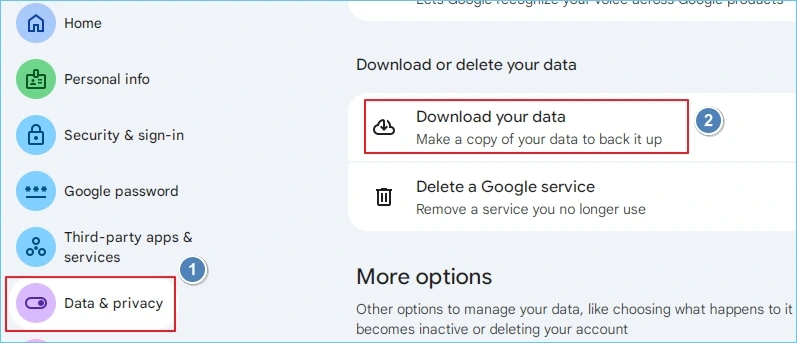
Step 3: Here, tap on Deselect all to unselect all the selected components.
Step 4: Scroll down and mark the checkbox against Google Photos.
Step 5: Select the transfer destination (Add to OneDrive), frequency, file type and size.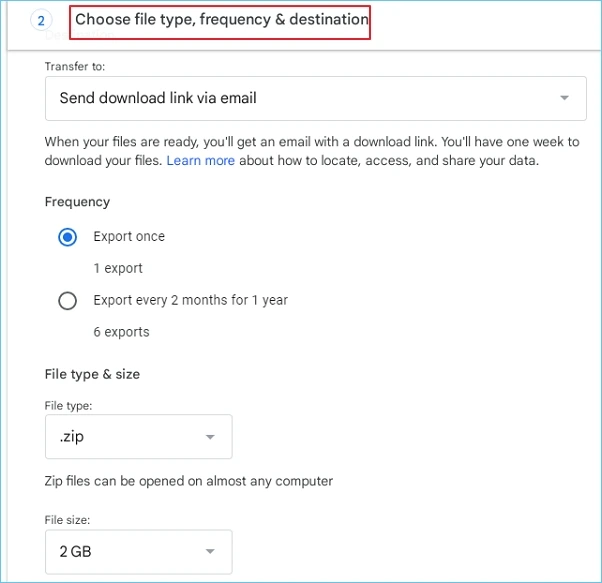
Step 6: Select Create Export. Sign-in to your OneDrive account.
This will begin the export and once it is done, you can check them out in OneDrive.
Method 3: Import photos to OneDrive
Microsoft provides a way to import files from Google Drive, Google Photos, and Dropbox to OneDrive. Here’s how to move Google Photos to OneDrive with this approach:
Step 1: Login to your OneDrive account and click on the Settings icon from the top right.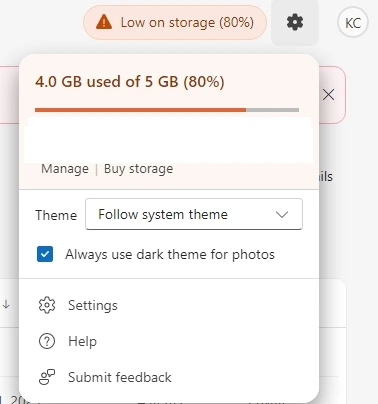
Step 2: Select Import cloud photos and files.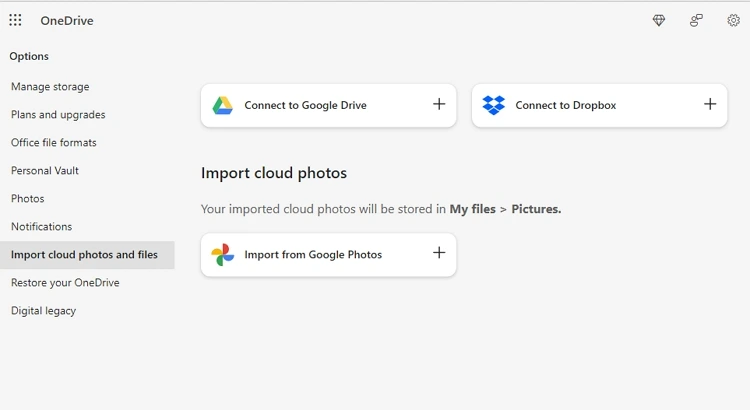
Step 3: Select from Google Photos and select/ add your Google Photos account.
Step 4: Click Start button and then Import Now and the process will begin.
Step 5: Wait for some time and after completion, you can find the files within the Imports folder of OneDrive.
Common Issues during Google Photos to OneDrive transfer
Here are some of the common issues users face when they move Google Photos to OneDrive:
No direct transfer
There are no direct methods available that allow you to migrate Google Photos. You’ll need to use manual processes or workarounds to move Google Photos to OneDrive.
File name errors
OneDrive comes with file name restrictions, which require you to keep the file name, including folder, subfolder, and file name, short and precise.
File size limitations
Moving large-sized photos is possible from Google Photos, but you cannot send them to OneDrive, as it puts a limit on file size, which is 250 GB per file.
File duplication
Since the process is manually done, due to interruptions and multiple synchronization attempts, there can be file duplication in the destination.
Missing or incomplete data
With manual Google Photos to OneDrive transfer, there are risks of missing folders and files, resulting in incomplete data transfer.
Failed transfers
If you migrate large data volumes containing thousands of photos, there is a requirement for a high-speed internet connection with wider bandwidth; otherwise, the process may fail.
Professional tool to transfer Google Photos to OneDrive in bulk
With the methods above, it is easy to move Google Photos to OneDrive if the amount of data for the transfer is manageable. However, in case there are thousands or millions of photos in any account, you can’t rely on these as it can take up to weeks or even months.
The most effective and expert-recommended solution that seems helpful in such a scenario is Kernel Google Workspace to Office 365. With this tool, you can move mailboxes, groups, chats, sheets, docs, and photos from Google Workspace to Office 365 (mailboxes, groups, teams, Excel, Word, OneDrive) with ease. The G Suite to Office 365 tool assures the transfer of photos without compromising the image quality. Effortless Google Photos to OneDrive migration of bulk data between the two platforms is quite an easy job with this tool, and it is done with 100% accuracy.
Conclusion
With manual methods like Google Takeout, download/upload, and import features, you can transfer Google Photos to OneDrive. The issue arises when the quantity of photos to be moved is irrationally huge. This is because in that case, there is a risk of losing or missing important memories during the process. But you don’t need to worry, as the suggested Kernel Google Workspace to Office 365 migration tool is here as your ideal solution that will move Google Photos to OneDrive in Office 365 without any hassle.
Frequently Asked Questions
A: When you are moving files, make sure to remember the following:
1. Work on a high bandwidth and stable network connection.
2. Make sure your OneDrive has enough storage to accommodate the data.
3. Moving large libraries using Google Takeout can take several hours to days.
A: Here is a short method to transfer the files:
1. Open OneDrive desktop app and sync it with your PC.
2. All the photos, files, and folders will sync with the local drive.
3. Open Google Photos on your web browser.
4. Click Upload, select files, and your photos will move to Google Drive.