Read time: 6 minutes
Losing a partition is one of the worst data loss scenarios that can happen to a user. One moment you are browsing your D: or E: drive with years of data stored, the next moment it shows up as Unallocated or just disappears from File Explorer. It is not uncommon to lose your partition data in the event of accidental deletion. Many people experience these situations and are looking for reliable ways to recover their data. But the truth is “Windows has no native partition recovery tool at all”. To address this issue, we will assess the reasons behind partition loss and the feasible recovery options in this blog post.
What is a Disk Partition?
A partition is actually a logical division of the storage space. The OS and file system manage information on each partition as if it were a distinct hard drive. Although partitions divide the space on the hard disk, it is still recommended, as this lets the drive function as several smaller sections to improve the overall efficiency.
What Happens When a Partition is Deleted?
When a partition is deleted in Windows, it does not actually delete the data from your hard drive. It only deletes information from the partition table that tells the operating system where the beginning and end of the partition is located. The space of the deleted partition now shows up as Unallocated.
As long as you don’t write any data over this unallocated space or create a new partition over it, there is a high chance to recover deleted/lost files.
While resetting or refreshing your PC, you might get an error message- A required drive partition is missing. Next thing you do is try accessing the partition, but to your surprise, you are unable to access its content.
Reasons Why Your Partition Might Be Deleted
There can be myriad of reasons behind this issue, but we have identified the top six reasons for partition loss which are described briefly:
- Accidental Deletion: This is a common cause of the partition loss. You have deleted the wrong partition while doing Windows installation or in Disk Management.
- Firmware Damage: Firmware corruption or failure can also affect the partition and special care should be taken while handling the drives.
- Malware: A malware attack can target and destroy partition tables or boot sectors, making the partition inaccessible.
- Bad Sectors: Bad sectors on your HDD can stop you from accessing your partitions. Due to this, the user might not be able to read or write to the particular sector of the drive.
- Power Outage: A sudden power surge can in-turn make the partition corrupt. Hence it is advised to use a power back utility.
- Data Corruption: Data corruption in partition tables can be due to virus attacks, power outages, and faulty disk operation.
What to Do Immediately After Partition Deletion?
If you want a successful Windows partition recovery, follow these rules first:
- Do not use that drive to save any data.
- Don’t install any recovery software on that drive.
- Make sure you do not format if Windows says “You need to format the disk before you can use it”.
- Do not create a new partition on the unallocated space, it will overwrite the file system.
How to Recover Data from a Bad Partition?
The user can try the following methods to restore data from deleted partition:
Method 1. Reassign Drive Letter (For ‘Lost’ not ‘Deleted’ Partitions)
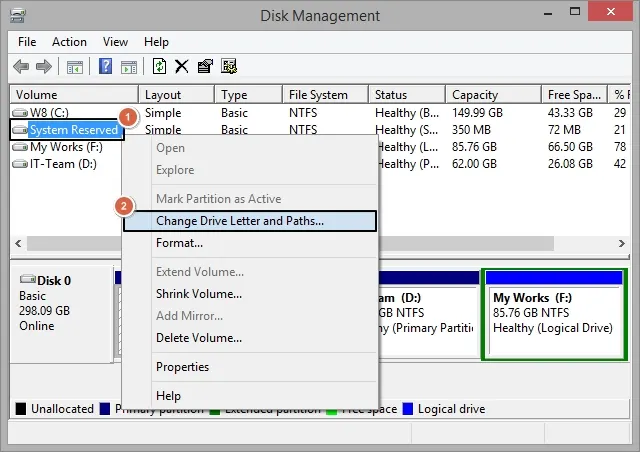
Sometimes your partition is not deleted, it just doesn’t have a drive letter assigned. You can assign a drive letter to it using Disk Management. Here are the steps to do it:
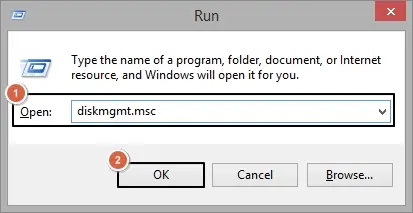
- Press Windows+R keys on your keyboard and type diskmgmt.msc and click OK.
- Look for the partition with a File System (NTFS) but without a drive letter assigned.
- Right-click on it, then click Change Drive Letter and Paths.
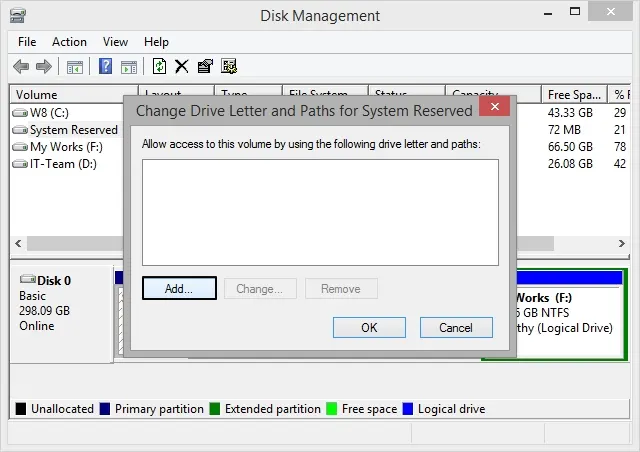
- Click on the Add button.
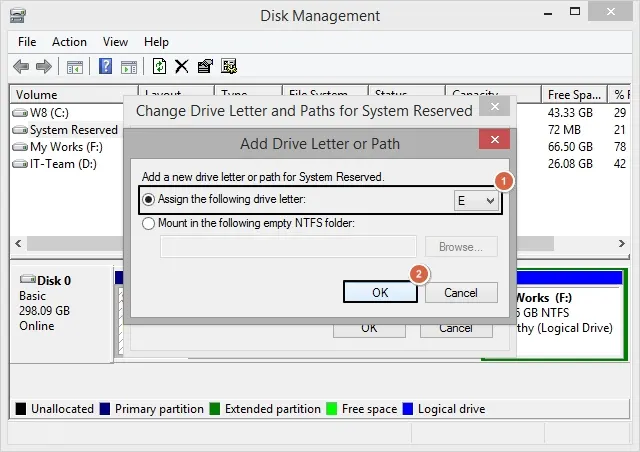
- Click on the drop-down list next to Assign the following drive letter and select a letter, then click OK.
Method 2. Restore Lost Partition Using TestDisk
TestDisk is a free open-source software that can recover data from deleted partitions by rebuilding the partition table. This is a professional method and is recommended only for advanced users. Wrong key press and you can permanently lose your data.
- Download and launch testdisk_win.exe as administrator.
- Select Create to make a new log file or select No Log.
- Choose the Disk where the partition was deleted >Proceed.
- Select partition Table Type: Intel for MBR, EFI GPT for GPT disks.
- Select Analyse >Enter >Quick Search >Enter.
- TestDisk will display all partitions including deleted ones.
- Now select the deleted partition and press P to list files to preview.
- If the file looks good, press Write >Enter.
- Press Y to confirm writing the new partition table.
- Exit TestDisk and reboot your computer.
When Free Methods Fail to Recover Data From Deleted Partition (Best Approach)
If you tried the free methods above but none worked or you are not comfortable with command prompt, you need a dedicated Windows partition recovery tool that can scan unallocated space to recover data. If you need an efficient Windows data recovery tool, then look no further as Kernel for Windows Data Recovery might be the right tool for you. It is specifically designed to recover data from deleted, RAW, or inaccessible partitions.
Final Words
A deleted partition doesn’t mean deleted data. Stop using that drive, don’t create new partitions and use the right tool. If you are a beginner or want full recovery, then using a dedicated software is the safest option to recover deleted files from Windows . Just keep in mind, the sooner you act, the more data you can recover.
Frequently Asked Questions
Ans. A partition may disappear in Windows 11 because it lost its assigned drive letter, the partition table or file system became corrupted, or a recent system update or hardware glitch caused it to go offline.
Ans. No, CHKDSK can fix logical errors on an existing partition, but it cannot recover lost partitions.