Read time: 8 minutes
Occasionally, while watching a video on a media player or YouTube, you tend to have a black screen, but the audio works fine in the background. The complete blackening of the screen often leads to the corruption of the video or some other issues. Sometimes, it’s just a minor glitch that can be fixed with a simple restart or refresh. But what if it doesn’t resolve? At that time, you need to fix it. In this guide, we will find out the quick troubleshooting tips and reliable solutions to resolve black screen when playing videos issue. But before that, you must examine why screen goes black when playing a video.
Causes of Black Screen When Playing Videos Issue
The following are some of the causes of the black screen when playing video:
- Poor internet connection.
- Enabled Adobe Flash Player.
- Unnecessary Cookie and cache files.
- Browser’s unusual settings.
- Internal bug or malware in YouTube.
- Damaged or corrupted video file.
- Hardware acceleration in browser or apps.
- Outdated graphic drivers.
- Video codec issues.
- Ad-blockers.
- YouTube server issues.
Troubleshooting tips to fix black screen when playing videos
Before moving to the detailed solutions to fix this issue, first, let’s try some basic tips to resolve this problem. Some of the standard solutions to the problems are below:
- Check the Internet Connectivity: Firstly, if you are browsing YouTube under a bad or poor network connection, check the connectivity and see if it can improve. If that improvement is possible, refresh the page. But in case the result is negative, switch to a better network and try to play the video again.
- Clear Browser Cache: In case the browser cache is creating the black screen, do the following:
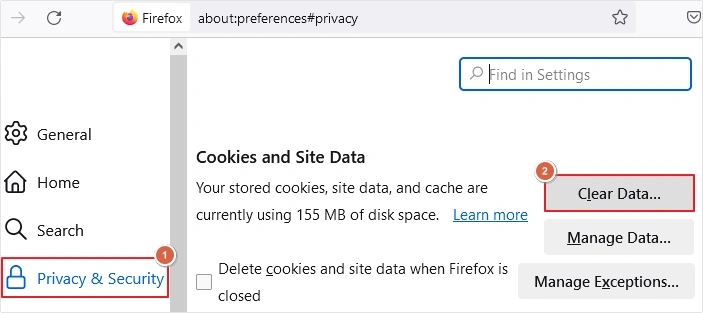
- For Firefox: Click on the Menu, tap Settings and go to Privacy & Security. Tap on Clear Data to clear the cookies and cache.
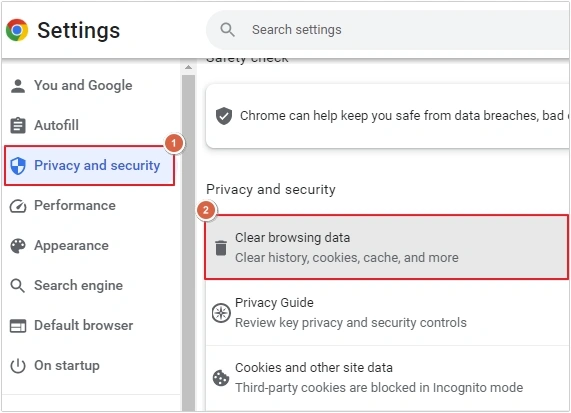
- For Google Chrome: Click on the Chrome Menu, then go to Settings > Privacy and Security > Clear browsing data > clear data.
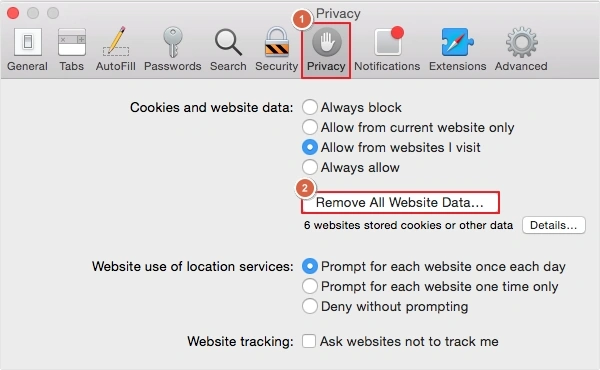
- For Safari: Open Safari, go to Preferences > Privacy > Remove all Website Data > Remove Now.
- For Internet Explorer: Click the menu icon, go to Safety, then Delete Browsing History, and press Delete.
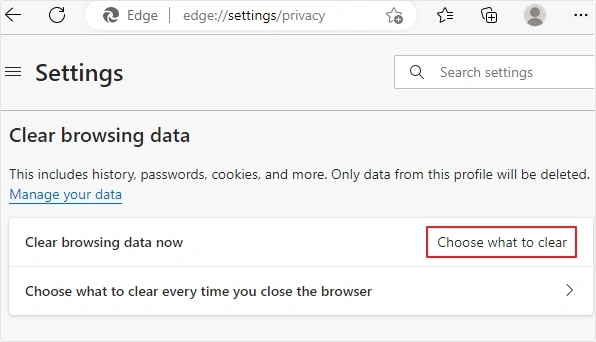
- For Microsoft Edge: Open Edge, then go to Menu > History > Settings > Clear Browsing Data > Choose what to Clear > Clear Now.
- For Firefox: Click on the Menu, tap Settings and go to Privacy & Security. Tap on Clear Data to clear the cookies and cache.
- Try Incognito mode: If clearing cache didn’t work out, then you can also try to play the video in incognito mode. Simply press CTRL+SHIFT+N to open Incognito mode, then open YouTube and play video.
- Disable ad-blockers: If you are using any add-ons to block ads while browsing the internet, these extensions might be behind screen goes black when playing video issue. Disable the blocker temporarily and see if it was causing the issue.
- Check YouTube status: Sometimes, due to downtime issues, your video experiences problems in playing on YouTube. Check YouTube status and try to watch your video after a while.
Advanced solutions to fix black screen when playing videos issue
If the above-discussed troubleshooting tips didn’t help you overcome the video playing but black screen issue, then check out these advanced solutions with proper step-by-step guidance.
Solution 1: Update Display Drivers
At times, display drivers can be the reason for black screens while playing videos. Updating drivers can help you solve the black screen video playing but black screen problem in videos. Follow the steps below to update display drivers.
Step 1: Right-click on the Start menu and tap on the Device Manager.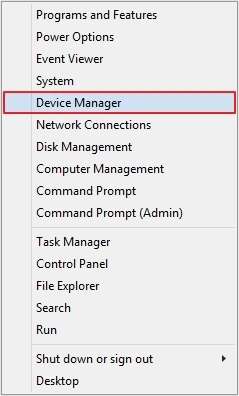
Step 2: From the Network adapters, right-click on the driver and tap on Update Driver Software.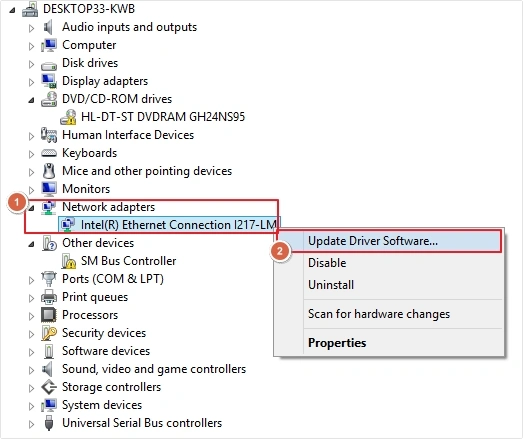
Step 3: After a successful driver update, restart your computer.
Solution 2: Check for Updates
When your Windows version is outdated, it cannot load videos and screen goes black when playing video. So, it is advisable to keep your system up to date. Follow the steps below to check for updates.
Step 1: In the Search field, type Settings and open it.
Step 2: Tap on Update & Security.
Step 3: Tap on the left side tab option Windows Update. Click Check for Updates.
If any update exists, install the latest update, and restart your PC.
Solution 3: Uninstalling and Installing Drivers
Updating the display driver may not work all the time, so try to uninstall and reinstall the driver again. Here is how to do it:
Step 1: Open Device Manager, then go to the Display adapters and select the driver.
Step 2: Now, right-click over the specific device and select Uninstall from the pop-up menu.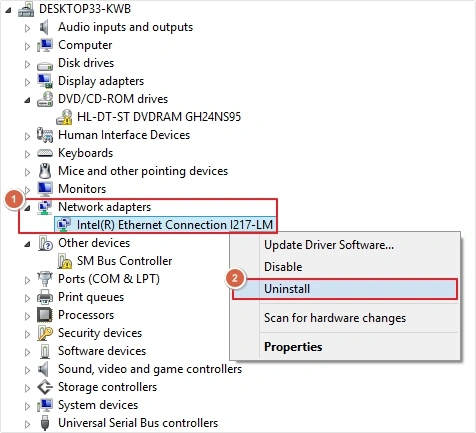
Step 3: Click the OK button from the dialog box to appear.
Step 4: Finally, reinstall the drivers.
Solution 4: Turn Off Hardware Acceleration
Occasionally, hardware acceleration may cause unexpected problems. Depending on whether your web browser supports hardware acceleration, you may have trouble playing YouTube videos. Turning off hardware acceleration on your browser may be beneficial and see if that helps.
For Google Chrome:
Step 1: Open Google Chrome and tap on three dots on the top-right of your screen. Click on Settings.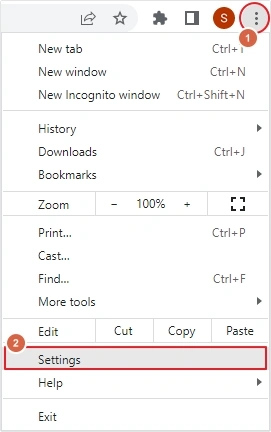
Step 2: Now, turn the option Use hardware acceleration when available off via scroller.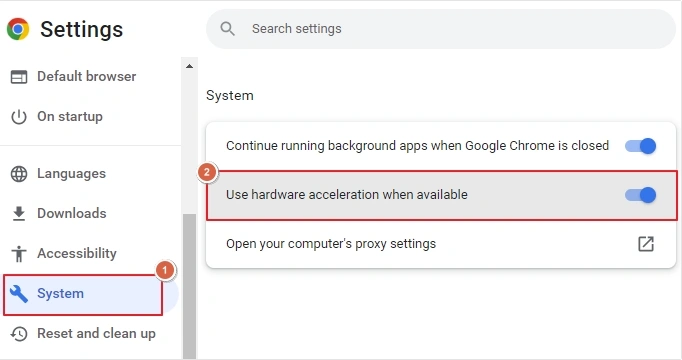
Step 3: At last, restart Google Chrome.
If all these methods fail to resolve black screen when playing videos issue, then there are chances that the video file is corrupted. To repair the video, you need an advanced solution.
Repair Corrupt Video Files with a Professional Video Repair Tool
Kernel Video Repair is one of the most trusted video repair tool to fix all types of corruption issues and errors easily. It comes with a simple interface and smart filters to make the entire process easy for users. Add video file of any format and size without any restrictions. Moreover, it supports all videos recorded with DSLRs, camcorders, CCTV cameras, Android, iPhone, smartphones, and drones, etc. Utilize the free trial version to repair and recover 30 seconds of damaged video without any cost.
Conclusion
This article covers all the essential solutions to resolve black screen issues when playing videos. However, if the solutions mentioned above do not work, your video has severe corruption. Eliminate the corruption of your video with the recommended video repair tool. The tool uses an advanced algorithms to repair all the common video errors easily.
Frequently Asked Questions
A. The quickest way to fix black screen when playing videos on Windows 10 is to press Windows Key + Ctrl + Shift + B to reset the graphics driver. Apart from this, you can also try to disable hardware acceleration in the media player, install the latest video codecs, or try to play a video on different media players, like VLC.
A. If you hear sound but see a black screen when playing videos on Windows 7, it is usually caused due to missing codecs, an outdated graphic driver, or hardware acceleration issues in the media player.