Read time: 9 minutes
Summary: With the announcement of the Quadro email shutdown, users are left puzzled with no idea what to do next. To prevent losing emails, messages, and your crucial contacts, you need to plan a migration strategy step by step. It is important to know the available options for the switch and how you can migrate data before it gets decommissioned.
Quadro Communications has officially announced a date for shutting down its email services (quadro.net). It will become completely inaccessible after 2 November 2026. The reason why Quadro email discontinued can be the declining popularity and usage of ISP-based email services, which are quite resource-consuming. This move is made, as Quadro is currently planning to move its efforts in modernizing systems and provide improved as well as reliable services. It will allow them to shift their priority to core offerings (internet and communication services).
Why did Quadro Email Discontinue?
The discontinuation of Quadro email is driven by a lot of factors, including:
Evolving Requirements: With the advancement in technology, there are several more efficient and feature-rich email platforms (Gmail, Outlook, etc.) available out there. Such platforms support features like spam filtering, large storage, search tools, and integrated calendars. Quadro, being a legacy platform, does not support these advance features.
Free Email Services: Quadro was allowed free access to the users only as part of the paid internet and telephone subscriptions. It wasn’t available as a free email platform providing universal access.
However, there are so many email platforms today that support free user account creations that make them a preferable solution.
Reliable Service: When it comes to managing an email communication environment, it demands an efficient infrastructure and regular maintenance. There are so many email service providers that deliver higher performance and easy access across a diverse range of devices, which Quadro failed to deliver.
Email Security: Email accounts have been a major and easy target for cyber attackers for a long time. Weaker security infrastructure is directly an invitation to malicious activities, and Quadro had to invest the capital in maintaining a strong team to consistently maintain the email security of their users.
After the email service is completely shut down, there will be no security support for the users, and the data will become inaccessible to all. Whether you’re using Quadro email for personal or business use, you need to take suitable action before the end of its services.
Which One is a Suitable Quadro Email Alternative?
When looking for an alternative to Quadro email, first identify the business objectives, storage requirements, number of users, security measures, etc. All these factors have a major role in narrowing down the list of alternative email clients.
Once you identify, refer to the following list of email services to find one that fulfills what you actually need:
- Gmail
Gmail is one of the open-source webmail clients that features an interactive and easy to use interface. It is efficiently integrated with other Google Workspace components like Google Docs, Sheets, Slides, and Drive. The free version supports a combined storage of 15GB shared by all the components.
The paid subscription starts for a nominal fee of $6 per person, providing 30 GB of storage per person and 30 aliases. However, it can get expensive as the business size and requirements increase.
- Outlook
Outlook, previously known as Hotmail, is a part of the Microsoft Office 365 Suite and is available as both a free and a paid version. Available both as a desktop app and a browser-based email client, Outlook supports features like deleted email recovery, add-ons integration, and email organization. Security measures like advanced threat protection, multi-factor authentication (MFA), endpoint security, etc., make it a highly secured email platform.
Migration from Outlook can often be difficult because of the proprietary data file formats (OST/PST) that are exclusively available for Outlook. - AOL Mail
AOL Mail, now a part of Verizon Communications, is one of the distinctive email clients designed with the in-built anti-spam and anti-virus protection. You can also use it to connect with other email accounts like Gmail and Outlook.
It is a free web-based email client that allows unlimited storage access. However, it is important to note that if an AOL account is left inactive for a continuous 90 days, it will be deactivated and deleted after 180 days.
- Fastmail
Designed with advanced search tools to find emails promptly, Fastmail is a non-tech user friendly solution. It is a privacy-oriented platform that assures high data privacy to its users. It provides a 30-day free trial, using which you can get familiar with it, and the paid plan starts as low as $5 per user per month. It includes security features like account recovery, TLS email encryption, and two-factor authentication.
Even though it’s a great platform, it doesn’t offer diversification in its subscription plans and can be less budget-friendly to users. - Proton Mail
Proton Mail is one of the highly secured email clients that support end-to-end encryption to secure every email within the mailbox. This means that only the intended sender and receiver can access the email contents. Along with the fixed pricing plans, it also provides special pricing for journalists and non-profit organizations.
However, you must remember that since the emails within Proton Mail are encrypted, you can face issues in switching email hosting.
What do you need to do before Quadro Email Transfer?
Before you begin with the Quadro email migration, here is what you need to execute to avoid losing any of your important emails:
- New Account
First, make a new user email account on a suitable email service like Gmail, Outlook, Thunderbird, etc. You can begin with a free email account and switch to subscription plans later on. - Evaluate
Find out your Quadro credentials and use them to log in to your account and evaluate the complete data. Check out how many folders, files, and data are present in your account. You can sort out the account by deleting unnecessary or junk emails to reduce the load.
- Review
Take a note of all the subscriptions, accounts, social media, and other areas where you’ve used the @quadro.net email address to avoid losing access to them all if anything bad happens. - Prepare
In the new account, create user mailboxes, assign them licenses based on the service provider, grant the necessary permissions, and adjust the security settings before the transfer. - Update
Update the new email address to all the places where Quadro email was implemented. Inform all the family members, friends, colleagues, and business clients of your updated email address. - Backup
Make sure you do not skip the Quadro email backup. It will help you restore your email data later within the new account. You can upload or import the data into a new user account. Take a quick backup of Quadro emails with an IMAP backup tool. - Auto Reply Message
Get in touch with Quadro support and inform them about your new email address. You can seek their help to set up an email auto-reply to display on your new email.
To set up auto-reply, open Quadro webmail, go to Settings, and click on the Vacation/Forwarding tab. Mark the checkbox to turn on notifications; write a subject line (like “Quadro email account being discontinued. Here is my new email address for further communication”). Enter the auto-reply message and click Send.
How to Move Quadro Emails using Email Forwarding?
Here is the process you can follow to forward the existing emails in the Quadro mailbox to a new email client:
Step 1: Open and sign in to your Quadro Webmail.
Step 2: Click on the desired email message to open.
Step 3: From the top menu, select the Forwarding icon.
Step 4: This will create a new email draft. Enter the email address in the “To” field.
Step 5: Make changes in the message if needed.
Step 6: Click on the Send button and repeat the process for all emails.
Migrate Quadro Emails using IMAP Migration Tool
Once you’ve decided on your alternative email service, your next move will surely be migrating emails to the new platform. This can easily be done using an IMAP migration tool, which helps you perform a direct mailbox migration between two IMAP server-based email clients. Kernel Migration for IMAP tool allows you to easily move Quadro emails to any of the IMAP supported email client. Use the built-in filters of the software to move only required data.
Step-by-step guide to move Quadro emails:
Step 1: Launch the software and select IMAP to IMAP from the home screen.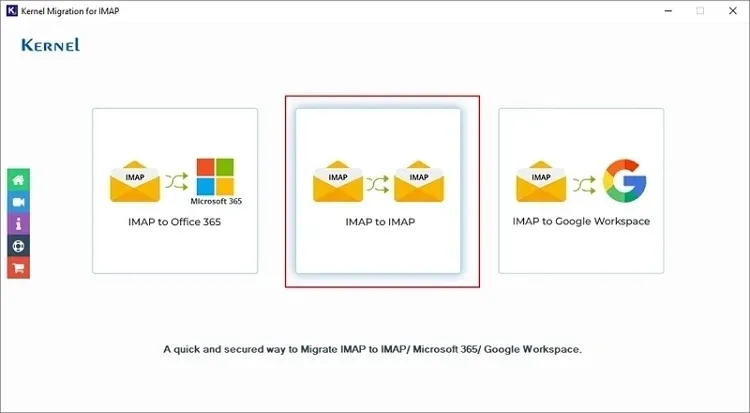
Step 2: Click Add in the source pane to add the Quadro Mail account.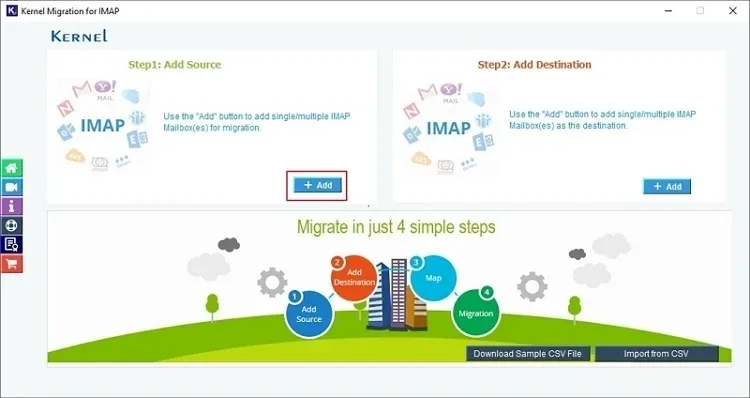
Step 3: Enter the Quadro Mail credentials to connect mailboxes.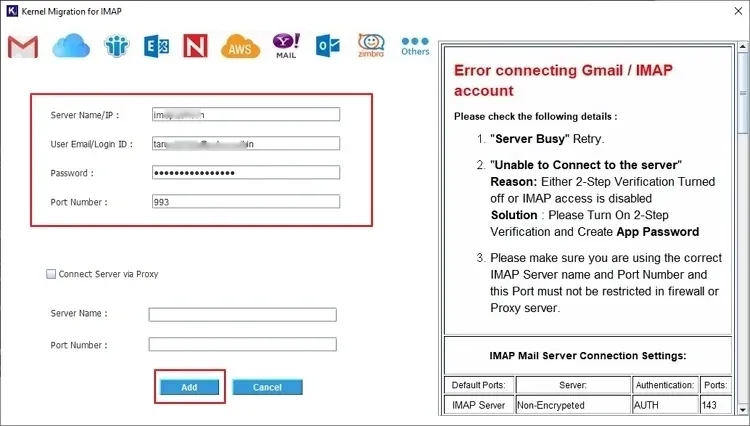
Step 4: Now go to the destination pane and click Add to add your destination IMAP account.
Step 5: Map source mailboxes with the destination mailboxes. Click Set Filter and Migrate.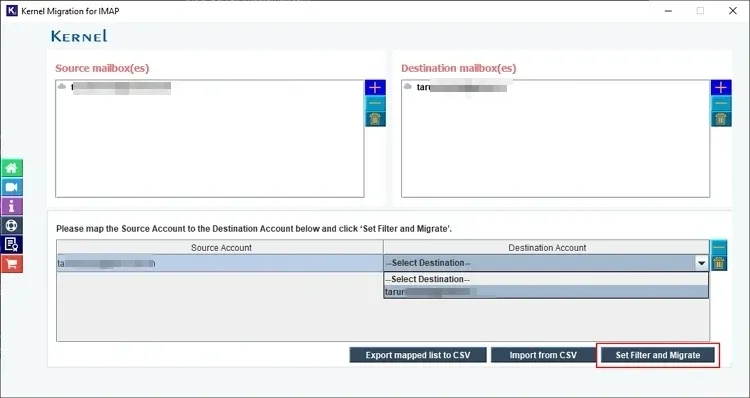
Step 6: Review the folder selection and apply the suitable data filters.
Step 7: Click Start Migration to begin the process, with live status on the screen.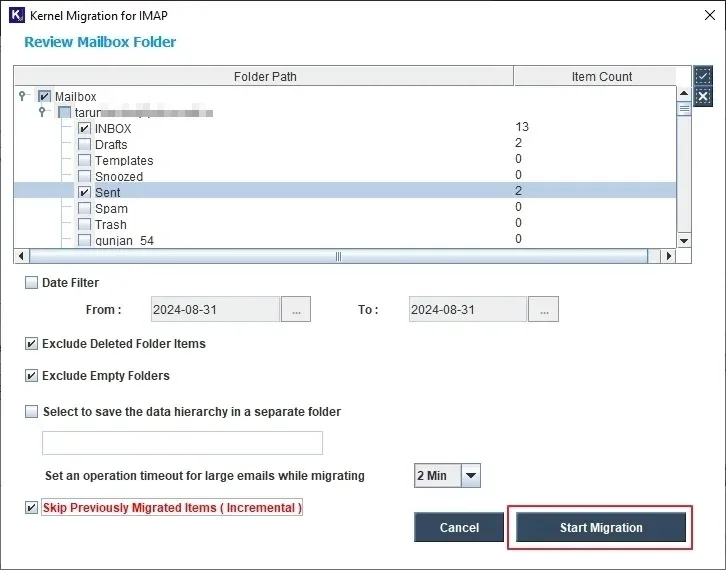
Conclusion
As it is clear that Quadro will be discontinuing its email platform, shifting the data will help you eliminate the risks of data loss. Before following any other measure, we recommend that you save emails from IMAP mailbox (Quadro Mail) before it is permanently deleted.
You can go with the given native email forwarding solution or choose the recommended IMAP Migration tool to move Quadro emails. However, the tool helps you easily move bulk email data with attachments through its multiple user-focused features./
Frequently Asked Questions
A. Quadro announced on 22 April 2026 that it will completely shut down the services of @quadro.net email platform after 2 November 2026. It is recommended to migrate your mailboxes to another email client before the service deletes them permanently.
A. If you ignore the warning message or somehow fail to move emails, contacts, etc. stored within the @quadro.net account, you’ll no longer be able to access them.