Read time: 6 minutes
Hostinger is a popular web hosting platform that offers a variety of features, including unlimited storage space and bandwidth, a free domain name, and 24/7 customer support. However, some users may find that they need more than what Hostinger has to offer. For these users, migrating to Office 365 may be the best option. Office 365 is a cloud-based platform that offers users access to a variety of Microsoft applications, including MS Office and OneDrive.
Thus, Office 365 is a cloud-based productivity suite that offers a number of advantages over traditional on-premises solutions of Hostinger. Office 365 is more reliable, offers more features, and is more cost-effective in the long run. In this article, we will look at how you can migrate from Hostinger to Office 365 in a few simple steps.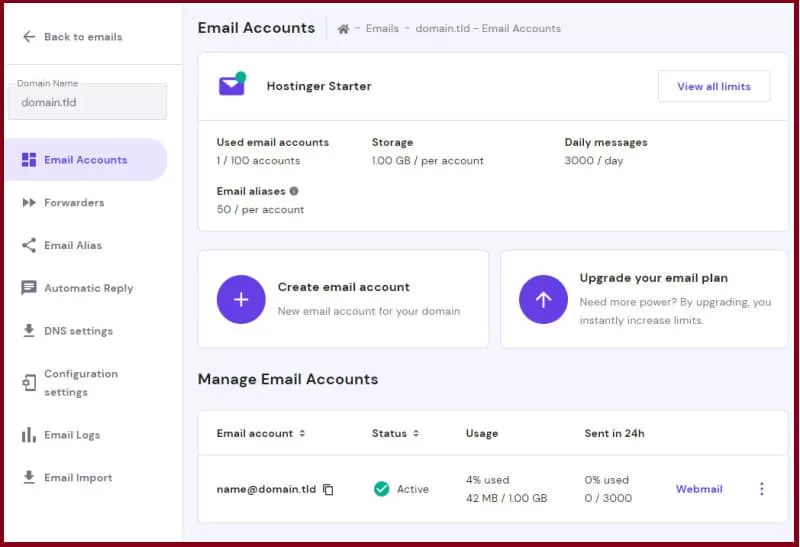
Before you migrate: Points to consider
Before migrating Hostinger to Office 365 account, here are a few points that you must know:
- Backup all the crucial data to your PC before you start the data transfer.
- Find out the correct incoming (IMAP) and outgoing (SMTP) server settings.
- Enable IMAP connection in both the source (Hostinger) and destination (Office 365).
- Always choose a reliable and efficient Hostinger to Office 365 Migration tool.
Exporting Hostinger Webmail to Office 365 easily
Exporting Hostinger Webmail to Office 365 can be easily done manually just as you can migrate IMAP emails to Office 365.
Add the accounts to your Outlook account
The process starts with the configuration of Hostinger email account to the Outlook application using the steps below:
- Access Outlook and tap on the File menu.
- As the Account Information window comes up, click the +Add Account.
- Next, you need to type up the Hostinger email id and tap on Connect.
- Navigate to the Advanced Options and choose the option IMAP protocol.
- Select an incoming and outgoing server from the Email Accounts section, then click Next.
- Click Next once you have provided your credentials.
- Fill out the “Add another email address” box once you receive the “Account successfully added” message.
Migrate Hostinger emails to Office 365
The following steps will help you import your Hostinger webmail emails contacts, & other items to Microsoft Office 365.
- From the File menu, go to the Open & Export tab.
- Select the option Import/Export. As the Import/Export window pops up, go for the option “Export to a file.”
- Hit Next and choose the PST format now. Click on Next once again.
- Moving ahead, you need to select a directory location to export all your PST files.
- Then you need to follow the same steps again to import all the items back to the Microsoft Office 365 mailbox.
Moreover, in the Microsoft 365 admin center, you can update the MX records to ensure that all future email flows to Exchange Online.
Limitations of the manual method
Here are shortcomings of this manual solution to migrate IMAP to Office 365 account:
- Experience errors when configuring accounts.
- Requires Outlook application installed on the dedicated workstation.
- High risk of losing crucial data, especially during large scale migration.
Use advanced IMAP migration tool for Hostinger to Office 365 migration
We are now through with the migrate emails from Hostinger to Office 365, but what about other IMAP clients!! What if we get one solution for all IMAP clients from Gmail, G Suite, or Amazon WorkMail to Yahoo? Kernel IMAP to Office 365 is the universal solution to all these migration issues. This utility is one of the most reliable, powerful, and cost-effective tools for migrating IMAP mailboxes to Office 365.
The Hostinger to Office 365 migration tool offers a host of advanced features that make it an ideal solution for both individuals and organizations. Some key features include selective mailbox migration, incremental mailbox migration, generation of migration summary reports in CSV file format, and wide compatibility with all IMAP email servers.
Additionally, the tool supports both Basic and Modern authentication methods to securely connect to Office 365. With its simple, user-friendly interface and robust functionality, this tool is the perfect solution for anyone looking to migrate their mailbox data to Office 365.
How to migrate emails from Hostinger to Office 365 account?
Let’s check out the steps to migrate the data:
Step 1: Launch the tool and from home screen, click Let’s connect on the IMAP to Office 365 tab.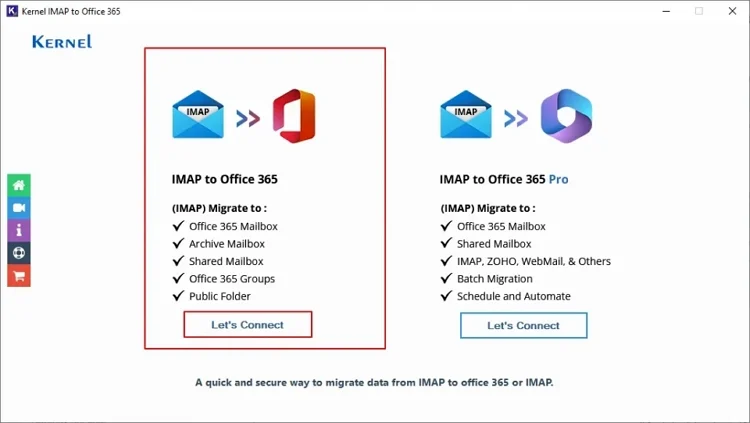
Step 2: Enter the asked credentials to connect the source IMAP account (Hostinger) and the destination (Office 365) account.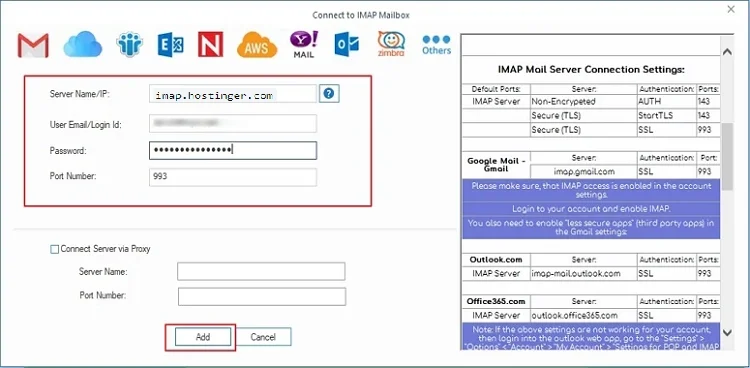
Step 3: Select List All Mailboxes using above credentials and then click Get User Mailboxes to see the list of associated mailboxes. After that, click Add.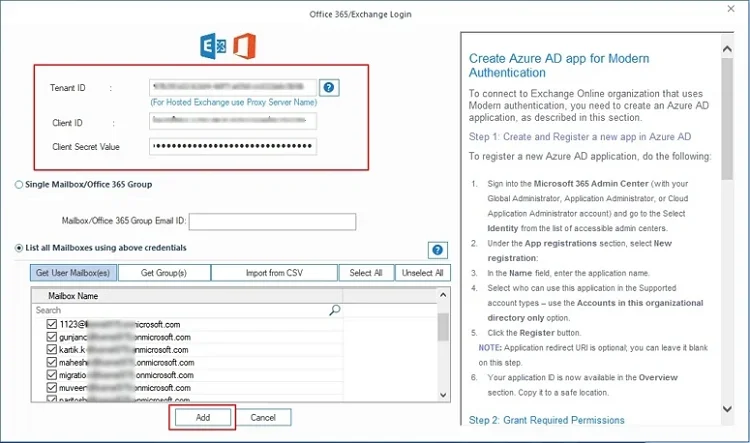
strong>Step 4: Map the source users with the destination by using the dropdown and click Set Filter and Migrate.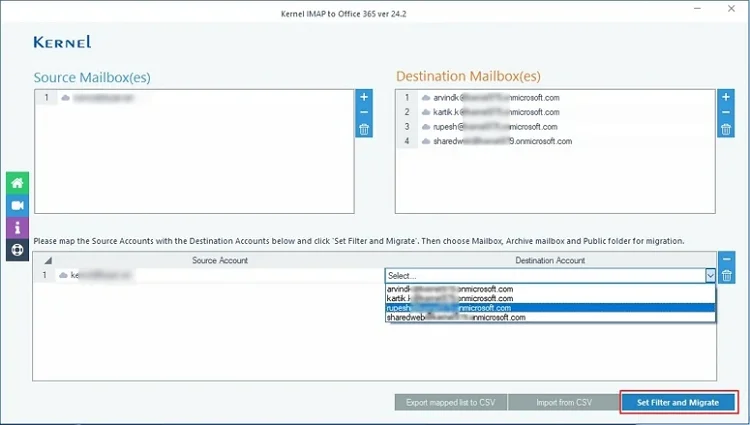
Step 5: Select migration type and apply the folder selection and data filters. Click I am OK, Start Migration.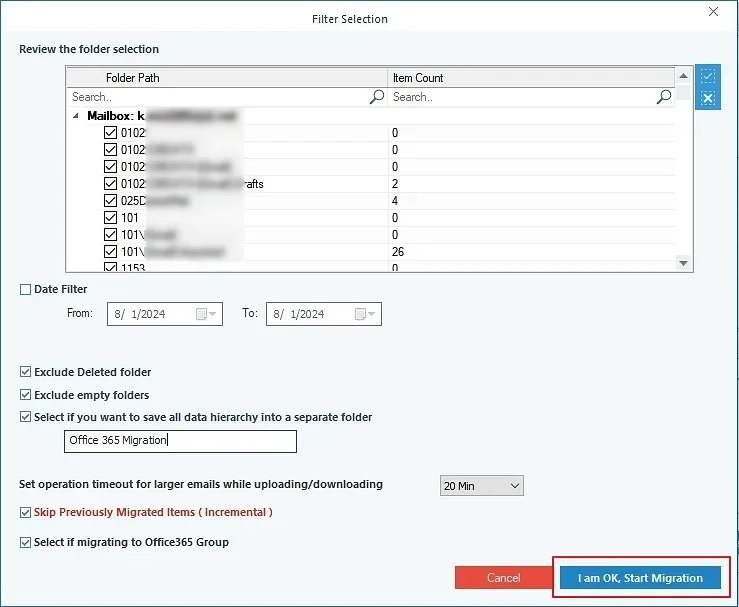
The tool will begin the migration process and upon completion, you can check out the real-time progress, and save the migration report to your computer.
Closing notes
Office 365 is a great solution for businesses that are looking to move away from Hostinger. The migration process can be difficult, but we have walked you through the entire process of migrating from Hostinger to Office 365. We have outlined each step to make the process easier for you. Further, if you are looking for an effortless way to migrate different mailbox data to Office 365, Kernel IMAP to Office 365 migration tool can be of immense help to counter Gmail is out of space issue and other related problems. The software is designed to make the migration process as smooth and effortless as possible. If you are interested in learning more about the tool or want to try the software for yourself, please visit our website today.