Read time: 12 minutes
Google Docs is smooth, opens quickly, and is simple to use. For most of our days, it does the job. But still, it is not the enterprise standard document app, like Microsoft Word. Therefore, users or organizations often look for a way to shift to Microsoft Word. If you only have a few documents, the quickest way to transfer Google Docs to Microsoft 365 is to download each document individually and upload it to the Microsoft account. But to move 1000 or more Google Docs files, using the Google Takeout or a dedicated Google Docs export tool is the faster way.
This guide provides complete detail over how to migrate Google Docs to Office 365, but before that let’s discuss the benefits and important points to consider before migrating your documents.
What Are the Benefits to Migrate Google Docs to Office 365?
Let’s see the top advantages that persuade individuals and even large organization to move Google Docs to Microsoft 365:
- Offline Desktop App Support
Unlike Google Docs, Microsoft offers a full functioning replica of online Word for offline desktop users. And the most amazing part is that the changes are auto synched between offline and online documents. - Power to Automate
Microsoft Word macros are better than Google App Scripts to automate tasks. I personally love this, and it is one of the most common reasons why users transfer Google Docs to Office 365. - Larger Add-in Library
More add-on means more functionality. And Microsoft is the clear winner with its vast library of plugins and add-ons. From assisting in writing to streamlining workflows, these add-ins help users with several tasks. - Golden Standard
Microsoft Word .docx is the document standard that is accepted, supported, and preferred by every organization out there, big or small. So, it makes sense to migrate Google Docs to Office 365 and comply with the industry standard. - Advanced Features
Moving to Microsoft Office 365 Word allows users to leverage features, like section breaks, dynamic referencing, tracking relocated text, side-by-side document version comparison, and many more.
Things to do before you transfer Google Docs to Office 365
To save you from trouble later, make sure to take care of these points:
- Delete Obsolete Files
What’s the point in moving old data with no value? Get rid of unwanted files and folders before you begin to download them. - Group Documents
If your documents are placed in hundreds of folders, it will be difficult to move them. To speed up the process, move all Docs files into a single folder in your Drive. - Get Sharing Info
When you move Google Docs to Microsoft 365, the external sharing is lost. So, note down this info for critical documents and share the files again after uploading them to OneDrive. - Account Accessibility
Make sure the source Google account and the target Microsoft account are active and accessible. Create an app password for Google if the MFA is enabled. - Target Account Storage
If your documents contain high quality images, then their combined size can be in multiple GBs. So, verify if the target Microsoft account has enough space available.
Recommended Methods to Transfer Google Docs to Microsoft 365
Let’s start moving your document file from Google to Microsoft. We will complete the transfer in two phases. In phase 1, we will use 3 different methods to download files from Google Docs. And in phase 2, we will upload the files to OneDrive.
Phase 1: Extracting Files from Google Docs
First, you need to extract files from Google Docs. You can follow the step-by-step process of any of the given methods to download files.
Method 1: Selective Docs File Migration
For less than 50 files or moving only selective files from different folders, the most effective strategy is to download each document individually and then upload them all together to the target Office 365 space.
If you have created the document directly from the Google Docs app, use these steps to download it:
Step 1: Navigate to docs.google.com and sign in to the Google account that holds the document files.
Step 2: Open the document, click File > Download and select Microsoft Word (.docx) option.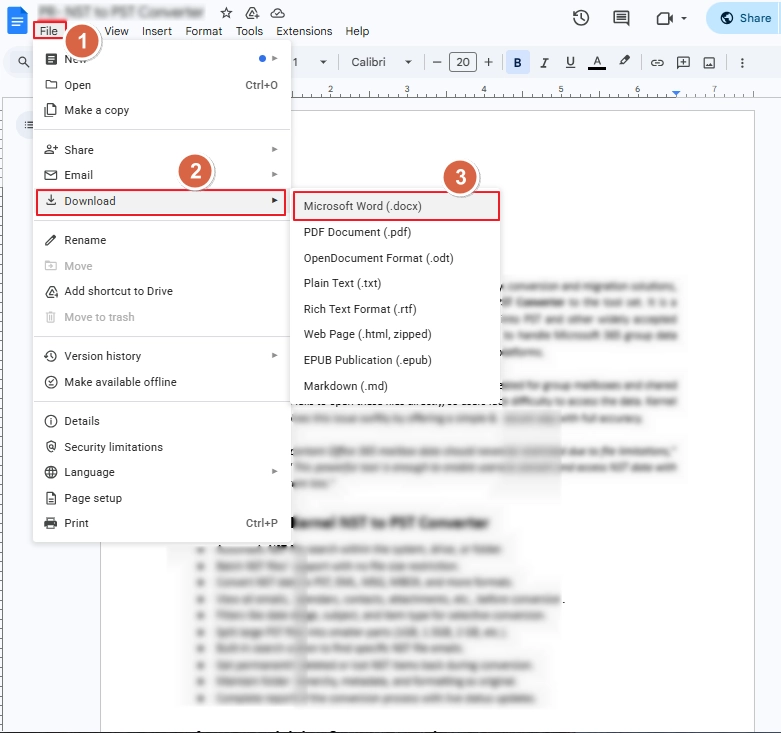
Repeat the above steps to download all the documents. If the documents are stored in different folders on your Google Drive, use these steps to get them:
Step 1: Open drive.google.com and sign in.
Step 2: Open the folder containing your Word documents.
Step 3: Right-click the document and select the Download option. Google Drive will automatically convert the file into Microsoft Word compatible file and save it.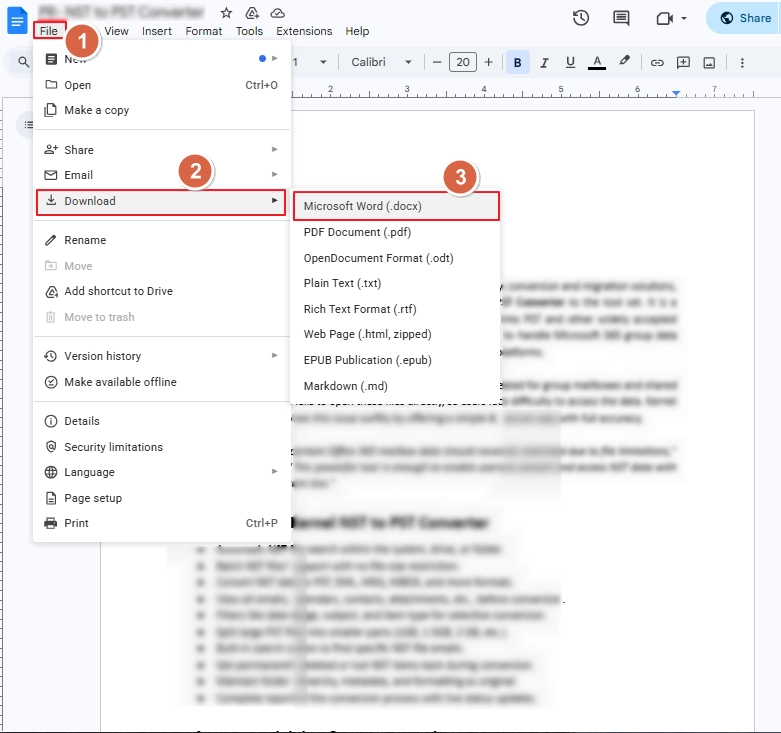
Step 4: Repeat the above steps and download all the Word files from all the folders.
Note: If all the document files are in a single folder, right-click and download the complete folder to export all files together.
Method 2: Export Google Docs using Google Takeout
If you have hundreds of Google Docs documents, then downloading each one individually will take hours. A faster way is to use Google Takeout and download the complete Drive files or folders together. Then you can transfer Google Docs to Office 365 from the downloaded data. The steps to use Google Takeout are:
Step 1: Go to Google Takeout website and sign in (if not already signed in).
Step 2: You will see a list of Google Components, and most of them will be already selected.
Step 3: Deselect all and make sure to select only the Drive option.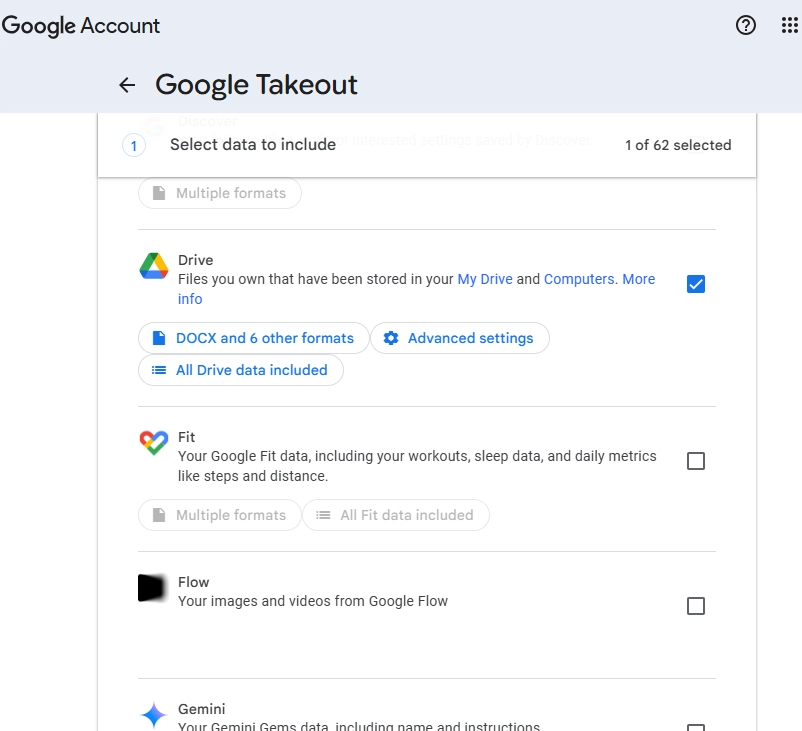
Step 4: Scroll down and click Next step.
Step 5: Leave the default values for Destination and Frequency and scroll down.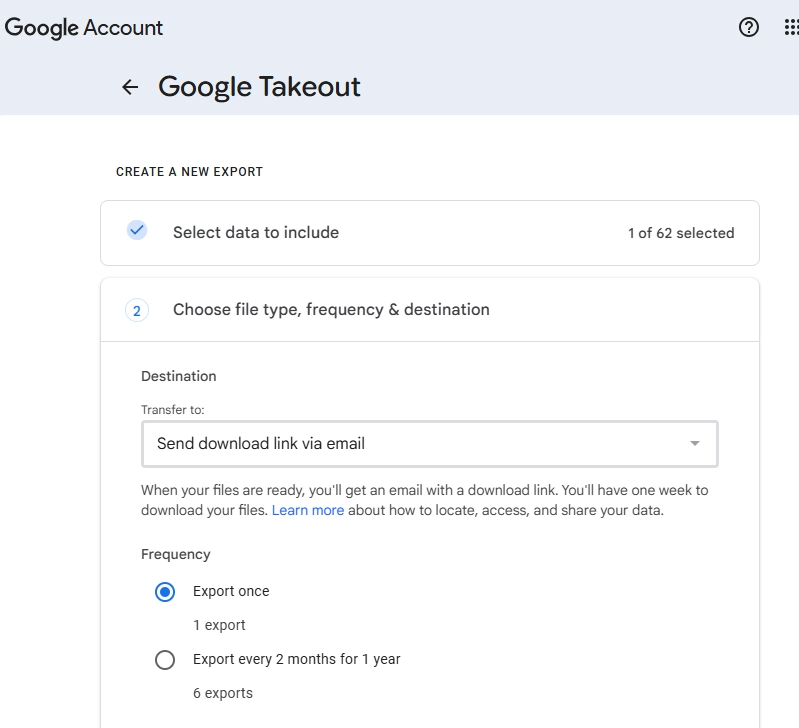
Step 6: Choose the file type as .zip or .tgz and modify the file size as per your preference. Then, click Create export.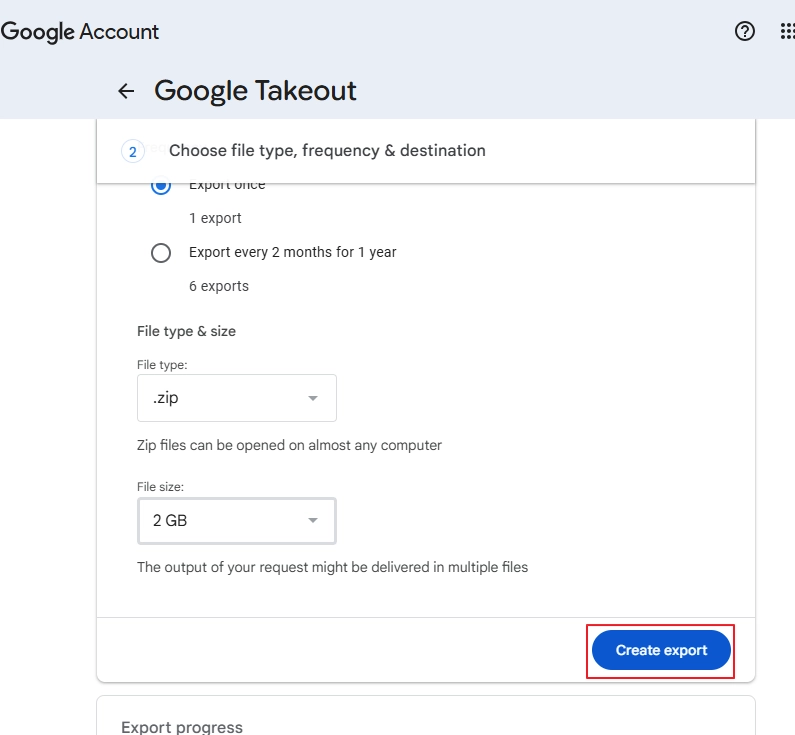
Step 7: An export job will be created, and when the download is ready, you will receive an email with a download link in the same Gmail ID (the one you signed in with in Takeout).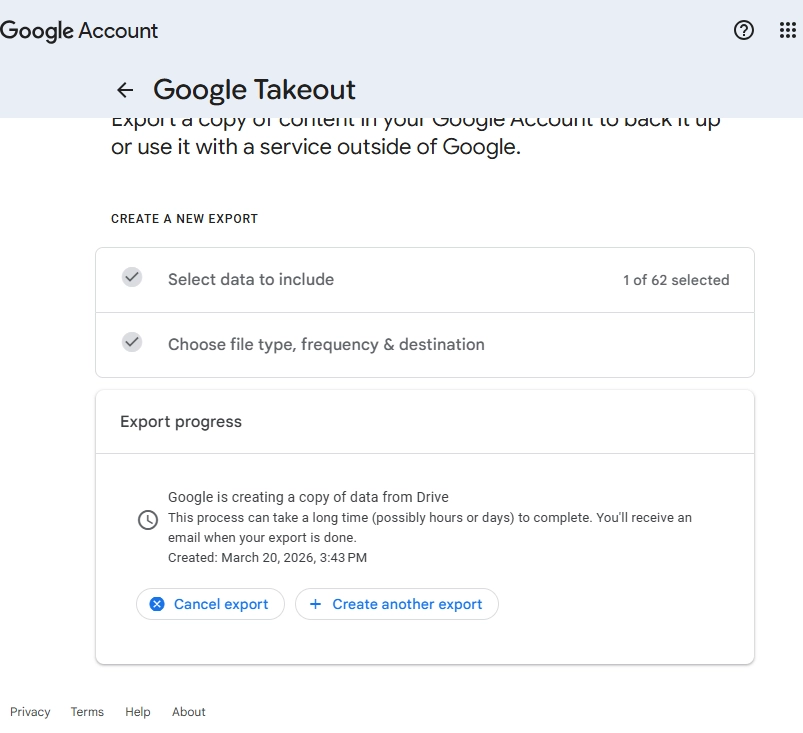
After downloading the .zip or .tgz file. Extract them and move Google Docs to Microsoft 365 accounts one by one or all together.
Method 3: Export Google Docs with an Advanced Tool
Google Takeout allows you to download data in bulk, but there is a major flaw. You don’t just download the .docx file, but every other file and folder present in your Google Drive. And scanning through this much data is something everyone wants to skip, especially me. Therefore, I personally use a dedicated export tool for Google Docs.
The Kernel Google Docs Export Tool is one that I personally use and recommend. It’s simple, easy to use, and gives a dedicated option to download Google Docs and Sheets data. The tool uses a modern authentication mechanism and also supports Google account enabled with 2-factor authentication.
The steps to download all your Google Docs file with the export tool are:
Step 1: Download, install, and open the tool. Then, click the Add button.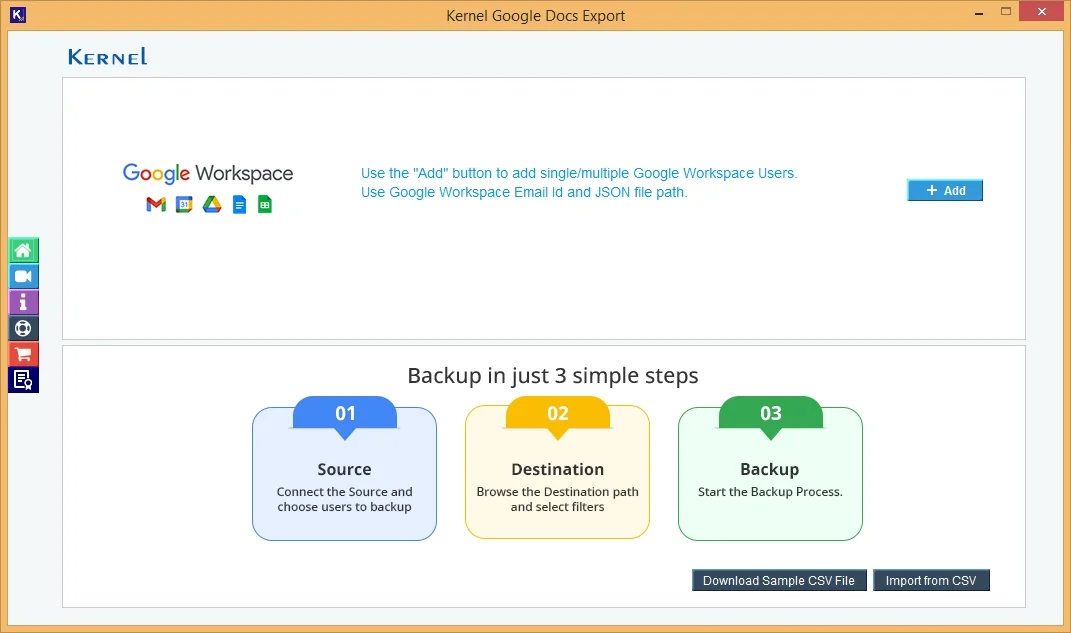
Step 2: Enter the login credentials of the source Google Workspace account and add the users.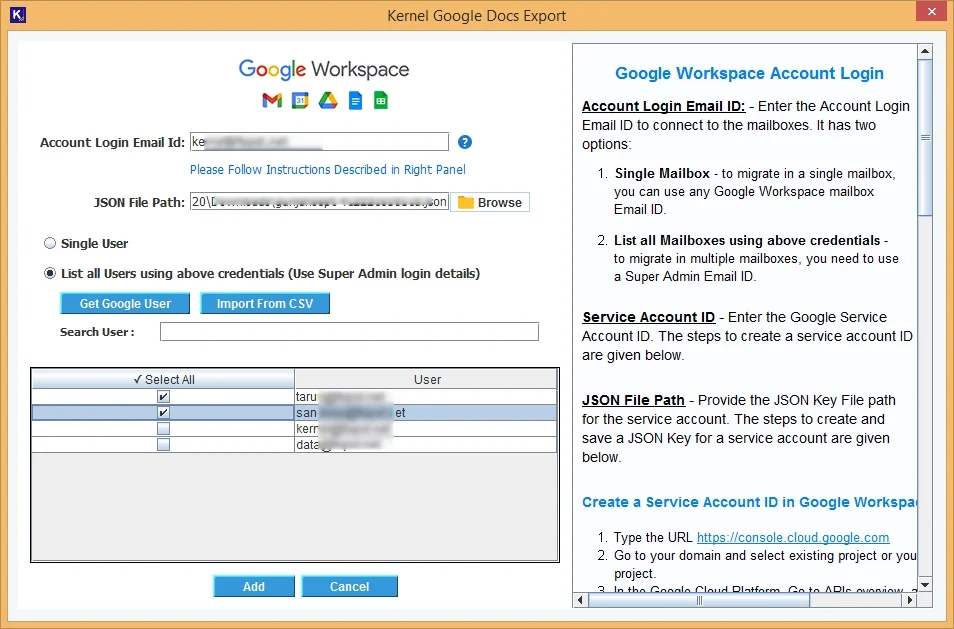
Step 3: After adding the mailboxes, click Set Filter and Backup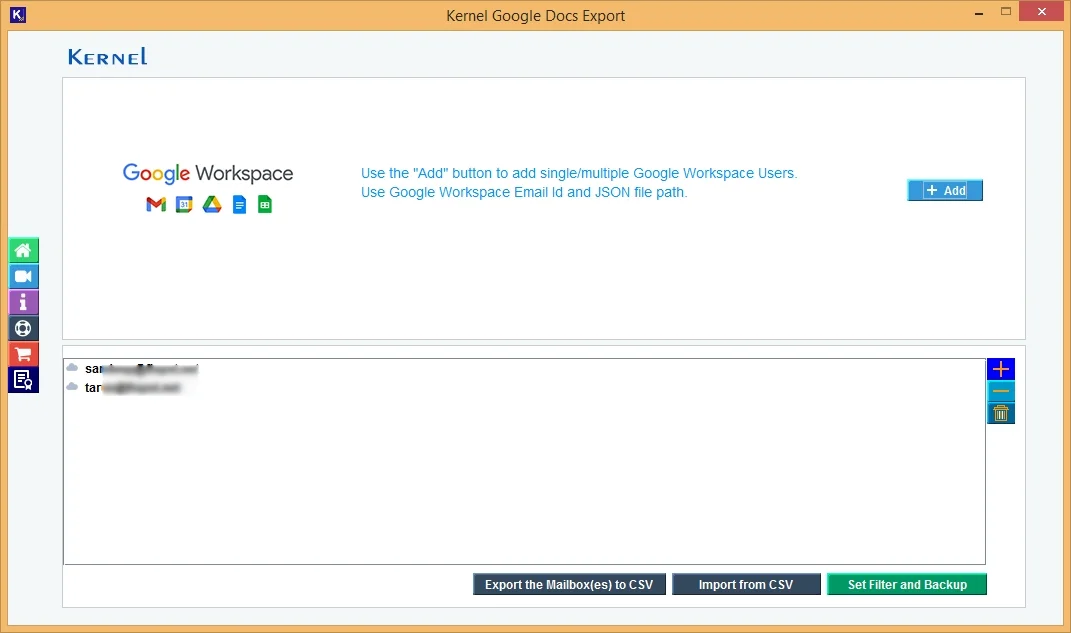
Step 4: Expand the selected user mailboxes and tick the Docs option. Apply the Date filter as per your need and click Start Backup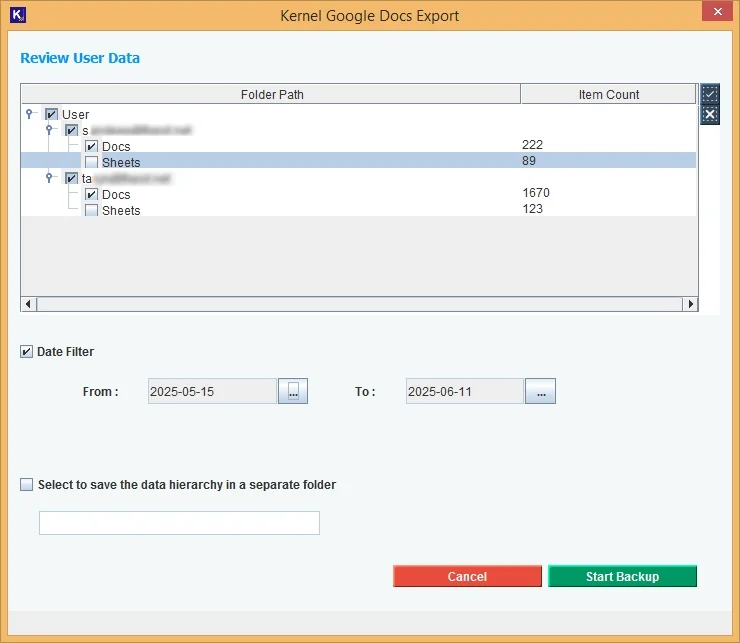
Note: To download Google Sheets also, select the Sheets option.
Step 5: Provide the location where you want to save the Docs file and click Select Folder. The downloading will begin.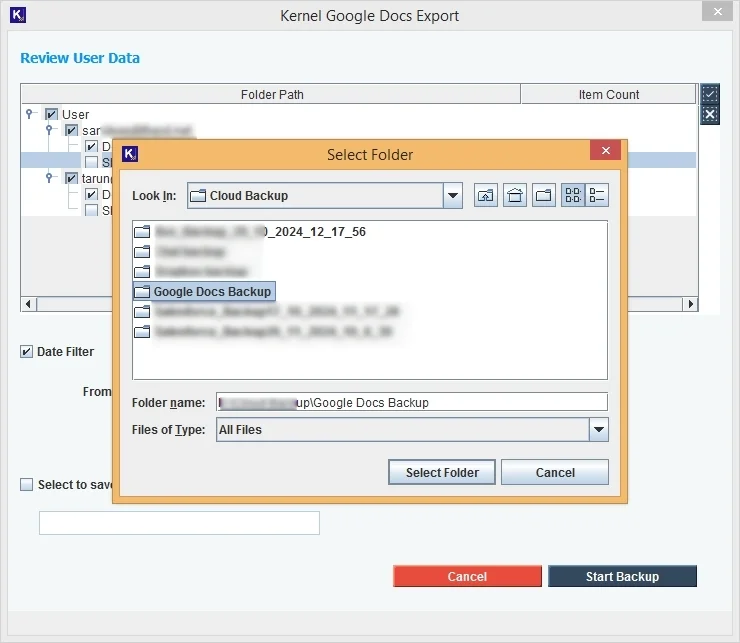
Step 6: The tool will display a success message when all the files are downloaded.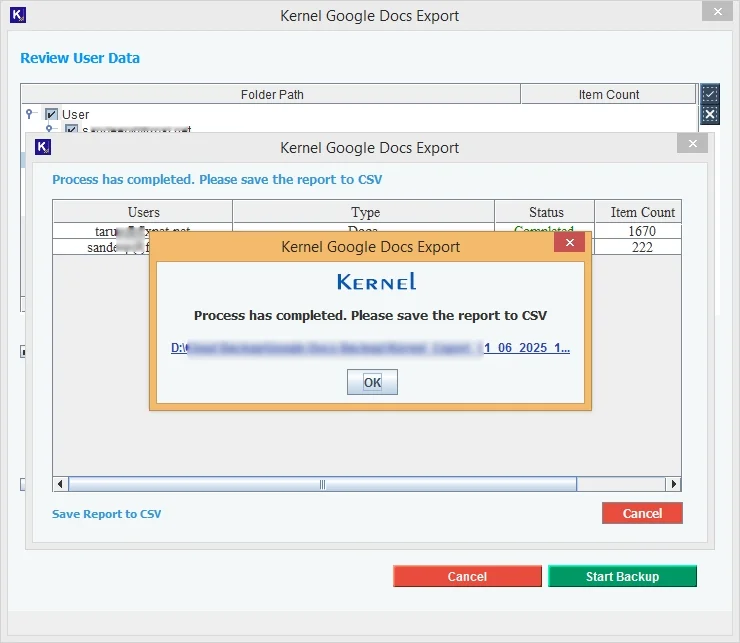
Phase 2: Transfer Google Docs to Microsoft 365
After downloading files, follow these steps to transfer Google Docs to Office 365.
Step 1: Open a browser and sign in to OneDrive of the target Office 365 account.
Step 2: Click the + button at the right-top and select the Folder option.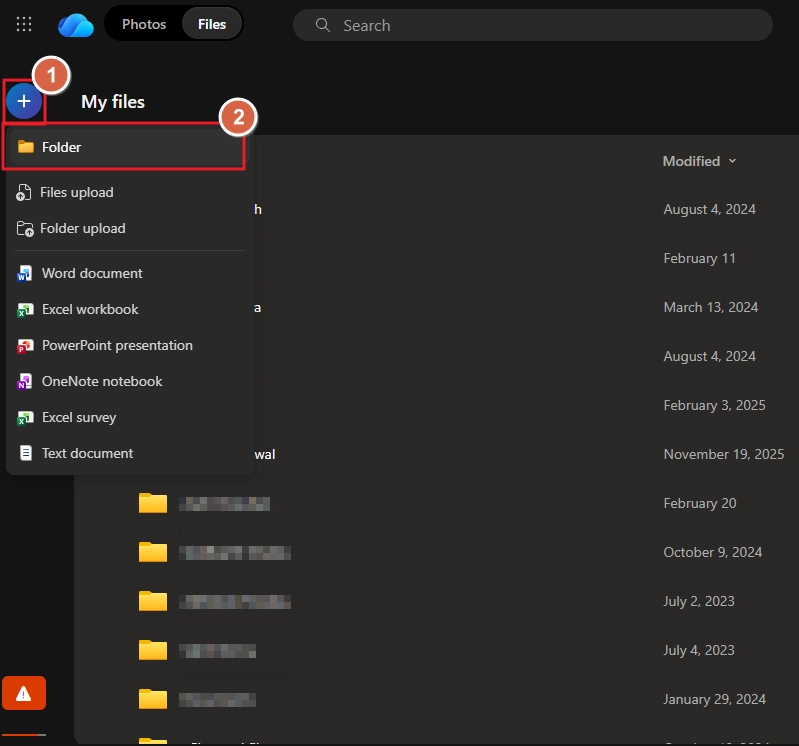
Step 3: Give it a name and create the folder.
Step 4: Open the folder, click the + icon at the top-right, and select the Files upload option.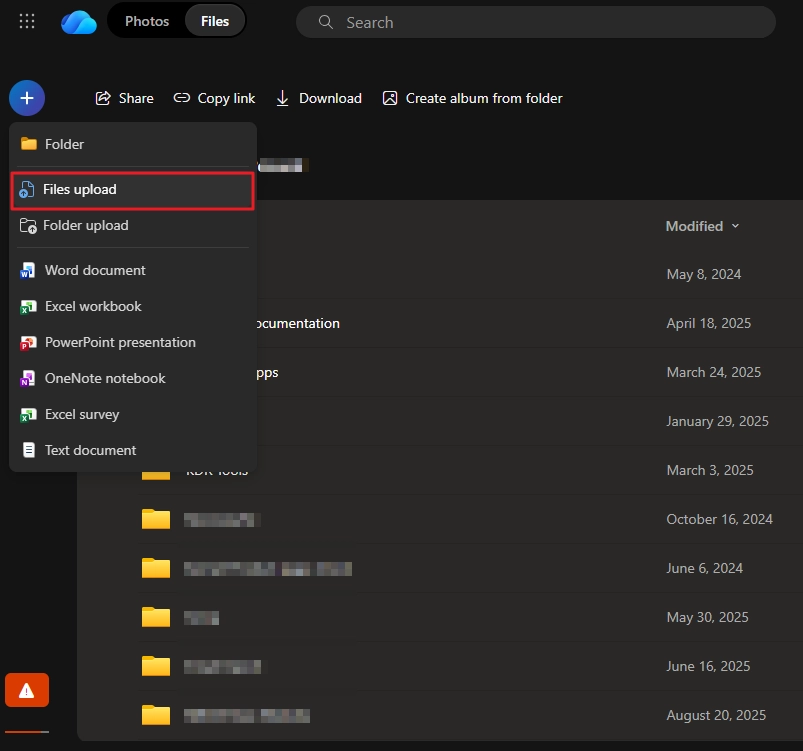
Step 5: Windows File Explorer window will open, go to the location where the Google Docs files are saved.
Step 6: Select all the files and click Open.
Which Method is Best to Migrate Google Docs to Office 365?
Check out this table to know which method is best as per your requirement.
|
Feature |
Method 1: Selective File Download |
Method 2: Google Takeout |
Method 3: Advanced Export Tool |
|
Best For |
Fewer than 50 files |
Personal backups/Bulk export |
Enterprise/High-volume migration |
|
Effort Level |
High (Manual download/upload) |
Medium (Waiting for archive) |
Low (Automated) |
|
Selective Export |
Yes (Individual files) |
No |
Yes (Built-in Filters) |
|
Speed |
Slowest |
Fast (Batch processing) |
Fastest (Direct migration) |
|
Hidden Files |
Only what you click |
Includes all Drive data |
Only the specific Docs/Sheets selected |
Common Challenges When You Move from Google Docs to Office 365
When you transfer Google Docs to Microsoft 365, these are a few issues you may find.
- Broken Links: Any internal link of your Google Drive document in the Google Docs will fail after uploading the documents to OneDrive.
- Layout Change: Google and Microsoft use different layouts. In most cases, you will not see any difference. But sometimes, you may find the padding and margin of the page slightly off.
- Reassign Permissions: Any user or colleague you made an editor or viewer of your Google Docs will lose the access-level. You have to reassign these roles manually later in OneDrive.
- Data Corruption: When downloading large ZIP files from Google Takeout, an internet error may disrupt downloading and damage the data. Forcing you to redo the process.
- Loss of Version History: When you download, you only get one single current version. No more going back to previous versions.
- Redo the Automation: The Google App Script you write for Google Docs will not work in Microsoft environment. You have to write the macros for the Word file again.
Conclusion
When your requirements shift from quick draft to precise page control with advanced tracking, Microsoft 365 Word app is what you need. Use the method above to migrate Google Docs to Office 365. If you need to save 100+ files and don’t want to download the complete Drive data, use the Kernel Google Docs Export Tool.
In case you need to move more than just documents from Google Docs to O365, you can try the Kernel Google Workspace to Office 365 tool. It’s a standalone utility that helps to automate the complete G Suite component migration. Be it user mailbox (primary, archive, shared), Groups, Chats, Spaces, or any other data, the tool accurately moves them to Exchange Online/Office 365.
Frequently Asked Questions
A. You have to download the Docs file from email and then import it to OneDrive. Alternatively, you can migrate emails from Gmail to Exchange that have the links embedded in them.
A. No. The Google Takeout downloads the complete Drive with all the files and folders in the original hierarchy. You have to manually separate the files you want.
A. The conversion of Google Docs to Microsoft supported .docx file fails to retain the original media quality. The difference is most visible in high-quality images.