Read time: 14 minutes
Google and Outlook both support Calendar entries to maintain scheduling, appointments, and set reminders for other important events. Google’s calendar is widely used to save their birthdays, interviews, holidays, etc. Outlook offers a calendar where the user can fix appointments, schedule meetings, interviews, seminars, etc. When you are using both platforms, they may be saving the data separately. But there is an option of synchronization between Gmail Calendar and Outlook so that you can create the information in Gmail, and it will automatically sync with Outlook 2016 and Outlook 2019.
How to Sync Gmail Calendar with Outlook 2016?
Let’s check some methods that can help us in syncing these two platforms:
Link Google Calendar with Outlook
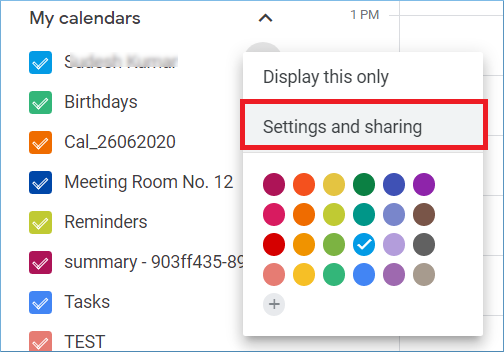
- Log in to Google Calendar and choose the calendar that you want to sync with Outlook. Click Settings and Sharing.
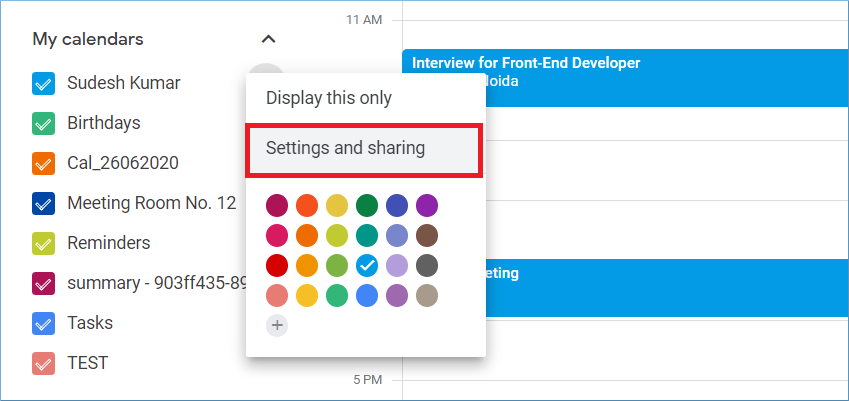
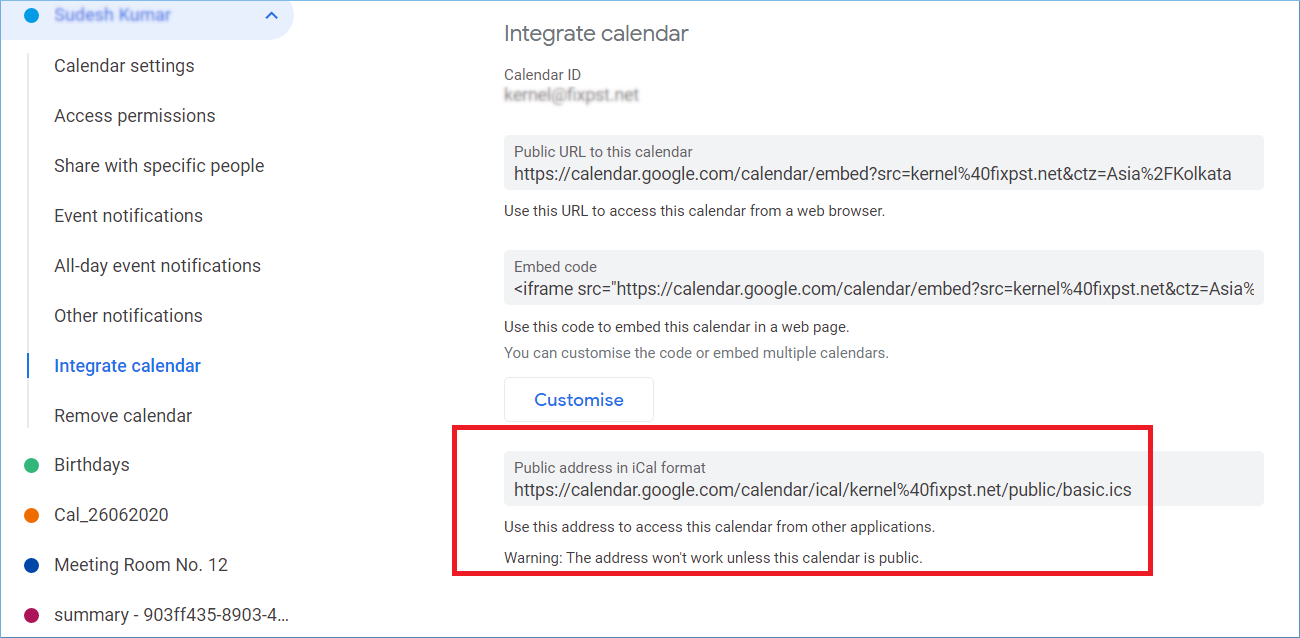
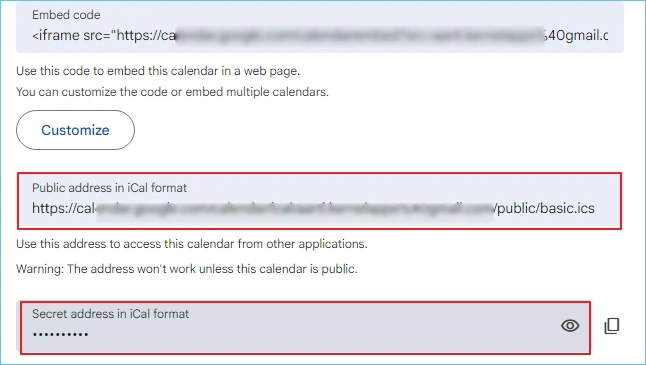
- There are multiple options to share the calendar. Among these options, you can see that there is a URL in the ICS format; the user can use this address to access this calendar from other applications.
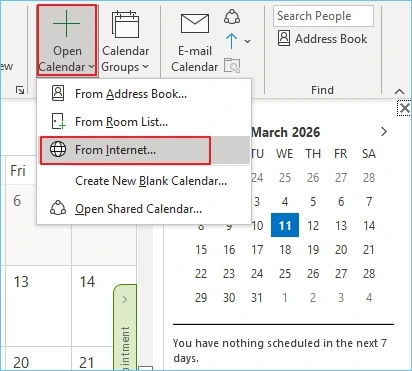
- Go to Outlook and open the calendar. Then click Open Calendar>>From the Internet. Input the URL that you had copied in the previous step. Then click, OK.
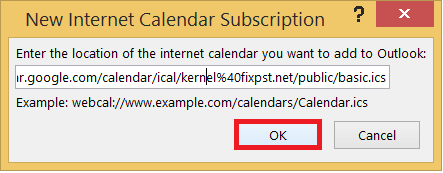 Now you can access the same calendar in Outlook also. But remember that it is a read-only calendar. You can see all the calendar dates and entries but cannot edit or modify them.
Import Google Calendar in Outlook
If you have chosen to move the Calendar to Outlook completely, then you can choose to export the calendar and import it into Outlook. Follow the steps;
- Choose the calendar and go to its options. Choose Settings and Sharing.
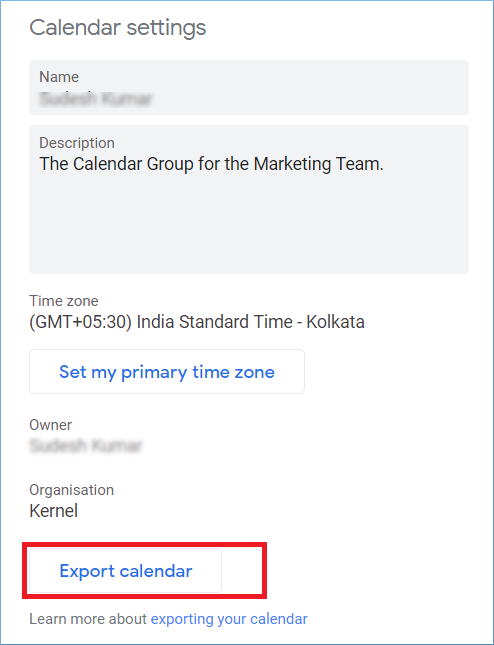
- Click the Export Calendar option, and the calendar will be exported in an ICS file.
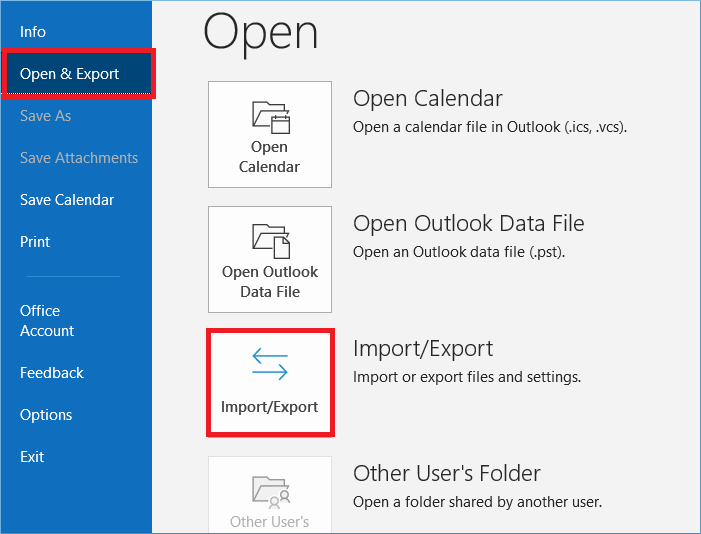
- Now, open Outlook and go to File. Then choose Open & Export. Then click the Import/Export icon.
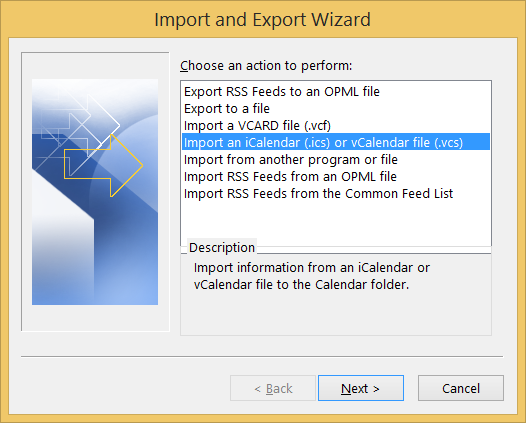
- Click the option ‘Import an iCalendar or vCalendar file.’ Click Next.
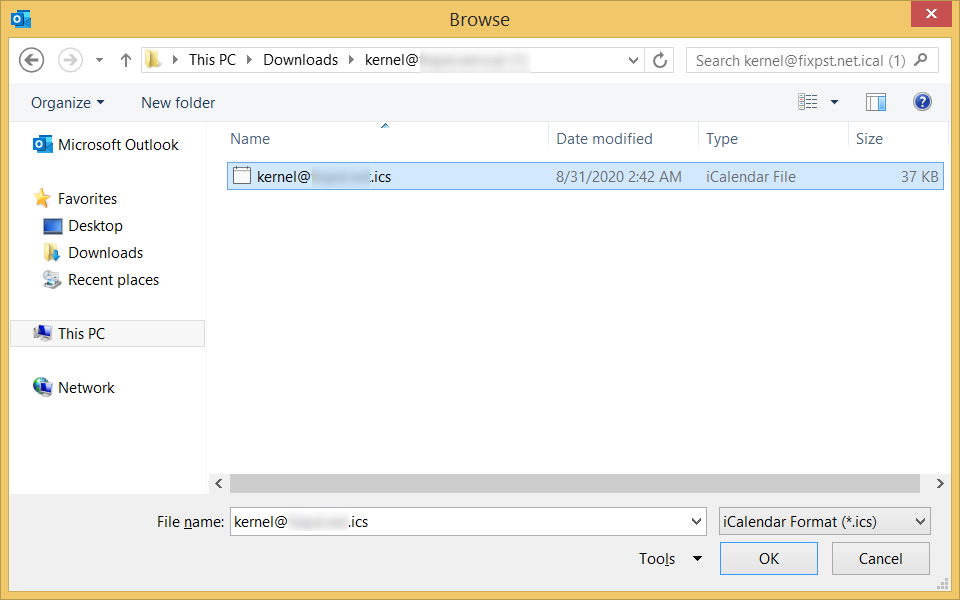
- Choose the ICS calendar that you had exported from the Google Calendar. Click OK.
- The Outlook is asking either to open the calendar as a new calendar or import its items into your calendar. Click Open as New to see the calendar separately or Import to see its entries in the existing calendar.
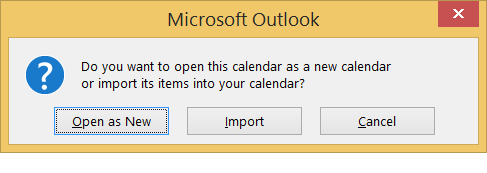
- Because the calendar was saved separately, it will be saved as a new calendar, and you can see its contents in Outlook.
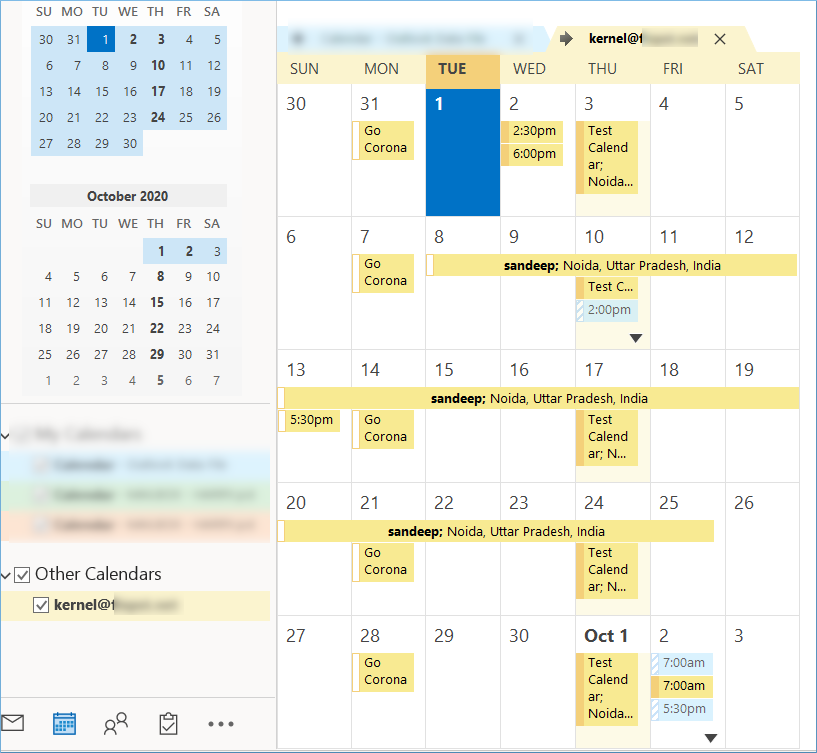
Sync Google Calendar with Outlook using iCal method
In this method, we will get the iCal URL first and later will add it to Outlook to sync both calendars data. Let’s see the process:
- Go to Gmail and open Calendar on your browser.
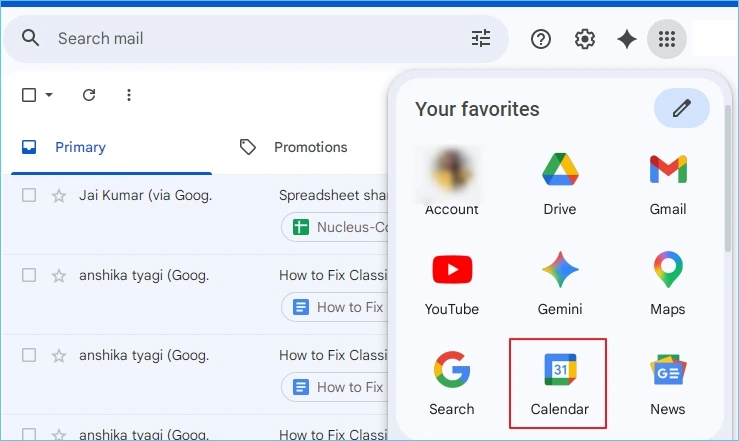
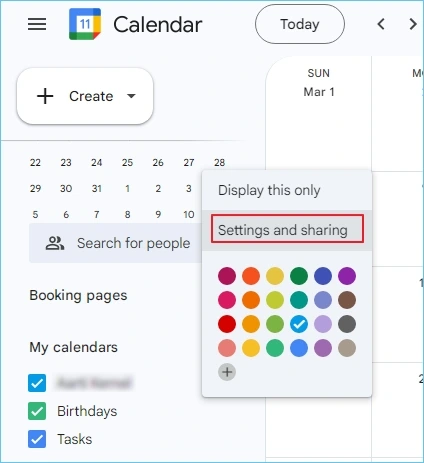
- Go to the desired calendar and click on three dots to select Settings and sharing.
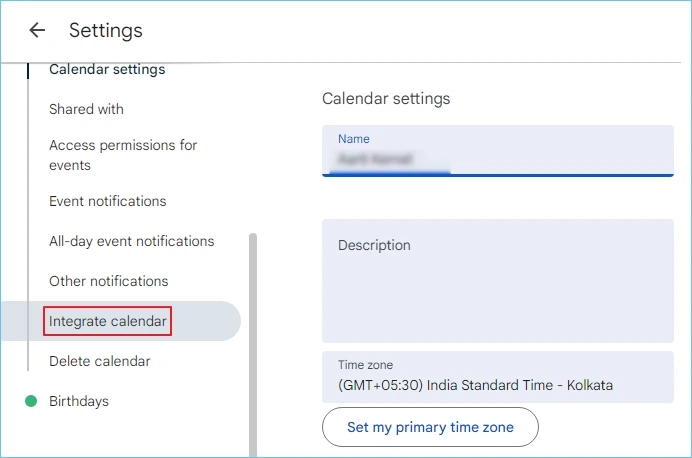
- Here, choose Integrate calendar from the left pane.
- Scroll down and copy the public address, and secret address in iCal format.
- Now open Outlook on your PC and click on the Calendar icon.
- Select Open Calendar and select the From internet option to paste the iCal URL of the Google calendar.
- Click OK and once finished, you can access the Google Calendar in Outlook.
Sync Google Calendar Via G Suite Sync in Outlook
The Google G Suite Sync for Microsoft Outlook offers syncing for Microsoft Outlook for Windows. With it, you can easily sync Gmail, Google Calendar, etc. with Outlook. Unfortunately, G Suite is only available to paid subscribers. It is not available with free Google accounts.
- If you own a G Suite subscription, you can install G Suite Sync on your system. Make sure you close Outlook before you install it. Then you will have to log into your Google account.
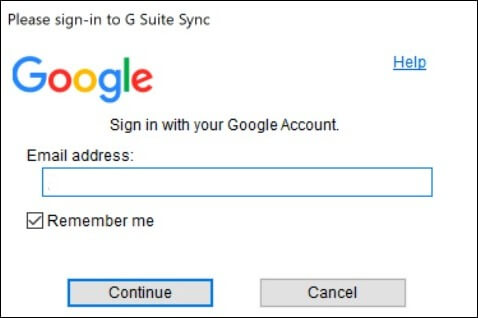
- By doing so, you’ll be asked to give the application access to your data. Following a successful installation, the application can be configured. Using the Import data from an existing profile option will allow you to move your Outlook emails & calendar items over to your Google account.
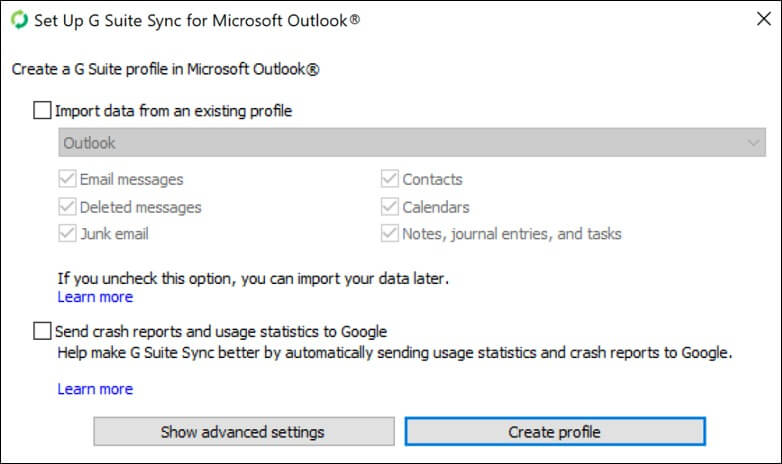
- You can click the Create profile button once everything has been configured; the application will start running in the background.
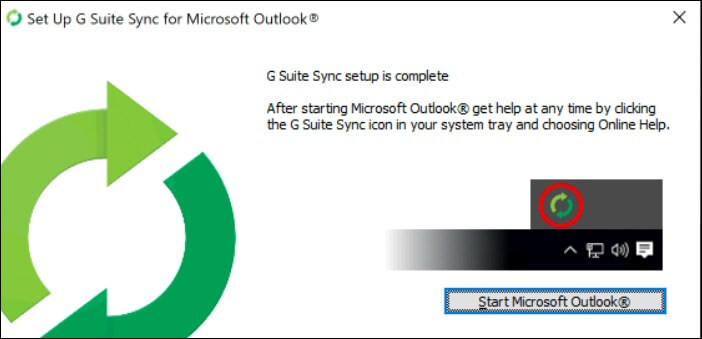
- If you open Outlook, you will see the progress window, which shows how the synchronization is going.
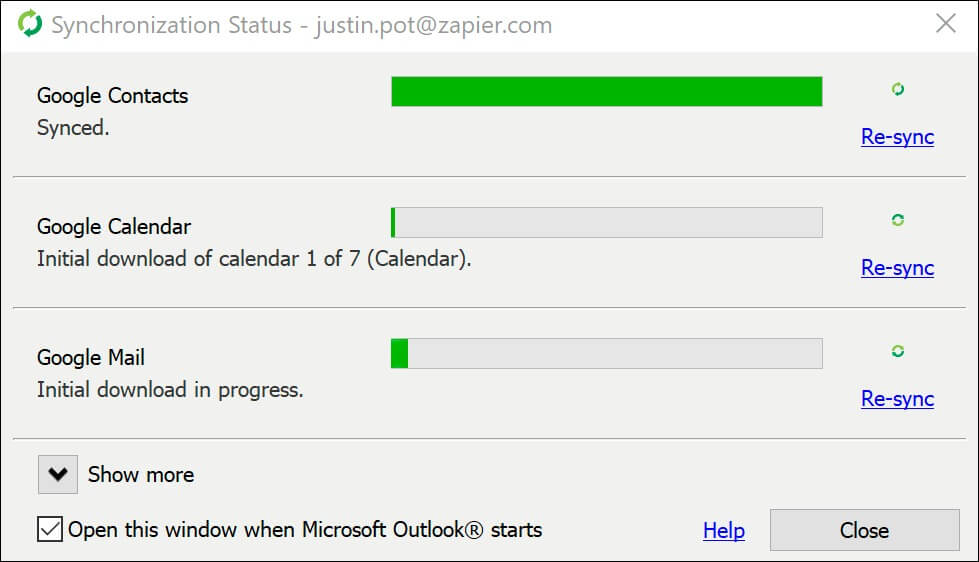
- As G-Suite Sync synchronizes, the above window appears, but it can be closed. Closing this window won’t stop the sync process. After synchronization, open Outlook and select the Calendar tab and you will see the Google calendars there.
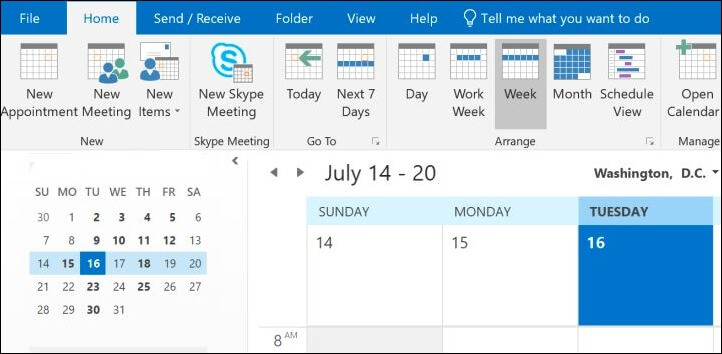
Your Google Calendar and Microsoft Outlook are now fully synchronized. The appointments you add to Google Calendar will appear in Google Calendar, and the appointments you add to a calendar in Outlook will appear in Google Calendar.
Troubleshooting common issues in syncing calendars
During the Google and Outlook calendar syncing, there are high chances of noticing errors and issues. Some of those are listed below:
- Ineffective internet connection: Due to poor internet connectivity, there are chances of process failure and data loss. Always establish that you’re working on a stable internet connection before starting the process.
- ICS linking issues: Sometimes after exporting Google Calendar to an ICS link, the link fails to connect and update in Outlook. In such cases, verify that the link is valid then use it further.
- Shared calendar permissions: When appropriate permissions are not allowed, the process will face issues in syncing. Always set the shared calendar permissions to make them available to the public or grant the required permissions.
- Outdated applications: Often using outdated Gmail or Outlook versions can cause interruptions, therefore, regularly update the browser, and mobile desktop applications before syncing the calendars.
Backup strategy for securing calendar data
Use the given tips and practices to form your solid backup strategy and save the data against loss:
- Export calendar data on alternate days or at least on a weekly basis for accounts that are involved in high activity of data exchange.
- Keep your backup files (.pst) protected with password and encryptions to avoid unauthorized access.
- Remember that cloud services like Google and Microsoft follow shared responsibility model, which means they’ll not be liable for data deleted on the user end.
- Check your backups for restore on a routine basis to validate the consistency of data stored.
Use an advanced G Suite Backup tool to secure your data
Since the process involves a lot of manually executed steps to sync calendars, there are chances of missing or lost data. This calls for a solid backup solution that saves your data structurally. If you want to backup G Suite emails to PST without loss of business data, then use Kernel Google Workspace Backup and Restore tool.
Using the G Suite Backup tool, you can back up mailboxes, calendars, and Google Hangouts Chats to your local system. This program also utilizes a CSV file to backup multiple mailboxes. You can run multiple backups simultaneously with Kernel Google Workspace Backup and Restore. All backups will be performed separately. It speeds up migration projects.
The free version of the software allows you to backup 10 items per folder. Moreover, this tool is compatible with all versions of Windows.
Quick steps to protect your calendar data with tool:
- Download and install the software. Open it and select Mailboxes, Groups, and Drive Backup option.
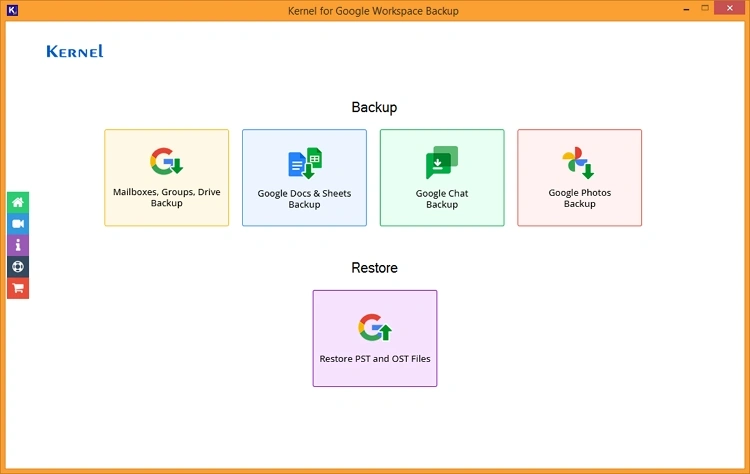
- Click on the Add button to connect the Google Workspace account.
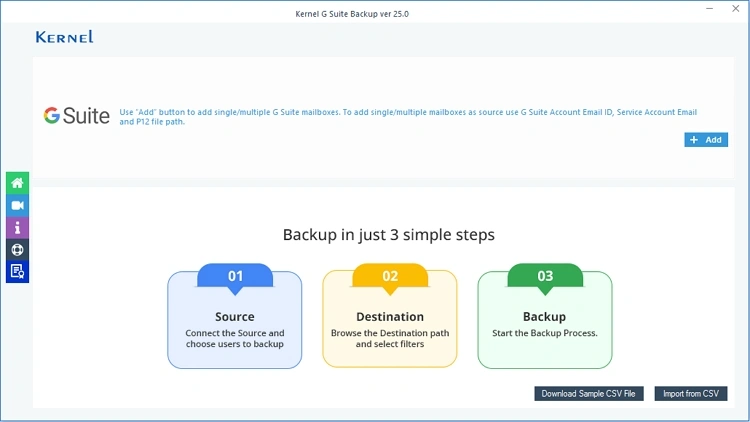
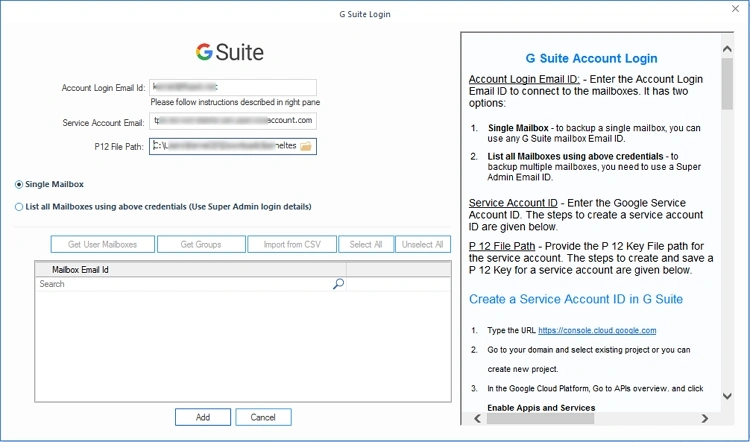
- Input the G Suite account, the service account, and the P 12 key.
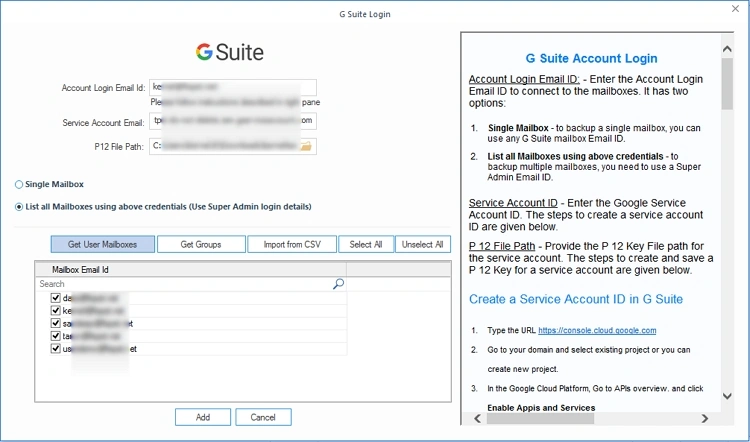
- Select the List All Mailboxes toggle button to select multiple accounts. Click Get User Mailbox(es) button.
- Choose the desired user accounts and click Add.
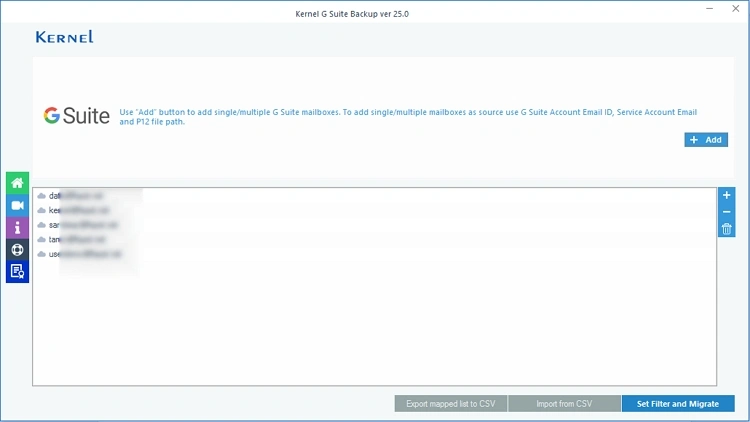
- Review the selected accounts and Click on the Set Filter and Migrate option.
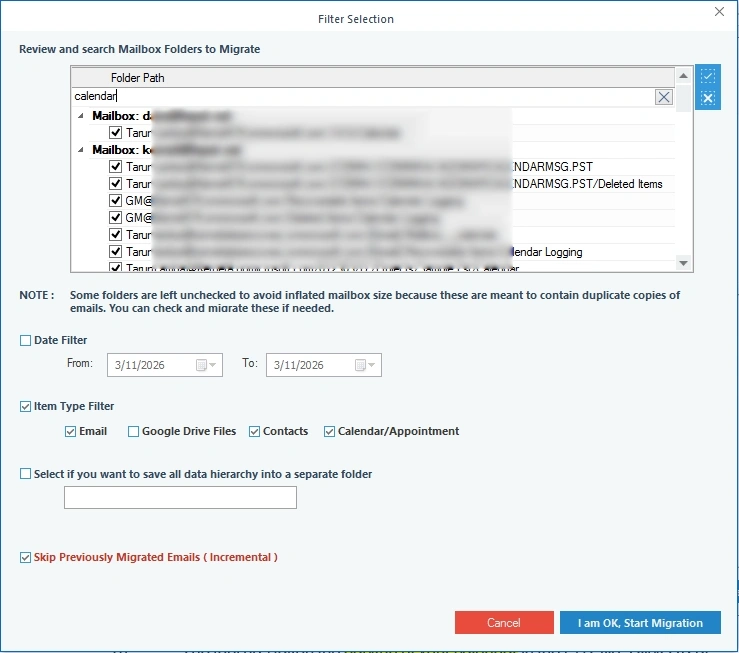
- On the Filter page, select Calendar/Appointment using the checkboxes. Apply filters if required and click, I am OK, Start Migration.
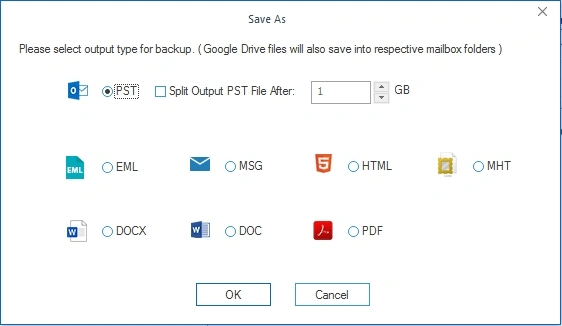
- Choose the PST option as the output file. Then click OK.
- Browse and provide the saving location for the PST file and click OK.
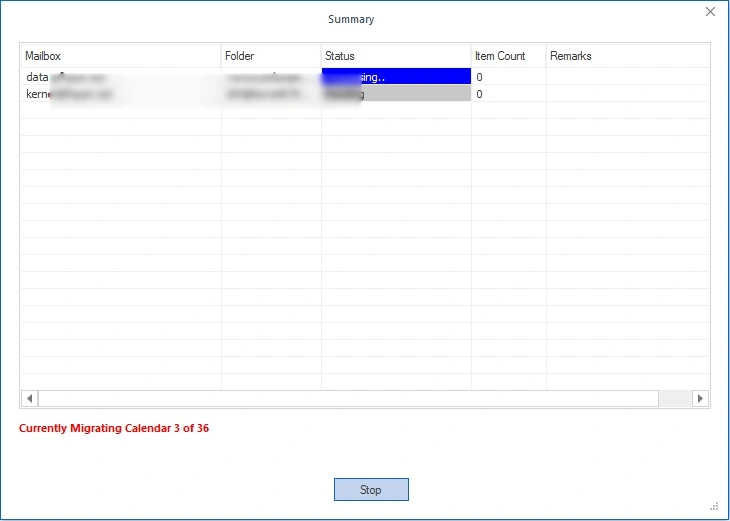
- The tool will start taking the backup of your calendar data with live progress summary,
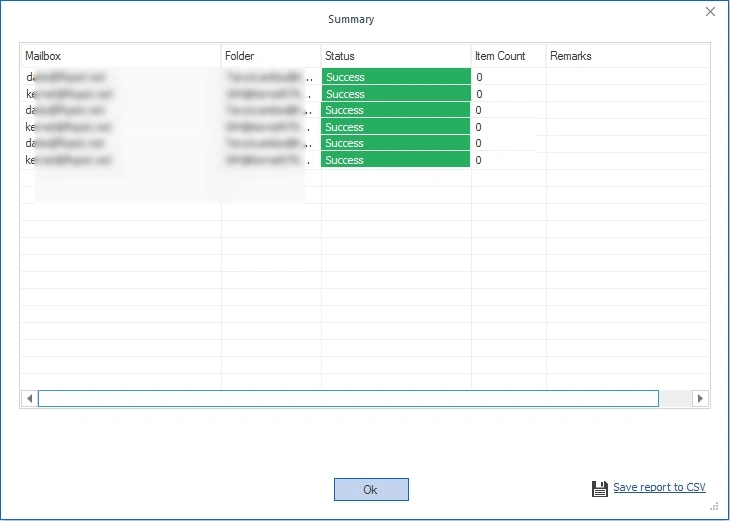
- Once completed, the software will display a success status. You can save the report in the CSV file for checking the backup status. Then click OK.
Conclusion
With the solutions explained, you can sync Gmail Calendar with Outlook and access data as you like. However, the Kernel Google Workspace Backup and Restore tool allows you to take a full backup of the G Suite account, as it can save all the data present in various Google applications. It will save the whole calendar to PST file in the minimum time, and later you can import the PST file into Outlook.
Frequently Asked Questions
Ans: This issue can be due to improper configuration settings, internet connectivity, not having appropriate access and permissions. Verify the calendar settings and configure both platforms correctly to allow effortless syncing.
Ans: To sync Google and Outlook calendars, manually create iCal URL of the Google Calendar and then add the calendar within Outlook.