Read time: 7 minutes
Can’t import or export mailbox data in Office 365 due to lack of permissions? This usually happens when the Mailbox Import Export Role in Exchange Online is not assigned to your account.
It is necessary for Role-Based Access Control (RBAC) to manage administrative permissions like organizational PST import operations. You have to manually assign this role from Exchange Admin Center (EAC) or Exchange Online PowerShell to import or export mailboxes.
Here, we will explain all the required details associated with this role:
- Verification steps.
- Safe role removal.
- Solutions to common errors.
- Correct permission requirements.
- Methods for role assignment in Exchange Online.
An Overview: What Is Mailbox Import Export Role In Exchange Online?
The Mailbox Import Export role is a management role that allows all administrators to import and export mailbox items from or to Exchange Online using Outlook data files (.pst).
Microsoft doesn’t assign this role to an Exchange Online role group by default. Administrators must assign it explicitly when required.
You can perform both organizational PST import and export operations through the Microsoft Purview portal.
Why You Need to Assign Mailbox Import Export Role In Office 365?
The Mailbox Import Export Role assignment in Exchange Online authorizes users to allow organizations to:
- Manage access through dedicated Exchange role groups.
- Remove permissions when administrators no longer require them.
- Control which administrators can perform organizational mailbox import or export tasks.
- Grant specific PST import or export permissions without providing additional administrative access.
Prerequisites: Mailbox Import Export Role In Exchange Online Checklist
Check the required administrative access and permissions before assigning the role:
| Requirement | Why Do You Need It? |
|---|---|
|
Exchange Online administrator account |
Access your organization’s Exchange Online environment. |
|
Role Management permission |
Create role groups and manage role assignments. |
|
Mailbox Import Export Role |
Organization PST import permission set. |
|
Mail Recipients Role |
Additional permission required under the standard role-based. |
|
Exchange Online PowerShell Module |
Required only when using the PowerShell method. |
|
Authorize Administrator Account |
The Account that will receive the required permissions. |
How to Assign Mailbox Import Export Role In Exchange Online?
Go through the following section to learn both methods to assign the Mailbox Import Export Role in Microsoft 365 using Exchange Admin Center (EAC) and PowerShell commands.
Method 1. Assign Mailbox Import Export Role Using EAC
Here are the detailed steps to assign the role for importing or exporting in Office 365.
Step 1. Sign in to the Exchange Admin Center.
Step 2. Expand the Roles section and go to Admin Roles.
Step 3. Scroll down to Organizational Management.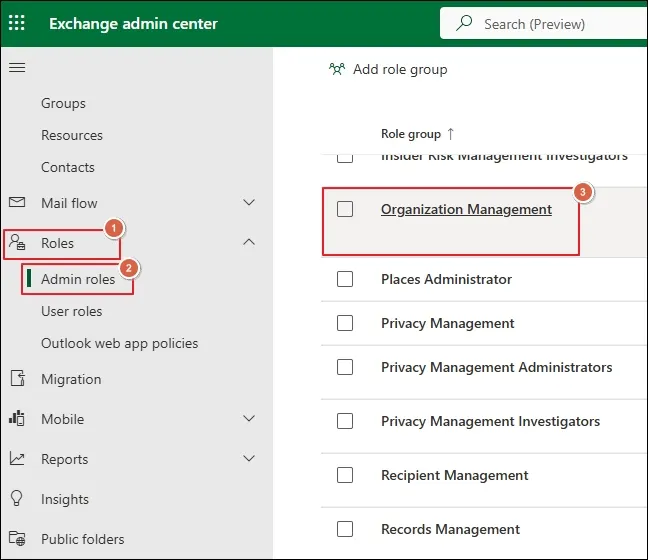
Step 4. Access the Permissions tab under Organizational Management.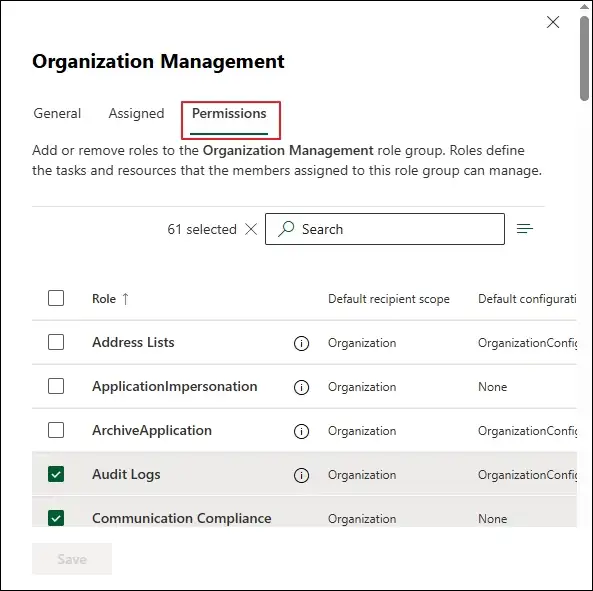
Step 5. Select the required permissions from the list:
- Mail Recipients
- Mailbox Import Export
Once done, click the Save option.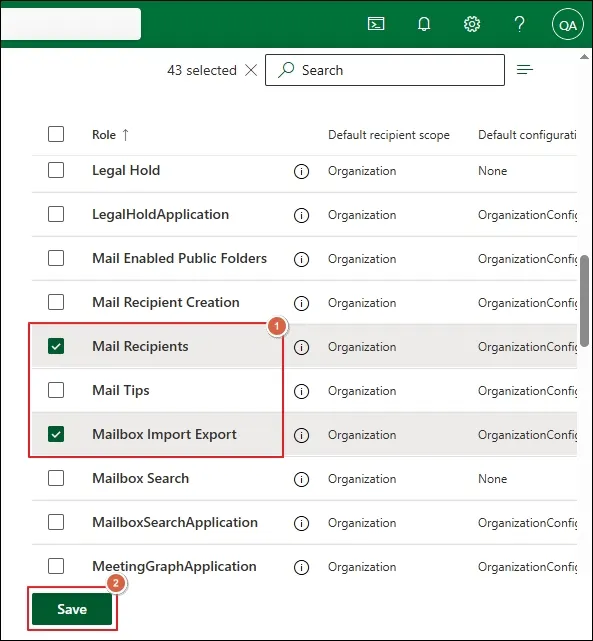
Step 6. It will take 1 to 24 hours for the role assignment changes to take effect.
Method 2. Use the Exchange PowerShell Command for Assigning Roles
Follow the given steps to manage role groups in Exchange Online using PowerShell commands:
Step 1. Access PowerShell to run the following command if the module is not installed.
Step 2. Import the module to load the specific cmdlets.
Step 3. Connect to Exchange Online using the given command.
Step 4. Use the command below to check the required management roles.
Get-ManagementRole “Mail Recipients”
Step 5. Create a dedicated role group and assign permissions via the command below.
-Name “PST Import Administrators” `
-Roles “Mailbox Import Export”,”Mail Recipients” `
-Members “user@yourdomain.com”
Step 6. Verify the role assignment via this command.
Format-List Name,Roles,Members
Step 7. Run the command below to inspect the individual management role assignment for the group:
-RoleAssignee “PST Import Administrators” |
Format-Table Name,Role,RoleAssigneeName
Step 8. Disconnect from Exchange Online after completion.
What If You Assign the Role to An Existing Group?
You can also assign Mailbox Import Export Role in Office 365 if the custom role group already exists.
Step 1. Use the command below to assign the role.
-Role “Mailbox Import Export” `
-SecurityGroup “PST Import Administrators”
Step 2. Run the following command to assign the Mail Recipients role.
Role “Mail Recipients” `
-SecurityGroup “PST Import Administrators”
How to Remove the Assigned Mailbox Import Export Role In Exchange Online?
Check out the section below to get the steps for removing assigned roles in Microsoft 365 using Exchange Admin Center and PowerShell commands.
Using Exchange Admin Center
To remove the Mailbox Import Export role from a user in Exchange Admin Center, follow these steps:
Step 1. Sign in to the Exchange Admin Center.
Step 2. Go to Permissions > Admin roles and select the role group that provides the permission.
Step 3. Open the Assigned tab and select the user you want to remove.
Step 4. Remove the user from the group and save the changes if prompted.
Using PowerShell Command
Here are the steps to remove the Mailbox Import Export role assignment in Exchange Online using PowerShell commands.
Step 1. Run this command to list assignments associated with the Mailbox Import Export role.
Format-Table Name, Role, RoleAssigneeName
Step 2. Preview the assignment removal by executing the following command.
Step 3.Run the given command for assignment removal after confirming that you have selected the correct one.
Step 4. Confirm that the specific assignment you removed no longer appears with the following command.
Format-Table Name, Role, RoleAssigneeName
Step 5. Disconnect from Exchange Online (Microsoft 365) after completing the operation.
Let’s Recap
Assigning the Mailbox Import Export role in Exchange Online (Office 365) is essential when administrators need permissions for PST import and export operations. You can manage role assignments through the Exchange Admin Center (EAC) or Exchange Online PowerShell using the detailed step-by-step process provided.
However, if you want to simplify mailbox data importing & exporting from or to Exchange Online, then consider using our Kernel Office 365 Backup tool . The software helps you backup or restore the Microsoft 365 mailboxes easily. Apart from that, you can also explore how to use plus addressing effectively in Exchange Online .
FAQs: Read Before You Ask
A. Microsoft does not assign the Mailbox Import Export role to an Exchange Online role group by default. This allows administrators to control who can perform mailbox import and export operations by granting the required permissions only when needed.
A. Not always. PST import jobs may require additional permissions and setup steps. The required configuration depends on the chosen import or export workflow.
A. As per Microsoft, permissions may take from 1 to 24 hours to reflect the changes to your Exchange Online account.
A. The role assignment may require additional permissions or configuration. So, verify the role-group membership, confirm that changes have taken effect, and review the requirements for the specific PST import or export workflow.
A. The user loses the permissions granted through the role assignment. However, they may retain equivalent permissions through another role group or assignment, so review their remaining permissions carefully.