Read time: 4 minutes
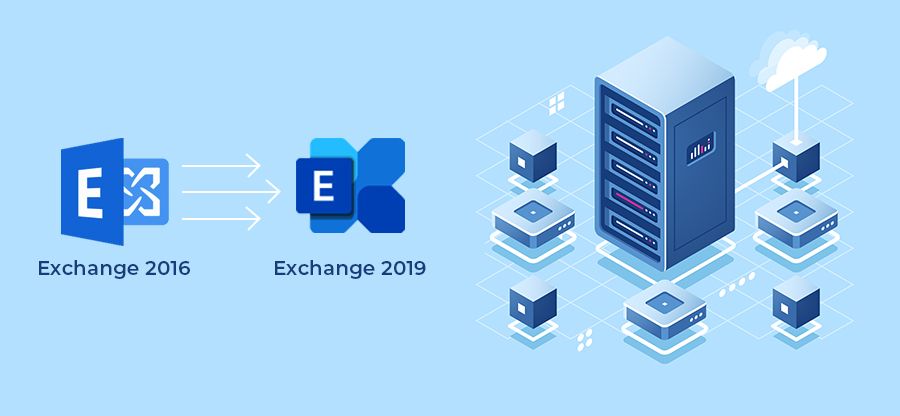
Although Subscription Edition is the latest Exchange version available, many businesses still rely on and want to install Exchange Server 2019. The reason is simple; it is great, does the job perfectly, and can be made 100% isolated (best for finance or government agencies). Whatever your reason is, the process of updating from 2016 to 2019 Exchange is the same, and you will find it in this blog.
Setting up the Exchange Server 2019 is not something you can start right away. You need to know things like, the system requirements, what Windows Server version will be best, the pre and post-installation steps, and obviously the steps to install it. We will cover them all one by one.
Exchange 2016 to 2019 Migration Guides
- Part 1: Important Points to Consider before Installing Exchange Server 2019
- Part 2: Prepare the Environment for Exchange Server 2019 Installation
- Part 3: Exchange Server 2019 – The Complete Installation Process
- Part 4: Configure Exchange Server 2019 Post the Successful Installation
- Part 5: Exchange 2016 to 2019 Migration Step-by-step Guide
New features in Exchange Server 2019
In each aspect of email management, Exchange 2019 has made the following upgrades:
Client Management
- Email address internationalization – Email addresses that use non-English characters can be routed like emails with English characters only.
- Calendar –Can cancel the events of users that have left the organization.
- Calendar – A new option can show you as away or out of the office in calendar events.
- Calendar – The attendees of the invitation cannot forward the meeting invitation.
Security
Security is the focal point of Exchange 2019, and it has several new features for increasing the stability and security of mailbox data.
- Windows Server Core support – It takes lesser storage space in the hard disk to deploy the on-premises Exchange. So, it has minimum storage space as the target of hackers.
- No external access to admin centers – New Client Access Rule restricts external access to Exchange Admin Center and Exchange Management Shell.
- TLS 1.3 – The TLS 1.2 is the default encryption method between client and server connections. And the Exchange Server 2019 (from CU14) on Windows Server 2022 supports the TLS 1.3. All the older encryption algorithms like RC2, 3DES, DES, RC4, and MD5 are no longer supported.
Performance
- Better search infrastructure – The deep search facility is available in Exchange 2019. The enhanced search feature will help in deeper searches and bigger indexing of searched items, files, and folders.
- More hardware support – The new Exchange supports 256 GB of RAM and 48 CPU cores.
Key Considerations Before Installing Exchange 2019
As I said above, the Exchange Server version upgrade is challenging, and to make sure you don’t encounter any issues during installation, you must check the following things carefully:
Server Roles
Exchange 2019 supports only two kinds of server roles –
- Mailbox Role –It will handle all the server activities under this role.
- Edge Transport Role – it reduces the attack surface of your Exchange environment. It handles the internet-facing mail flow, etc.
Updates in Active Directory Schema
The installation of Exchange Server 2019 will change the Active Directory schema based on its supported attributes and objects. If you have multiple departments and users in your organization, ask the Active Directory management team to update the schema. It may take numerous hours and days to complete.
Microsoft recommends you test the schema update before installation and take the backup of Active Directory.
Certificates
Exchange requires Transport Layer Certificates as they help to protect email communication between clients and servers. Some third-party certificate authorities can provide you with their certificates; they can be private or self-signed certificates.
- Third-party certificates – There are numerous domain controllers that offer their certificates that you can add to your Exchange and protect email communication. Your identity on the Internet will also be protected.
- Private certificates – To secure internal communication between the team members and department members, you can get some private certificates. But then, external clients and networks will not recognize your private certificates.
- Self-signed certificates – The self-signed certificates work on a single computer; other networked computers do not accept them until you manually trust the certificate.
You should check which certificate will be suitable for Exchange Server 2019.
Office Online Server
Office Online Server enables the Exchange accounts connected in Outlook on the Web to view attachments without downloading them. Although Exchange 2019 accounts do not require such a feature, you can enable it manually.
Split DNS
A split Domain Name System is an important feature where you can configure different IP addresses for your organization. They can come from different sources like internal, external, or third-party. Exchange Server 2019 can be deployed in this Split DNS configuration, and it will help the users work smoothly after creating mailboxes.
Supported Clients
Exchange Server 2019 is accessible to various Outlook clients. The following is a list –
- Outlook 2013.
- Outlook 2016.
- Outlook 2019.
- Outlook 2021.
- Outlook for Mac 2016.
- Outlook for Mac for Office 365.
All the applications should be updated with the latest service packs, and this will provide the best user experience for Exchange 2019 mailboxes.
Hybrid deployment with Office 365
When you have installed Exchange Server 2019, you can migrate your mailboxes from on-premises to Office 365 or vice-versa. It provides a single environment and look & feel to Exchange users present on both on-premises and Exchange Online.
What’s Next?
After you take care of the above critical points, you can start by setting up the environment where the Exchange 2019 will be installed. We will cover the complete steps for environment setup in the Part 2 of moving from Exchange 2016 to 2019.
Frequently Asked Questions
Ans. No. To install Exchange Server 2019, you need Windows Server version (version 2022 is recommended). Additionally, you need a system with required level of hardware configuration.
Ans. If you skip the prerequisites, you may face immediate setup failure when the installer checks the hardware and software. Additionally, it could corrupt your Active Directory and cause system instability.