Read time: 7 minutes
SharePoint Online allows the users to create different sites for multiple projects and departments according to their requirements. This can often make it difficult for the SharePoint administrators to keep a hold of all these sites and provide a balanced access to the data. Connecting these sites helps with better navigation and centralized environment for the efficient completion of projects.
SharePoint solves this problem by creating Hub Sites that connect various communication and team sites. The joining parameters are department, region, projects, and divisions. This format works great for businesses that involve complex hierarchies of departments, projects, and team members. Let’s learn about the Hub sites in detail starting from understanding what is a hub site in SharePoint.
What is a Hub site in SharePoint Online?
SharePoint Hub sites provide a shared and structured navigation, a new interface, and a search facility to all the associated sites. The SharePoint administrator is responsible for planning, creating, and organizing the Hub sites and connecting them with other sites.
- A search can run across all the associated communication and team sites.
- You can apply a common site structure, brand names, and navigational aspects.
- Only the SharePoint administrator can create the Hub Sites.
- The site owners can connect their sites with existing Hub sites.
Key features of hub sites
Here are some features of the hub sites that explain the importance of creating them in a tenant:
Coherent branding
Associating a site in SharePoint with a hub site directly means inheriting the look and feel from the hub site. A hub site owner can make adjustments or customizations in the navigation bar if needed.
Search across hub
Searching for anything on a hub site displays the collective results from the associated sites as well as from the hub site. The viewers will be able to see the content they are provided access to.
Better permission management
Any SharePoint site connected to a hub never inherits the permissions and access allowed to the hub site automatically. Any user with the permissions to access content cannot view content of the associated sites until you allow them. However, hub site owners can set up permission sync in hub sites to allow visitors to enter other connected sites.
Roll-up of content
Creating a SharePoint hub site doesn’t mean creating a new site, it actually converts an existing site into a hub site. All the site content will remain as it was, along with the hub site navigation bar appearing at the top of the site.
Use cases of a hub site
A hub site can be used in various scenarios particularly when you want to provide a shared navigation to multiple SharePoint sites. Some of the common use cases include:
- Project based hub site
- Department based hub site
- Intranet hub site
According to Microsoft, there can be a maximum of 2000 hub sites within a tenant. However, there is no limit on the count of the associated sites per hub.
How to plan a Hub site?
Although the SharePoint administrator can create the hub sites, the site owners connect their sites to a Hub site and arrange them. Two primary objectives of Hub sites are association and navigation.
When planning Hub sites in SharePoint Online, the Global Administrator can choose the site owners to connect their sites with it. After getting permission to link their sites, the site admins can connect them with Hub sites. The affiliated sites will inherit the site theme and shared navigation. The site content will be rolled into Hub sites, and it will be available for Hub searches.
Connecting the team and communication sites with the Hub site does not create the Hub navigation, but the Hub site owners will determine which sites to add for the Hub navigation. It is possible to configure the events, news, sites, and important content for all associated sites or selected sites.
The navigational aspects of Hub sites and all the connected sites depend on the association. The Hub site owner can decide which sites will be available for shared navigation or searches. The navigation bar will appear on top of the home Hub site. It is also possible to move subsites to another site in SharePoint Hub sites like a normal site.
Things to remember when creating a hub site
There are some pointers that you must know before creating a SharePoint Online hub site:
- Creating a hub site within a tenant does not come with an inherited logo. You will need to manually change the logo on each site within the hub.
- Once a site is created, you need to add it to the navigation of the Hub manually, as it’s not automatically added.
- Connecting a site within the hub makes no change to the permissions. To allow access to the new hub site, access permission is required both from Hub owner and Restricted Site owner.
How to create a Hub Site?
Let’s come to the main section of our article, where we will learn how to create a Hub site in SharePoint Online and add different sites. Only a Global Office 365 Administrator can create a Hub site and connect with other sites.
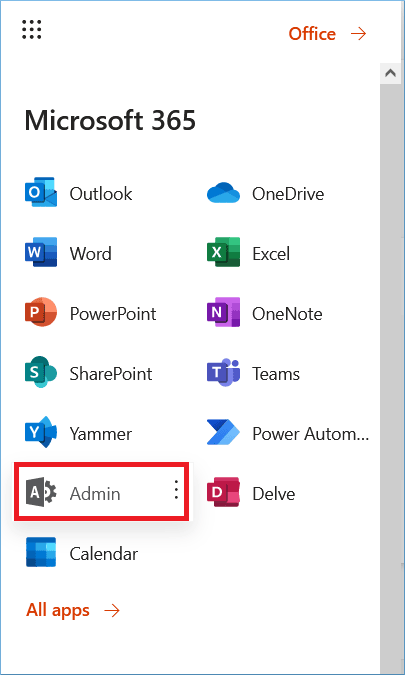
- Login to your Admin account for SharePoint Online and go to the Admin option in the apps list.
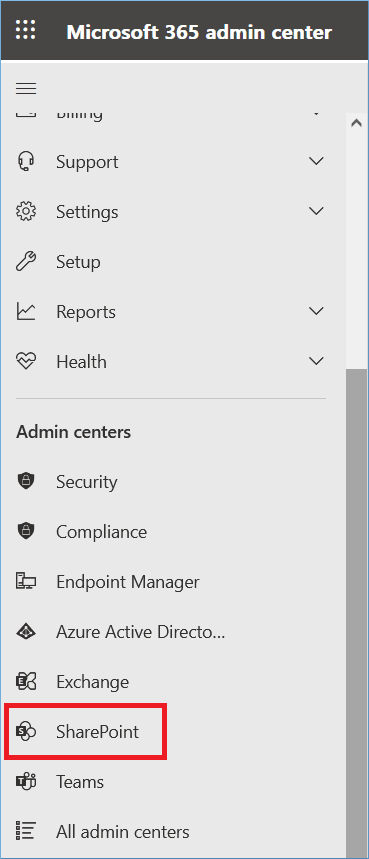
- In the Admin Center list, choose SharePoint to open all the sites.
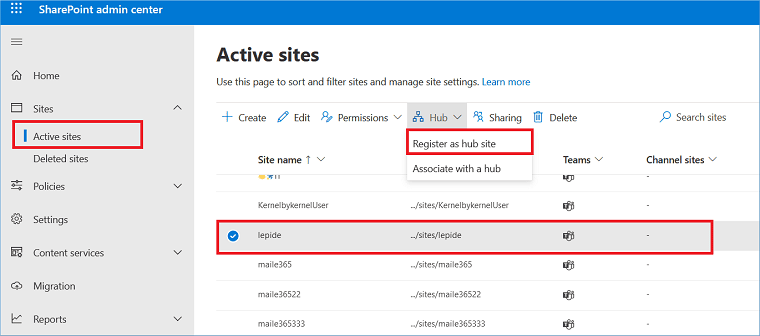
- Go to the Active Sites of your account and choose a site you want to convert to a Home Hub Site. After selecting the site, click Hub>>Register as Hub Site.
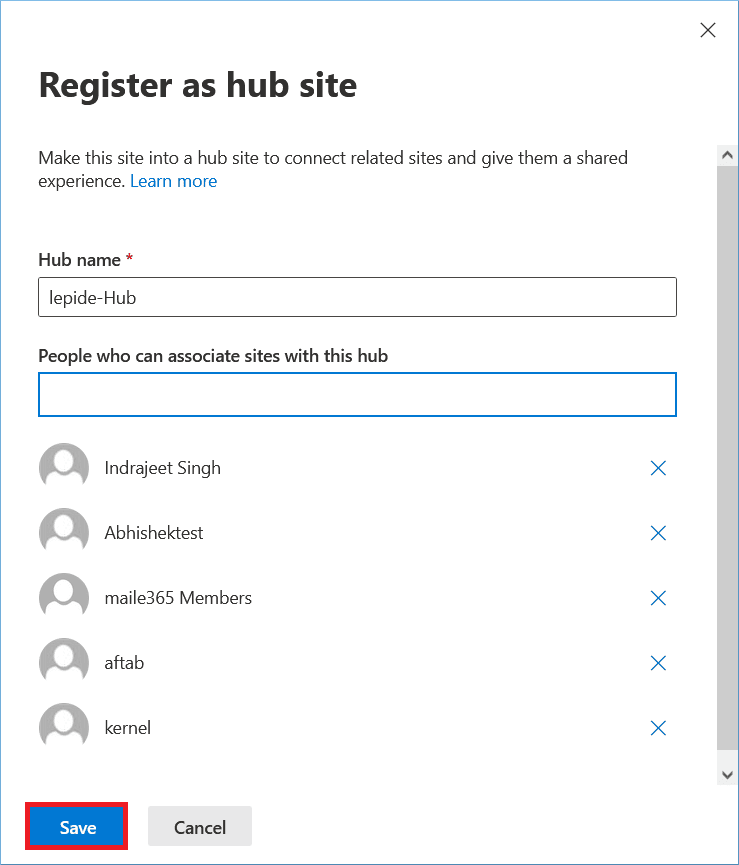
- Provide a Hub name and select the different site owners to connect their sites with the current Hub site. Click Save.
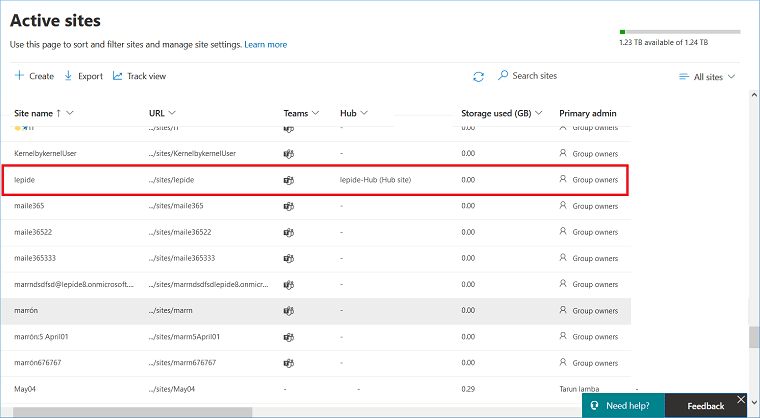
- After creating the Hub site, you can see the Hub column is showing the name for the new Hub site.
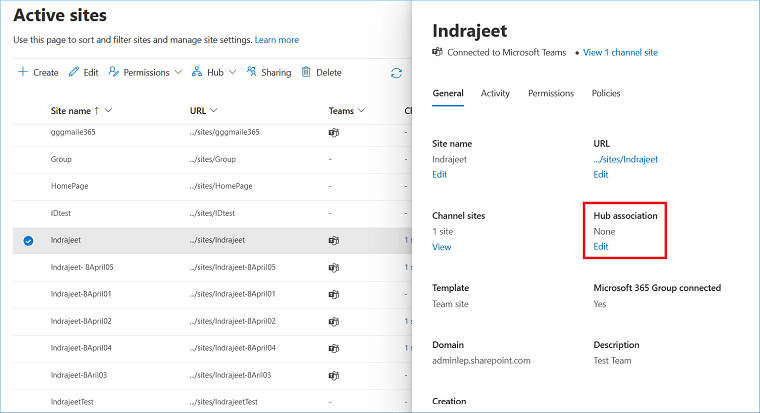
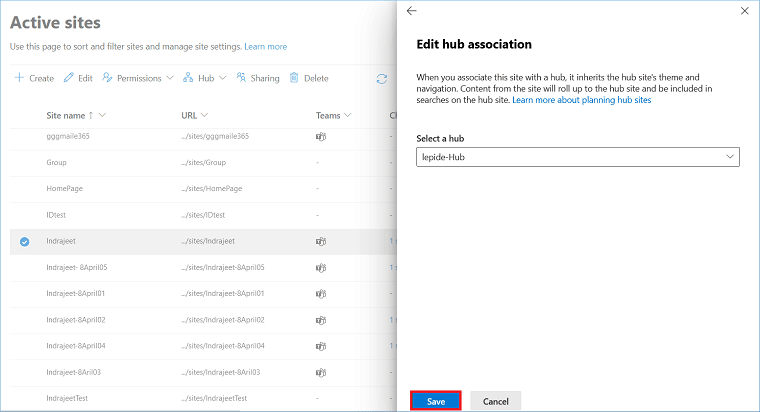
- Now, go to a communication or a team site that belongs to the same owner you chose while creating the Hub site and double-click on it. In the Hub Association section, click the Edit option.
- In the drop-down list, choose the Hub site.
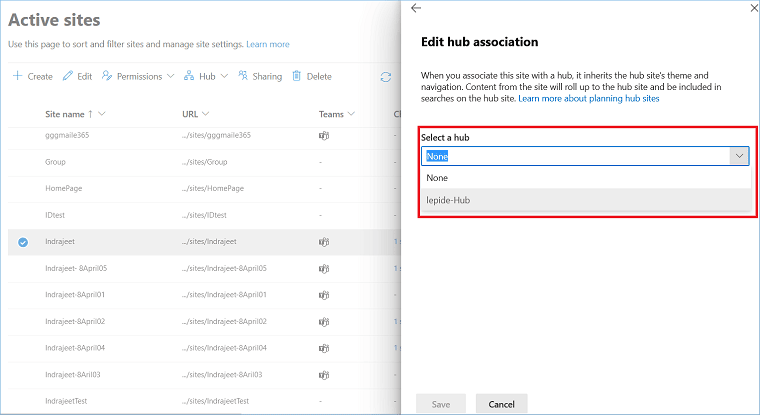
- Click the Save button.
Conclusion
The Hub connection between the Home site and the other team or communication site increases the efficiency in project management and decision-making. If you are planning SharePoint migration, it would be better to rely on a professional tool that takes care of everything. Kernel Migration for SharePoint meets such requirements by migrating the complete site, metadata, properties, and permissions. So, in the destination, you will find that the site has the Hub connection maintained too.
A- The Hub navigation appears on modern pages only. So, if you want to connect a team site with Hub, you should convert the theme.
A- A single site can be connected to a unique Hub only. So, you cannot connect your communication site with a second Hub site.
A- Your organization can create up to 2000 Hub sites for a single Office 365 subscription involving SharePoint Online.
A- The permissions are not changed or edited for any of the sites. Only the site owners require permission from the Hub owner to connect their sites with it.
A- Yes, the hub site works like a normal SharePoint site and you can import Excel files to SharePoint list created in the Hub site.