Read time: 5 minutes
Summary: Backup calendar from Office 365 to secure your meetings, appointments, and schedules, such that you don’t miss out any crucial endeavors. Moreover, calendar backup makes it easy to track and secure all your calendar entries during migration, and avoid errors, or cyber breaches. Learn how to takeout Office 365 calendars data and retain them as per your requirements using Outlook, Office 365 Portal, and professional Office 365 backup solution.
We are using Microsoft 365 Apps for Enterprise with Outlook as the primary email communication medium. We planned a roadmap to backup Office 365 calendar, as we have recently experienced a major loss of calendar entries due to the accidental deletion and ransomware or malware attacks. We did not want to lose the sensitive data again.
Here this guide covers everything that we did to avoid the errors and interruptions during the data export process.
Quick Answer: How to Backup Calendars in Office 365
Step 1: Launch Classic Outlook on your PC.
Step 2: Open the Calendar View and click on the File tab.
Step 3: Tap on Save Calendar and provide a path to save the file.
Step 4: Enter a suitable file name and click Save to keep the .ics file.
How Does Office 365 Calendar Backup Help You?
Apart from saving data loss situations against accidental deletion and malware attacks, there are several other situations when you might need to save calendar:
- Shared responsibility: Microsoft 365 follows the Shared Responsibility Model, which means if due to any situation, your data gets lost, you’re liable for it. So, you need to backup your calendar entries for unlimited retention.
- Failed integrations: Integrating Outlook calendar with other third-party applications can be a root cause for corruption within the data or mass data deletions.
- Managing exited employee data: Decommissioning the account of former or exited employee will remove everything including their calendar data.
- Legal audits: Some industry regulations demand you to show calendar and scheduling data. Calendar data backup will retain data for you to fulfill legal and compliance needs.
How to Backup Calendar from Office 365?
Check out the manual solutions explained below to backup your calendars from Office 365:
Method 1: Using Outlook to Save Calendars
Configure the Office 365 account within the Outlook application and then use the given steps to perform the data export process:
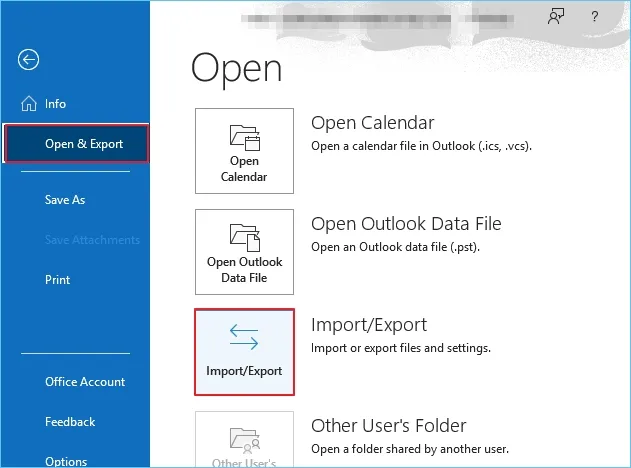
- Go to File and click Open & Export then Import/Export.
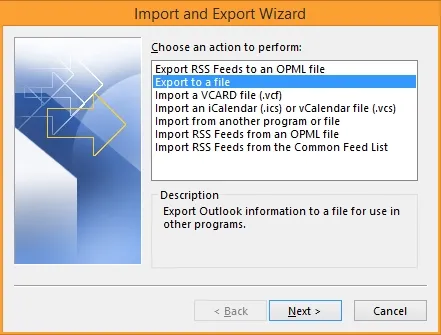
- Select Export to a file and click Next.
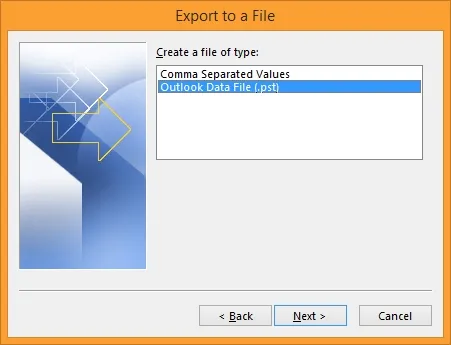
- Select Outlook Data File (.pst) as the file type.
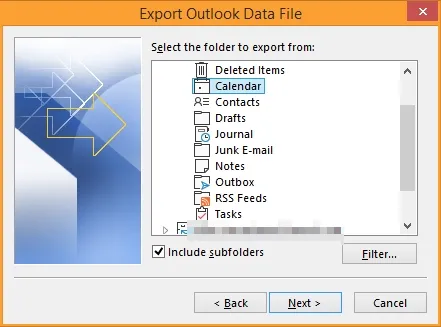
- Select your Office 365 mailbox > Calendar. Click Next.
- Click Browse to provide saving location to save PST.
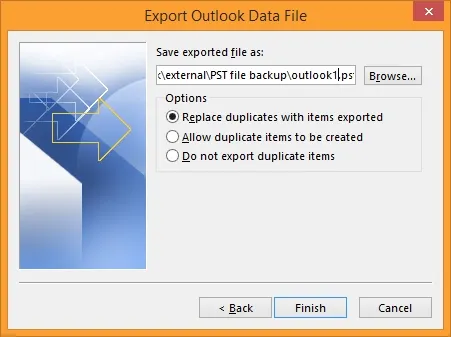
- Click Finish to begin Calendar export.
Method 2: Export Calendars from Office 365 Portal
To do this, go to your browser and sign in to your Office 365 account to perform the following steps:
- Open the Outlook Web App and go to Settings.
- Click on View All Outlook Settings.
- Now, go to Calendar and then select Shared Calendars.
- Choose the desired Office 365 calendar and set the permissions.
- In the end, click Publish and then download the ICS file.
This method will help you save the basic calendar events and appointments in a portable file format.
Shortcomings of the Manual Solutions
Check out the following limitations to understand why manual solutions are not preferred:
- Do not entirely support backup of recurring events.
- No support for bulk backups or batch data processing.
- Fails to maintain data and permission structure.
- Chances of losing data to human errors due to complexity.
Backup Office 365 Calendars Using a Professional Solution
Tried manual solutions to export Office 365 to PST? Facing issues in backing up calendar data?
Using manual methods can often be problematic to securely store calendar entries to offline storage. However, you can avoid this hassle by using Kernel Office 365 Backup and restore tool that simplifies saving emails, contacts, calendars, etc. from Office 365 to PST or other file formats. The tool is designed with a simple interface that guides users (with or without technical proficiency) to backup Office 365 calendars whenever and as required.
It supports features like granular data backup & recovery, selecting data export, and point-in-time data recovery. You can also avoid data duplication issue from the backup copy using the incremental backup feature.
Conclusion
Relying alone on the manual solutions to backup calendar data can often be a reason of losing data. We suggest you keep professional backup tool handy to avoid any possible catastrophes. The tool will help with downloading structured and secure Office 365 calendar backup to PST, MSG, PDF, or other file formats. Download the tool to resolve your data backup hassles.
Frequently Asked Questions
Ans. For safe backup downloads, always follow the 3-2-1 backup strategy. It means that you must create 3 copies of your data, out of which 2 are stored on two different media and one is kept isolated to an off-site location.
Ans. To backup your calendars from Office 365 to a PST file, you can use the Import/Export option in Outlook. It will allow you to export selective folder to a PST file on your computer.