Read time: 6 minutes
User Query: When I was trying to reset my PC today, there was an error message saying, “there was a problem resetting your pc. no changes were made” I used some tutorials to resolve the issue, but still can’t fix it. Can someone explain to me how to resolve the error and steps to prevent this from happening in the future.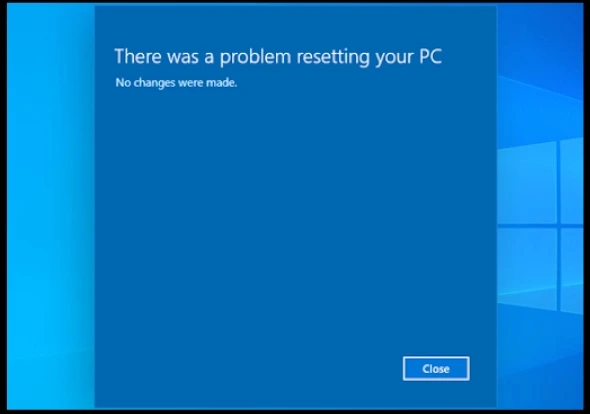
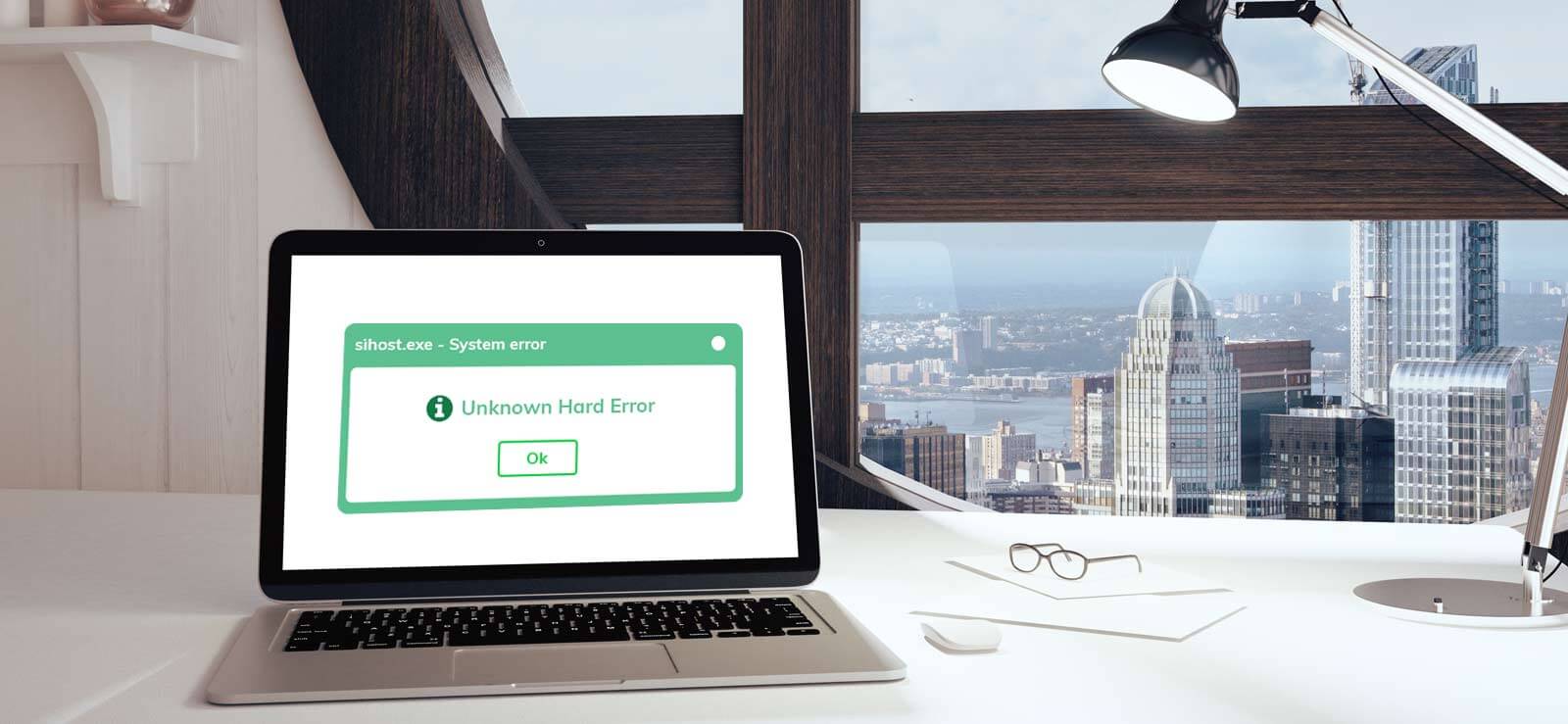
When you experience issues in working on your Windows PC, the first resolution to the problem that comes to mind is resetting your PC. However, when doing the system reset, you might encounter the error, “there was a problem resetting your PC.” This can be due to corrupted system files, virus intrusion, or any other reason. This demands a proper error troubleshooting with data preservation at focus. Let’s explore the complete process in detail.
Why do you see “there was a problem resetting your PC error”?
Before we move ahead, it will be really helpful to understand the causes behind the error first and then scroll to the solutions for effective error solving:
- Corrupt Windows files: When there is corruption or damage within the core Windows files, you might see issues when trying to recover Windows data from hard disk.
- Disk errors: If the hard drive you’re working on has bad sectors or corruption, there’ll be restrictions in writing new data during the system reset.
- Not enough disk space: When there is not enough space available in the disk to handle the core system files to complete the reset, you see the error, “there was a problem resetting your PC.
- Malware intrusion: Malware and virus intrusions often interfere with the system files, disrupting the operations like PC reset.
- Incomplete Windows update: Recent Windows updates that were left incomplete for any reason can also be the cause of resetting error on your PC.
- Incompatible device drivers: Issues in the driver update or incompatible driver installation tend to create reset issues.
How to fix “There was a Problem Resetting your PC No Changes were Made”?
Let’s take a glance at the methods to resolve the PC resetting error and restore your system:
Method 1: Run SFC (System File Check) scan
When the issue prevailing is due to the erroneous or corrupt system files, you need to run a direct SFC scan using the steps given below:
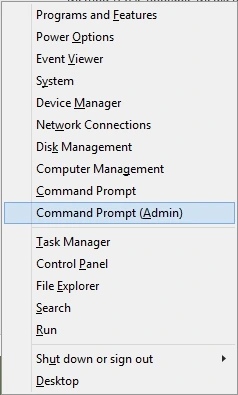
- Open the Power menu using Windows and X key together.
- Click on Command Prompt (Admin) to open the prompt menu.
- Run the sfc/ scannow command in the command prompt to begin the scan.
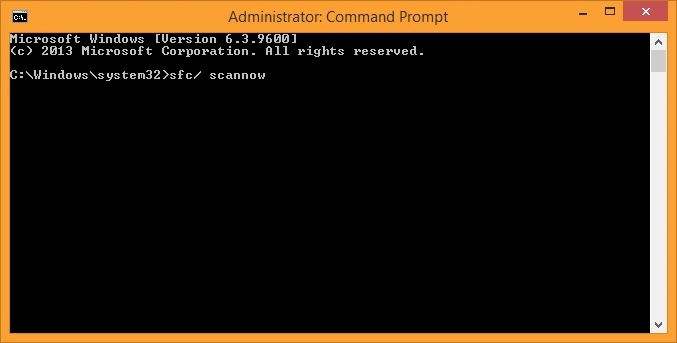
It will take some time to finish, and once complete, it must resolve the error. If the error is not resolved, proceed to the next method.
Method 2: Fix Windows image with DISM scan
Windows image can often result in the error, restricting you to reset your PC. You can fix your Windows image with the step-by-step process:
- Click on the Windows key and run command prompt as administrator.
- Run the following command to perform a DISM scan:
dism /Online /Cleanup-Image /RestoreHealth
Let the scan to complete and after completion, restart your PC and then try to reset your PC.
Method 3: Reboot system with WinRE (Windows Recovery Environment)
Try to boot your Windows Recovery Environment to fix there was a problem resetting your PC error. Here’s how to do so:
- Go to your PC Settings and then under Update & security, click Recovery.
- Click on Restart Now to begin advanced system startup.
- Click Reset this PC under Troubleshoot.
- Select from: Keep my files or Remove everything.
- Choose your Windows installation drive and perform the process to complete the reset process.
Method 4: Run DISM scan outside Windows
First create Windows 10 installation media using Media Creation Tool and then run DISM scan outside the Windows.
- Turn on Windows from Installation media and select preferred language.
- Click on Repair Your Computer and then select Troubleshoot.
- Go to Advanced Options and launch the Command Prompt.
- Run the following command to see the system images on installation media. dism /get-wiminf /wimfile:E:sourcesinstall.esd
- Run mkdir d:scratch and then dism /image:d /cleanup-image /restorehealth /source:esd:e:sourcesinstall.esd:2 /scratchdir:d:scratch /limitaccess
It should fix your problem after the process completion.
Method 5: Use advance startup to fix the error
If after the error, you are able to restart your PC, make sure to do it with recovery advanced setup, which might help you eliminate the error.
- Use Windows and I keys together to open Settings.
- Click System and then scroll down and tap on Recovery.
- In Advanced Startup, select RestartNow.
Method 6: Switch to Safe Mode to reset PC
Turning on to the Safe mode on your computer to reset the Windows PC avoid issues that might arise due to corrupted files or faulty drivers. Here is how to trouble shoot “There was a problem resetting your PC” error.
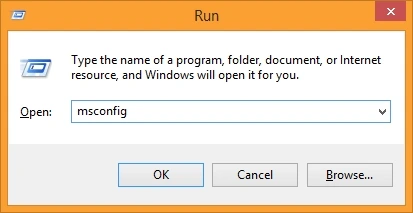
- Open the run windows using Windows + R.
- Input msconfig and click OK to enter into safe mode.
- In the Boot tab, mark the checkbox Safe boot.
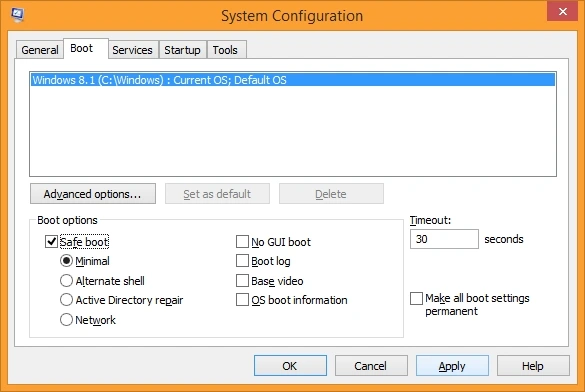
- Tap on the Apply button and click OK and then Restart on the pop-up.
Doing this will create an environment where there are chances of resetting PC without errors.
Method 7: Use Bootable Media for a clean installation
This method delivers maximum results but involves complicated steps and technical expertise to complete. With this method, you clean your PC and reinstall Windows with a bootable USB. Take a complete backup of Windows data to easily recover data after formatting PC. Here’s how to do it:
- Go to the official site of Microsoft and create a bootable USB using the Media Creation Tool.
- Put in the USB drive into your PC and make it bootable.
- Shut down and then restart your computer.
- Press either Delete, Esc, or F12, select language and click Next.
- Choose the USB drive and hit Enter.
- Go to Refresh drive list and select USB and then Install Now.
- Tap on the “I don’t have a product key” option on the prompted screen.
- Choose “Custom: Install Windows only (advanced)” for Windows installation.
Once you’ve performed the steps correctly, the error There Was a Problem Resetting Your PC is resolved.
Tips to avoid Windows PC resetting error
Here are some tips that will help you avoid noticing the error in future instances:
- Do not use the same PC resetting method again and again, particularly if you have seen the reset fail error with the method once.
- Handle corrupt system files properly and repair them before running another reset operation.
- Use the DISM tool, if in case the Windows image is defected.
- Outdated drivers can cause issues, therefore update outdated drivers and disconnect the non-essential ones.
Conclusion
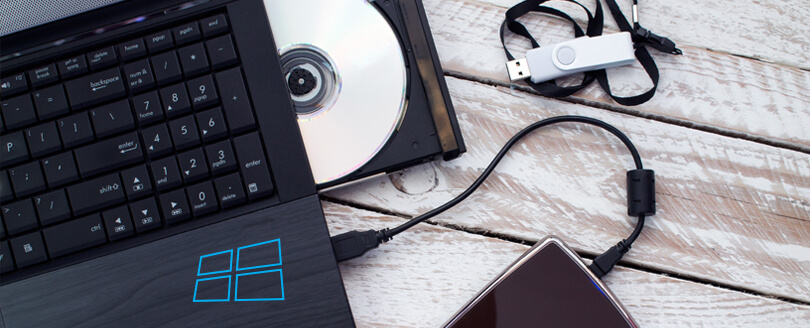
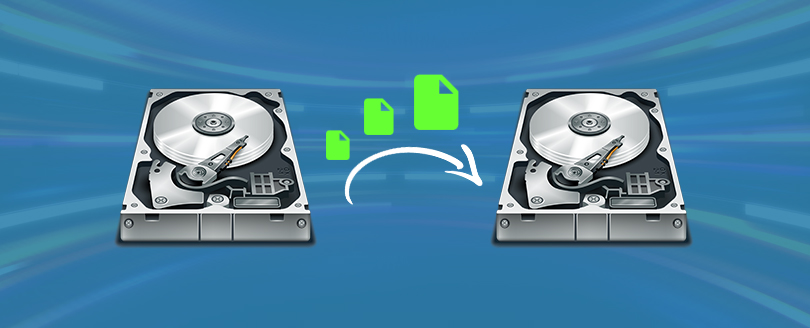
Even after using these methods, users sometimes find it difficult to resolve “There was a problem resetting your PC. No changes were made” error. However, once you reset your computer, there is a significant risk to your data. To prevent yourself from losing the essential data, use a professional Windows Data Recovery tool. The Kernel Windows Data Recovery tool scans the Windows partitions, hard drive, and removable drives to detect and recover data from corruption and bad sectors.
Frequently Asked Questions
A. If you see this error when resetting your computer, run SFC scan to see if the system files are corrupted or damaged. This method will scan and remove the issue from the system files, allowing you to easily reset your PC again.
A. Issues in system reset can be a result of damaged system files, incompatible/ outdated device drivers, or insufficient storage.