Read time: 6 minutes
Windows 10 has an advantage over older versions as the OneDrive cloud account is synced with the computer by default in Windows 10. A separate node is present in the drive list using which the user can check the files and folders present in the cloud. You can even move the data from the other folders to the OneDrive folder directly. It will be synchronized automatically with OneDrive.
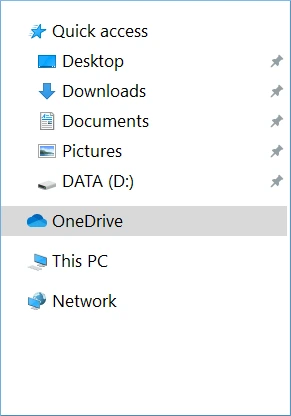 Sometimes, the user cannot see the data present in OneDrive as OneDrive does not sync with Windows 10 due to some connectivity problems. There can be several reasons behind this error that you need to address and resolve to resume synchronization between the file system and OneDrive. Let’s learn about these reasons and how to solve the error effectively for efficient data syncing between the two platforms.
What causes OneDrive connection error?
OneDrive sync error is common when working with Windows 10 and can occur due to any of the following reasons:
- Either OneDrive storage or local storage of your computer is full.
- You have file names with characters more than 400 or include special characters.
- Using outdated version of Windows 10 can lead to incompatibility issues.
- Some security (antivirus or firewalls) software blocking OneDrive from connecting.
- Temporary cache files collected over time can lead to synchronization errors.
How to fix OneDrive not syncing with Windows 10?
If your OneDrive node is showing an error with a cross sign, it is not connected to the computer, and you can use several methods to connect it again. This section provides an overview of some of the methods to use and troubleshoot the error:

1. Check if you can connect OneDrive online
First, you need to check that you can connect with the OneDrive easily with the online account.
- Go to the Notifications area and right-click to the OneDrive icon.

- Click the Help & Settings, then choose View Online.
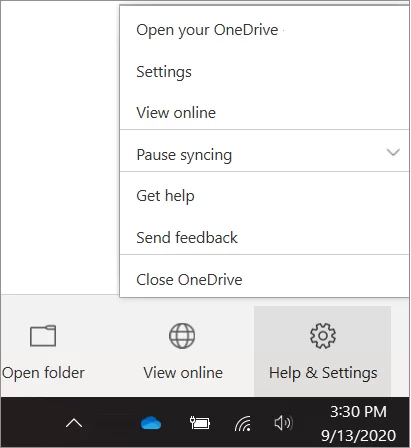
Check if you can see the content of the OneDrive
2. Update the OneDrive application
When the OneDrive does not sync with Windows 10 automatically, then you can reset the syncing application with new application download. You can download the latest OneDrive application from the official website – https://www.microsoft.com/en-in/microsoft-365/onedrive/download
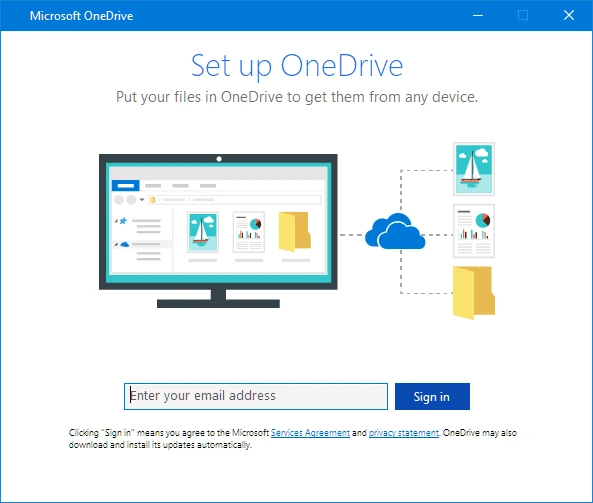
- After downloading and installing the application, open the OneDrive desktop application.
- Input the email address of your Microsoft account and configure it on the computer.
3. Temporarily turn off the firewall
If you are using the firewall from a third-party vendor, it may affect the OneDrive synchronization. You should temporarily turn off the firewall and check if the issue is solved.
- Click the Start, then Settings, and go to Update & Security.
- Click Windows Security and go to firewall & network protection.
- Go to Microsoft Defender Firewall and turn the setting to Off. Save the settings and restart the computer. Then open OneDrive and check if the issue is over.
4. Temporarily turn off the antivirus program
The antivirus program may be affecting the OneDrive synchronization. You can turn off the antivirus for some time.
- First, click the Start button and type Settings. Then click Update & Security.
- Choose Windows Defender and turn the button off. Save the settings.
Similarly, you can turn off other antivirus programs as well.
5. Move the files out from the synced folder
If the OneDrive icon shows a stuck or freeze status for a long time, you can move the files out of the folder by putting the syncing status to pause.
- Go to the Notification area and right-click on OneDrive. Click Help & Settings and click Settings.
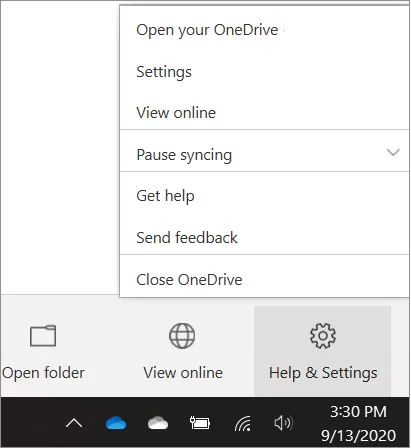
- Choose Pause Syncing for 2 hours.
- Go to the Sync folder and then move the large file(s) to another folder.
- Go back to settings and resume the syncing.
- When the actual syncing is complete, move the file(s) back to the Sync folder.
6. Temporarily turn off the proxy settings
You can turn off the proxy settings in the web browser and try to sync OneDrive with online data. In Microsoft Edge, follow the below lines-
- Click Start, then go to Settings.
- Choose Network & Internet, and at the bottom of the left side, click Poxy.
- In the Automatic proxy setup, slide the settings to Off.
- In the Manual proxy setup, you can slide the option to turn it to Off.
Conclusion
OneDrive comes with a built-in sync feature to save the important files from the local folder to the cloud and vice versa. When you want to move the OneDrive data from one account to another, due to synchronization errors, you might have hassles in data migration. If you want to migrate the OneDrive content to another account securely, you should use Kernel OneDrive Migration software. The tool will add the account without any error and migrate the entire content safely. It is the safest method to migrate data from OneDrive for Business to another OneDrive for Business account.
Frequently Asked Questions
A. The sudden halt in OneDrive file synchronization can be due to active battery saving mode, low space on your PC/OneDrive, or inefficient network connection.
A. Here are some quick solutions to try:
1. Quit OneDrive application and restart it using the start menu.
2. Check if there’s space on your OneDrive storage account.
3. Unlink and re-link by right clicking OneDrive, go to Settings> Account > Unlink this PC.
4. Update your Windows OS version and OneDrive.
5. Lastly, you can uninstall and reinstall OneDrive desktop applications.