Read time: 9 minutes
Quick fixes for ‘MP4 has no sound’ error:
- Install the correct codecs.
- Check if video file plays in another media player.
- Update or reinstall your media player.
- Try playing the MP4 file in VLC Media Player.
If you can see the video of your MP4 file but the audio isn’t available, the issue might not be that tricky. MP4 might have trouble playing audio if there’s an issue with its audio codecs or the media player. Check if this file plays in any other media player or not and if this issue is with only one MP4 file or not. In this blog, we’ll talk about the most efficient ways to fix the ‘MP4 has no sound’ issue.
Why ‘MP4 has no Sound’ issue occurs
MP4 file playing without sound can have multiple reasons. Users must have a good understanding of the causes to choose the appropriate fix to resolve this error.
- MP4 audio stream is missing: Since MP4 is a video container, it stores the video stream, audio stream, subtitles, and other metadata of the MP4 file. If by any chance, the audio stream of the MP4 file is missing, then the video won’t have any sound.
- Faulty codecs: If the AAC audio codec is not present or working correctly for any media file, then the media file won’t have any audio. Also, not every user is aware of the codes, most of the time; they don’t even know what codecs need to be downloaded for the specific media file.
- Compatibility issue with the media player: Sometimes the media player causes problems instead of the file itself. Trying to play an MP4 file on an outdated media player can create issues as it won’t have the necessary codec support. Some other reasons also include incorrect audio settings or improperly installed updates.
- Corruption in MP4 file: Most of the time, it’s the media file that is corrupt and causes the ‘no sound’ issue. Now, the reason behind media file corruption could be an improper shutdown of the media application, corruption in hard drives in which the file is stored, or malware issues with your computer.
In order to avoid corruption and errors in your media files, you can use antivirus software that offers complete protection for your data. download MP4 video files from genuine websites, links, and have a backup copy for urgent use in the future in case of complete damage to the original file. However, once the file is corrupt, you must take urgent steps to repair it quickly.
Methods to fix ‘MP4 has no Sound’ issue
Coming to the methods to fix this error, there are multiple free methods to repair corrupt mp4 files have no sound error. Start with the easiest fixes for this issue, and if it still doesn’t resolve the error, then move on to advanced methods.
Method 1. Check video or system’s audio output
Sometimes the video itself doesn’t have any audio output or the system’s audio volume is really low. Check the volume level of your system and whether the video has any audio or not. Also, make sure you don’t have any Bluetooth or external devices connected to your system during video playback.
What this means:
- Only one MP4 has audio issues: The problem is with file’s audio track.
- Every MP4 has audio issues: The problem is with media player or output device.
Method 2. Check if MP4 file plays properly in another media player
Check whether your MP4 file plays on another media player or not. VLC is one of the best media players for this task. It not only allows you to play various video file formats, but also enables you to fix minor corruption errors in the file. To open your file with VLC Media Player, follow the steps below:
- Select the MP4 file that has no sound.
- Right-click on the file, select Open with, and then click VLC media player.
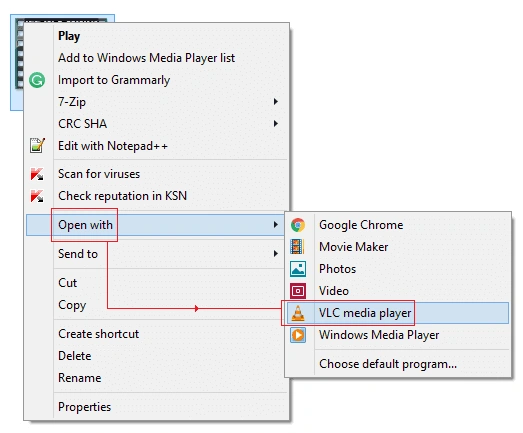
- The video file might start playing in VLC.

If the MP4 file opens properly with audio, it means the Windows Media Player doesn’t have the particular codecs for the file.
What this means:
- If audio plays perfectly in VLC, then the problem is with your default media player.
- If the MP4 file has no sound in VLC either, then there’s some issue with the audio stream.
Method 3. Verify that MP4 files contain an audio stream
Since MP4 is only a container, it stores the audio and video streams. There’s a big chance that your MP4 file doesn’t contain any audio track to begin with. Make sure to verify this before trying any of the advanced methods. If your audio track is missing from your MP4 file, then it’s maybe because the system sound was off or edited without an audio output.
What this means:
- If there’s no audio stream in the MP4 file, then try to re-export it or edit it again with the sound on.
- If an audio stream exists, then the issue is possibly with the audio codecs.
Method 4. Installing the required audio codecs
Your MP4 video may not play if your computer does not have the default audio codec. Follow the steps below to install these audio codecs.
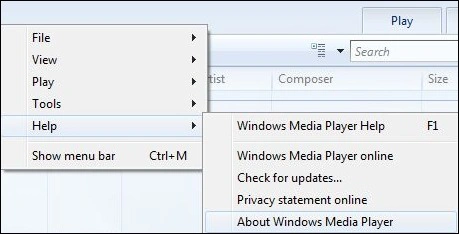
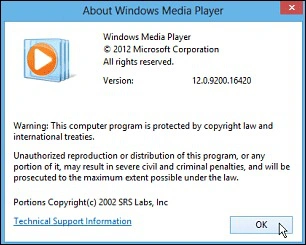
- Access Windows Media Player and hold Alt + H to go to the Help menu. Open About Windows Media Player.
- Tap on Technical Support Information.
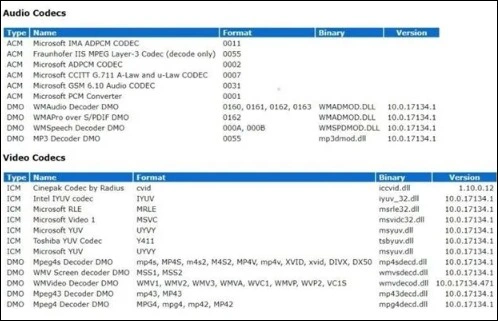
- In the pop-up menu, select your web browser. This option displays a detailed list of audio and video codec options.
- Find out the Audio Codecs you need from the internet and download it.
What this means:
- If audio works in VLC, then the issue was with the codecs.
- If audio doesn’t work even in VLC, then there might be corruption in MP4 file.
Method 5. Convert MP4 to another format
If the MP4 file is still not accessible with other media players, then try converting the MP4 file to any other format. There are various free methods to convert MP4 to other formats; you can opt for any method that suits your requirements. For instance, you can take help from the VLC media player to convert MP4 files to AVI, WMV formats, or you can also use free online video converter tools. Here’s how.
- From the Media menu option, choose Convert/Save.
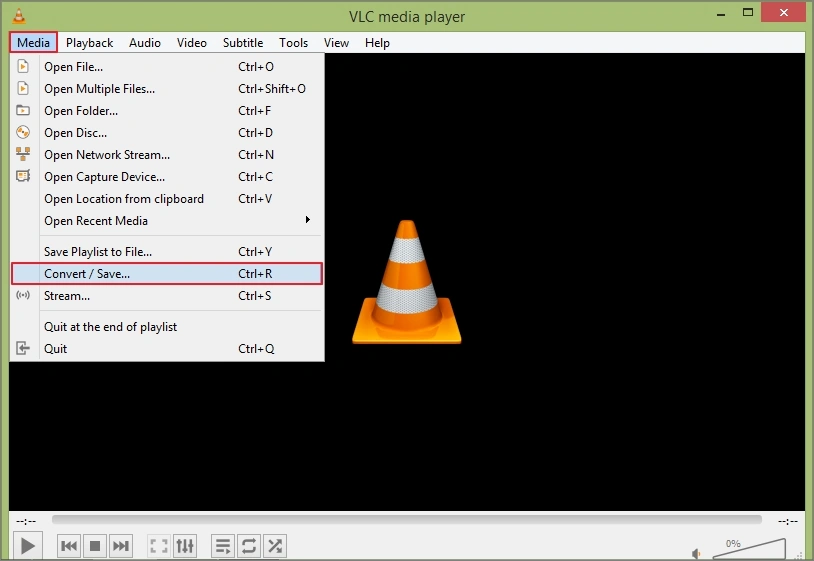
- Add the MP4 file and click on Convert/Save.
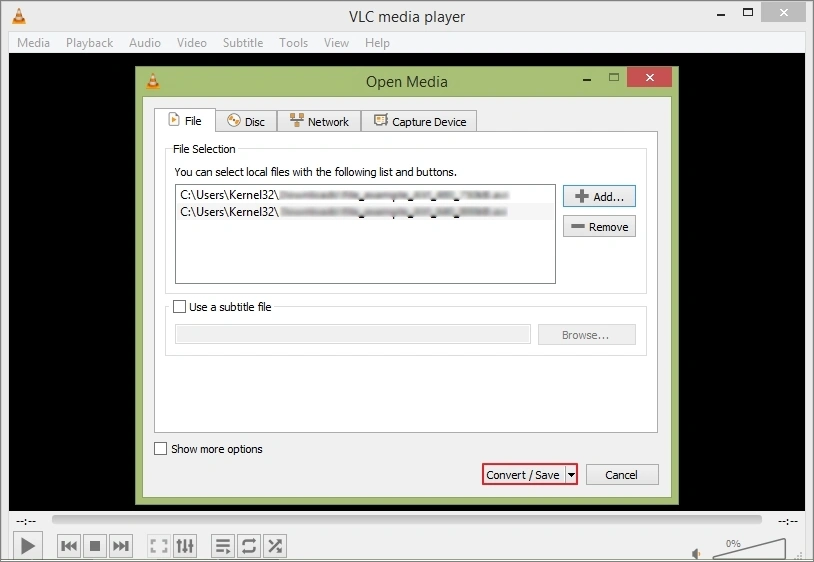
- After adding the file, tap on the Convert option.
- Choose the output format and use the Browse option to save the file.
- Tap on Start to begin the conversion process.
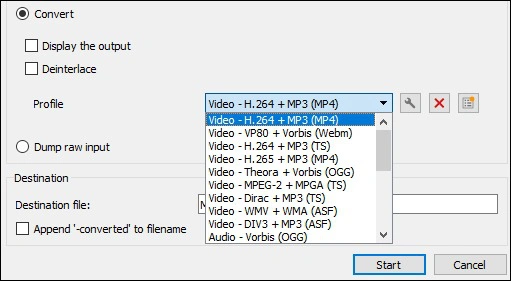
What this means:
- If the converted video file plays audio perfectly, then the issue was probably with codecs.
- If the converted video file is still silent, then there’s corruption in the video file.
How to determine if the problem is with MP4 file?
MP4 file having no sound doesn’t automatically mean it’s corrupted. The issue can be with the audio codecs or with the default media player. Before trying any advanced fixes to repair the file, check for these signs:
- No sound in another media player.
- MP4 file was interrupted mid-transfer.
- Video file has digital artifacts or visual distortions.
- MP4 file has audio/video synchronization problems.
- Video file had sound earlier, but now it doesn’t.
- Other MP4 files play perfectly except for one specific file.
When should you try to repair MP4 files?
If all your other MP4 files play perfectly except for one, or if you notice any visible distortions in the video file, then there’s a high chance that your video files are corrupt. Also, it’s a possibility that your MP4 files have gone corrupt if it was interrupted during uploading/downloading or editing.
If all this sounds familiar to your situation, you must repair your MP4 video files on a priority basis with the help of a dedicated video repair tool. Kernel Video Repair is designed to quickly fix all the significant corruption errors in your video files. Just add single/multiple video files with a healthy reference file and start the repair process.
Final insights: Is it a file or a media player problem
It could be frustrating for any user if the media file they are playing has no sound, especially the MP4 files, as they are widely used across the globe. But, the more frustrating part is fixing that error without knowing the actual cause for it. Check whether the audio track is present in the MP4 file or not. If there is an audio track present, then the problem is either with the codecs or with the video file itself.
People also ask
A. The issue might be with the codecs of the MP4 file or compatibility settings with the default media player.
A. To fix MP4 file has no sound error in Windows Media Player, follow the steps below:
1. Check audio output of the MP4 file.
2. Try playing another MP4 file.
3. Update/reinstall the media player.
4. Check if the codecs are compatible or not.
A. You can check if your MP4 file has an audio track or not with the help of VLC Media Player. Just go to the Tools tab and then open Codec Information.
A. Not exactly, converting the MP4 file won’t restore the audio if the audio track of video file isn’t present or wasn’t recorded.