Read time: 7 minutes
Have you ever deleted a crucial email and regretted it later, only to find it’s nowhere to be seen when you need it most? Managing a cluttered mailbox with a growing volume of emails can become chaotic and slow down your Outlook program. But Exchange Server’s Archiving feature offers a solution by creating a separate mailbox that mirrors your primary one. This stores all the older emails you’ve moved from your primary mailbox, making them easily accessible.
But what do you do when you’ve set up your Archive mailbox, moved your emails, and it suddenly disappears from Outlook? It can be a real concern. Microsoft provides workarounds to troubleshoot the issue of Exchange Online Archive not showing in Outlook, so that you can always access your archived emails.
First, let’s see what exactly the Exchange Online archive is, and then we’ll know the reasons behind the Exchange online archive mailbox is not displaying in Outlook error.
What is the Exchange Online Archive?
Exchange Online Archive is a mailbox feature in Office 365 which acts as an additional storage folder, allowing users to save up to 100GB mailbox data. This folder stores all the old and less used emails while freeing up the storage space in primary mailbox. Many Office 365 plans even offer unlimited storage space to store mailbox data.
There’s also the new AutoArchive feature in Exchange Online that allows users to set retention policies and move old emails to the archive folder at regular intervals. Thus, when the Exchange Online archive mailbox is not displaying in Outlook, it creates problems for users.
Reasons for Exchange Online Archive Mailbox Not Displaying in Outlook Error
- Archive isn’t available: Exchange Online archive mailbox is disabled by default for every user in Office 365. Make sure you’ve properly enabled the online archive feature.
- License expired: License for the mailbox having this issue has expired because of which the user can’t see the Exchange Online archive mailbox. Or there’s the chance that your license doesn’t support Online archive. Licenses that include this feature are Office 365 Premium, E3, and E5 plans.
- Outdated Outlook version: Older versions of Outlook or Windows OS may not support this feature.
- Issues with Cached Exchange mode: The Exchange Online archive mailbox might not display in Outlook because Cached Exchange mode is disabled in Outlook.
- Sync error: Syncing the primary mailbox with the archive mailbox can take up to 24 hours. If the synchronization isn’t completed properly then the Exchange Online archive mailbox will not display properly in Outlook.
So, follow us as we’ve got the solutions to keep your email management smooth and stress-free.
Best Methods to Fix the “Exchange Online Archive Mailbox is Not Displaying in Outlook” Issue
Here are the easiest and go-to methods to fix your issue with the Exchange Online Archive mailbox not visible in Outlook. Follow the methods carefully.
Method 1. Use Microsoft Support and Recovery Assistant
If you were trying to access the Online Archive mailbox of any other user, then you can use the Microsoft Support and Recovery tool to scan the Outlook and find any possible shortcomings. It will run the advanced diagnostics to report various problems and details of your Outlook configuration. You can get the information of the tool at the following location: https://support.office.com/en-us/article/about-the-microsoft-support-and-recovery-assistant-e90bb691-c2a7-4697-a94f-88836856c72f?ui=en-US&rs=en-US&ad=US
Download the tool and start running the scan. The following is the procedure;
- When the tool runs, it shows multiple apps that you can choose. It will ask you which app you are having problems with. Choose the last one- Advanced Diagnostics.
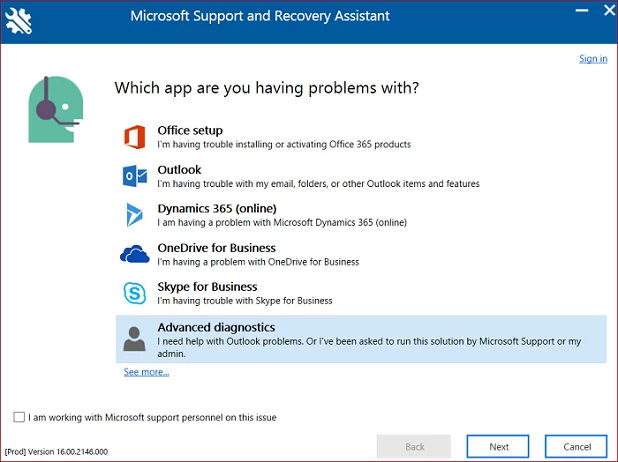
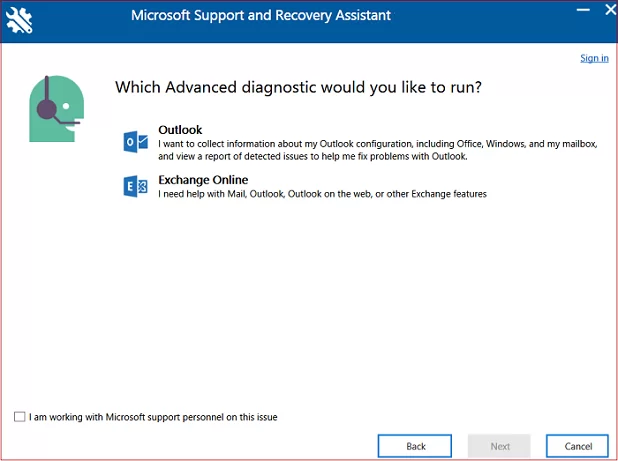
- Choose Outlook and click Next.
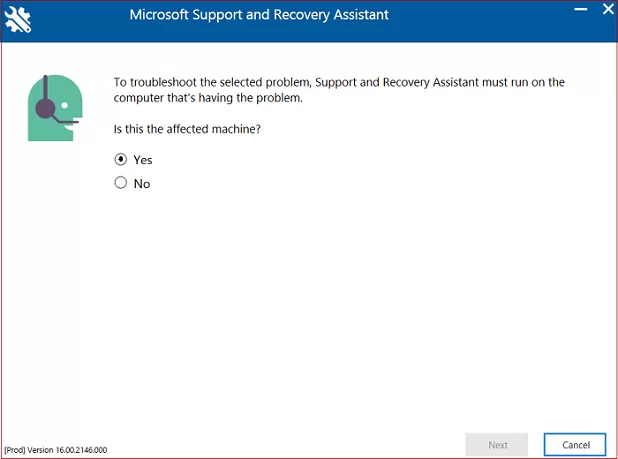
- The tool will ask you if you are running the tool at the same computer that is affected. Click Yes. Then click Next.
- Input the details of your Exchange Online account that you are using in the Outlook. After inputting the credentials, click Next.
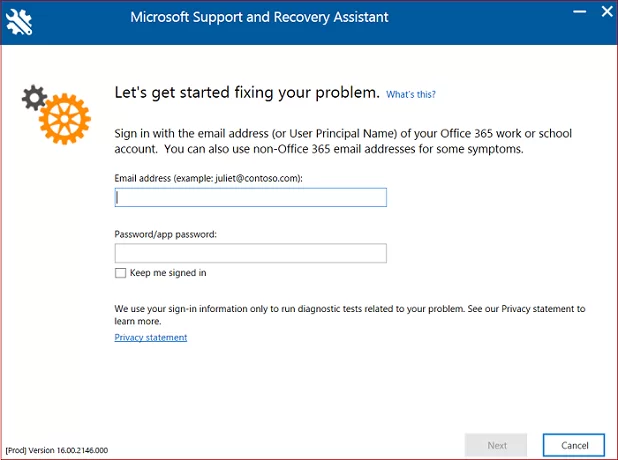
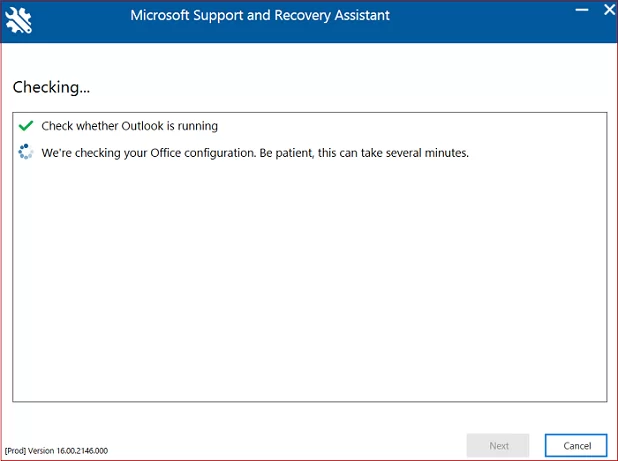
- The tool will first validate your account’s credentials and then, run the scan. Let it complete the scan.
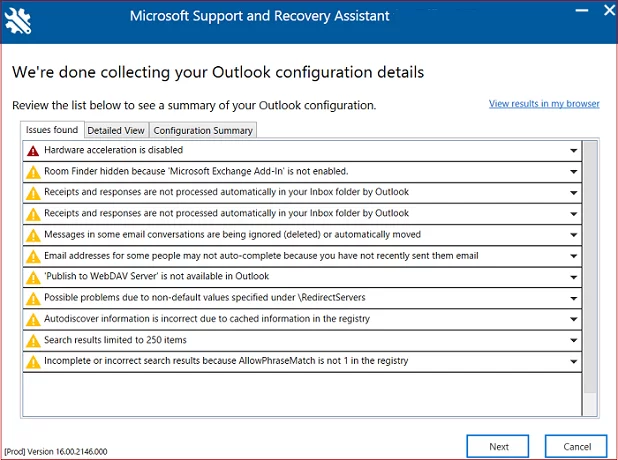
- Finally, you have a detailed report showing all the issues found in the scan. You can further choose to have a detailed view or configuration summary. Click Next.
Method 2. Verify the User Has Full Access Permission
The user requires the full access permission rights to access the Archive mailbox of another user and the full permission has to be granted by the Administrator. Because then only the user will see the primary and Archive mailbox in the Outlook Web App and Outlook. You can assign this permission in Exchange Admin Center using the steps given below & fix office 365 online archive not showing in Outlook 2013 & above versions:
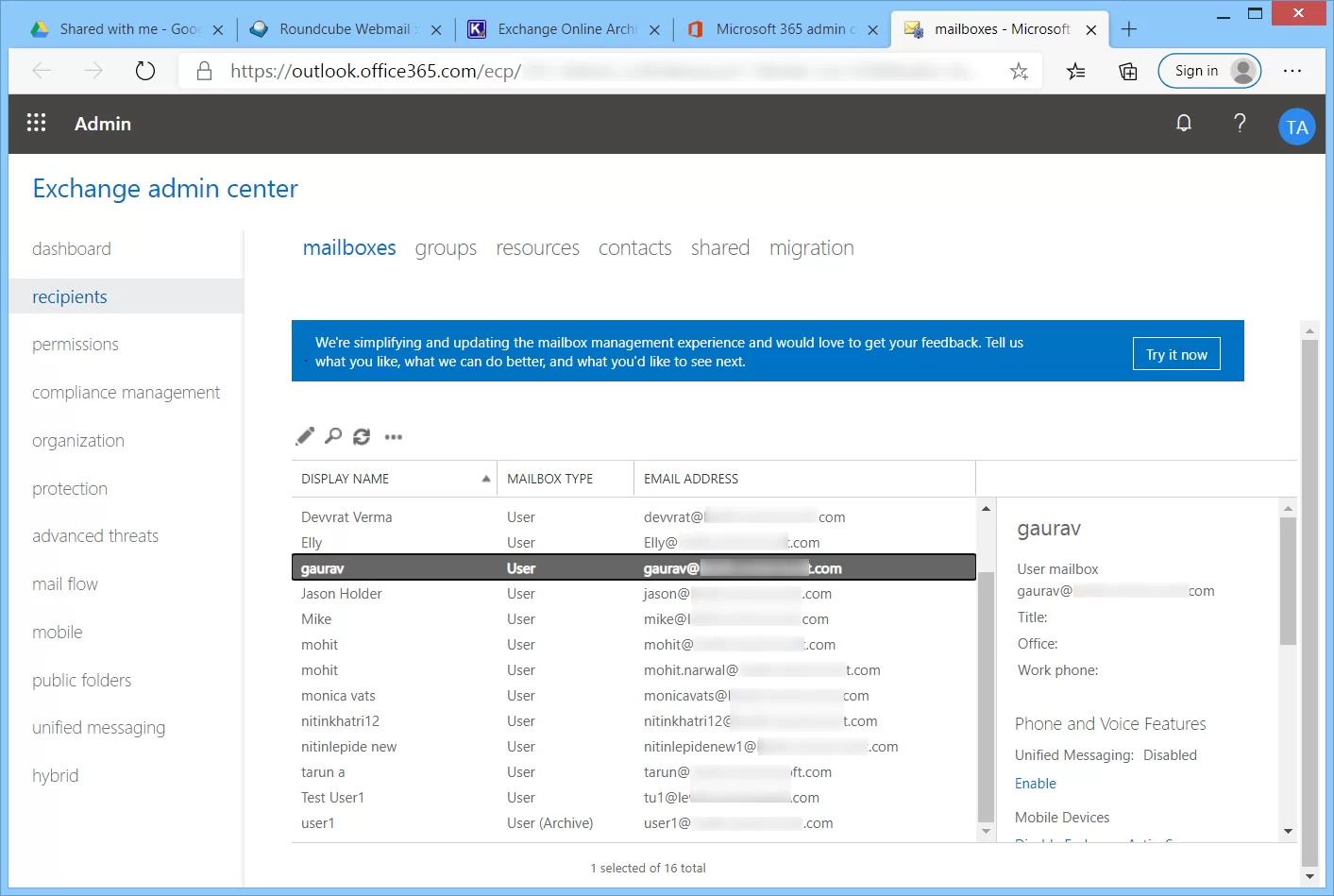
- In the Exchange Admin Center, go to recipients. Here, there are three options that you can choose – Mailboxes, Resources, and Shared.
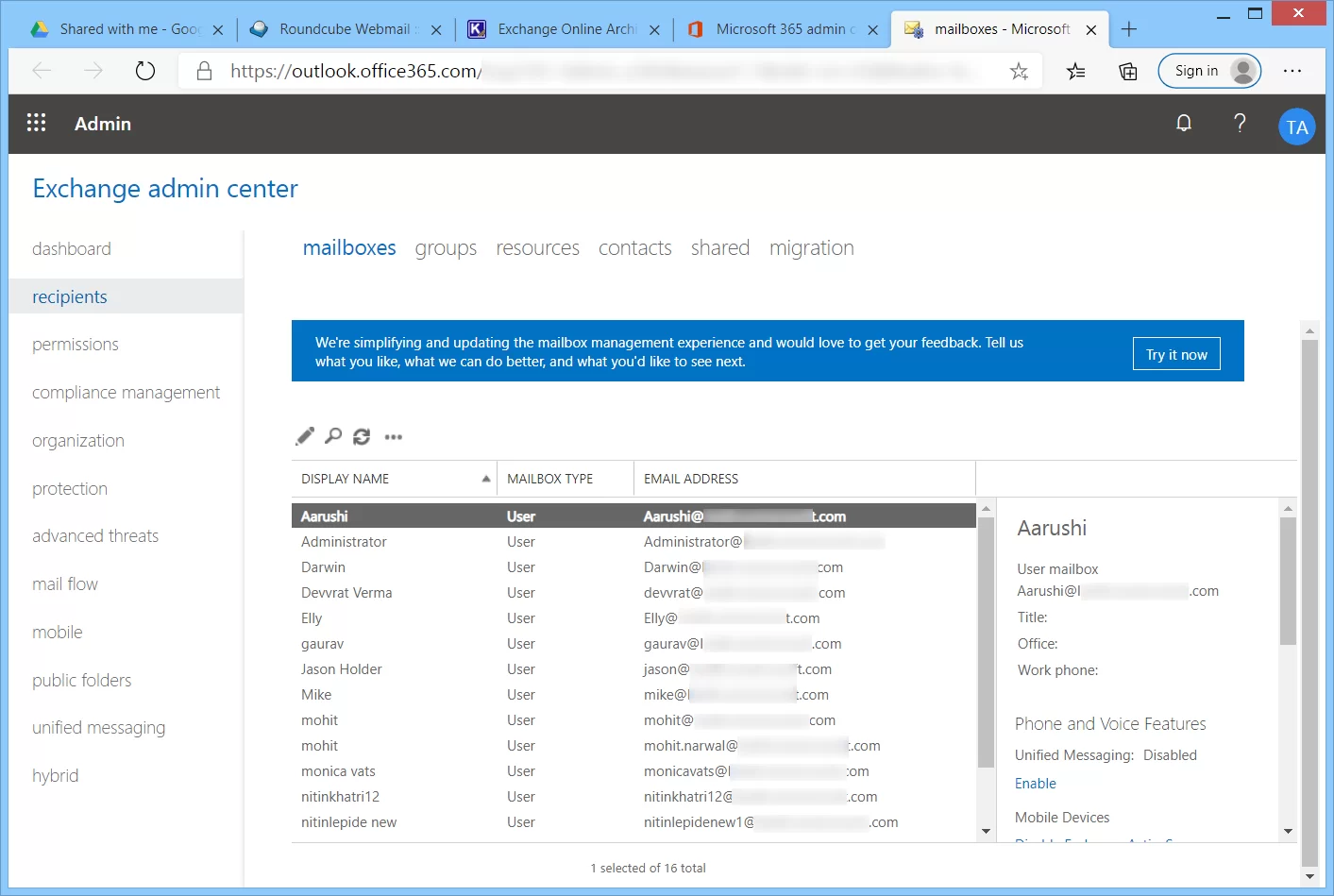
- Choose Mailboxes and from the list of mailboxes, you need to select the mailbox that you want to have the full access permission. Click the Edit icon.
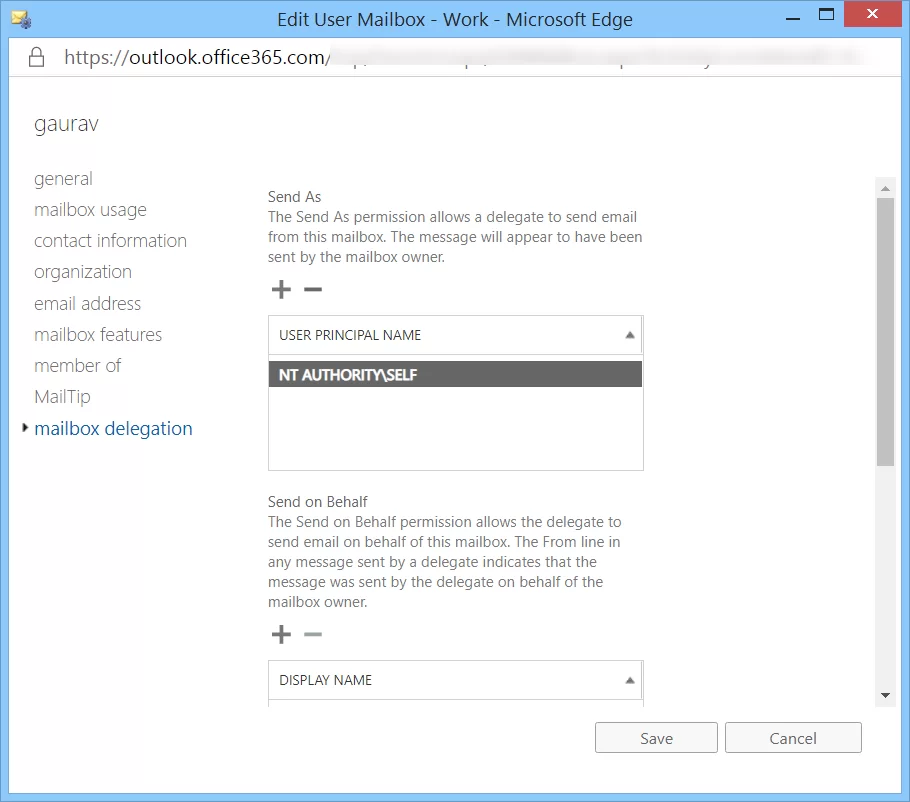
- The Edit option will open the mailbox properties page. Go to the last option of Mailbox Delegation and there are three options – Send As, Send on Behalf, and Full Access. Click Full Access.
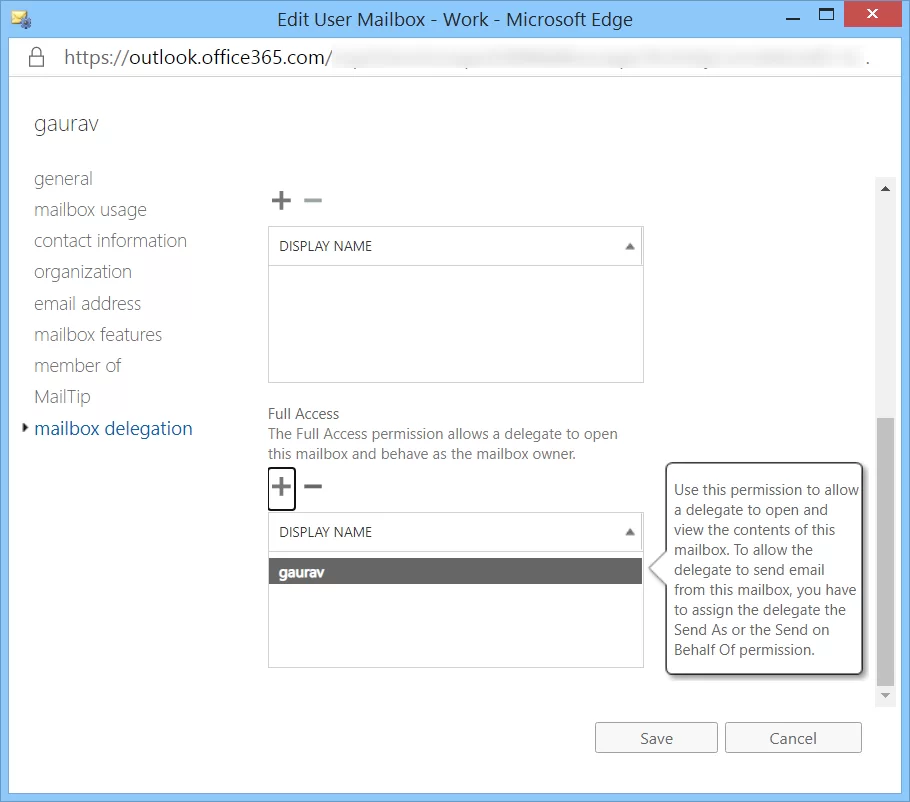
- In the Full Access Category, choose the mailbox that you want to provide full access. Click Save.
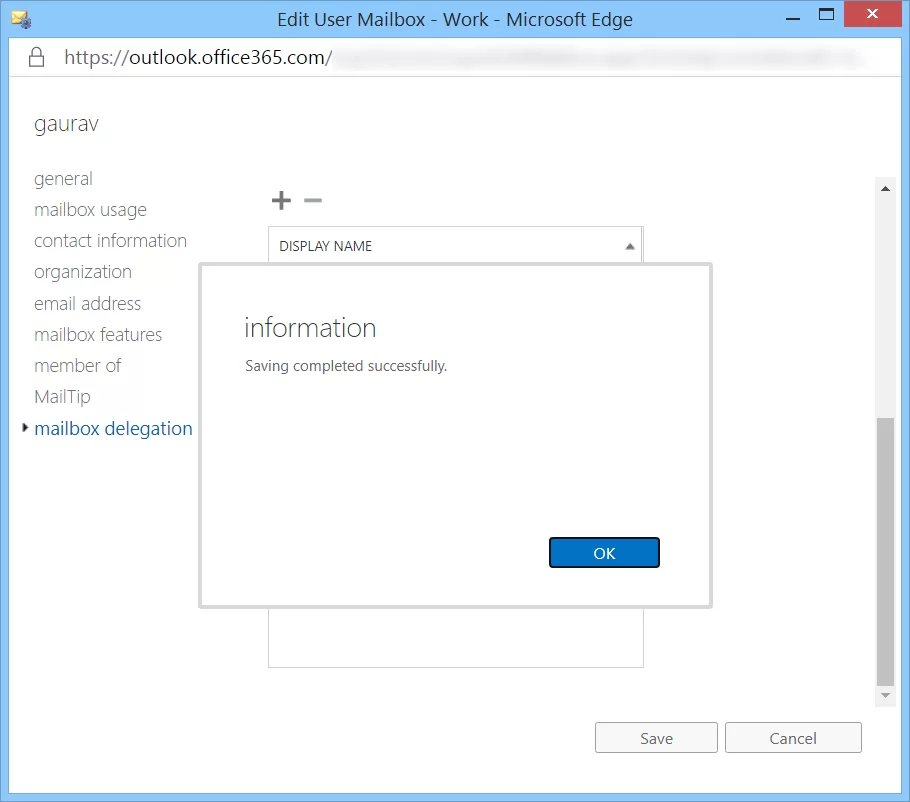
- The message will show you that your changes are saved. Click OK.
Method 3. Verify the Account License
For access to the Archive mailbox, you need the Office 365 ProPlus license. If you want to check your license type, open the Exchange Online admin center and follow these steps.
- Access Microsoft 365 Admin center and login with your admin credentials.
- From the left side menu, go to Billing > Licenses.
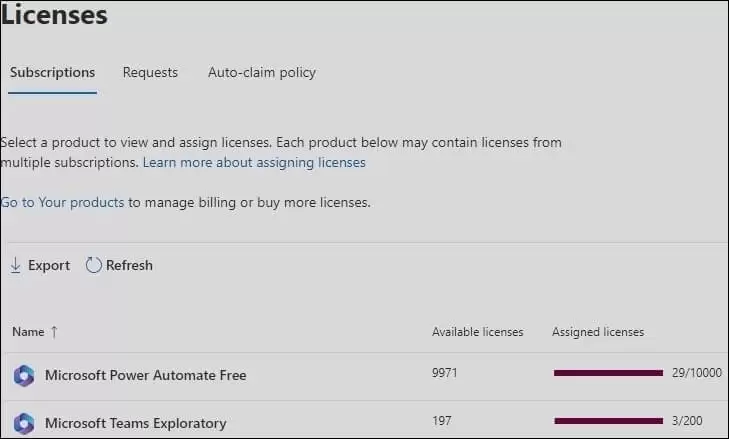
- You will find all your purchased licenses on this page.
Method 4. Check Whether Your Outlook Application is up to date
Sometimes, you may not be seeing the Exchange Online Archive mailbox in an older version of Outlook. So, you only need to update Outlook with the latest available version to check the availability of the Archive mailbox in it.
To check for available updates, here are the steps.
- Access Outlook and go to the File menu.
- Navigate to Office Account.
- Tap on Update Options and choose Update Now.
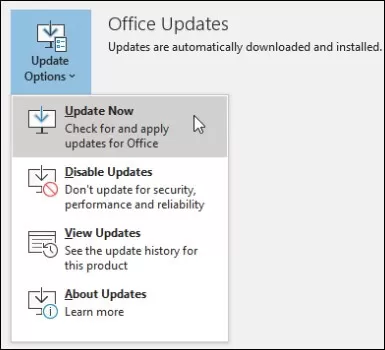
- If updates are available, install them.
Method 5. Confirming that Full Mailbox Access Permission is Not Assigned via Security Group
To ensure smooth access to the Exchange Online Archive mailbox, it is important to verify that the Full Mailbox Access permission isn’t assigned through a security group. This is because assigning full mailbox access to a specific set of mailboxes through a security group can prevent the auto-mapping of the mailbox to the Microsoft Outlook profile of the members of an assigned group. The archive folder in Outlook 2013 missing problem can lead to significant disruptions in productivity & makes it essential to prioritize the verification of full mailbox access in a security group.
Method 6. Ensure the Automatically Detect Settings Option is Turned Off
Disabling the “Automatically detect settings” option in the browser’s proxy settings can help resolve issues where the Exchange Online Archive not showing in Outlook problem arises. Here’s how to check and change the setting in Microsoft Edge:
- Open Microsoft Edge and click on the three-dot menu icon in the upper-right corner.
- Select “Settings” from the drop-down menu.
- In the Search Bar, type proxy settings.
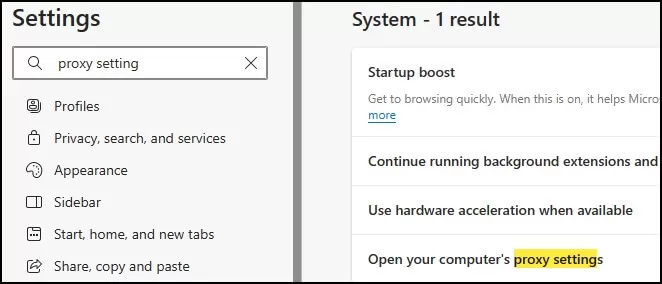
- Click on “Open your computer’s proxy settings”
- If the “Automatically detect settings” option is checked, uncheck it & save the changes.
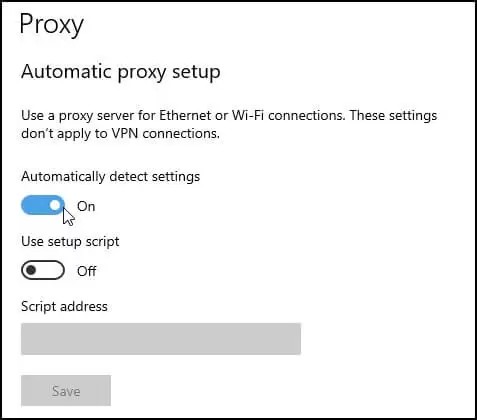
- Restart Outlook and see if the Exchange Online Archive mailbox is now displaying.
Conclusion
The Archive mailbox may have some important emails in it that you have moved from your primary mailbox. So, if you are unable to view the Archive mailbox, then you will not be able to access such mails. That’s why you should take the backup of your mailbox at the earliest using the Kernel Office 365 Backup tool. The tool allows you to Export Office 365 to PST. Which means you can access your primary mailbox, Archive mailbox, and public folder and make a backup of them in a PST file. The advantage is that you will always have access to your PST file.
Frequently Asked Questions
Q1. What is the archive mailbox in Exchange Online? The archive mailbox is a valuable tool for organizing and managing your emails in Exchange Online. This specialized mailbox sits alongside your primary mailbox folders in Outlook or Outlook Web App & provides you with a dedicated space to store important messages that you may not need to access frequently.
Q2. What is the limit of the Exchange archive mailbox? The top subscription plan offers a 100GB mailbox size limit. For most subscription plans, the limit is 50 GB. If you’re looking for even more storage, high-end subscription plans have you covered with 1.5 TB of archive storage that even has auto-expanding capabilities.
Q3. What happens when the Exchange Online archive is full? When the archive mailbox is filled, email messages will no longer automatically move into this archive mailbox, meaning that the user’s online mailbox size will continue to increase. This can create issues with storage capacity & system efficiency, which is why it’s important to address the problem as soon as possible.
Q4. How to show archive folder in Outlook 2010? To view the archive folder, scroll to the bottom of your folder view on the left side of the screen and double-click on Archives to expand the folder. Then, double-click on Inbox to expand that folder.
The archive mailbox is a valuable tool for organizing and managing your emails in Exchange Online. This specialized mailbox sits alongside your primary mailbox folders in Outlook or Outlook Web App & provides you with a dedicated space to store important messages that you may not need to access frequently.
The top subscription plan offers a 100GB mailbox size limit. For most subscription plans, the limit is 50 GB. If you’re looking for even more storage, high-end subscription plans have you covered with 1.5 TB of archive storage that even has auto-expanding capabilities.
When the archive mailbox is filled, email messages will no longer automatically move into this archive mailbox, meaning that the user’s online mailbox size will continue to increase. This can create issues with storage capacity & system efficiency, which is why it’s important to address the problem as soon as possible.
To view the archive folder, scroll to the bottom of your folder view on the left side of the screen and double-click on Archives to expand the folder. Then, double-click on Inbox to expand that folder.