Read time: 8 minutes
Migrating PST files to Office 365 mailboxes is one of the most complicated tasks. And if you have hundreds of GBs of Outlook PST data and slow internet, it becomes more challenging. But, Office 365 import service made it easier for users to migrate PST files to Office 365 mailboxes using Drive Shipping method. You can access the import service in Security & Compliance Center of Office 365 to quickly bulk-import PST files to Office 365/Exchange Online mailboxes.
What is Drive Shipping Method in Office 365?
Drive shipping is native Microsoft 365 method to import bulk email data from the PST files to Office 365. It involves copying PST file data to the physical and encrypted hard drives and then physically shipping them to Microsoft. This is suitable in case of large migrations that exceed the usual limits.
Once the hard drive is with the Office 365 personnel, they will copy the data from that drive to a different storage within the Office 365 cloud. You can then select the data you want to export and start the Import job to import PST data to Microsoft.
How to Migrate PST Files to Office 365 With Drive Shipping Method?
Here, we are going to discuss the Drive Shipping method to migrate PST files to Office 365 in detail. Let’s have a look at how this method works.
Step 1. Download the PST Import Tool
To download the secure storage key and PST import tool, follow the below steps:
- Log into Office 365 with administrator credentials, then go to Microsoft Purview.
- Click on Solutions from the left pane, then select Data Lifecycle Management and click Import.
- From there, click New import job on the Import page, then name your job and click Next.
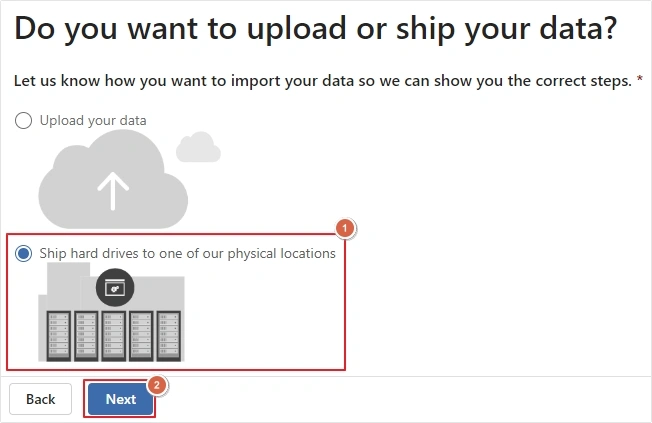
- From Do you want to upload or ship your data? click “Ship hard drives to one of our physical locations” and click “Next.””
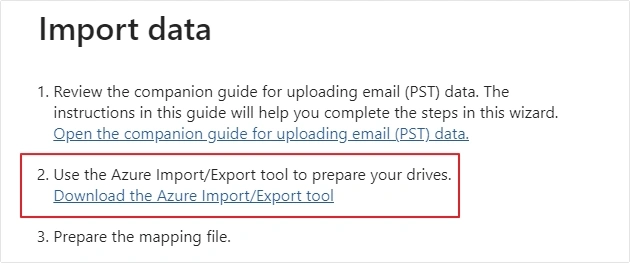
- From the Import data page, click on the Download the Azure Import/Export tool link.
- A new window will pop-up on screen, click on Save, then Save As to save the WaImportExportV1.zip file on your system.
- Extract the file, then click on Cancel.
Step 2. Copy PST Files to Hard Drive
The WAIImportExport.exe tool encrypts the hard drive with BitLocker, copies the PST files to the hard drive, and creates a journal file that stores information for the copy process.
- In Command Prompt, go to the directory where WAIImportExport.exe tools installed.
- Now, run the following command to copy PST files to the hard drive:
WAImportExport.exe PrepImport /j:<Name of journal file> /t:<Drive letter> /id:<Name of session> /srcdir:<Location of PST files> /dstdir:<PST file path> /sk:<Storage account key> /encrypt /logdir:<Log file location>
After running the command, the tool will start copying PST files to the hard drive. It will take some time according to the size and number of PST files.
Step 3. Create the PST Import Mapping File
To perform mapping correctly, you will have to create a CSV file, which you will have to submit while creating a PST import job.
- Download the copy of the PST Import mapping file.
- Save the CSV file on your local computer. You can edit the CSV file using Microsoft Excel.
Step 4. Create PST Import Job in Office 365
Now, you’ll again create a PST import job in the import service in Office 365. The CSV mapping file will be submitted here. And the import service will use the information in the mapping file to import the PST file to the specified user mailboxes. Here are the steps to do so:
- Go to Microsoft Purview > Solutions > Data Lifecycle Management > Import > New import job.
- Provide a name for your job, then click Next and select Ship hard drives to one of our physical locations.
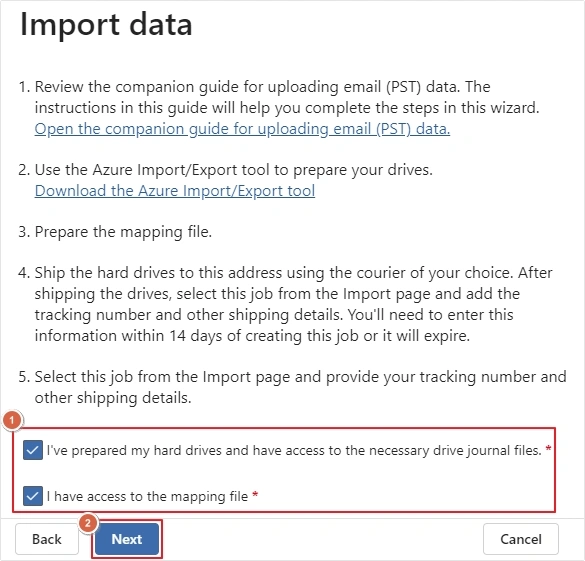
- Select the checkboxes next to the following options and click Next.
- I’ve prepared my hard drives and have access to the necessary drive journal files.
- I have access to the mapping file
- In the next step, click “Select drive file” and go to the folder where WAIImportExport.exe is located. The journal file created earlier will be copied to this folder.
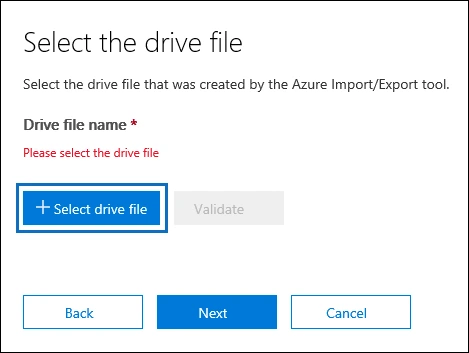
- Select the journal file and when it appears under “Drive file name,” click “Validate” to check your drive file for errors.
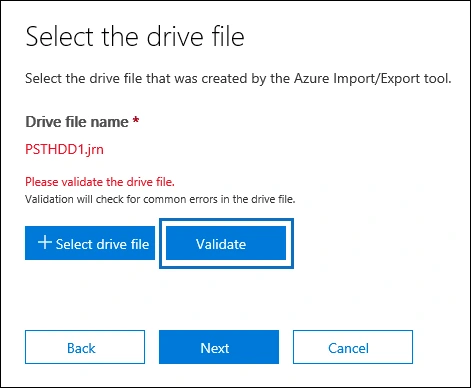
- After adding and validating journal files that you want to ship to Microsoft, click “Next.”
- Now, click “Select mapping file” to submit the PST import mapping file that you created earlier and validate it. After validating the CSV file, click “Save” to save the import job.
- Click “Refresh” on the import page to display the new drive shipping import job in the list of import jobs.
Step 5. Ship Hard Drive to Microsoft
The next step in the Drive Shipping method is the shipping of the hard drive to Microsoft along with the shipment tracking number and return shipment information. It will take 7-10 business days for Microsoft to upload your PST files to Azure storage area after receiving the hard drive.
- Go to the Security & Compliance center in Office 365 and select “Data Governance,” and then click “Import.”
- Enter the tracking number, delivery carrier, return carrier account number and click “Save.”
- Click “Refresh” to update this information on the Import job page.
Step 6. Filter the Data and Start the Import Job
Once Microsoft receives your hard drive, the status will change to Drives received. To upload the PST file to Azure storage, data center personnel will use the information in the journal file. After uploading, the status will change to Analysis in progress. It indicates that Office 365 is analyzing the data to identify the age of the items and messages types in the PST files.
- Again go to Microsoft Purview >Solutions >Data Lifecycle Management >Import.
- Select the import job you created earlier and select Import to Microsoft 365.
- In the Import page, you can use filters to import specific data or the whole data of the PST files.
- Click “Ready to import to Office 365,” a wizard will appear on the screen.
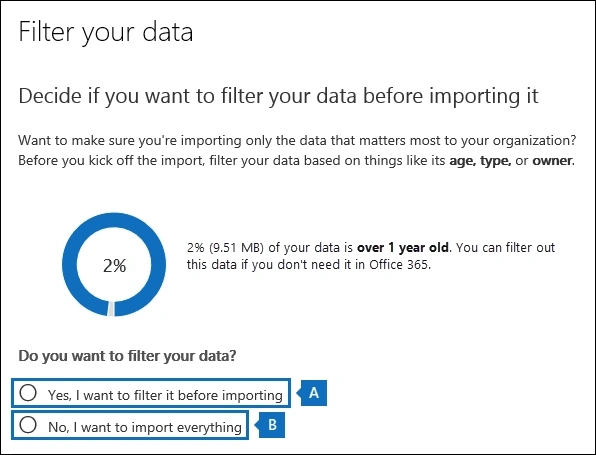
- When the “Filter your data” page appears, you can decide if you want to filter your data before importing. If you want to filter, then click Yes, I want to filter it before importing. If you don’t want to filter, click “No, I want to import everything,” and click “Next.”
- And finally, to import the data, click “Import data” to start the import job.
Refresh the “Import Page” to update the status of the import job. When the import job is finished, the status will change to Completed. Using this technique, you can easily migrate PST files to Office 365. But, as you can see, the drive shipping method is a complex method, and also takes more than 1-2 weeks to move your PST file to Office 365.
Note: However, this method is not completely. Microsoft’s Drive Shipping service costs $2 USD per GB of data, along with the cost of the physical hard drive and shipping postage.
Why Some Admins Avoid Drive Shipping to Migrate PST Files?
Not every organization can wait for 1-2 weeks to move its PST data to Office 365. Moreover, the process of the Drive shipping method is very complicated as it includes a lot of cautiously executed steps. Some organizations require immediate solutions, that’s where using a professional PST to Office 365 migration tool becomes important.
Kernel Import PST to Office 365 is a well-designed and advanced tool to export PST files to Office in bulk, according to the user’s convenience. Also, the simplified working process of the software makes it one of the handy tools, as any person with minimum to zero technical knowledge can move their email data to Office 365 without Outlook. The software is equipped with great features like:
- Import PST to Microsoft 365 primary, shared, or archive mailbox.
- Preserve metadata, hierarchy, and folder structure during the process.
- Allows you to transfer selective data items as required.
- Supports easy user mapping for accurate data transfer.
Conclusion
With the Drive Shipping method, you can migrate PST files to Office 365. However, the process can take several days and is lengthy and complex, which often makes it non-suitable for many businesses. To avoid waiting for days to import data, using a migration solution which allows quick and smooth data export is recommended. Easily migrate Outlook emails to Office 365 mailbox without data loss via the tool.
Frequently Asked Questions
A. Here are some common scenarios that would require you to use Drive shipping method for the data transfer:
1. You have a large-sized PST with a massive amount of data.
2. You’re working on a restricted internet bandwidth.
3. You need to consolidate data from multiple on-premises accounts.
A. Yes, when you try to upload a PST file with a mailbox item larger than 150 MB, the item is bounced off from the import process. This is because the maximum message size limit in Exchange Online is 150 MB.