Read time: 13 minutes
Direct Answer: You can download all Gmail emails to computer with the Kernel Gmail Backup tool. It provides a simple way to save complete Gmail data with attachments in multiple formats. Additionally, you can download Gmail emails to a computer with Google Takeout, Outlook, or Thunderbird. If you only need selected emails, save each email as a PDF document.
Gmail is one of the most widely used email services today. It’s totally free, and many people use it regularly to communicate, make deals, and perform other necessary work. Google provides 15 GB of shared storage across Gmail, Google Drive, and Google Photos. When this storage becomes full, users may want to download or back up important Gmail messages before deleting unnecessary data.
Why should you download Gmail emails to Computer?
A Gmail account is a cloud service, so a local copy gives you another layer of protection and helps you:
- Keep a local copy of important Gmail emails.
- Access old email data without relying only on Gmail.
- Protect important emails before you close the account.
- Safeguard all your business emails for future reference.
- Keep a local copy before deleting old emails to free Google storage.
You have five practical methods to save emails to computer
| Method | Output Format |
|---|---|
| Kernel Gmail Backup | PST, EML, MSG, PDF, DOC, DOCX, HTML, or MHT |
| Google Takeout | Emails in MBOX file and some account and settings data in JSON format. |
| Save Gmail emails as PDF | Each email in a PDF file. |
| Export Gmail emails using Thunderbird | Emails in MBOX file. |
| Export emails using Outlook | Emails and other data in PST file. |
How to Download Gmail Emails to Computer
There are several manual methods to save Gmail emails to a hard drive. Let’s explore all the methods one-by-one in detail:
Method 1: Download All Gmail Emails to Computer with Kernel Gmail Backup tool
If you need a simple way to download Gmail emails, then use the Kernel Gmail Backup tool. It allows you to backup your entire Gmail mailbox with attachments and save them as PST, EML, MSG, PDF, DOC, DOCX, HTML, or MHT.
You can also apply filters and choose a preferred location to download multiple emails from Gmail to your computer. It offers multiple filters to save selected emails based on your requirements. You can even download a post-backup report in a CSV file for compliance needs.
Save Gmail Emails to Computer Using Kernel Gmail Backup?
Here is a step-by-step process to backup emails to computer:
Step 1: Download, install, and launch the Kernel Gmail Backup tool.
Step 2: On the software’s home screen, click on Add to connect your Gmail.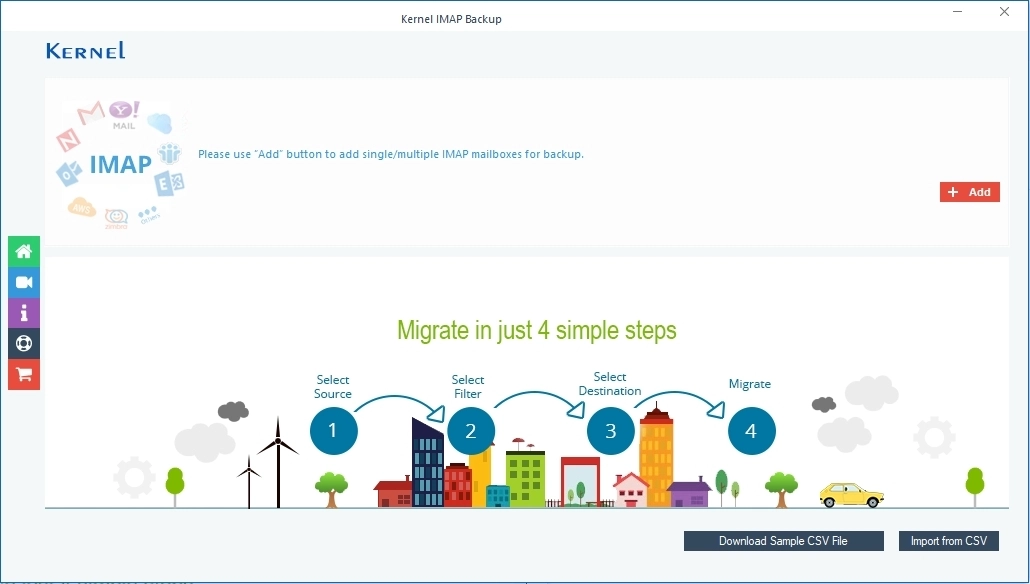
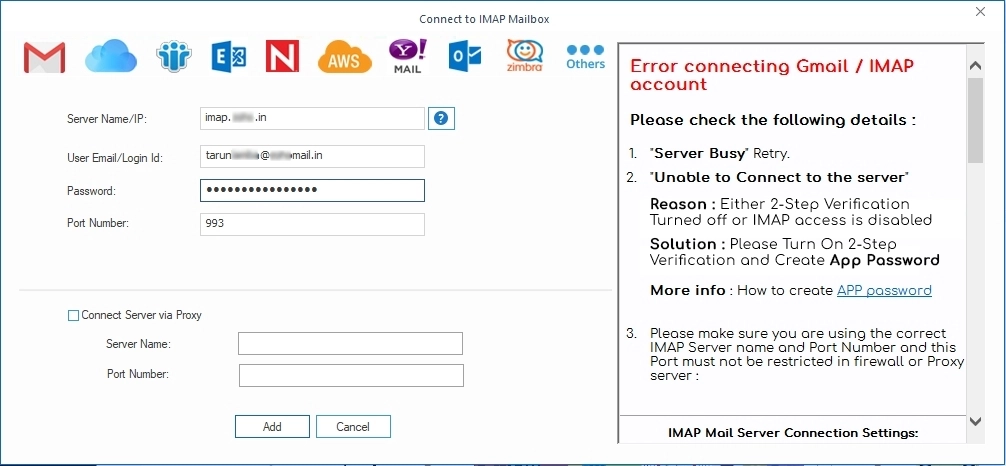
Step 3: Enter Gmail Credentials, like Server Name/IP, User Email/Login ID, Password, and Port Number. Click Add.
Note: If you are unable to login to Gmail with your password, then you need to enable 2-step verification and create an App password for your Gmail ID using the Google account for logging in to the software.
Step 4: Verify your added Gmail account and click on Set Filter and Migrate.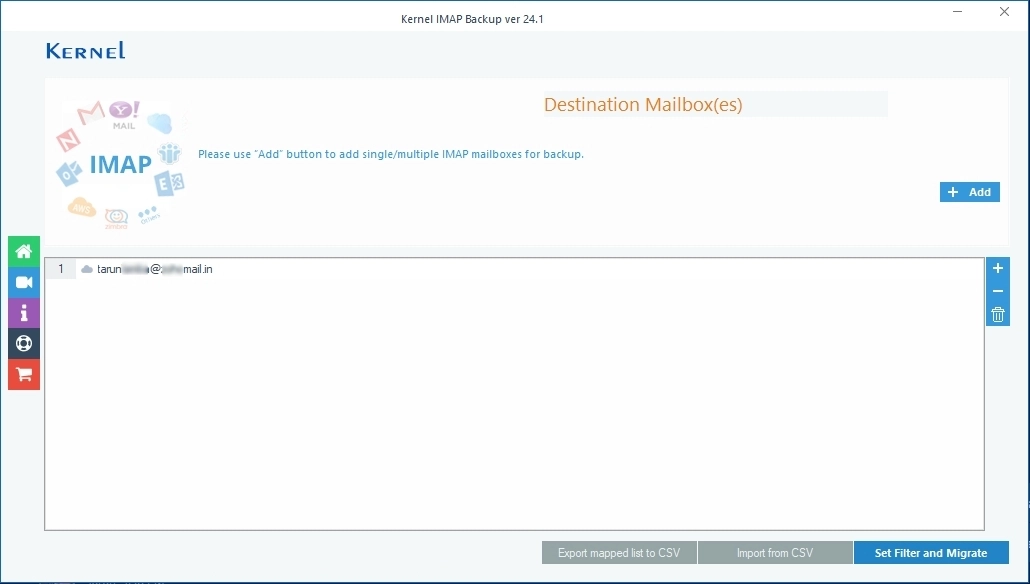
Step 5.: In the Filter Selection window, apply required filters for selective email download. Click I am OK Start Migration.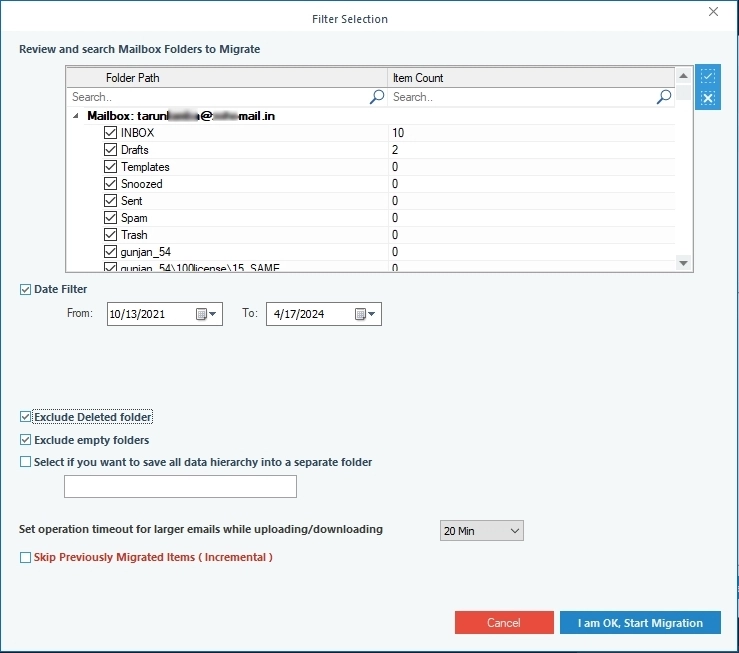
Step 6: In the Save As window, select your desired output, like for now, we are going with PST. Check Split Output PST File After to manage large-sized Gmail mailboxes into smaller PST files. Click OK.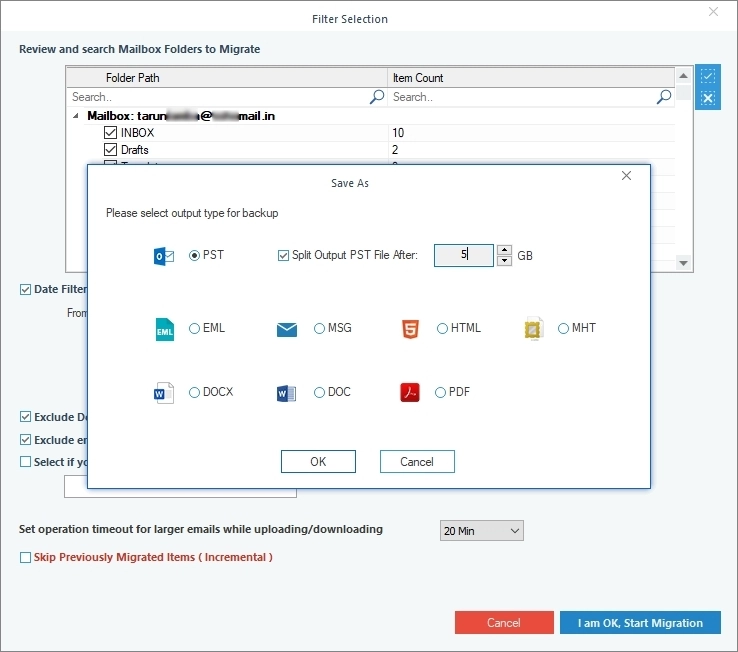
Step 7: Select your preferred saving location and click OK.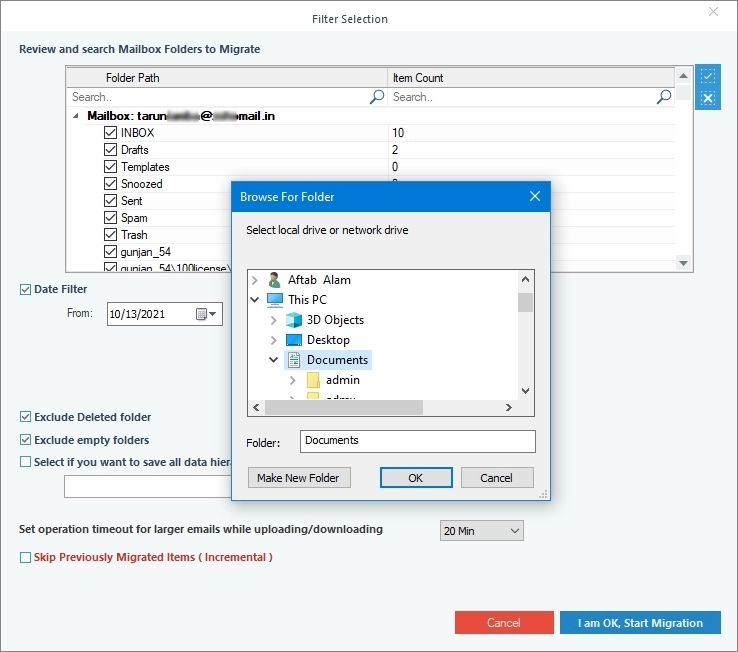
Step 8: The software will start backing up your Gmail emails. After a successful backup, click OK.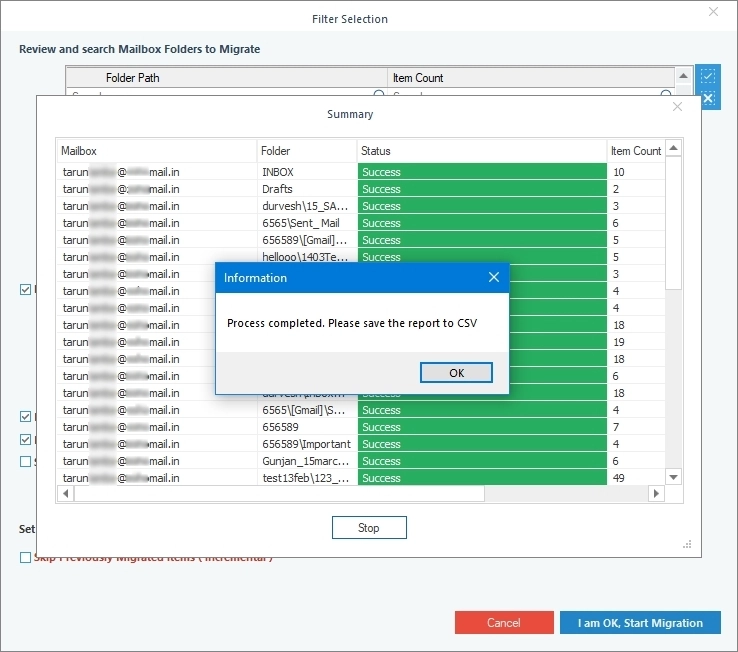
Method 2: Backup Gmail Emails to Hard Drive with Google Takeout
Google Takeout is one of the free methods to download all Gmail emails to computer. It provides an export service that allows you to save all Google components separately. With this, you can create a Gmail export archive and download it to your hard drive.
Export Gmail Emails to Computer Using Google Takeout?
Here is a step-by-step process to export emails using Google Takeout:
Step 1: Go to Google Takeout in any Web Browser.
Step 2: Sign in to your Google Account.
Step 3: Click Deselect all on the Google Takeout page.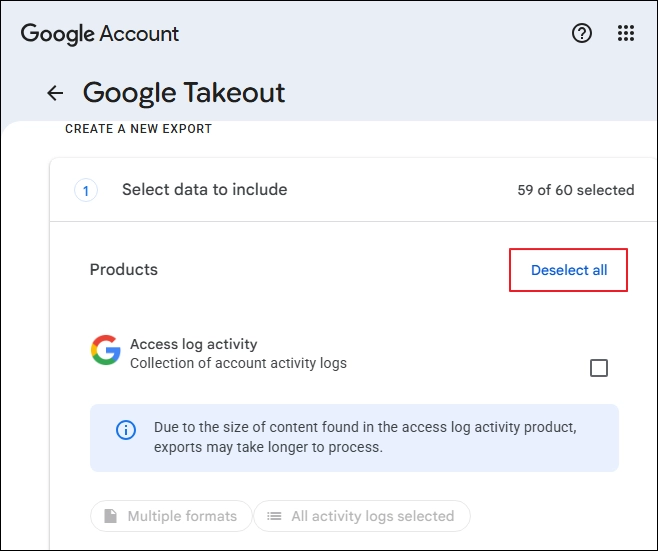
Step 4: Select Mail, scroll down, and click Next step.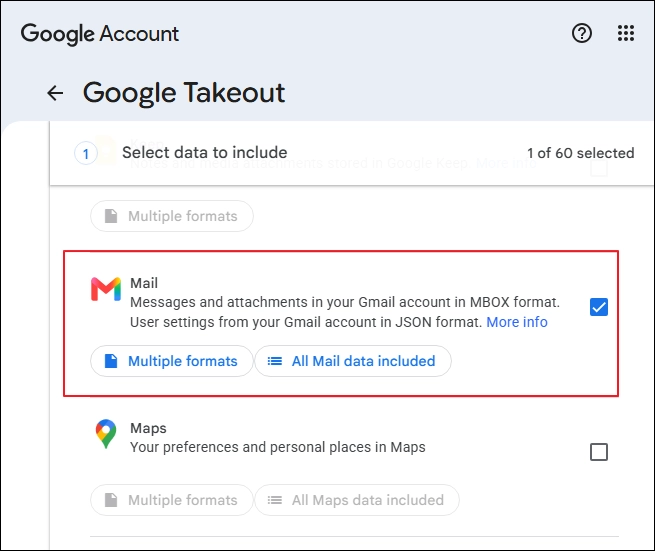
Step 5: Choose file type, frequency, destination saving folder, and click Create export.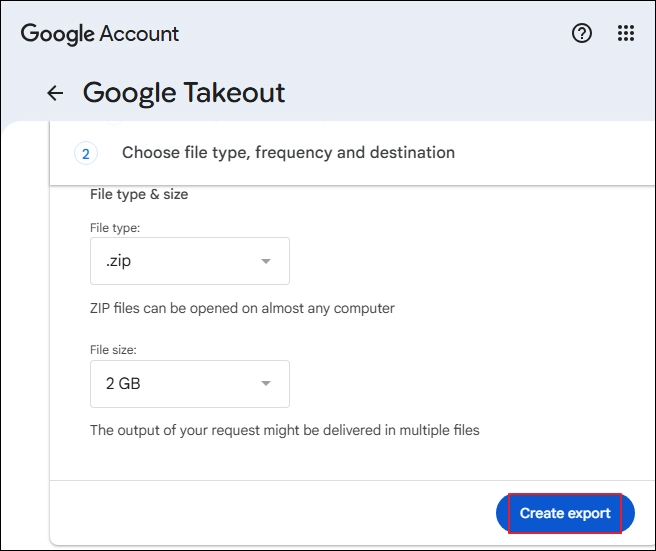
Step 6: Google will prepare the export. Once it is ready, Download the archive and save it to your hard drive.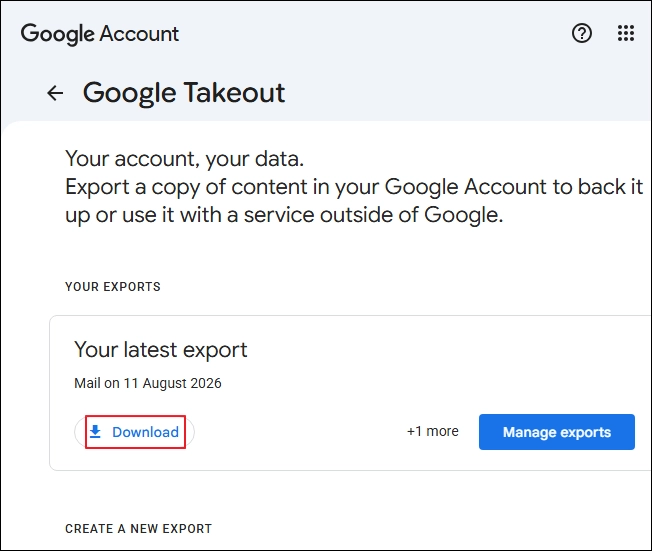
Step 7: Check out your downloaded archive file in your downloads folder.
Method 3: Download Gmail Emails to Computer as PDF Documents
You can save selected Gmail emails to your computer as PDF documents without exporting the complete mailbox. It is a suitable method when you just need a selective email copy on your system.
Save Gmail Emails to Computer as PDF Documents?
Follow these steps to save Gmail to PDF on your computer:
Step 1: Open Gmail and sign in to your account.
Step 2: Open any email that you want to save.
Step 3: Click on the Print icon in the email window.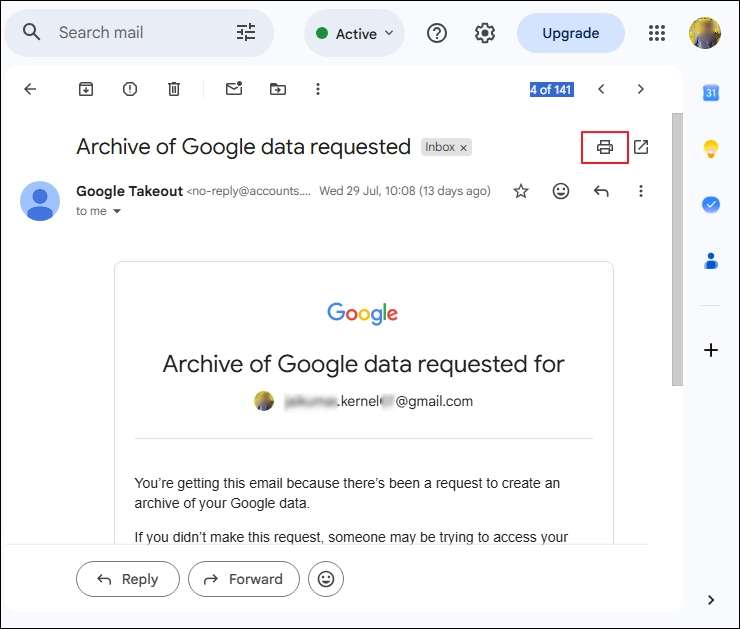
Step 4: In the Print dialog box, select Save as PDF in the Destination, and click Save.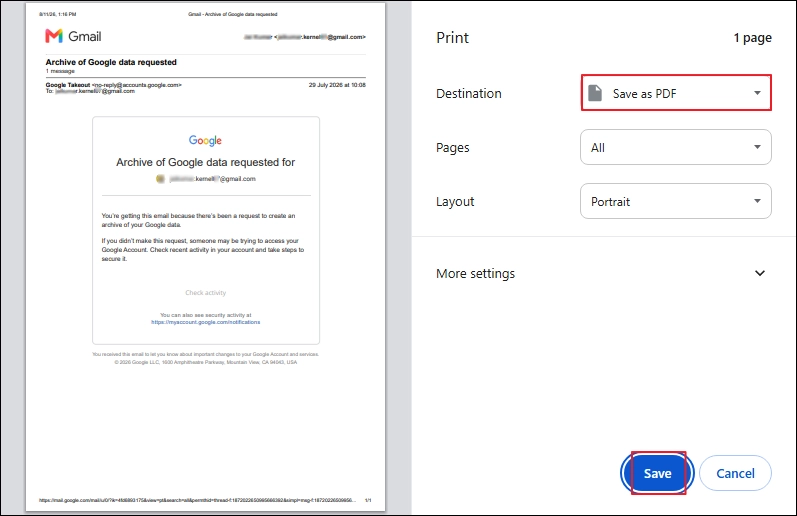
Step 5: Finally, select your saving location and click Save to export the email in PDF file.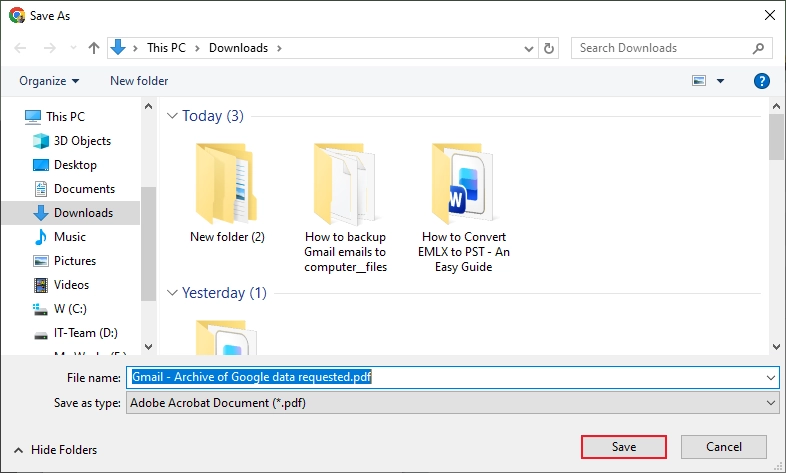
When to opt for this method?
- To export a few important emails.
- Keep email copies in an easy-to-read format.
- Easily export email records for offline access.
Method 4: Download Gmail Emails to Computer Using Outlook
Gmail supports IMAP access, which allows you to connect the account to compatible email clients. That’s why it’s easy to sync your Gmail account to any IMAP-supported email client. You can easily configure your account in Outlook and export emails to your computer.
To execute this method, you need to go through the below two-part guides, where you first need to set up your Gmail account in Outlook, and second is to export mailbox to a PST file.
Part 1: Configure Gmail in Outlook
Step 1: Launch Outlook and click on File.
Step 2: Below the Account Information tab, click on Add Account.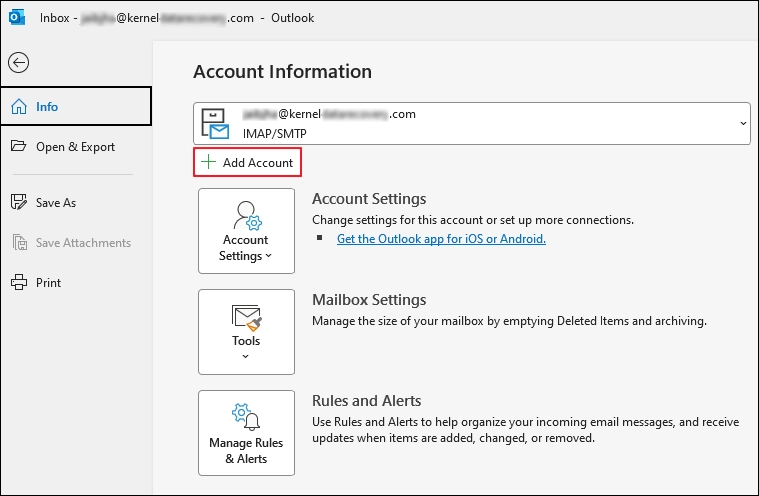
Step 3: Enter your Gmail username, check the Let me set up my account manually option, and click Connect.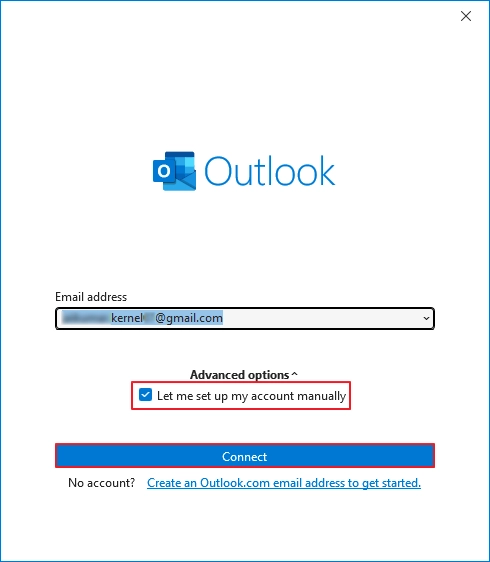
Step 4: In the Advanced setup window, select IMAP.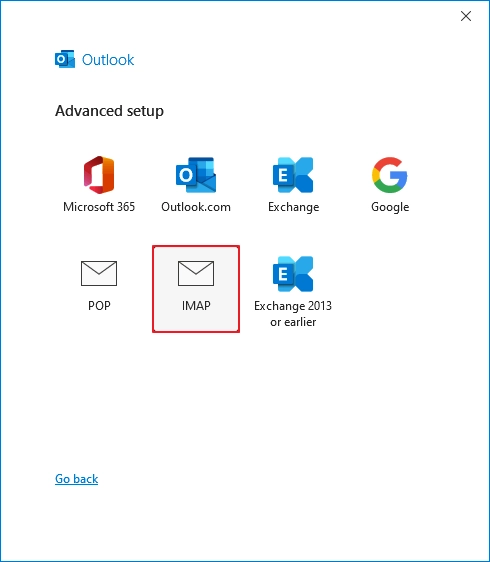
Step 5: In the following window, enter your Gmail credentials.
Note: Similarly, you can turn on Smart Reply using the same steps as mentioned above.
Step 6: After a successful account setup, click Done.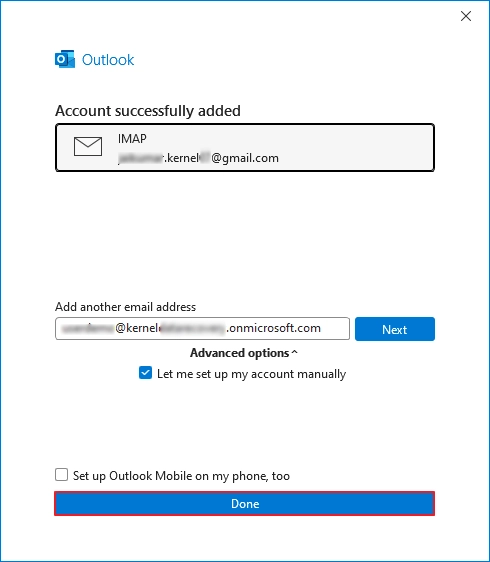
After account setup, Outlook will take some time to sync all your emails.
Part 2: Export emails in PST using the Import/Export feature
Step 1: Open Outlook and click on File.
Step 2: Tap on Open & Export.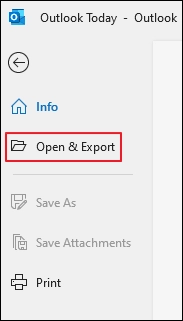
Step 3: Select Export to a file and click Next.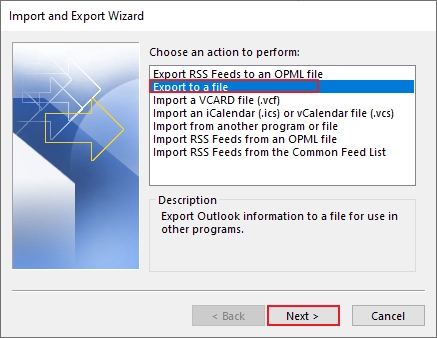
Step 4: Choose Outlook Data File (.pst) and click Next.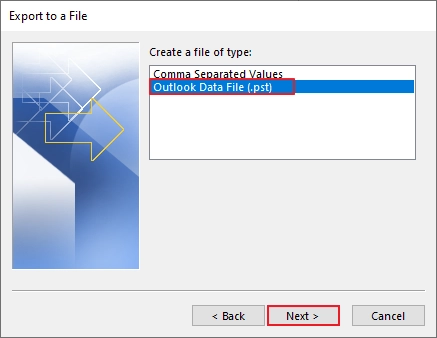
Step 5: Select your Gmail mailbox and click Next.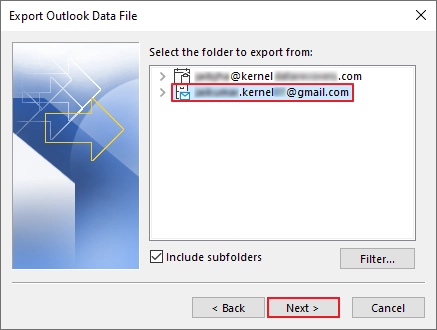
Step 6: Select a destination saving location and click Finish to save Gmail emails to the hard drive.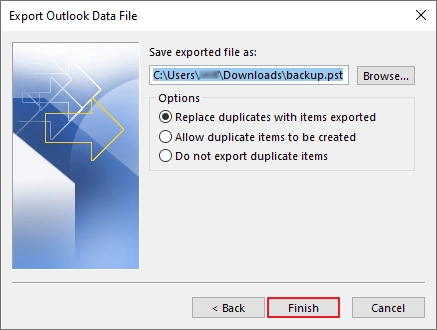
This method creates a PST copy of the Gmail folders and messages.
Method 5: Export Gmail to Computer Using Thunderbird
Like Outlook, Thunderbird supports IMAP accounts. You can add Gmail to Thunderbird and use the third-party ImportExportTools NG add-on to export mailbox data.
To export your mailbox copy, you need to go through a three-part guide:
Part 1: Setup Gmail account in Thunderbird
Step 1: Open Thunderbird, click on the Menu icon, and select New Account.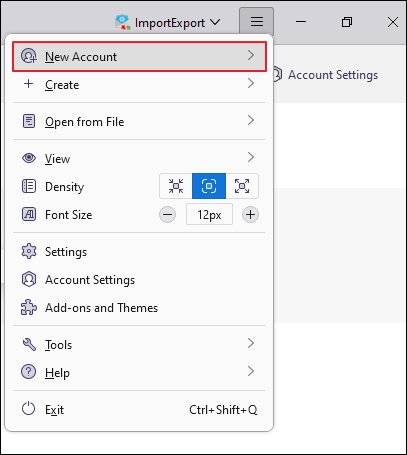
Step 2: Click on Existing Email.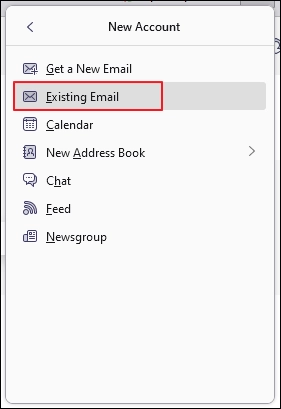
Step 3: In the Setup Existing Email Address, enter Full Name, Email Address, and Password. Click Continue.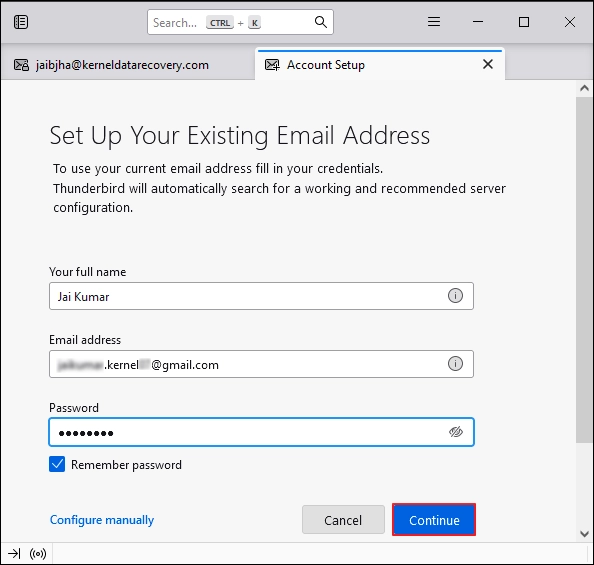
Step 4: Thunderbird will automatically fetch your account configuration, verify it, and click Done.
Note: Enter credentials if asked and allow all the necessary permissions to sync your Gmail account with Thunderbird.
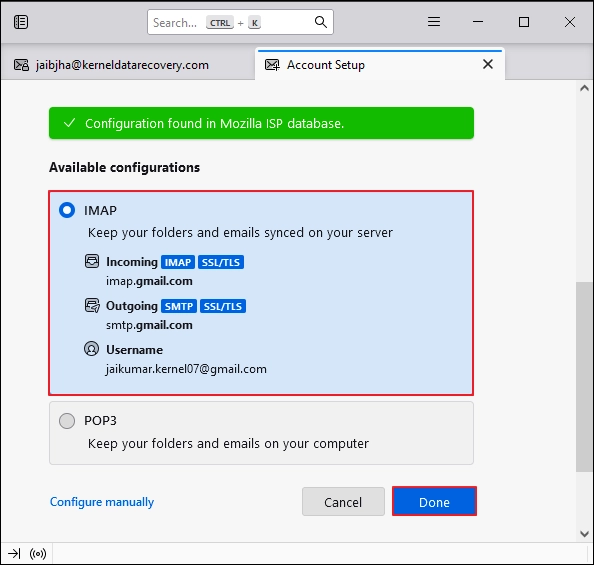
Step 5: After a successful synchronization, you will see an Account successfully created message.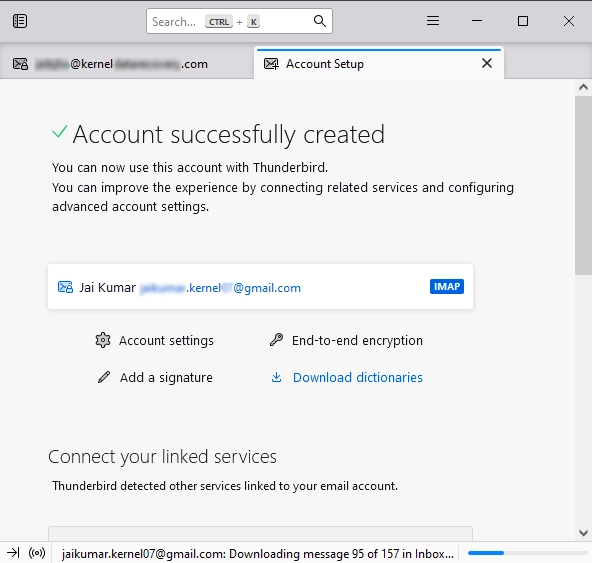
Part 2: Set Up the ImportExportTools NG Add-on in Thunderbird
It’s time to add the ImportExportTools NG add-on in your Thunderbird to download Gmail emails to your hard drive. If you have already added this add-on and your Thunderbird ImportExportTools NG is not working, then try to fix it or add it.
Note: “ImportExportTools NG is a third-party add-on, so compatibility can vary by Thunderbird version.”
Part 3: Download Gmail Emails as MBOX Using ImportExportTools NG
Using ImportExportTools NG, you can easily export your entire mailbox in MBOX file format.
Simply open your Thunderbird account and right-click on your mailbox. Then, select ImportExportTools NG > Folder Export (mbox) > As mbox File.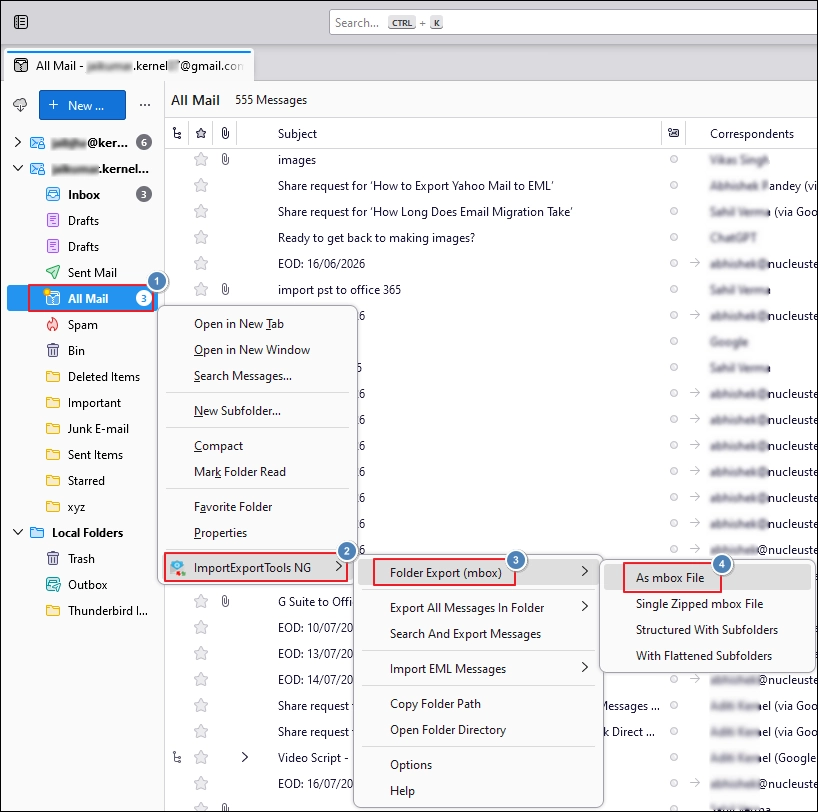
Conclusion
Google Takeout is a free option for one-time Gmail export; saving emails as PDF files one by one can be repetitive and exporting Gmail data using Outlook and Thunderbird is a hectic and lengthy task. Thus, relying on a reliable Kernel Gmail Backup tool is a good option for you. It provides a simple way to back up Gmail emails to a hard drive. It even offers multiple saving options that let you access your emails on multiple platforms.
Frequently Asked Questions
Answer: Yes, you can directly download your specific emails to your computer. Open any specific email, click on the three dots, select Download, and Gmail will download that email as an EML file.
Answer: The required space depends on your mailbox size, attachments, and selected Gmail data.
Answer: Yes, you can save backups from multiple Gmail accounts to the same hard drive. But you need to initiate the backup process multiple times and select the same storage folder on the same hard drive.
Answer: Yes, if you have downloaded your Gmail emails as PDFs, then you can access them without any internet connection.