Read time 6 minutes
Summary: Gmail users often download Gmail attachments to local storage to free up storage space, manage and organize files, and access the files offline. Gmail mailboxes store attachments of different types, like zip files, audio clips, presentations, videos, documents, and even more. To download attachments from multiple emails in Gmail, you need to follow proper methods that make sure efficient extraction of files and folders.
Last month, my colleague told us that he needed to download all the attachments from various emails from the Gmail application. He said,” I have been receiving the online receipts from our Internet Service Provider for 5 years. To check the changes in the billing pattern, I require the receipts from at least 2 years. Perhaps I will have to check the attachment of each email and download it manually.”
Is there any solution to do this without performing manual and repetitive tasks?
Gmail emails contain email messages with attachments, and to access those, you either need to go to Gmail again and again or download them. Downloading these files provides you with anytime and offline access, saving time when you have a lot of work to do.
Let’s check out some practical ways to download Gmail attachments in bulk that will also help to backup Gmail emails to computer.
What are the top ways to download Gmail attachments?
Here are a few methods that will explain how to save attachments step-by-step:
Method 1: Download email attachments from Gmail individually
This method can be time-consuming because it involves recurring download of individual attachments from each email. Follow the steps below:
- Go to Gmail and open the email whose attachment you want to download.
- Hover over the attachment and click on the download icon.
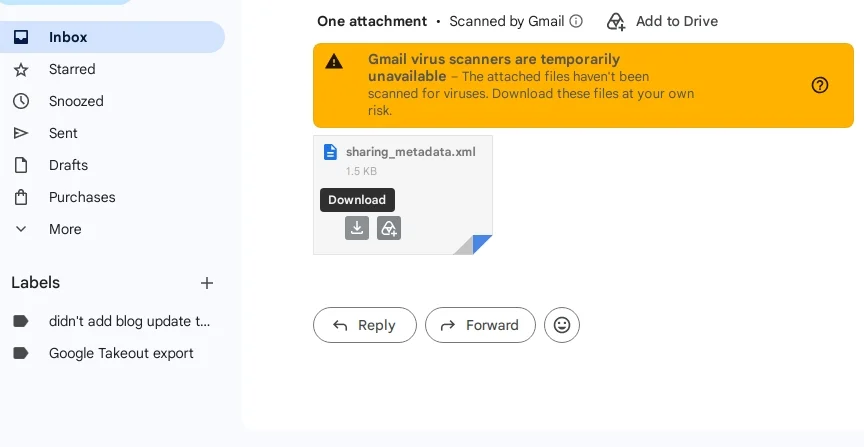
Repeat these steps again and again to download all the attachments from your account. Moreover, remember that this method is suitable when you have fewer files to download.
Method 2: Download multiple attachments at once
Follow the steps to download multiple attachments from an email:
- In your Gmail account, go to the email containing multiple attachments.
- Click on the Download icon (Download all attachments) at the top of the attachments.
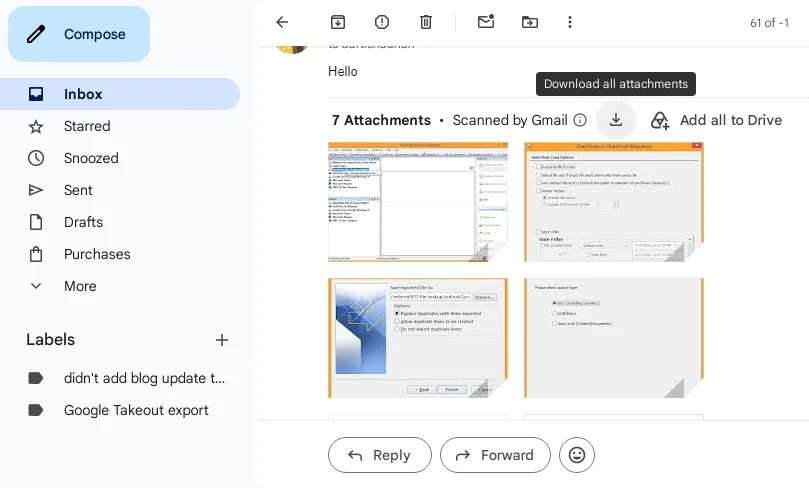
- This will download a zip file containing all the attachments from the email.
- Right-click on the zip file to extract the files and save locally.
Method 3: Download bulk attachments using Forward option
You can download Gmail attachments in bulk using the Gmail webmail app by following the steps given below:
- Open your Gmail account and go to the Search bar.
- Here, type has:attachment > Enter to view all the emails containing attachments.
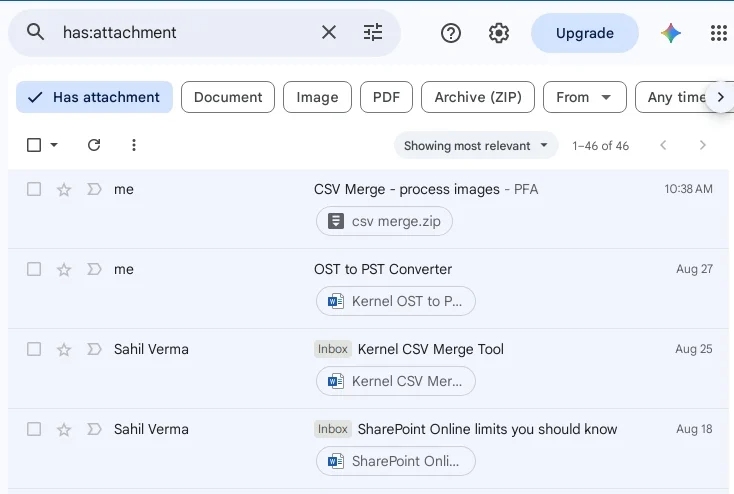
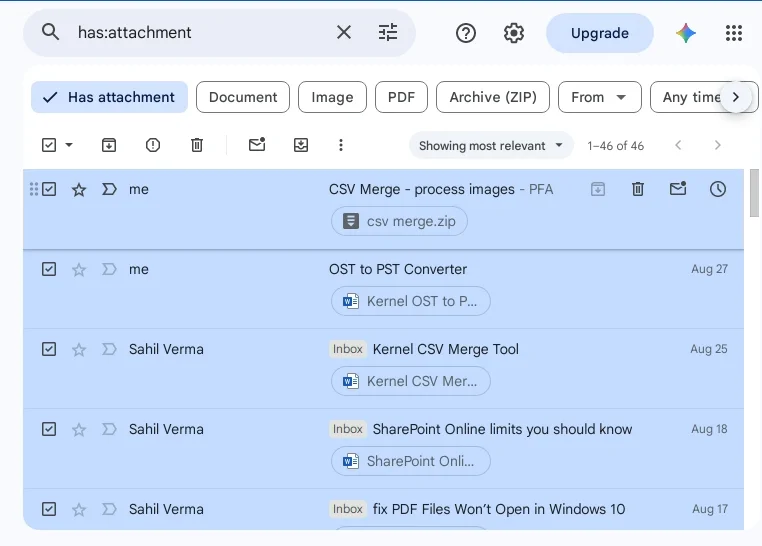
- Mark the checkbox at the top to select all emails containing attachments.
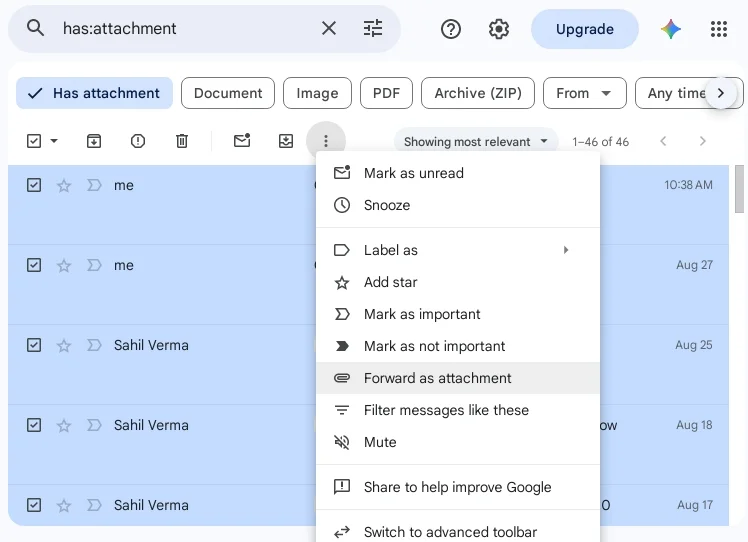
- Click on the three dots and select Forward as attachment.
- Provide any email address where you want all the attachments. Click Send.
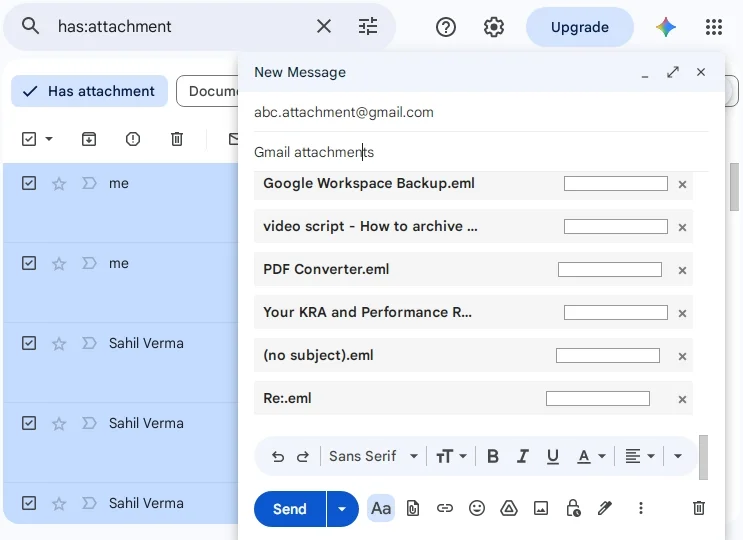
Method 4: Download all Gmail content using Google Takeout
Google Takeout is a URL-based service by Google that exports selected applications in the form of a zip file. You can save entire Gmail information in this way. It will save messages with their respective attachments.
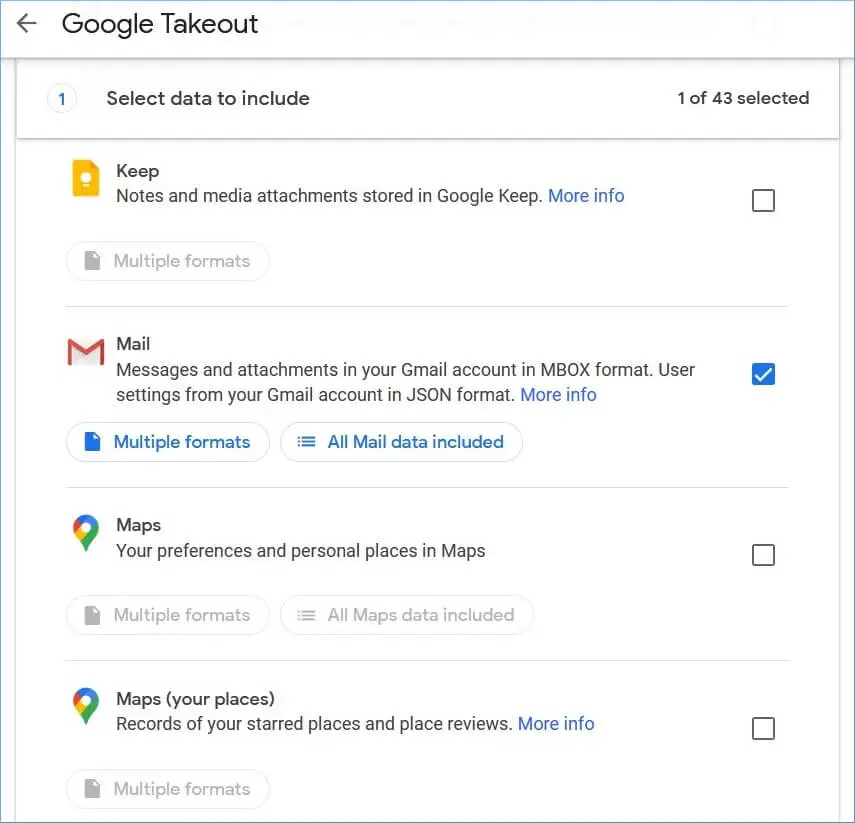
- Visit the URL https://takeout.google.com/ and log in with your Gmail account.
- Choose the Mail option, and it will save messages and all attachments in the MBOX format. Use the checkbox to select it.
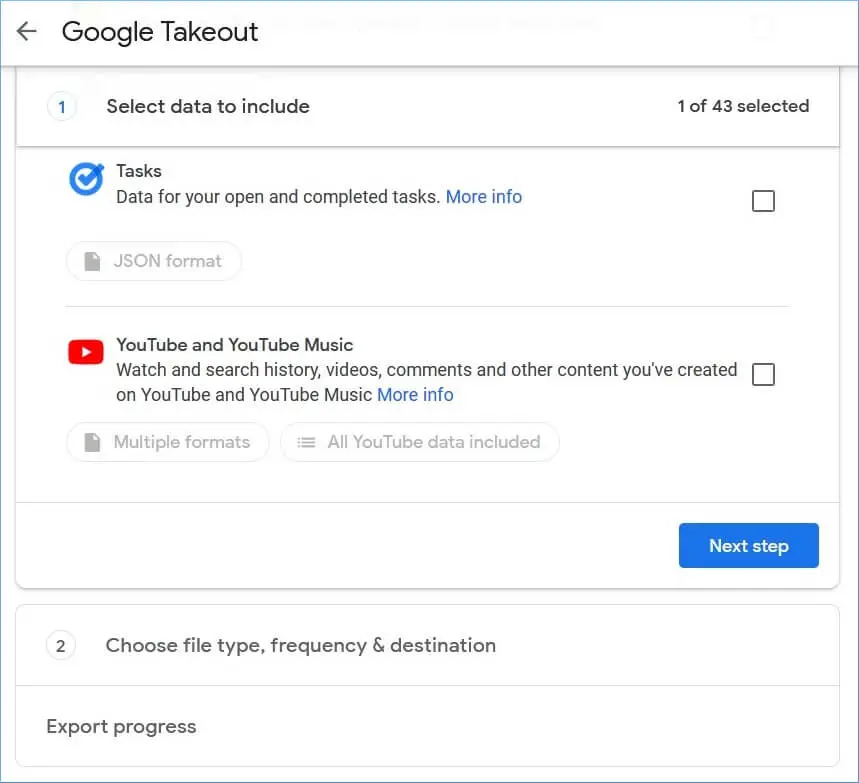
- Uncheck all the remaining Google apps and click Next Step.
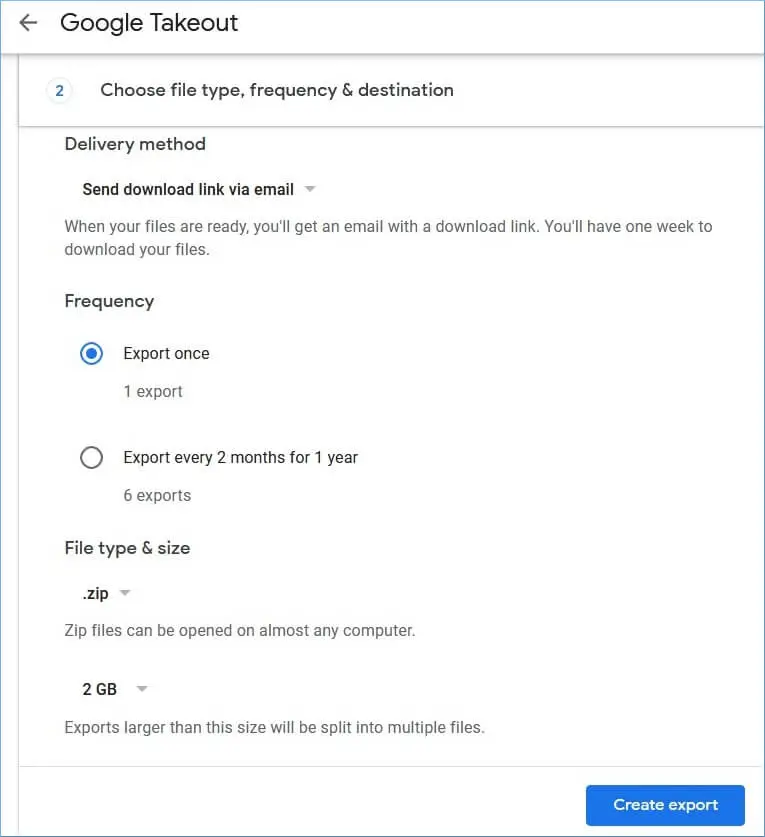
- Select the frequency to save the selected data. Select the File Size and Type for the resultant file. Click the Create export option.
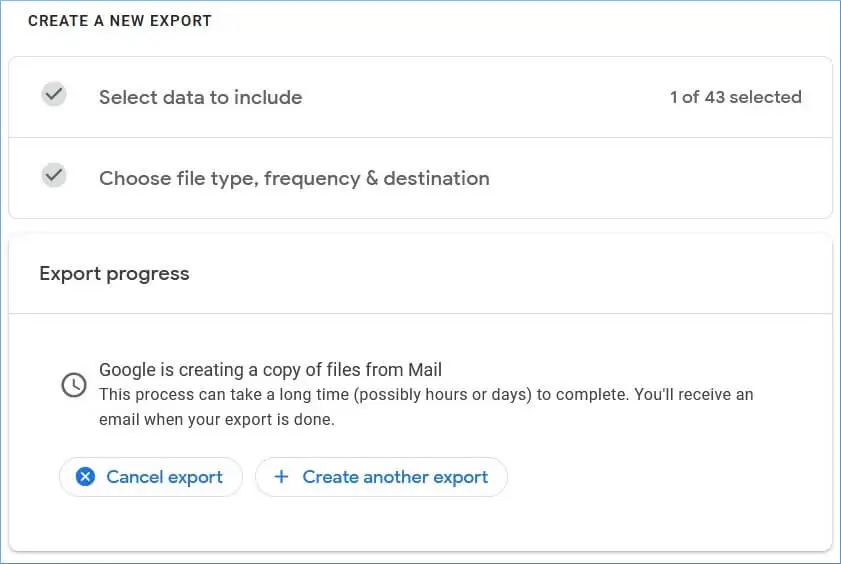
- Google is creating the export file. Wait till it shows the file to download.
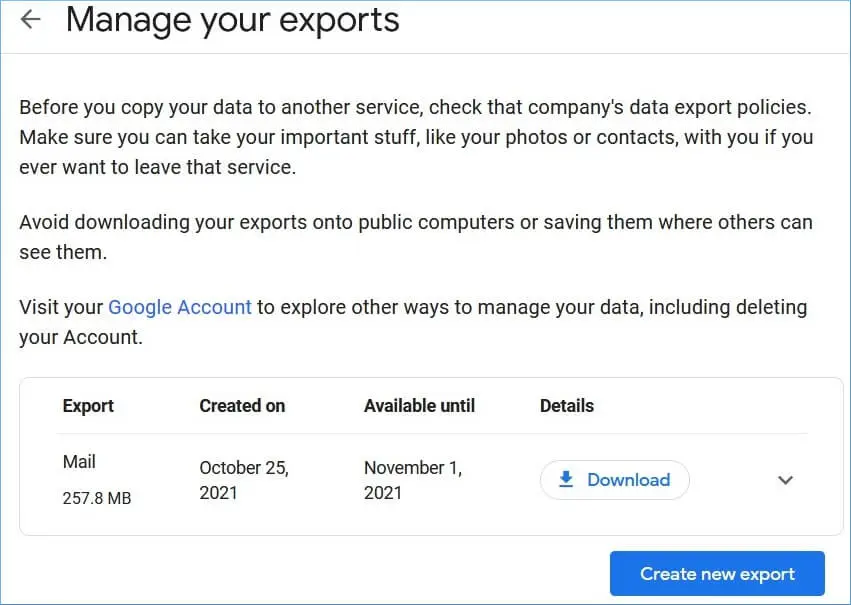
- A zip file is available that you can download to save all the Gmail data. It will keep the messages and attachments separate from the application.
After downloading the zip file, you can extract the data, and there will be an MBOX file. You can open it in any application that supports the MBOX format.
How does backup help save bulk Gmail attachments?
The manual process to download attachments from multiple emails in Gmail can consume a lot of time and require you to download each attachment one by one. To avoid the hassle or technical complications involved in methods to save attachments, use Kernel Gmail Backup software. The tool is rich in features that allow you to download Gmail email backups to your local storage for easy offline access.
Final Say
Users who send and receive bulk emails every day often need to save bulk Gmail attachments to avoid issues like “Gmail storage full; can’t send emails.” Use the methods mentioned above to save them as a backup or use Kernel Gmail Backup software for a quick and convenient download. Moreover, there is no size limit on downloading emails from your Gmail account.
Frequently Asked Questions
To save attachments from multiple emails, use Google Takeout, a free utility that allows you to export data from G Suite components like Gmail, Google Drive, Photos, Classroom, Maps, etc.
Here are the steps to save bulk Gmail attachments using an Android device:
1. In Gmail, open the email with attachments you want to save.
2. Select the Download option, and the files will begin downloading.