Read time: 6 minutes
PDF users often need to convert PDF files to PNG for preparing brochures, slides, posters, and other content for their presentations or marketing content. Doing this provides high-quality, portable images that you can share directly to social media or other platforms. However, conversion of PDF files can leave the user in a challenging situation.
To counter such challenges, refer to the ways to convert PDF files to PNG mentioned with the stepwise procedures.
Step 1. Open the PDF file in Adobe Photoshop.
Step 2. Now, go to the File tab and tap on the Save As option.
Step 3. Select PNG from the Format dropdown.
Step 4. Click Save and select options for PNG format accordingly.
Simple Methods to Convert PDF to PNG Format
Here are a few compiled methods that will help export PDF to PNG format. Understand each method and pick at your convenience:
Method 1. Save PDF as PNG file using Adobe Acrobat
Adobe Acrobat is a powerful tool to edit, alter, merge, and manage PDF files. You can also use this utility to convert PDF file to PNG file quickly. Here are the steps to follow:
Step 1. Open your PDF file with Adobe Acrobat, which you want to convert.
Step 2. Go to Menu and tap on the Save as option.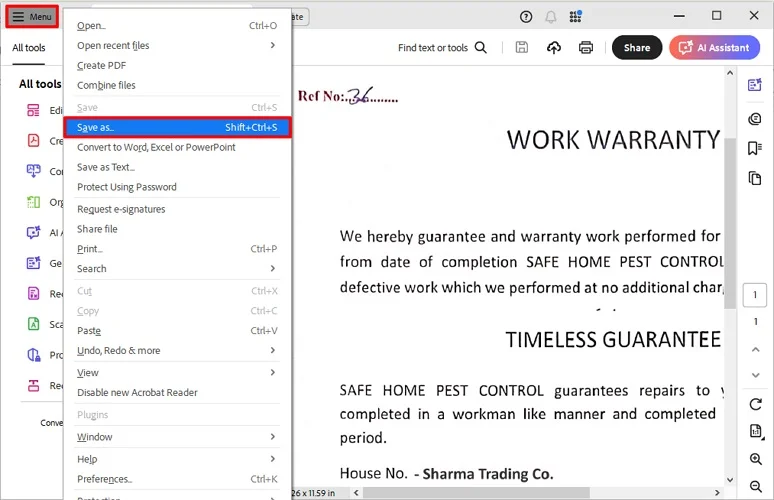
Step 3. In the Convert to dropdown, choose PNG format and click on Choose a different location.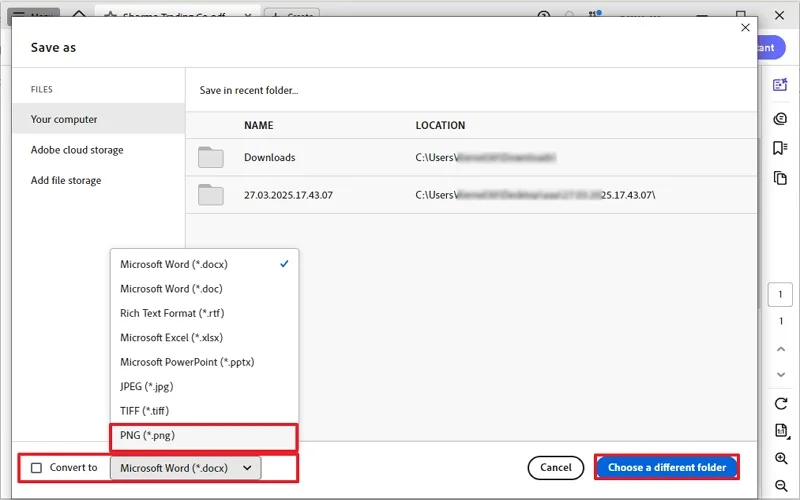
Step 4. Specify the location and click on Save.
Your PDF file will be converted into PNG format successfully.
Method 2. Convert PDF to PNG Using the Paint Application
With the Paint application on your Windows computer, you can save a PDF file as PNG on your PC. Here are the steps:
Step 1. Open the desired PDF file and take screenshots of the PDF page.
Step 2. Now, open Paint and copy and paste the screenshot.
Step 3. Go to File and select the Save As option.
Step 4. Select the file format as PNG and click Save.
Method 3. Save PDF as PNG file using Online Tools
To convert PDF to PNG format, you can also use free online tools like Adobe Online, CloudConvert, PDF Pro, etc., for best results. These tools allow you to upload your PDFs and quickly convert each page into high-quality PNG files without any external software installation. Once converted, you just need to download the PNG images to your system.
However, many online tools claim to provide secure conversion but may compromise the confidentiality and original quality of PDF data. So, pick the best one to make your conversion safe and smooth!
Convert PDF to PNG in Bulk Without Sacrificing Image Resolution
When you have multiple PDF files, converting them to PNG with the above methods turns out to be a complicated and time-consuming task. This results in high chances of formatting loss or method failure.
Choose the professional Kernel PDF Converter tool, which helps you to retain clarity and returns high-quality PNG output even for scanned documents. The software helps maintain utmost data security with complete accuracy. It is easy to use and has powerful functionalities to convert PDF to PNG format without losing data, formatting, or integrity.
A Few Highlights of the Tool are:
- No PDF file size restrictions.
- Add and convert PDFs to PNG in bulk.
- Convert password-protected PDF files with ease.
- Provide filters for specific data/page conversions.
- Preview feature to view/read PDF file content.
- Retain original text, attachments, hyperlinks, and all.
- Save PDF to EMF , GIF, JPG, EPUB, BMP, and many other image formats.
- Convert PDF to Google DOCS , DOCX, XLS, XLSX, TXT, HTML, CSV, and PPTX, etc.
PDF to PNG: What You Gain from the Conversion
Converting a PDF to PNG has several benefits, including wide compatibility, lossless compression, and many more. Some other advantages are:
- Suitable format for sharing images easily.
- Wide compatibility across different platforms and web pages.
- Ability to handle high-quality visuals and millions of colors accurately.
- Supports easy editing with transparent backgrounds for attractive graphics.
- Maintains the original image quality, loads faster, and requires less space.
The Bottom Line
Use these different ways to convert PDF to PNG format. However, if you have multiple PDF files to convert, you may need to put in extra effort and invest a few more hours to perform the repetitive tasks multiple times.
Therefore, go with the recommended professional Kernel PDF Converter tool to convert multiple PDF files to PNG without hassle. To use this tool, you don’t need to be a technical expert, and the tool supports quick and bulk file conversion.
Most Asked Questions: Answered!
A. In general, these files are used for different purposes. However, PNG files offer high-quality resolution and support a wide range of colors and visuals, making them best for lossless compression.
A. Yes, Adobe Acrobat is effective for quick PDF to PNG conversion. It helps to export PDF to PNG files in seconds without losing the original quality.
A. You can use online tools for faster PDF to PNG conversion, but you may face challenges in finding the best and most secure one. So, use our tool for faster, smoother, and more reliable PDF transitions.