Read time: 6 minutes
Outlook, the famous email client from Microsoft, is used to send/receive emails and also allows you to save emails to your local PC as backup. Most people believe that PST and MSG are the only formats Outlook uses to save emails. But there is more. HTML, Unicode MSG, MTH, and Plain Text are some other file formats available in Outlook to save emails.
For PST, we use the Import/Export module; for MSG, a simple drag-and-drop will work. But how will you convert Outlook email to HTML or any other format? You don’t need external help; Outlook’s Save As option can do this for you. Moving forward in this blog, you will find the fastest way to save Outlook email as HTML file without losing the message structure. But before that, let us discuss a few reasons why you may want to convert Outlook emails into HTML format.
Reasons to Convert Outlook Email to HTML
Check out the top reasons behind Outlook to HTML email conversions:
- Avoid Outlook Dependency: When you extract emails from Outlook in MSG or PST format, you need Outlook to view them. However, the HTML file eliminates this dependency.
- Extract and Print Specific Emails: Choose single or multiple messages and save Outlook email as HTML files. HTML files can be easily shared with anyone for printing.
- Data Analysis: When trying to analyze single or multiple emails, HTML proves to be a better file format. Unlike MSG or PST files, various analysis tools support HTML data processing.
- Backup Emails: When you must permanently delete emails in Outlook, you can save them to HTML as a backup on your local PC.
- Wide Compatibility: An email saved in HTML can be accessed by any browser. You can open it on iOS, Android, Linux, MacOS, or Windows. This makes email reading very easy.
Free Method to Convert Outlook Email to HTML
As I said above, Outlook’s built-in functions allow you to quickly change Outlook email to HTML. Here’s how to do so:
Step 1: Launch Outlook and open the email that you want to save.
Step 2: Click on the File menu option and select Save As option.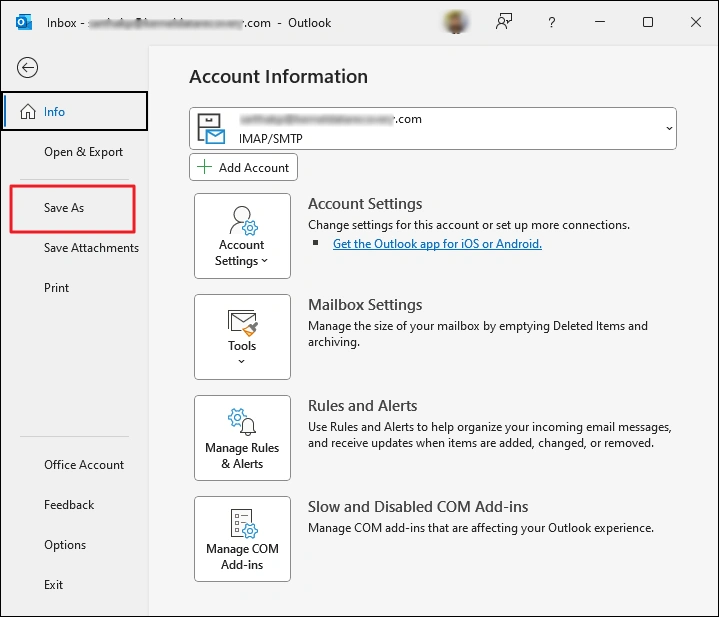
Step 3: Click on the save as type dropdown and select HTML.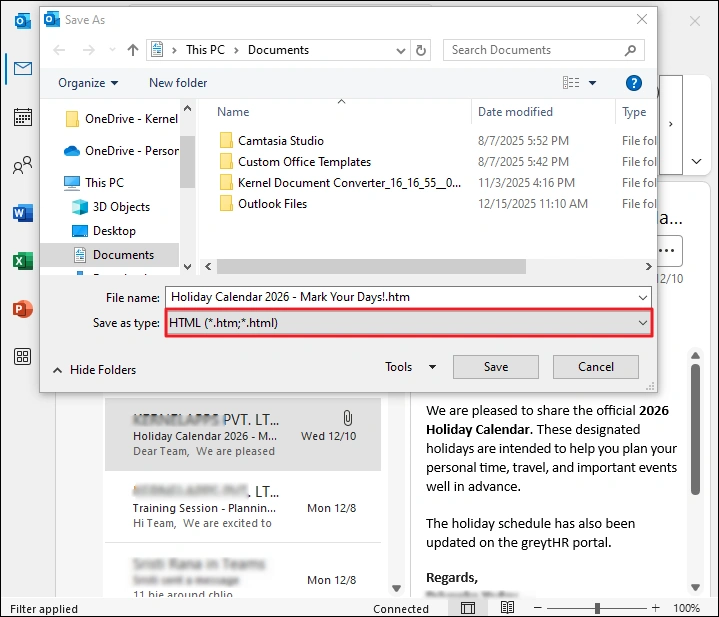
Step 4: Finally, click Save to save Outlook email as HTML file.
Limitations of the manually converting Outlook emails to HTML:
The above method provides a risk and cost-free solution to your problem, but it does have a few limitations that you must know.
- No Bulk Email Conversion: The process does not allow you to change Outlook email to HTML when you select more than one email. Meaning, every Outlook message must be individually converted.
- Require an Active Outlook Profile: You can only use this method to convert emails from Outlook. No conversion directly from PST or OST files.
- Download Multiple Files: Even if you save a single Outlook email to HTML, the Outlook app downloads multiple files and folders. Your main message.html file is dependent on a few other files to show correct formatting, working hyperlinks, etc.
- Skip Attachments: Outlook doesn’t save the attachments; it only preserves the message, email address, hyperlinks, dates, and other details.
Convert Outlook Email to HTML in Bulk – Automated Way
If you have more than a few emails that need instant change to HTML, you must use a professional email converter tool. A famous tool trusted by IT professionals is Kernel Email to PDF Converter. Unlike the traditional method, this tool can directly convert emails from the OST or PST files. You can change Outlook email to HTML, PDF, EML, MSG, and many other file formats. Furthermore, the tool allows you to:
- Import and convert a complete OST/PST file to HTML in a single operation.
- Integrated with multiple filters for user-selective email conversion for large mailboxes.
- You can choose where to save output file; this simplifies file management.
- Option to save attachments separately in PDF.
- Create log files for any emails that fail to convert; this helps to achieve 100% results.
Steps to change Outlook email to HTML with the tool are:
Step 1: Install the tool and open it. Then add the PST or OST file and click Set Filter and Convert button.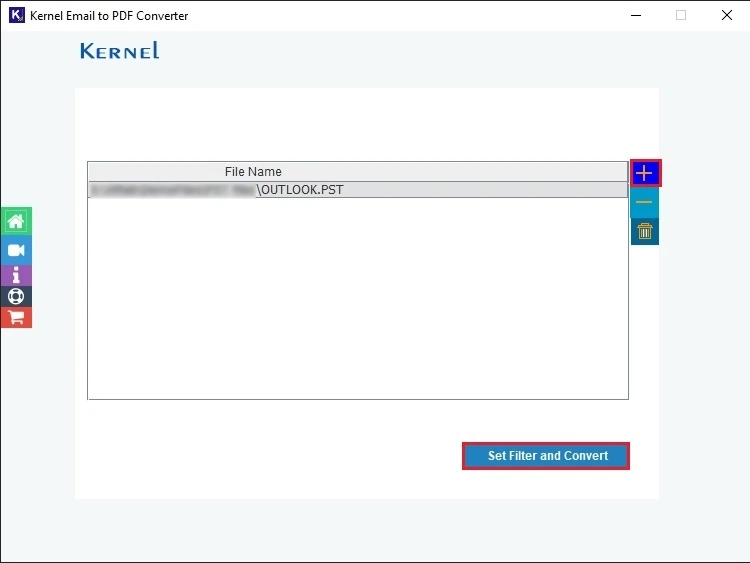
Step 2: Apply the filters as per your requirement and click Start Conversion.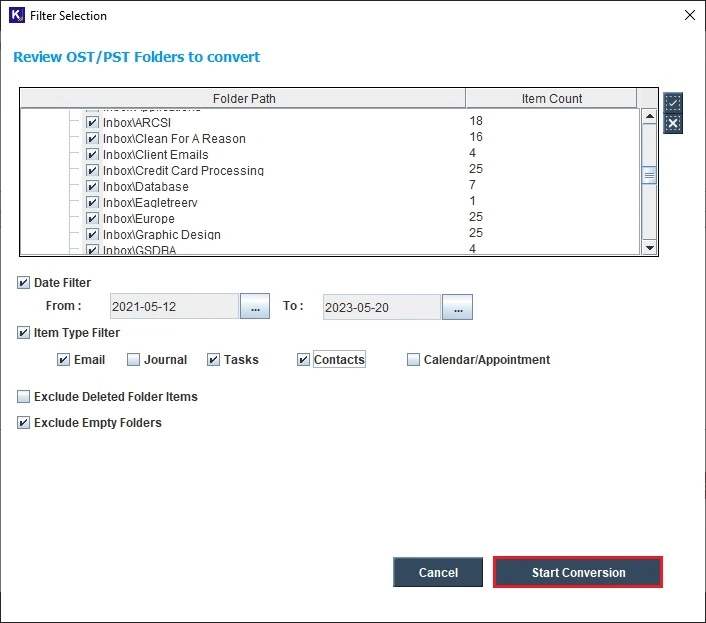
Step 3: Choose the output format as HTML. Click Browse and specify where to save the emails.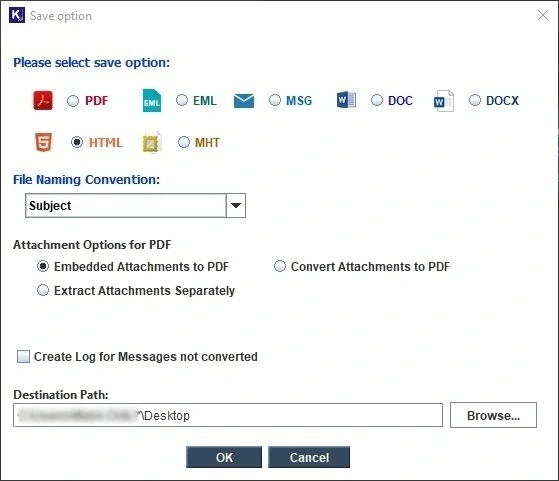
Step 4: Click OK to start the conversion. Once finished you will get a success message along with a link to open the output folder.
Which Method You Should Choose?
Are you wondering what method you must choose to save Outlook email as HTML file? Let’s clear the confusion.
Choose Outlook if:
- You only need to convert a few emails and don’t require the attachments.
- The source emails are available in an active Outlook profile only.
- You don’t mind extra folders and inconsistency in the message structure.
Choose the automated Email to PDF Converter if:
- You require an accurate conversion with both source and destination having a similar body structure with all metadata.
- Requires converting multiple email files to HTML with attachments.
- You don’t have Outlook configured, and the source emails are present in a shared PST file.
Conclusion
Outlook uses three file formats to send emails: HTML, Rich Text, and Plain Text. But it allows you to change Outlook email to HTML, MHT, Plain Text, MSG, and PST file formats. Use the methods discussed above to convert Outlook email to HTML, completely error-free.
To quickly save a few emails to HTML, use Outlook’s Save As option. But to convert thousands of emails in a single operation, you must use the professional Kernel Email to PDF Converter. The tool takes PST/OST files as a source and has no size limitations.
Frequently Asked Questions
A. For bulk email conversion, you have to use a professional email converter software because Outlook only allows you to convert a single email in one operation.
A. Outlook doesn’t save attachments when you choose the output type as HTML or plain text. To save them, you have to use the other Outlook option, Save Attachments.
A. You have to import the PST file in Outlook and then use the Save As option to save Outlook email to HTML.