Read time: 6 minutes
Google Photos is a service that can save videos and images of multiple formats, sizes up to 16 MB, and 1080p resolution videos. It has become the default container for Android users to keep their photos taken on their smartphones. As you may be aware, the total space given to a regular Google account is 15 GB for free; so, if the size of photos in the Google Photos app increases, you need to either remove them or take a backup.
This article explains the best 3 methods to backup Google Photos to PC. But first, let’s know the reasons behind doing so.
Why take a backup from Google Photos to PC?
There are multiple reasons to backup Google Photos to PC. Some of them are:
- A local Google Photos backup can help in preventing accidental data deletion.
- Having photos locally allows faster access rather than accessing them on cloud platform.
- Depending fully upon a single cloud platform or service can be risky.
- Photos stored in Google Photos will be counted in free 15 GB storage offered by Google.
- If your account is locked or compromised, then you might lose all the data.
- Local backup allows easy accessibility without requiring internet connection.
- Photos saved on your computer give you the direct control to manage them.
How to back up Google Photos to computer?
You can backup Google Photos to PC using web application, Google Takeout, or with a professional backup tool. We will provide steps for both methods. Carefully use the steps for a hassle-free backup.
Method 1. Using Google Photos Web App
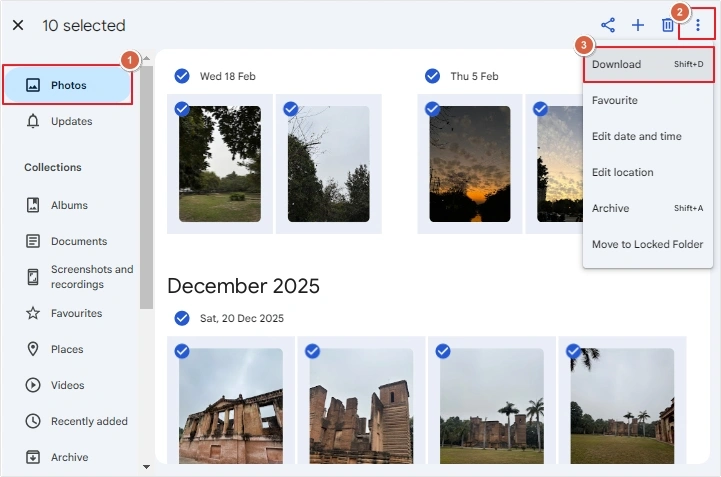
If you don’t have many photos, then you can simply use the Google Photos web application to save Google Photos to PC. Here are the steps to do so:
- Access Google Photos on web.
- Go to Photos and select the required photos, then click three dots > Download.
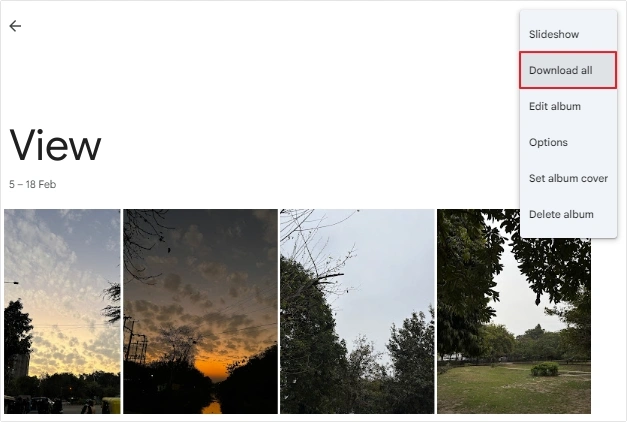
To download a whole album, follow the below-mentioned steps:
- In Google Photos, go to Albums.
- Click three dots, then click Download all.
Method 2. Using Google Takeout
Here is how-to backup Google Photos to PC using the Google Takeout:
- Open Google Takeout on web browser.
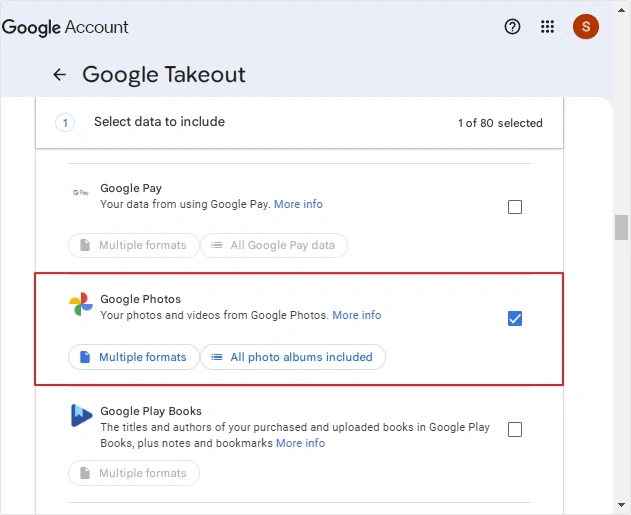
- Click on the Deselect button, then go to Google Photos and use the checkbox to select it.
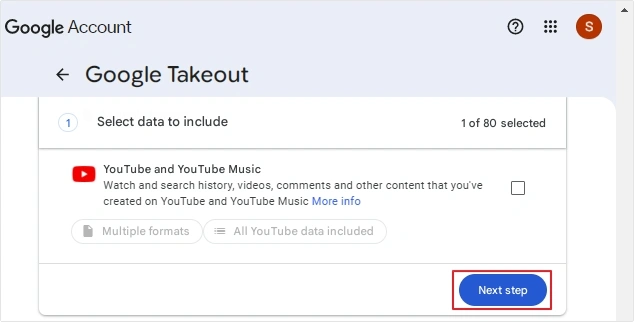
- Click the Next step button to go ahead.
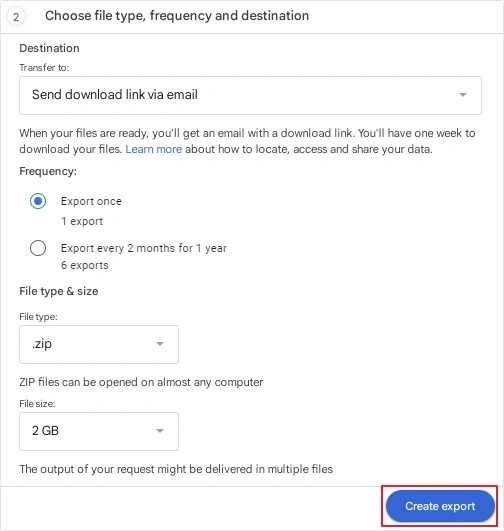
- There are multiple customizable options to take backup from Google Photos to PC, choose any wisely, then click Create Export.
- Destination: Send download link via email, Add to Drive, Add to Dropbox, Add to OneDrive, and Add to Box.
- Frequency: Export once or export every 2 months for 1 year.
- File type & size: .zip or .tgz and size limits (1,2,4,10,50 GB).
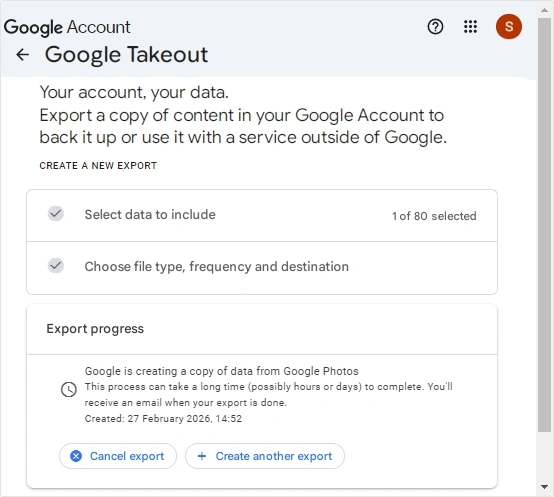
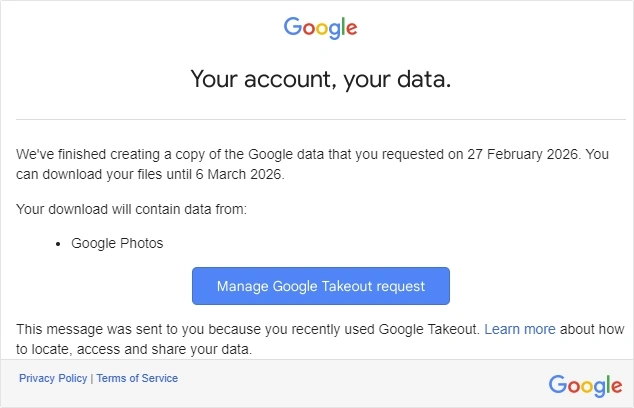
- You will receive a confirmation message of Export progress.
- Go to your Gmail and check for the download link.
Method 3. Use Professional-Recommended Google Photos Backup Tool
The best way to backup Google Photos to PC is using a professional Google Photos Backup tool. The Kernel Google Photos Backup is the ideal solution to save entire data from Google Photos like photos, videos, audio files, albums, and archived files, directly to the desired location on computer. Check out some of its advanced features:
- Easily backup Google Photos to PC for either single or multiple users.
- Protect metadata and media quality throughout the process.
- Doesn’t compromise data integrity while performing the backup.
- Get a review of the number of photos and videos from the selected user account.
- It offers smart date filter for personalized backup of Google Photos data.
- Download a detailed backup report in CSV file for future reference.
- It comes with a free trial version that allows you to save 10 items per folder.
Conclusion
Google Photos are essential for everyone but occasionally users want to backup Google Photos to any other local system. The above-mentioned methods will help you backup Google Photos to PC quickly. However, if manual methods are not able to backup your photos, then use the recommended Google Photos backup tool to backup all your beautiful photos to your local system.
Moreover, if you want to take backup of your G Suite data, you can use Kernel Google Workspace Backup and Restore tool (formerly Kernel G Suite Backup). It allows you to save Google Workspace data like Gmail, Contacts, Calendar, Drive, and Groups, along with photos and videos, with an error-free process.
Frequently Asked Questions
A. To smoothly backup data from Google Photos to PC, use advanced Kernel Google Photos Backup tool.
A. You need to download the data from Google Photos to your PC, and then you can export it to any external hard drive.