Read time: 10 minutes
G Suite, earlier known as Google Apps, is a Google product that includes components such as Gmail, Google Drive, Calendar, Hangouts, and Google +. Users with a G Suite account can work on emails, documents, files, chat, Contacts, Calendars, etc., using these components. Though it is a great amenity, users still have to be cautious against data compromise issues. Because of this, data backup is needed for the G Suite accounts. Each component of G Suite is important as each contains vital information, just like backup Google Hangouts/Chats, or backup Contacts and Calendars to PST file.
This blog focuses mainly on the backup of G Suite Contacts and Calendars to Outlook PST. But before backing up data, let’s know all the prominent reasons why you need to save your G Suite Contacts/Calendar.
Why Users Backup G Suite Contacts/Calendar – Key Reasons
The G Suite Contacts and Calendars backup is needed for the users because of these reasons:
- There can be conditions like server outages when users need data offline.
- Interruption in internet connectivity, which causes data inaccessibility.
- Users need to access Contacts and Calendars on a different platform (desktop client).
- Accidently or mistakenly deleted data can be retrieved easily with a backup file.
- Backup can prove to be a savior from hacking activities and safeguard your essential data.
So, taking backup of G Suite Contacts and Calendars is a wise approach and should be practiced regularly to avoid difficult circumstances. Following that thought, let us move forward with the solutions.
Manually Export G Suite Contacts/ Calendar to PST file
You can manually export G Suite Contacts/Calendar to PST file. But for that, you need to go through your Google Workspace Admin ID and then Outlook. This method will be completed in three parts. Here’s how to execute this method:
Part 1: Enable IMAP in the G Suite admin account
It is the first step where you need to enable IMAP settings in your G Suite account. Let’s start enabling IMAP to set your account for a hassle-free export process:
Step 1: Log in to your G Suite admin account.
Step 2: On the G Suite Home Page, click on the Apps icon and select Gmail.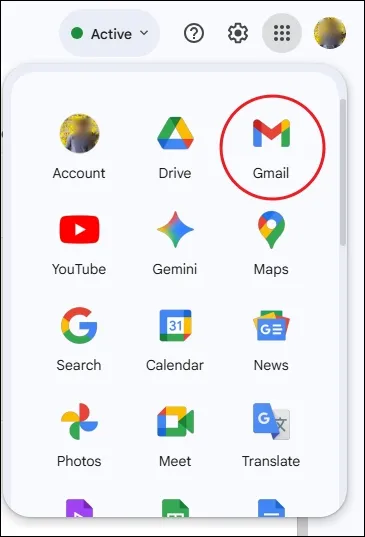
Step 3: Click on Setting icon > See all settings.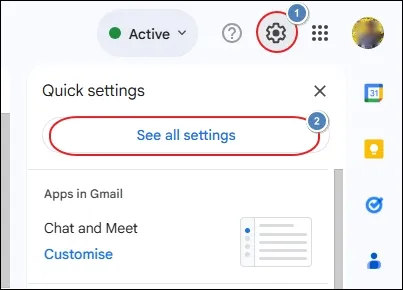
Step 4: In the Settings window, go to Forwarding and POP/IMAP section. Scroll down to review and update IMAP access settings.
Note: Please click on Configuration instructions for detailed information on how to configure your email clients.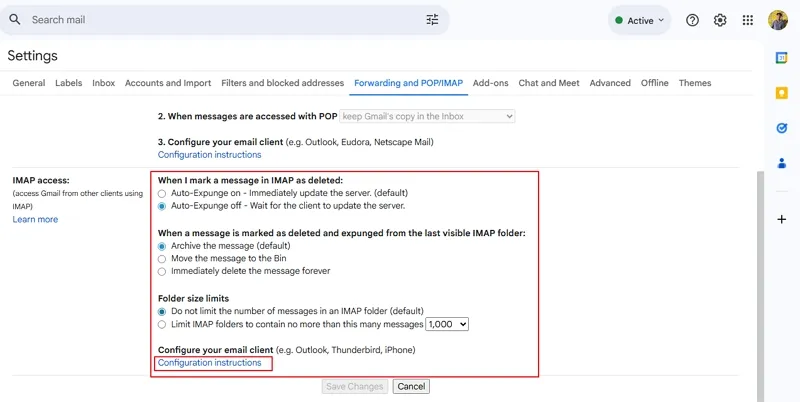
Step 5: As you can see, after January 2025, G Suite has permanently enabled IMAP access for every user.
Part 2: Add IMAP Gmail account in Outlook
After enabling IMAP settings, it’s time to add your Gmail account to Outlook using the IMAP server. Go through the steps below to configure your Gmail account in Outlook.
Step 1: Launch Outlook and click on File.
Step 2: Go to the Info option, click Add Account.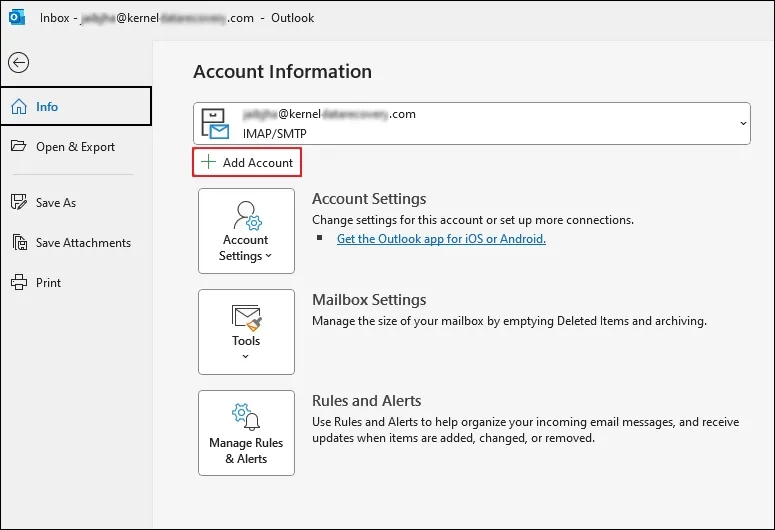
Step 3: In the following window, enter your Gmail ID, check Let me set up my account manually, and click Connect.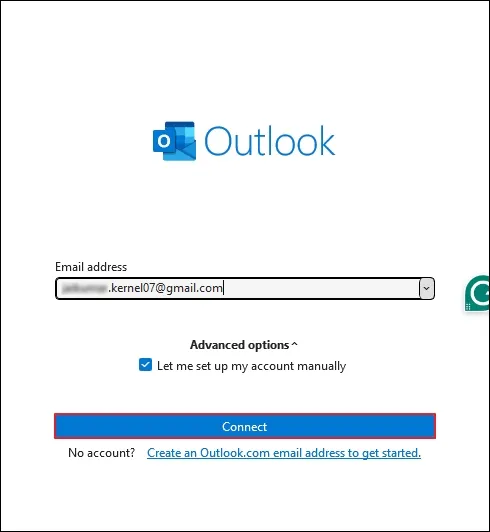
Step 4: In the Advanced Setup wizard, click on Google.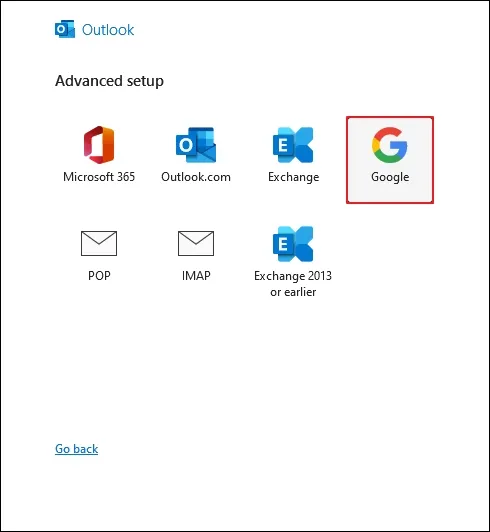
Step 5: Complete your account setup process and the Outlook will add the Gmail account.
Part 3: Use the Import/Export feature to export G Suite Contacts/Calendar
Outlook offers an inbuilt Import/Export feature to export Outlook data in a PST file format. With this feature, you can easily save all your G Suite Contacts/Calendar to PST file format with ease. Let’s start the export process:
Step 1: Open Outlook and click on File.
Step 2: In the following window, select Open & Export and click on the Import/Export tile.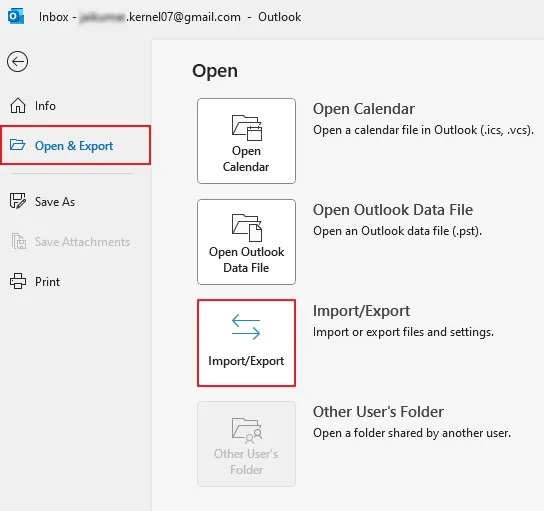
Step 3: Now, select Export to a file and click Next.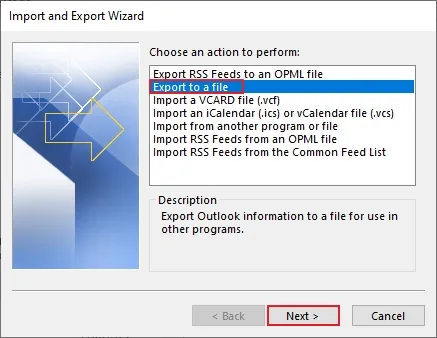
Step 4: Select Outlook Data File (.pst) and click Next.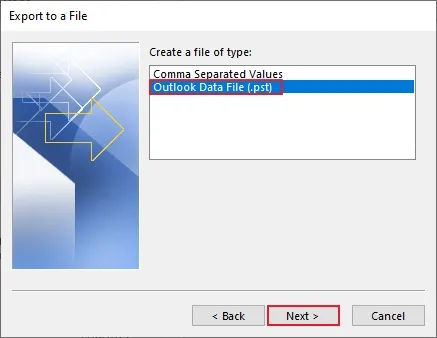
Step 5: Select the Gmail account, check Include subfolders, and click Next.
Note: You can select all the folders containing Contacts/Calendar.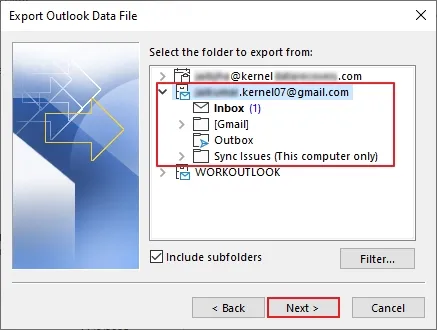
Step 6: Browse and select PST saving location and click Finish.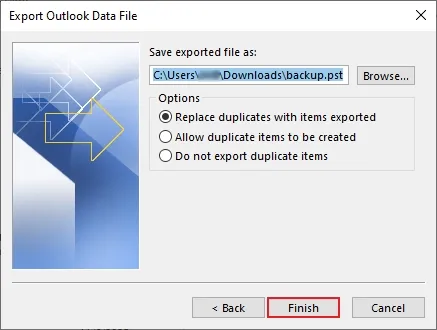
Step 7: Outlook will export G Suite Contacts/Calendar to PST file in the selected saving location.
Limitations of the Manual Method
- Manually exporting contacts and calendars to PST is a lengthy process and you need to attempt a multi-step process.
- You need Microsoft Outlook installed and configured on your machine to perform the final import into a PST file.
- If your Google mailbox is lengthy, then you might experience corruption or performance issues in Outlook.
- There is no direct PST export process. Google doesn’t directly export to PST, so you need to go through all three-parts export process.
- You need to be a technically skilled person to initiate this export process. If a single step is missed, you will lose your data.
Professional solution to back Up G Suite Contacts or Calendars/Appointments
If you want to backup G Suite Contacts and Calendars information to Outlook PST file directly in minimum steps, then the best option for you is the Kernel Google Workspace Backup and Restore tool.
It is a special tool to backup G Suite single/multiple mailboxes, contacts, calendars/appointments, etc., to Outlook PST file. It backs up Google Drive data too. And it allows users to choose item types (here, Calendar and Contacts) to perform selective data backup. This advanced G Suite backup tool provides automated mailbox backup using the CSV file and also supports incremental data backup.
The tool has a free trial version using which users can experience the software interface and its features. It also backs up 10 items per folder and 5 documents per drive free.
How to backup G Suite Contacts and Calendars/Appointments to Outlook PST File?
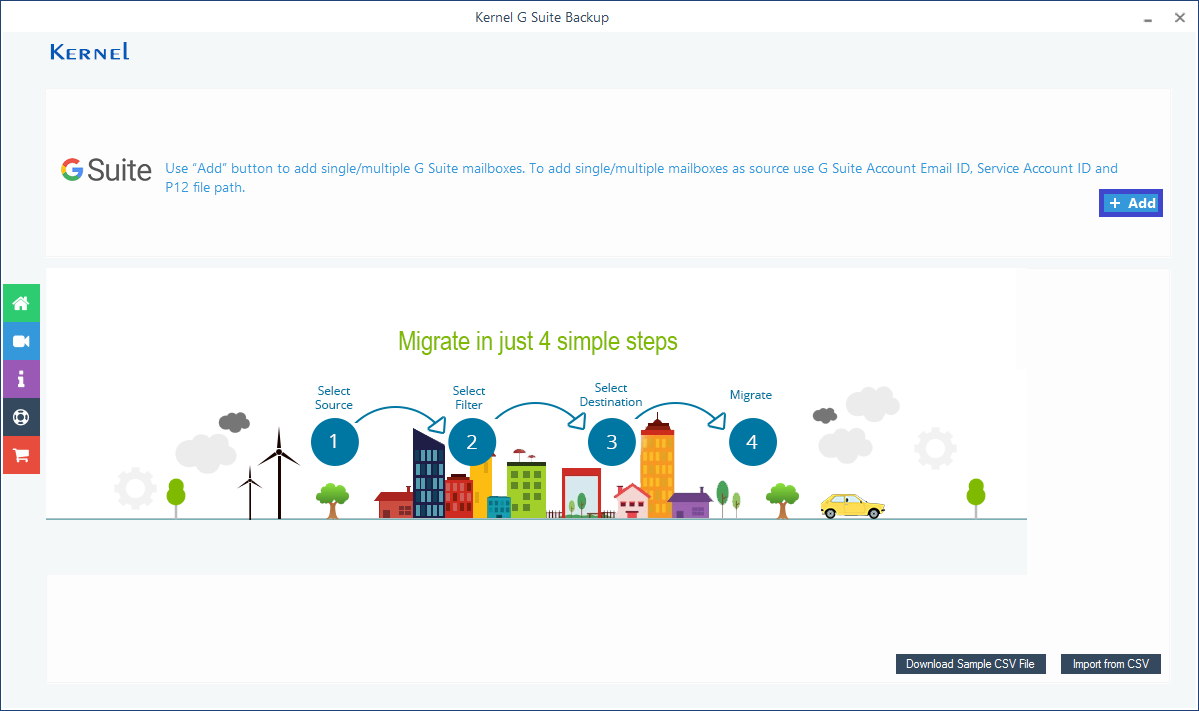
Step 1: Launch the tool. On the software’s homescreen, click on the Add option.
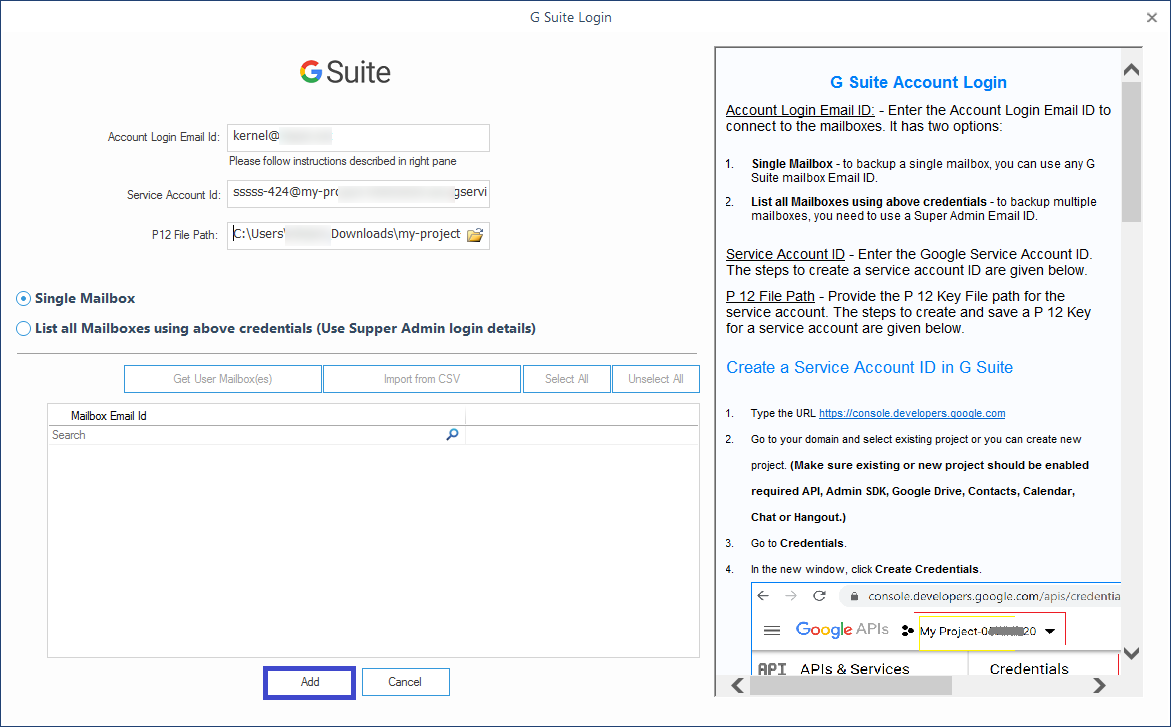
Step 2: On the G Suite login page, provide account information like Account Login Email id, Service Account id, and P12 File Path; select the option Single Mailbox (to add a single mailbox from the account). (To add multiple mailboxes, select the second option and click Get User Mailbox(es). Then select the required mailboxes.) Finally, click on the Add option.
Note: Users can get detailed information about creating the Service Account ID and P12 File path from the same software interface.
Step 3: The G Suite account will get added soon and displayed. Click Set Filter and Migrate option continue the export process.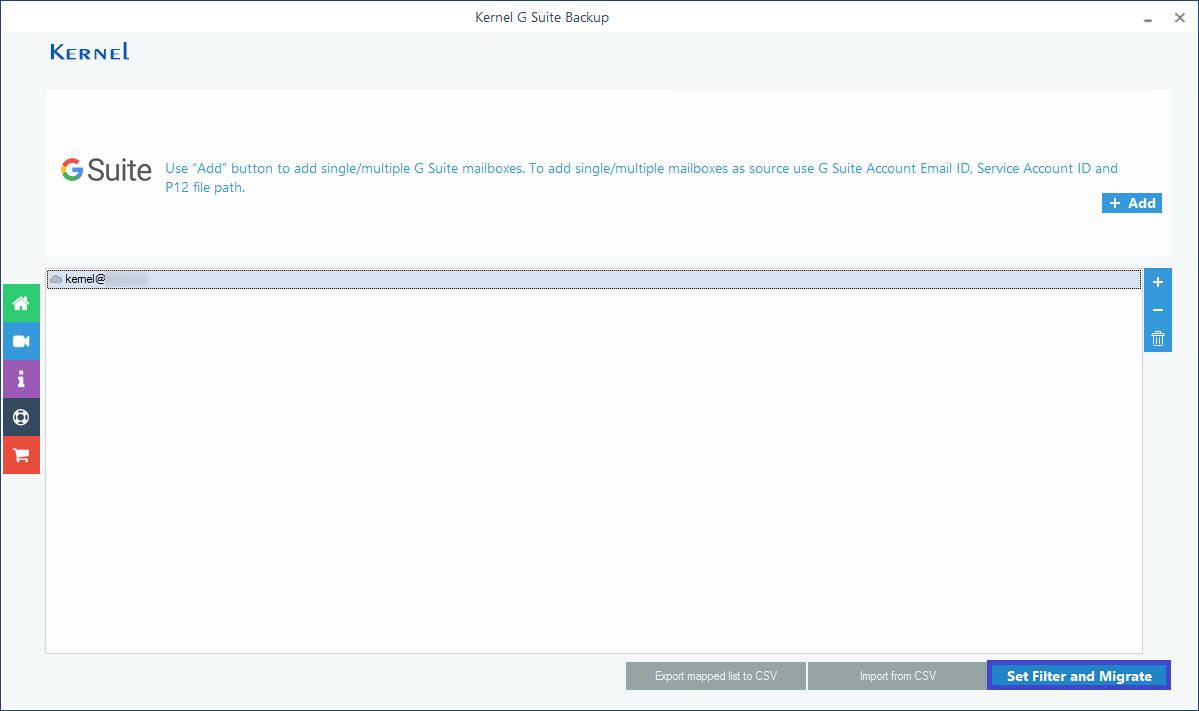
Step 4: From the Filter Selection page, select Contacts and Calendars/Appointments and choose other options if required. Click I am OK, Start Migration.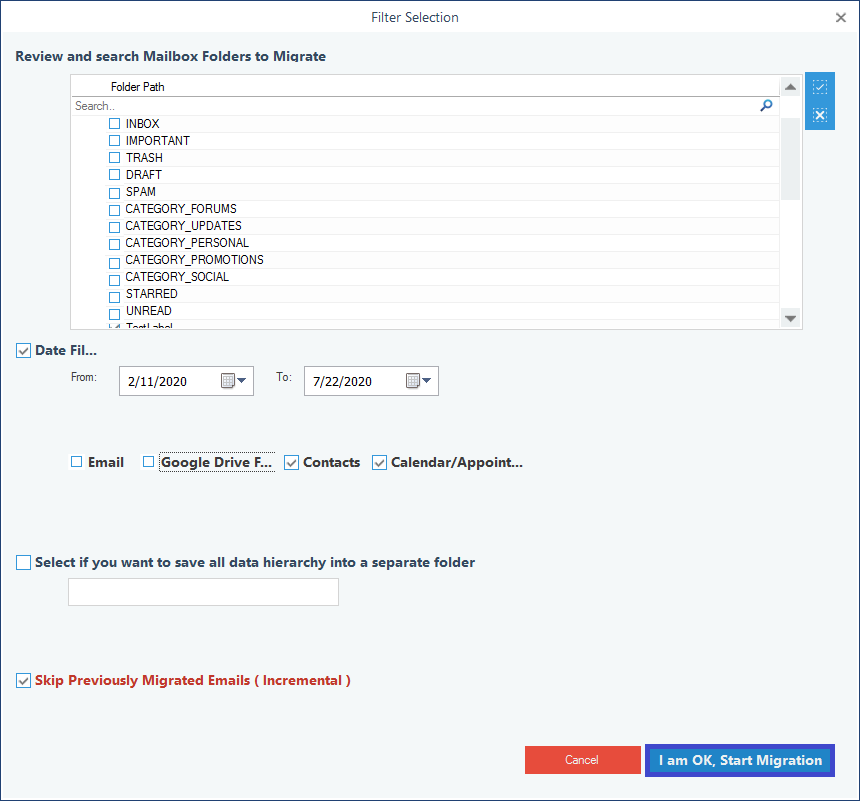
Step 5: Here, choose the file format as PST file from the Save As dialog box and click on OK.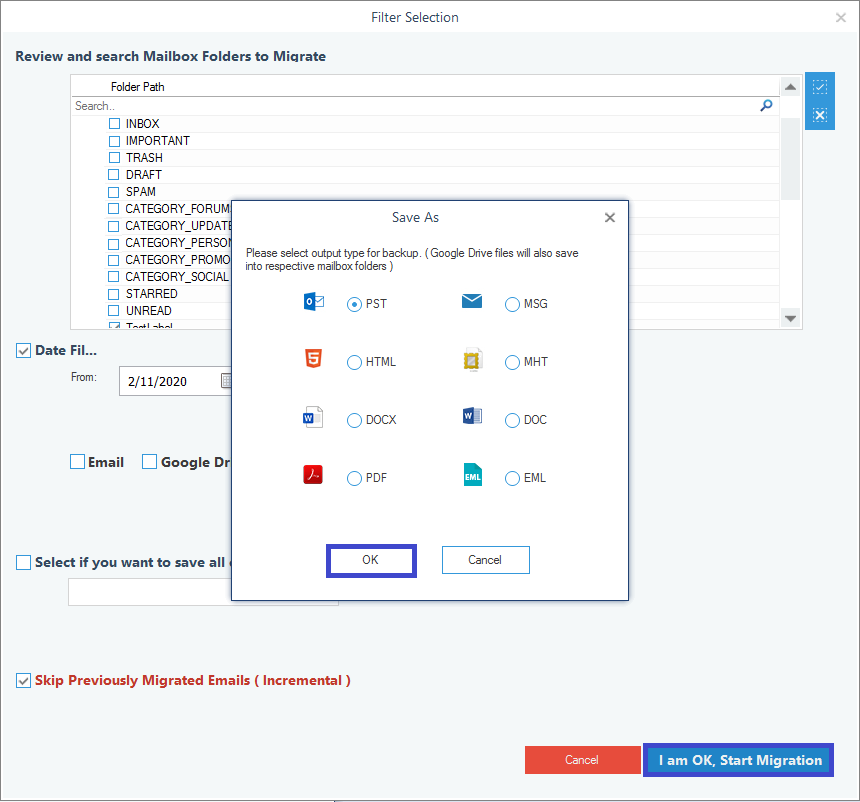
Step 6: Provide a saving location for the backup PST file and click on OK.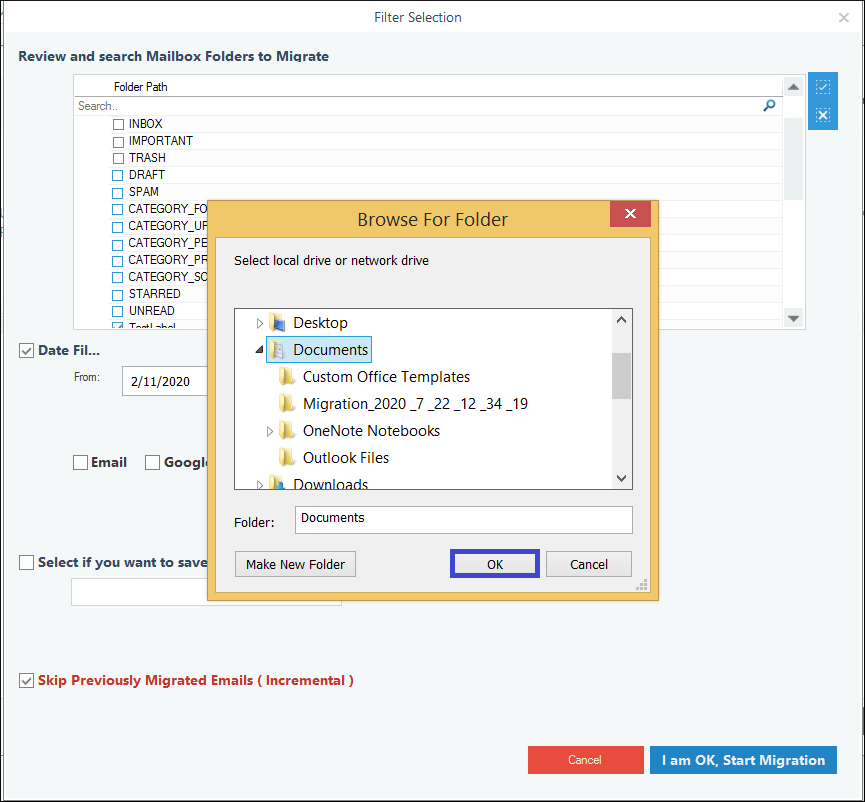
Step 7: The backup will get started, and the live progress of the Contacts and Calendars/Appointments backup can be seen. Once the backup is completed, a confirmation message will be displayed. Click on OK.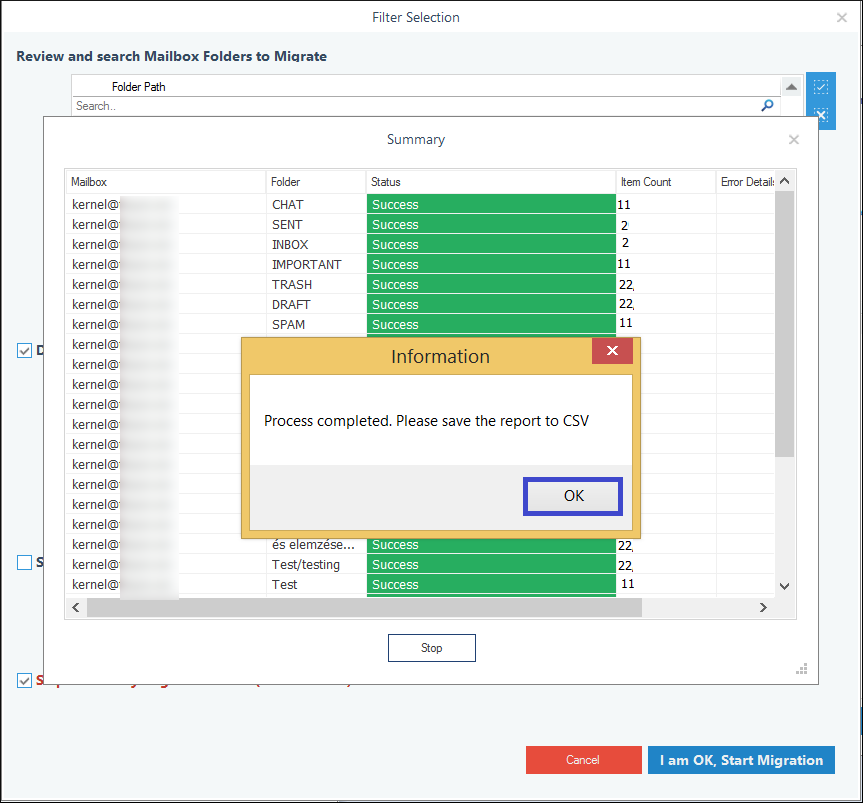
Step 8: To save the backup report to Outlook CSV file, click on Save to CSV option.
Step 9: The G Suite Contacts and Calendars backup is completed successfully.
So, if you want a secure and direct way to backup G Suite Contacts and Calendars, then the best way is to try the most advanced and reliable Kernel Google Workspace Backup and Restore tool. It ensures the selective backup of data from the G Suite accounts to Outlook PST files. Give it a try!
Conclusion
There is not a single direct way to export G Suite Contacts/Calendar to PST file. Thus, you need to attempt a three-part guide to get your essential G Suite data. But the main thing is that this three-step process is not offering guaranteed results. That’s why, we recommend you to opt for Kernel Google Workspace Backup and Restore software to get error-free export process with precise Contacts/Calendar backup.