Read time 5 minutes
When the user configures an Office 365 account in Outlook, the application completes the login process with only the email address and password. After entering the credentials, a pop-up opens to complete the login. This is possible due to Outlook’s feature called Autodiscover.
However, sometimes due to issues with DNS settings or other server-related problems, the Autodiscover fails to obtain the information needed to authenticate the user’s Microsoft 365 account credentials. Furthermore, the following issues are triggered when Autodiscover is not working:
- Outlook will not connect to the mailbox.
- Public folders are not accessible.
- Auto-mapping within a shared mailbox does not work.
- Sharing invitations will not work.
- Outlook stucks when loading profile
What is Autodiscover in Outlook?
Autodiscover is a Microsoft service that helps to configure a profile in Outlook. This feature is capable of automatically fetching the details required to connect to an account in Outlook, using only the email address and password.
This avoids manually entering the server’s name, port number, type of encryption, and other details. Autodiscover will ask for all the details needed for account setup on its own from the user’s domain provider.
Currently, Autodiscover version 2 is in use. It uses REST APIs and Modern Authentication (OAuth 2.0) for connection. The earlier version 1 (V1) is deprecated and disabled. But still, many users are using the configuration made for Autodiscover V1 and face the Autodiscover failure issue.
Why is Autodiscover not working?
The culprit could be a server-side issue or a client-side issue. Top reasons reported by admins for Outlook Autodiscover failing are:
- The email address you are using for Auto Account Setup is wrong.
- The Outlook version is out of date and does not support Autodiscover.
- The CNAME record is not set up correctly, or it is missing.
- Missing user details in the Active Directory.
- Modern authentication is disabled in the Office 365 account that the user is adding.
- In hybrid Exchange setups, incomplete attributes like “proxyAddress”, “mailNickname”, and “displayName” can trigger the issue with login.
How to Verify the Autodiscover is not working issue?
To confirm whether Autodiscover is working correctly or not, check the status of the Autodiscover using these two ways:
Way 1. Using Microsoft Remote Connectivity Analyzer
- Go to the Remote Connectivity Analyzer Outlook Autodiscover test page.
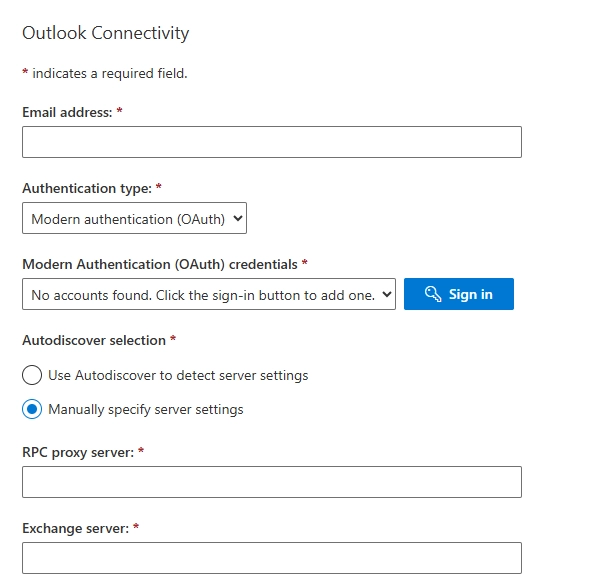
- Enter the required details, scroll down, and click Perform Test.
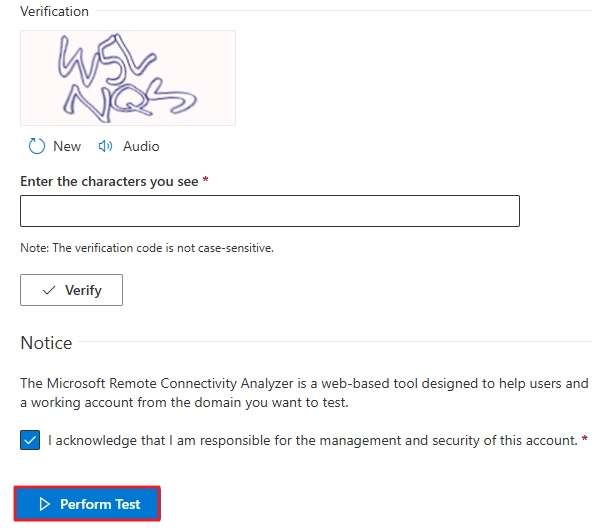
If the test fails, Autodiscover is not working. In case the above link is not working, try the next method to check the status of Autodiscover.
Way 2. Using Outlook Application
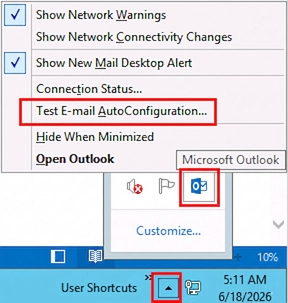
- Find the Outlook application icon on the taskbar. Hold ctrl key, right-click on the icon, and select the option ‘Test Email AutoConfiguration.’
- Input the user’s credentials. Check the option Use Autodiscover and uncheck other options. Then, click the Test button.
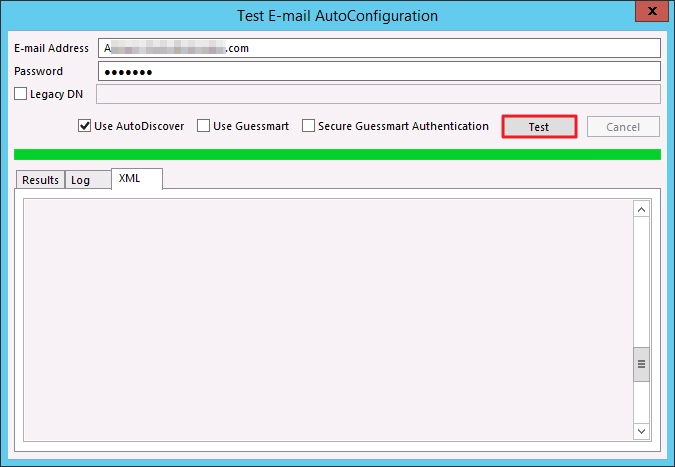
If Autodiscover is working fine, the user will see a success message along with logs. Click on the XML tab and look for information regarding the Autodiscover URL. But if the test fails, then Autodiscover is not working. In this case, use the methods from the next section to fix the problem.
Troubleshoot the Autodiscover not working problem
There are multiple methods that an administrator can use to troubleshoot the Autodiscover disabled error. Let’s see them one by one:
Quick solutions to fix the Autodiscover failing problem:
- Update Outlook to the latest version or at least use a version that supports Autodiscover.
- Verify with your admin if the user’s mailbox is still active.
- Make sure the Modern Authentication is enabled in the account that you want to add.
Method 1: Use the Outlook profile troubleshooter
Using the Windows Get Help app, it is possible to troubleshoot the issue with the Outlook profile. To open the troubleshooter, do this:
- Click here and open the link in a new tab.
- When you get the “Open Get Help?” prompt, choose Open Get Help?
- Follow the instructions on the Get Help app to resolve the issue.
Method 2. Verify your CNAME DNS Record
Navigate to your registered domain or DNS hosting platform and check the value of the CNAME record. This record is mandatory to have for connecting an Exchange Online account with Outlook. Values in the record must match with the ones given below:
| Field | Value |
| Type | CNAME |
| Name | autodiscover |
| Value | Value Autodiscover.outlook.com |
| TTL | 3600 |
If the values are different, then update them. Or if the complete record is missing, add it. Then, wait for at least 24 hours, the time needed for the records to update, and try to connect to the Microsoft 365 account again in Outlook.
Some domain providers do not use CNAME records but require SRV DNS Record. In that case, you have to check the SRV record values. They must be like this:
| Name | _autodiscover._tcp |
| TTL | 3600 |
| RR Type | SRV |
| Value | 0 443 companydomainname.com |
Method 3. Check User’s Attributes
When you are on a hybrid Exchange setup, make sure the values of user attributes are correct. The easiest way to check them is to use Get-RemoteMailbox cmdlet in the Exchange Management Shell (EMS). For comparison, check out the below given sample of a user’s attribute value.
| Attribute | Example |
| primarySMTPAddress | John@contoso.com |
| alias | johncarry |
| displayName | John Carry |
| emailAddresse | SMTP: john@contoso.com X400:c=us;a= ;p=First Organization;o=Exchange;s=Carry;g=John |
| remoteRoutingAddress | john@contoso.mail.onmicrosoft.com |
If the above given format is not followed, update it using the Set-RemoteMailbox cmdlet. Then, wait for the values to get synchronized with the server, it usually takes a few hours. After that, try to connect the account to Outlook to see if the “Autodiscover is not working” issue is resolved.
How to resolve Autodiscover not working problem in New Outlook?
The way New Outlook uses Autodiscover to add an account is slightly different than the classic Outlook. It talks directly to the Microsoft server instead of the user’s local DNS hosting server.
If the new Outlook won’t configure with Office 365, do this:
- Sign out and sign back in using the primary SMTP address (not an alias).
- Clear the app’s cache:
- Go to System Settings > Apps > Installed apps.
- Search for Outlook, select New Outlook, and click on Advanced options.
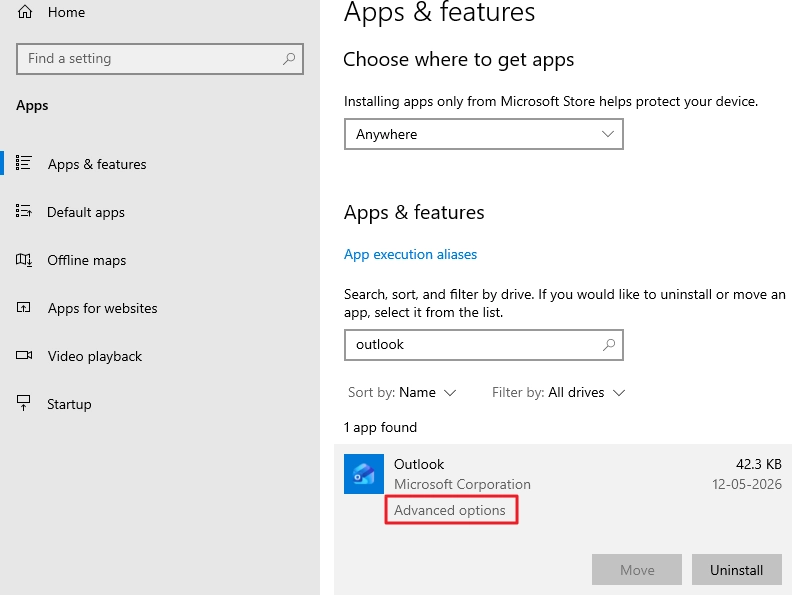
- Scroll down and click the Reset
Workarounds to Fix Autodiscover not Working Issue
When you don’t have the required permissions to execute the above method or if it is taking too long to solve it, try these workarounds. The solutions below will tell Outlook to skip the usual workflow of Autodiscover and directly communicate to Microsoft server for log in.
Workaround 1. Modify Registry
- Open the Run dialog box (Win + R), type ”regedit”, and press Enter
- In the path section, type: “HKEY_CURRENT_USER\Software\Microsoft\Office\16.0\Outlook\AutoDiscover” and press Enter
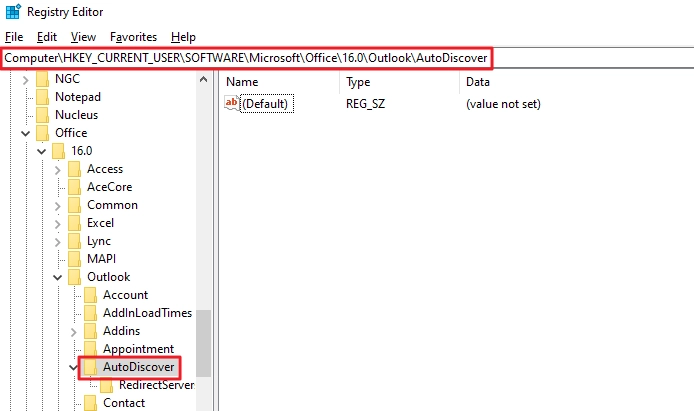
- The Autodiscover folder will open. Right-click and select New > DWORD (32-bit) Value.
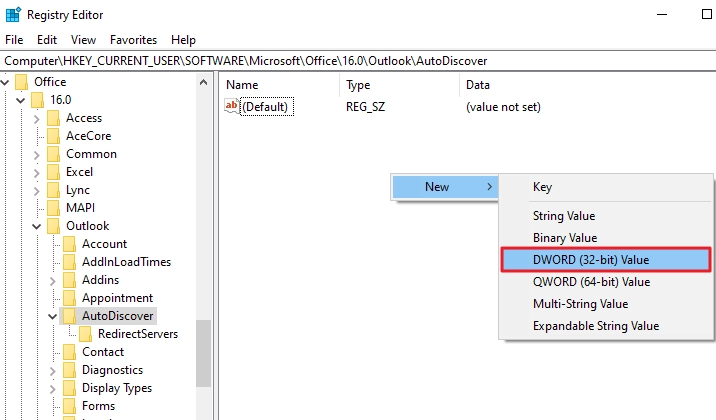
- Type “ExcludeHttpsRootDomain” and press Enter.
- Double-click the “ExcludeHttpsRootDomain” entry and in the Value data box, change the 0 to a1 Then, click OK.
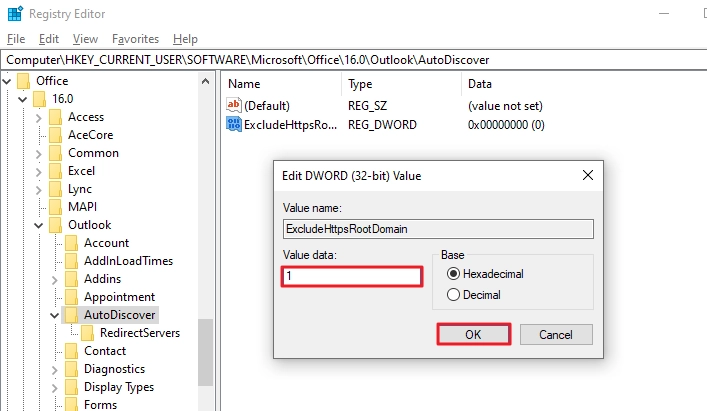
Follow the same steps as above and create these two values, “ExcludeHttpsAutoDiscoverDomain” and “ExcludeSrvRecord”. Then restart the PC and try to add the Microsoft 365 account.
Workaround 2. Sign in with the default Exchange mailbox username
When you are not using a custom domain, you can try to add the account using the onmicrosoft.com email address that is defaulted to your Exchange mailbox. To do so, in Outlook, begin the process of adding a new account. Then, enter the onmicrosoft.com-based email address and password.
Conclusion
The Autodiscover not working issue in 2026 requires different solutions compared to 2020. Start with the Outlook troubleshooter techniques to fix the problem. In case you need to urgently add the account, use one of the workarounds given above.
Moreover, it has also been reported that this particular issue also arises after a cutover migration gone wrong. To avoid such problems after migration, I suggest using specialized mailbox migration software like Kernel Migrator for Exchange. This tool can do both cutover migration and batch migration. Additionally, it comes with a pre-migration analyzer to help minimize the chances of any errors during migration.
Frequently Asked Questions
Ans. This symptom indicates that your Outlook is failing to communicate correctly with Office 365. To resolve Outlook keep asking for password issue, remove the old, saved credentials from the Credentials Manager and restart Outlook.
Ans. No. Microsoft does not support adding an Exchange Online mailbox through manual setup. You must fix the Autodiscover not working issue or try the workaround using the registry setting.
Ans. Outlook is checking the local Active Directory (AD), which is responding with an invalid SSL certificate. You can force Outlook to stop looking at local AD and connect directly to the Microsoft server to add the account by adding the ExcludeHttpsRootDomain and ExcludeScpLookup DWORD values to your Windows registry.