Read Time: 10 minutes
Microsoft Teams simplifies teamwork and communication within the members of the organization and the outside (guest) users. The Microsoft Teams external collaboration feature helps the account owner to easily add guest to Microsoft Teams.
The steps to add an outsider to Teams are simple. However, users often skip the important guest access configuration settings and later face issues. A specific method with proper execution is required to add a new member to Microsoft Teams. In this article, we will highlight the process of adding guest users to Teams while discussing different factors to manage them effectively.
How can I add guest users to Microsoft Teams?
You can directly add members to your team from the Teams application. Moreover, if you are an admin, you can also add a guest to a team from the Teams admin center. The steps to add a guest user are:
- Launch Microsoft Teams and select Teams in the navigation pane.
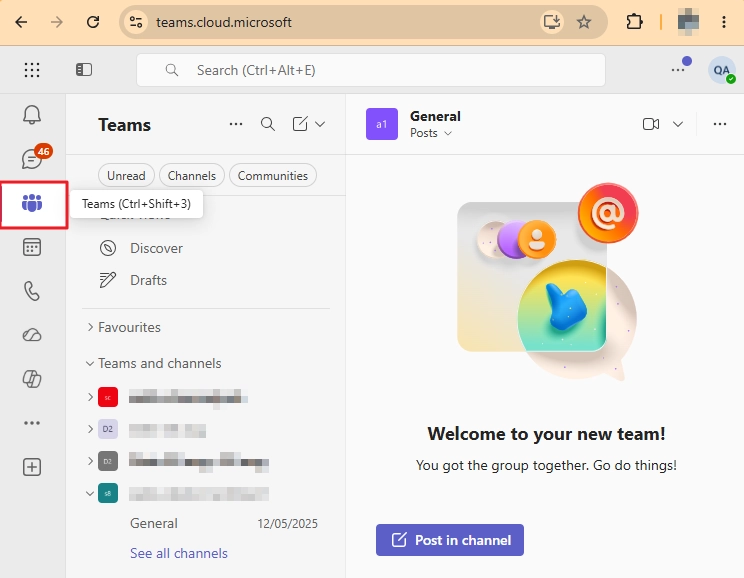
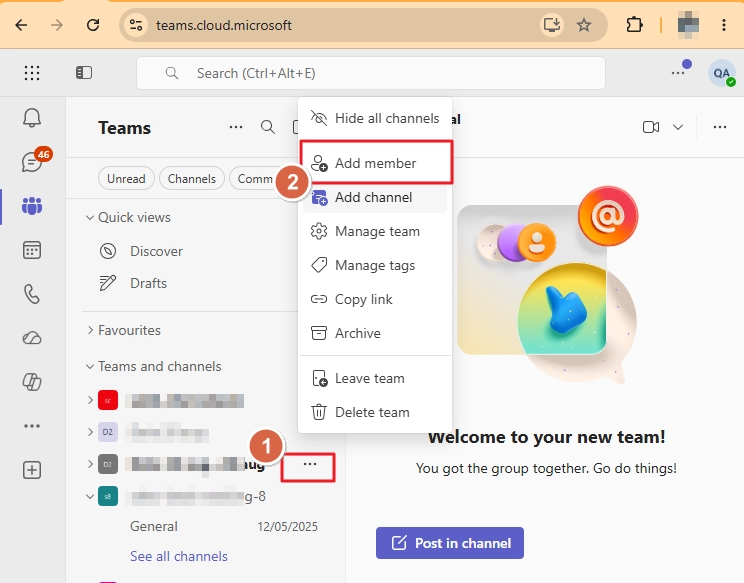
- In the Teams section, go to your preferred team and click the three dots icon. Then select the Add member option.
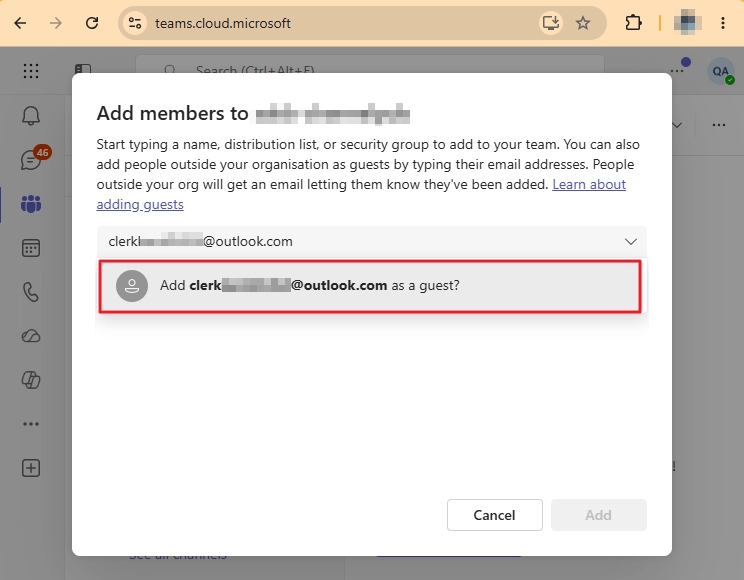
- Enter the email address of the guest user you want to include and click the Add button.
- Afterward, the selected users will receive an invitation about the addition in Microsoft Teams.
- Now, the user needs to click on the invitation link and grant the required permissions to the organization. It could take up to 12 hours for the guest user to gain access to the team.
What To Do If You Cannot Add Guest Users To Microsoft Teams?
Sometimes, when adding an outsider, you may get an error like “We didn’t find any matches”. This error generally occurs when your organization does not allow guest access to Teams. In this case, you must diagnose the issue and enable guest access in Microsoft Teams.
How to Enable Guest Access in Microsoft Teams?
Teams have a direct on/off switch to control guest access. You can enable it with the following steps:
- Go to the Microsoft admin center page and log in with admin credentials.
- From the left navigation pane, select Show all.
- In the expanded option list, find and click Teams.
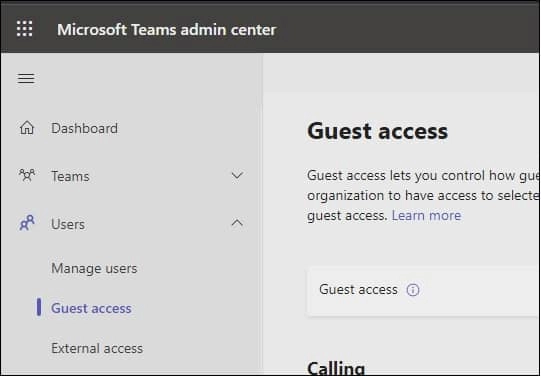
- From the left navigation pane, select Users > Guest access.
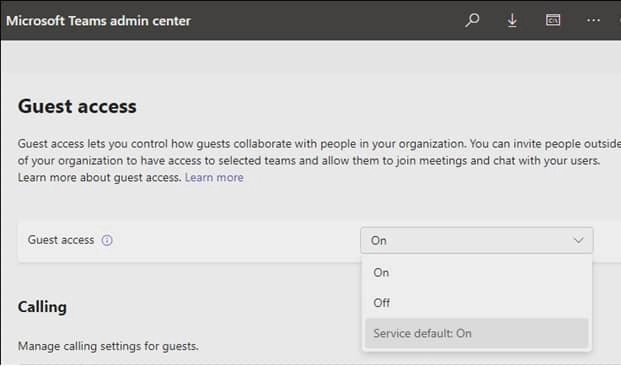
- Set the Guest access to On.
After enabling guest access in Microsoft Teams, go back to the Teams app and try again to add guest users to Microsoft Teams.
What To Do If The Guest User Cannot Access The Team?
Sometimes, after adding guest users to Microsoft Teams, they face issues like being unable to access the team or shared files. To fix this, you have to check Microsoft 365 Groups guest settings and SharePoint organization-level sharing settings. The process to do both is given below.
Set Microsoft 365 Groups guest settings
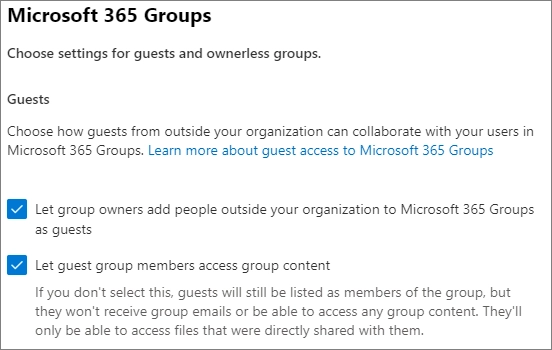
Since the Teams application relies on Microsoft 365 Groups for team membership, you have to turn on guest access for Groups to allow them access to the team.
- Go to the Microsoft 365 admin center, and from the left navigation pane, click Settings.
- From the settings, select Org settings.
- Then, from the list, click on Microsoft 365 Groups.
- Check the following checkboxes and click Save.
- Let group owners add people outside your organization to Microsoft 365 Groups as guests.
- Let guest group members access group content.
Configure SharePoint sharing settings
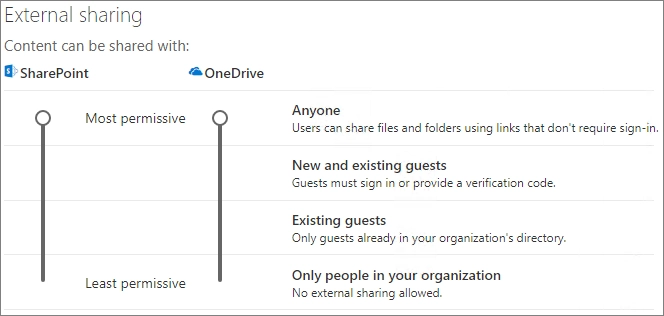
You need to modify the SharePoint settings to allow the guest user to access files, folders, and lists because these data items are stored in SharePoint. To make sure the guest can access the team data, do this:
- In the Office 365 admin center, from the left navigation pane, click Show all.
- Scroll down. Under the Admin center section, select SharePoint.
- When the SharePoint admin center opens, from the left navigation pane, click Policies > Sharing.
- Under the External sharing section, select and adjust the SharePoint slider. Hold and drag it to match the New and existing guests value.
How To Manage What Your Guest Can And Cannot Do In Teams?
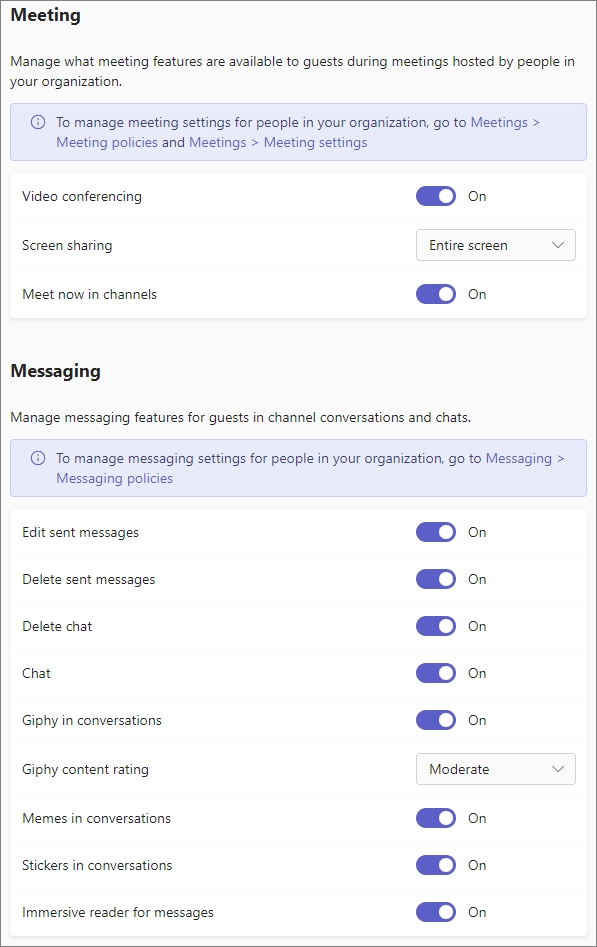
It is important that you know how you can manage what your guest user can access after adding them to the team. For this, you must use the Microsoft Teams guest access settings and follow these steps:
- Go to the Teams admin center. From the left navigation pane, click Users > Guest access.
- Here you can set different access settings for a guest related to meetings, calling, and messaging. For example, when you invite guest to Teams meetings, you can specify whether they can share their screen or use Meet now.
Difference Between A Standard Teams User And A Guest User?
When you add guest users to Microsoft Teams, that user does not have the same accessibility scope as a standard member of that team. The access rights of a guest user are limited and controlled. The following table shows a few differences between the access of a standard user and a guest user.
| Functionality | Standard User | Guest User |
|---|---|---|
| Create a new team in Teams | Yes | No |
| Search within files | Yes | No |
| Add apps | Yes | No |
| Invite a user outside the organization | Yes | No |
| Create meetings | Yes | No |
| Share a chat file | Yes | No |
| Access OneDrive for Business storage | Yes | No |
How Can I Remove Guest Users From Microsoft Teams?
When you are done collaborating and no longer want a guest user to have access to any data from your team, you can remove them. To remove a guest user from a team, follow these steps:
- Go to Microsoft 365 admin center. From the left navigation pane, select Guest users.
- The Guest users page will display all the current guest users in your organization.
- Select the guest user you want to remove and choose the option Delete a user.
What Happens To Your Guest User’s Data When You Migrate Teams?
You add guest users for collaboration, and in almost all of the cases, you want their data to be retained in your team even if you have to migrate Teams data. However, the native tool, Orchestrator, from Microsoft does not support migration of shared data such as channels. So, the communication between your team and the guest user will be skipped during the tenant-to-tenant Teams migration.
To prevent losing guest user data and make sure all the guest user messages or shared files are still accessible after migration, you must use a professional Teams migration tool.
A tool that supports this capability is the Kernel Microsoft Teams Migration tool. It allows you to migrate your chats, channels, files, posts, and all your team components from one Teams account to another. The tool also supports migrating the guest user messages and shared files in the team channel, so all your collaborative work stays available in your new Teams account.
Conclusion
Guest access in Teams is the simplest way to allow outsiders to collaborate in your projects. In this blog, we have discussed how to add guest users to Microsoft Teams and allow them access to team data. If permissions at the team level are not working, you have to use the organization-level guest settings in Entra ID (Azure Active Directory)
Moreover, if you have to migrate Teams while keeping the shared data intact, use the Kernel Microsoft Teams Migration tool. The tool can migrate private channels, public channels, 1:1 chats, group chats, files & shared files, user & guest permissions, and more.
Frequently Asked Questions
A: An external user communicates with your team using only chat, calls, and meetings. They are not a part of the team. But a guest user is added to the team, has an entry in Microsoft Entra ID, and can access team resources. Moreover, guest users can share files outside organizations, access team resources, use Meet now, and more. But external users cannot do that.
A: This happens when guest access for your organization is turned off. You have to turn it on to enable Microsoft Teams external collaboration. After enabling guest access, it may take up to 12 hours for the changes to take effect.
A: If you are logged in to the Office 365 admin center, click the Show all option from the left navigation menu and select Teams. This will open the Teams admin center. Now, from the left navigation menu, click Users, choose Guest access, and allow access.
A: guest user can do most of the things that a standard team user can do, like participate in group chat, view files, do one-to-one chat, etc. However, the guest user cannot create channels, integrate apps, delete files permanently, and more. You can control the permissions of a guest user from the Guest access section in the Teams admin center.
A: Yes. If the guest user has been invited and the organization’s SharePoint sharing permissions allow guests to view the files. However, if your guest users face any issue in viewing files, verify the organization-level SharePoint sharing settings.