

Organizations are now replacing Enterprise Vault (EV) storage with modern cloud infrastructure systems. And if you ask me, that makes sense. Compared to Enterprise Vault, cloud systems like Office 365 offer better storage configuration at an affordable price. But what I like the most is the ability to view my archived data whenever I want from my mobile. If you want to transfer archive mailboxes from Enterprise Vault to Office 365, then you can do it in 2 steps:
Step 1: Export mailboxes to PST format
Step 2: Upload PST to Office 365 account
Is there a direct way to move from Enterprise Vault to Office 365? Sadly no. You have to export and then import the mailboxes manually. But worry not, it is not a complex process. I will show you the latest and easiest way to complete the above 2 steps.
Why Migrate Enterprise Vault to Office 365?
Let me tell you the amazing benefits that I am getting after making the shift to Microsoft Office 365 from Vault archiving.
- It Costs Less: My organization is saving more than 100,000$ per year since they have decommissioned the on-premises Vault. Believe me, managing EV is ridiculously costly. Save your money with cloud.
- Faster Search: In Office 365, everything is in one place. You can use the Microsoft Purview to quickly search and export Office 365 data to PST, like user mailboxes. This saves time and is especially helpful when you quickly require specific data for legal audits.
- Effortless Scalability: After the Enterprise Vault to Office 365 migration, I don’t have to configure my storage requirements after every few months. Office 365 can calculate and scale accordingly, means there is less burden on me as an admin.
What are the Steps to Migrate Enterprise Vault to Office 365?
As I told you earlier, there is no direct way to move mailboxes from Enterprise Vault to Office 365. So, first we will export the data from EV, and then import it to Microsoft 365.
Part 1: How to export data from Enterprise Vault to PST?
You have 3 ways to extract your data:
1: Export Archive Wizard
- Launch the Vault Administration Console.
- On the right-side navigation menu, select.
- Right-click Archives and select Export.
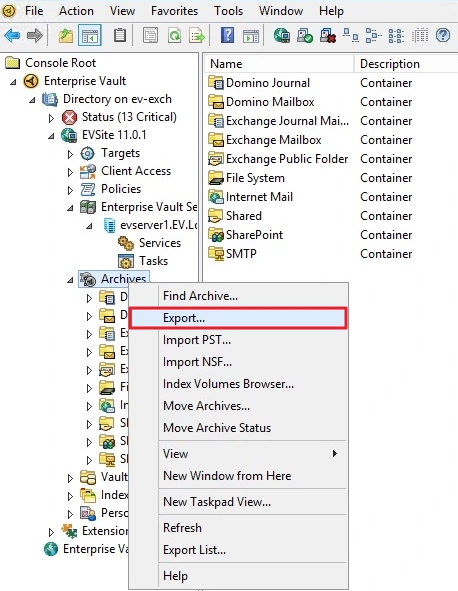
- The Export Archive window will open, select Export archives to PST file option, and complete the export process.
2: Export using the PowerShell Cmdlets
For single archive export, use these steps:
- Open the Enterprise Vault PowerShell and run this command to get the ID for the archive you want to export:
Get-EVArchive
- Then, run this command to export the archive to PST:
Export-EVArchive -ArchiveId <Your-Selected-Archive-ID> -OutputDirectory <Path-for-Saving_Location> -Format PST
Note: Provide the archive ID and output location in the above command.
To export all the archives, use these steps:
- Save all the archive IDs in one CSV file:
Get-EVArchive | Select-Object Name, ArchiveId | Export-Csv -Path “<Path/FileName.csv> -NoTypeInformation
- Then, run this command to export all the archives in PST:
$Archives = Import-Csv <Path/FileName.csv >
foreach ($item in $Archives) {
Export-EVArchive -ArchiveId $item.ArchiveId -OutputDirectory “D:\PSTExports” -Format PST
Pro Tip: If you think export is very slow, use the switch MaxThreads to increase the number of threads that will be used for export. Default is 16, max is 100. Also, run the command outside the office hours to further minimize the load on the server.
3: Discovery Accelerator
If you are exporting data specifically for compliance or legal purposes, I suggest using the Discovery Accelerator to export the data. It offers more export formats along with several other advanced saving options.
Part 2: How to import PST to Office 365?
There are 4 ways to import PST file to Office 365. Let’s see them:
1: Using Network Upload
If you have mid-size data, uploading the PST to Office 365 is a logical choice. For this, use these steps:
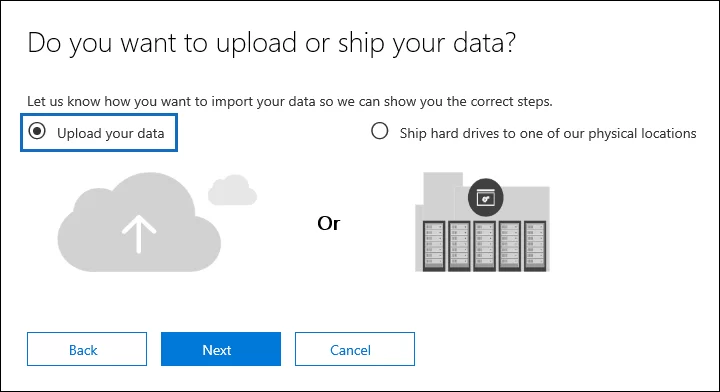
- Go to Microsoft Purview portal and create a new import job with Upload your data.
- Copy the SAS URL, download Azure AzCopy tool, and upload the PST files.
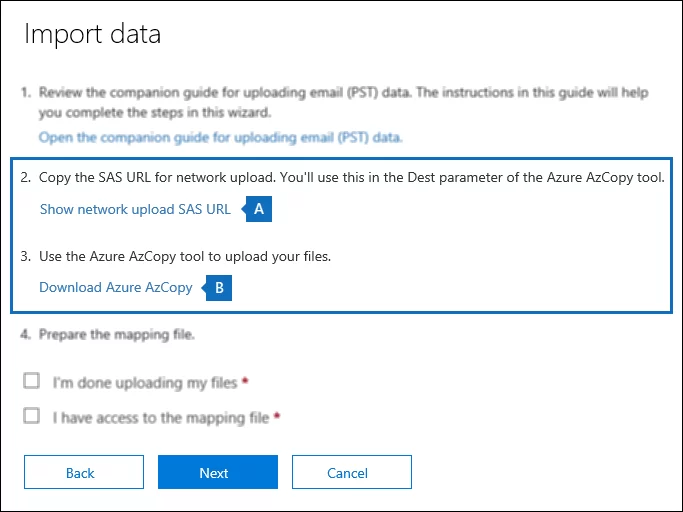
- Create and upload a PST mapping file (for user mapping).
- Filter data items (optional) and start the import job.
2: Drive Shipping
Another method you can use to upload the PST file to the Office 365 environment is shipping the PST file to Microsoft physical location. This technique is mostly used when you have a massive amount of data to import.
3: Use Outlook
If there are only a few PST files to move, you can also use the Microsoft Outlook to upload your PST files into your Microsoft 365 account (connected to Outlook).
4: Import PST to Office 365 with a Professional Tool
Network upload may fail due to internet issues, drive shipping is costly & takes weeks to complete, and Outlook is not for large data import (I have tried it, it is not recommended). So, what can you do? Well, what I prefer is to use a tool that is specially designed to import PST to Office 365 in bulk.
Kernel Import PST to Office 365 is the best tool to carry out the import job with complete data security. You can move thousands of PST files to Office 365 and perform large-scale batch migration within a few simple steps. Here’s how to do so:
Step 1: Download, install, and open the tool. Add the PST files (exported from EV Vault).
Step 2: Add the target Office 365 account and map the PSTs to user mailboxes (Office 365).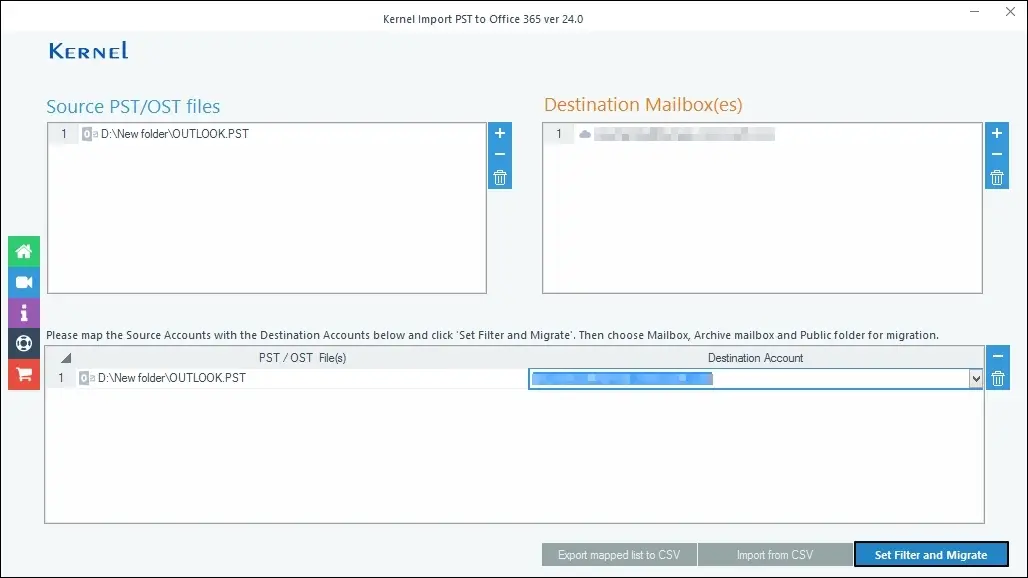
Step 3: Then, choose where to upload the PST file (primary mailbox, archive mailbox, or Public folder).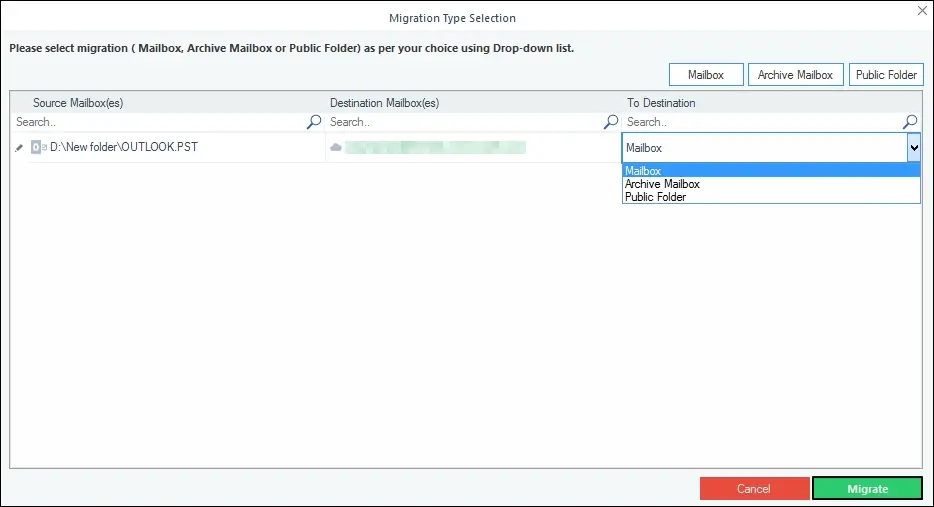
Step 4: Apply filters and begin the Enterprise Vault to Office 365 migration. You will get a success message when the import is over.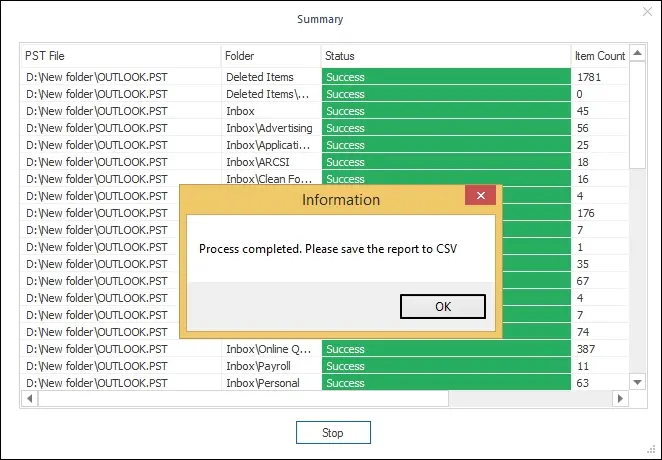
Tips to Migrate Enterprise Vault Archive to Office 365 without Error
A few things that you should keep in mind to avoid enterprise vault archive data to O365 migration during the data import job are:
- Keep PST file size at 20GB max: PST files that are larger than 20GB are prone to errors like “timeout” when using the network upload method. To avoid it, when using the EV export wizard, set the output file limit of PST to less than 20GB.
- Avoid large path length: The AzCopy tool and the Office 365 Import Service have a 256-characters limit for folder path. The import job may fail if the path is larger than this.
- Remove password from PST: The Import Service may fail to read a protected PST file. Removing passwords helps to avoid Enterprise Vault to Office 365 migration failure.
Author’s Verdict | My Approach to Migrate Enterprise Vault to Office 365?
Easiest Method to Export PST from Vault: Use the Administration Console to export all or selective mailboxes. But let me remind you, you can only export archive mailboxes, and not the data archived from Public folders or SharePoint workspaces.
Fastest Method to Import PST to Office 365: Kernel Import PST to Office 365. It is easy to use and gives satisfactory results, be it a small-scale or large-scale import.
Frequently Asked Questions
A: The Export EV cmdlet automatically creates a report file with a name like “ExportReport_datetime” in TXT format. You can view all the exported items along with those that failed in this file.
A: Yes, you should. The export and import jobs require specific permissions. Anyone who is not authorized will fail to carry out the Enterprise Vault to Office 365 migration.
A: The Vault’s export wizard has a folder item limitation. If a folder contains more than 16,383 items, the tool will save the first 16,383 items in the folder in output file. And for the remaining items, a new folder with the same name, but with a prefix like 1, will be created.
A: You can do it. But I recommend you to only stop the server after you have verified that all the selected archive mailboxes are downloaded.