

Microsoft has a Purview portal to help organizations with data compliance needs. The portal allows to export and import data. Admins often use it to create a PST import job and upload PST files using the Network Upload and Drive Shipping method. However, some users have reported that when they try to use this service, they get the “import service for your region has not been rolled out yet” error. That looks like this:

If you see this error on your Office 365 account, it means your registered region does not have the infrastructure to upload the PST through the AzCopy tool or physically ship the PST files inside a hard drive to one of the Microsoft data centers.
Why Do You Get Import Service for Your Region Has Not Been Rolled Out Yet Error?
Microsoft has built data centers around the world. The Network Upload & Drive Shipping methods to import PST to Office 365 rely on these data centers to upload user data to Microsoft’s secure servers.
However, the data centers are not present at every location on the earth. If you are receiving this error, it either means that the current region either does not have any Microsoft data center installed, or Microsoft has not deployed that service there. You can check the list of supported regions for the Microsoft 365 Import service and verify if your region is present or not.
How To Fix Import Service Not Rolled Out Error?
I will be honest. You cannot solve this error because it’s not a technical or human error that can be fixed. It is just the way things are currently, and you cannot do anything about it. To fix Office 365 Import service unavailable error, your region must have the import service feature deployed. But Microsoft has not done it yet, and only Microsoft’s CEO knows when they are planning to do it.
Is There a Workaround to Resolve Office 365 Import Service Region Issue?
Yes, there are two ways to bypass this error.
- Use the Outlook email client.
- Try a professional import PST to Office 365 tool.
While it is physically impossible to fix Office 365 Import service unavailable issue, you can use the following method to move your PST files from your PC to your Office 365 account.
Method 1. Move PST using Outlook’s Desktop Application
When the import service for your region has not been rolled out yet, Outlook is the only free native method you can use. For this import task, we will be using the classic Outlook (not the modern Outlook or the Web Outlook). The steps to import PST with Outlook are:
Step 1. Open Outlook and configure the target Office 365 account manually in it.
Step 2. Import the PST file in Outlook that you want to move to your Office 365 account.
Step 3. Go to the added PST folder and select the emails you want to move.
Step 4. Right-click > Move > Copy to folder.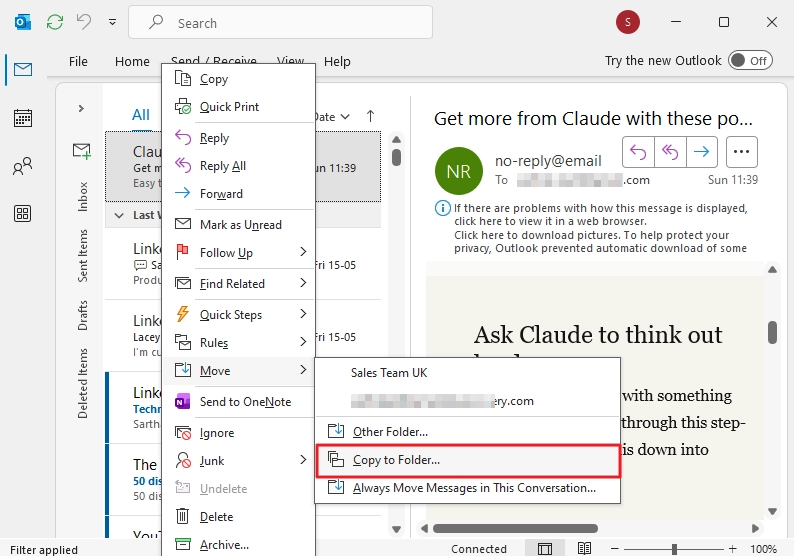
Step 5. Select the Office 365 mailbox folder to which you want to move the emails and click OK.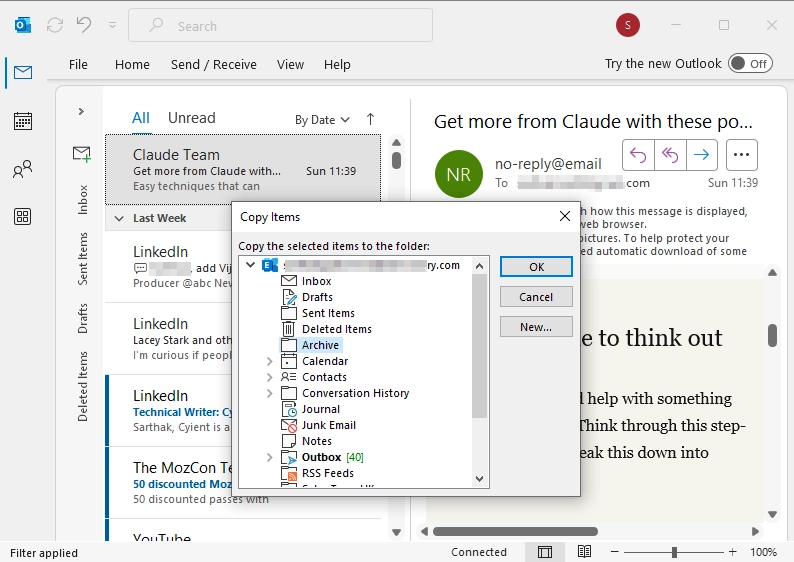
My experience of using Outlook to move PST files.
I have moved emails from PST files to Office 365 hundreds of times, and I have seen that:
- Use this method only if you have a few PST files.
- Moving more than 1000 emails will freeze Outlook, and the transfer will often fail.
- You must manually rebuild the source folder structure in the destination mailbox.
- No duplicate items check. If you move an email 5 times, it will be copied 5 times.
Method 2. Automate PST Import with a Dedicated Software
For a clean and complete bulk migration of hundreds of PST files into your Office 365 account, you must use a professional import PST to Office 365 tool. A specialized tool works independently of Outlook and is also free from Outlook’s limitations.
Using Kernel Import PST to Office 365, you can:
- Move as many PST files as you want, no size or quantity limits.
- Map PST files to different Office 365 user mailboxes and execute a precise data transfer.
- Built-in functions to avoid creating data duplicates.
- Perform user-specific data migration with folder, date, and item type filters.
- Live monitoring with automatic report generation to validate the data transfer.
Author’s Verdict
The free method saves money but costs you time, folder structure, email metadata, and a lot of post-data transfer workload. If you value data over money, choose the Kernel Import PST to Office 365 when you face the “import service for your region has not been rolled out yet” error.
Frequently Asked Questions
A: It’s a native data compliance feature in the Microsoft Purview portal that helps with batch-PST import using two methods: Network Upload and Drive Shipping.
A: No. Your data region is locked. For a new region, you have to create a new tenant in a different region.
A: No. The “New Outlook” and the Outlook Web App do not support importing PST files. You must use the classic Outlook desktop application to resolve Office 365 import service region issue.