How to Find Mail Items in Multiple PST Files?
 Written By: Sarthak Poswal
  Updated On September 21, 2026 Written By: Sarthak Poswal Updated On September 21, 2026
 If you have one or multiple orphaned Outlook PST files and you are looking for a way to search mail items in PST files, you can use classic Outlook. Microsoft's native desktop email client, Outlook, allows you to open multiple PST files and find mail items within the added PST files.
In this guide, we will discuss the step-by-step process of how to search PST files for mail items using Outlook. Additionally, we will also explore a professional Exchange recovery tool to find mail items in case Outlook fails to read the PST files.
A standard Personal Storage Table (.pst) file stores different mail items, like emails, contacts, calendar, folders, and more. A user may need to search for a specific PST mail item for multiple reasons, such as:
To search for any specific mail items in the Outlook PST files, we will use Outlook and a professional Exchange tool.
The easiest way to explore the data items stored within standalone and healthy PST files is to use Outlook. Let us see how:
Alternatively, to find emails in multiple PST files, you can also use the Outlook's built-in search feature. This option allows you to search for items based on From, Sent To, Has Attachments, Category, etc. However, the search feature, by default, only looks for data items in the current mailbox. To search in multiple PST files together, make sure to expand the search scope to all mailboxes.
If Outlook fails to open your PST files due to corruption or other errors, you can use professional software like the Kernel Exchange Suite. This software allows you to easily open corrupt and healthy PST files. You can add hundreds or even thousands of PST files to this software and find mail items inside them without an issue.
The tool has an advanced search feature that helps you search mail items in PST files using more than 10 parameters. You can find a particular mail item based on From, To, Body, Subject, Category, Class, Read Status, Size, Date, Attachments, and more. Moreover, every data item is displayed with original metadata and attachments, with the option to save a particular email to MSG, EML, etc.
Steps to search PST files for mail items in bulk with the suite are:
Step 1: Download and install Kernel Exchange Suite software.
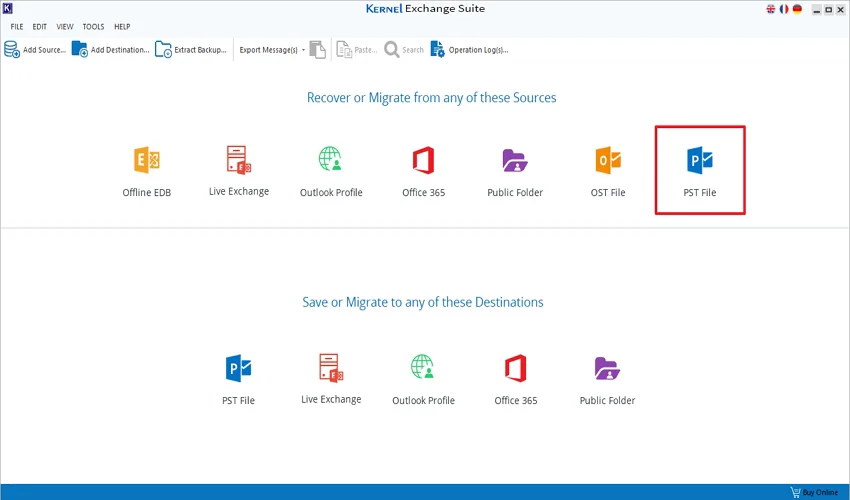
Step 2: Launch it and click on the PST file option available in the source section.
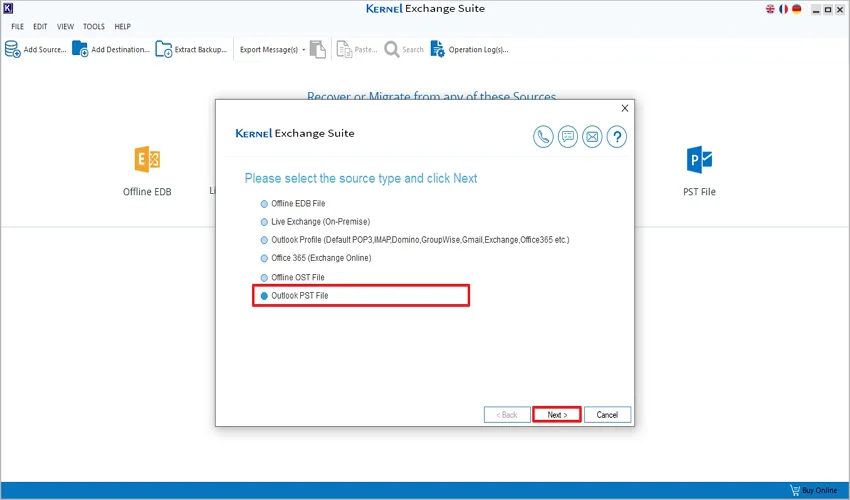
Step 3: Now, from the given options, choose the Outlook PST file as the source type and click on Next.
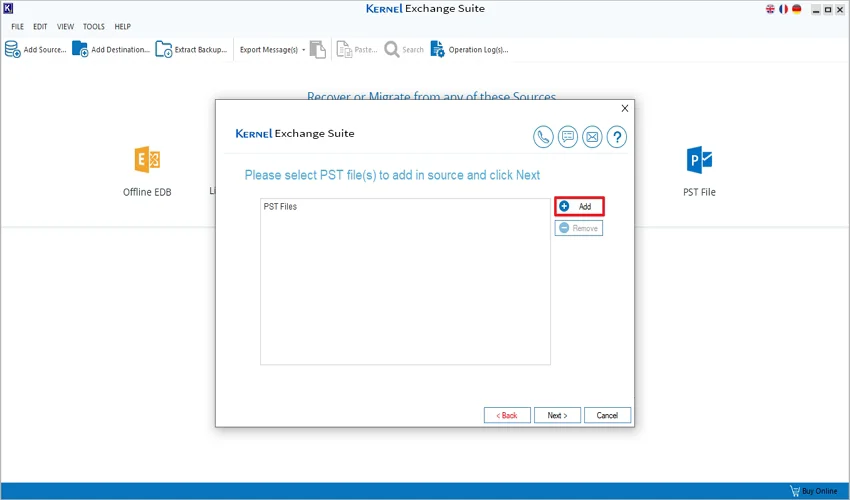
Step 4: Click on the Add button to add the PST files as the source in the software.
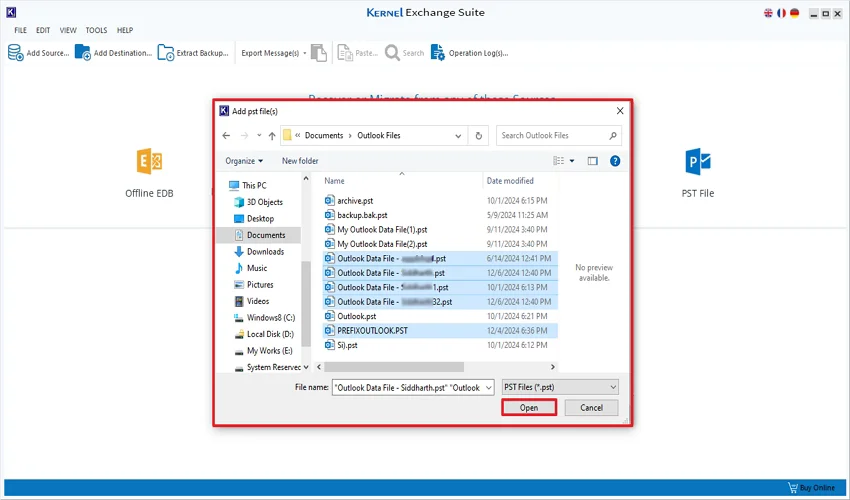
Step 5: Choose the PST files within which you want to perform a deep search for mail items and click Open.
Step 6: After selecting the PST file to the source for deep search, click Next and wait until the PST files are added to the source.
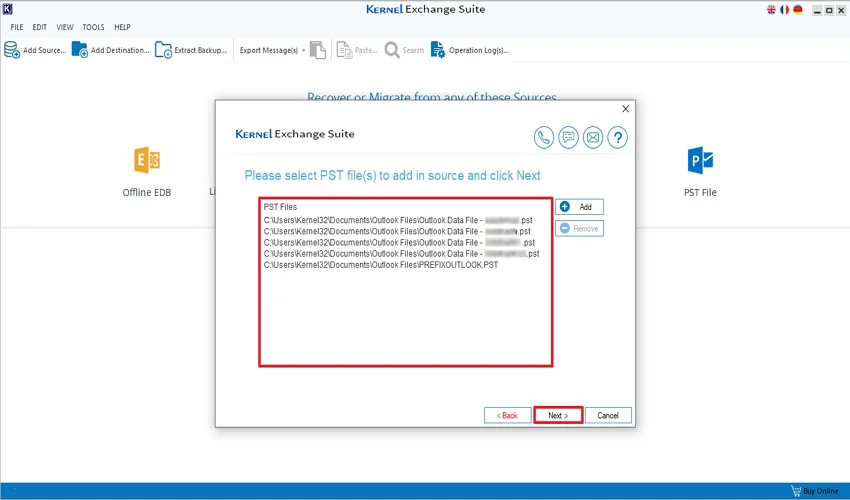
Step 7: You will get a list of PST files you’ve chosen. Click on the Finish after the PST files are added to the source.
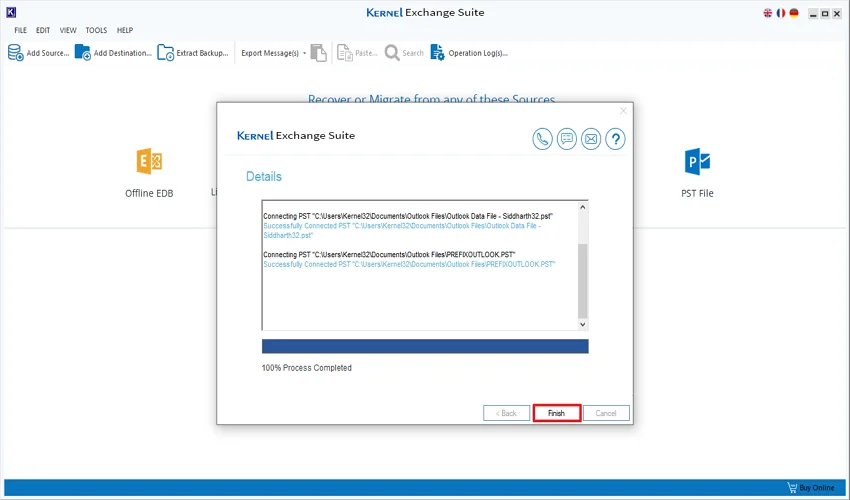
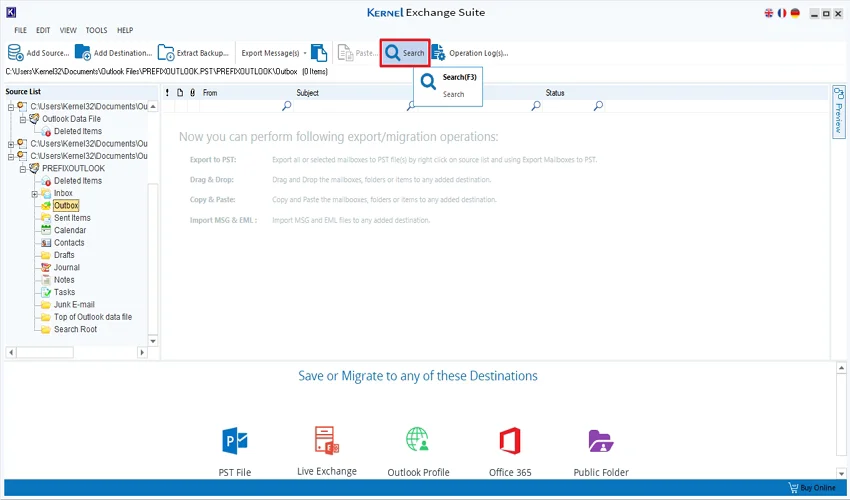
Step 8: You will get all folders and files in the original hierarchy in the left pane of the software. To perform a deep search of mail items, choose the files or folders from the hierarchy and click on the Search button.
Step 9: Here, you’ll get multiple search criteria to find specific mail items of PST files. Follow the below sub-steps to understand the components of email that fetch the specific mail items:
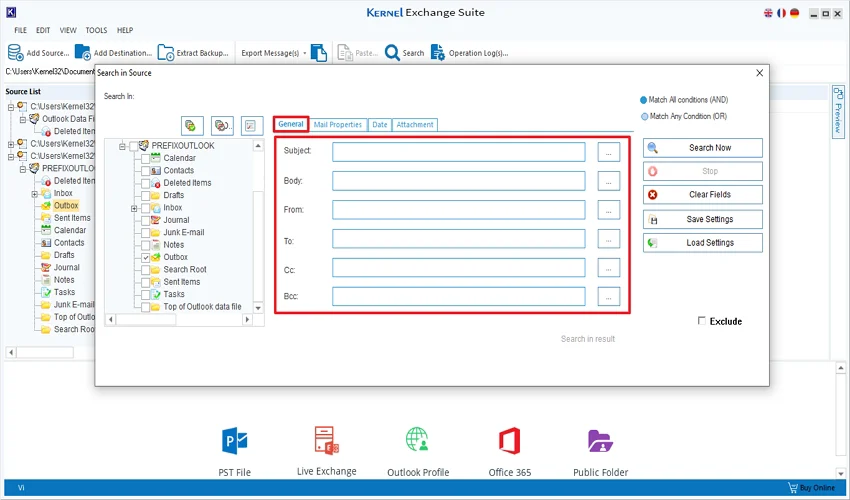
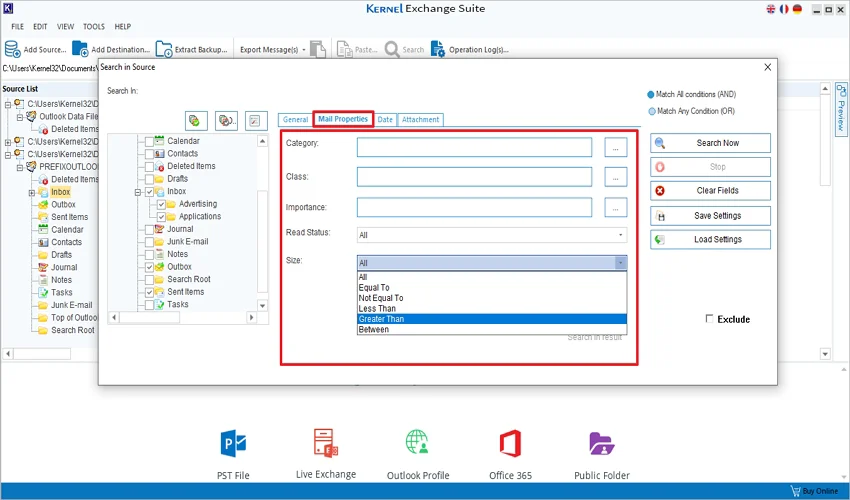
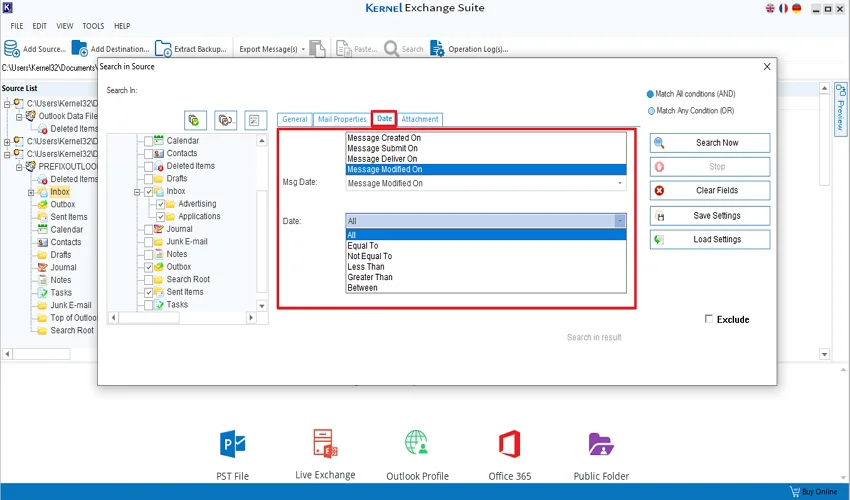
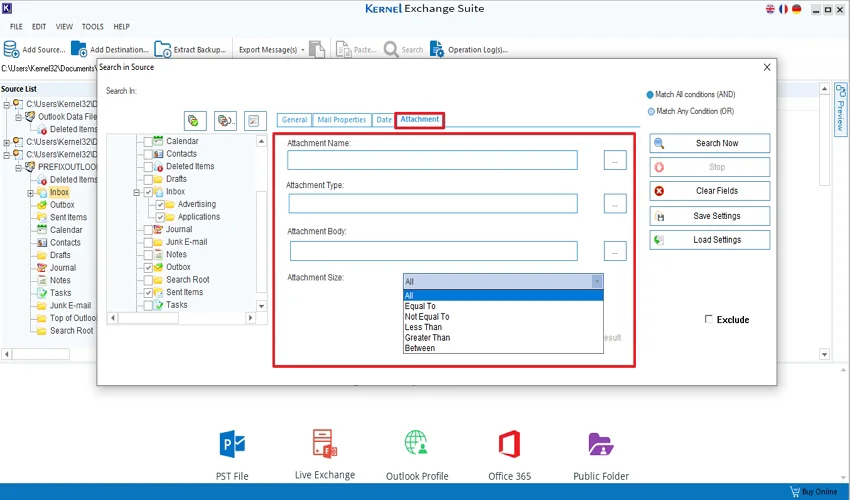
Note: We’ve seen multiple options in search criteria to find specific mail items. You can use any of the given filters to fetch specific PST data. Here, we will search particular mail items from PST files using the From filter in the General tab for your convenience.
Step 10: After choosing the General tab, fill in the From column and select the folders from the hierarchy where you want to search your data.
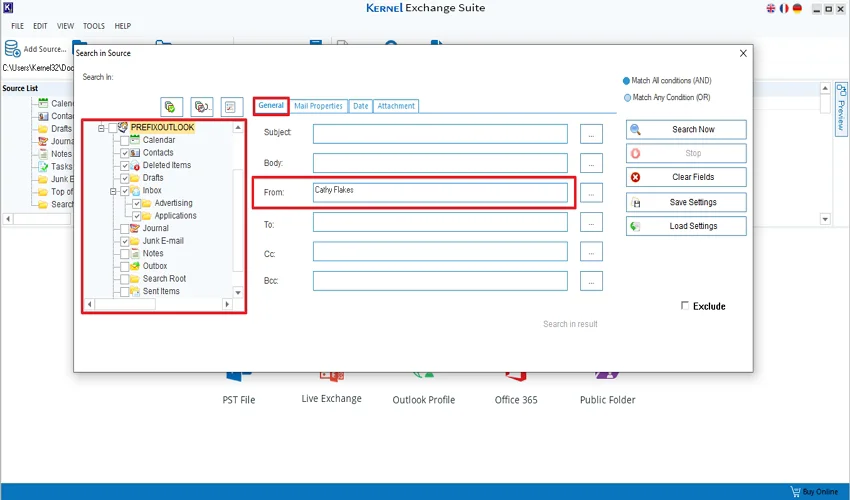
Note: You can select any one or all of the filters provided from a particular tab to proceed with the search procedure.
Step 11: After providing a detail of the given option, click on the Search Now button.
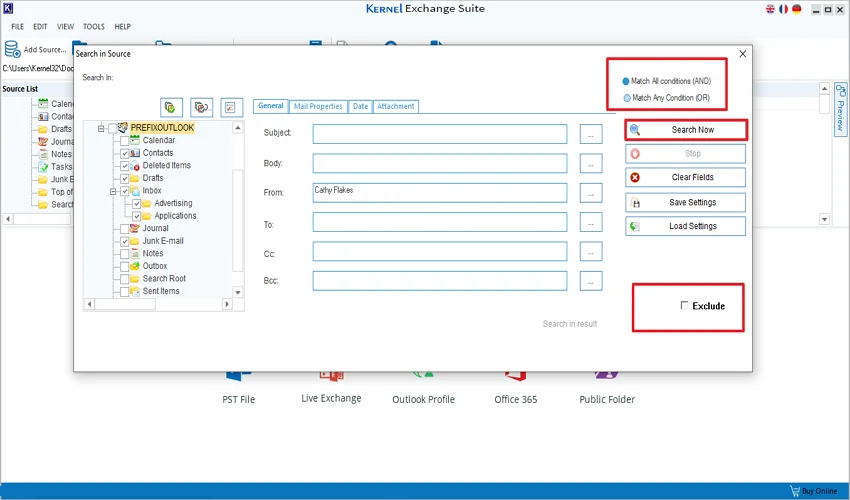
Note: Apart from the Search Now option, there are some other advanced options that help you during the process. They are:
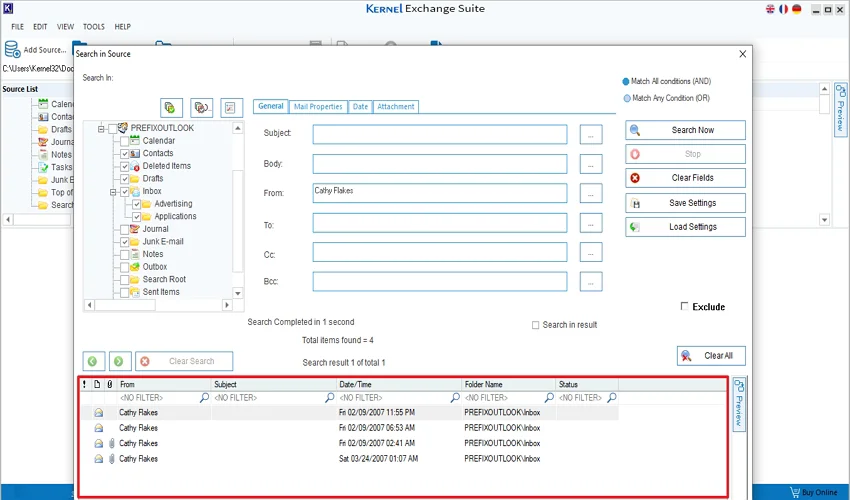
Step 12: All the mail items of PST files will be fetched out successfully on behalf of the provided filter components.
When looking for specific mail items in single or multiple PST files, you may face these common problems.
Using the methods we discussed in this guide, you will be able to search mail items in PST files easily. If you only need to search for items in a few PST files and all are healthy, Outlook will be sufficient. However, in case you have multiple PST files to search for emails, contacts, or other mail items, a smarter choice is to use the Kernel Exchange Suite. The tool can easily add any number of PST files, including corrupt files.
Ans. In a PST file, a mail item could mean a message or another Outlook item, like a contact, calendar entry, task, journal, or note.
Ans. Yes. By changing the scope of the search in Outlook to all mailboxes, you can search mail items in multiple PST files at the same time.
Ans. Yes, you can search mail items in PST file without Outlook using a dedicated PST viewer tool.