Read time: 6 minutes
Microsoft Outlook stores all mailbox data including emails, contacts, calendars, attachments, and other data in PST (Personal Storage Table) format. However, PST is the best storage format for Outlook, but it is not shareable or easily admissible as legal evidence. This is why many people and companies convert Outlook PST to PDF as PDF files are easy to manage and print, and it is more secure than most other file formats.
In this post, you will find out why you should convert PST to PDF and how to convert a PST file to PDF with the simplest possible methods available.
Why Convert Outlook PST to PDF?
Converting PST to PDF has many advantages, some of which are listed here.
- PDF file does not depend on any platform but opens readily with any PDF reader on laptops, PC, or mobile phones.
- These files are easy to store and move from one location to another.
- You can easily share specific emails converted to PDF with anyone.
- PDF files can be used as legal evidence and can be securely archived.
- Users can easily print and have a proper trail for crucial emails.
Free Methods to Convert Outlook PST to PDF
There are three native ways to convert Outlook PST file to PDF format – via Microsoft Print to PDF feature in Microsoft Outlook application, and copy-pasting using MS Word. Let us go through the steps involved in both of these procedures.
It is advised to make a backup copy of a PST file before performing the manual procedures explained below.
Method 1. Convert Outlook PST to PDF Using Outlook
This is probably the most common manual method to convert PST to PDF document. You need to have Outlook installed with your PST file configured. Now follow the steps below carefully:
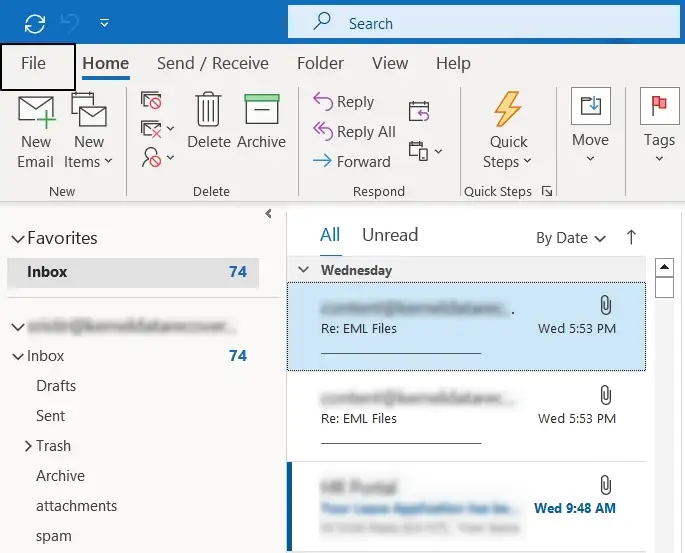
- Open the Outlook application and select the email you want to convert into PDF, then click on the File option.
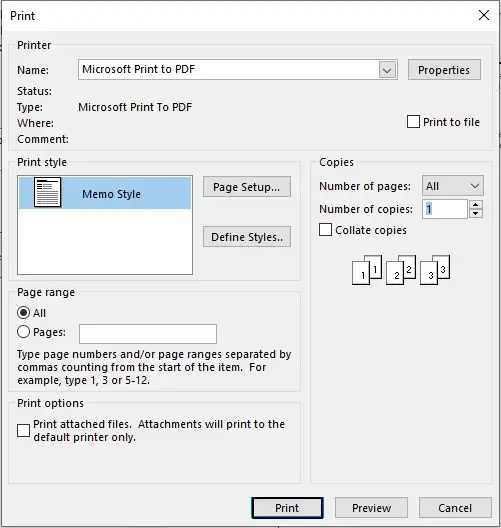
- Click on the Print option, then select the Microsoft Print to PDF.
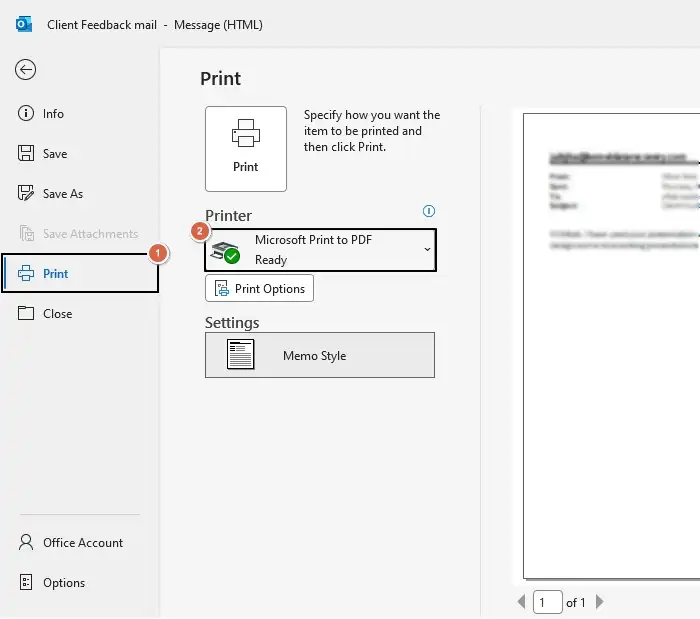
- A new dialog box will appear on the screen, click on the Print button.
- Provide name and location to save the PDF document, then click Save.
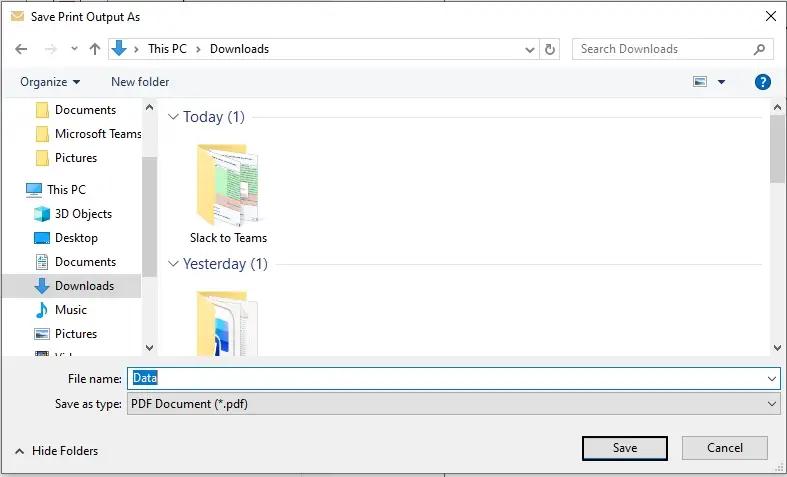
- The converted emails will be saved to the specified destination.
Limitations:
- It is very time-consuming to print thousands of emails.
- Folder hierarchy is not maintained.
- Can’t do bulk conversion in one click.
- Attachments are not embedded by default, they get printed separately.
Method 2. Convert PST emails PDF via Adobe Acrobat Pro
Adobe Acrobat Pro add-in for Outlook lets you save your emails as PDF files directly. Here are the steps to do it:
Note: It requires the installation of the Adobe Acrobat Pro application on the system.
- Launch the Outlook application, click on the Adobe PDF tab on the top ribbon,
- Now, choose the emails from the mailbox folder, click on the Selected Messages option to select Create New PDF option from the drop-down list.
- Provide a file name and saving location. Then, click on Save to save the converted PDF file to the specified destination.
Limitations:
- Adobe Acrobat Pro is a paid software.
- Slower with larger PST files.
- Can’t convert contacts and calendar items.
- Need Outlook installed on the system.
Method 3. Copy-Pasting Emails in Word to Save as PDF
This is an alternative way to save Outlook emails as PDF using Microsoft Word application. Here are the steps to do it:
- Open desired email from PST in Outlook.
- Press CTRL+A to copy all email content followed by CTRL+C to copy.
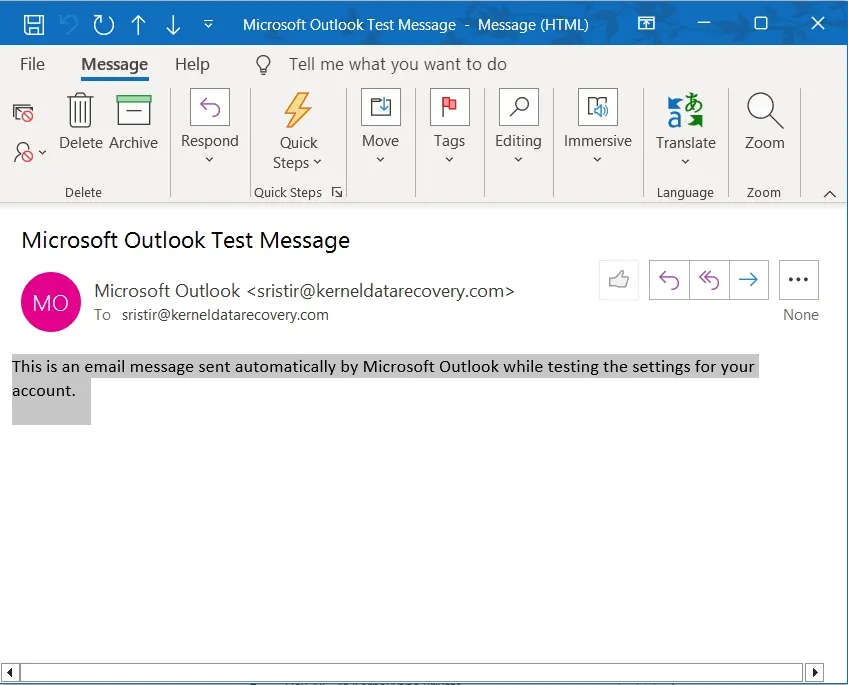
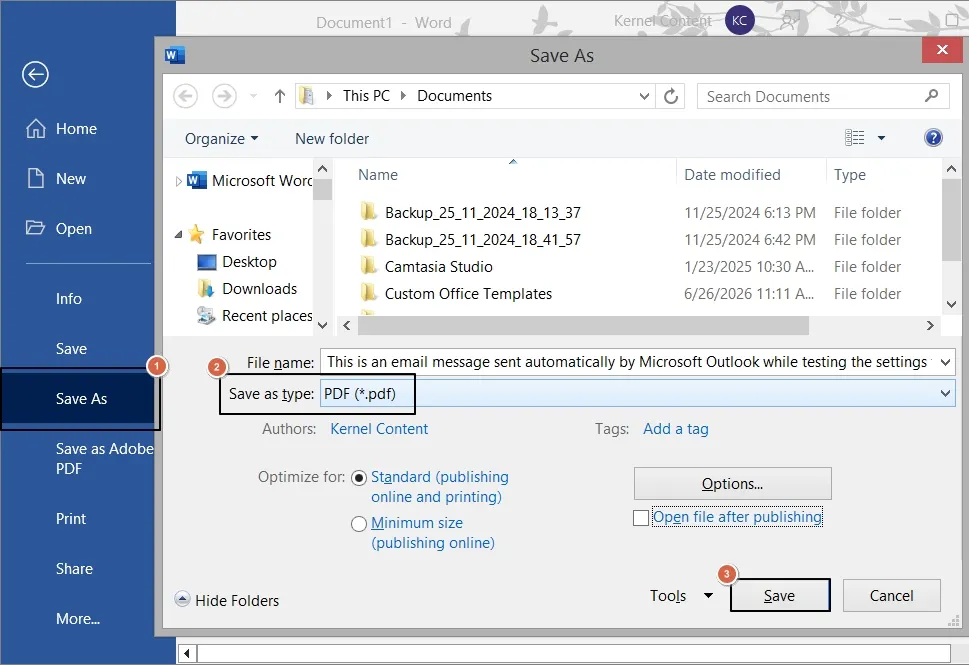
- Paste the copied content in MS Word, then click File.
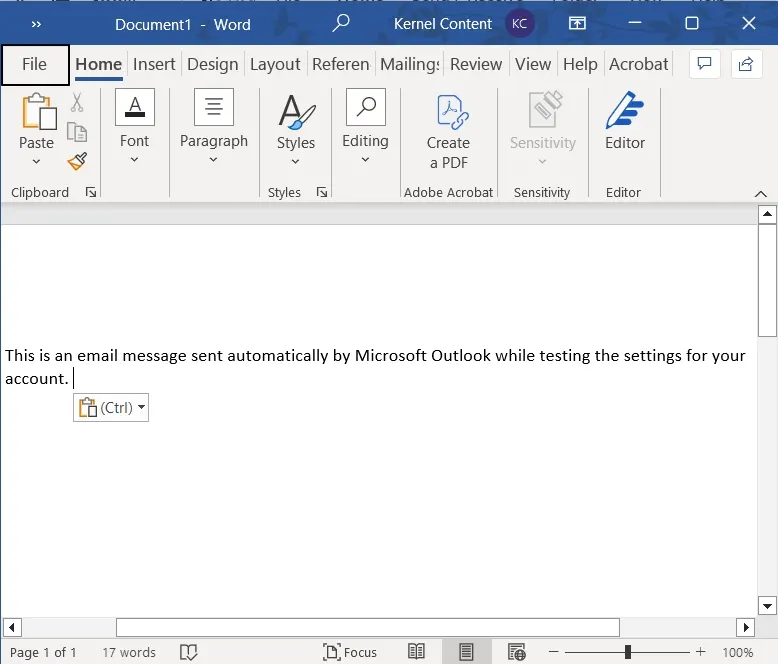
- From the left pane, click on the Save As button, then select PDF (*.pdf) as Save as type, then click Save.
Limitations:
- This is completely impractical to convert thousands of emails.
- Outlook’s metadata such as To, Cc, Bcc, and Date are lost in this process.
- Attachments are not handled in this workaround.
How to Convert a PST File to PDF in Bulk With Attachments
From the above discussion, it is clear that the manual solutions require the use of the installed Microsoft Outlook application, and one method even requires the installation of the Adobe Acrobat Pro application, which every user cannot afford. Moreover, the processes are monotonous, time-consuming, and less flexible. To overcome these limitations, using a PST to PDF converter free tool is recommended.
Kernel for Outlook to PDF is developed to convert Outlook PST emails to PDF files precisely. It only requires the Outlook PST file (no need for Outlook application installation) for the conversion of selected items or folders to PDF file format, along with the original metadata and properties. It does not alter the structure of the mailbox items and works on all Windows OS versions.
Last Say
For 5 to 10 emails, the Microsoft Print to PDF is the simplest free way to convert Outlook PST to PDF. However, for business users or for large PST files, the manual methods can be inefficient and error-prone. Using a dedicated email to PDF converter would be the most reliable way for bulk conversion.
Frequently Asked Questions
A- The manual way of converting PST to PDF always requires Microsoft Outlook, and it is not suitable for bulk email conversion.
A- You just require the installed application on your system. Also, you need to have PST files available on your system to start the conversion. There is no need for Microsoft Outlook on your system.
A- Yes, PDF is widely accepted for eDiscovery and legal archiving, especially when converted with metadata and timestamps.
A- Yes, you can combine multiple PST files into a single PDF but not with native methods. You need to use a specialized software to convert Outlook PST to PDF document.