Read time: 9 minutes
Google Workspace and Microsoft 365 are both reliable. But often the need arises to switch from Google to Microsoft environment or to another. While some prefer a complete data migration with a new domain name. Others want to retain their old domain name and only change the service provider. In this blog, we will be focusing on how to migrate Google Workspace domain to Microsoft 365, so you get to keep your old email address while shifting to a completely new email server.
Every piece of information you will find in the upcoming section is referenced from the official Google and Microsoft websites. I thoroughly researched and structured the information in an easy-to-understand way to minimize the risk of errors.
Why Businesses Migrate Google Workspace Domain to Microsoft 365?
Be it team collaboration or server uptime, Google is great. So, why do the switch? Given below are a few primary reasons that trigger the need to move domain to Microsoft 365.
- Collaboration
Microsoft offers applications like Teams that allow team chat, video calls, data sharing, and other collaborative features in a single app. Google has no such app yet. - Company Merger
Large organizations mostly use the Microsoft 365 as their email service provider. So, when large companies merge small companies into them, they make them shift to Office 365. - Offline Reliability
Google is cloud focused. And when it comes to offline desktop apps, Microsoft is the clear winner. Almost all the apps from Office 365 suite are available for offline use. - Better Handle Massive Excel Data
I personally experienced it. Microsoft Excel is far better at handling thousands of rows and columns than Google Sheets. Advanced power tools in Excel are a must have for financial institutions.. - Value for Money
The basic plan of Microsoft 365 offers more cloud storage and mailbox storage per user at a lower cost than the Google basic plan. - Simpler Automation
The Power Automate app of Microsoft 365 is easier to use (simple drag and drop) than the Google Studio (which also needs a script).
Things to do before you Migrate Google Workspace Domain to Microsoft 365
Changing the domain is not as simple as turning on or off a switch. You need to plan and make arrangements in advance to make sure you don’t break anything, and your users can keep using the email services. Before you touch anything, do this:
- Backup Google Data
Take a backup of every component of your Google Workspace. You can use Google Admin Console, Google Takeout, or a professional Google Workspace backup tool for this. - Get Access Rights
You need Google Workspace Super Admin credentials along with Microsoft 365 Global Admin-level permissions to perform the domain switch. Additionally, make sure you can access the domain registrar. - Modify Time to Live (TTL)
Before you begin to migrate Google Workspace domain to Microsoft 365 (at least 24 hours prior), change the TTL on your MX records to 1 hour (3600 seconds). This will make sure that the new email destination is registered fast, and no email goes to the old address. - Prepare Account
Take the Microsoft Office 365 plan as per your requirement. But make sure it has enough space to accommodate all the data of your Google account (in case you move mailboxes later). - Disable Domain Lock
If you plan on changing the billing from Google to Microsoft, you must turn off the domain lock and also get the EPP or Auth code for verification.
Quick Way to Move Domain from Google to Microsoft – Step-by-Step Guide
Follow the steps given below in 4 different phases to safely change your domain to Microsoft 365 without making any mistakes.
Phase 1: Verify the Microsoft 365 Domain in Google
Step 1: Login to the Microsoft 365 Admin Center and in the left-side pane, click Show all.
Step 2: Click on Settings option. Then, click Domains option and on the right-side pane click Add domain.
Step 3: Input your domain name and click Use this domain.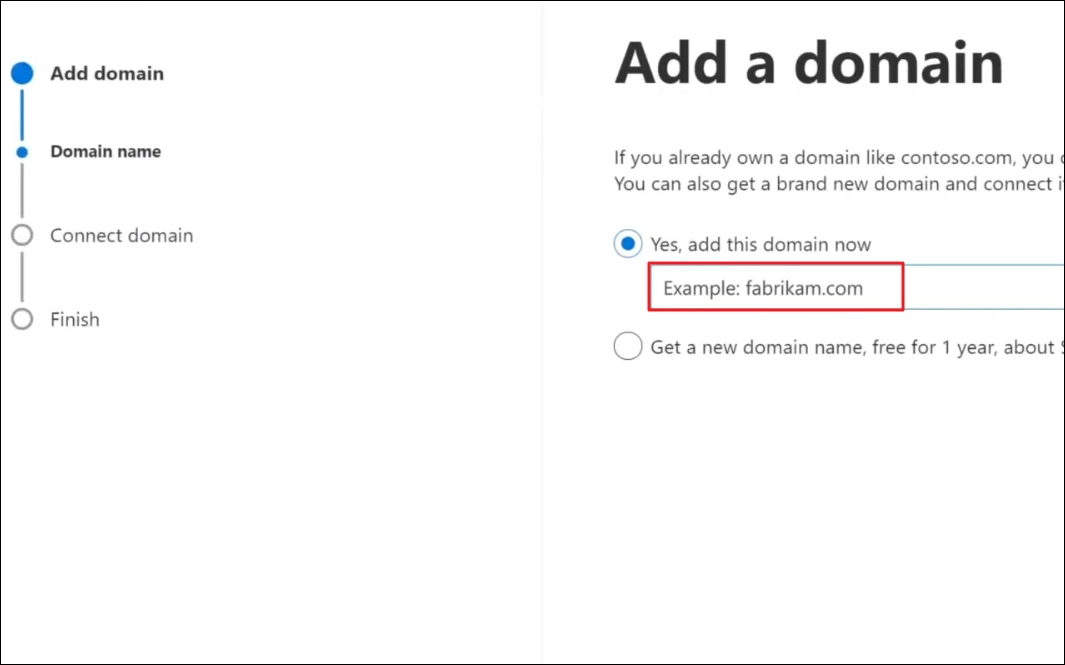
Step 4: Select Add a TXT record to the domain’s DNS records option and click Continue.
Step 5: Copy the TXT Value (it will look like this, MS = ms342234).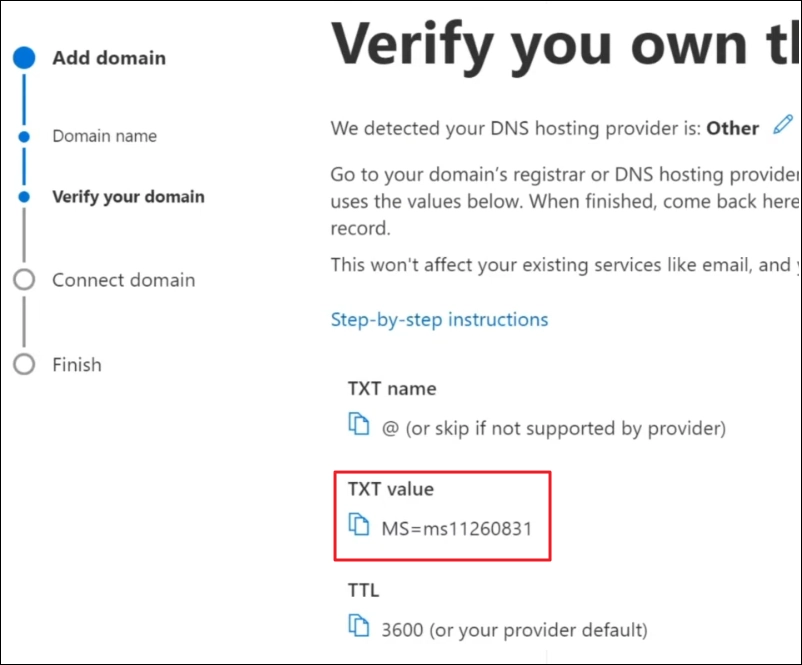
Step 6: Go to the Squarespace Domain console (all Google domains are now under Squarespace).
Note: If you don’t know if your registrar is Squarespace or anyone else, use registration data lookup tool to find out.
Step 7: Add a new custom domain with the TXT value you got in the step 5.
Step 8: Now go back to Microsoft Admin Center, wait 10 minutes, and click Verify. If it fails, wait for some time and verify again.
Phase 2: Update the Domain for Users
Step 1: In the Microsoft Admin Center, go to Users and select Active Users.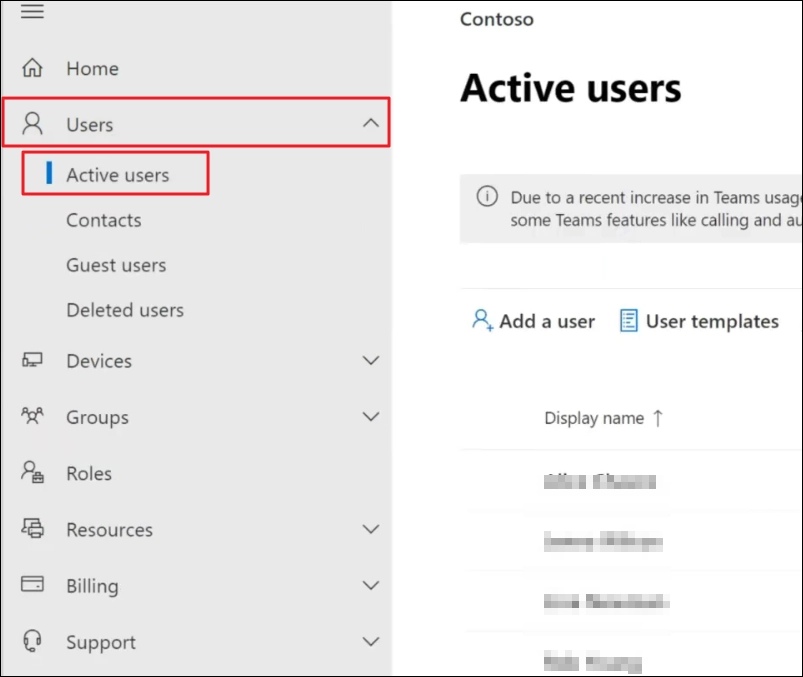
Step 2: Select any user. And from the pop-up window (on the right) click Manage username and email.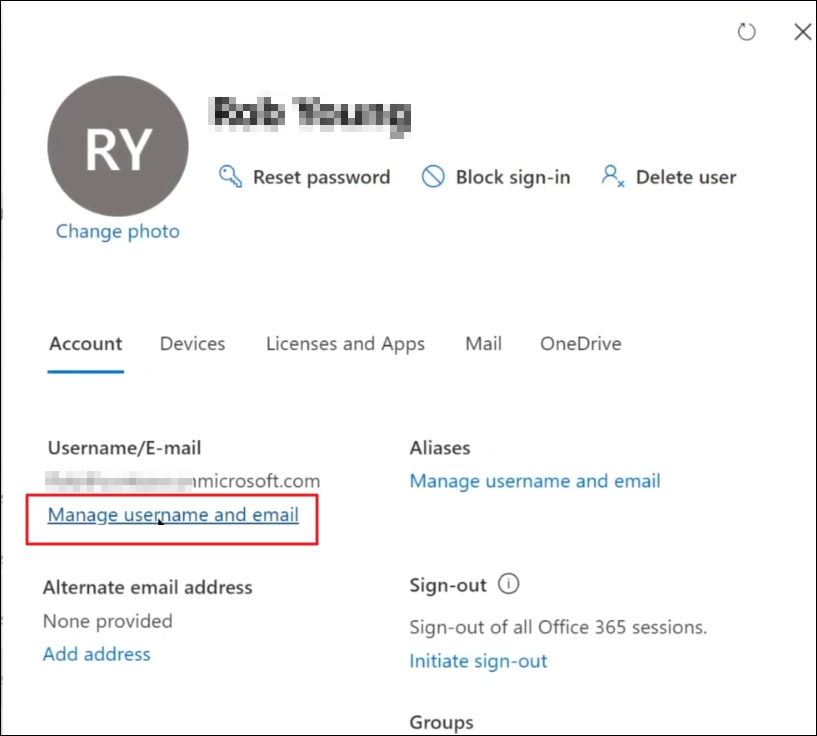
Step 3: Then, click the Edit (pencil icon) button.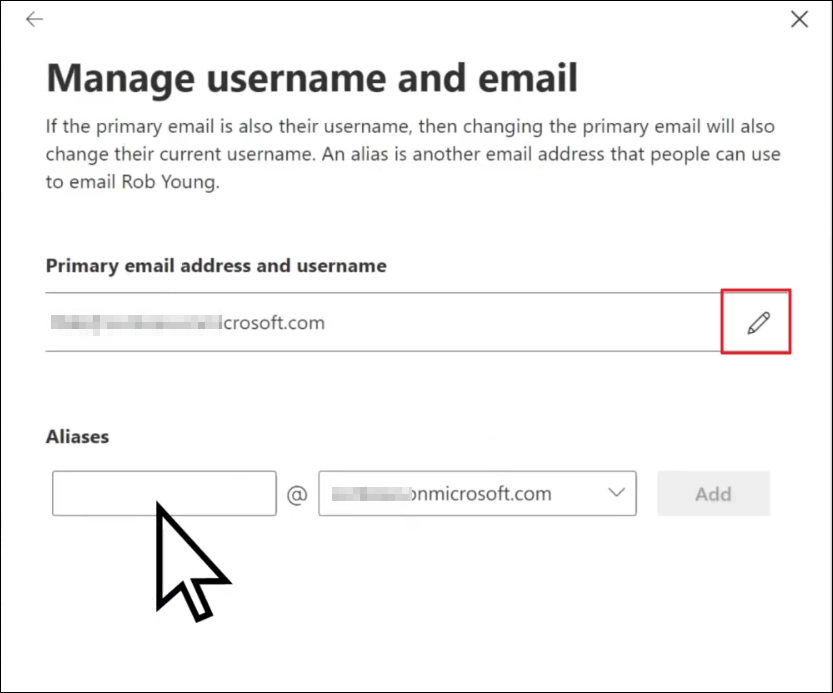
Step 4: Use the dropdown to select the new domain and click Done. Then, click Save Changes.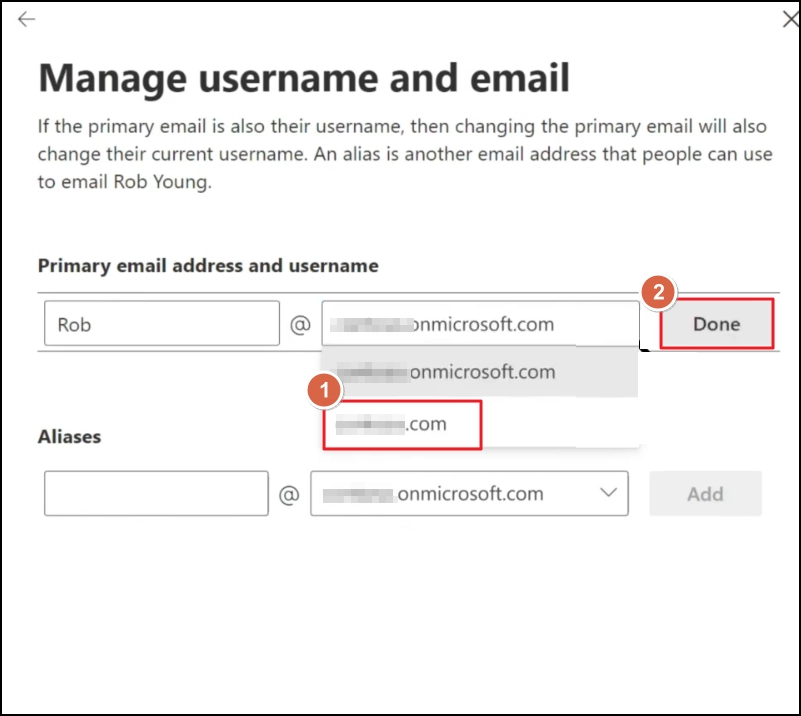
Step 5: Repeat this for every user.
Phase 3: Redirect Emails to Microsoft
Step 1: Go back to your registrar domain (Squarespace or any).
Step 2: Delete the MX records pointing to Google.
Step 3: Add the MX and SPF records that now points to Microsoft.
Note: Changing the records makes sure all new emails go to your Microsoft account and not Google’s account.
Step 4: Save the changes and wait for the changes to be updated.
Phase 4 (Optional): Move Mailboxes
This phase is optional, but is usually performed by the users after they have changed the domain. You have two ways to migrate Google data to Microsoft:
1. Native Method
The manual method requires you to enable IMAP for Google account. Then, create migration batch using the Exchange Admin Center (EAC), map the users, and start migrating mailboxes. It’s free but has a few limitations like:
- Involves several manual and confusing efforts that are time-taking.
- You have to manually check each mailbox after migration to find any missing data.
- Not reliable for large-scale migration between different Google and Microsoft accounts.
2. Professional G Suite to Office 365 Migration Tool
For accurate, safe, and error-free Google to Microsoft migration, admins rely on specialized G Suite to Office 365 migration tool. Kernel Google Workspace to Office 365 allows admins to safely connect to Google and Microsoft (supports multi-factor authentication) and migrate mailbox data, along with Groups. Moreover, you get:
- Complete data transfer, including email (with attachments), calendar, contacts, notes, etc.
- Move all your folders in the original hierarchy and with the same name.
- Map each Google mailbox to your desired user mailbox in Microsoft.
- Dedicated option to transfer Google Chat directly to Teams with original message.
- Auto-generate migration report for each migration to help you quickly find any failed or skipped items.
- Multiple filters to move data based on date and item type.
Conclusion
When you move your Google Workspace domain to Microsoft, you are telling the internet to route your email data to Microsoft and not Google. It’s highly technical; a single mistake can cost you severe downtime. Before you do anything, make sure to back up the data. Follow the steps given above carefully and do not rush things. After changing your domain, move emails using the EAC or use the recommended email migration tool.
Frequently Asked Questions
Ans: Nothing. They will be the same as before. But the emails will now be going to the Microsoft account. Old emails will not move automatically; you have to migrate them manually.
Ans: No. Keep your Google Workspace active for at least a week after the move. You need it active just in case an old server tries to deliver a delayed email there.
Ans: Same. You keep the exact same email address. The only thing that changes is the server that receives the new email.
Ans: This mostly happens if you forgot to add the Microsoft SPF record to your DNS. Or maybe you have a rule that automatically moves emails from a specific sender to the spam folder.