Read time: 9 minutes
Microsoft Outlook is undoubtedly an essential tool for many people, especially with the rise of remote work. However, your email data’s security is only as strong as your password strength. Considering increasing incidents of data breaches, it’s becoming more important than ever to change a password in Outlook regularly. But don’t worry! Changing your email password on Outlook is a simple process with just a few easy steps.
Today, we’re going to outline the top three ways to change password on Outlook quickly with ease so you can keep your data safe and secure. As experts in the field, we’ll guide you through every step of the process and make it accessible even to those with limited technical expertise.
How to Change an Outlook Emails Password? Manual Solution
Apart from security purposes, sometimes users forget their Outlook password, so they need to change password in Outlook. Here, we will look at the best three methods to reset password in Outlook:
Note: When you change a password in Outlook desktop client, it doesn’t change your email provider password. Hence, you must first change or update your password with your email provider.
Method 1. Use Desktop Outlook to Change Password
If you’re a Microsoft 365 subscriber with semi-annual updates or you have Outlook 2019, 2016, 2013, or 2010, or purchased Outlook as a standalone application. Here is how to change password in Outlook desktop:
Step 1. Go to File and click Account Settings. Choose Manage Profiles, then tap on Email Accounts.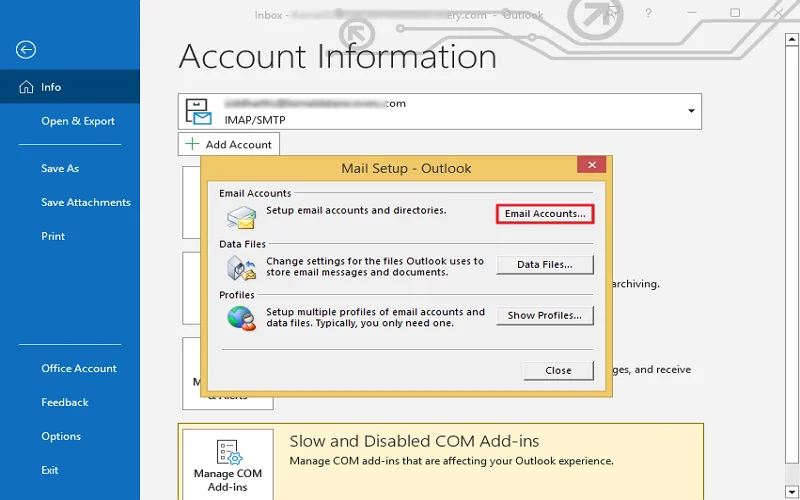
Step 2. In the newly opened dialog window, select your email and then tap on the Change button.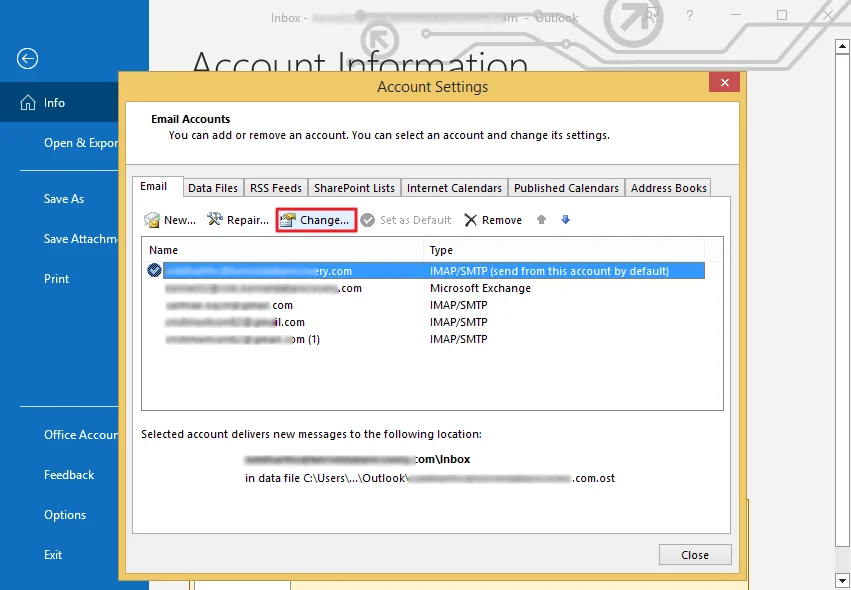
Step 3. In the Change Account window, go to the Logon information section and hit Next.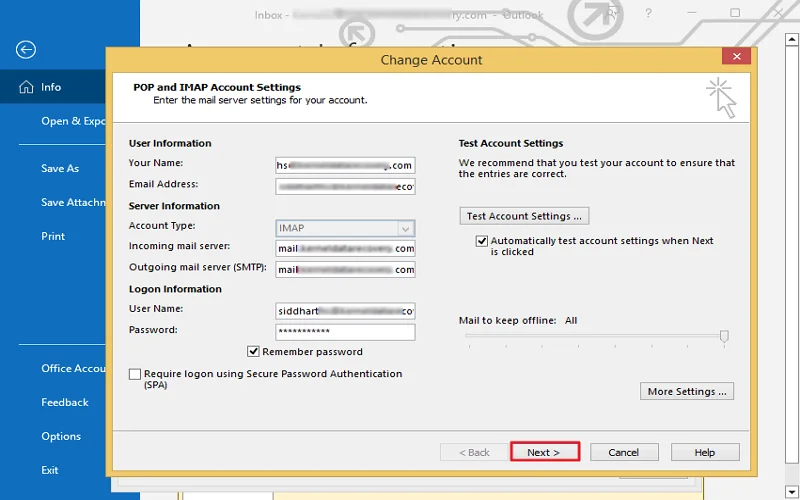
Step 4. Now, wait for the tasks to complete. Once the Tasks are checked in green, exit the window by clicking on the Close button.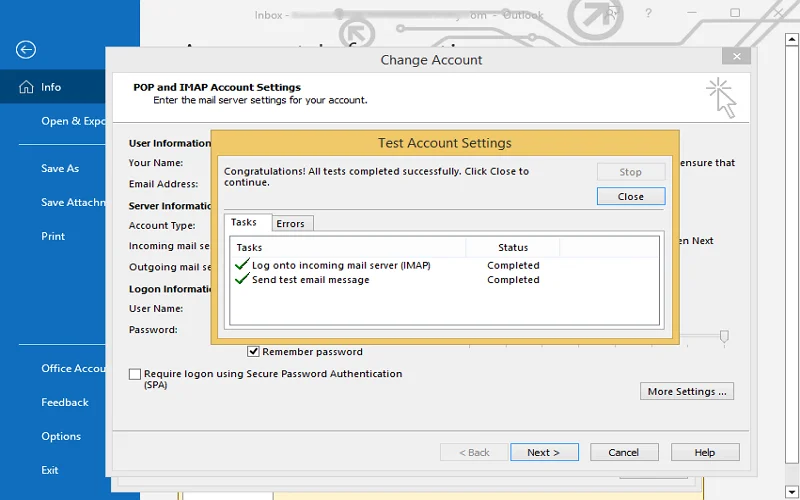
Method 2. Use Outlook Web App to Change Password
If you use the Outlook web app as your email provider, you can also change your password. Here is how to change email password in Outlook web app:
Step 1. Open the Outlook Web App in your web browser and log in using your User Name and current password.
Step 2. Tap on Options and select Change Your Password.
Step 3. Enter your current password and new password as asked. Click Save.
The password will be changed.
Method 3. Use Microsoft 365 to Change a Password
You can also change a password using Microsoft. However, passwords for Outlook.com and Microsoft accounts are the same. Here are the steps to follow:
Step 1. Log in to your Microsoft account, move to account security, and choose Password security.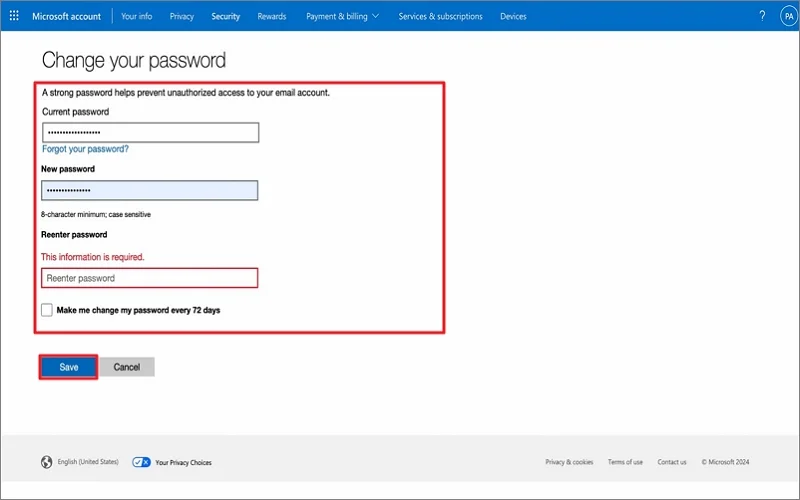
Step 2. A security code may be requested to verify your identity. You can choose to receive the security code via email or phone.
Step 3. You’ll need to verify your email address or phone number before selecting Send code. Upon receiving the code, enter it and click Submit.
Step 4. Enter your current password and a new one, and choose Save.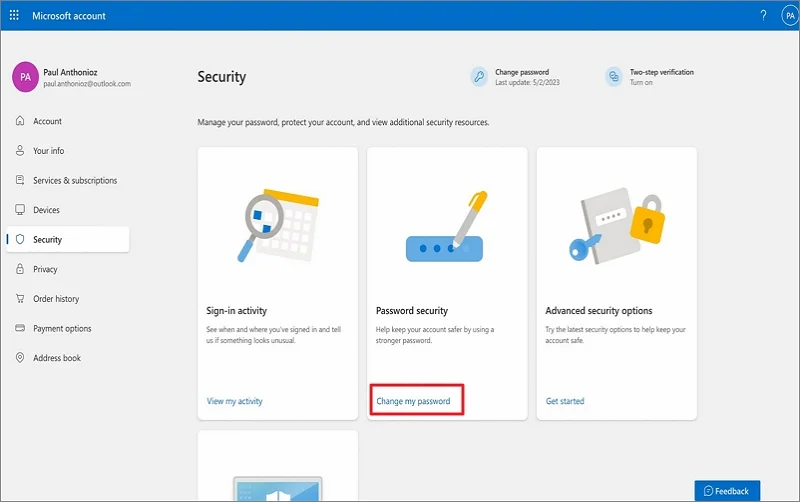
How to Change Outlook PST File Password? Easy Steps
Outlook allows its users to set a password on the PST file to make it more secure from unauthorized access. Sometimes, users share them with others, but want to change the password for future security. To change PST file password manually, follow the steps below:
Step 1. Open Outlook and configure the PST file in which you want to change the password.
Step 2. Click on the File, then Account Settings>Account Settings.
Step 3. Go to the Data File tab, then select the PST file, and click on the Settings option.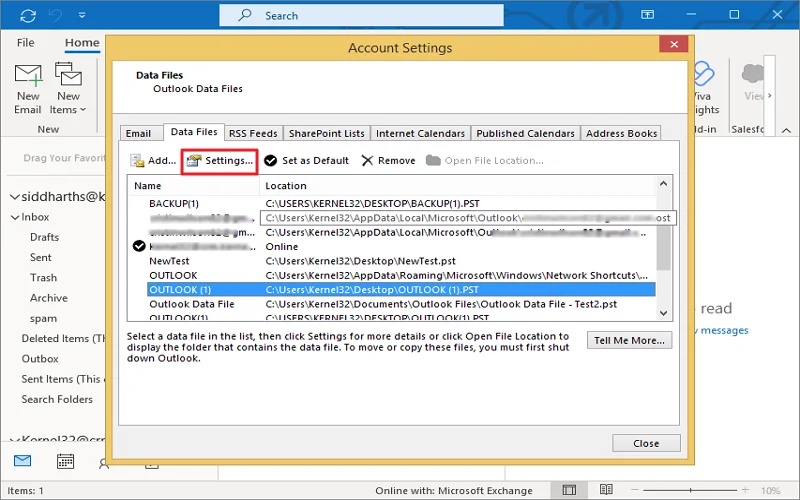
Step 4. Click Change Password, enter the old password and the new password in the respective fields. Click OK.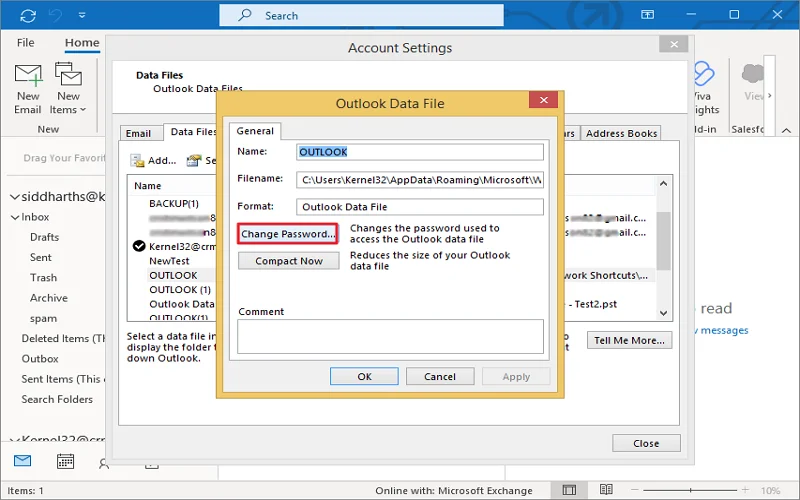
The Outlook PST file password will be changed.
In case you forgot your PST file password, you can open that and change the password as well. Since Outlook uses a CRC32 algorithm to make the file secure, it can be unlocked with a professional utility like Kernel Outlook Password Recovery.
Change PST File Password with a Professional Solution
Sometimes, it can be difficult to perform an Outlook password reset with the above-discussed manual methods. Hence, it is recommended to try a professional Free PST Password Recovery tool like the Kernel Outlook Password Recovery to easily change passwords in Outlook. It is a 3-in-1 tool that offers to Recover, Remove, and Set New Password options.
The tool offers a single-click recovery of the protected PST file password, whether symbolic, alphanumeric, or any other complex one, by generating an alternate password for the same. Even if you forgot your Outlook password, this tool can quickly recover it.
Apart from this, users can easily remove the password from the file and make it password-free or set a new password for any PST file using this advanced tool. It has the following features and advantages, which set it apart from its counterparts:
- It can instantly recover Outlook PST file pass
- It can unlock password-protected PST files efficiently.
- Supports multilingual password recovery.
- It can easily remove passwords from PST files.
- Ability to change previous passwords and enable a new password.
- Creates an alternate password for highly encrypted PST
- Supports all Outlook versions and Windows OS effectively.
Step-by-Step Process to Change PST File Password
The user interface (UI) is quite simple and easy to use. There are options to recover, remove password from Outlook PST file, and set a new password in the bottom section of the UI. Let us now look at the detailed tool process to set the new password:
Step 1. Launch the password recovery tool and click on Add File to load the PST file.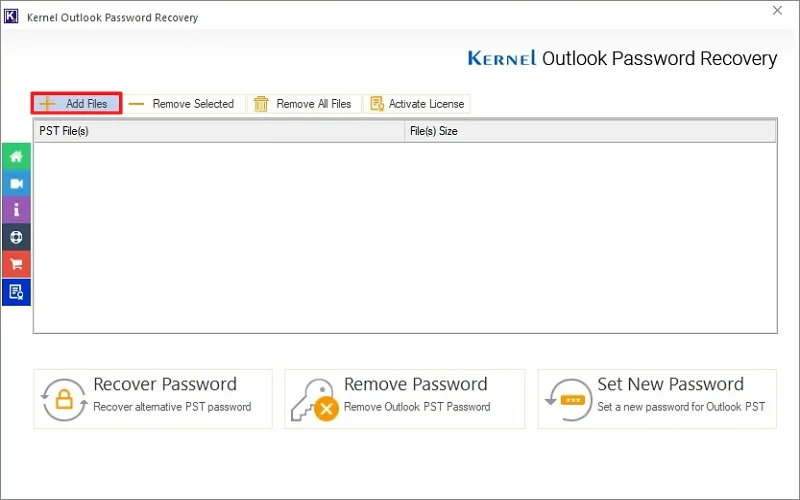
Step 2. Select your Outlook PST file and click Open.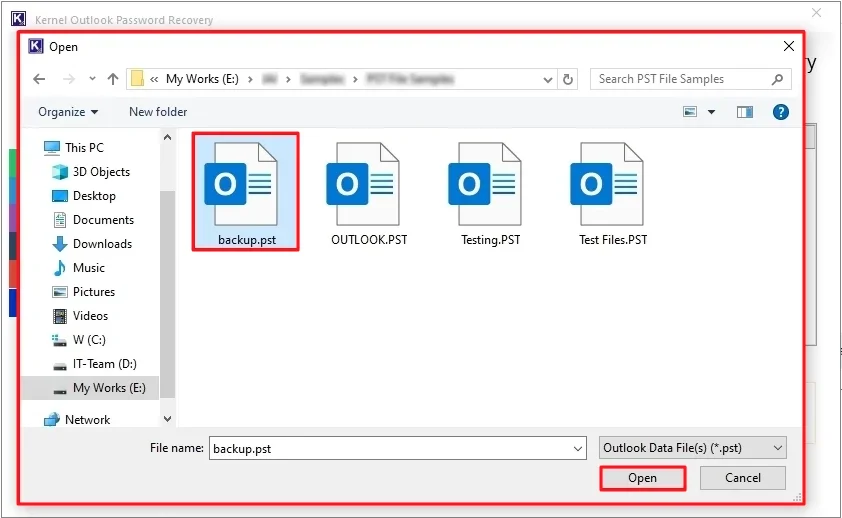
Step 3. After adding your PST file, select the file and click on the Set New Password option.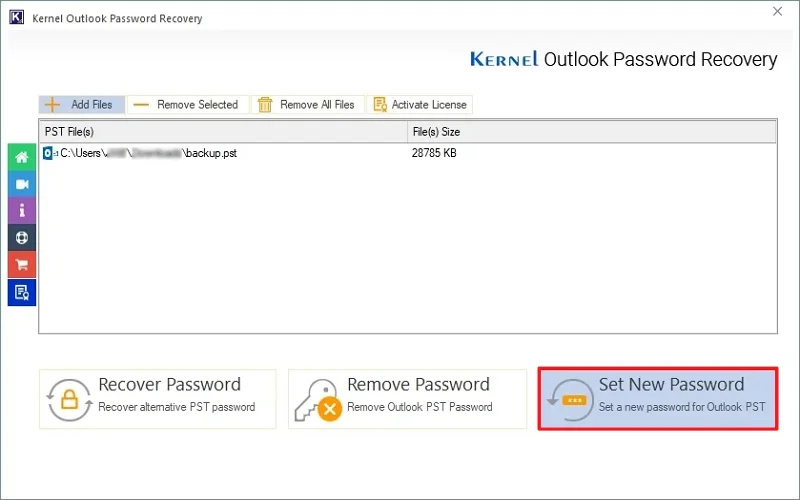
Note: Make sure to save a backup copy of your PST file locally and click I have the backup, continue option.
Step 5. Now, enter the New Password and Confirm New Password. Click OK.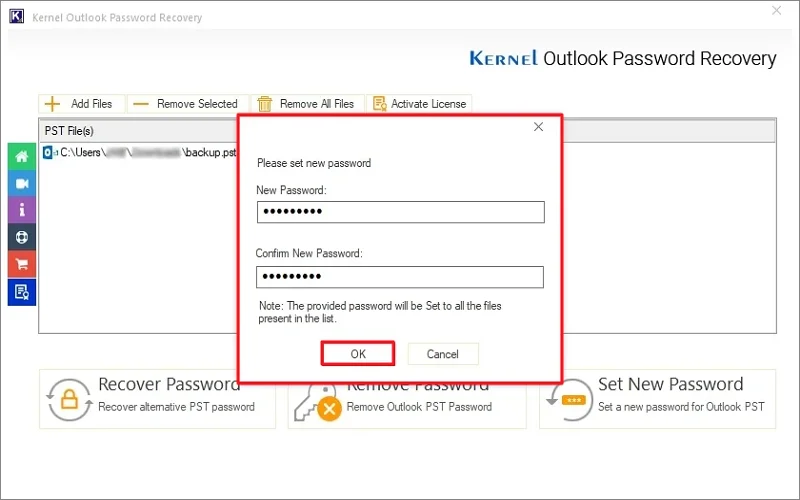
Step 6. The password will be successfully changed. If you need to generate and download a summary report, click on Save report to CSV. Click OK.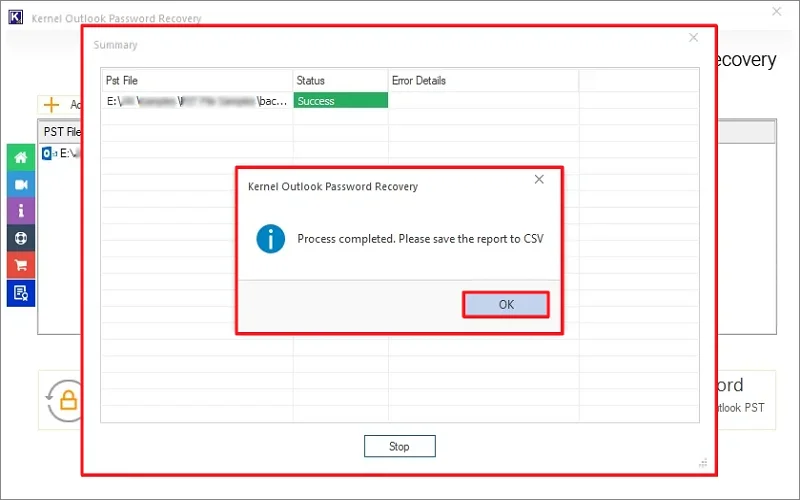
Conclusion
In this blog post, we have discussed the top 3 ways to change a password in Outlook. The ways are quite straightforward, but setting a new password is not as easy as it sounds.
If you want to change the PST file password, apart from the manual approaches, trust and use the recommended Kernel Outlook Password Recovery tool. It can quickly change & recover Outlook PST password, which is already password-protected. This feature comes in handy when you have forgotten or lost the password of PST files.
The trial version is available for free. Download today and make your Outlook PST file accessible and more secure.
Frequently Asked Questions (FAQs)
A. It is a good practice to change your Outlook password periodically, especially if you suspect any external activity on your account. Security professionals recommend changing your password within three months for maximum security. You can also set up two-factor authentication to add an extra layer of security to your account.
A. If you use the same Microsoft account to access other services like Office 365, OneDrive, etc., changing your Outlook password will also update the password for those services. You will need to sign in to those services with your new password the next time you use them.