Read time: 8 minutes
Are Securence Services Getting Closed?
Securence is retiring all its services after November 11, 2026. You need to move your email accounts to a new provider before the deadline to avoid email disruption and loss of access to your existing mailboxes.
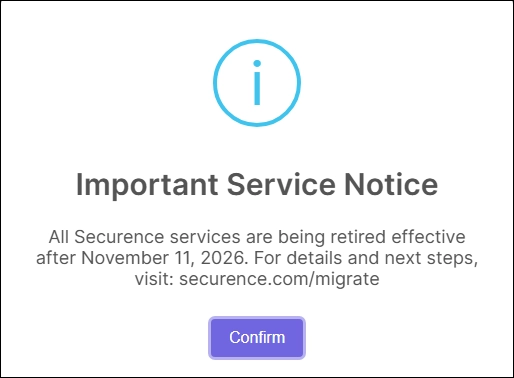
This retirement affects POP/IMAP email, webmail, hosted Exchange, email filtering, archiving, and other services. You should choose a suitable alternative, back up important emails and attachments, and transfer your data before the shutdown.
What Should Securence Users Do Before November 11, 2026?
Securence users must move their email accounts to a new provider before November 11, 2026, to retain access to their mailboxes and email services. But migration does not happen automatically. Users must choose a replacement, transfer important emails and contacts, and update their email settings before the deadline.
Users who rely on these services will no longer be able to view, send, or receive emails through their old accounts. This change affects both personal email users and businesses that rely on Securence for daily communication. Some organizations also use its email filters, archive services, and hosted email systems, so they must review those needs before they switch providers.
If you use Securence, start with these tasks:
- Choose a new email provider that suits your personal or business needs.
- Initiate an email migration to transfer your old emails, contacts, attachments, and other important data.
- Update your email client, domain records, and account details before the deadline.
- Additionally, take a backup of all your Securence emails to access them when needed.
Note: As Securence supports IMAP for its mailboxes, you can back up all your emails in your local system using a reliable IMAP Backup tool.
What Is the Securence Service Retirement?
Securence is retiring its email and other cloud services as US Internet and its parent company focus on internet connectivity, voice, and related services. The announcement covers more than basic email access.
The affected Securence services include:
- Standard email with POP and IMAP access
- Hosted Exchange email
- Incoming and outgoing email filters
- Email archiving and mail continuity
- Cyphermail services
The retirement notice also covers certain web hosting, domain, DNS, SSL certificate, database, and virtual machine services. Customers who use more than email must review the full notice and plan for each affected service.
Why Should You Migrate from Securence Now?
You should not wait until the final days to migrate your Securence emails. A migration may require mailbox setup, data transfer, domain changes, security checks, and tests across multiple devices.
To cope with these scenarios, you need to initiate an email migration to move your Securence emails to another IMAP-based email client or email server. For a seamless email migration service, opt for the Kernel Email Migrator tool to migrate your Securence emails to Gmail, Zoho Mail, Microsoft 365, and all IMAP-based email clients.
Here are four reasons to start your IMAP email migration now:
- Protect old email data: Save important messages, attachments, and contacts before the old service ends.
- Avoid email disruption: Set up your new mailbox and test it before the deadline.
- Protect business communication: Keep customer messages, invoices, support requests, and other important records available.
- Review security requirements: Replace old spam filters, archive services, and mail security rules where needed.
How to migrate Securence emails to any IMAP-based email client?
Step 1: Download, install, and launch the Kernel Email Migrator tool.
Step 2: On the software’s home screen, click on the Add Project option.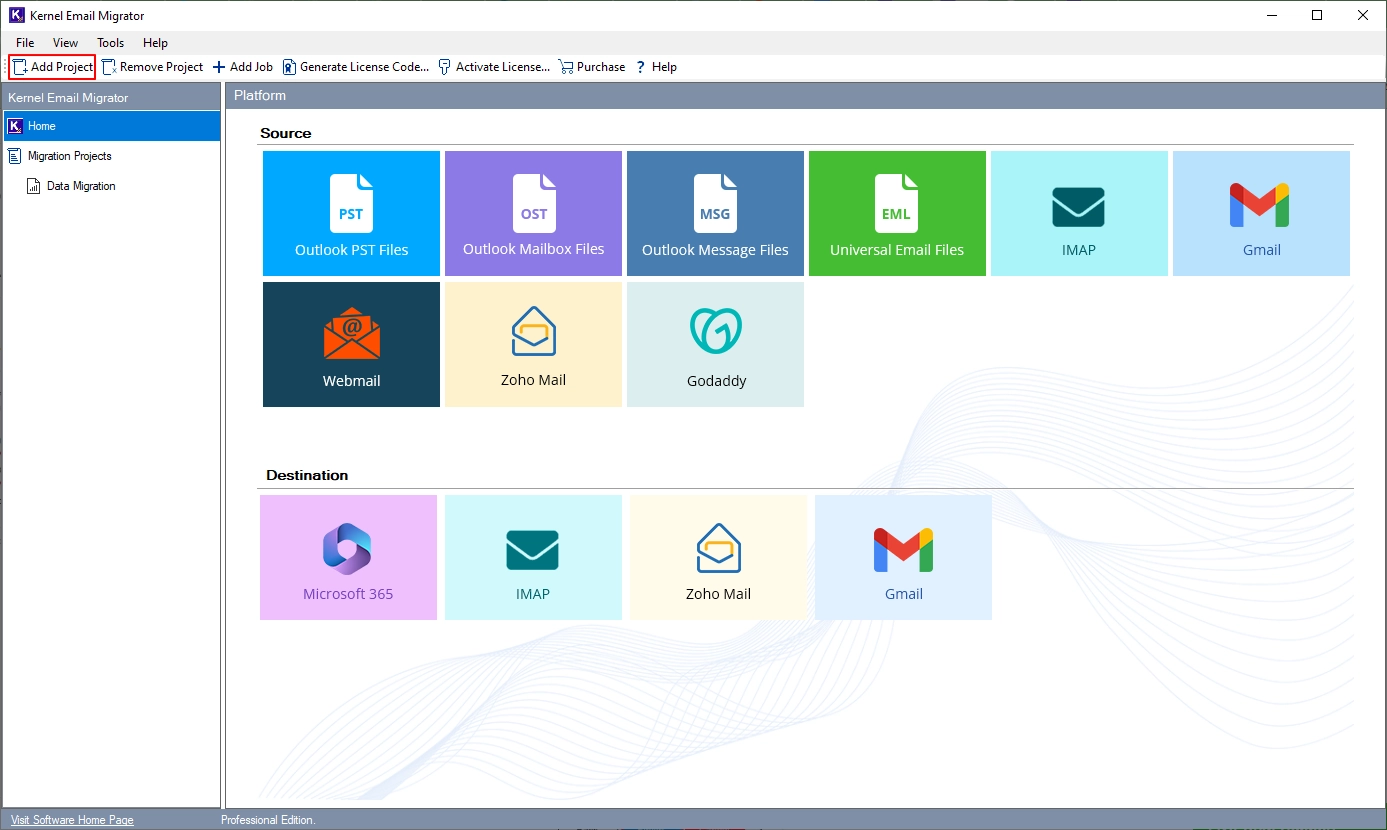
Step 3: Enter the Project Name in the following window and click OK.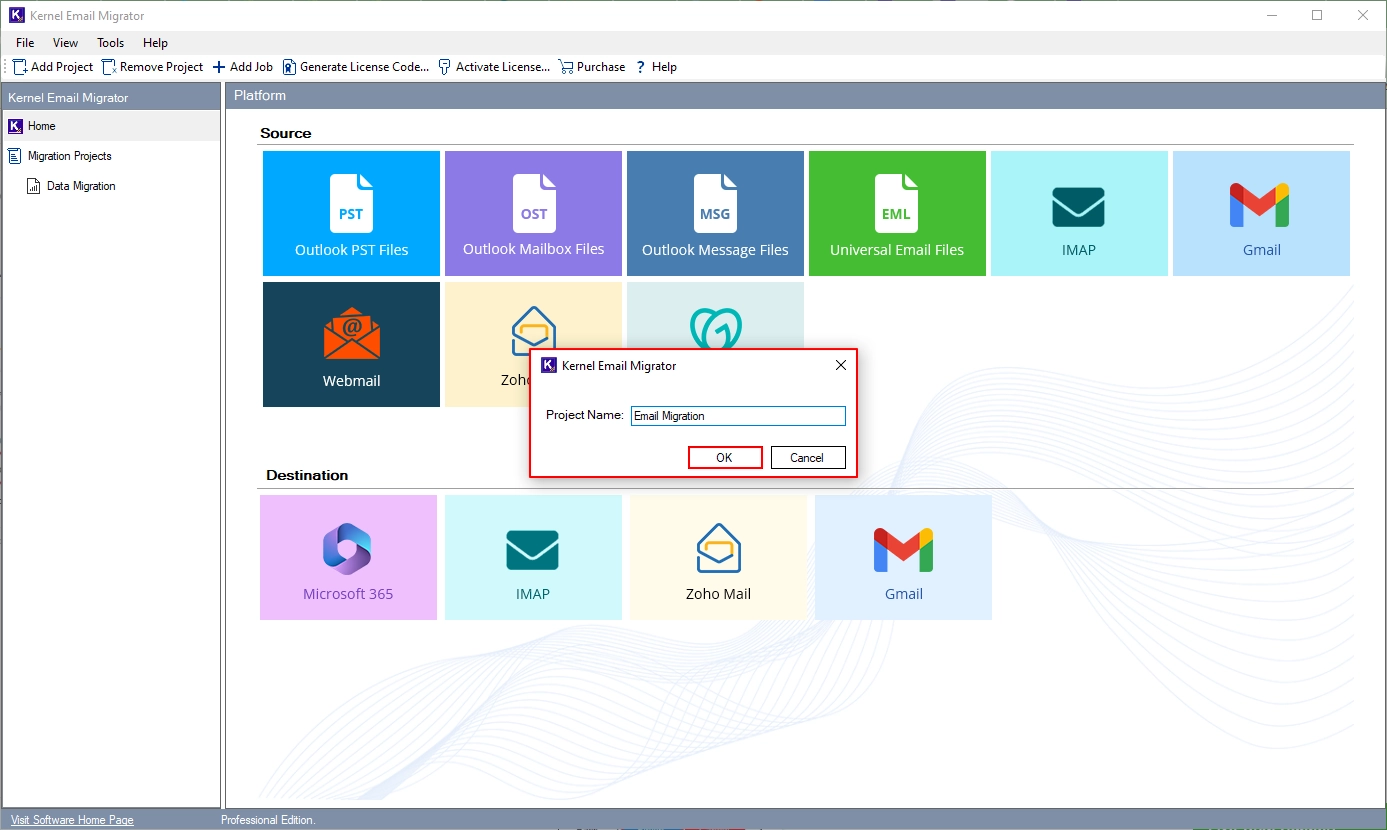
Step 4: Click on the IMAP tile in the Source section.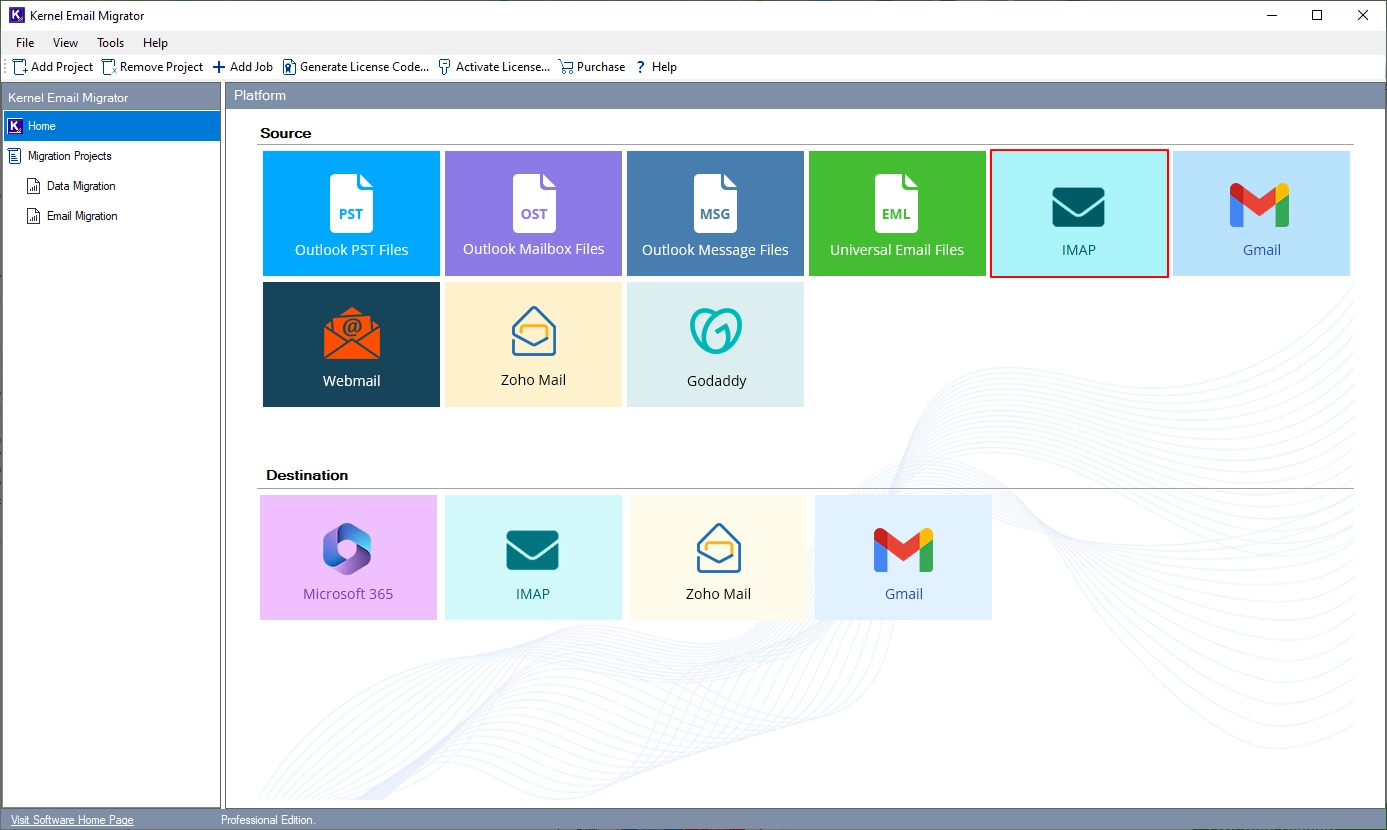
Step 5: Select Migration Type as IMAP to IMAP, enter Job Name, and click Next.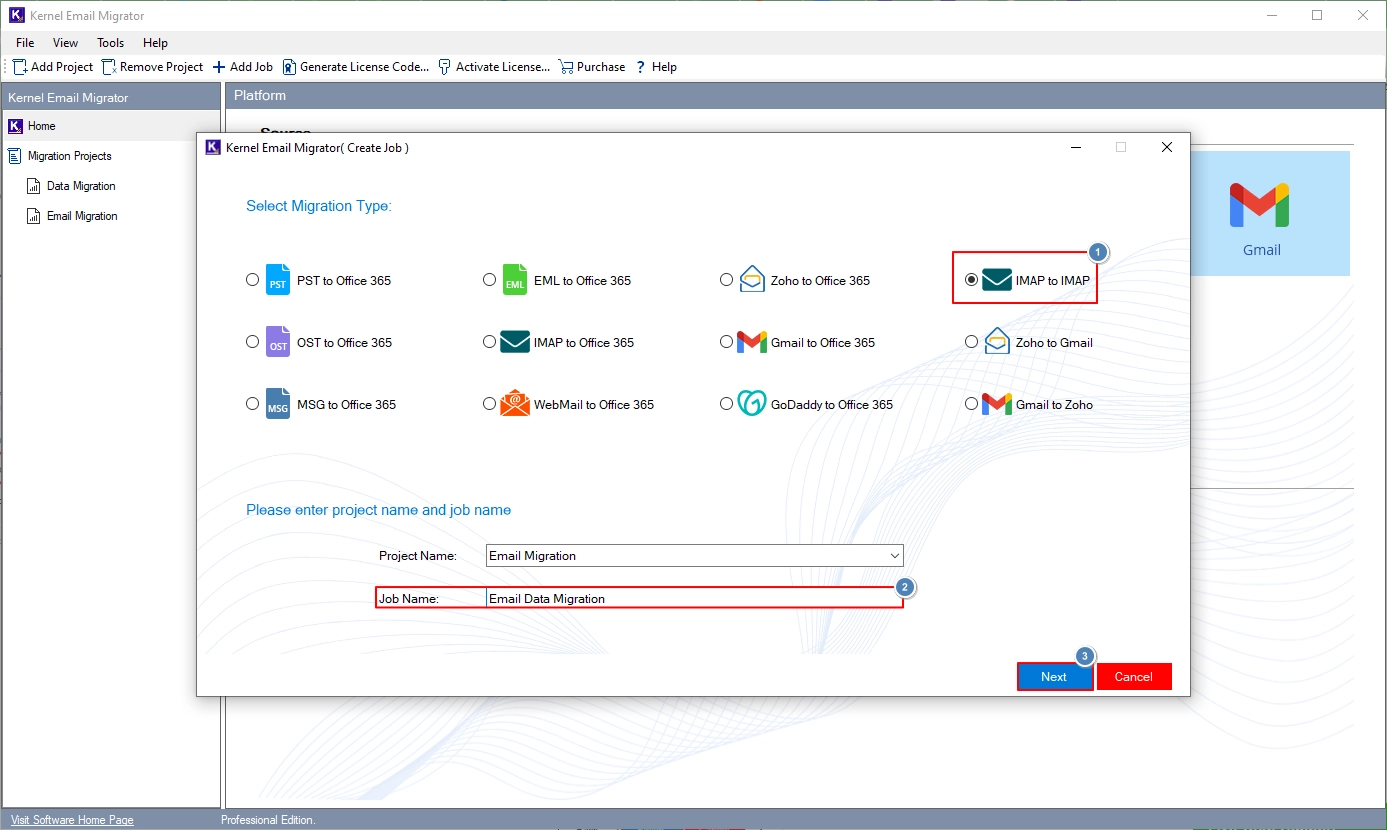
Step 6: Click Connect in the Add Source option.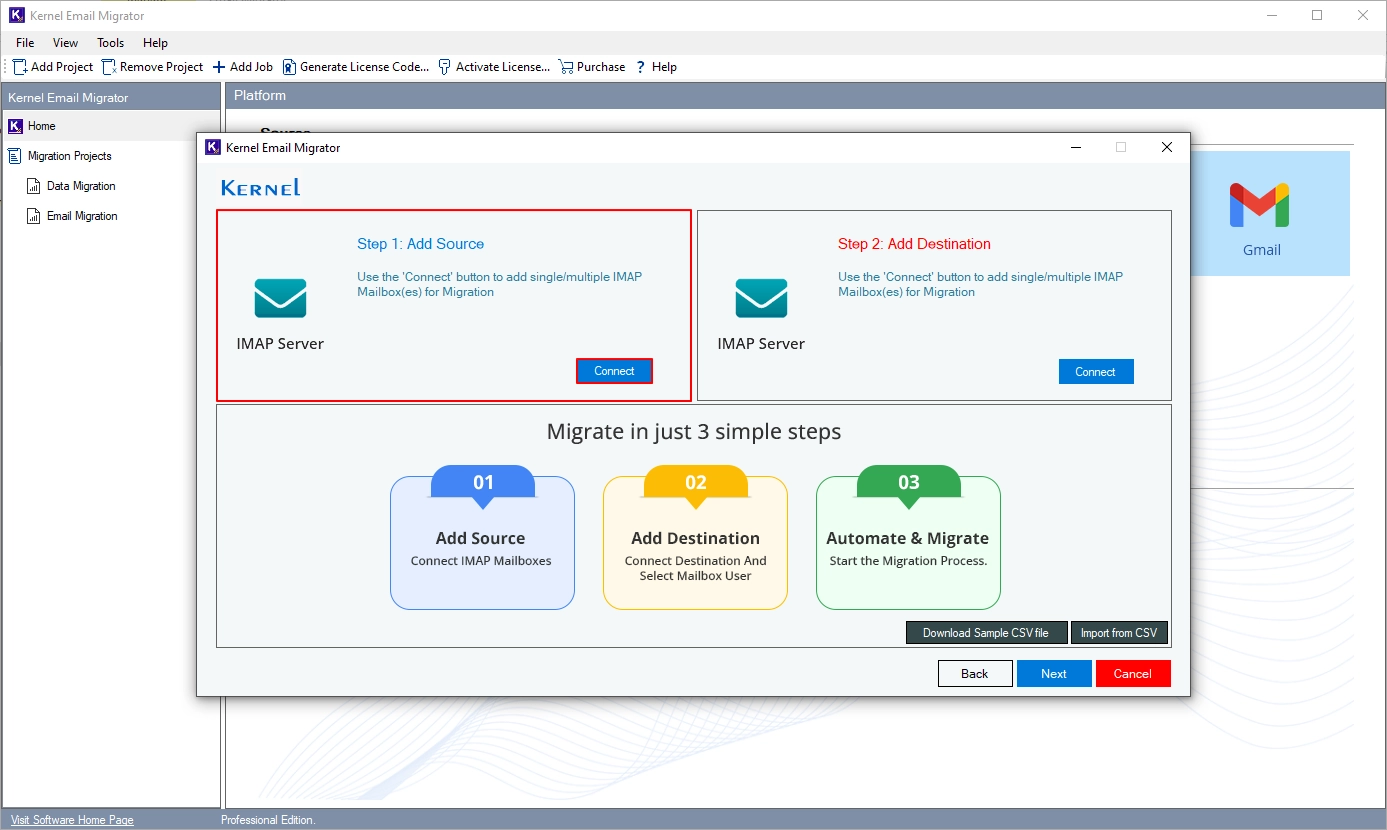
Step 7: Enter the source Securence Email account credentials and click Add.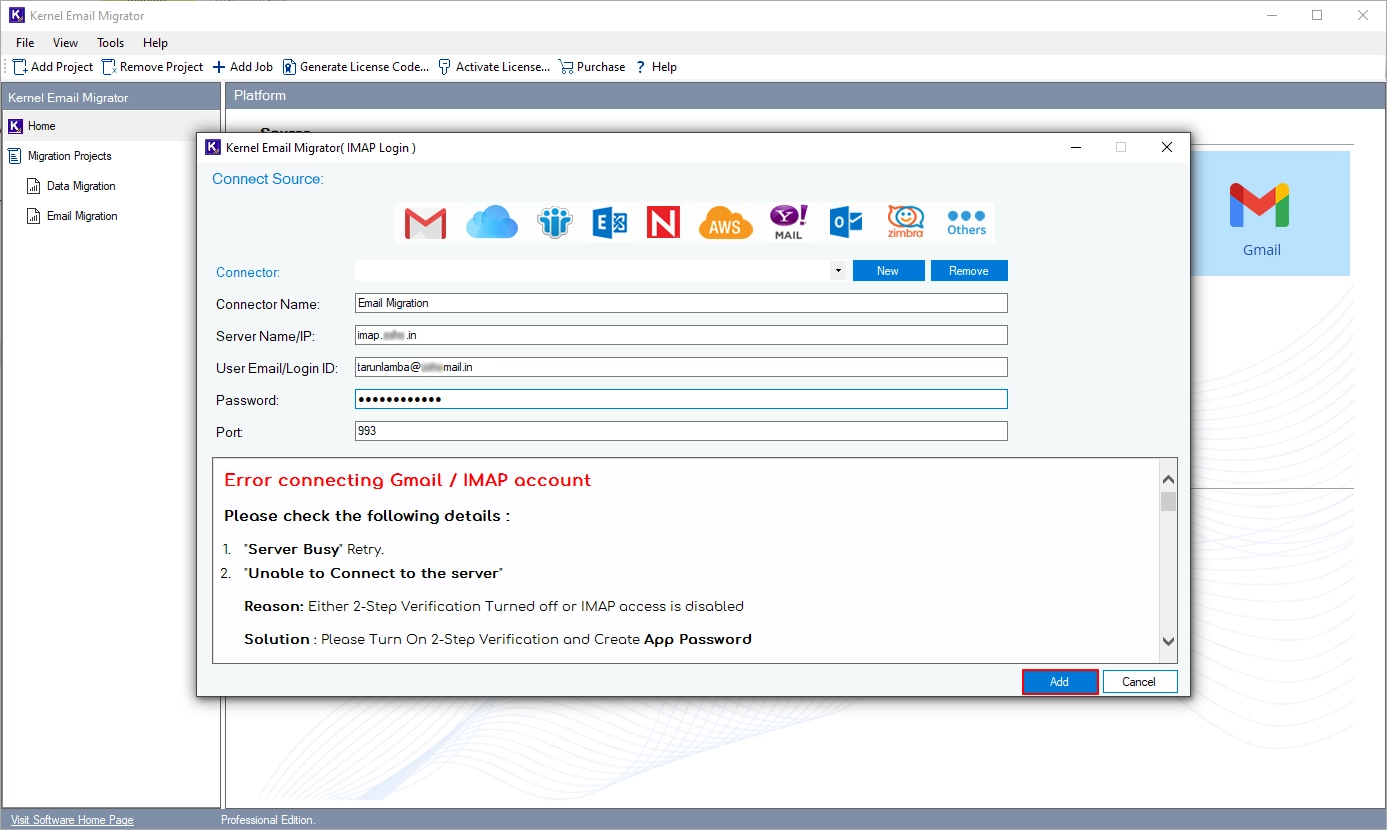
Step 8: Click Connect in the Add Destination section.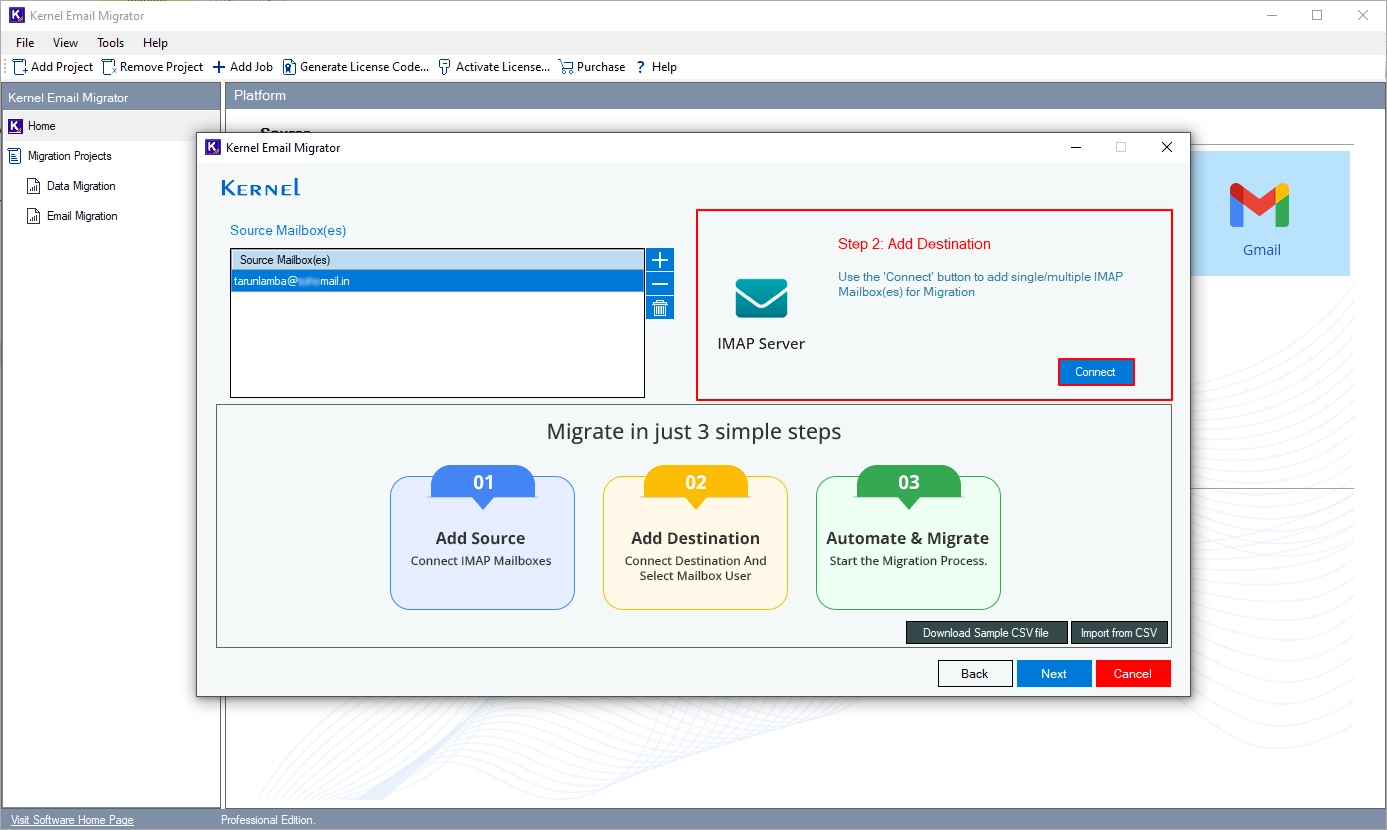
Step 9: Enter your destination account credentials and click Next.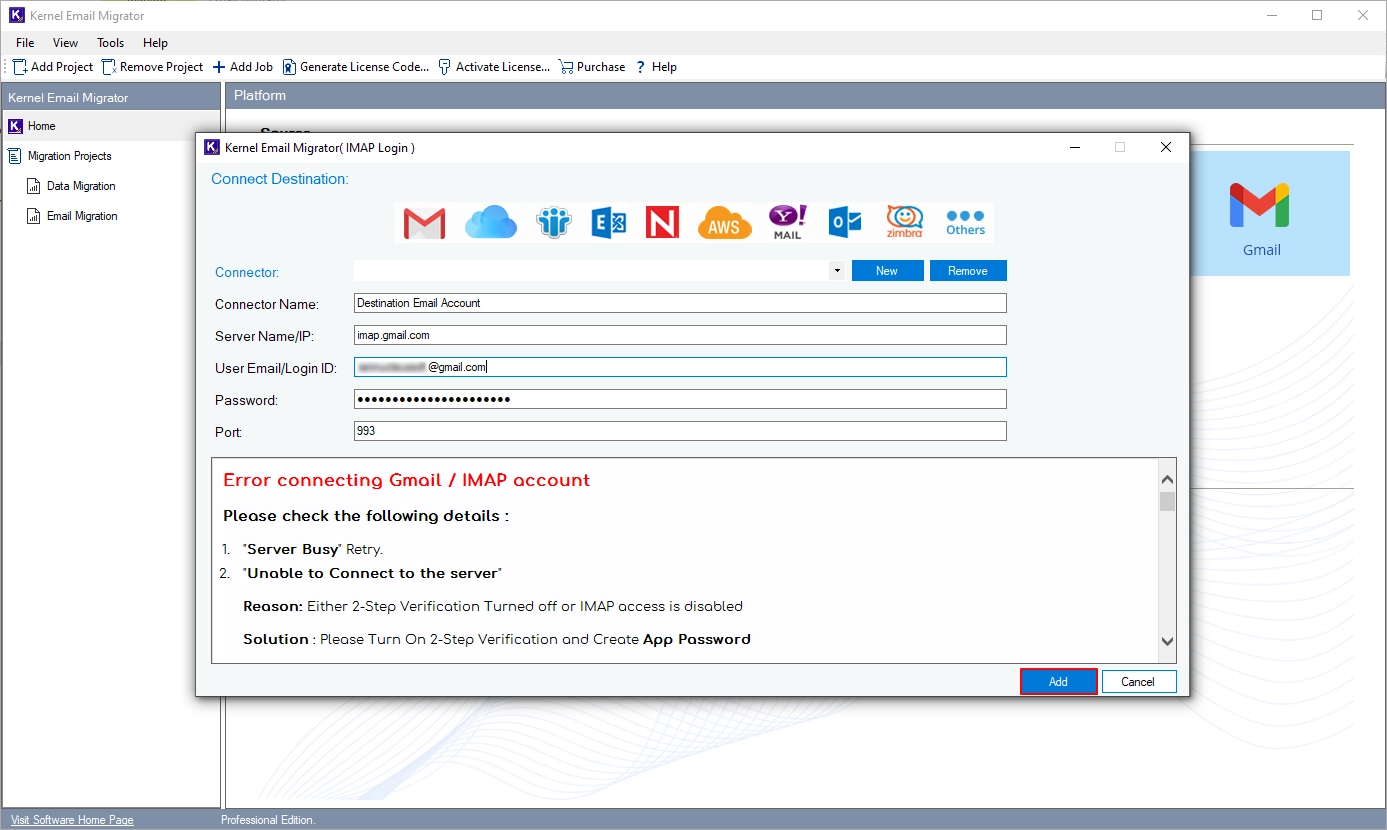
Step 10: Map your source account to the destination account and click Next.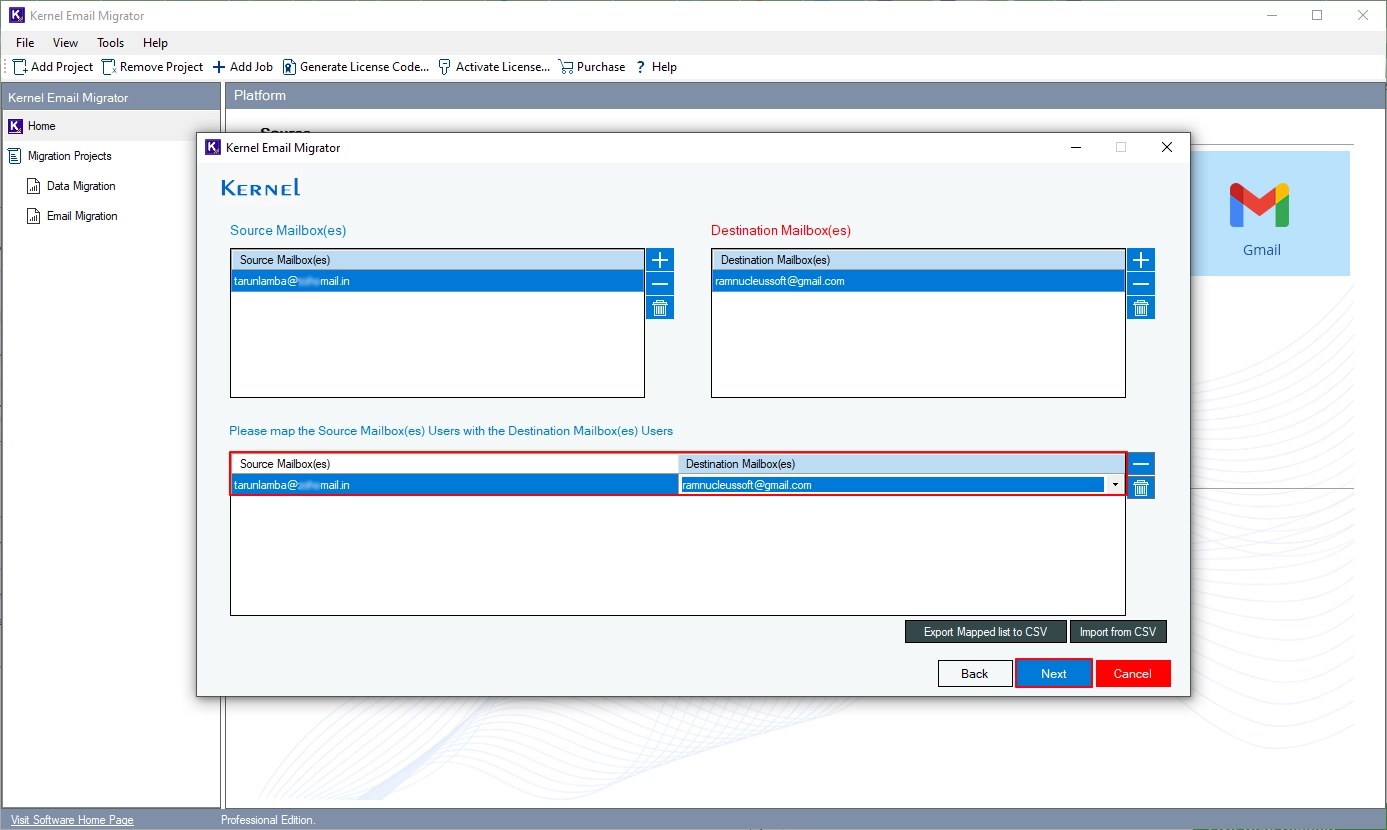
Step 11: In the following filters window, apply the necessary filters and click Next.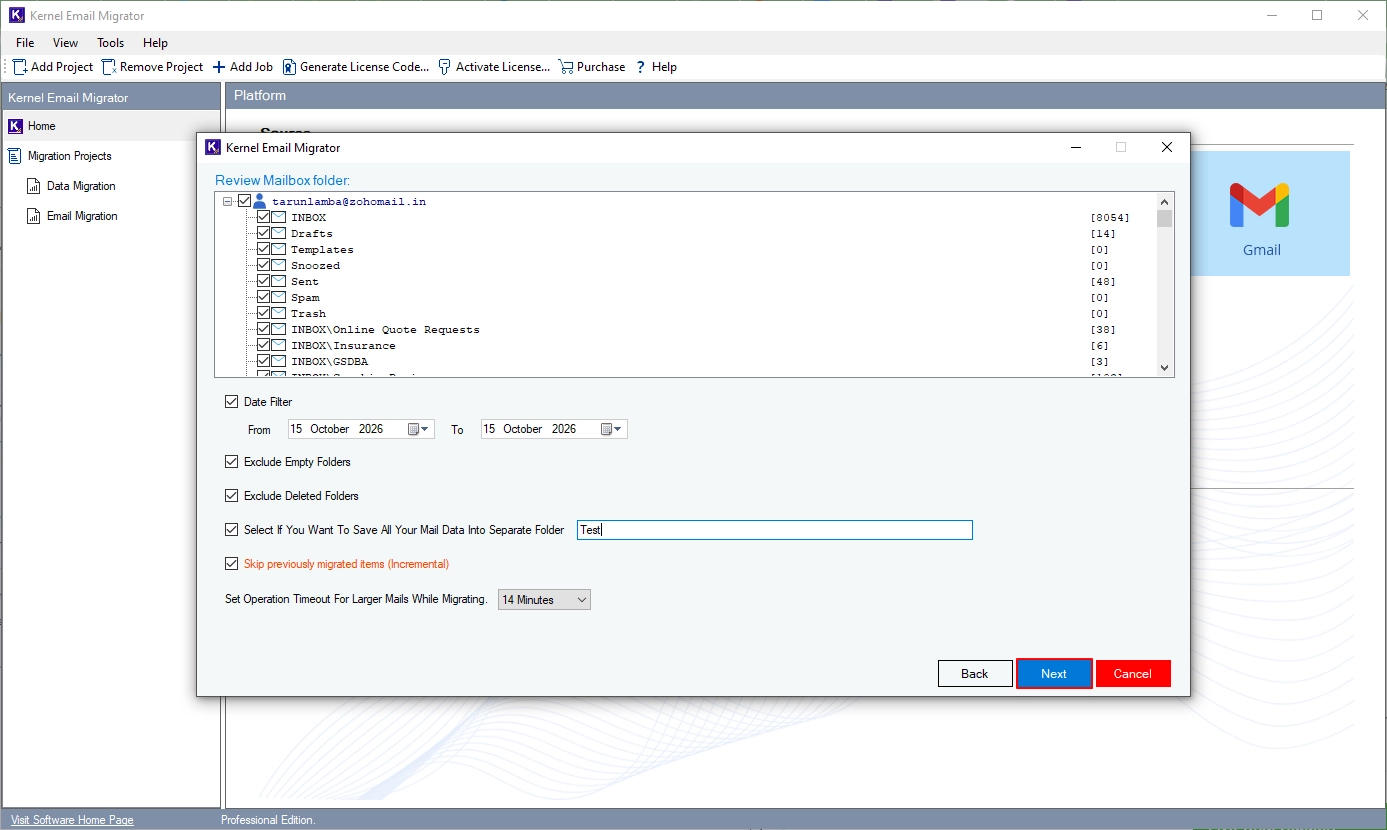
Step 12: Select Schedule from Execute Immediate or Schedule as per your preferred time. For now, we are going with immediate email migration. Select Execute Immediate and click Finish.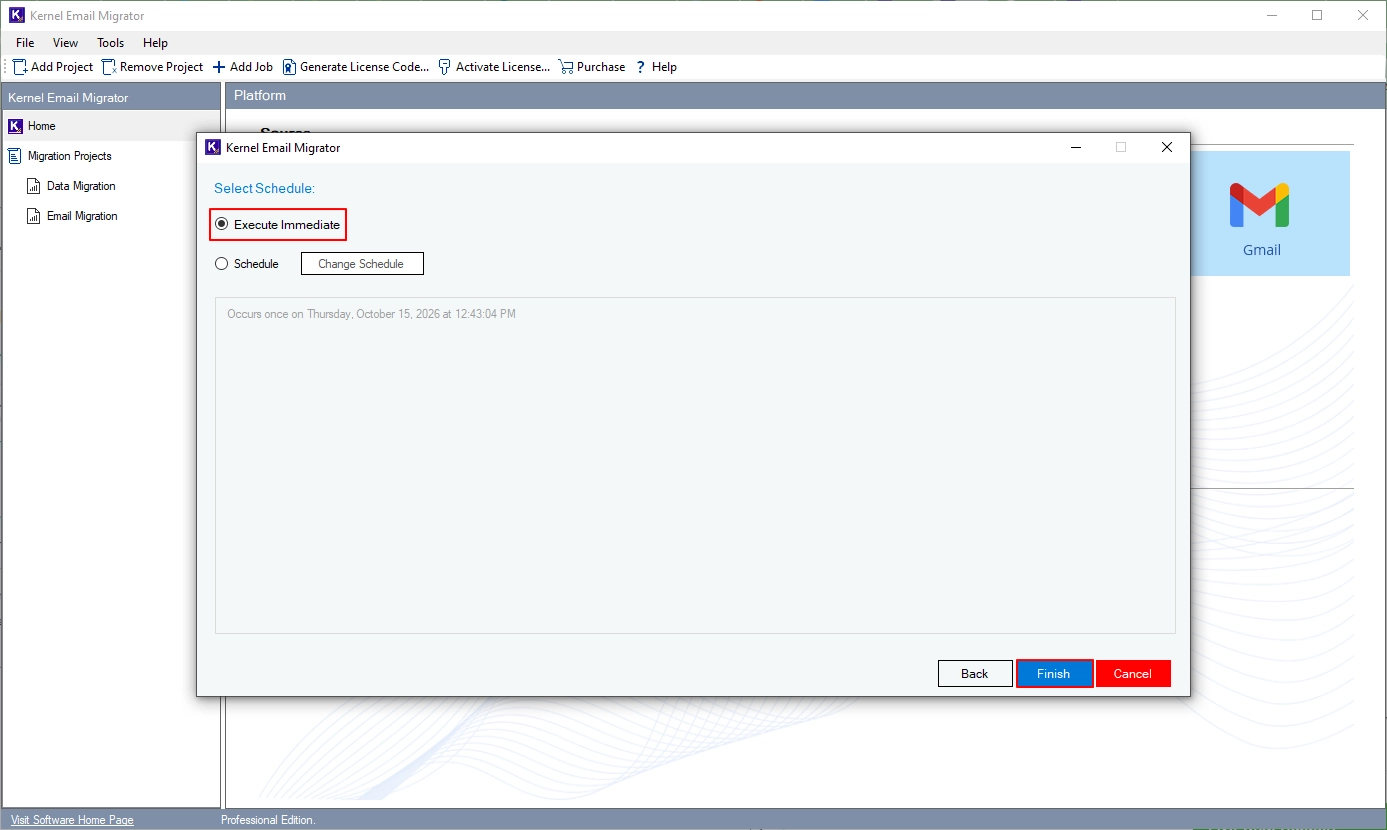
Step 13: The software will start migrating your Securence emails to the selected destination email client.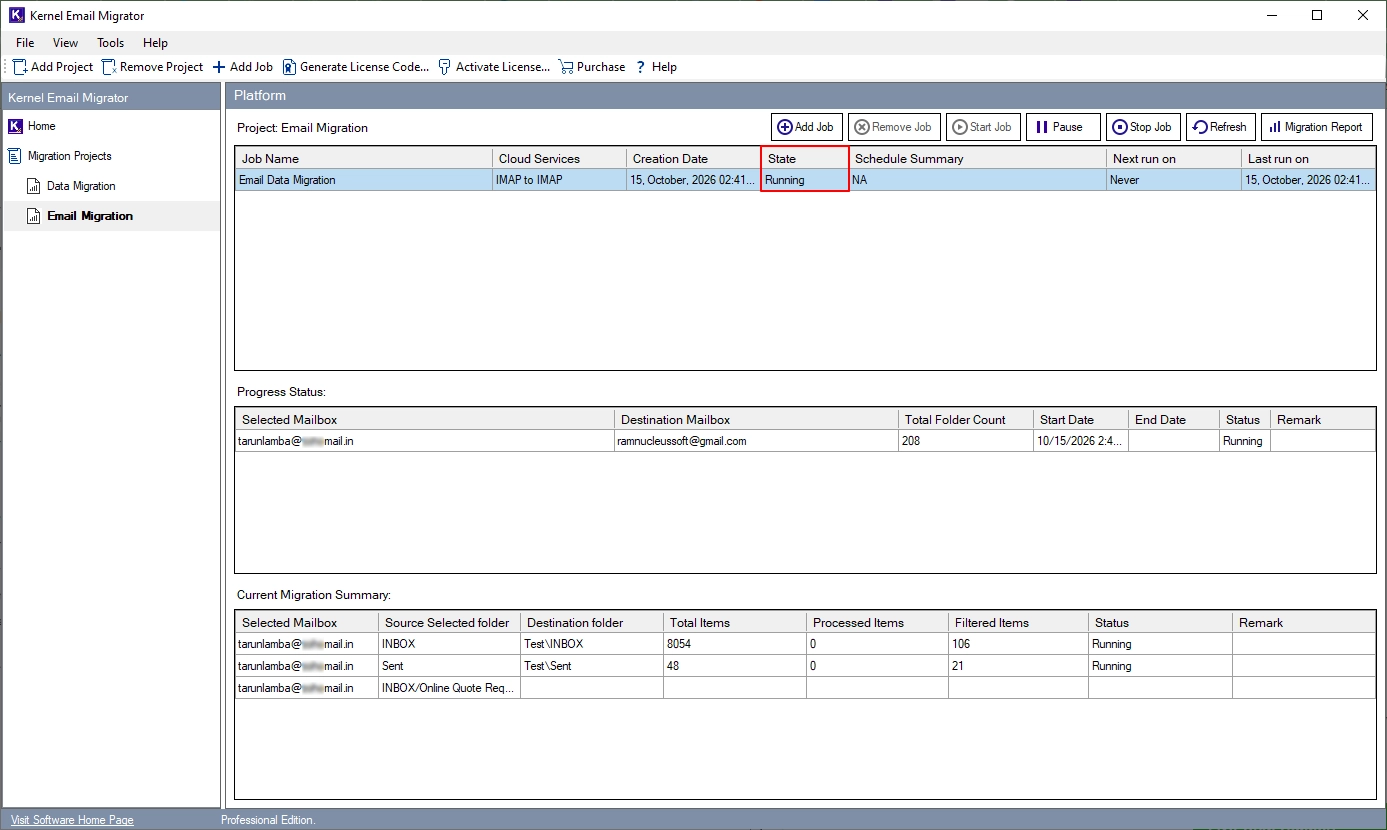
Step 14: After a successful email migration, the tool will show the Ready status. Click on Migration report to download a summary and a detailed migration report in a CSV file.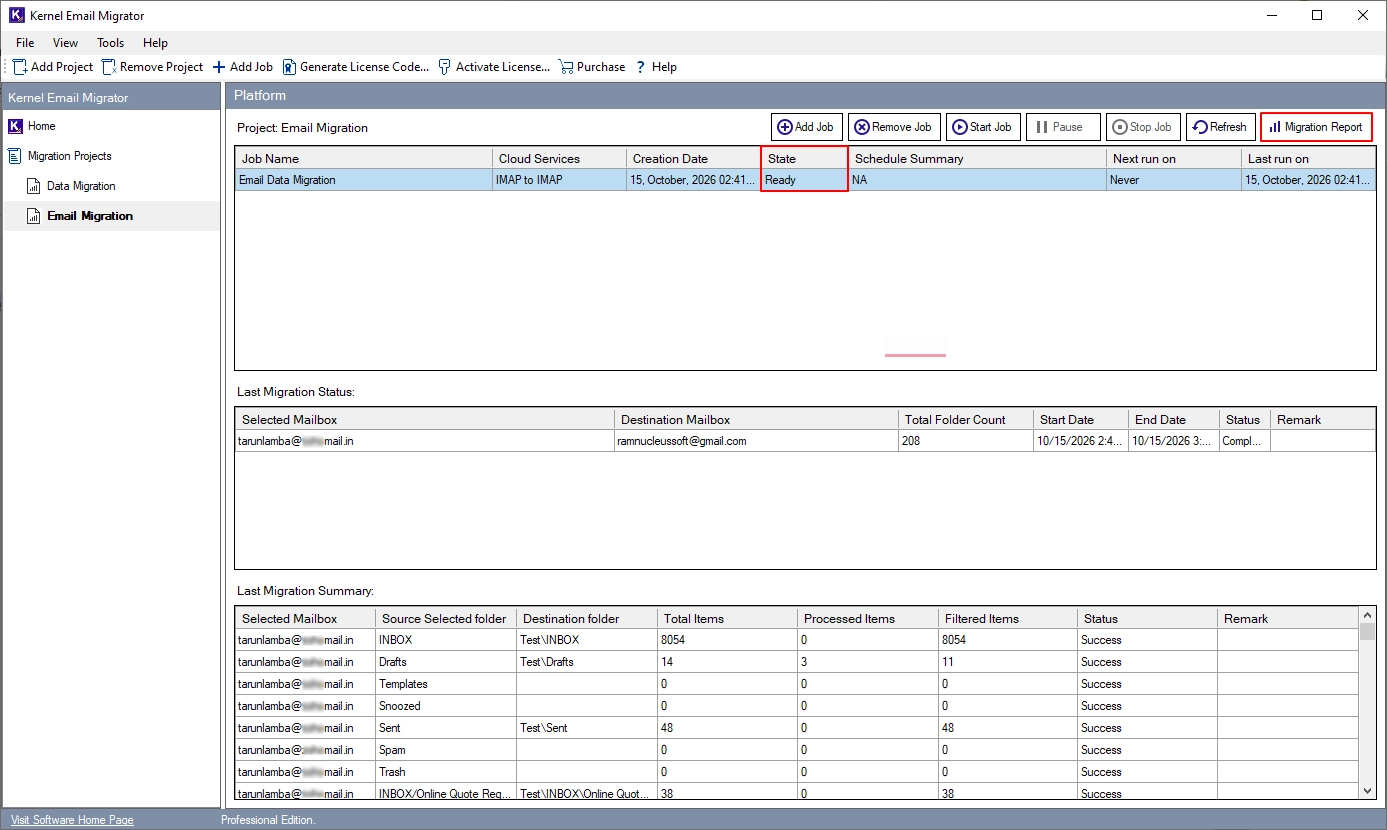
Conclusion
The Securence service retirement gives users a clear deadline to prepare for an IMAP email migration to continue their personal and business journey. The right migration plan should cover old messages, contacts, attachments, domain settings, security controls, and any archive data that your organization must retain.
Choose an advanced email client, create a new account, transfer the required data, and test mail flow before November 11, 2026.
Frequently Asked Questions
Answer: No, you must choose another email client as a replacement and use IMAP email migration to transfer your email data.
Answer: In many cases, Yes. If you use your own domain, you can usually retain your email address by moving the domain’s mail service to a new provider and updating the required DNS records.
Note: However, addresses under US Internet-owned domains, such as `usinternet.com` and `usiwireless.com`, and other affected domains listed in the official notice will no longer be usable after retirement. Users of these addresses must create a new address and update their accounts.
Answer: Yes, you can add your Securence account to Outlook using IMAP authentication to access your emails. However, this will not prevent the account from being suspended. To retain access to your emails in any version of Outlook after the suspension, create a local backup of your Securence emails in a PST file using the IMAP to PST method.