Read time: 8 minutes
Summary: The process to reset Microsoft 365 password is simple. Just go to the Microsoft official sign-in page, click forgot password, enter your email & verify your identity, and create a new password. If problems occur, change device, browser, network, or contact Microsoft support. Take regular backups using the Microsoft 365 backup tool to keep your Microsoft 365 data accessible and consistent, even if there’re password reset process or issues.
Are you locked out of your Microsoft 365 account or worried that your Microsoft account password is weak, and anyone can easily guess it? Just reset your Microsoft Office 365 password and enable MFA (Multi-factor authentication) to implement high-end security on your account.
Being locked out of your Microsoft 365 account can be frustrating, especially when you need quick access to emails or files. Regularly resetting the password is a great way to improve account security against unauthorized access.
I personally feel that accessibility to the Microsoft account should be simple, but the major concern today isn’t forgetting a password; it is security, of course. It is a bigger reason to reset Microsoft 365 password, because Microsoft itself has shared that thousands of password-based attacks happen every second.
Microsoft says that 99.9% compromised accounts don’t have multi-factor authentication (MFA), and not having MFA made Microsoft 365 accounts vulnerable to password spray, phishing, & password reuse. So, as a Microsoft 365 user, you should have the ability to manage and reset the Microsoft Office 365 password.
Instant Solution: Reset Microsoft 365 Password
It is the easier method by which users who forget their passwords can reset Microsoft Office 365 password, with their own:
- Go to the Microsoft 365 sign-in page and tap on Forgot my Password.
- Enter your account email ID and complete verification via (OTP, email, or authenticator app).
- Create a new Microsoft 365 user account password and then login successfully.
Understanding Microsoft 365 Password Policies
Microsoft 365 password policy is a set of guidelines that helps end users and improves security by reducing password-related breaches and account catastrophes. If you’re using Microsoft 365, you are solely responsible for keeping your password safe and strong.
Passwords must meet the complexity rules, which include multiple character types, fresh & updates patterns, etc. A set of rules for a strong password is as follows:
- Keep your password strong enough, with a minimum of 14 characters.
- Passwords must include lowercase, uppercase, numbers, or symbols.
- Don’t use similar passwords that use characters like earlier; keep it unique.
- Avoid using single-word passwords or common, easy-to-guess phrases.
- Set passwords that you can remember, but no one can guess them easily.
- Change the password immediately if you suspect that it can be compromised.
- Enable multifactor authentication (MFA) with a password if available.
Way to Reset Microsoft Office 365 Password
You can change a Microsoft 365 account depending on the situation, like you’ve forgotten your account password or if you’re already logged in to the account. Here, both methods are given, opt then as you need.
Scenario 1: You’ve Forgotten Your Microsoft 365 Password
When you’ve forgotten your account password, or are unable to access office 365 admin portal, or are facing the issue that your account password is incorrect, you can’t log in. In such a case, you need to change or reset your Microsoft Office 365 password. Here is how to do a Microsoft 365 password reset:
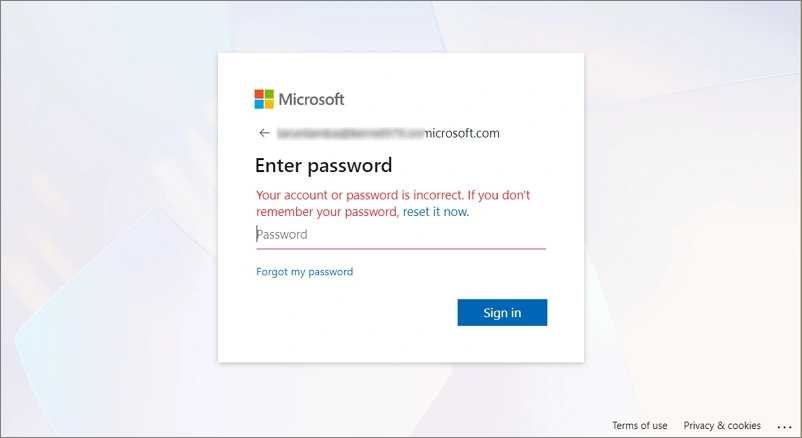
- Go to the Microsoft 365 login page in your browser, input your Office 365 account email & then your password.
- The dialogue box prompts ‘Your account password is incorrect’. If you don’t remember, reset it now. Tap on Reset it now or Forgot My Password.
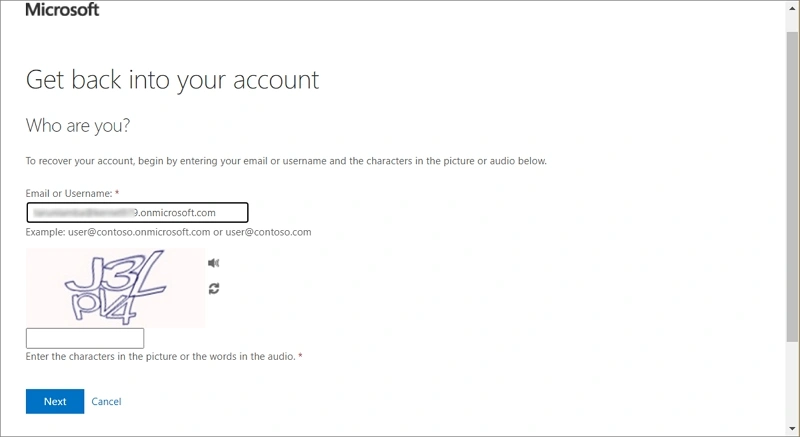
- In the next wizard, enter your email or username and captcha code. Click Next.
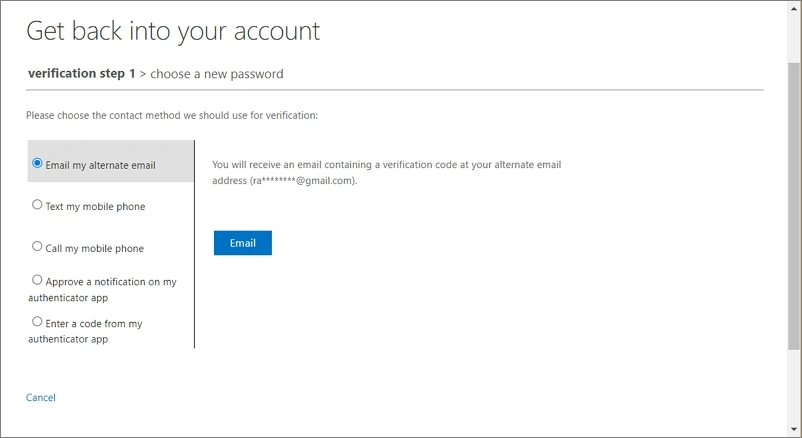
- Verify your account via any methods like Email my alternate email, text my mobile phone, call my mobile phone, etc.
- Once verified, create a new password and follow further instructions. Your password will be reset. Try login again with the newly created password.
Scenario 2: You’re Logged in to Your Microsoft 365
If you’re still logged in to your Microsoft 365 account and looking to reset office 365 password for account security, then you can do it easily. Here are the steps to reset password Microsoft 365:
- In the Microsoft 365 or Entra Admin home page, tap on your Profile icon and then View Account.
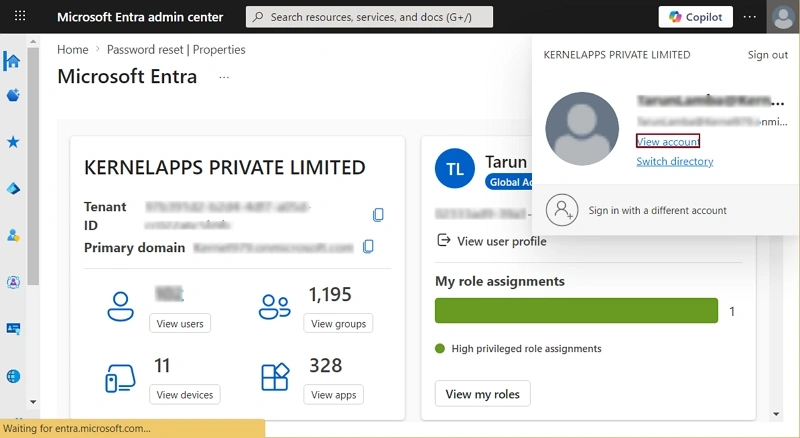
- Check for your recovery email and phone number.
- Click on 3 horizontal lines, go to My Account, tap on Change Password.
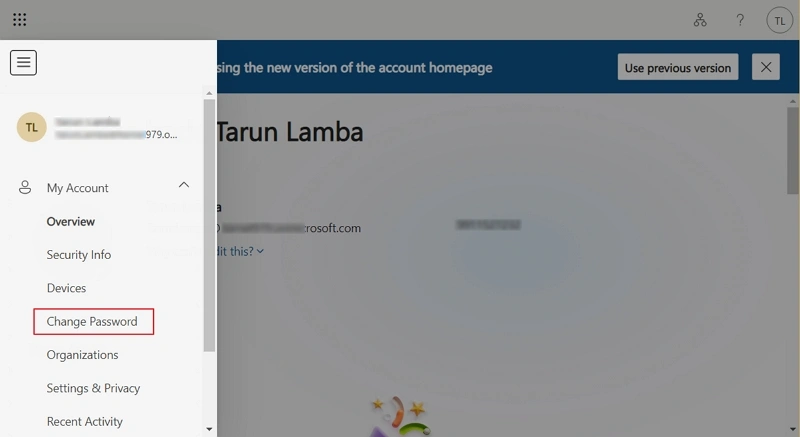
- Verify the code via the device, number, or authenticator app.
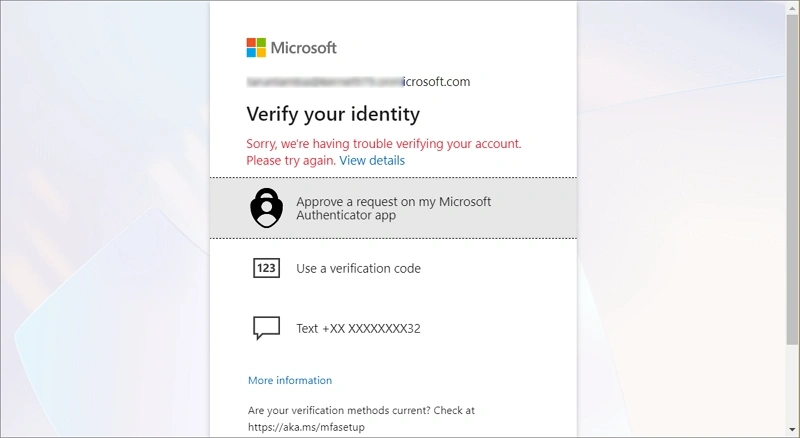
- Create a new password and follow the further instructions. Click Change Password.
Your password will be changed. You can use this to login whenever you want.
Note: Here is an alternate way to reset Office 365 password, if you’re already logged in.
- Sign out of your Microsoft account and go to sign in page again.
- Type your username or email and click Next. Tap on Forgot password.
- Now, follow the further guidelines to reset Microsoft Office 365 password.
Step-by-Step Process to Reset Microsoft 365 Password of a User
If you’re an Office 365 admin and you’re asked to reset the password, you can do it effectively. The complete step-by-step process to reset Microsoft Office 365 password of users:
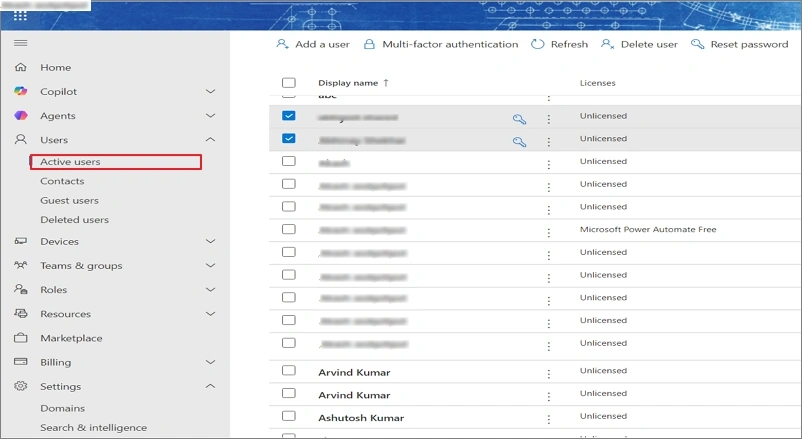
- Login with your Microsoft 365 Admin account, go to the Users, and tap on Active Users.
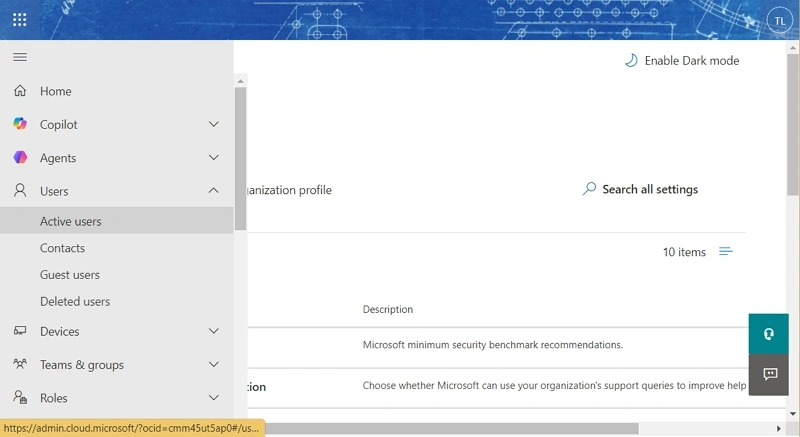
- Now, select the users and then tap on Reset Password.
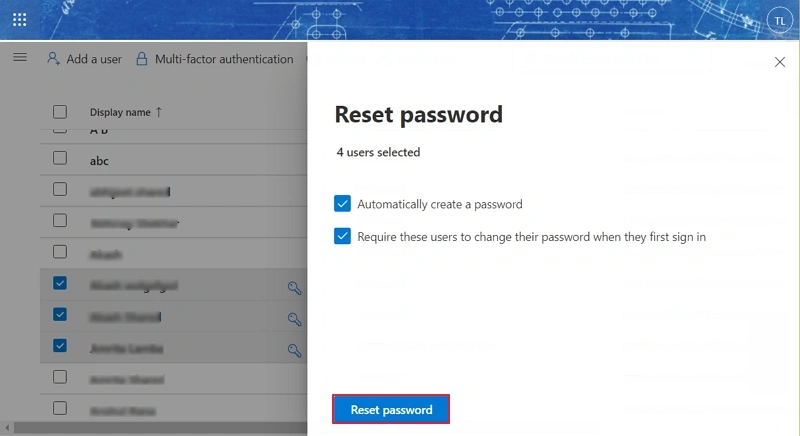
- Follow the instructions to create a new password. Also, you can autogenerate a password.
- Once the password is created, tap on Reset Password.
- You’ll be asked to print account details to a PDF. Store it at your preferred location and share with your users securely.
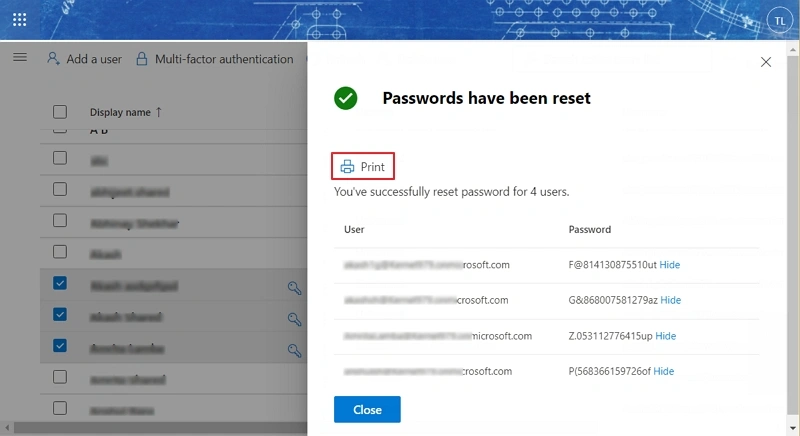
Note: Along with the autogenerated password, the Microsoft 365 admin can also reset Office 365 passwords for multiple users at once.
Steps to Allow Users to Reset Their Own Office Passwords
Microsoft 365 admin has the right to allow their users to reset Office 365 password on their own. It overall improves user experience, individual productivity, and is considered an enhanced security posture. The steps to do so are:
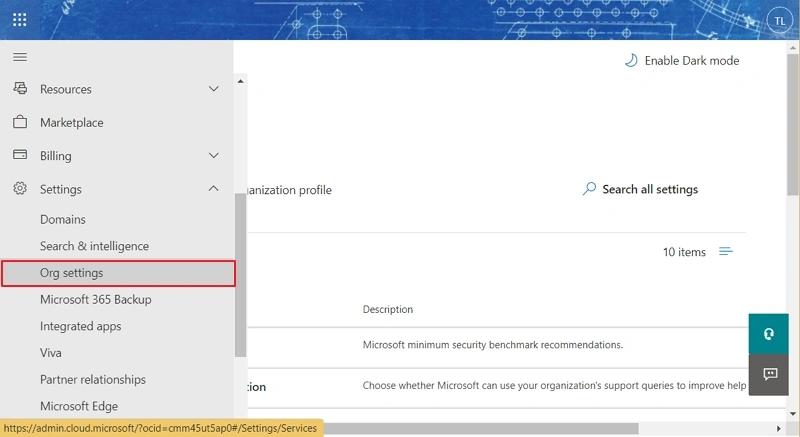
- Go to Microsoft Admin Center, go to the left navigation pane, tap on Settings, then Org Settings.
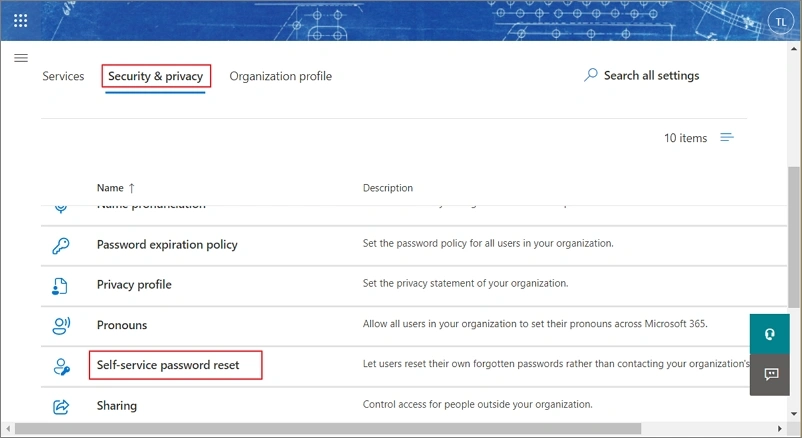
- Tap on the Security and Privacy tab and select Self-Service Password Reset.
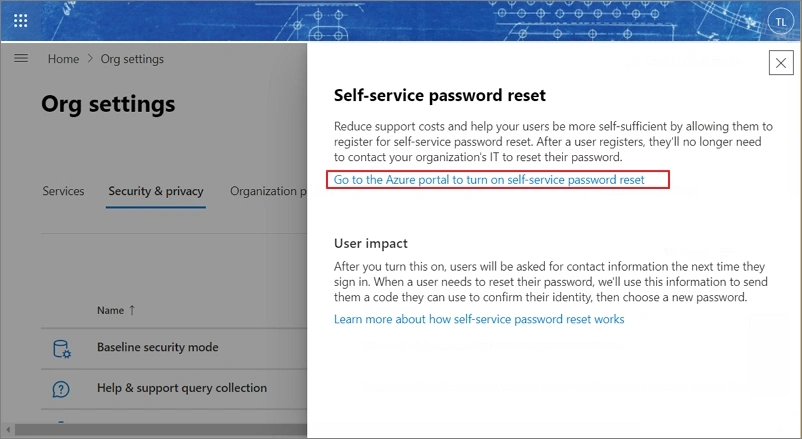
- Tap on Go to the Azure portal to turn on self-service password reset. You’ll be redirected to the password reset page in the Microsoft Entra admin center.
- Choose All or Select on the Password reset | Properties page. You need to specify the groups for the Selected option. Click Save.
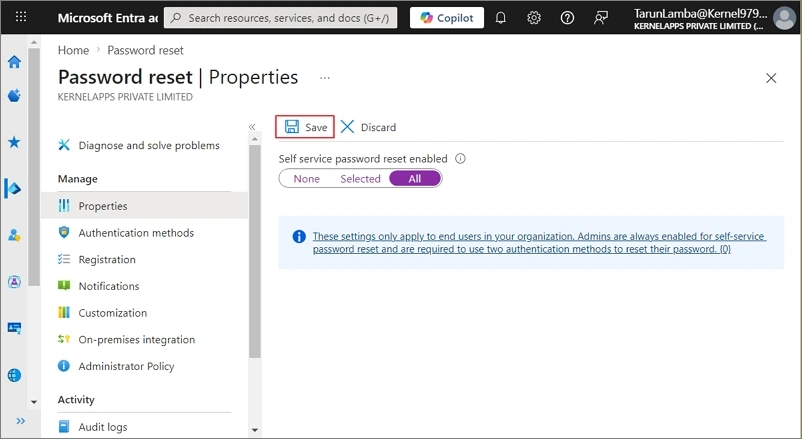
Now, any selected users can change their Microsoft 365 password on their own. They don’t need to ask for admin to do so.
Microsoft 365 Password Reset Issues and Their Troubleshooting
Microsoft’s password reset process also comes with various issues that users often face when they do something.
I’ve been trying to log in to my Microsoft account, which I’ve used for years. After switching my phone, I forgot my password. I can access my recovery email and recover the reset code, but every time I try to reset the password, the system fails and tells me to try again the next day. I’ve been facing this for the last 8 days. SMS verification also is not working. I need urgent help to recover my account.
The query shows the locked-out user scenarios, system-level failure, misconfigured recovery option & broken verification channel as well. A few solutions that can help are as follows:
- Avoid multiple attempts and wait for 24 hours.
- Use only one method (email, authenticator, or phone) for verification.
- Switch to a different device, browser, or network (Wi-Fi or mobile data).
- Clear browser data, like cache, history, etch and use the private mode.
- Since direct phone support is limited, contact Microsoft Support via the live chat option.
Some common issues and their fixes:
| Issues | Fixes |
|---|---|
| Incorrect recovery details | Update alternate phone or email regularly. |
| MFA is not working | Try the backup authentication method |
| Account locked | Wait or contact your admin or Microsoft support. |
| Browser or device issue | Clear the browser’s data or use a private tab. |
| Data accessibility or loss | Backup Microsoft 365 data regularly. |
Access Your Microsoft 365 Data When Password Doesn’t Work
Depending on only the manual password recovery methods can be risky, especially when the system fails, or verification methods don’t work. Due to various Office 365 issues and situations, such as forgotten passwords or login issues, relying only on account access is not enough. You should have a secure yet consistent backup that provides you with the offline accessibility to your data even when you are locked out of your account.
A professional tool, like Kernel Office 365 Backup and Restore, helps to eliminate these risks by creating a secure and accessible copy of Microsoft 365 data locally. Even if you fail to log in to your account, you can access your account data easily.
Conclusion
The problem related to the Microsoft password may happen at any time, which will restrict your accessibility. Instead of reacting later, you can take proactive steps, like resetting credentials securely, updating recovery options (email, phone, etc.), & configuring password authentication, such as MFA, SSPR, etc. However, you can change or reset Office 365 password manually with the above-mentioned methods.
Make sure that your Office 365 data does not depend only on account access; take a full backup regularly for alternate or offline access. Don’t wait until you lose access to your account and data, too. Use a reliable Office 365 backup solution today to keep your data safe and security always.
FAQs: Reset Microsoft 365 Password
A: Go to the Microsoft sign-in page, click forgot Password, verify your ownership via email, OTP, or authenticator, and create a new password.
A: Microsoft admins can change the password from the admin center by selecting the users (single or multiple) and choosing the option Reset Password. Admin can reset password Microsoft 365 of multiple users at once.
A: The Microsoft 365 reset password may fail due to multiple sign-attempts, incorrect verification details, temporary security blocks, & incompatible browsers or devices.
A: Yes, via the recovery emails or the alternate method, like the authenticator app, you can reset Microsoft 365 password effectively.
A: The O365 password reset process takes a few minutes, but the account recovery verification may take up to 24 hours under certain conditions.