Read time: 11 minutes
If you have been using Outlook Desktop for years, you probably have a collection of .pst files stored on your computer. And now your company has moved to the cloud and uses Outlook Web App, also known as Outlook on the Web, to access emails. The problem here is that OWA does not have an import PST button. You cannot directly import PST to Outlook Web.
So, how do you move PST to Outlook Web App? And do you know what the advantages of shifting from Outlook desktop to the cloud platform are?
Why Import PST to Outlook Web Access (OWA)?
Primary reasons for migrating your offline PST files to Outlook on the web are:
- Anytime email accessibility: By shifting to Office 365 or OWA, you can access the emails anytime from anywhere on any device.
- Centralized location: All your scattered PST file data will be available under a single Office 365 account, after migration. No need to worry about managing multiple PST files.
- Faster searching: Features like eDiscovery in O365 allow quick data search and export. This saves you valuable time when you need to extract specific emails for data compliance needs.
- Safe from corruption: The recommended size for PST files is less than 50GB to prevent corruption. Furthermore, locally stored PSTs are constantly at risk of virus attacks. Moving to the cloud solves this.
- Optimize local storage: Some users use the PST to archive or backup mailboxes and fill up most of the hard disk space with it. To free up storage on the hard disk, you can import PST to OWA and delete them from your system.
How to Import PST to Outlook Web App? Manual Methods
There are a few manual methods by which you can move PST to Outlook Web App. Here, we have provided the step-by-step procedure of applying these methods to get PST to OWA successfully. Have a look at them:
Method 1. Using Azure AzCopy tool
You can use the Network Upload method to transfer PST file to Office 365 (Azure AzCopy Tool), and then access it via Outlook Web Access. However, if you want to export data that is configured with Microsoft Outlook, then you’ll have to first export mailbox data to a PST file, then move it to the Outlook web app.
Once Microsoft analyzes and processes your data, all the emails, contacts, and calendars will be accessible via Outlook Web App.
Method 2. Using Import/Export
Here is the next manual method that can help to easily import PST to Outlook Web App (OWA) via the Import/Export wizard. Here’s how to do it:
Step 1: Access Outlook and go to the File menu. Tap on Add Settings >Manage Profiles.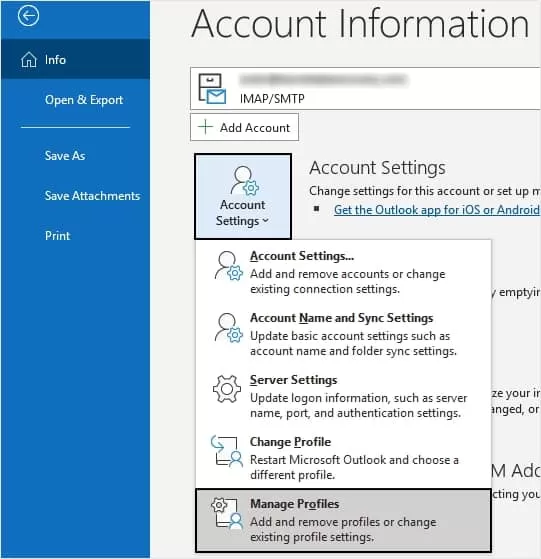
Step 2: Click Email Accounts from the three options.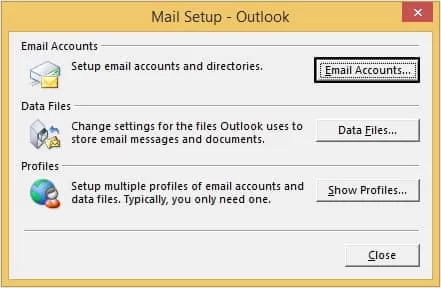
Step 3: Now, click on the New option.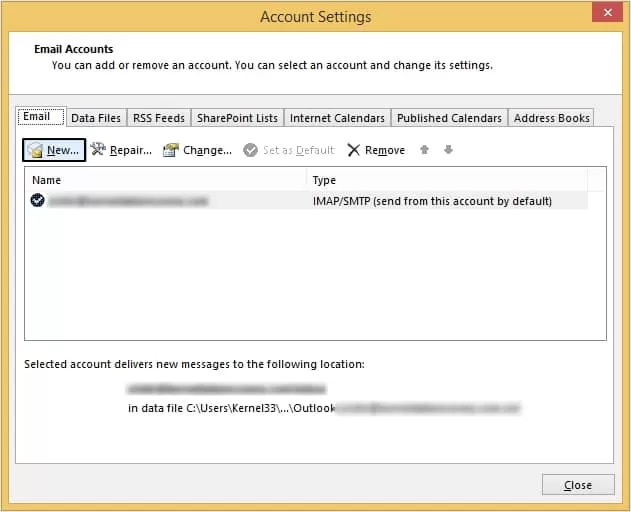
Step 4: Moving ahead, click Manual setup or additional server types.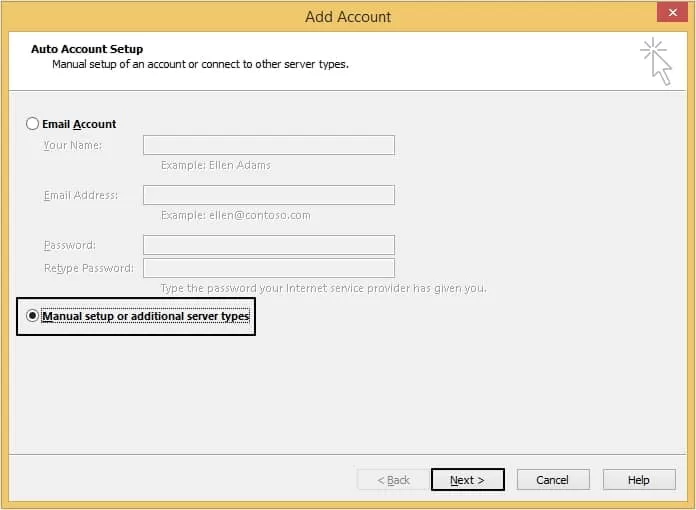
Step 5: Now, select the POP or IMAP option, then click Next.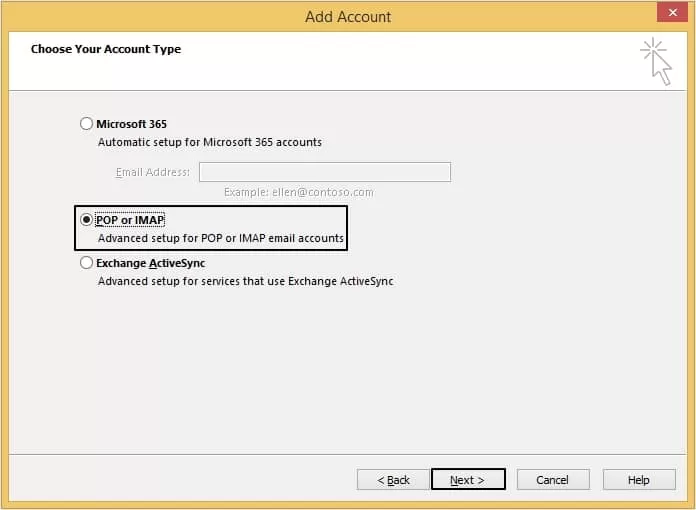
Step 6: Fill in your credentials and hit Next.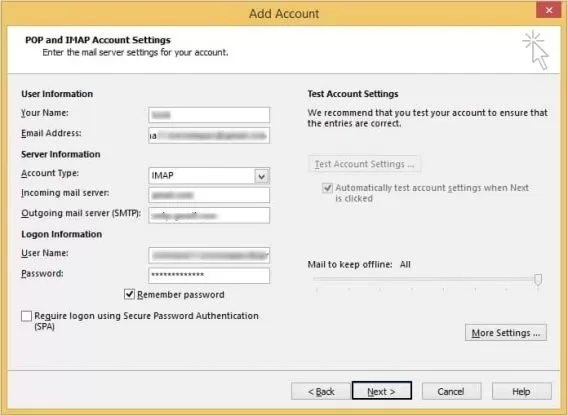
Step 7: You will be able to configure Microsoft 365 in Outlook. Now, you can easily import PST to Outlook web.
Now we will transfer the PST file in Outlook.
Step 8: Go to the File menu and click on Open & Export. Tap on Import/Export.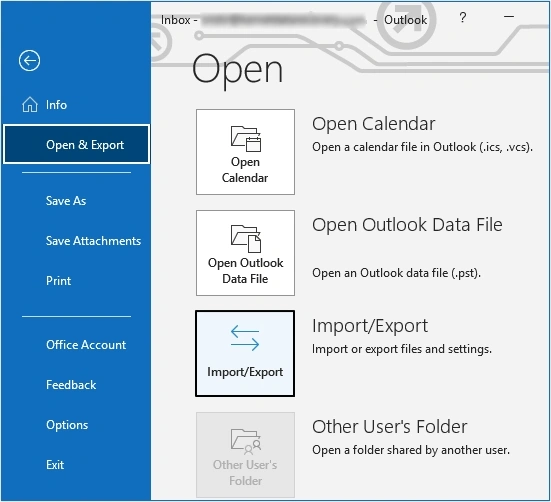
Step 9: Click on the option Import from another program or file and hit Next.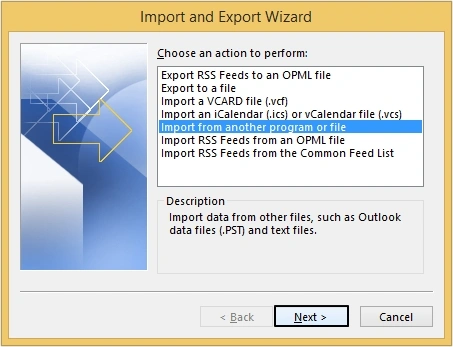
Step 10: Tap on Outlook Data File (.pst) and hit Next.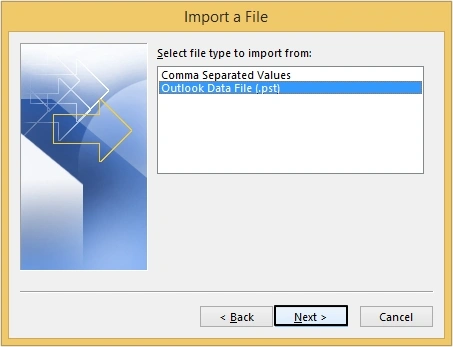
Step 11: Click on Browse to choose the PST file and click on Next.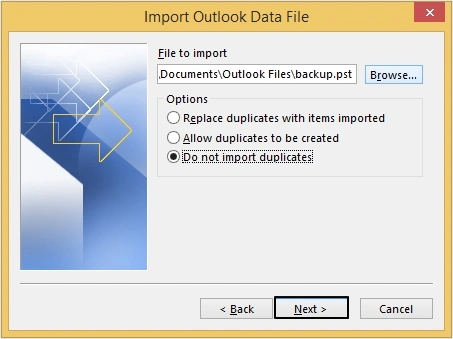
Note: In case you wish to move the complete PST file, choose the root file and check mark the option Include subfolders.
Step 12: Tap on Finish to continue.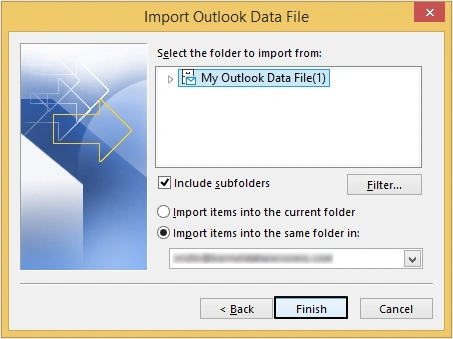
Limitations of manual methods
The manual method does provide a reliable solution to import PST files to Outlook Web App, but there are some limitations to it, such as:
- You cannot move a PST file of size more than 20 GB to Outlook Web Access with the Network Upload method.
- Both these methods are very complicated and require technical expertise to perform. So, it is not ideal for non-technical users.
- Using any wrong commands can lead to loss of your PST data, and you’ll have to start again.
- It is quite a lengthy process since a lot off steps are involved and it takes some time to complete the upload process.
So, to overcome these limitations, there is an alternative solution that can be used to move PST items to Microsoft 365, and then access the PST via Outlook Web Access.
Avoid Common Import Errors with a Dedicated Approach
Manual methods always have a risk factor with them, whether data loss or some other risk. No manual method can match the accuracy and efficiency of a professional utility for a quick import PST to Outlook web. One such software is Kernel Import PST Files to Office 365, it is designed with advanced algorithms to provide you with ease in performing the method.
The software can easily export PST file to Microsoft 365. Utilize the tool’s advanced filters for selective migration. Furthermore, for speeding up data transfer, you can also choose to skip duplicate items, empty folders, and deleted folders. Users get the facility of bulk files transfer, and they can even migrate large files.
Conclusion
Transferring PST to OWA becomes crucial in many situations. Microsoft provides two manual methods to import PST to Outlook Web App. With your PST data now in the cloud, you get multiple benefits like access anywhere from OWA, mobile, and desktop, along with built-in backup and compliance.
FAQs
A. Yes, you can use the desktop version of Outlook to open those PST files with your email stored in Office 365. This means you won’t have to worry about losing any important emails or data. With just a few clicks, you’ll be able to access all your email history in one convenient location.
A. There are several reasons why this might be happening, including conflicting software, faulty add-ins, and a damaged or corrupt PST file. Oversize, disk errors, and system or Outlook crashes can also cause this frustrating problem.