Read time: 7 minutes
Summary: If you’re stuck with default storage limits in Office 365, the Microsoft Office 365 extra file storage add-on can help to scale your storage capacity. I’ve personally relied on it during the heavy data usage phases, but the cost can rise quickly. Understanding storage pricing, limits, as well as smarter alternatives like backups to free up additional space (via our Kernel Office 365 backup tool) helps you to stay informed. This guide breaks everything down in a simple and real-world way.
When I first ran out of space in Office 365, I quickly learned that O365 extra file storage is a period add-on that expands your existing storage capacity across services like Exchange Online, SharePoint, & OneDrive as well.
However, I also thought that deleting old files would solve the storage problems. But in reality, most of the data was found important to me. After that, I got to know that Microsoft offers a scalable storage option along with the Microsoft plans.
Knowing when and how to get Microsoft 365 extra file storage makes all the difference. This article covers all info from what Office 365 extra file storage is, its current pricing, impacts, and how to buy a smarter alternative.
What is Office 365 Extra File Storage?
Office 365 cloud storage is essentially additional cloud space you can purchase when your default storage quota is about to fill. Each Microsoft 365 tenant gets a base amount of pooled storage, which increases slightly per user license & Microsoft 365 plans. But once that shared pool fills up, you either delete the file or buy more storage via add-ons. However, choosing the Microsoft 365 extra file storage add on is most preferable because users don’t want their important business data to be lost.
SharePoint Storage Limits
SharePoint Online provides a pooled storage model that offers 1 TB of base storage per organization plus 10 GB per licensed user. Along with that, individual sites have a maximum capacity of 25 TB. Storage is pooled automatically, though administrators can set manual limits. However, additional SharePoint storage can be purchased if needed.
OneDrive Storage Limits
With Microsoft OneDrive storage, each user gets 1TB of storage by default, and that can be increased to 5TB if you have more than 5 users (licenses). If one of your users reaches the 5TB limit, then Microsoft will increase the storage to 25TB.
Office 365 Extra File Storage Pricing
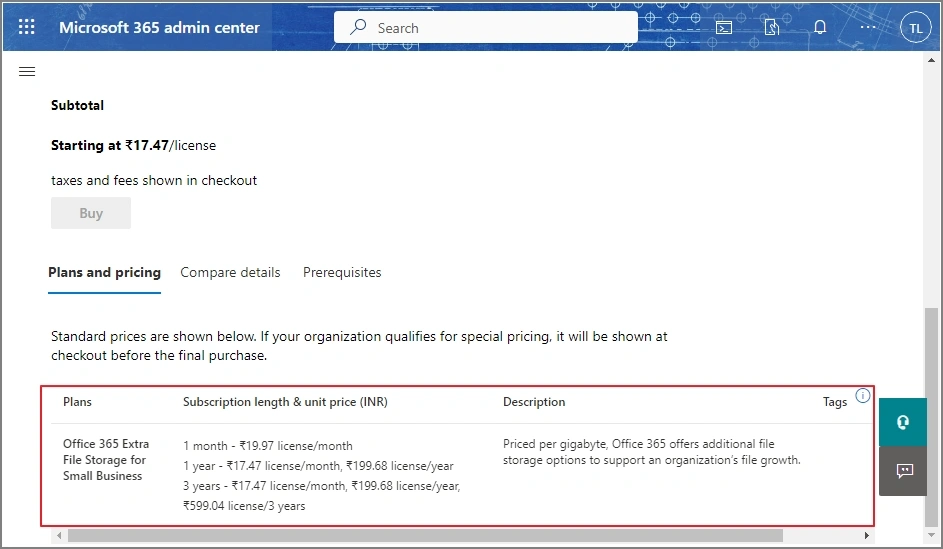
Office 365 extra file storage add-on price is around $0.20 to $0.25 per GB/month for additional SharePoint and OneDrive storage, but it may vary based on region or reseller. As of now, the current pricing of O365 extra file storage is:
How to Buy Office 365 Extra File Storage Add-Ons
If your Microsoft 365 tenant is running out of space, you can buy the O365 extra file storage add-on in the Microsoft 365 admin center. The steps might differ, depending on your billing account type.
Case 1: If you have an MCA billing account type:
- Go to the Microsoft 365 admin center, tap on Billing, then select Your Products.
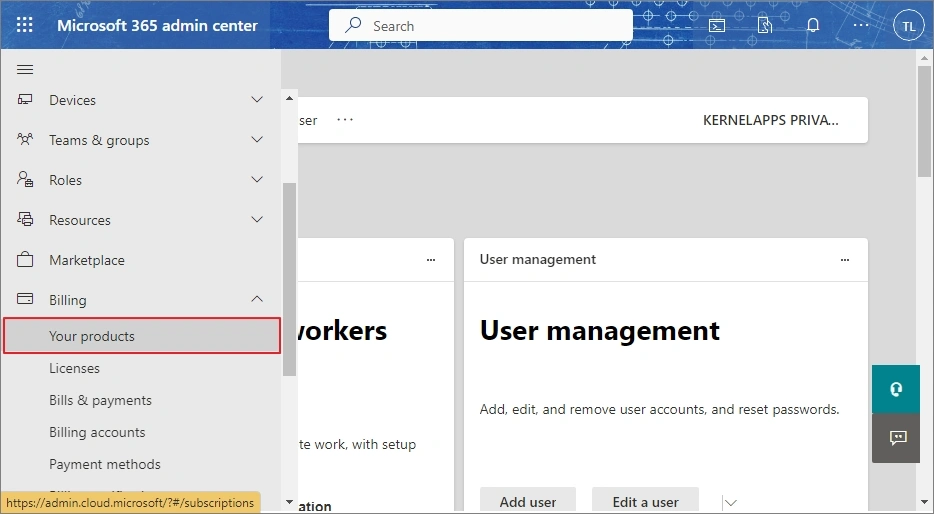
- From the Products tab, tap on Add More Products. You’ll go to the Market Place page.
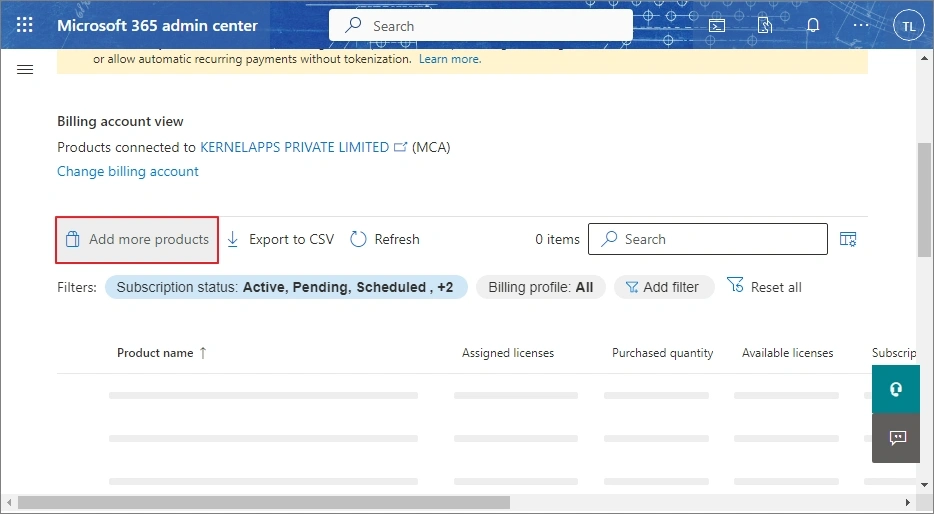
You can also move directly to the MarketPlace page from the Home section. - Search or find Office 365 Extra File Storage, and then tap Details.
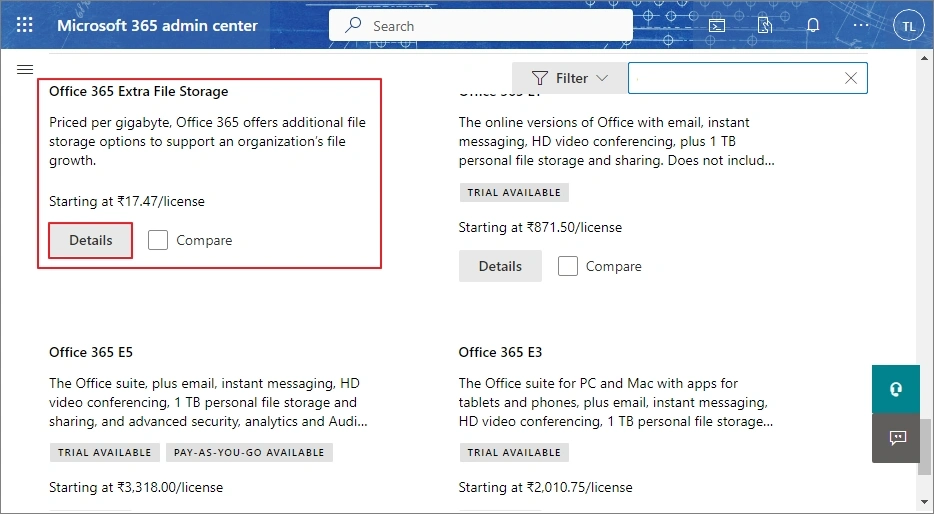
- Enter the license quantity you want, select a subscription length, and a billing frequency. Tap on Buy.
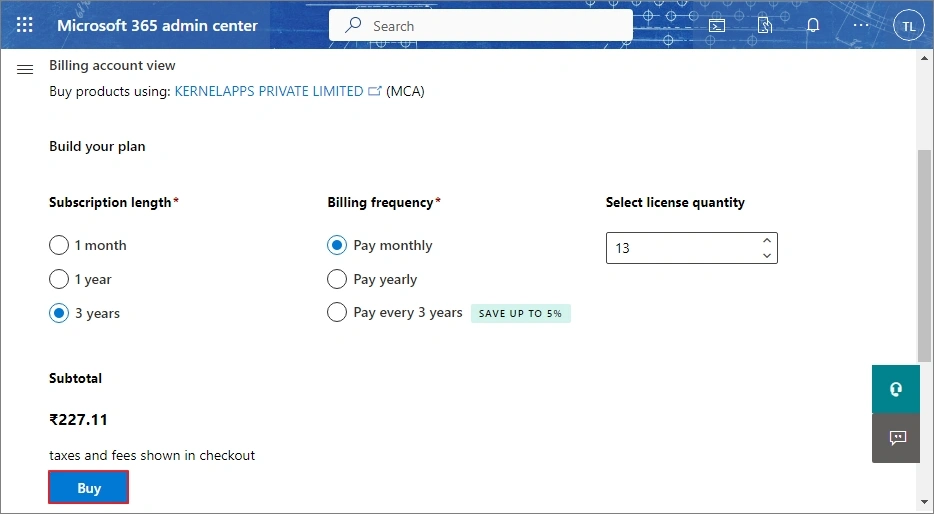
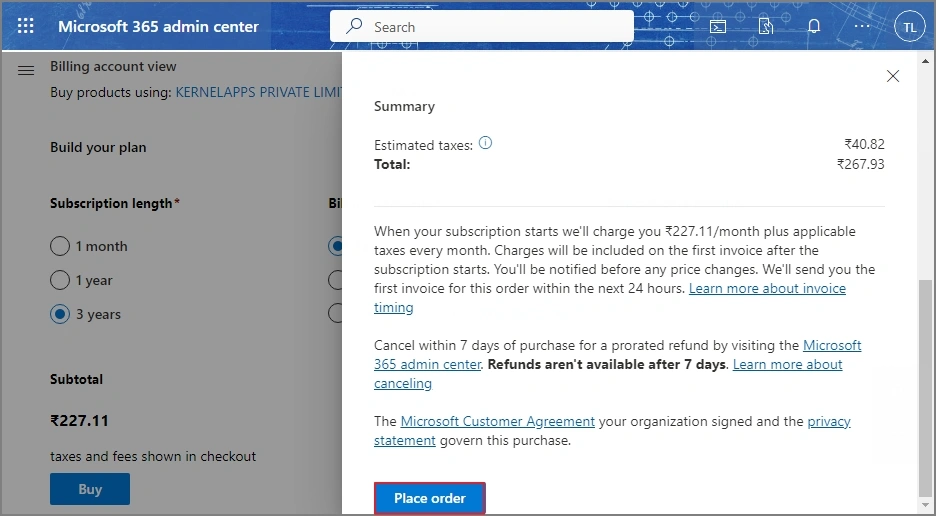
- In the Checkout section, choose the billing profile or add a new one. Review your order, and then select Place Order.
Case 2: If you have an MOSA billing account type:
- Go to the Microsoft 365 admin center, select Billing, then Your Products page.
- Select the subscription for the extra storage plan that you want to buy an add-on for. Tap on Add More Product.
- In MarketPlace, find the Office 365 Extra File Storage add-on, and then select Details.
- Select the subscription to connect with the add-on, and then select Connect to Subscription.
- On the Checkout page, enter the quantity that you want to buy and then select Place Order.
Impact of Exceeding Office 365 Storage Limits
As of now, when Microsoft 365 storage gets full, things don’t stop completely. File syncing may pause, and a team member might see an error during operation, like save or update.
Furthermore, emails can also get affected if the mailbox gets full, users may stop receiving emails, and in some cases, sending emails can be restricted. Beyond this, automated processes and workflows that depend on storage may stop working properly. This means, everything will be stuck until you either clear up space or add extra storage.
Instead of continuously buying Microsoft 365 extra file storage, you can opt for a smarter approach to move your older or less-used data out of your active storage, which means you can backup in an offline file. Doing this, you’ll no longer need to clear up space or buy a Microsoft Office 365 extra file storage add on, and your optimal functioning will go on.
Avoid Office 365 Extra File Storage with Smarter Solution
Kernel Office 365 backup tool is one such reliable solution that helps to create a secure and easily accessible backup of your Office 365 data. Be it Microsoft 365, On-premises Exchange, or Hosted Exchange, the tool effectively backs up mailboxes in PST, PDF, MSG, EML, HTML, & other file formats.
There is no data fatality, even the tool allows exporting data from primary, shared, and archive mailboxes with original folder hierarchy and full data integrity. The tool comes with an embedded advanced filter that lets you backup selective data, and you can skip already backed up items and save the new ones. The free version is out; you can try it now!
Final Thoughts
From the above discussions and info provided, I hope you understand extra file storage and an alternative, better management of your Office 365 file storage in the best possible ways. Instead of blindly upgrading, evaluate your usage and the cost of the alternative as well.
A balanced approach that combines storage upgrade, cleansing strategies, & backup works best for long-term efficiency and cost control. However, I suggest using the Kernel Office 365 backup tool over the Office 365 file storage add-on. Take the trial first and then decide what works for you.
Frequently Asked Questions
A: If the organization reaches the storage limits, the data goes into read-only mode, which means the user can’t edit them.
A: Login your account as admin, go to billing, and tap on add more products. Search for and select Office 365 extra file storage, check details, and then complete the buying process.
A: If you want the Microsoft 365 extra file storage add-on specifically, then it is good. Alternatively, you can backup your data via a professional solution and free up space.