Read time: 7 minutes
User query: On a fine Monday morning, I logged into my Gmail account to check the trail mail of a valuable client who’s engaged in business with us for many years. All of a sudden what I saw is all the crucial emails for more than a week disappeared from my account. Everything was working fine when I shut down my workstation on Friday. Please help me how to fix my emails disappear from my Gmail mailbox.
With Gmail being in existence for so long now, it has acquired a significant database that goes beyond billions of users. Missing emails from the mailbox can severely disturb the email flow resulting in annoyed users. If you’re also worried about the emails that vanished from your account, stay tuned. By the end of this article, you will have complete knowledge about the causes and how to fix the issue.
Why my emails disappear from my Gmail inbox?
Here are some of the major reasons because of which you face ‘’My Emails Disappeared from My Gmail Inbox’’ error:
- Accidental deletion: When you accidentally delete emails or archive them from mailbox folder without even knowing about it, you might see some of your Gmail emails disappear.
- Changed inbox settings: When you adjust settings like defining special inbox categories, changing to get a special view, you can hide some of your email messages.
- Emails in archive: Accidentally sending emails to the archive folder can also make your emails vanish. This usually happens when you access your Gmail account on a smartphone.
- Emails in Spam or Junk: Emails, when landing straight into the spam or junk folder, will cause trouble in locating the received emails.
- Enabled email forwarding: Users often enable email forwarding, which sends incoming emails to another mailbox or folder.
- Unauthorized deletion: If someone got unauthorized access into the account and then deleted without your knowledge, you might find Gmail emails disappearing.
Consequences of Gmail emails disappearing issue
When there are emails disappearing from your Gmail account, you can face a lot of severe consequences, as explained:
- Losing emails means losing your crucial business communication, contacts, and files that help you with the daily chores.
- It can be really difficult for technically incompetent users to find the disappearing emails.
- Sudden vanishing of emails from the mailbox can be a dreadful situation for many users, leaving them in a turmoil.
- It can cause delays in meeting the project deadlines and missed business opportunities.
- Creates a risk of security breaches and compromised email account as there are possibilities of hackers deleting the emails.
How to fix emails disappearing from Gmail?
Here are a few solutions you can try to resolve the error disrupting your workflow:
Solution 1: Look in the Spam and Trash folders
Whenever an email goes missing, you should check the Spam or Trash folders first. You can find your email message in the Trash folder if it was accidentally deleted by you. Additionally, if Gmail marks any email as spam, it will land into the spam folder. Follow the steps to locate the email message:
- Go to the Spam folder in your mailbox and look for the missing emails.
- Right-click the email and select Not spam so that it lands in your inbox.
Note: Spam messages are often deleted after 30 days, so make sure to check the email folder quickly.
Just the way you recover emails from the spam folder, you can restore emails from the Trash folder to the primary folder. If you find the email, select it, and click on Move to Inbox.
Solution 2: Disable email forwarding
When you turn on email forwarding, all of the incoming emails are redirected to another user’s email account. Here is how to disable email forwarding in Gmail:
- Open Gmail on your web browser and click Settings.
- Select See all settings and go to the Forwarding and POP/IMAP tab.
- Scroll down to Forwarding and select Disable Forwarding toggle.
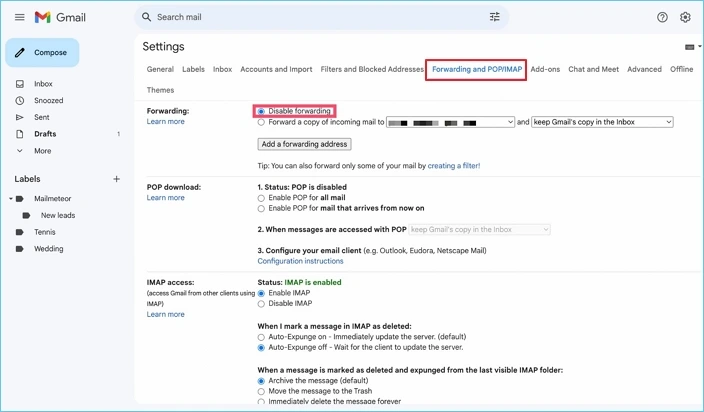
- Click Save Changes, provide the password to turn off forwarding.
Solution 3: Scrutinize the social and promotion tabs
The next spot where you can find the emails includes the promotion and social tabs, as Google often sends the emails categorizing into promotions and social tabs. You can find these tabs at the top of the right pane of your window.
Check out emails in your Promotions and Social tabs and if they’re found, drag and drop them to the primary tab to restore the emails.
Solution 4: Use Search feature to locate emails
With the in-built Search feature of Gmail, you can find your missing emails. To look out the email messages, go to the search box and click on the search options at the right corner of the bar. It will show some parameters like From, To, Subject, Size, etc., that are used to search through the entire account to find the emails.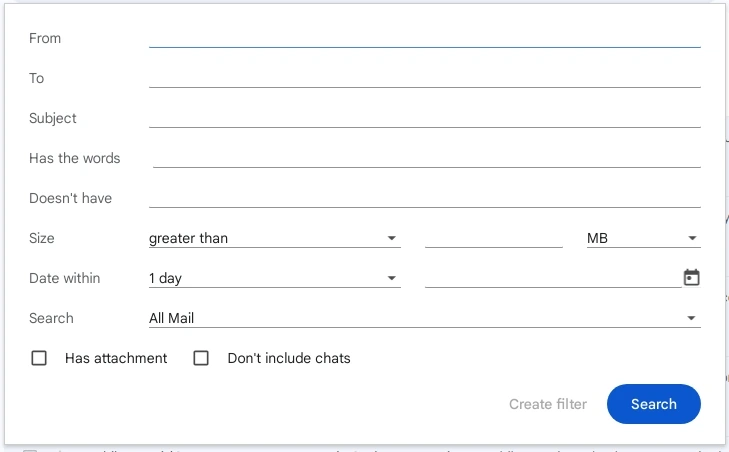
Solution 5: Evaluate the Google account storage
Sometimes, due to full storage in Google Drive, Photos, and Gmail, the mailbox stops to receive any more emails. Analyze your storage and see how much of the space is consumed. If the space is close to getting full, delete unwanted or unnecessary emails and other data to fix emails disappear from Gmail inbox.
Solution 6: Review email filters
Gmail users apply email filters to manage the primary mailbox folder to help you stay productive. Remove the filters to retrieve emails using the steps below:
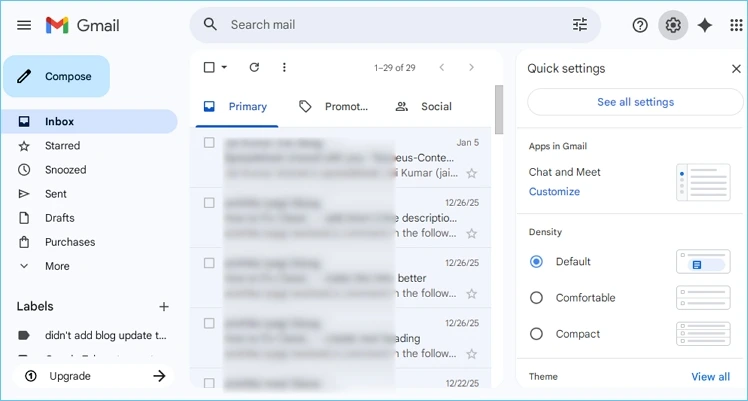
- In Gmail, go to Settings and then click See all settings.
- Go to the Filters and Blocked Addresses tab.
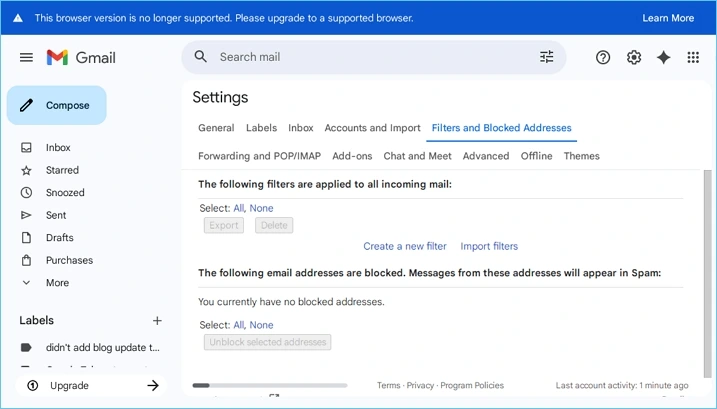
- Select the applied filters and click Delete.
- On the confirmation pop-up, click OK.
This will remove all the filters that might be blocking the incoming emails.
Professional solution to secure your Gmail data
There are situations due to which you might face issues in restoring the Gmail emails disappeared. In such cases, one of the most reliable ways to prevent data against accidental deletion and other unfavorable circumstances is taking a regular backup of your mailbox data.
Kernel Gmail Backup Tool is an efficient solution that supports easy data export to the desired location on your local computer with an unlimited retention period. The Gmail Backup tool supports automated and scheduled backups to eliminate manual efforts to make an easy job for all. The tool is integrated with features that makes downloading backup from Gmail emails simple, be it non-technical or technical user. Moreover, it has an incremental data export feature that helps you save data without any duplicity.
Conclusion
Issues like emails disappear from Gmail mailbox requires a well-defined and systematic approach for troubleshooting. However, even with the built-in Gmail features, it can sometimes be difficult to restore the emails. You can use Kernel Gmail Backup tool that helps you overcome the limitations of manual methods and download a detailed backup without losing its actual hierarchy. With such advanced tool, you can access your Gmail emails even if they disappear from the mailbox.
Frequently Asked Questions
Ans: The Gmail emails disappeared error can be because they were accidentally deleted, archived, sent to the spam folder, or not properly synced.
Ans: To fix the email vanishing from your Gmail error, you need to clear browser cache, check for the emails in the spam or trash folder, and manage your Gmail storage.
Ans: To backup emails from Gmail account, you can use a professional Gmail backup software that helps you save emails without any data loss.