Read time: 7 minutes
Forgetting a password is one of the worst situations that you might face. This can deeply affect your workflow and reduce your productivity hours. It basically happens when users tend to memorize credentials or manage multiple credentials of Login ID & password. It’s a very evident human phenomenon that you cannot remember multiple passwords, so there are chances of you forgetting some of the credentials, including Outlook.
When you know Outlook password location, you can access your emails, contacts, and saved files on any system whenever required. It’s not a very difficult task to retrieve your Outlook password, and in this guide, we will show you precisely how to do it. Here’s a step-by-step process to help you locate your Outlook password in no time.
Methods to Find Outlook Password Location
To locate Outlook password, multiple methods exist. You can use browser password manager, Windows registry values, or even the Outlook itself to find the account password. In this section, we will discuss all possible ways to find the password of Outlook.
Method 1. Find Outlook Password using your Browser
The modern-day browsers, be it Edge or Chrome, offer to save your password when you login to any email server. It is the best solution to your problem, and you don’t even need Outlook for this method. Follow the steps below:
Step 1: Open the internet browser you use most often or in which you have logged into Outlook at least once.
Step 2: Go the saved password section, generally present in the browser settings.
Step 3: Find the entry for live.login.com or something related to Microsoft.
Step 4: Open it and click the eye icon on the password field.
Step 5: It will ask you to enter the system password (the one you used to sign into Windows).
Step 6: Enter the system password, and you will get the Outlook password.
Method 2. Find Saved Password in Outlook Email
If you can still login to your Outlook, this is the easiest way to find Outlook password. Follow these steps:
Step 1: Open Outlook and go to the File menu and tap on Account Settings > Account Settings.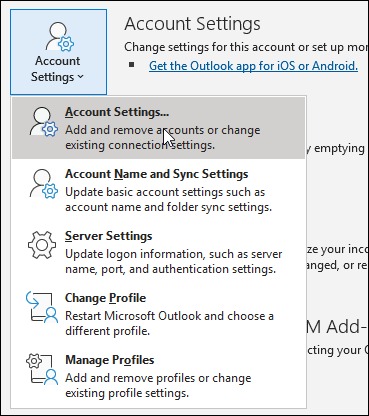
Step 2: Choose your account and tap on Repair.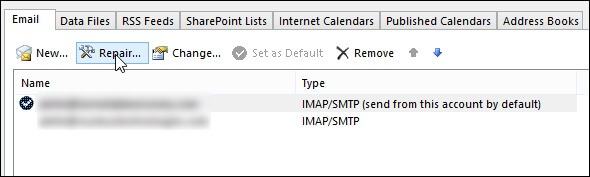
Step 3: Expand the Advanced option and check mark the option “Let me repair my account manually.”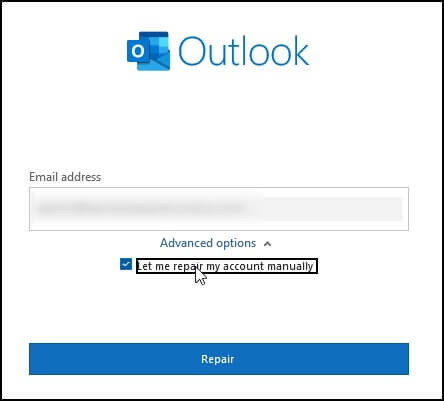
Step 4: In the next window, you can click on the eye symbol, and your Outlook password will be visible.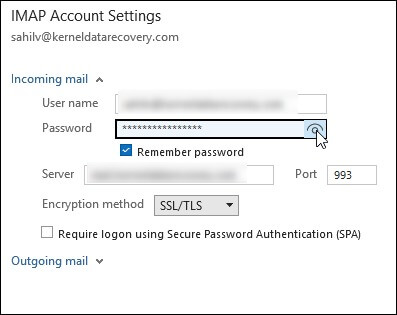
Note: The above solution will only work to find the password of the active Outlook email account. You cannot use it to view PST file password in Outlook.
Method 3. Locate Outlook Email Password Saved on Computer
In case you have been logged out of Outlook, then how will you know Outlook password location? Fortunately, there is still a way to find an Outlook password without Outlook. We will look at the registry values to know Outlook password location for different Outlook versions.
A. Outlook 98/2000
In Outlook 98 and 2000, the passwords are stored in the “Protected Storage” which is a secret location in the registry. There is a base key for the Protected Storage, which is located in.
“HKEY_CURRENT_USER\Software\Microsoft\Protected Storage System Provider.“
B. Outlook 2002-2008
Outlook always comes with its new updates and incredible functions. In Outlook 2002-2008 versions, passwords are stored in the registry key of account settings.
“HKEY_CURRENT_USER\Software\Microsoft\Windows NT\CurrentVersion\Windows Messaging Subsystem\Profiles\[Profile Name]\9375CFF0413111d3B88A00104B2A6676\[Account Index].”
Note: The case is different if you use Outlook to connect an account on the Exchange server, then your password will be saved in the credentials file.
C. Outlook Express (All Versions)
Even in the Outlook Express, the passwords are stored in a secret location in the registry, which is “Protected Storage”, and the base key is the same as the older version of Outlook, i.e.,
“HKEY_CURRENT_USER\Software\Microsoft\Protected Storage System Provider.”
Outlook versions 2010 and later users can try the Microsoft Windows app called Credential Manager. This application allows you to store passwords for other applications, like Outlook, and view them whenever required.
However, this does not work in some versions. If you cannot find the Outlook password location with the methods discussed above, you must reset it.
How to Reset Outlook Passwords? Quick Steps
We have discussed how you can locate and find Outlook password. Now, let’s talk about how you can reset it because it is not necessary that you can locate Outlook password every time.
Resetting your password is one of the best and quickest solutions to your misery. In this method, you need to generate a new password for your account. For this, click on the Reset Password or Forgot Password option on the login page and proceed by following the relevant steps:
- In the process, a code like OTP will be generated for your account, which will be sent to your registered mobile or email ID.
- Enter the code correctly and proceed.
- You get a link to reset your password.
Note: If you want to know more about how to change & recover Outlook PST password, we have a separate and detailed blog for it. Give it a try.
How to Recover PST Passwords from Protected Outlook Files?
In the above section, we learned how to find Outlook password location or reset passwords for a live Outlook account. But what about the offline PST files? Unfortunately, there are no manual methods to locate Outlook passwords for the PSTs. The only way to unlock a password protected Outlook file is by using a password removal tool.
Kernel Outlook Password Recovery is powered by multiple deep search algorithms that search PST header files and recreate the password for you. The PST password recovery tool comes with an easy-to-use interface that allows you to remove, recover, or set up a new password for your PST files in just a few clicks.
Conclusion
Professional IT employees or admins must always know Outlook password location to avoid login issues. We have shared valuable insights into finding the password location for various Outlook versions and methods for password recovery. If the above methods did not help you to locate Outlook password or recover a forgotten Outlook password, you can always reset it.
In case you need to find the password for a locked PST file, you have to take help from the recommended PST password recovery tool. It is among the best password removal & recovery software used by Exchange admins.
Frequently Asked Questions (FAQs)
A. To set a new password for your old or new PST files, follow these steps:
Step 1: Click File tab, select Account Settings > Account Settings.
Step 2: Click on the Data File tab and select the PST file you want to protect.
Step 3: Click on the Settings option and then click on the Change Password button.
Step 4: Leave the Old Password field and provide the value for New Password and Verify Password field. Finally, click OK
Note: You cannot view PST file password in Outlook. So, to avoid file access issues, make sure to store the password in a secure location.
A. The best Outlook password location to look for the saved password is your browser’s built-in password manager. If that didn’t work, check the registry values for older Outlook versions and Credential Manager for new Outlook versions.
A. You should use a password vault tool that is available for both PC and mobile devices. Prefer to use the one that supports Windows, Mac OS, Linux, Android, and iOS. It’s very easy to locate Outlook password saved in a vault application.