Read time: 10 minutes
Many email clients, such as Microsoft Outlook, Mozilla Thunderbird, Apple Mail, Windows Mail, Apple Mail, Gmail, Outlook.com, Hotmail, Yahoo Mail, Apple iCloud, and Zoho Mail use IMAP protocol to create an email account.
Now you are thinking about what an IMAP is and why it’s necessary for email clients. First, let’s know more about the IMAP Email server.
What is an IMAP Server?
An IMAP server is a remote server that keeps all your emails and allows you to access your emails from any device or any location. You can easily work on your emails and other data, and IMAP is all over synchronizing your data after every change. With this IMAP server, you don’t need to keep multiple email clients on your machine. It can even handle multiple mailboxes at once without losing your emails and other data. 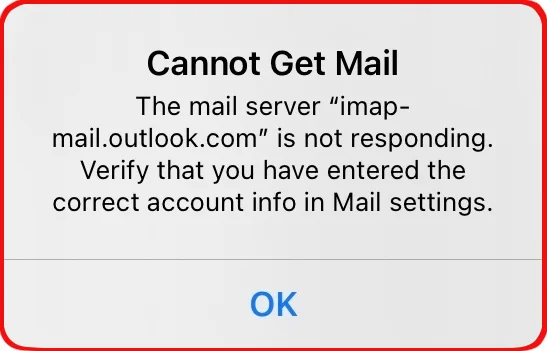
Now, as you know what an IMAP Server is, but still don’t know why you are facing the “the IMAP server is not responding” problem. Find out all the reasons behind this “IMAP server not responding” error.
Prominent reasons for IMAP server not responding error
This error will stop you from opening, sending and receiving your emails. Because of these several reasons, you are facing IMAP email server not responding issue:
- When you have a slow or unstable Internet connection, you will face IMAP server not working issue.
- Antivirus software will block the connections between your email client or IMAP server.
- Wrong IMAP server address (e.g., imap.gmail.com), port (e.g., 993), or security type (SSL/TLS) will lead to IMAP mail server not responding issue.
- When you have disabled or badly configured your SSL settings for secure communication.
- Your IMAP isn’t turned on in your email provider’s web settings (like Gmail, Yahoo, and other IMAP-supported email clients).
So, these are the prime reasons that stop you from reading your necessary emails. Now, it’s time to fix the IMAP not responding issue using free manual methods.
100% working methods to fix IMAP server not responding issue
Explore all the reliable free manual methods that help you fix the IMAP server is not responding error in just a few minutes, which allow you to access your mailbox with ease.
Method 1: Get a proper internet connection
If your system doesn’t have a proper internet connection, then you might face the “IMAP not responding” issue in your email client. Make sure to check your internet connection first, or use a high-speed internet connection to fix this issue.
Method 2: Close application from background
When you open your mail account in any browser for a very long time and don’t take any action in it then you might lose the connection between the IMAP server and the email client. Force Stop and End Task your email client or web browser to fix this issue.
Stepwise guide to force close any app using Task Manager:
Step 1: Press Ctrl + Alt + DEL keys together.
Step 2: Select Task Manager from the following window.
Step 3: Right-click on the email client or web browser in which you have opened your IMAP account and select End Task. 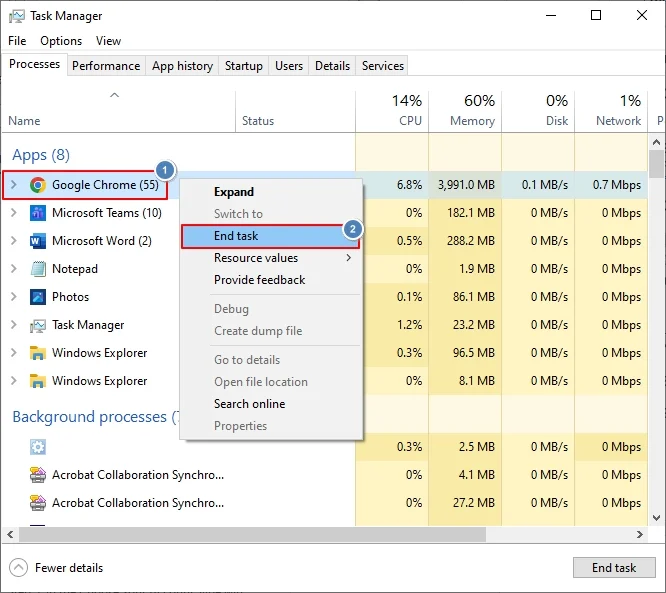
It will force close or end your browser or email client instantly.
Method 3: Recreate an IMAP Account
When you have created an incorrect IMAP account in your Outlook and other apps, you will face the “IMAP server not responding” issue. Make sure to recreate an IMAP account in your Outlook and easily fix the “IMAP mail server not responding” issue.
Create an IMAP account using the steps below
Step 1: Open Control Panel and click on Mail. 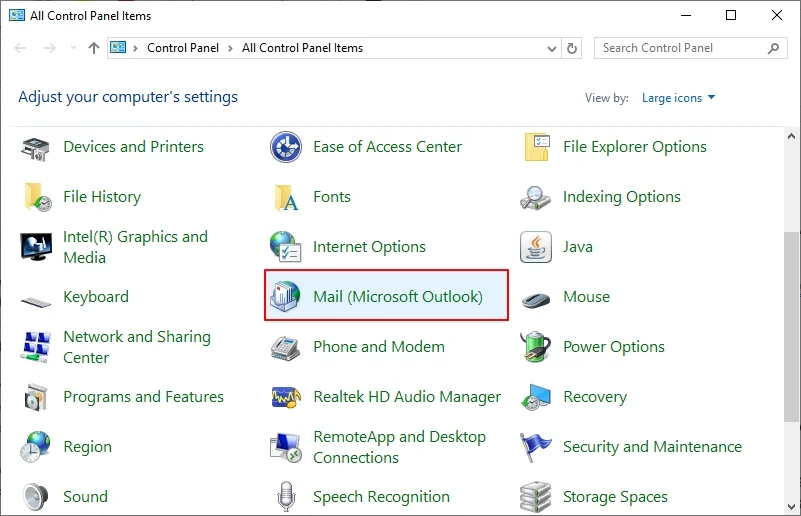
Step 2: In the Mail Setup window, click on Email Accounts. 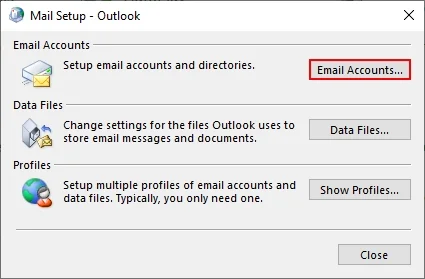
Step 3: In the Account Settings window, view your old email account and click on New to recreate a new IMAP account. 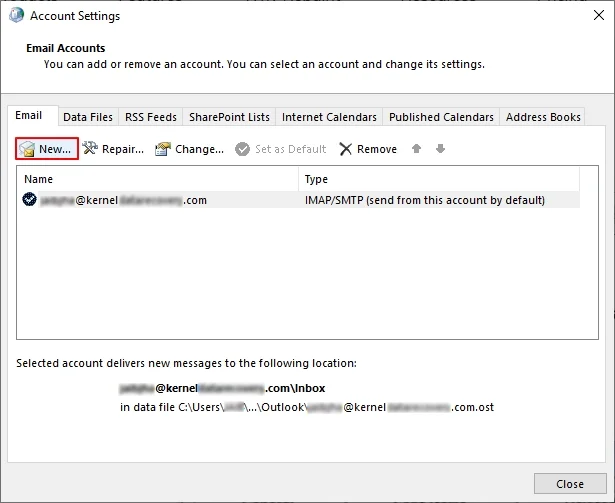
Step 4: In Add Account wizard, enter account credentials, such as Your Name, Email Address, Password, and Retype Password. Click Next. 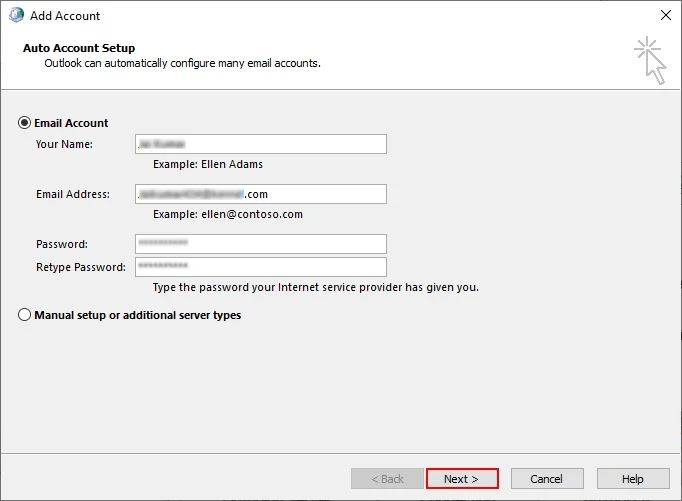
Step 5: In the Choose Your Account Type window, select POP or IMAP and click Next. 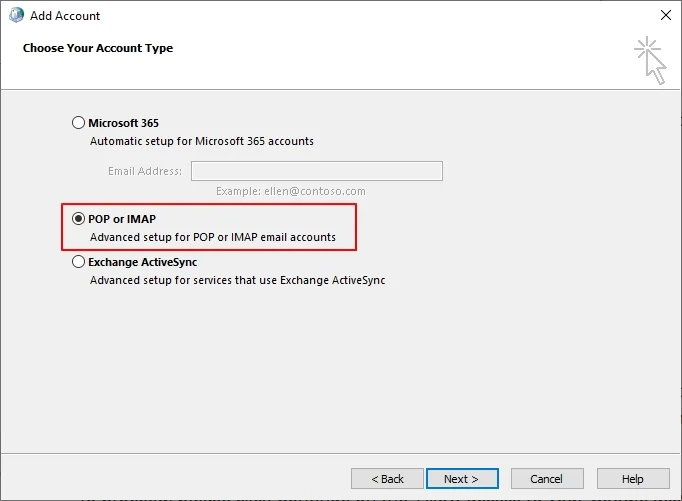
Step 6: Configure IMAP Account Settings, tick the box of “Require logon using Secure Password Authentication (SPA)”, and click Next. 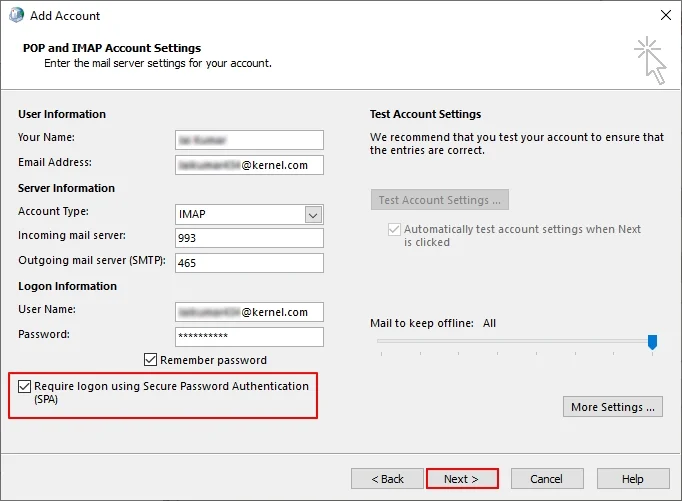
Step 7: Test your IMAP account settings and enjoy uninterrupted email flow. 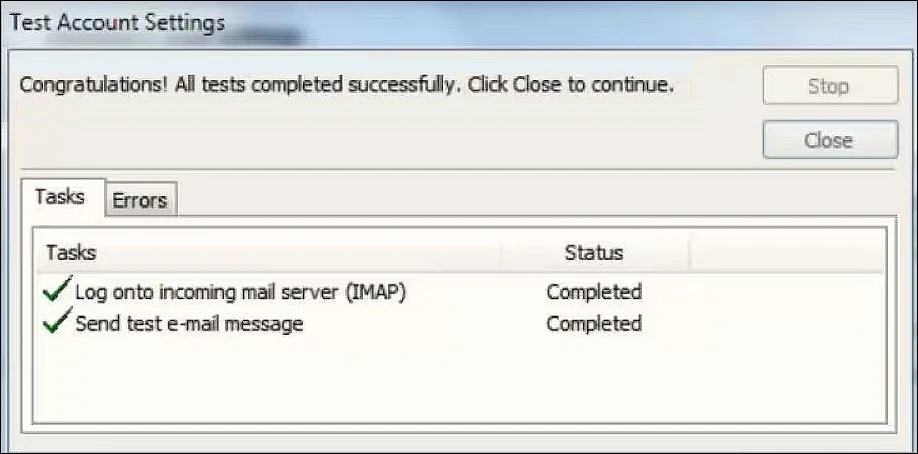
Now, access your newly created account in Outlook and move all your emails from the old account to the new one.
Method 4: Enable IMAP Access in email client
If you have restricted your account to open in more than one browser, then you might face the IMAP not responding issue. Give access to the IMAP account to open on multiple devices and fix this issue within minutes.
Method 5: Resolve Service Temporary Unavailable issue
As you know, an IMAP account is primarily opened in a web browser. Many times, web email clients go under maintenance or show Service Temporarily Unavailable. It will disconnect IMAP server connectivity with the email client. There is no easy way out in this method; you need to wait till the service resumes, or you can backup your emails in your preferred system. 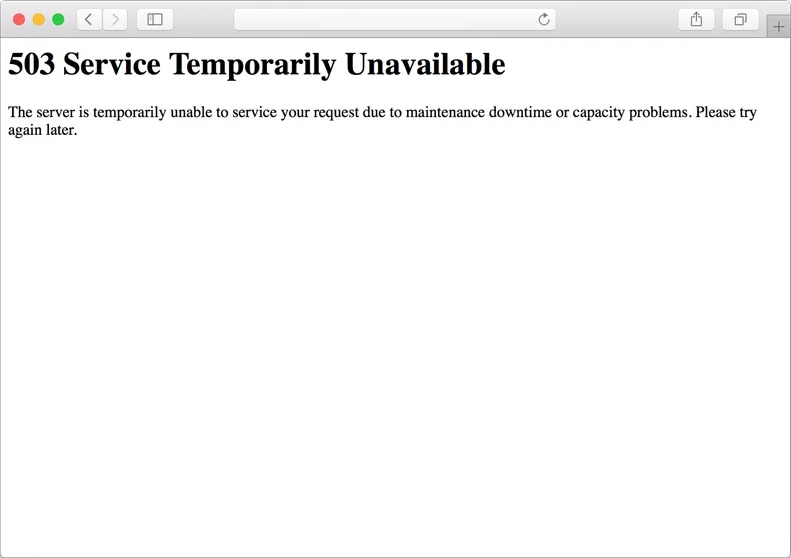
Method 6: Setup SSL Settings to fix IMAP server not working
Secure Socket Layer (SSL) is an advanced technology that secures your internet connection and protects your data from malware attacks and theft. It prevents your data from being spied on through your internet connection, account passwords, and email content. With this, you can secure your internet connection and fix IMAP not responding issue.
For now, Microsoft Outlook Express uses advanced SSL technology to enhance its email security.
How to setup SSL Settings in Microsoft Outlook Express
Step 1: Open Outlook Express on your system.
Step 2: Click on Tools and select Accounts. 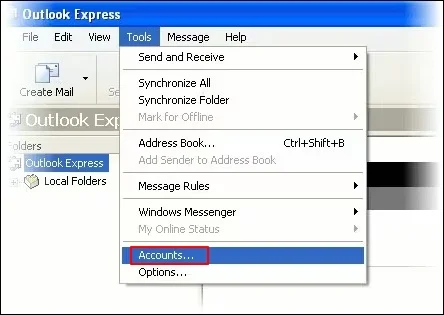
Step 3: Select your email account and click on Properties. 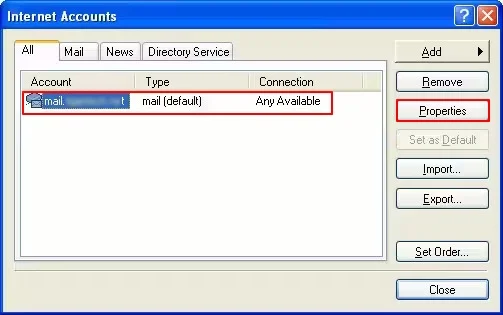
Step 4: In the following window, go to the Advanced tab, and make the needful changes:
In the Server Port Numbers, check both boxes of “This server requires a secure connection (SSL)”.
Make sure to change the Outgoing mail (SMTP) to 465 and Incoming mail (POP3) to 995.
Finally, click OK. 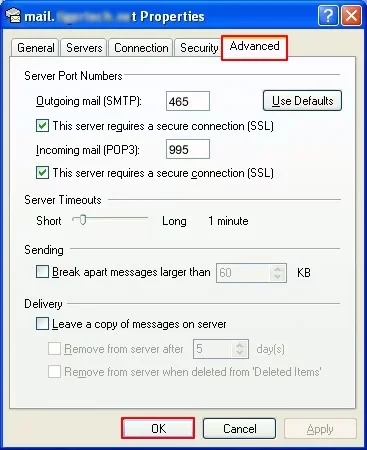
Step 5: Close Microsoft Outlook Express and enjoy uninterrupted IMAP mail flow.
Now, you have successfully configured your SSL connection in your Outlook Express.
In some cases, many users have reported that their Outlook Express shows and sends emails after an unsuccessful SSL connection. However, the problem is in the Outlook Express itself or the Windows operating system.
Troubleshot your SSL Connection Failure with the following steps:
Step 1: Open Outlook Express > Tools > Accounts > Advanced.
Step 2: Reset all the changes and untick both boxes of “This server requires a secure connection (SSL)”.
Step 3: Change the Outgoing mail (SMTP) to 587 and Incoming mail (POP3) to 995.
Verify whether your “IMAP email server not responding” problem is fixed or not. If you are facing this issue again and again, then there is a possibility that your account has some major bugs. Make sure to update, uninstall, or install Outlook Express to fix this issue.
If IMAP not responding is showing up after resetting your settings, then you need a reliable professional IMAP Backup tool to backup all your IMAP emails to the local drive of your system to prevent your data from loss.
Professional tool to backup IMAP emails
After applying all these manual methods, you are still facing the “IMAP server not responding” issue. Then, it’s time to backup all your essential emails in your local drive to keep a backup copy of your emails. Kernel IMAP Backup and Restore is a one-stop solution to backup all your IMAP emails, attachments, contacts, calendars, notes, appointments, and many more in PST, EML, MSG, HTML, MHT, DOCX, DOC, and PDF.
Conclusion
An IMAP server not responding is a common issue in any IMAP-enabled accounts. With the above-mentioned methods, you can easily fix the “IMAP server is not responding” issue. But what if manual methods won’t work? Then you might lose your essential emails. By using the Kernel IMAP Backup and Restore tool, you can easily save all the IMAP emails in your local drive and access your emails in multiple email clients.
Frequently Asked Questions
Answer: Your IMAP server isn’t responding due to common issues like incorrect settings (server name, port, SSL), a poor internet connection, server downtime, or conflicts with your firewall/antivirus, but also potentially due to security changes requiring an app password, or an outdated email client.
Answer: Yes, by changing Server Port Numbers, such as Outgoing mail (SMTP) to 587 and Incoming mail (POP3) to 995, you can easily fix this issue.
Answer: Yes, of course. The ” IMAP server not responding” issue can occur in almost every IMAP-based account when the server port numbers are not correct.