Read time: 7 minutes
Many Outlook users like to keep their PST files password-protected to make sure the possibility of Outlook data file accessibility is zero. However, you can set a password to any PST file in Outlook by selecting the distinct data file (PST) in settings. But, there can be circumstances like forgetting the password or accessing old emails to get some important data, when you need to unlock password-protected PST files in Outlook.
Here is an example of a situation faced by an MS Outlook user where he forgot the password of his PST file, which later caused disturbances in his everyday operations.
User: “I forgot the password I set on my primary account’s PST, can’t open the file. It has invoices & bills. I’m frustrated after trying a couple of tricks; nothing worked,”.
Next to the user’s comment, there’s what Microsoft Vendor states in reply to the problem.
Microsoft Vendor: “Microsoft support professionals cannot assist you, under any circumstances, in the breaking of passwords applied to files and features in Microsoft programs.”
Though you cannot get any help from Microsoft if you forgot the PST file password. In this article, we’ll walk you through the methods with which you can unlock password-protected PST files and access your PST file again.
Methods to Unlock Password-Protected Outlook PST File
Here are two workarounds for you to unlock PST files in outlook. Go through and choose them at your convenience:
Method 1. Use the pst19upg to Unlock Password-Protected PST File
As cited above, there is no official approach provided by Microsoft for breaking through a locked PST file. This method requires two utilities of MS Outlook, i.e., pst19upg.exe and scanpste.exe. You can use them as a solution to deal with locked PST files. But make sure Outlook is closed, and you have a backup of the locked PST file, before proceeding further. Here is how to unlock Outlook data file password without password:
Step 1. Locate and run SCANPST.EXE by navigating to the path below:
For Outlook 2007
32 Bit: C:\Program Files\Microsoft Office\Office12
64 Bit: C:\Program Files (x86)\Microsoft Office\Office12
For Outlook 2013
32 Bit: C:\Program Files\Microsoft Office\Office15
64 Bit: C:\Program Files (x86)\Microsoft Office\Office15
For Outlook 2016
32 Bit: C:\Program Files\Microsoft Office\root\Office16
64 Bit: C:\Program Files (x86)\Microsoft Office\root\Office16
Note: If you are already using the backup file of the original one, avoid the backup option in SCANPST.EXE.
Step 2. Click the Browse button to select the password-protected PST file. After adding, click the Start button.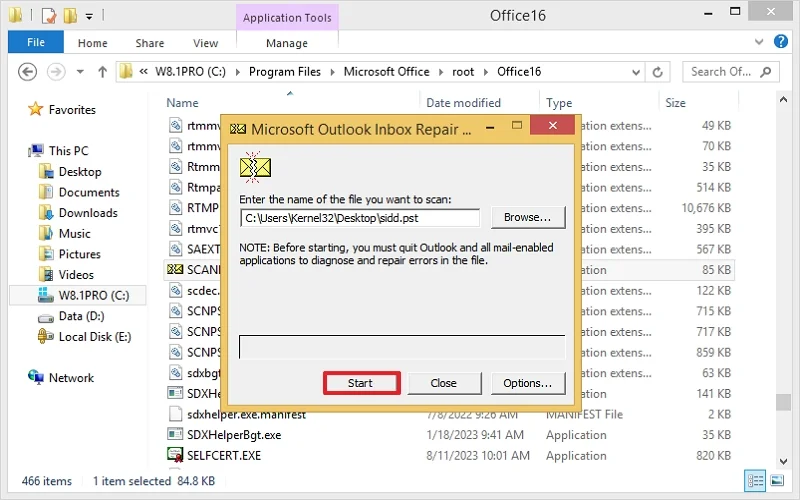
Step 3. The tool shows ‘errors were found in this file. Tap on the Repair button.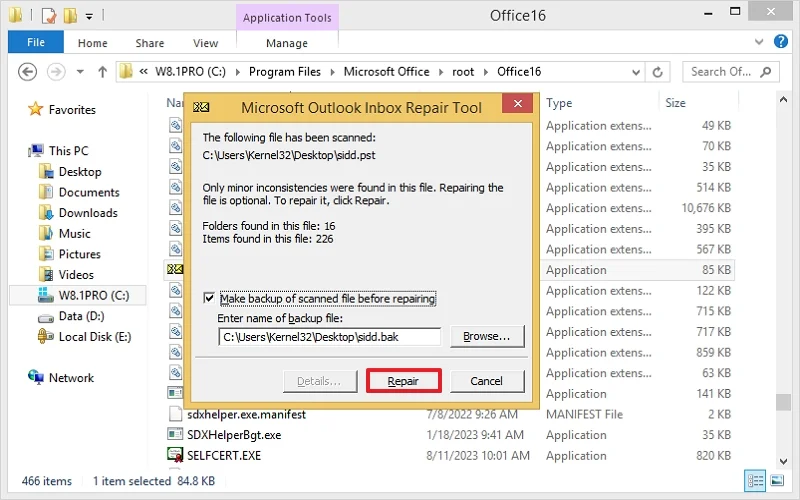
Step 4. Once the file is repaired, click OK to exit the tool.
Step 5. Now, launch the command prompt and type the path of PST as:
C:\My Documents\pst19upg.exe – user.pst.
Step 6. A copy of the PST file with .pst format will be created. Now, rename the backup PST file similar to the old PST file.
Step 7. Launch Outlook and import the new password-free PST file.
Unfortunately, this utility will work only in older versions like Outlook 2003.
Method 2. Unlock Password-Protected PST File via Outlook
You can try removing password unlock from the Outlook data file to continue using it with the same efficiency as earlier. While trying to open the PST file, if somehow you recall the password and want to remove it from the PST, here’s a simple procedure you can follow to unlock password-protected Outlook PST files.
Step 1. In Outlook, go to File>Account Settings>Account Settings.
Step 2. Go to the Data Files tab and select the PST file from which you want to remove password, and click Settings.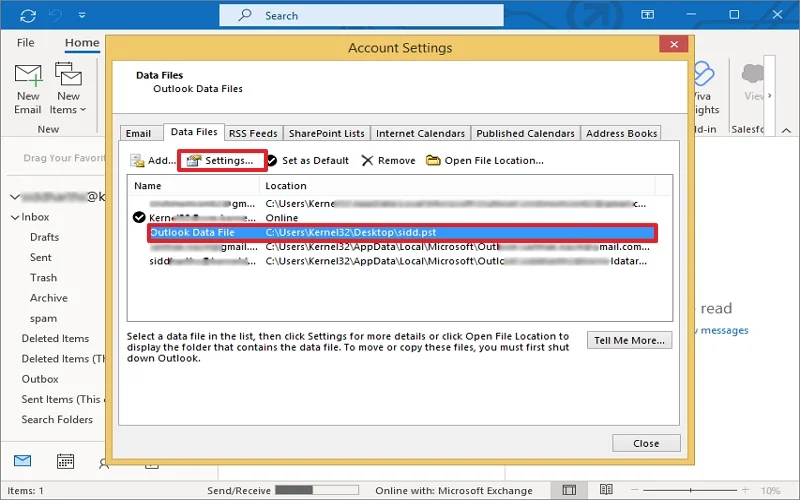
Step 3. Click the Change Password button in the next window. It opens a pop-up that asks you to provide old and new passwords.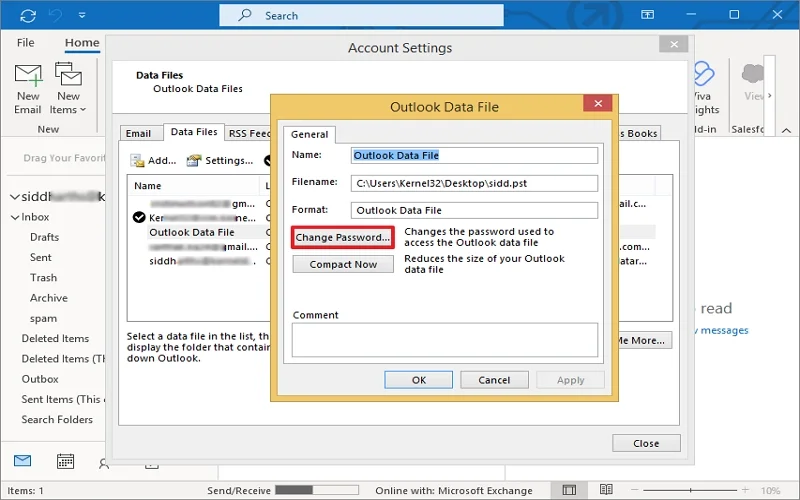
Step 4. Type the old password and skip entries for the new password, and tap on OK.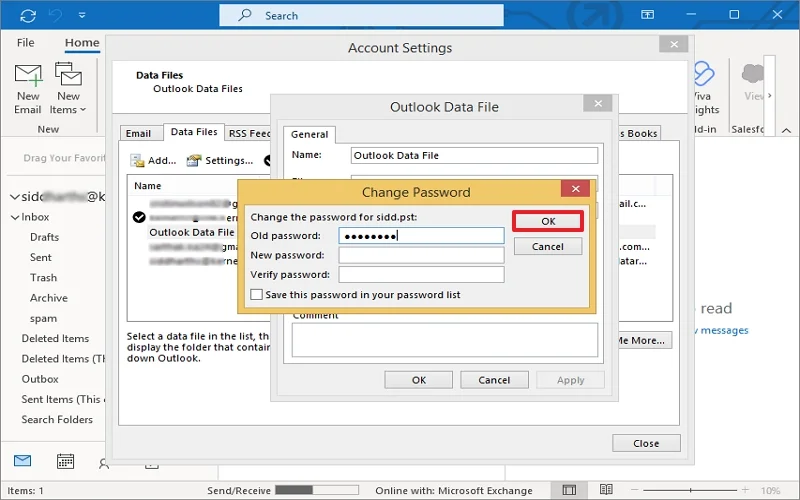
Step 5. Alternatively, right-click on the PST file in the folder pane and tap on Data File Properties.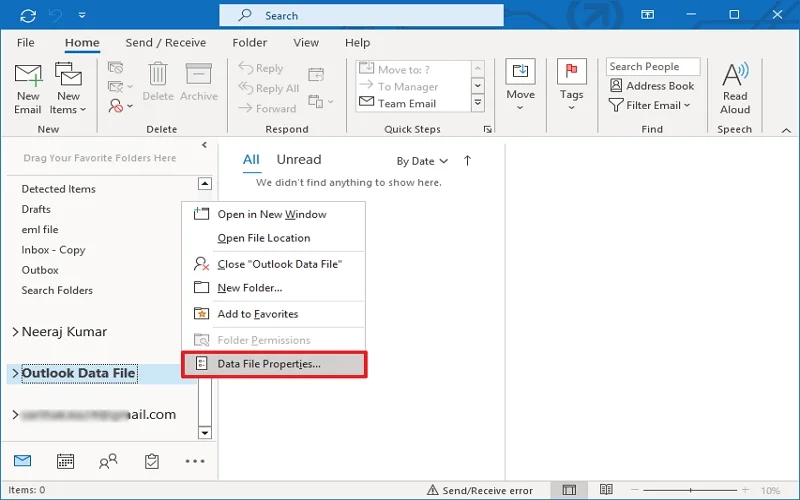
Step 6. Tap on Advanced and choose the Change Password button.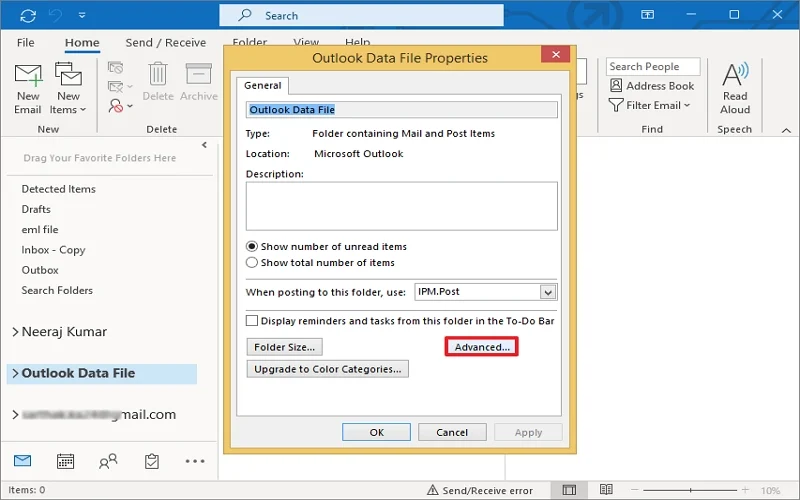
Now, enter the old password and skip to add the new one. Click OK.
This will remove the password from your PST file, and you can access its contents. Make sure to keep a backup of the file once you have access to it.
Professional Solution to Unlock Password-Protected Outlook PST files
If the above workarounds didn’t help as expected, then you would need a more reliable fix for the problem. The Outlook password recovery is the best tool you can try to unlock password-protected PST files. It recovers forgotten PST passwords, removes old passwords, and creates a new password for highly encrypted PST files.
Moreover, the easy-to-use interface of this tool makes it a more suitable choice to change/remove password from PST files or to unlock password-protected PST files. The Kernel Outlook Password Recovery tool is highly efficient at recovering long/multilingual passwords and unlocking deeply encrypted passwords without creating any issues like data loss. However, if you want to set a new password for the PST file, then it can also be performed with the same tool.
A few advanced features of the tool are:
- Add a single/multiple PST files of any size.
- Recover passwords for multiple PST files at once.
- Recover long as well as complex passwords with zero data loss.
- Support PSTs encrypted with special and non-English characters.
- Support all Outlook versions PSTs, and runs on major Windows OS.
Conclusion
Here, we have discussed how one can unlock password-protected Outlook PST files easily. We have mentioned two manual methods and an automated solution to unlock password-protected PST without hassle. When the PST file is password-protected, and you don’t remember the password anymore, Kernel Outlook Password Recovery is an absolute savior. Embedded with advanced features & functionalities, the tool also offers facilities like password recovery and reset. You can unlock password-protected PST files (500 MB size) for free using the free trial version. No more hassle if you’ve forgotten the PST file password, download the tool now and make your PST accessible today!!
Frequently Asked Questions
A: No, Microsoft doesn’t provide any specific tool to remove PST files. However, you can use Outlook to unlock password protected PST files if you remember that.
A: You can try the pst19upg utility and Outlook itself to unlock PST file password manually. But, if you want a hassle-free and quick method, prefer using an automated PST password recovery tool.