Read time: 9 minutes
Microsoft Access is a well-known database management system (DBMS) application that provides the tools and interface to create, manage, and interact with databases. MDB (Microsoft Access Database) was the default file format for Microsoft Access until Access 2007. Many older applications and systems still rely on this format.
But sometimes, some users find themselves in a problem when they try to open MDB file. To counter this problem, we will explore all about the MDB file, reasons, and free methods (manual and automated) to open MDB file, respectively. Let’s get started, without any delay!
What is MDB File?
MDB file is a default data file generated by MS Access 2003 and earlier versions, which stands for Microsoft Database. The new file format is ACCDB, which is generated by the latest version of MS Access. These file formats contain complete database queries, tables, functions, etc., that can be linked with other file formats and store data from various files like HTML and XML and applications, such as SharePoint and Excel. Now, let’s explore how to open MDB file?.
Quick Ways to Open MDB Files | 7 Best Solutions
Here are all the possible methods to open MDB files for free. Opt for any solution that works well and shows MDB database content accordingly:
Solution 1: Open MDB File using Microsoft Excel
Using MS Excel to open MDB files is one of the standard solutions opted for by many MS Access users who face difficulty in opening MDB files when MS Access stops working. You can easily open MDB file in Excel by importing the Access Database file into MS Excel, which gets saved in spreadsheet format.
Steps to import MDB data to MS Excel:
Step 1: Start Microsoft Excel on your system.
Step 2: Look for the Data tab located on the main ribbon and click on Get Data.
Step 3: Select the From Database option and select the From Microsoft Access Database option.
Note: This step may vary in every Windows OS and Excel versions.
Step 4: Browse for the MDB file and click Open. Select the table from the database that you desire to add to Excel and click OK.
Solution 2: Open MDB File using Notepad
Yes, the Notepad application has all the abilities to open any text file, document, or file. If the MDB file content is text, then you can easily use the application to open the MDB file.
Solution 3: Open MDB File using Microsoft Visual Studio
Microsoft Visual Studio is an Integrated Development Environment (IDE) provided by Microsoft to develop various computer applications like webpages, web services, web applications, etc. Developers mainly use it to code in computer languages such as C, C++, Python, JavaScript, and many more. This tool enables users to connect to a wide range of databases. One such type of database it supports is Microsoft Access. You can connect to an Access database from Visual Studio by either providing the connection details or by using the Access database file (.accdb file or .mdb file).
Solution 4: Different Tools to Open MDB File
MS Access may be responsible for creating the MDB file that you are trying to open. It is not the only tool that can read this file format. So, you need to switch to other tools that are specifically designed or programmed to view MDB files for free. We checked and found various such tools that you can use to open MDB file without Access:
- Apache OpenOffice Base: It is a database management system and provides all the functionalities required to create, manage, and operate a database. You can use this application in the absence of MS Access to open a .mdb file.
- Oxygen Professional Base: Similar to MS Office, Oxygen Professional Base provides database manipulation and management functions. Oxygen Professional Base has its origins in open-source OpenOffice. It can be used to open the MDB file.
- LibreOffice: LibreOffice is another software that is compatible with Microsoft Office and is open source. You can use this tool to view the contents of your MDB file and further edit or update it as well.
- KEXI: KEXI is an open-source program that enables developers to create visual database applications. It has been considered one of the competitors of MS Access. KEXI can be installed on Windows as well as Linux operating systems.
Solution 5: Open MDB File using Online Viewer
You can search on the Internet for online tools and websites that can effortlessly open MDB files with all their components intact. There are many such online portals available. You will not need to download or install any application on your machine. You need to look for an online tool, and then you can upload your MDB file to the web page to view its contents.
It is to be noted that this will only help you in viewing the contents of the file and not editing or updating it. But, every time you require to view the contents, you will have to go online and upload the MDB file. Also, you need to be cautious about the security of the MDB data.
Solution 6: Open MDB File using Microsoft Access Runtime
Microsoft Access Runtime is another way that can help you open and use MDB files without going for the full Access version. Follow the steps below and save your time and resources now.
- Download and install Microsoft Access Runtime.
- Look for your MDB file and right click on that.
- Tap on “Open With.” Select “Microsoft Access Runtime” from the upcoming options.
Solution 7: Open-Source Database tools
A number of open-source database tools are available that can open MDB files without requiring Microsoft Access. The following are some tools:
- LibreOffice Base: Open MDB files with this open-source database application. A variety of features are available, such as the ability to create and edit database files, to run queries, and to generate reports.
- MDBQuery: You can also query and analyze MDB files using this open-source tool. Using it, you can run SQL queries, view tables and relationships, and export data easily.
- OpenOffice Base: As with LibreOffice Base, OpenOffice Base also supports MDB files. This software can create forms, reports, and queries, among other features.
- MDB Viewer Plus: You can view and edit MDB files without having to install Microsoft Access. The program provides a variety of data sorting and filtering functions, as well as the ability to search for specific records and export them in different formats.
- Access Database Engine: You can work with MDB files without having to download Microsoft Access. In addition, ODBC drivers and tools are provided for importing and exporting data.
Shortcomings of the Above Solutions
- These manual solutions cannot repair or open damaged, corrupted MDB files.
- You can only read or view your MDB data using these approaches.
- You cannot access crucial elements like forms, reports, or macros.
- These solutions cannot handle or access password protected MDB files.
- If any execution goes wrong, then you can face data loss scenarios.
- Some free solutions require technical knowledge, like using commands.
Automated Solution to Open MDB File | Professional Tool
If you have a corrupted MDB file, then you can’t access it using the approaches mentioned above. To fix the issue, you must opt for a professional MDB Viewer tool that deals with recovering corrupt MDB file data hassle-free.
Kernel for Access is an advanced utility to open MDB files, no matter whether the file is healthy or severely corrupted. This tool repairs and recovers all MDB data, including tables, queries, and all other data, including deleted data, in no time.
Other advanced features of the software are:
- It instantly opens all MDB and ACCDB files irrespective of the level of corruption.
- It provides users with two scanning modes- Standard and Template, depending on the density of corruption.
- The tool previews the entire content of the MDB file in the original hierarchy.
- Allows a quick preview of bulk MDB files without any size restrictions.
- Support all versions of MS Access and Windows operating systems.
3 Easy Steps to Open MDB File
Follow the steps mentioned below for opening and recovering MDB files from damaged databases:
Step 1: Download and install Kernel for Access tool. Open it and click Repair.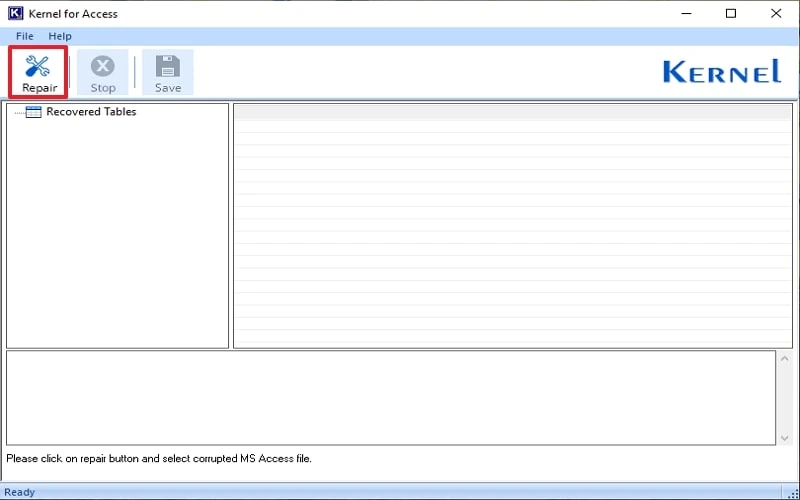
Step 2: Choose between Modes accordingly and tap Browse to add MDB files and click Start Recovery.
Note: You can use Standard Mode to open MDB files. But if you want to open the Template MDB file, which is corrupted, choose Template Mode and provide a Template file.
Step 3: Wait for a while. Your MDB file will be opened successfully. Now, preview and access complete MDB file content.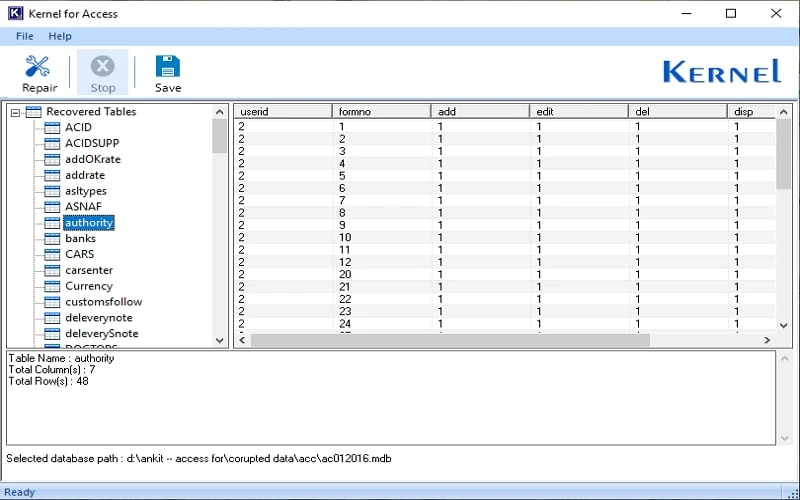
Conclusion
An MDB file is an essential database for MS Access users, whose corruption could affect your productivity badly. In case you need to open MDB file without Access, you can use the above-mentioned options, such as Microsoft Excel, Notepad, and the online viewer tool. However, to open a corrupted MDB file, use the recommended tool and access data without any hassle. If you want to save the recovered data, then upgrade to the Kernel Access Repair tool. It is one of the best and most reliable solutions that will surely help you to prevent Access database corruption and recover complete data with ease.
Frequently Asked Questions
Question: Can I open MDB file without Microsoft Access?
Answer: Yes, you can use several free methods like Microsoft Access Runtime, MDB Viewer Plus, open MDB file in Excel, or online converters to open and view the data.
Question: Can I open MDB file in Access 2016?
Answer: Yes, you can access and open MDB file in Access 2016. However, MS Access 2016 is a paid tool and will charge you a hefty amount just to view your MDB data. Instead of using MS Access 2016, you can rely on recommended solutions.
Question: Why won’t my free viewer open my MDB file?
Answer: The most common reason for not opening an MDB file is corruption. Free viewers are designed for healthy files and don’t have functionality to repair damaged ones.
Question: What if my MDB file is password-protected?
Answer: Many free tools struggle with or cannot open password-protected or encrypted files, limiting your access to the data.
Question: How can I recover and save data from a corrupt MDB file?
Answer: To recover corrupt MDB file data, you need a dedicated repair tool like Kernel for Access Repair.