Read time: 15 minutes
A full Exchange Online mailbox can do more than trigger a storage warning. It can stop users from sending or receiving new messages.So, to fix it, you first need to clearly understand mailbox quotas, when to clean up data, adjust limits, or consider archiving options.
The exact Exchange Online mailbox size limit depends on mailbox type and Microsoft 365 subscription plans. Also, the assigned Microsoft 365 license determines the storage availability.
Here, we will explain the current Microsoft 365 mailbox size limits, how to check mailbox usage, and practical ways to manage Exchange Online mailboxes.
Know Size Limits: Exchange Online Storage by Mailbox Type
Exchange Online limits depend on the Microsoft 365 subscription plans and mailbox type. You can check the table below to see the mailbox limits provided by Microsoft.
| Mailbox Type | Microsoft 365 Basic and Standard | Microsoft 365 Business Premium | Microsoft 365 Enterprise E3/E5 | Office 365 Enterprise E1 | Office 365 Enterprise E3/E5 | Office 365 Enterprise F3 |
|---|---|---|---|---|---|---|
|
User mailboxes |
100 GB |
100 GB |
100 GB |
50 GB |
100 GB |
2 GB |
|
Archive mailboxes |
50 GB |
1.5 TB |
1.5 TB |
50 GB |
1.5 TB |
Not available |
|
Shared mailboxes |
50 GB |
50 GB |
50/100 GB |
50 GB |
50/100 GB |
50 GB |
|
Resource mailboxes |
50 GB |
50 GB |
50 GB |
50 GB |
50 GB |
50 GB |
|
Public Folder mailboxes |
100 GB |
100 GB |
100 GB |
100 GB |
100 GB |
100 GB |
|
Group mailboxes |
50 GB |
50 GB |
50 GB |
50 GB |
50 GB |
50 GB |
How to Check Exchange Online Mailbox Limit Usage?
You can check Exchange Online mailbox usage with the help of New Outlook/OWA, Exchange Admin Center (EAC), and PowerShell commands. Here are complete steps to check Office 365 mailbox size limit usage for all of them.
Method 1. Use New Outlook or OWA to Check Mailbox Usage
Follow the given steps to check the Exchange Online mailbox storage usage directly from Outlook.
Step 1. Launch Outlook and go to File > Settings.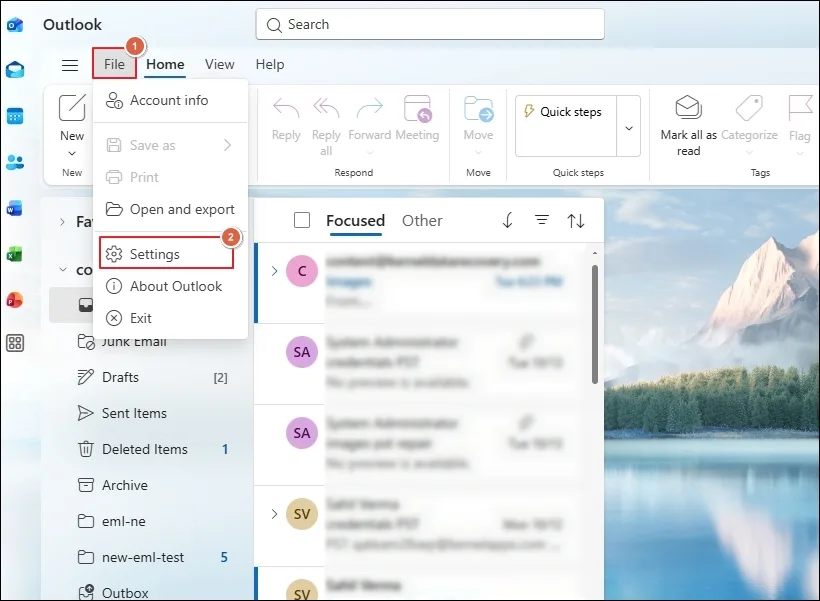
Step 2. Navigate to Account section and proceed to Storage.
Step 3. Review the total storage usage.
Step 4. Scroll down to check the consumed space of each mailbox folder separately.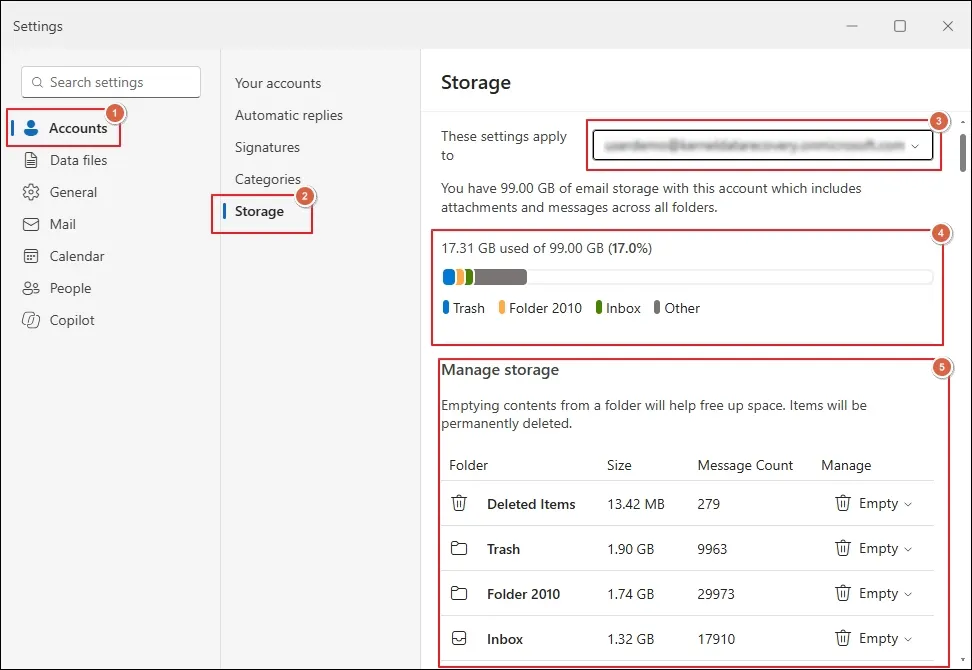
Method 2. Inspect Office 365 Mailbox Usage In Microsoft Admin Center
Here are the detailed steps to track organization-wide Microsoft Exchange Online mailbox limit usage:
Step 1. Log in to Microsoft 365 admin center.
Step 2. Expand the Reports section and go to Usage.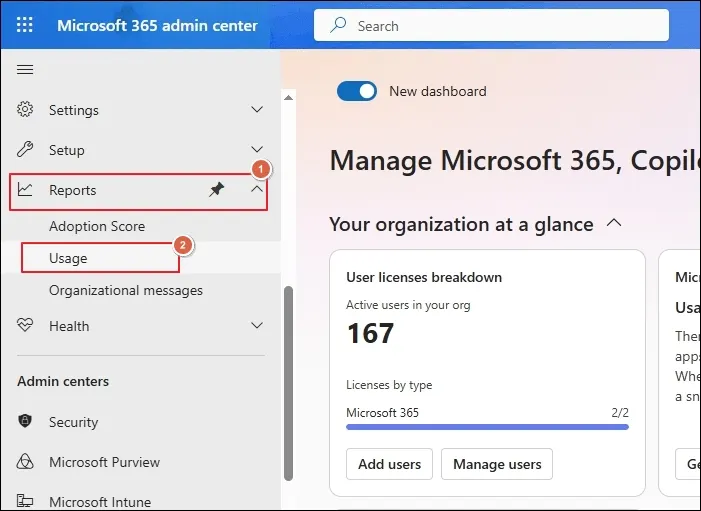
Step 3. Navigate to Mailbox usage tab for a storage overview.
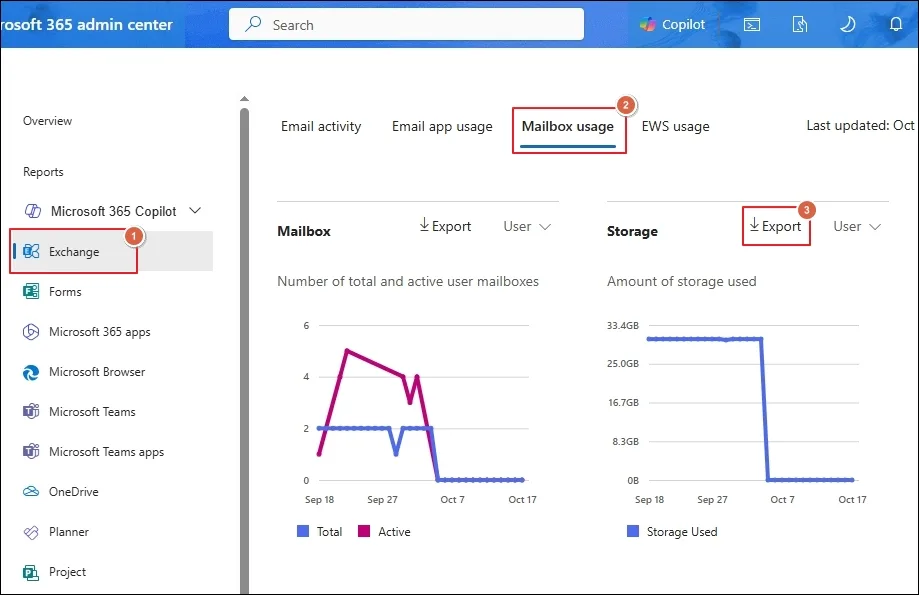
Step 4. Scroll down to check the mailbox’s current Quota status.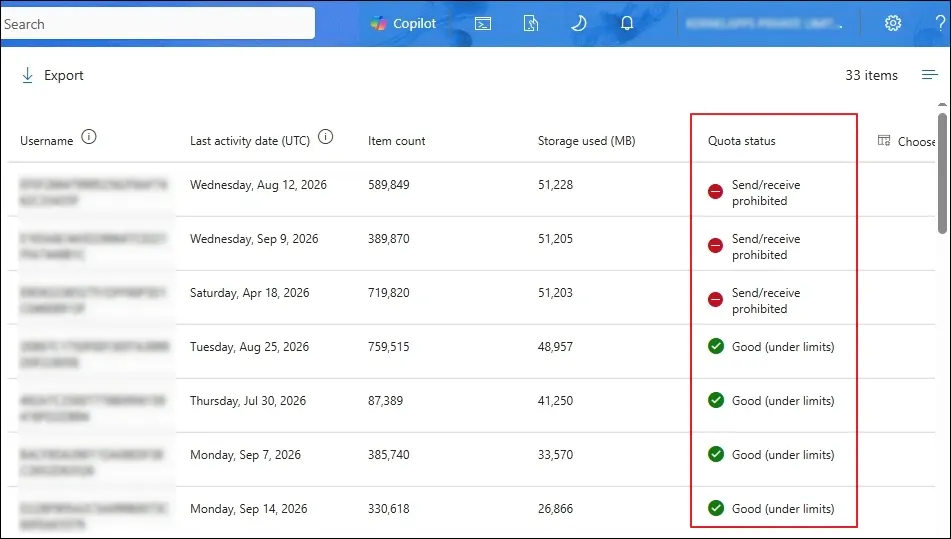
Method 3. Verify Individual Mailbox Usage With Exchange Admin Center
Administrators can inspect the Microsoft 365 mailboxes in EAC using the following steps:
Step 1. Go to the Exchange admin center.
Step 2. Expand Recipients and click on Mailboxes.
Step 3. Select the mailbox and click on it.
Step 4. Locate the General tab and scroll down to view the Mailbox Usage limit.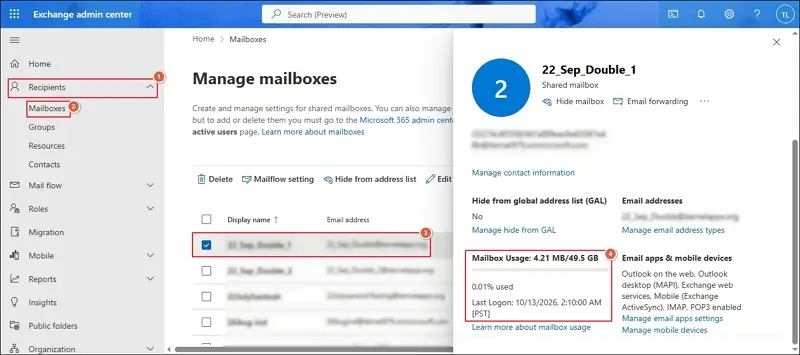
Step 5. Then, go to Mailbox section to inspect the Message size restriction.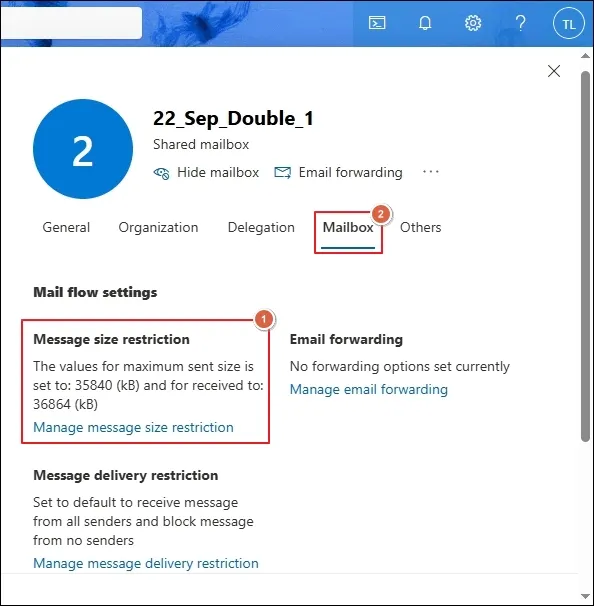
Method 4. Examine Office 365 Mailbox Usage With PowerShell Commands
You can also use PowerShell Commands to identify folders such as Inbox, Sent Items, Deleted Items, or Recoverable Items that consume unusually large amounts of space. Here’s how:
Step 1. Execute the command below to connect to Exchange Online PowerShell.
Connect-ExchangeOnline -UserPrincipalName admin@contoso.com
Step 2. Use the command below to check the signal mailbox usage.
Get-EXOMailboxStatistics -Identity user@contoso.com | Select-Object DisplayName, TotalItemSize, ItemCount
Step 3. You can also verify the individual folders like Inbox, Sent Items, and others, using the provided command.
Get-EXOMailboxFolderStatistics -Identity user@domain.com
Step 4. Run the following command to inspect the archive mailbox.
Get-EXOMailboxStatistics -Identity user@contoso.com -Archive
Step 5. Check all mailbox usage at once using the given command.
Get-EXOMailbox -ResultSize Unlimited | Get-EXOMailboxStatistics | Select-Object DisplayName, TotalItemSize, ItemCount
Step 6. Export the report to a CSV file with this command.
Get-EXOMailbox -ResultSize Unlimited | Get-EXOMailboxStatistics | Select-Object DisplayName, ItemCount, TotalItemSize | Export-Csv C:\Reports\MailboxSizes.csv -NoTypeInformation
Manual Ways to Manage Exchange Online Mailbox Sizes & Limits
To manage Exchange Online mailbox size, first check your mailbox and folder-wise storage usage. Delete unnecessary large messages, review Sent Items and Deleted Items, move important older emails to Online Archive, and investigate Recoverable Items if storage remains full. You can also use Exchange Online PowerShell and archive policies to manage mailbox growth.
Method 1. Enable Mailbox Archiving & Set Retention Policies
Here are the steps to manage older email messages with mailbox archiving and retention policies.
For Online Archive:
Step 1. Go to Exchange admin center > Recipients > Mailboxes.
Step 2. Click on the user mailbox that you want to archive.
Step 3. Navigate to Others section to Manage mailbox archive.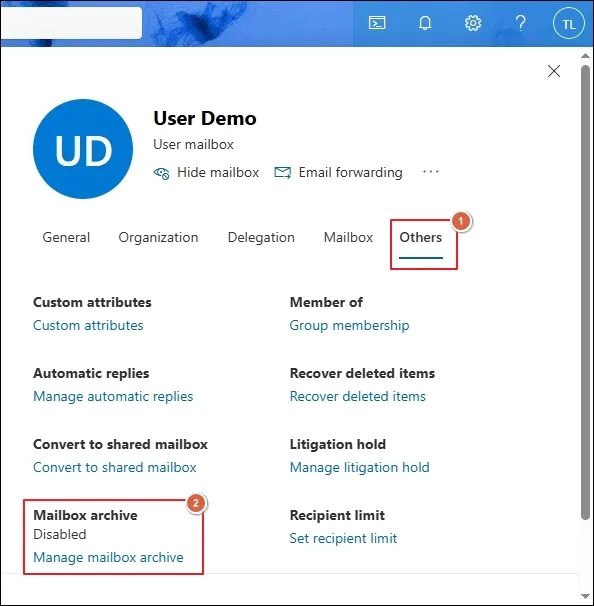
Step 4. Enable mailbox archiving, provide a Name and click Save.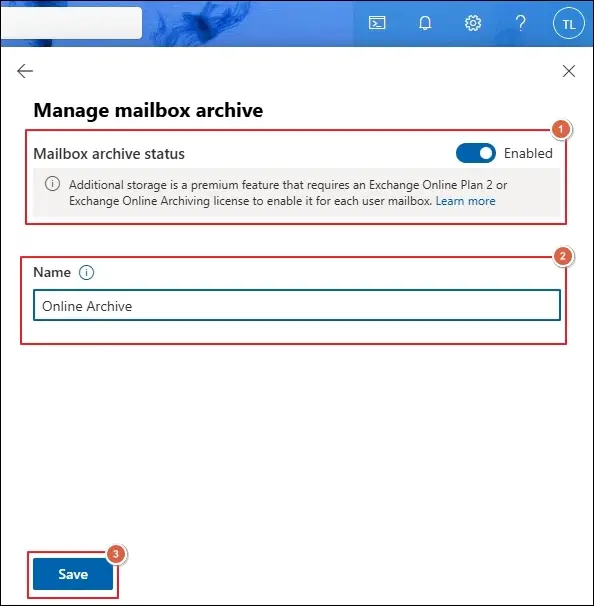
For Auto-Expanding Archive
- You cannot turn on Auto-Expanding Archive after enabling it.
- It takes up to 30 days to provision an additional license.
- Microsoft requires an organization-wide command for hybrid environments.
- You need Global Administrator, Organization Management, and Mail Recipients permissions for the steps below.
Step 1. Open PowerShell and connect to Exchange Online with the command.
Install-Module ExchangeOnlineManagement -Scope CurrentUser
Step 2. Run the following commands to enable auto-expanding archiving for the entire organization or specific user mailboxes.
Organization-Wide:
Set-OrganizationConfig -AutoExpandingArchive
Specific user mailbox:
Enable-Mailbox user@yourdomain.com -AutoExpandingArchive
Step 3. Review the organization settings or individual user mailbox settings with these commands.
To check organization settings
Get-OrganizationConfig | Format-List AutoExpandingArchiveEnabled
To check specific user mailbox settings
Get-Mailbox user@yourdomain.com | Format-List ArchiveStatus,AutoExpandingArchiveEnabled
Step 4. Once completed, disconnect from Exchange Online.
-ExchangeOnline -Confirm:$false
For Retention Policies
Step 1. Access the Microsoft Purview portal to continue.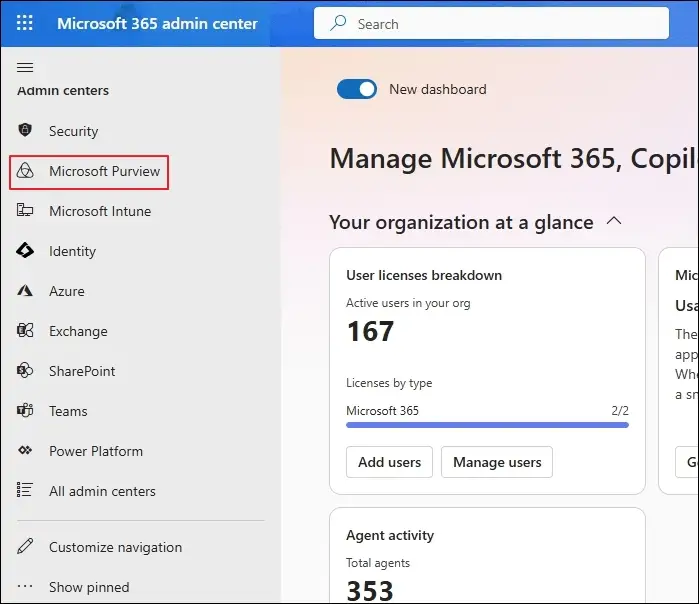
Step 2. Click on Solutions and proceed with Data Lifecycle Management.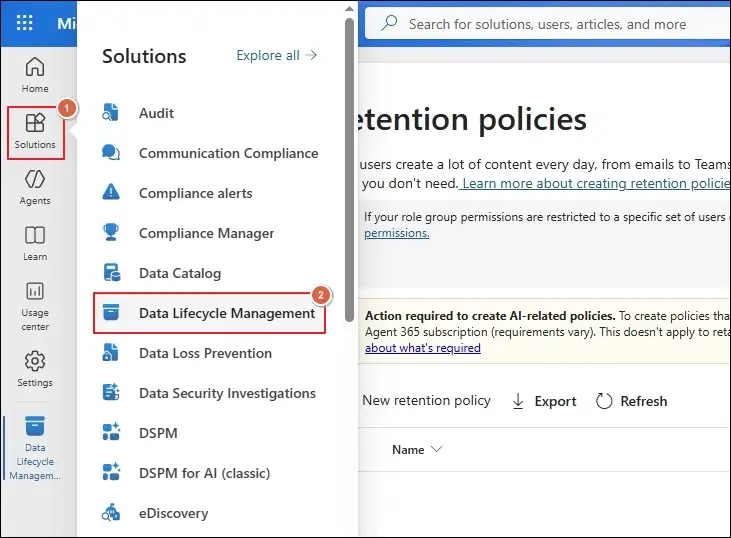
Step 3. Navigate to Policies > Retention policies.
Step 4. Create a New retention policy to begin.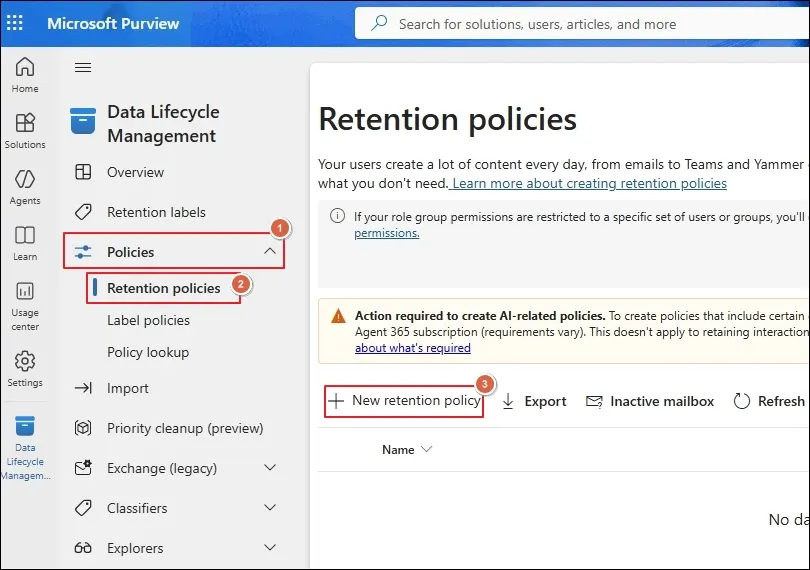
Step 5. Enter the Name & Description and click Next.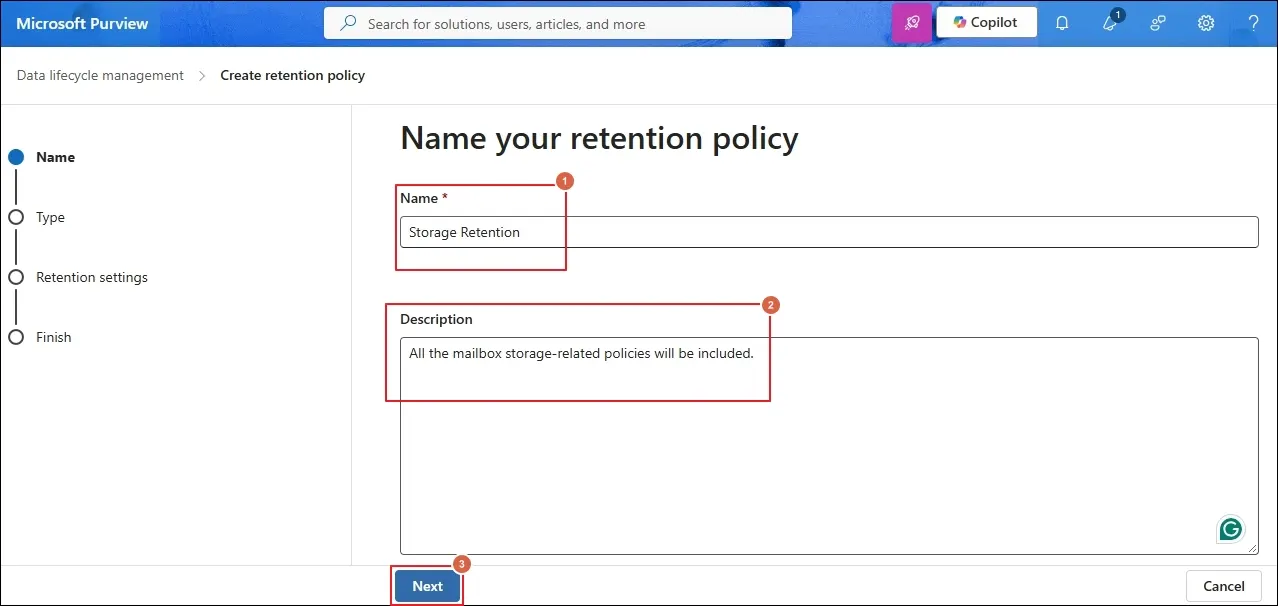
Step 6. Choose between Adaptive or Static type and tap Next.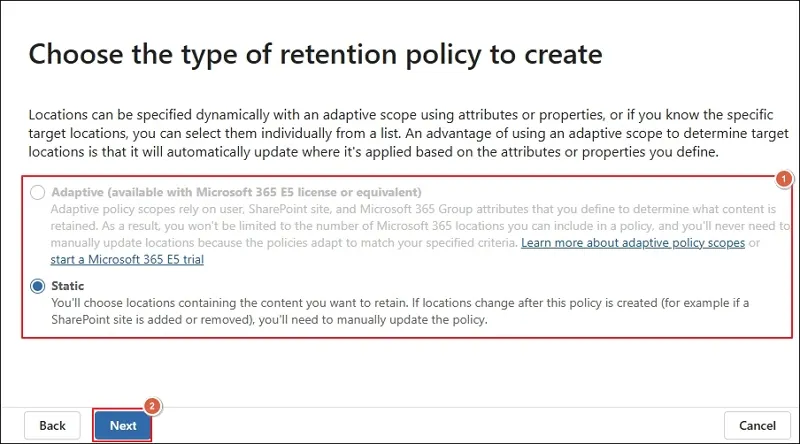
Step 7. Turn On the toggle for Exchange mailboxes and click Next.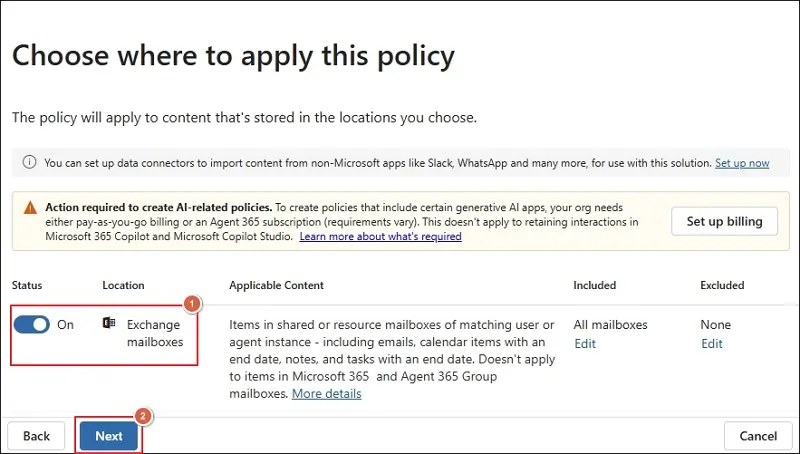
Step 8. Retain, archive, or delete data as needed. Then, proceed to Next.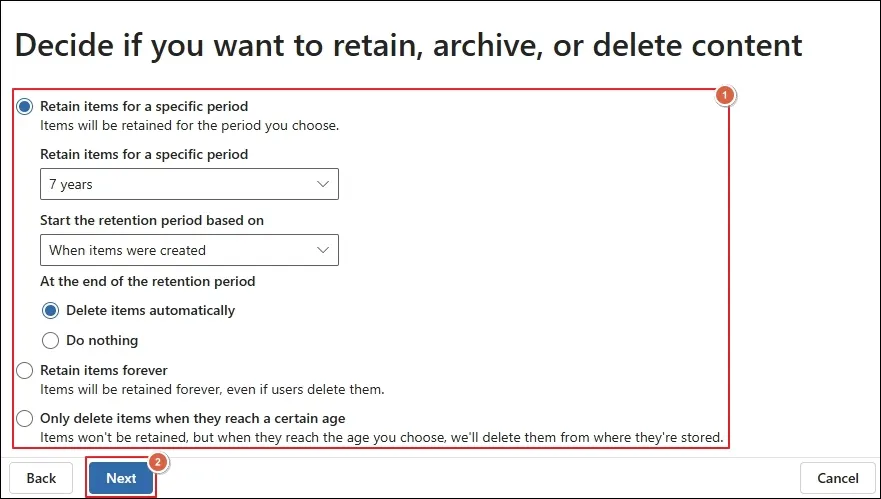
Step 9. Review the created policy and click Submit to apply.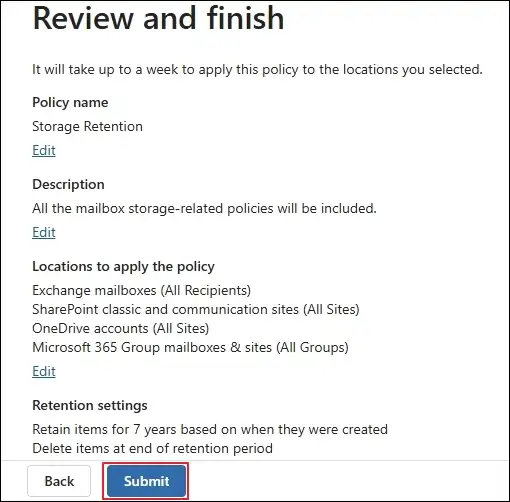
Method 2. Manage Message Sizes and Restrictions
Follow the given steps to manage mailbox sizes and restrictions.
To manage message size
Step 1. Go to Exchange admin center > Recipients > Mailboxes.
Step 2. Select the required mailbox to proceed.
Step 3. Locate the Mailbox tab and click on Manage message size restriction.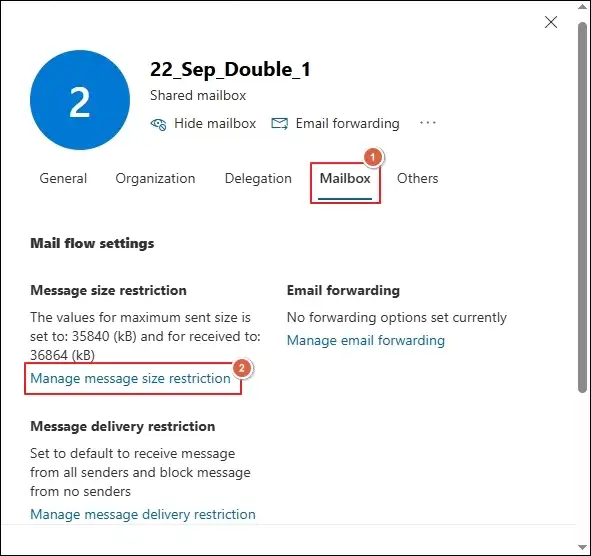
Step 4. Set the Message size restrictions as needed and click Save.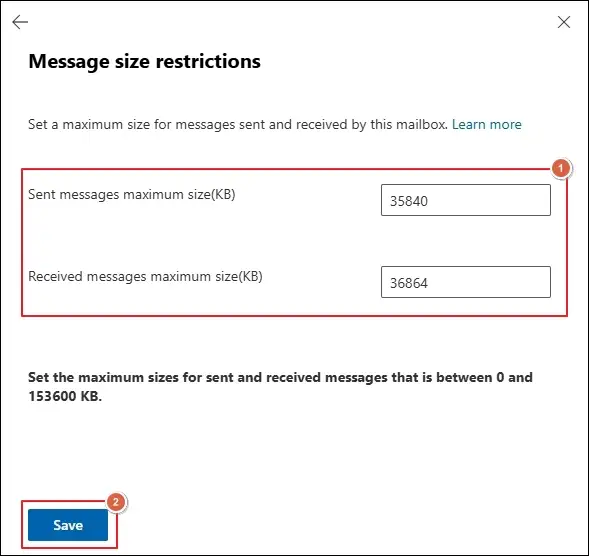
To manage message delivery restrictions
Step 1. Navigate to Mailbox > Manage message delivery restriction.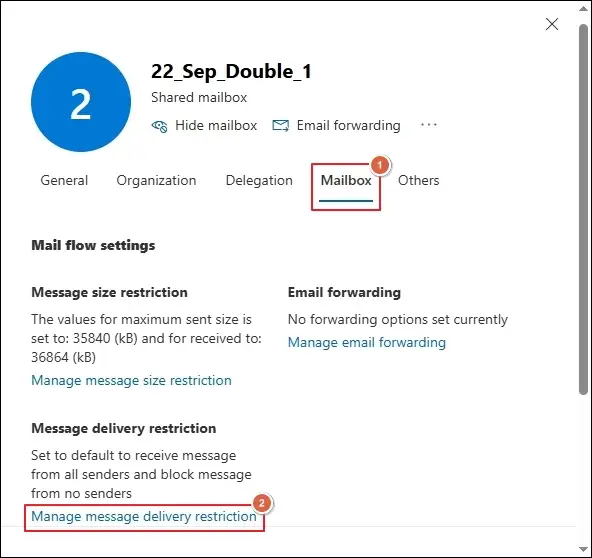
Step 2. Choose the applicable settings and click Save.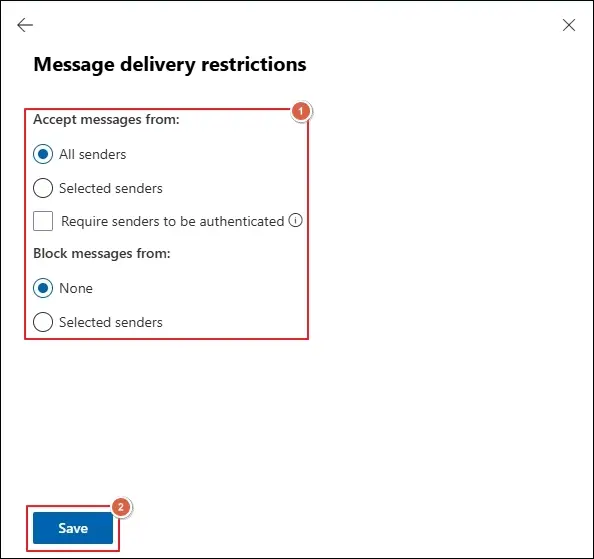
Method 3. Customize Mailbox Quotas Using PowerShell
To customize Exchange Online mailbox sizes using PowerShell, execute the steps below:
Step 1. Exchange Online uses three main quota thresholds to control mailbox storage. They should be configured in ascending order.
- IssueWarningQuota
- ProhibitSendQuota
- ProhibitSendReceiveQuota
Step 2. Connect to Exchange Online with the command below.
Import-Module ExchangeOnlineManagement
Connect-ExchangeOnline -UserPrincipalName admin@yourdomain.com
Step 3. Run the command below to check the current quota settings for the user mailbox.
Get-Mailbox -Identity user@yourdomain.com |
Format-List DisplayName,PrimarySmtpAddress,UseDatabaseQuotaDefaults,IssueWarningQuota,ProhibitSendQuota,ProhibitSendReceiveQuota
Step 4. Execute the following command to customize the mailbox size and quota thresholds for specific user mailboxes.
Set-Mailbox -Identity user@yourdomain.com `
-UseDatabaseQuotaDefaults $false `
-IssueWarningQuota 18GB `
-ProhibitSendQuota 19GB `
-ProhibitSendReceiveQuota 20GB
Step 5. Verify the updated mailbox quotas using this command.
Get-Mailbox -Identity user@yourdomain.com |
Format-List IssueWarningQuota,ProhibitSendQuota,ProhibitSendReceiveQuota
Step 6. You can also customize quotas for all users, department-wise, and selected list mailboxes with these commands:
For all user mailboxes
Get-Mailbox -RecipientTypeDetails UserMailbox -ResultSize Unlimited |
Set-Mailbox -UseDatabaseQuotaDefaults $false `
-IssueWarningQuota 18GB `
-ProhibitSendQuota 19GB `
-ProhibitSendReceiveQuota 20GB
For department-wise mailboxes
$SalesUsers = Get-User -ResultSize Unlimited `
-Filter “Department -eq ‘Sales'”
$SalesUsers | ForEach-Object {
Set-Mailbox -Identity $_.UserPrincipalName `
-UseDatabaseQuotaDefaults $false `
-IssueWarningQuota 18GB `
-ProhibitSendQuota 19GB `
-ProhibitSendReceiveQuota 20GB
For the selected list of mailboxes
$Mailboxes = Get-Content “C:\Temp\MailboxList.txt”
$Mailboxes | ForEach-Object {
Set-Mailbox -Identity $_ `
-UseDatabaseQuotaDefaults $false `
-IssueWarningQuota 18GB `
-ProhibitSendQuota 19GB `
-ProhibitSendReceiveQuota 20GB
Step 7. Check the applied quotas for all users, department-wise, or selected mailboxes; run the given commands.
To check all user mailboxes
Get-Mailbox -RecipientTypeDetails UserMailbox -ResultSize Unlimited |
Format-Table DisplayName,PrimarySmtpAddress,IssueWarningQuota,ProhibitSendQuota,ProhibitSendReceiveQuota -AutoSize
To check department-wise mailboxes
Get-User -Filter “Department -eq ‘Sales'” -ResultSize Unlimited |
ForEach-Object {
Get-Mailbox -Identity $_.UserPrincipalName -ErrorAction SilentlyContinue
} |
Format-Table DisplayName,PrimarySmtpAddress,IssueWarningQuota,ProhibitSendQuota,ProhibitSendReceiveQuota -AutoSize
To check selected mailboxes
$userList = @(
“user1@yourdomain.com”,
“user2@yourdomain.com”,
“user3@yourdomain.com”
)
foreach ($user in $userList) {
Get-Mailbox -Identity $user |
Format-List DisplayName,IssueWarningQuota,ProhibitSendQuota,ProhibitSendReceiveQuota
Step 8. Disconnect from Exchange Online once you check the applied settings.
Disconnect-ExchangeOnline -Confirm:$false
Method 4. Upgrade Your Current Microsoft 365 Plans or Licenses.
If your mailbox needs more storage, consider upgrading to a plan with a higher mailbox limit. Alternatively, add Exchange Online Archiving to an eligible Plan 1 subscription to increase archive storage and enable auto-expanding archiving. Check the Microsoft 365 subscription plans for eligibility and limits.
Method 5. Manage Exchange Mailboxes Using Outlook At the User Level
Here are the steps to clean up mailboxes, sweep unwanted emails, or save large attachments to OneDrive.
To Clean Up Mailboxes
Step 1. Launch Outlook and click on File > Settings.
Step 2. Navigate to Accounts > Storage > Manage storage.
Step 3. Select the mailbox folder and use the Empty dropdown to delete older items.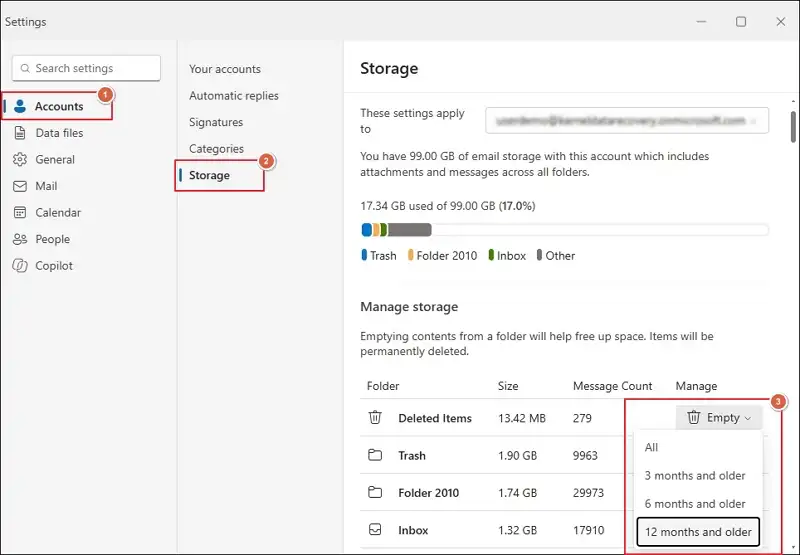
Step 4. Confirm the delete action by clicking OK.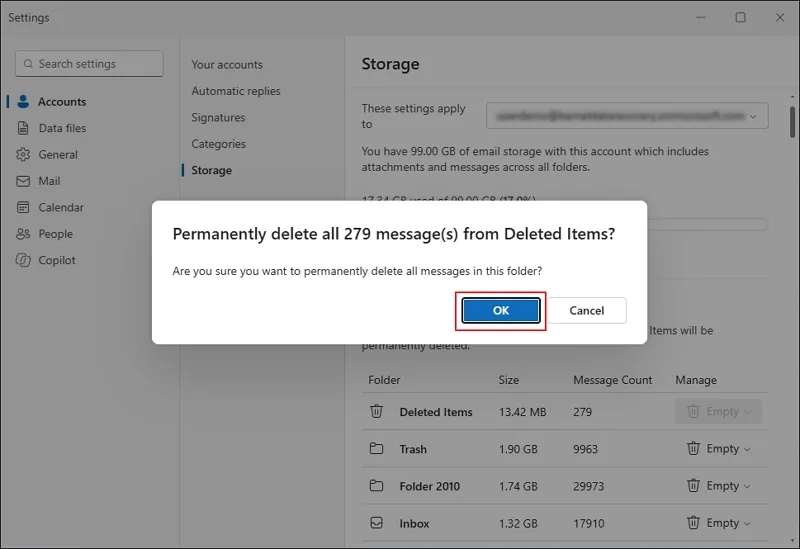
Step 5. It will start emptying the mailbox folder.
To Sweep Unwanted Emails
Step 1. Select the email messages and click the Sweep option.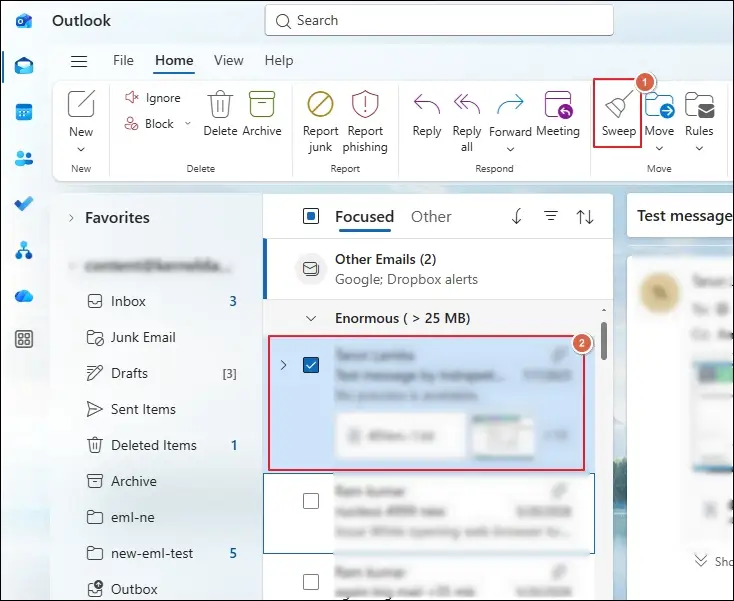
Step 2. Choose the applicable option and click OK.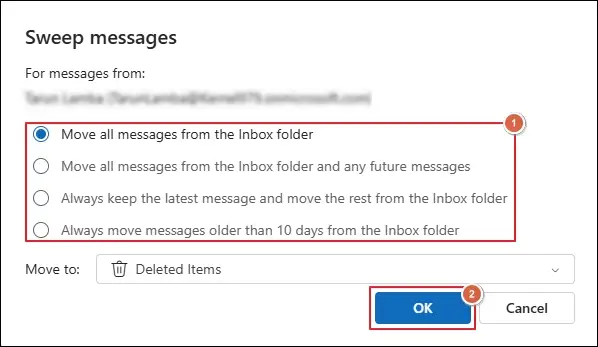
Step 3. It will start the process based on the selected action.
To Save Large Attachments to OneDrive
Step 1. Access the required mailbox folders to Sort emails.
Step 2. Sort email messages using the Size and Largest on top filters.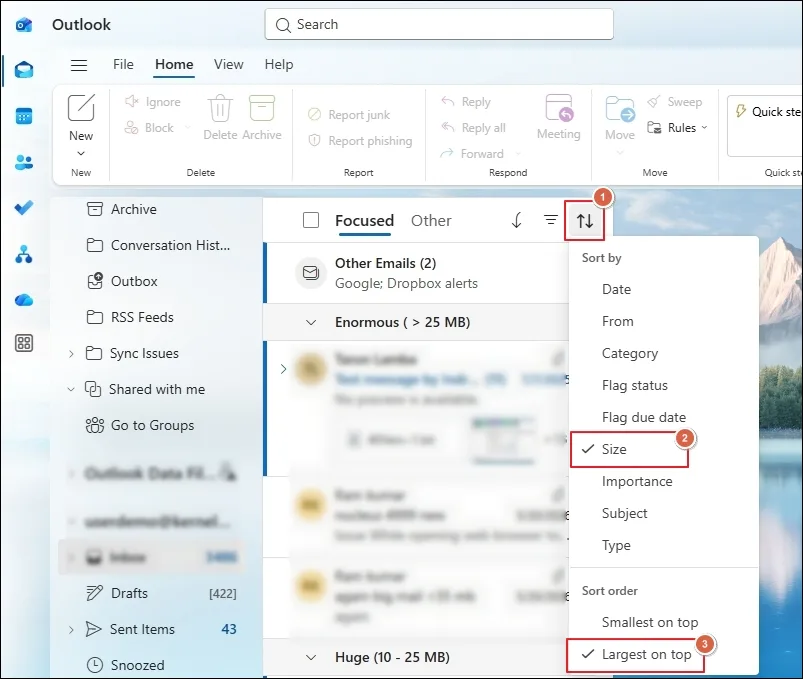
Step 3. Open the email messages and click on the down arrow.
Step 4. Choose the Save to OneDrive option.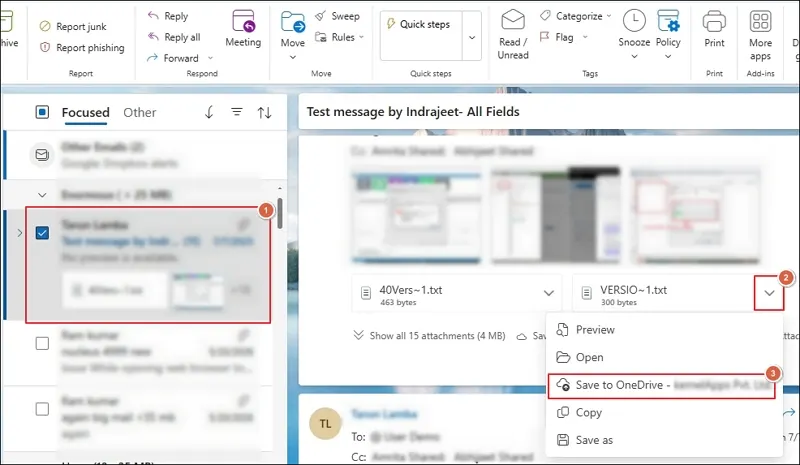
Step 5. Do this for all email messages that contain large attachments.
Step 6. It will save the attachments to OneDrive and help you manage mailbox size.
Do You Want to Keep Mailbox Data Without Consuming Mailbox Storage or upgrading license?
Backing up mailboxes is one of the best ways to manage Exchange Online mailboxes. You can use the eDiscovery tool offered by Microsoft or direct solutions like Kernel Office 365 Backup and Restore tool to backup Exchange Online Mailboxes . The native solutions will be suitable for technical users and, the automated solutions help those users who want to simplify the entire process.
Let’s Recap
Here, we have covered a detailed guide on how to manage Exchange Online mailbox sizes and limits. You can use the provided information to know the Office 365 mailbox limits, check the usage, and use practical ways to manage them.
However, if you want to keep your mailbox data for a longer period, then backing it up is the recommended solution. For this, you can use Microsoft’s native export solution or the suggested one based on your requirements.