Read time 4 minutes
Exchange servers streamline the workflow within the organization as they store crucial data within itself. The issue of corruption is obvious in Exchange Server, which creates the need to regularly migrate the EDB file to different destinations. When you conduct a migration of Exchange Server to another version of Exchange Server or Exchange Online, you need to run the move request to complete the migration.
The Move Request uses many parameters and switches, and each parameter has a dedicated task to complete. One of these parameters is Bad Item List, which sets a limit for bad items during the migration. You can consider a mailbox item as bad when the Move Request shows an inability to migrate it.
What is a BadItemLimit?
A BadItemLimit defines the maximum limit of corrupt/damaged mailbox items that can be skipped during a mailbox migration. The larger or older the mailbox, the higher the chances of corruption or bad items. This will hamper the processing of mailbox transfers. If the number of bad items exceeds the limit, the mailbox migration or move request will fail, and you will face the following errors:
Error 1: This mailbox exceeded the maximum number of corrupted items that were specified for this move request.”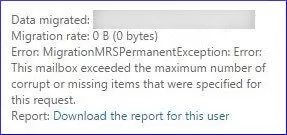
Error 2: A corrupted item was encountered during the move operation. The item wasn’t copied to the destination mailbox.
The error denotes that the number of corrupt items has more than permitted, so you need to update the limit for a smooth migration.
Reason behind receiving the move request error
The primary reason behind the error is the corrupt items in the Exchange Database. The move request will not migrate the bad items and will skip them. But as soon as it reaches the bad items limit, it will show the error instantly. It will also pause the migration process midway. To migrate your Exchange data error-free, you will have to repair EDB files and then run the migration again.
Alternatively, you can also increase the bad item limit, but I recommend not doing it. A higher number of bad items means more corrupt items will be skipped. This could introduce data integrity errors later in your destination Exchange Server.
Run the cmdlet given below to change the bad item limit for the move request if following:
Set-MoveRequest -Identity “MoveRequestID” -BadItemLimit “10”
When the request is executed, it will allow skipping up to 10 corrupt items from the migration. But when the number of items exceeds, it will cause the above error. No default value is set for this parameter, and you can input any number as a bad item limit. Microsoft advises putting a reasonable value of less than 10.
Methods to fix bad item limit error
Before you begin fixing the error, make sure you have a healthy & consistent backup of all users’ mailboxes. You can either use the Exchange built-in export to PST feature or try a professional EDB to PST converter tool for fast bulk mailbox backup. After backup, use these methods to remove the error:
Method 1. Update the move request
When receiving this error, update the move request that you had created earlier. The initial step is to increase the bad item limit in Exchange to a higher acceptable limit. If you increase the limit to more than 50, then you’ll need to use the AcceptLargeDataLoss switch.
Set-MoveRequest -Identity “MoveRequestID” -BadItemLimit “75”
Now, you will not have to face the error up to 75 corrupt database items.
Method 2. Use the ESEUTIL tool
ESEUTIL is a free utility available within the Exchange Server. You can use ESEUTIL tool to determine the corruption and repair it using various switches. You can find the ESEUTIL tool at the following location:
C:\Program Files\Microsoft\Exchange Server\V15\Bin
When you start the ESEUTIL tool, there is a list of switches that can be useful for different jobs:
/D It will defragment the database.
/K It will verify the checksum of the database.
/P It will repair the database.
/R It will restore the database.
/C It will hard recover the database.
/G It will check the integrity of the database.
/M It will show the information of header in files & metadata.
/Y It will allow you to quickly copy a large mailbox database file.
Here is the process that you should follow with the help of ESEUTIL tool:
-
- Run the command
Dismount-Database -Identity “DatabaseName”
It will dismount the database from Exchange Server.
-
- Run the command in ESEUTIL:
ESEUTIL /P “DatabasePath”
It will repair the database and remove all the errors.
- After recovering the database, run the command:
Mount-MailboxDatabase -Identity “DatabaseName”
It will mount the database back to the Exchange Server.
When you have repaired the database, initiate the move request again and now try to migrate the database to a higher version of Exchange or Exchange Online.
How can a specialized Exchange recovery tool help?
The manual methods you read above are useful, but they do not provide any assurance to remove the bad item issue. If the number of corrupt items is more than the new limit, then you will have to face the error again. The ESEUTIL tool not only repairs the database but also deletes the corrupt item rather than restoring it. Therefore, Exchange admins prefer to use advanced tools that are specially developed to handle corrupt Exchange databases.
Use automated software- Kernel for Exchange Server
A top-rated Exchange Server recovery tool, Kernel for Exchange Server can access the database file from its location and fix any corruption. It will work as a one-stop-shop for you to fix all your EDB file errors. You also don’t need to run the move request after recovering the database, as the tool itself can migrate the recovered items to any desired location. It is the best option that you can apply whenever you face a bad item limit error.
Conclusion
To perform smooth migration, it is important to increase the bad item limit in Exchange. In the above article, we have mentioned two of the most effective manual methods to fix corrupt EDB files to migrate afterward. However, the manual methods can only fix minor damage and may not be able to help in case of issues like bad item limit, Exchange error 1018, etc., that are caused due to corruption.
For satisfactory results and to make your EDB files healthy again, you must use a professional Exchange database recovery software. The tool allows you to fix any level of corruption and migrate your EDB files to Exchange On-Premises (any version) or Office 365.
Frequently Asked Questions
Ans. Yes, you can. But to increase the bad item limit more than 50, you need to use a special switch, AcceptLargeDataLoss. However, increasing the limit is not advisable. Instead, you should repair the corrupt Exchange database and then run the migration.
Ans. Each bad item is skipped and not allowed to move from source to destination. This is done by Exchange automatically. The damaged item will still be present in the source server and can be accessed or repaired. But it will not migrate to the destination.
Ans. Manual methods are only capable of fixing small issues like data inconsistency. And if you try hard repair with eseutil/p, it will lead to data loss. The best way to deal with EDB corruption is to take help from a dedicated Exchange recovery tool.